
FUN Intercompany Transaction Upload creates, updates and submits Advanced Global Intercompany System (AGIS) batches from Excel, as they are entered on the Outbound transaction pages of the Intercompany Super User responsibility: the batch with its initiator, the transactions to each recipient, and their initiator and recipient distributions. It downloads existing batches for editing, imports them through Oracle’s Intercompany Import Program with the same validations as the Outbound pages, and returns a result report with the outcome of every row.
When to use it
- Enter a batch of intercompany charges to many recipients in one step, for example a monthly cost recharge.
- Load intercompany transactions prepared in a spreadsheet or another system, with their distribution accounts.
- Correct the batches with status New before they are sent.
- Submit several saved batches for approval at once.
Before you start
- You are signed in to an intercompany responsibility, such as Intercompany Super User, with access to the upload in Blitz Report.
- Your user is assigned to an employee who is an intercompany contact of the initiating organizations. The upload lists and accepts only those initiators.
- Each recipient organization has at least one intercompany contact who can access transactions.
- The intercompany transaction types (Batch Type) are defined and enabled.
Choose a template
The default template is Default.
| Template | Use it for |
|---|---|
| Default (default) | Batches, their transactions and the initiator and recipient distributions, with all columns. |
| Create Batches | An empty sheet for new batches. Upload Mode is locked to Create and the download filters are hidden. |
| Submit New Batches | The batches with status New and their transactions, without the distribution columns, to submit them by setting Submit to Yes. Upload Mode defaults to Create, Update. |
Step 1 – Set the parameters
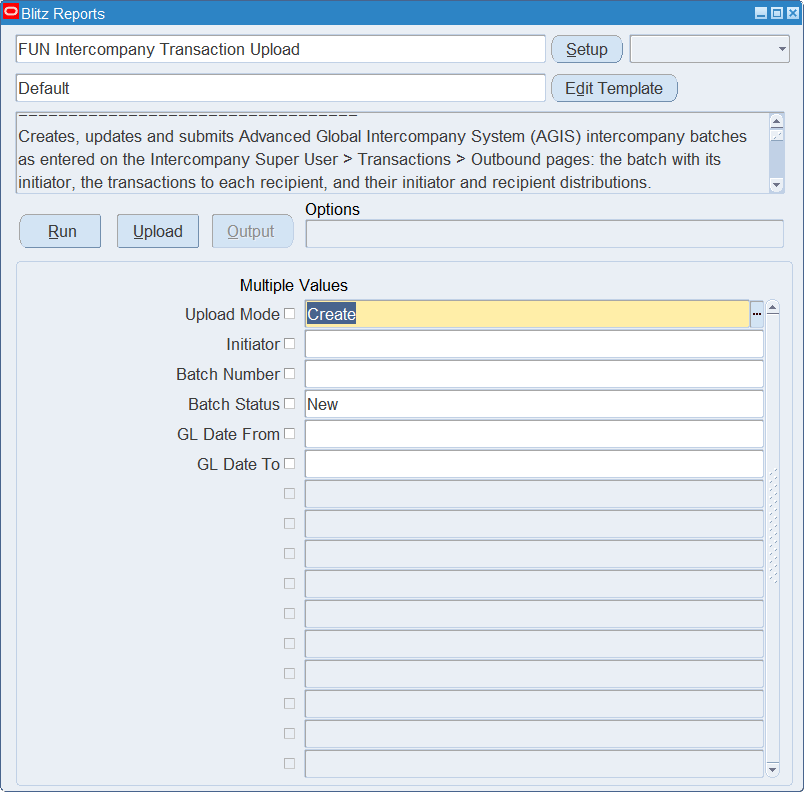
Open FUN Intercompany Transaction Upload in Blitz Report, choose the template and set the parameters. They decide which batches are downloaded.
| Parameter | Meaning |
|---|---|
| Upload Mode | Create (default) gives you an empty sheet. Create, Update also downloads the existing batches with their transactions and distributions. |
| Initiator | Restricts the download to the batches of the initiating organization. The list shows the organizations you are an intercompany contact for. |
| Batch Number | Restricts the download to the batch. |
| Batch Status | Restricts the download to the batches with the status. Defaults to New, the only status in which a batch can be changed or submitted. |
| GL Date From | Restricts the download to the batches with a GL date on or after this date. |
| GL Date To | Restricts the download to the batches with a GL date on or before this date. Defaults to GL Date From. |
Step 2 – Run to download the Excel file
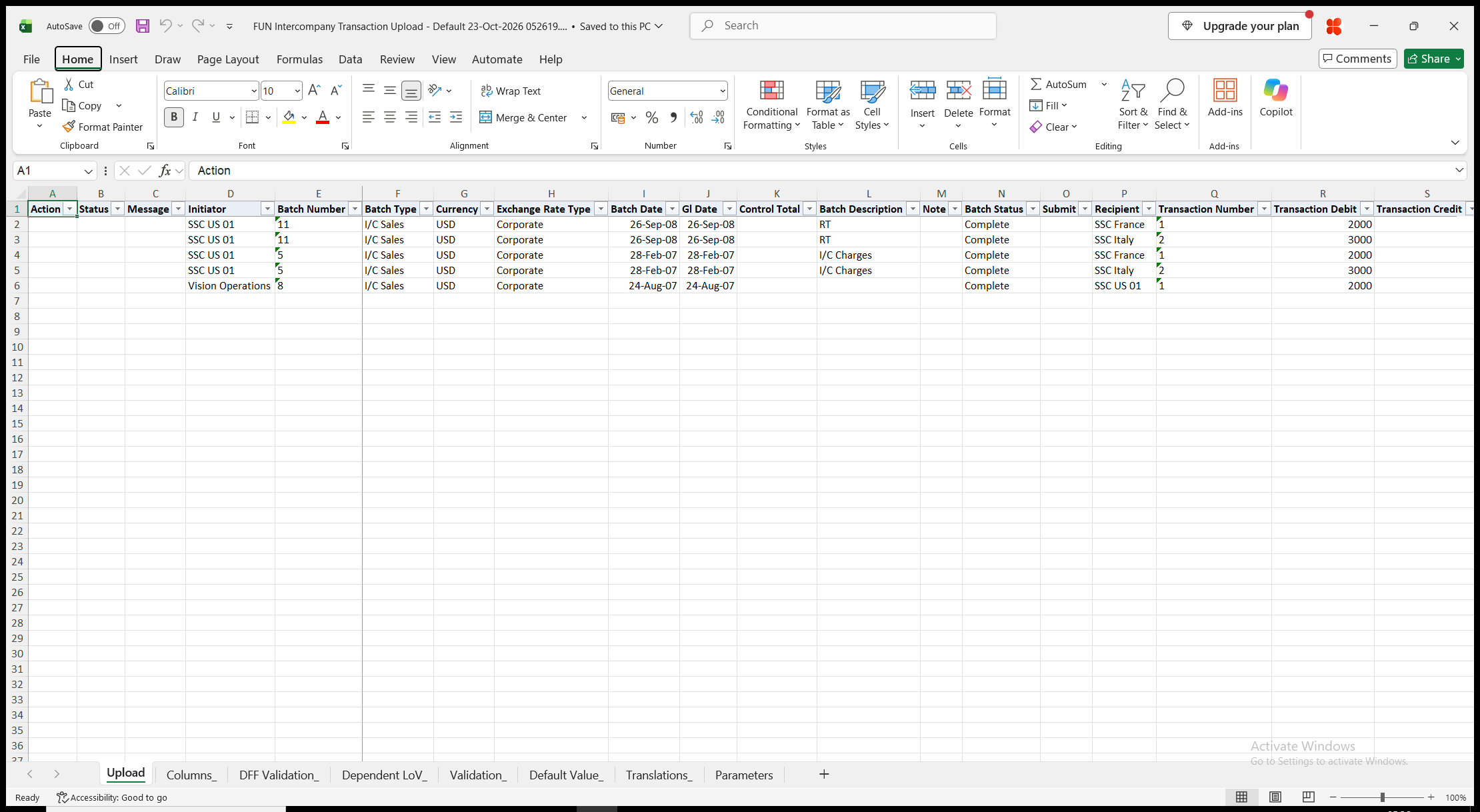
Click Run. With Create, Update, the file has one row per distribution of each transaction: a row carries an initiator distribution, a recipient distribution or one of each, and a transaction without distributions has one row. The batch columns repeat on every row of the batch, the transaction columns on every row of the transaction. Batch Status and Transaction Status are read-only. With Create, the sheet is empty.
Step 3 – Enter the batches, transactions and distributions
Change the downloaded rows, or add rows for new batches, transactions and distributions. Repeat the batch and transaction values on every row that belongs to them; the batch values are taken from the first row of each batch, the transaction values from the first row of each transaction.
- Initiator and Batch Number – rows with the same initiator and batch number form one batch. With automatic batch numbering in the Intercompany System Options, the Batch Number you enter only groups the rows of a new batch, and the batch receives the next number.
- Batch Type, Currency, Exchange Rate Type, Batch Date, Gl Date, Control Total, Batch Description and Note. Currency defaults to the default currency of the Intercompany System Options, or else to the currency of the initiator’s ledger, Exchange Rate Type to the rate type of the system options, and Batch Date and Gl Date to today.
- Recipient and Transaction Number – a transaction of the batch to the recipient. Enter its amount in either Transaction Debit or Transaction Credit, and optionally a Transaction Description.
- Initiator Account with Initiator Debit or Initiator Credit and Initiator Dist Description – a distribution of the initiator. The list shows the accounts of the initiator’s ledger; you can also type the segment values, separated by the segment delimiter of the chart of accounts.
- Recipient Account with Recipient Debit or Recipient Credit and Recipient Dist Description – a distribution of the recipient, in the chart of accounts of the recipient’s ledger.
- Submit – Yes sends the batch when it is imported, which starts the intercompany approval workflow, as the Submit button on the Outbound pages does. Leave it blank to save the batch with status New.
Step 4 – Validate and Save
Click Validate and Save. This checks for missing required values and for values that are not in their lists, checks that Initiator and Recipient differ and that each transaction and distribution has either a debit or a credit amount, marks the rows Valid and saves the file. Correct any rows it flags before uploading.
Step 5 – Upload the file
In Blitz Report click Upload and select the saved file. The upload request loads the rows into the intercompany open interface and runs the Intercompany Import Program for them. Each batch is imported as a whole: when one of its rows is rejected, none of its rows are imported, and the other batches are not affected.
Step 6 – Review the result report
When the request completes, a result report opens listing every uploaded row with its status and a message for its batch, for example Batch 27 created., Batch 27 created and submitted. or Batch 26 updated., or the reasons the import rejected the batch. The result report shows the batch number the batch received and the values as they were saved in Oracle.
What’s produced
- Intercompany batches with their transactions and initiator and recipient distributions, imported by the Intercompany Import Program as the Outbound pages save them. A batch uploaded with Submit Yes is sent and its approval workflow starts.
- Each batch is imported completely or not at all.
- A result report listing every row with a status (success or error) and a message.
Common questions
Which batches can I change?
Only batches with status New. A changed batch is imported again as a whole and replaces the existing batch once the import has accepted it. It keeps its batch number, and the transactions, distributions and descriptive flexfield values that are not in your file are kept.
How do I submit batches I saved earlier?
Use the Submit New Batches template, which lists the batches with status New. Set Submit to Yes on the rows of each batch you want to submit, then validate and upload the file.
Why does my batch have a different number from the one I entered?
Batch numbering is automatic in your Intercompany System Options. The entered Batch Number only groups the rows of the new batch, and the result report shows the number it received.
Can I delete a transaction or a distribution?
No. An updated batch keeps all its transactions and distributions.
Are the distributions checked for balance?
The import checks that the distributions balance when the batch is sent, that is when you upload it with Submit Yes.
Why is an initiator missing from the list?
The list shows only the organizations whose intercompany contact you are, through the employee assigned to your user.
Troubleshooting
| Message | Cause | What to do |
|---|---|---|
| Missing values for required field/s: … | A required column is blank, for example Batch Type or Recipient. | Fill in the columns named. |
| Initiator is invalid | The organization is not an intercompany organization you are a contact of. | Choose the initiator from the list, or ask your administrator to add your employee as an intercompany contact of the organization. |
| The Initiator and Recipient cannot be the same. | The recipient of a transaction is the initiator of the batch. | Choose another recipient. |
| Please enter a value for Transaction Amount that is other than zero. | Transaction Debit and Transaction Credit are both blank or zero. | Enter the transaction amount. |
| Transaction …: You have not entered the required information. Ensure they are entered and click Apply. | Both Transaction Debit and Transaction Credit have an amount. | Enter the amount in one of the two columns. |
| Transaction …: Enter a Debit Amount or a Credit Amount for the distributions. | A distribution has an account but no amount, or both a debit and a credit amount. | Enter the amount in the debit or the credit column of the distribution. |
| Transaction …: Enter a valid initiator distribution account. / Transaction …: Enter a valid recipient distribution account. | A distribution amount has no account, or the account is not a valid combination in the chart of accounts of the initiator’s or recipient’s ledger. The flexfield message follows. | Enter a valid account, or remove the amount. |
| User … is not assigned to an employee and cannot enter intercompany transactions. | Your user has no employee. | Ask your administrator to assign an employee to your user. |
| Batch … has status Submitted. Only batches with status New can be changed. | The batch was already submitted, or has another status than New. | Change the batch on the intercompany pages, or create a new batch. |
| Batch … does not exist. | The downloaded batch no longer exists, for example because it was replaced by an earlier upload of the same file. | Download the batch again and repeat the change. |
| The batch is not imported, as another row of it is in error. | Another row of the same batch was rejected. | Correct the rejected row and upload the batch again. |
| Update the organization assignments for at least one user of … as none of the users assigned to this organization can access transactions and send notifications. | The recipient organization has no intercompany contact who can access transactions. | Ask your intercompany administrator to update the organization’s contacts. |