
ASO Quote Upload creates and updates Oracle Quoting quotes with their lines from Excel. Each quote is saved through the Oracle quote API, which prices the quote and calculates tax as the Quoting form does when a quote is saved, and a result report shows the outcome of every row.
When to use it
- Create many quotes with their lines at once, for example from a proposal prepared in Excel.
- Add, change or delete lines of existing quotes.
- Change quantities, or give manual discounts or surcharges on many lines.
- Change quote headers: name, status, expiration date, salesperson, order type, price list or currency.
Before you start
- You are signed in to a responsibility with access to the operating unit and to the upload in Blitz Report.
- When Quoting security is enabled, you are set up as a resource on the sales team of the quotes you update. The quote API checks your access to each quote.
- The customer accounts, the items (orderable items of the master organization) and the price lists you use exist.
Choose a template
The default template is Default.
| Template | Use it for |
|---|---|
| Default (default) | Quote headers and lines, without the descriptive flexfields. |
| New Quotes | An empty sheet to create new quotes with their lines. Upload Mode is locked to Create and the download filters are hidden. |
| Price Adjustment | The line quantities and prices of existing quotes, to change quantities or apply a manual price adjustment. |
| Flexfields | All columns, including the quote header and line descriptive flexfields. |
Step 1 – Set the parameters
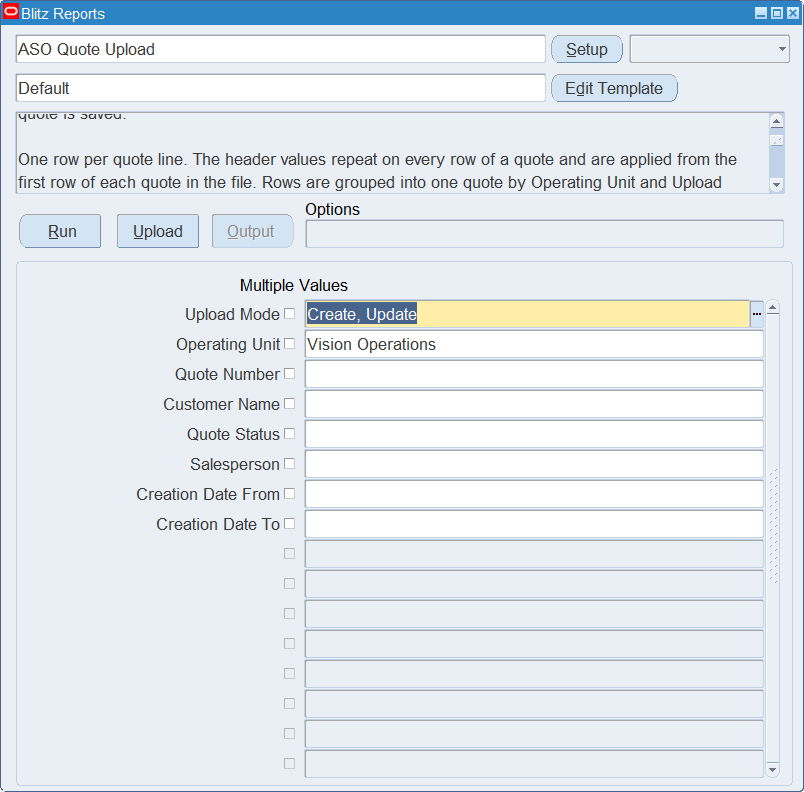
Open ASO Quote Upload in Blitz Report, choose the template and set the parameters. They decide which quotes are downloaded.
| Parameter | Meaning |
|---|---|
| Upload Mode | Create gives you an empty sheet. Create, Update (default) also downloads the existing quotes with their lines. |
| Operating Unit | The operating unit of the quotes. Defaults to your default operating unit and is also the operating unit of new rows. |
| Quote Number | Restricts the download to the quote. |
| Customer Name | Restricts the download to the quotes of the customer. |
| Quote Status | Restricts the download to the quotes in the status. |
| Salesperson | Restricts the download to the quotes of the salesperson. |
| Creation Date From, Creation Date To | Restrict the download to the quotes created in the date range. |
Step 2 – Run to download the Excel file
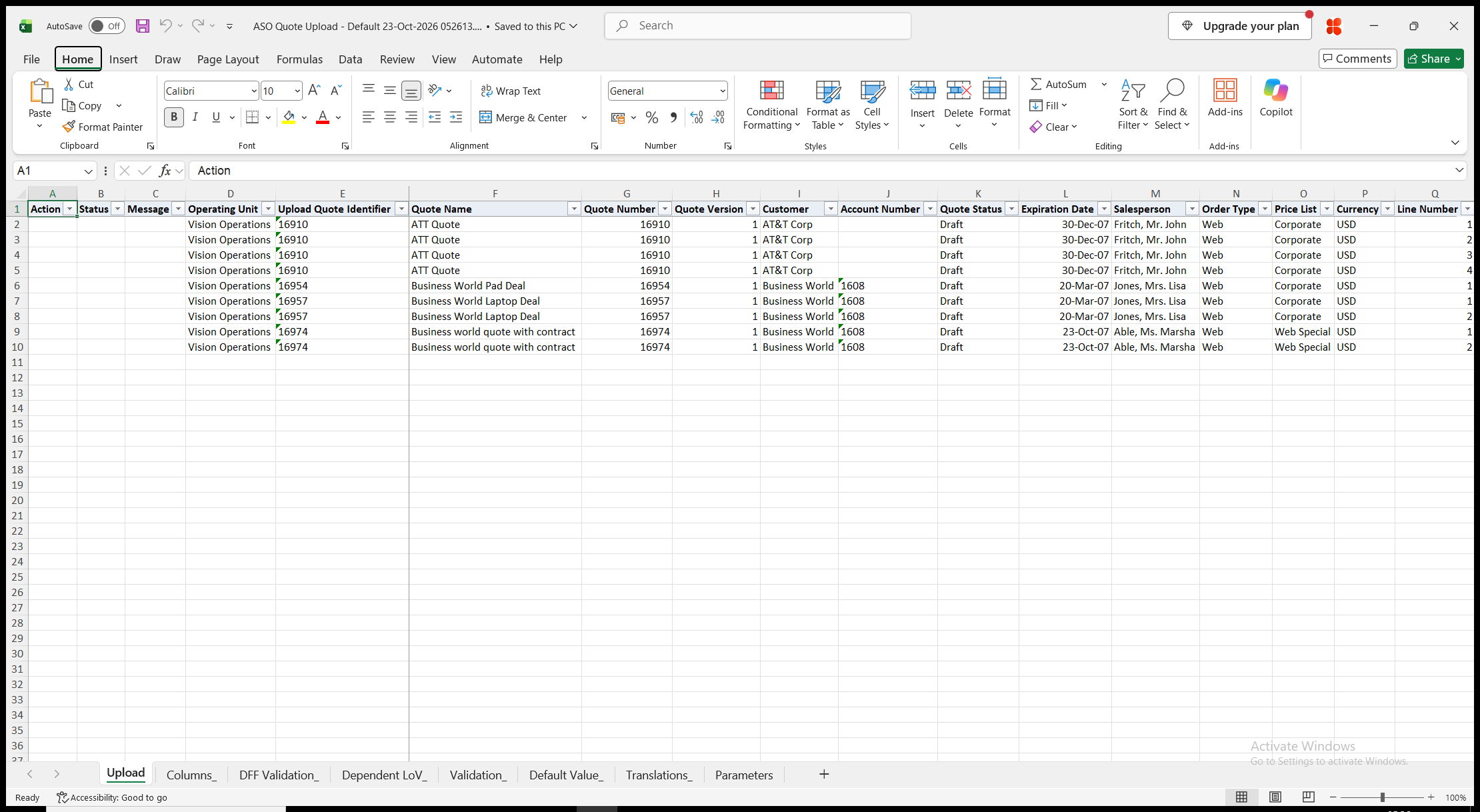
Click Run. With Create, Update, the file has one row per quote line, for the latest version of the quotes in statuses that allow updates. The header columns repeat on every row of the quote, and a quote without lines has one row. Operating Unit, Quote Number, Quote Version, Customer, Account Number, Line Number, Item Description, Unit List Price, Unit Adjustment and Total Price are read-only. With Create, the sheet is empty.
Step 3 – Enter the quotes and lines
Change the downloaded rows, or add rows for new quotes and lines. Enter one row per quote line and repeat the header values on every row of the quote; they are applied from the first row of each quote in the file.
- Upload Quote Identifier – groups the rows into one quote: the quote number for an existing quote, any text such as new1 or new2 for a new quote.
- Account Number – required for a new quote. Customer shows the name of the account.
- Quote Name – when blank, a new quote is named Quote for and the customer name.
- Quote Status (the current status and the statuses it can change to), Expiration Date, Salesperson, Order Type, Price List and Currency, which defaults to the currency of the quote or of the operating unit’s ledger.
- Item, Quantity and UOM, which defaults to the primary unit of measure of the item. A row without an item creates or updates the quote header only.
- Unit Adjustment Percent – sets the selling price as a percentage of the Unit List Price: negative for a discount, positive for a surcharge.
- Unit Selling Price – overrides the price calculated by the pricing engine with a manual adjustment. When you change both, Unit Selling Price is applied.
- Delete Line – Yes removes the line from the quote.
Step 4 – Validate and Save
Click Validate and Save. This checks for missing required values and for values that are not in their lists, marks the rows Valid and saves the file. Correct any rows it flags before uploading.
Step 5 – Upload the file
In Blitz Report click Upload and select the saved file. The upload request processes the rows in order. Each row is saved or rejected on its own, and the quote is priced and its tax calculated with every change. When the first row of a new quote is rejected, the quote is not created and its other rows are rejected too.
Step 6 – Review the result report
When the request completes, a result report opens listing every uploaded row with its status and a message, for example Quote created. Line created., Line updated., Line deleted. or No change., or the reason the row was rejected. The result report shows the quotes as they were saved in Oracle, including the quote number of new quotes and the prices calculated by the pricing engine.
What’s produced
- Quotes and quote lines, priced and with tax calculated as when a quote is saved in the Quoting form. An update does not create a new quote version.
- Each row is saved or rejected on its own. A row that fails leaves nothing behind and does not affect the other rows.
- A result report listing every row with a status (success or error) and a message.
Common questions
How do I create a quote with several lines?
Enter the same Upload Quote Identifier, for example new1, on every row of the quote, with the header values on its first row. The result report shows the quote number Oracle assigned.
Does an update create a new quote version?
No. The quote is updated in its current version.
How do I give a discount on a line?
Enter a negative Unit Adjustment Percent, for example -10, or enter the Unit Selling Price you want. Both are stored as a manual price adjustment.
Can I change the item of a line or the customer of a quote?
No. Delete the line and add a new one for another item. The customer account of an existing quote cannot be changed.
Who is the salesperson of a new quote?
The salesperson you enter. When Salesperson is blank, the quote takes the salesperson record of your user.
Which quotes can I update?
The latest version of quotes in a status that allows updates. Quotes in other statuses are not downloaded and are rejected on upload.
How do I enter descriptive flexfield values?
Use the Flexfields template. Its attribute columns show the segment prompts of your flexfield setup.
Troubleshooting
| Message | Cause | What to do |
|---|---|---|
| Missing values for required field/s: … | A required column is blank, for example Upload Quote Identifier. | Fill in the columns named. |
| Quote number … does not exist in this operating unit. Use a non-numeric Upload Quote Identifier such as new1 to create a new quote. | A numeric Upload Quote Identifier is taken as a quote number. | Use the number of an existing quote, or text such as new1 for a new quote. |
| Account Number is required to create a quote. | The first row of a new quote has no Account Number. | Enter the customer account. |
| The quote was not created, see the error of the first row of Upload Quote Identifier …. | The first row of the new quote was rejected. | Correct the first row and upload the quote again. |
| Quote … cannot be updated in status …. | The quote is in a status that does not allow updates. | Change the quote in the Quoting form, or create a new quote. |
| The customer account of an existing quote cannot be changed. | Account Number was changed for an existing quote. | Restore the account, or create a new quote for the other customer. |
| The product of an existing quote line cannot be changed. Delete the line and add a new one. | Item was changed on a downloaded line. | Restore the item, set Delete Line to Yes and add a new row for the other item. |
| Quote line … does not belong to quote …. | A downloaded line was moved to another Upload Quote Identifier. | Restore the Upload Quote Identifier of the line. |
| Quantity must be greater than zero. | Quantity is blank on a new line, or zero or negative. | Enter a positive quantity, or delete the line. |
| Unit Selling Price or Unit % Adjustment cannot be cleared. | Unit Selling Price or Unit Adjustment Percent was cleared on an existing line. | Enter a value instead of clearing the cell. |
| Delete Line applies to an existing quote line only. | Delete Line is Yes on a row without an existing line. | Clear Delete Line. |
| Quote flexfield: … / Line flexfield: … | A descriptive flexfield value is not valid. | Correct the flexfield value named. |
| Other messages | The Oracle quote API rejected the change, for example because you have no access to the quote. | Correct the cause named in the message, or ask to be added to the sales team of the quote. |