
AP Expense Report Upload creates and updates Payables expense reports from Excel, the way the Expense Reports window does, and transfers them to Payables invoices with Expense Report Export. It downloads expense reports with their lines for editing, saves each expense report with the validations and defaults of the form, and returns a result report with the outcome of every row.
When to use it
- Enter many expense reports at once, one row per expense line.
- Correct accounts, tax codes, receipt details or project information on expense reports before they are transferred to Payables.
- Add, renumber or delete lines of expense reports that are not yet exported.
- Put expense reports on hold, or release them, before the export.
- Create the Payables invoices for the uploaded expense reports in the same step.
Before you start
- You are signed in to a Payables responsibility with access to the operating unit and to the upload in Blitz Report.
- The expense report templates and their expense items are defined in Payables.
- The employees have a default expense account, or you enter the Gl Account of the expense report.
- For a foreign currency expense report, daily rates exist for the exchange rate type, unless you enter a rate of the User type.
- The upload works on the expense reports entered in Payables. Expense reports from Internet Expenses are not downloaded and cannot be changed with it.
Choose a template
The default template is Default.
| Template | Use it for |
|---|---|
| Default (default) | Expense reports and their lines with all columns, without the descriptive flexfields. |
| New Expense Reports | An empty sheet for new expense reports, one row per expense line, with the columns of the Expense Reports window. Upload Mode is locked to Create and the download filters are hidden. The line account defaults from the employee and the expense item. |
Step 1 – Set the parameters
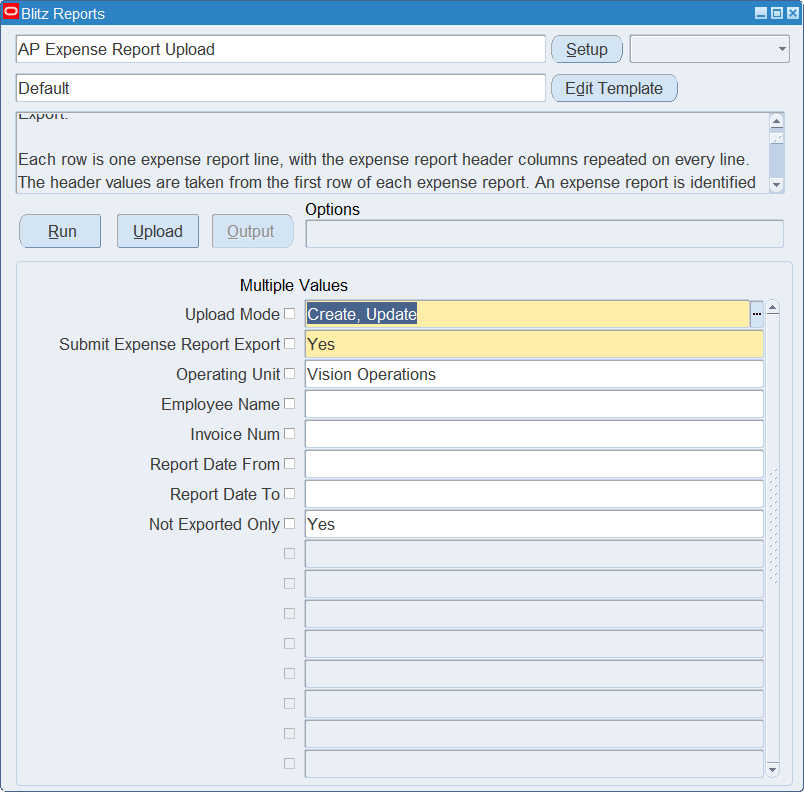
Open AP Expense Report Upload in Blitz Report, choose the template and set the parameters. They decide which expense reports are downloaded and whether the Payables invoices are created.
| Parameter | Meaning |
|---|---|
| Upload Mode | Create gives you an empty sheet. Create, Update (default) also downloads the existing expense reports with their lines. |
| Submit Expense Report Export | Yes (default) runs Expense Report Export after the upload, which creates the Payables invoices. No saves the expense reports only. |
| Operating Unit | Restricts the download to the operating unit. Defaults to your default operating unit and is also the operating unit of new rows. |
| Employee Name | Restricts the download to the expense reports of the employee. |
| Invoice Num | Restricts the download to the expense reports with this invoice number. |
| Report Date From, Report Date To | Restrict the download to expense reports with a Report Date in the range. |
| Not Exported Only | Yes (default) leaves out the expense reports already transferred to Payables. |
Step 2 – Run to download the Excel file
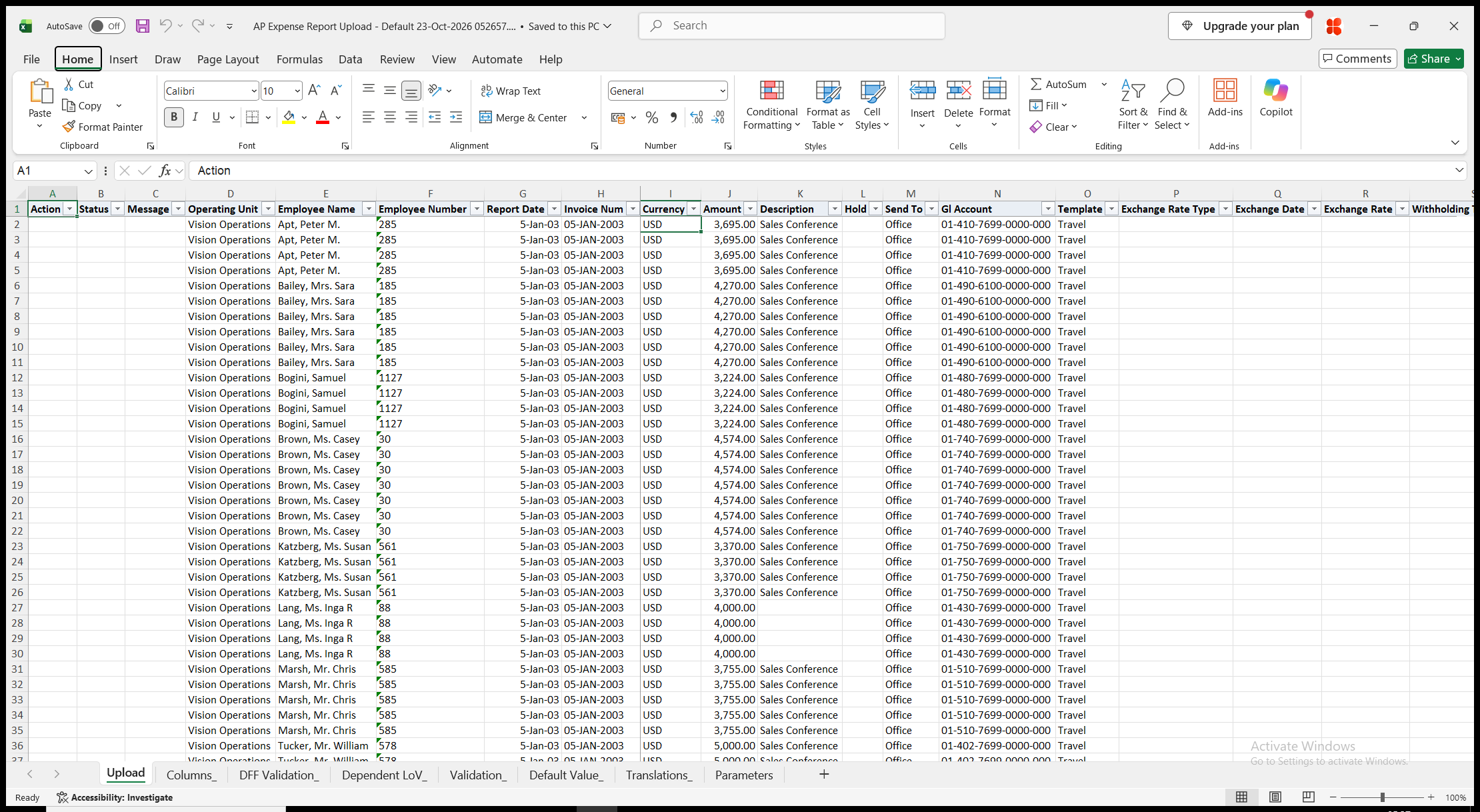
Click Run. With Create, Update, the file has one row per expense report line, and an expense report without lines has one row. The header columns, from Operating Unit to Export Rejection, repeat on every line of the expense report. Operating Unit, Employee Name and Employee Number cannot be changed on downloaded rows, and Exported, Export Rejection and Receipt Amount are read-only. With Create, the sheet is empty.
Step 3 – Enter the expense reports and lines
Change the downloaded rows, or add rows for new expense reports and lines. An expense report is identified by its employee and Invoice Num, so repeat the header values on every line of the expense report. The header values are taken from the first row of each expense report.
- Operating Unit, Employee Name, Report Date, Invoice Num, Currency and Template are required. Employee Number identifies the employee when several employees share the same name. The invoice number is unique per employee, and the template determines the expense items of the lines.
- Amount – the control total of the expense report. Leave it unchanged to set it to the total of the lines. An entered amount must equal the total of the lines.
- Description, Hold and Send To (Home or Office, defaults from the employee). Expense Report Export does not transfer an expense report on hold.
- Gl Account – defaults from the employee’s default expense account. The account of each line defaults from it, overlaid with the account segments of the expense item.
- Exchange Rate Type, Exchange Date and Exchange Rate for a foreign currency expense report. The exchange date defaults to the report date, and the rate is required for the User rate type and derived from the daily rates otherwise.
- Withholding Tax Group – defaults from the employee’s supplier.
- Line Number – identifies the line within the expense report. Leave it blank on a new line to add it as the next line number.
- Item and Line Amount are required on every line. The item is an expense item of the template. Line Gl Account, Tax Code and Line Withholding Tax Group default from the expense report and the expense item.
- Merchant Name, Merchant Document Number, Merchant Tax Reg Number, Merchant Taxpayer Id, Country Of Supply, Reference and Justification.
- Receipt Date (defaults to the report date), Receipt Currency (defaults to the currency of the expense report) and Receipt Exchange Rate, which is required when the two currencies differ. Receipt Amount is derived from the line amount and the receipt exchange rate.
- Receipt Verified, Receipt Required and Receipt Missing – Yes or blank.
- Project, Task, Expenditure Type and Expenditure Organization are entered together for a project related line. Expenditure Item Date defaults to the receipt date.
- Delete Line – Yes deletes the line from the expense report.
Step 4 – Validate and Save
Click Validate and Save. This checks for missing required values and for values that are not in their lists, marks the rows Valid and saves the file. Correct any rows it flags before uploading.
Step 5 – Upload the file
In Blitz Report click Upload and select the saved file. The upload request processes the file by expense report. Each expense report is saved as a whole: when any of its rows fails, none of its rows are saved. With Submit Expense Report Export set to Yes, the request then runs Expense Report Export for the operating units of the uploaded expense reports.
Step 6 – Review the result report
When the request completes, a result report opens listing every uploaded row with its status and a message naming what was created, updated or deleted, for example Expense report created. Line 1 created., followed by the number of the Payables invoice when Expense Report Export has transferred the expense report, or the reason the row was rejected. Rows of an expense report that the export did not transfer, because it was rejected or is on hold, show the reason as an error; correct the expense report and upload it again. The result report shows the values as they were saved in Oracle.
What’s produced
- Expense report headers and lines in Payables, saved with the validations and defaults of the Expense Reports window.
- With Submit Expense Report Export set to Yes, the Payables invoices that Expense Report Export creates.
- Each expense report is committed as a whole. An expense report with a failing row leaves nothing behind and does not affect the other expense reports.
- A result report listing every row with a status (success or error) and a message.
Common questions
Why did Expense Report Export transfer expense reports that were not in my file?
As in Payables, it transfers every expense report pending export in the operating unit. Set Submit Expense Report Export to No to save the expense reports only and run the export later.
Can I change an expense report that has been transferred to Payables?
No. Exported is Yes for such an expense report, and it cannot be changed. Keep Not Exported Only set to Yes to download only the expense reports you can change.
How do I add lines to an existing expense report?
Add rows with the employee, Invoice Num and the other header values of the expense report, and leave Line Number blank to add each line as the next line number.
How do I change the header of an expense report?
Change it on the first row of the expense report. The header values are taken from that row.
Can I delete an expense report?
No. Delete Line removes single lines; the expense report itself stays.
How is the account of a line determined?
Line Gl Account defaults from the Gl Account of the expense report, overlaid with the account segments of the expense item, as in the form. Enter another account in Line Gl Account to override it.
How do I enter descriptive flexfield values?
The shipped templates leave out the header and line flexfield attributes. Create a template of your own that includes them. Their columns show the segment prompts of your flexfield setup.
Troubleshooting
| Message | Cause | What to do |
|---|---|---|
| Missing values for required field/s: … | A required column is blank, for example Item or Line Amount of a line. | Fill in the columns named. |
| Not saved because of errors in other rows of expense report … | Another row of the same expense report failed. | Correct the row that shows the error and upload the expense report again. |
| This expense report already exists. | The employee already has another expense report with this Invoice Num, for example in another operating unit or from Internet Expenses. | Use another Invoice Num. |
| An invoice has been created for this expense report. You cannot update or delete an expense report once an invoice has been created for the expense report. | The expense report has been transferred to Payables. | Leave it out of the file. |
| Several employees are named … Enter the Employee Number. | Employee Name is not unique in the business group. | Enter the Employee Number. |
| Header values are taken from the first row of the expense report. Enter header changes on its first row. | A header value was changed on a later row of the expense report. | Make the change on the first row of the expense report. |
| The Amount … does not equal the total of the lines … | The entered Amount differs from the sum of the line amounts. | Correct the Amount or the lines, or restore the downloaded Amount to have it set to the total. |
| Item … is not an active expense item of template … | The item does not belong to the template, or it is end-dated. | Choose an item from the list of the template. |
| The template of an expense report with lines cannot be changed. | Template was changed on an expense report that has lines. | Keep the template, or create a new expense report. |
| No … exchange rate from … to … on … | No daily rate exists for the exchange rate type and date of a foreign currency expense report. | Enter the daily rate in General Ledger, or use the User rate type with an Exchange Rate. |
| Receipt Exchange Rate is required when the receipt currency differs from the currency of the expense report. | Receipt Currency differs from Currency and no rate is entered. | Enter the Receipt Exchange Rate. |
| Project, Task, Expenditure Type and Expenditure Organization are required for a project related line. | Only some of the project columns are filled in. | Fill in all four, or clear them. |
| Line Number … already exists. / Line Number … occurs more than once for this expense report. | The line number is used by another line of the expense report. | Use another line number, or leave it blank on a new line. |
| Account … is invalid: … / Account … does not allow detail posting. | Gl Account or Line Gl Account is not a valid account for posting. | Enter a valid detail account. |
| Saved, but not transferred to Payables … | Expense Report Export rejected the expense report, with the reason shown, or it is on hold. | Correct the expense report or release the hold, and upload it again. |