
BOM Department Upload creates and updates departments from Excel, together with their resources and resource shifts, the way the Departments form does. It downloads the departments of an organization for editing, saves each row with the same validations as the form, and returns a result report with the outcome of every row.
When to use it
- Set up the departments of a new organization or production line in one step, with their resources and shifts.
- Assign resources to many departments, or change their units, availability and planning attributes at once.
- Add or remove resource shifts and change their units.
- Rename departments or give them an Inactive On date.
- Borrow a resource that another department shares.
Before you start
- You are signed in to a responsibility with access to the inventory organization and to the upload in Blitz Report.
- The resources are defined in the organization. A resource you borrow is assigned to its owning department with Share Capacity set to Yes.
- The shifts exist on the workday calendar of the organization.
Choose a template
The default template is Default.
| Template | Use it for |
|---|---|
| Default (default) | Departments, their resources and shifts with all columns of the Departments form, without the descriptive flexfields. |
| Create | An empty sheet for new departments, resources and shifts. Upload Mode is locked to Create and the download filters are hidden. |
| Flexfields | The descriptive flexfield attributes of departments, department resources and resource shifts, with the columns that identify the row. |
Step 1 – Set the parameters
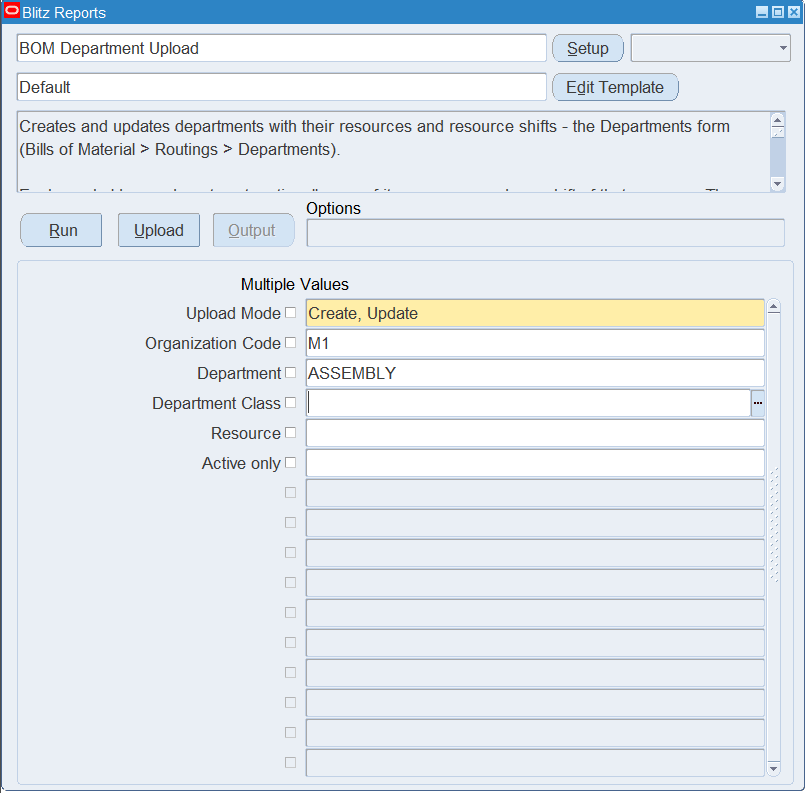
Open BOM Department Upload in Blitz Report, choose the template and set the parameters. They decide which departments are downloaded.
| Parameter | Meaning |
|---|---|
| Upload Mode | Create gives you an empty sheet. Create, Update (default) also downloads the existing departments with their resources and shifts. |
| Organization Code | The inventory organization. Defaults to your current organization and is also the organization of new rows. |
| Department | Restricts the download to the department. |
| Department Class | Restricts the download to the departments of the class. |
| Resource | Downloads only the departments that have the resource, with this resource only. |
| Active only | Yes leaves out departments whose Inactive On date has passed. |
Step 2 – Run to download the Excel file
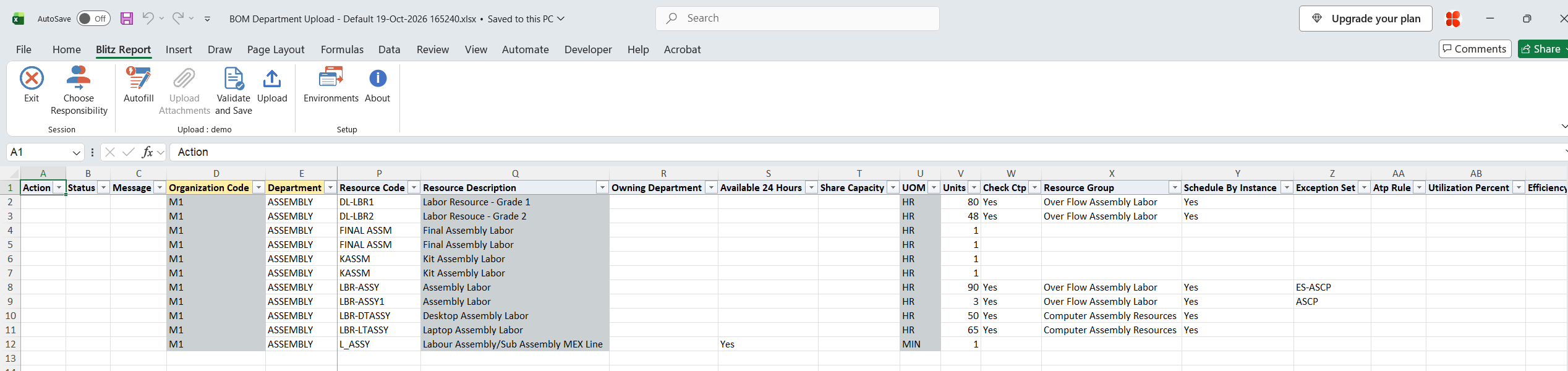
Click Run. With Create, Update, the file has one row per department, resource and shift: a department without resources has one row, and a resource without shifts has one row. The department columns repeat on every row of the department, the resource columns on every row of the resource. Class Description, Location Description, Resource Description, UOM and Shift Description are read-only. With Create, the sheet is empty.
Step 3 – Enter the departments, resources and shifts
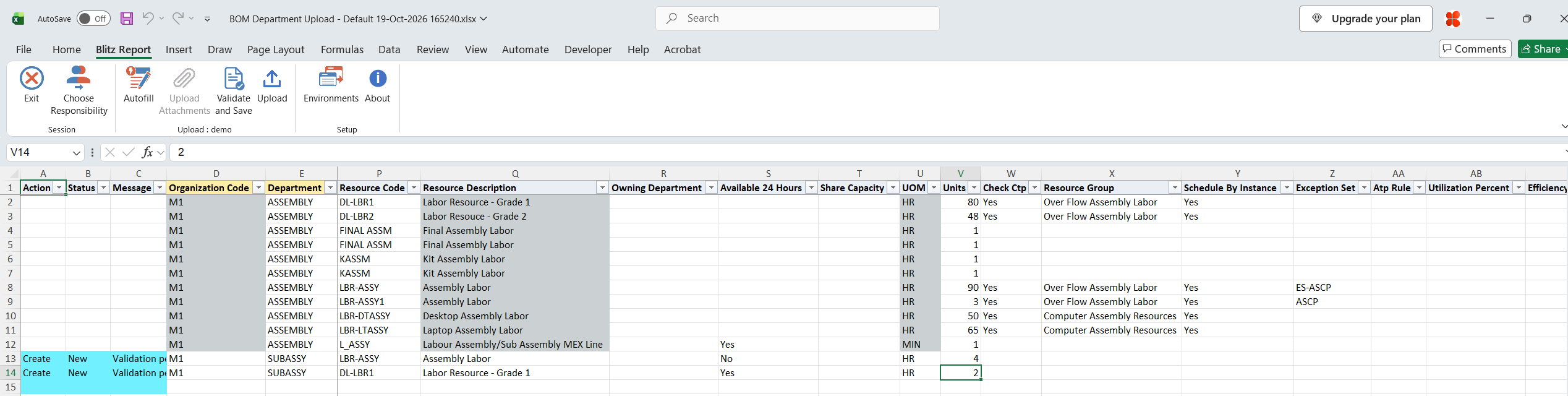
Change the downloaded rows, or add rows for new departments, resources and shifts. Repeat the department and resource values on every row that belongs to them; a change on any of those rows is saved.
- Department, Description, Class, Location and Inactive On. Cost Category is available in eAM organizations, Project Expenditure Org in organizations with project cost collection, and Scrap Account and Estimated Absorption Account in network manufacturing organizations, where they are required when estimated scrap accounting is enabled.
- Resource Code – the resource assigned to the department. Enter an Owning Department to borrow the resource from a department that shares it.
- Available 24 Hours (Yes for a new resource), Share Capacity, Units and Check Ctp.
- Resource Group, Schedule By Instance (machine resources only), Exception Set, Atp Rule, Utilization Percent, Efficiency Percent and Sequencing Window Days. Utilization and efficiency are entered as percentages, for example 90.
- Shift Num and Shift Units – a shift of a resource that is not available 24 hours. Shift Units must not exceed the resource Units.
- Delete Shift or Delete Resource – Yes removes the shift or the resource from the department.
Step 4 – Validate and Save
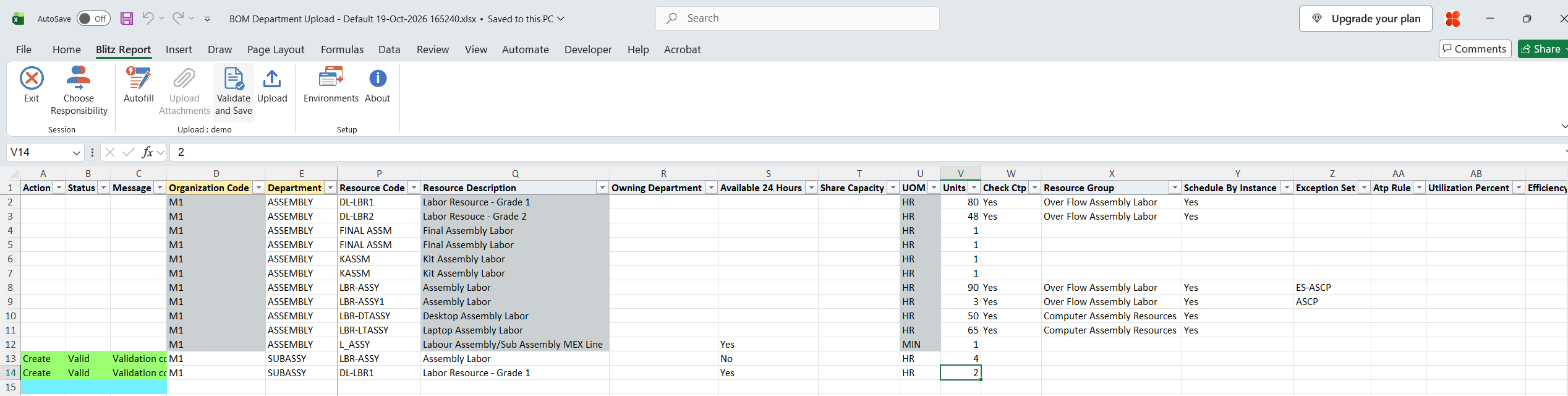
Click Validate and Save. This checks for missing required values and for values that are not in their lists, marks the rows Valid and saves the file. Correct any rows it flags before uploading.
Step 5 – Upload the file
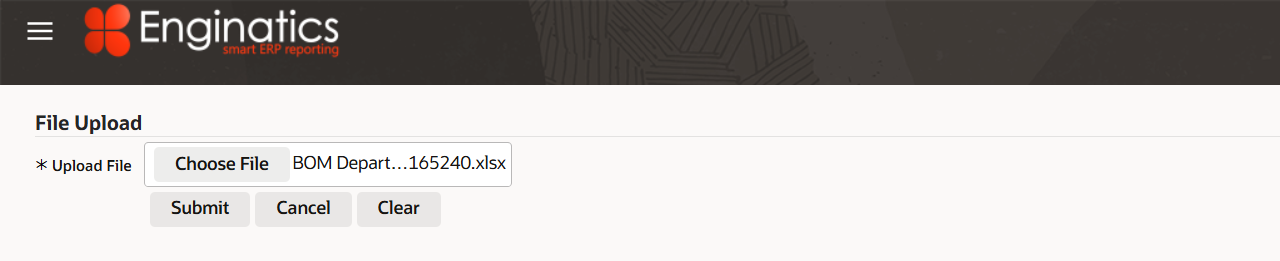
In Blitz Report click Upload and select the saved file. The upload request processes the rows in order. Each row is saved or rejected on its own, so a rejected row leaves nothing behind and does not affect the other rows.
Step 6 – Review the result report
When the request completes, a result report opens listing every uploaded row with its status and a message naming what was created, updated or deleted, for example Department created. Resource LBR-ASSY created. Shift 1 created., or the reason the row was rejected. The result report shows the values as they were saved in Oracle.

What’s produced
- Departments, department resources and resource shifts, saved as the Departments form saves them.
- Each row is committed on its own. A row that fails leaves nothing behind and does not affect the other rows.
- A result report listing every row with a status (success or error) and a message.
Common questions
Can I delete a department?
No. As in the Departments form, a department cannot be deleted. Enter an Inactive On date instead.
How do I rename a department?
Change the Department on all downloaded rows of the department. The downloaded row identifies the department, so the new code replaces the old one.
How do I borrow a resource from another department?
Enter the resource and its Owning Department, which must have the resource with Share Capacity Yes. Available 24 Hours, Units, Check Ctp, Atp Rule, Utilization Percent and Efficiency Percent are copied from the owning department’s resource and cannot be changed on the borrowing department. When Available 24 Hours changes on the owning department, the borrowing departments are updated with it.
Why did a resource become available 24 hours?
You deleted its last shift. As in the form, a resource without shifts is available 24 hours.
How do I remove a resource that has shifts?
Delete its shifts first, or enter Yes in both Delete Shift and Delete Resource on the row of its last shift.
Can I maintain resource instances, capacity changes or tolerance fences?
No. Maintain them in the Departments form. Department overhead rates are loaded with the CST Department Overhead Rate Upload.
How do I enter descriptive flexfield values?
Use the Flexfields template. Its attribute columns show the segment prompts of your flexfield setup.
Troubleshooting
| Message | Cause | What to do |
|---|---|---|
| Missing values for required field/s: … | A required column is blank, for example Units of a new resource. | Fill in the columns named. |
| A non-24-hours available resource should have atleast one shift defined. | Available 24 Hours is No and the resource has no shift. | Enter a Shift Num on the row, or set Available 24 Hours to Yes. |
| You cannot define this resource as available 24 hours because shifts exist for this resource. | Available 24 Hours was set to Yes for a resource with shifts. | Delete the shifts first. |
| Capacity units at the shift level must not exceed the capacity units defined at the resource level. / Capacity units at the resource level must not be less than the capacity units at the shift level. | Shift Units are higher than the resource Units. | Lower the Shift Units or raise the Units. |
| The number of resource instances record should be equal to capacity units. | The resource has instances, and Units would no longer equal their number. | Change the instances and units together in the Departments form. |
| You cannot delete a resource with assigned shifts / You cannot delete multi-department resource … | The resource still has shifts, or other departments borrow it. | Delete its shifts, or remove it from the borrowing departments first. |
| Owning Department does not share resource … | The owning department does not have the resource with Share Capacity Yes. | Set Share Capacity to Yes on the owning department’s resource, or choose another owning department. |
| The following columns are taken from the owning department and cannot be changed for the borrowed resource … | A capacity column of a borrowed resource was changed. | Change it on the owning department’s resource. |
| This department already exists. | A department was renamed to a code that is already used in the organization. | Use another code. |
| Disable Date must be greater than Current Date | Inactive On was changed to a date in the past. | Use today or a later date. |
| Resources and shifts of the inactive department … cannot be changed. | The department’s Inactive On date has passed. | Clear or move the Inactive On date on the same row first. |
| Schedule by Instance is not available for resource … as it is not a machine. | Schedule By Instance is Yes for a person or another resource type that is not a machine. | Clear Schedule By Instance. |