
The FA Mass Additions Upload lets you review and edit the Oracle Assets Prepare Mass Additions queue from Excel: change queue-line details, set the posting status, create new lines, and merge, split or add lines to an existing asset, then upload your changes back into Oracle in one step. You still run the standard Post Mass Additions program afterwards to create the assets, exactly as today.
When to use it
- Mass-edit queued mass addition lines (depreciation expense account, location, category, description, depreciate flag, and so on) instead of changing them one at a time in the Prepare Mass Additions form.
- Move many lines to Post, On Hold, Delete or On-Review in a single pass.
- Merge several invoice lines into one asset, split a multi-unit line into single-unit lines, or add a line’s cost to an existing asset.
- Add new mass addition lines that did not come from Payables.
Before you start
- Use a Fixed Assets responsibility that can open Prepare Mass Additions.
- Know the corporate depreciation Book you are working in.
- The upload maintains the Prepare Mass Additions queue only. After uploading, run the standard Post Mass Additions program to create or adjust the assets.
Step 1 – Set the parameters
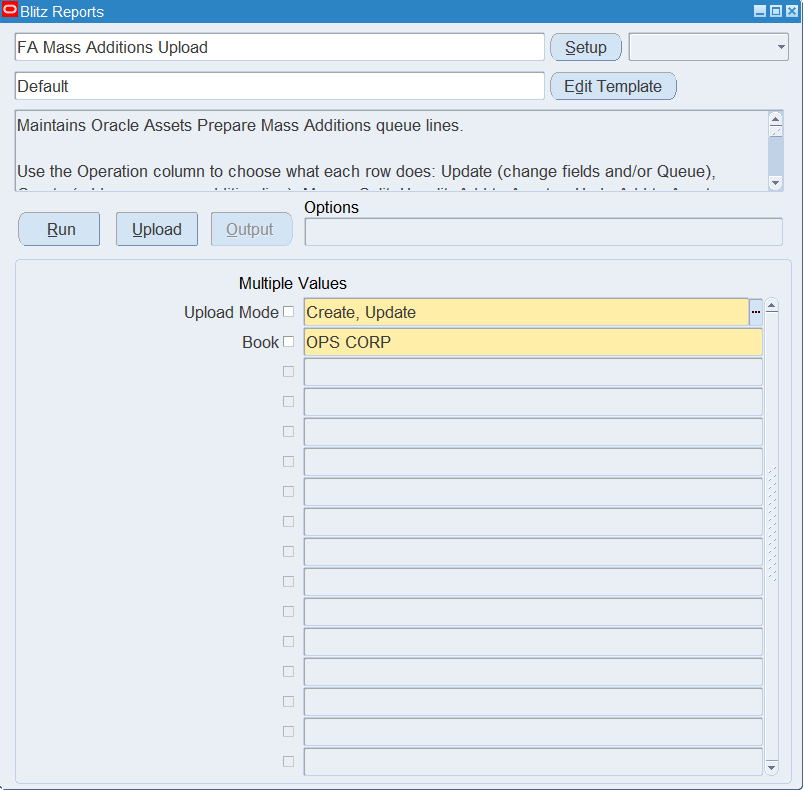
Open FA Mass Additions Upload in Blitz Report and set the parameters:
| Parameter | What it does |
|---|---|
| Upload Mode | Create gives you an empty sheet for adding new lines. Create, Update (default) also downloads the existing queue lines of the book so you can edit them. |
| Book | The Fixed Assets corporate depreciation book whose queue you want to load. |
Step 2 – Run to download the Excel file
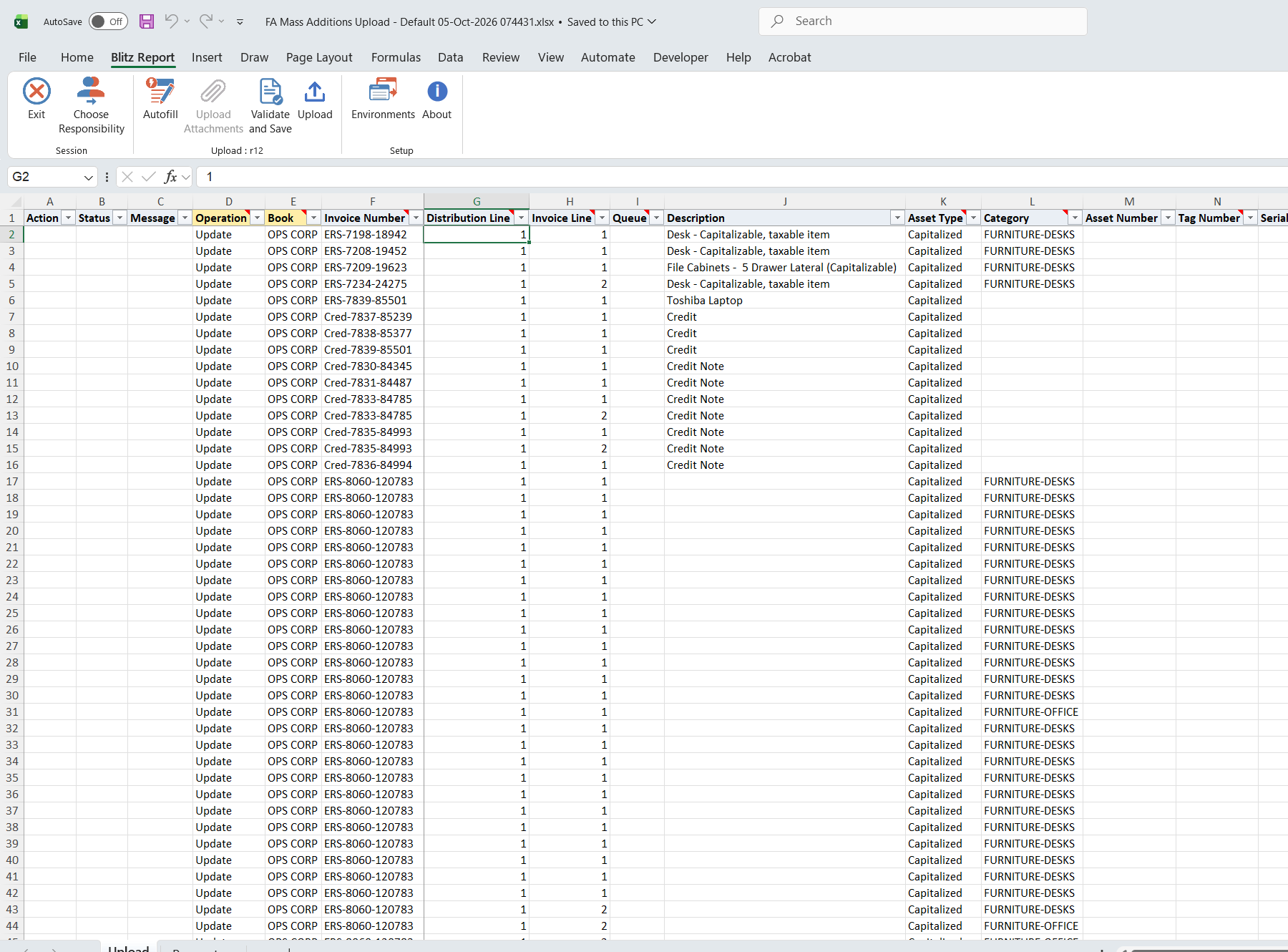
Click Run. The Excel file downloads and opens with one row per queue line of the book that is not yet posted, merged or split, each with Operation = Update.
Step 3 – Enter or change the data
Every row carries an Operation that tells the upload what to do with that line:
| Operation | Effect |
|---|---|
| Update | Change the line’s fields and/or its Queue (posting status). |
| Create | Add a new mass addition line. |
| Merge | Combine several lines into one asset. |
| Split | Split a multi-unit line into single-unit lines. |
| Unsplit | Reverse a split. |
| Add to Asset | Add this line’s cost to an existing asset as an adjustment instead of creating a new asset. |
| Undo Add to Asset | Reverse an Add to Asset. |
Existing lines are identified by Book + Invoice Number + Distribution Line + Invoice Line. A line you download in Create, Update mode is already matched for you.
Fill in the columns relevant to the operation. The most-used ones:
| Column | Notes |
|---|---|
| Queue | Posting status to set: Post (release to Post Mass Additions), On Hold, Delete or On-Review. |
| Category | Asset category; determines the default depreciation method, life and accounts. The list is filtered by the Book. |
| Asset Type | Capitalized, CIP (construction in process) or Expensed. |
| Units / Cost | Number of units and the cost of the line. |
| Date Placed In Service | The in-service date. |
| Expense Account | GL depreciation expense account, from the Book’s chart of accounts. |
| Location / Employee Number | Assignment location and assigned employee. |
| Description / Depreciate | Line description and whether it depreciates. |
| Tag Number / Serial Number | Carried to the asset when the line is posted. A tag number already used by an asset or by another pending line is rejected. |
When creating a new line, Book and Cost are required. Units defaults to 1, Asset Type to Capitalized, Depreciate to Yes, and a line without a Queue is created as New. If you create a line straight into the Post queue, Category, Expense Account and Date Placed In Service are also required so the line can be posted.
Merge – give every line you want combined the same Merge Group label and mark exactly one of them Primary Line = Yes. That line is kept as the resulting asset, is set to On Hold, and the others fold into it, adding their cost. Set Sum Units = Yes on the Primary Line if you also want the merged lines’ units added; otherwise only cost is summed.
Split – set Operation = Split on a line with more than one unit to break it into single-unit lines. Unsplit on the split parent line reverses it.
Add to Asset – set Operation = Add to Asset and enter the Add To Asset Number; the line’s cost is added to that existing asset as an adjustment instead of creating a new one. Set Amortize = Yes to amortize the adjustment, or No to expense it in the current period. Undo Add to Asset reverses it.
Only lines in New, Post or On Hold status can be merged, split or added to an asset.
The asset descriptive flexfield (Attribute Category, Attribute1-30) is carried to the asset when the line is posted. Its context is the asset category, as in Oracle Assets, so Attribute Category follows the Category column and only that category’s attributes can be entered. These columns are not part of the Default template.
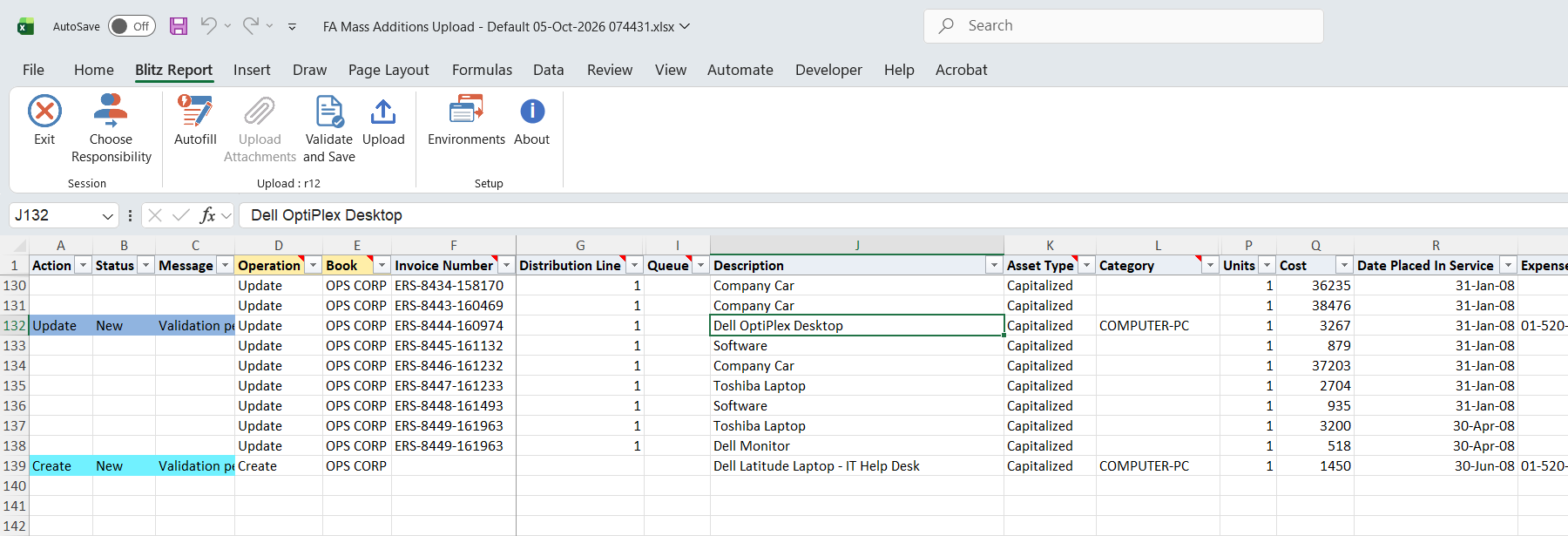
Step 4 – Validate and Save
Click Validate and Save on the Blitz Report ribbon. It checks the changed and new rows for missing required values and saves the file; valid rows show Status Valid.
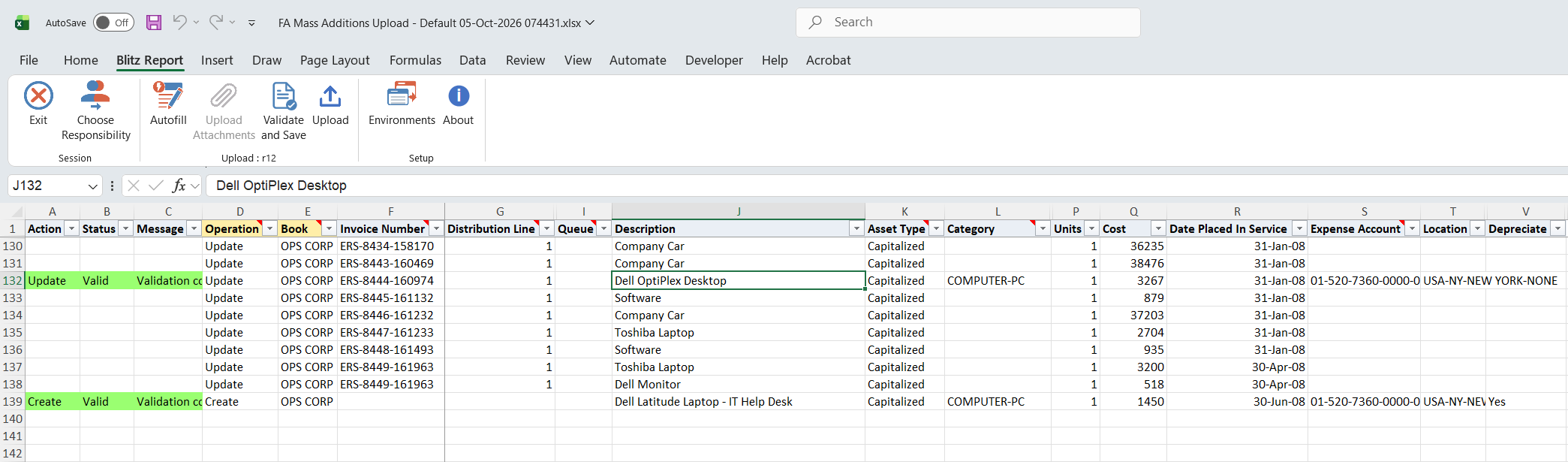
Step 5 – Upload the file
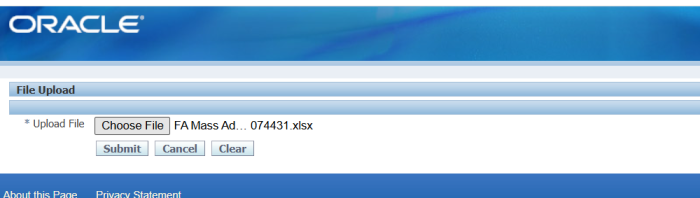
In Blitz Report, click Upload and select the saved file. This submits the upload request.
Step 6 – Review the result report
When the request completes, a result report opens listing every uploaded row with its status (Success or Error) and a message. Correct any failed rows and upload them again.

What’s produced
Your changes are written to the Oracle Assets Prepare Mass Additions queue: updated line details and posting statuses, new lines, merged and split lines, and add-to-asset adjustments. Nothing reaches your asset books until you run the standard Post Mass Additions program, which creates the new assets and applies the cost adjustments.
Common questions
Does this post the assets?
No. It maintains the Prepare Mass Additions queue. You still run Post Mass Additions afterwards to create or adjust the assets.
How are existing lines identified?
By Book plus Invoice Number, Distribution Line and Invoice Line. If more than one line matches those values, download the queue in Create, Update mode and edit the specific lines from there.
Can I edit a line that has more than one distribution?
Edit the Expense Account, Location and Employee for multi-distribution lines in the Prepare Mass Additions form. The upload edits single-distribution lines.
Can I merge units as well as cost?
Yes, set Sum Units = Yes on the Primary Line. Leave it No (the default) to sum only cost and keep the primary line’s own units.
Troubleshooting
| Message | Cause | What to do |
|---|---|---|
| Cost is required to create a mass addition line. | A Create row has no Cost. | Enter the Cost. |
| Category, Expense Account and Date Placed In Service are required to create a line directly in the Post queue. | Creating straight into Post without the fields needed to post. | Add Category, Expense Account and Date Placed In Service, or create the line into On Hold and complete it later. |
| No existing mass addition line found for Book … | The Book / Invoice / Distribution Line / Invoice Line key did not match a queued line. | Check the key values, or download in Create, Update mode to edit the actual line. |
| … mass addition lines match … – download the queue to edit these specific lines. | The key matched more than one line. | Download in Create, Update mode and edit the specific rows. |
| This line has … distributions; edit Expense Account, Location and Employee in the Prepare Mass Additions form, not the upload. | The assignment of a multi-distribution line was changed. | Change the assignments in the Prepare Mass Additions form. |
| Only New, Post or On Hold lines can be merged / split / added to an asset. | The line is in another queue, for example Delete or On-Review. | Choose a line that is New, Post or On Hold. |
| Split requires more than one unit. | Split was set on a single-unit line. | Split only lines that have more than one unit. |
| Merge Group … has more than one Primary Line – mark exactly one. | Two rows in the group are marked Primary Line = Yes. | Mark exactly one row Primary Line = Yes. |
| Asset … not found, fully retired, or not in book … | The Add To Asset Number is not an active asset of the book. | Enter an asset that is in service in the same book. |
| Tag Number … is already used by asset … / by another mass addition line. | Tag numbers must be unique across assets and pending lines. | Enter a different tag number, or clear it on the other line. |
| Asset DFF error: … | An attribute value does not pass the descriptive flexfield setup for the line’s category, for example it is too long or a required attribute is missing. | Correct the attribute as the message describes. |