
INV Subinventory Upload creates and updates Oracle EBS subinventories from Excel, across all inventory organizations your responsibility can access. Download existing subinventories, change their description, material status, locator control, picking and replenishment settings or accounts, and add new storage or receiving subinventories in the same file. A result report lists every row with its status and message.
When to use it
- Set up the subinventories of a new inventory organization in one go.
- Add new subinventories, such as spares, staging or line-side stores, to an existing organization.
- Change material status, picking order, lead times or replenishment sourcing for many subinventories at once.
- Correct subinventory accounts in bulk.
- Inactivate subinventories that are no longer used.
Before you start
- Access to the upload in Blitz Report from a responsibility with access to the inventory organizations you maintain.
- Material statuses, cost groups, locations and the GL accounts you want to use are already set up.
- Know the organization’s setup: whether WMS is enabled, the cost method, and the organization-level Locator Control. They decide which values are allowed for the accounts, the Default Cost Group and Locator Control.
Step 1 – Set the parameters
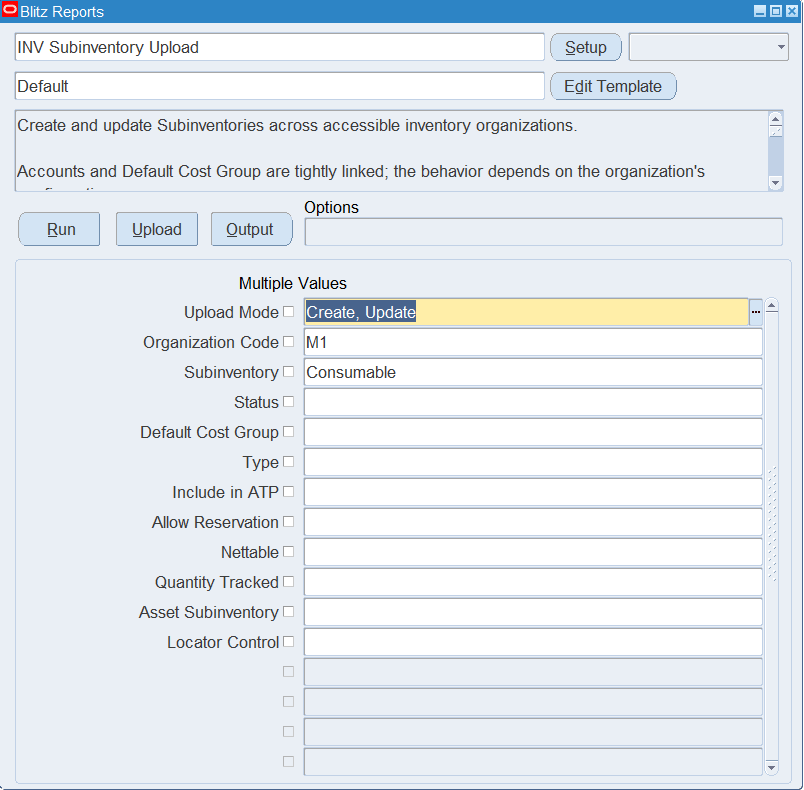
Open INV Subinventory Upload in Blitz Report and set the parameters:
| Parameter | Meaning |
|---|---|
| Upload Mode | Create (default) opens an empty sheet for new subinventories; Create, Update downloads existing subinventories for editing and lets you add new ones. |
| Organization Code | The inventory organization to download. Defaults to your current inventory organization; leave it blank to download all organizations you can access. |
| Subinventory | Downloads only this subinventory. |
| Status | Downloads subinventories with this material status. |
| Default Cost Group | Downloads subinventories with this default cost group. |
| Type | Storage or Receiving subinventories only. |
| Include in ATP, Allow Reservation, Nettable, Quantity Tracked, Asset Subinventory | Downloads subinventories with this setting. |
| Locator Control | Downloads subinventories with this locator control. |
Step 2 – Run to download the Excel file
Click Run. The Excel file downloads and opens with one row per subinventory, or an empty sheet in Create mode.
Step 3 – Enter or change the subinventories
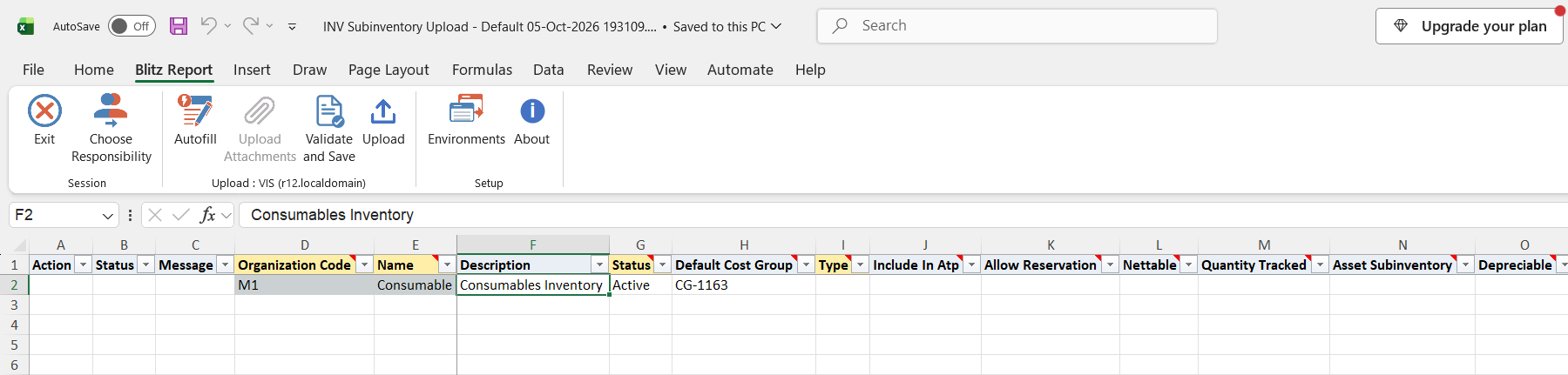
Organization Code and Name identify a subinventory and cannot be changed on a downloaded row. A row whose organization and name do not exist yet creates a new subinventory. For a new row enter the Organization Code, a Name of up to 10 characters, a Description of up to 50 characters, Status and Type. Excel fills defaults for Status, Type, Default Cost Group, Default Replenishment Count Type and the accounts, which you can overwrite.
- Include In Atp, Allow Reservation and Nettable are shown for information only: they always follow the chosen Status. Yes/No columns left blank mean No.
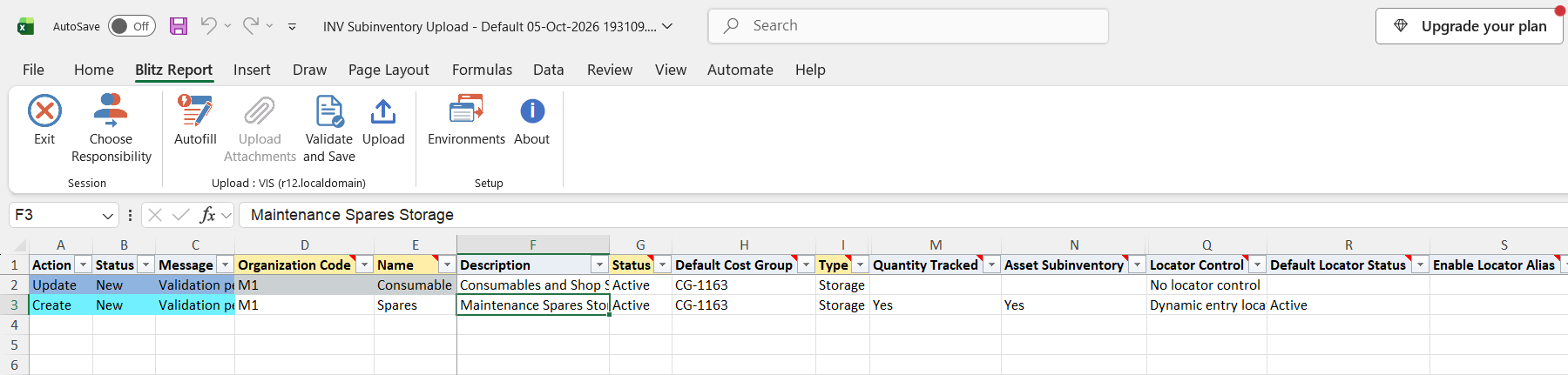
- Locator Control: when the organization-level control is Locator control determined at subinventory level, enter it on every row. Otherwise leave it blank on new rows and it is taken from the organization. With locator control, Default Locator Status defaults to Active; with No locator control leave it blank.
- Receiving subinventories need Status Active and a receiving Location of the organization, and leave Quantity Tracked, Asset Subinventory, Picking UOM, the sourcing and the lead time columns blank.
- Source Type: Inventory needs a Source Organization; Subinventory replenishes from a Source Subinventory of the same organization; for Supplier or a blank Source Type leave Source Organization and Source Subinventory blank.
- Accounts and Default Cost Group: in a non-WMS organization with Standard costing, for a subinventory without on-hand or transaction history, the accounts decide the cost group: the upload switches to an existing cost group with the same accounts or creates a new one, and says so in the result message. In a WMS organization the cost group decides the accounts: choosing another cost group sets all seven accounts to that cost group’s accounts. Otherwise the cost group and the accounts are locked.
- Lpn Controlled, Enable Cartonization, Enable Bulk Pick and the opportunistic cycle count columns apply to WMS organizations only.
- To inactivate a subinventory, enter an Inactive On date of today or later.
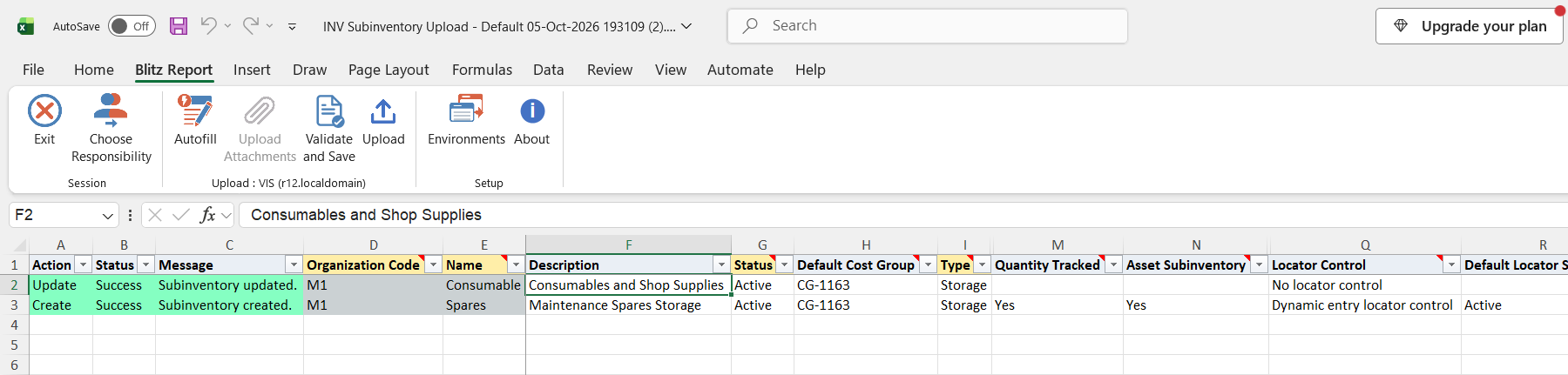
The example changes the description of an existing subinventory and adds a new spares subinventory with dynamic locator control.
Step 4 – Validate and Save
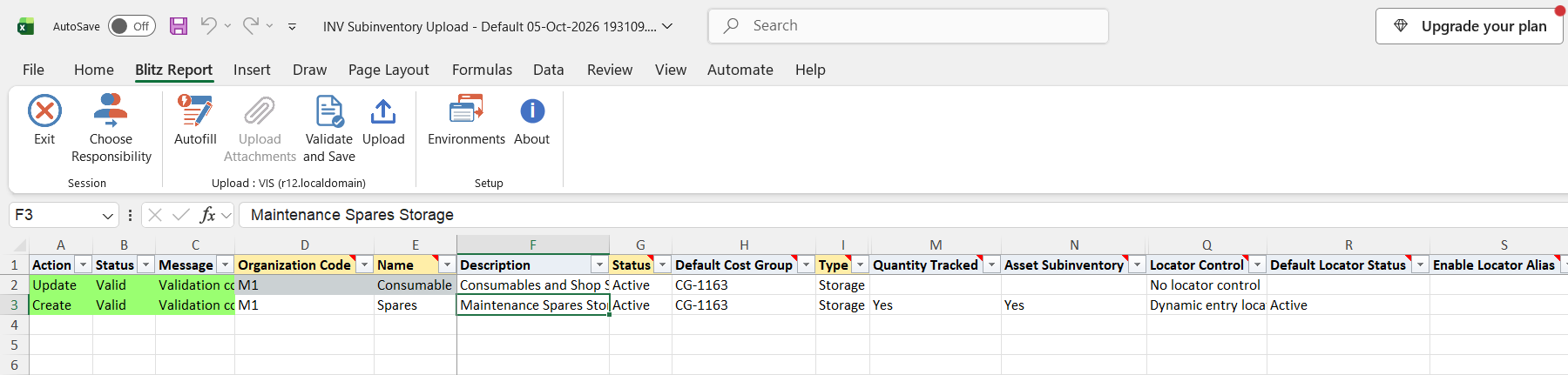
Click Validate and Save. This checks for missing required values and saves the file. Correct any rows it flags before uploading.
Step 5 – Upload the file
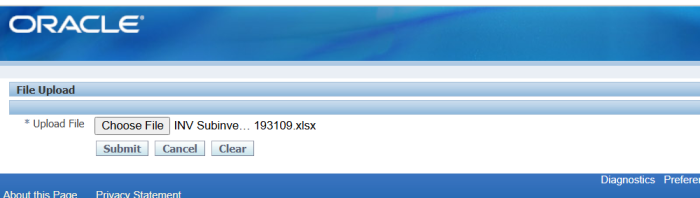
In Blitz Report click Upload and select the saved file. This submits the upload request, which creates or updates each subinventory with the same rules as the Subinventories window.
Step 6 – Review the result report
When the request completes, a result report opens listing every uploaded row with its status and message, for example Subinventory created. or Subinventory updated.
What’s produced
- Subinventories created or updated in the inventory organizations, including their status, locator, picking, replenishment and account settings and the descriptive flexfield.
- Where the accounts drive the cost group, a matching cost group selected or a new one created.
- A result report listing every row with a status (success or error) and a message.
Common questions
Can I delete a subinventory?
No. Set its Inactive On date to today or a later date instead.
Why does my change to Include In Atp, Allow Reservation or Nettable have no effect?
These settings come from the Material Status. Choose a status with the settings you need.
Why was a new cost group created?
In a non-WMS organization with Standard costing, the cost group follows the accounts. When no existing cost group has the same seven accounts, the upload creates one, as the Subinventories window does.
Can I change the subinventory type or the locator control?
Only while the subinventory has no on-hand quantity, transaction history or other dependent records. The result message names what blocks the change.
Why must I change the material status in the Subinventories window?
When electronic signatures (ERES) are enabled, a material status change needs an e-signature, which only the Subinventories window records.
What happens to a row I did not change?
Rows without an action are not uploaded. A row that is uploaded without any real change returns No change. and the subinventory is not touched.
Troubleshooting
| Message | Cause | What to do |
|---|---|---|
| Name (…) exceeds the 10 character limit. | The subinventory name is longer than 10 characters. | Shorten the name. |
| Description exceeds the 50 character limit. | The description is longer than 50 characters. | Shorten the description. |
| Locator Control is required because the organization-level control is “Determined at subinventory level”. | Locator Control is blank and the organization leaves it to the subinventory. | Enter a Locator Control. |
| Locator Control must be “…” to match the organization-level Locator Control. … | A new row has a Locator Control different from the organization-level control. | Leave Locator Control blank or enter the organization’s value. |
| Default Locator Status is invalid | A Default Locator Status is entered on a row with No locator control. | Clear Default Locator Status, or choose a Locator Control with locators. |
| Lpn Controlled is invalid | Lpn Controlled is set on a subinventory of a non-WMS organization. | Clear Lpn Controlled. |
| Quantity Tracked = No is not allowed when the chosen Material Status enables ATP, Reservation, or Nettable. … | Quantity Tracked is No with a status that allows ATP, reservations or netting. | Set Quantity Tracked to Yes or choose a status with all three set to No. |
| Location is required for a Receiving subinventory. | A Receiving subinventory without a Location. | Enter a receiving location of the organization. |
| Receiving subinventory requires Status=’Active’. Supplied Status is not allowed. | A Receiving subinventory with another status. | Set Status to Active. |
| Subinventory Type cannot be changed: this subinventory has existing on-hand quantity. | The type of a subinventory with stock was changed (also reported for transaction history or locators). | Keep the existing type. |
| Locator Control cannot be changed: transaction history exists for this subinventory. | The locator control of a used subinventory was changed (also reported for on-hand, pending transactions or shipping details). | Keep the existing locator control. |
| Source Organization must be blank when Source Type is Vendor or not specified. | A Source Organization with Source Type Supplier or blank. | Clear Source Organization, or set the Source Type. |
| Source Organization is required when Source Type is Inventory or Inventory Short. | Source Type Inventory or Subinventory without a Source Organization. | Enter the Source Organization. |
| Material Account is locked by the form and cannot be changed via upload (WMS installed, non-Standard costing, or the subinventory already has on-hand/transaction history). | An account was changed where the cost group decides the accounts (similar messages for the other accounts). | Keep the account, or in a WMS organization change the Default Cost Group instead. |
| Expense Account is required for non-Asset subinventories or when WMS is installed. | The Expense account is blank. | Enter an Expense account. |
| Material Status change requires an electronic signature (ERES is enabled for this instance). … | Electronic signatures are enabled for material status changes. | Change the status in the Subinventories window. |
| Inactive On date must be on or after today. | Inactive On is in the past. | Enter today’s date or a later date. |