
EAM Asset Attribute Upload creates and updates the attribute group values of Oracle Enterprise Asset Management asset and rebuildable numbers from Excel – the values you otherwise enter one asset at a time in the Asset Attributes window. Each row holds one attribute group of one asset number, so an asset with several attribute groups has one row per group. Values are created and updated through the standard Oracle EAM public API.
When to use it
- Load attribute values such as warranty data, vehicle classifications or engine specifications for many assets at once, for example a new fleet.
- Review the attribute values of a range of assets in Excel and correct them in bulk.
- Copy the attribute values of one asset to similar assets.
Before you start
- You use a responsibility with access to the eAM-enabled maintenance organization.
- The asset numbers exist, and the attribute groups are assigned to their asset group (Enterprise Asset Management: Asset Groups, Attributes).
Step 1 – Set the parameters
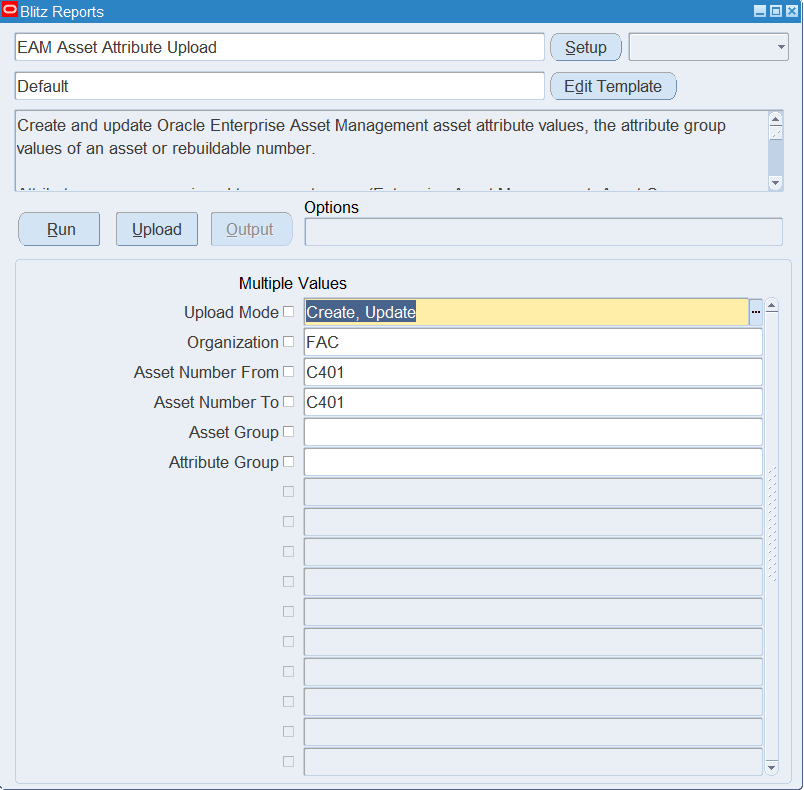
Open EAM Asset Attribute Upload in Blitz Report and set the parameters:
| Parameter | Meaning |
|---|---|
| Upload Mode | Create opens an empty sheet; Create, Update (default) downloads existing attribute values for editing and lets you add new ones. |
| Organization | The eAM maintenance organization to download attribute values for. |
| Asset Number From / Asset Number To | Range of asset numbers to download. Asset Number To defaults to Asset Number From, so entering only the first downloads one asset. |
| Asset Group | Downloads the assets of one asset group. |
| Attribute Group | Downloads the values of one attribute group only. |
Only assets that already have values for an attribute group are downloaded. Restrict the download with at least one of the parameters to keep the file small.
Step 2 – Run to download the Excel file
Click Run. The Excel file downloads and opens with one row per asset number and attribute group, or an empty sheet.

Step 3 – Enter or change the attribute values
Each row identifies the Organization, Asset Number and Attribute Group. Asset Group is read-only and fills in from the asset number. The Attribute Group list shows the attribute groups assigned to the asset’s asset group.
The attribute columns follow the flexfield segments of the attribute group: Attribute1-20 hold the character segments, Number Attribute1-10 the number segments and Date Attribute1-10 the date segments. The character column headers list the segment prompts of all attribute groups that use the column; the header comment shows which prompt belongs to which attribute group. Character segments with a value set offer its values as a list, dependent on the attribute group and the other segments of the row.
Change values on a downloaded row, and add a row for each asset number and attribute group that has no values yet.

Step 4 – Validate and Save
Click Validate and Save. This checks for missing required values and saves the file. Correct any rows it flags before uploading.

Step 5 – Upload the file
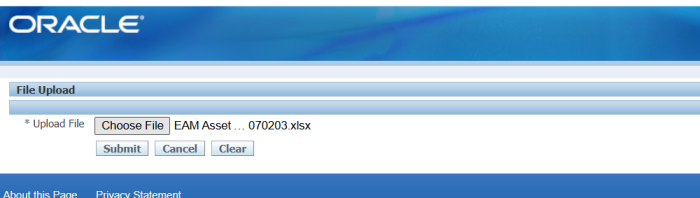
In Blitz Report click Upload and select the saved file. This submits the upload request, which creates or updates the attribute values of each row.
Step 6 – Review the result report
When the request completes, a result report opens listing every uploaded row with its status and message.

What’s produced
- Asset attribute values created or updated for the asset numbers, as shown in the Asset Attributes window.
- A result report listing every row with a status (success or error) and a message.
Common questions
What decides between create and update?
The asset number and attribute group. If the asset already has values for that attribute group, they are updated, also on a row you added yourself; otherwise they are created.
How do I know which Attribute column holds which value?
Read the header comment of the column: it lists, per attribute group, the segment prompt stored in that column. Downloading an existing asset with the same attribute group shows where its values sit.
Can I delete attribute values?
No. The upload creates and updates values only.
A re-uploaded row says “No changes detected.” – is that an error?
No. The row matched the stored values, so nothing was updated.
Troubleshooting
| Message | Cause | What to do |
|---|---|---|
| Asset Number <asset> does not exist in the organization. | The asset number is not in the row’s organization. | Pick the asset number from the list of the organization. |
| Attribute Group <group> is not assigned to asset group <asset group>. | The attribute group is not assigned, or not enabled, for the asset’s asset group in this organization. | Assign the attribute group to the asset group (Asset Groups, Attributes) or pick one from the list. |
| Asset attribute values create failed: … / update failed: … | Oracle EAM rejected the values, for example a required segment is missing or a value is not valid for its value set. | Correct the values named in the message. |
| <Column> is invalid | The value is not in the column’s list, for example an organization that is not eAM-enabled or not accessible to your responsibility. | Pick the value from the list. |
| No changes detected. | An update row is identical to the stored values. | Informational – no action needed. |