
CST Department Overhead Rate Upload maintains the department overhead rates of an Oracle EBS cost type from Excel. It downloads the existing rates of a source cost type, lets you change them or add new ones, and imports them into a target cost type through the standard Cost Import Process. Rates can also be copied to another cost type, deleted, and followed by an optional cost rollup.
When to use it
- Revise overhead rates or amounts for many departments at once, for example in a pending cost type before the next standard cost update.
- Assign new overhead sub-elements to departments with their basis and rate.
- Copy the department overhead rates of one cost type into another, for example from Frozen into a simulation cost type.
- Delete department overhead rates that no longer apply.
- Roll up item costs right after the new rates are imported.
Before you start
- The target cost type allows updates and is not the frozen standard cost type. Frozen standard costs are changed through a standard cost update, not by uploading into Frozen.
- The departments and the overhead sub-elements exist in the organization, and the overheads are defined with cost element Overhead.
- Your responsibility has access to the inventory organization, which must be its own costing organization and not process-enabled.
Step 1 – Set the parameters
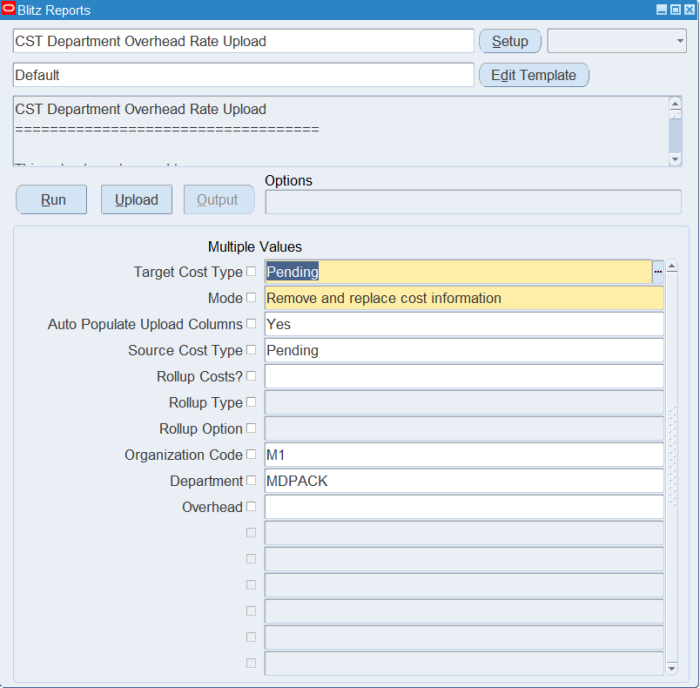
Open CST Department Overhead Rate Upload in Blitz Report and set the parameters:
| Parameter | Meaning |
|---|---|
| Target Cost Type | The cost type the rates are imported into. Only cost types that allow updates and are not frozen are listed. |
| Mode | Remove and replace cost information (default) replaces an existing rate for the same department, overhead and cost type; Insert new cost information only rejects a rate for a combination that already has one. |
| Auto Populate Upload Columns | Yes (default) marks every downloaded rate for upload, so the whole set is imported even where you change nothing. Leave it blank to upload only the rows you change. |
| Source Cost Type | The cost type whose current rates are downloaded. Use the target cost type to edit rates in place, or another cost type to copy its rates into the target. Leave it blank for an empty sheet to enter new rates. |
| Rollup Costs? | Yes runs a cost rollup in the target cost type after the import. |
| Rollup Type | Specific item rolls up only the items whose existing cost details in the target cost type use an uploaded overhead; All items submits a Supply Chain Cost Rollup for every item of each organization uploaded to. |
| Rollup Option | Single level rollup or Full cost rollup. |
| Organization Code, Department, Overhead | Restrict the rates downloaded. |
Step 2 – Run to download the Excel file
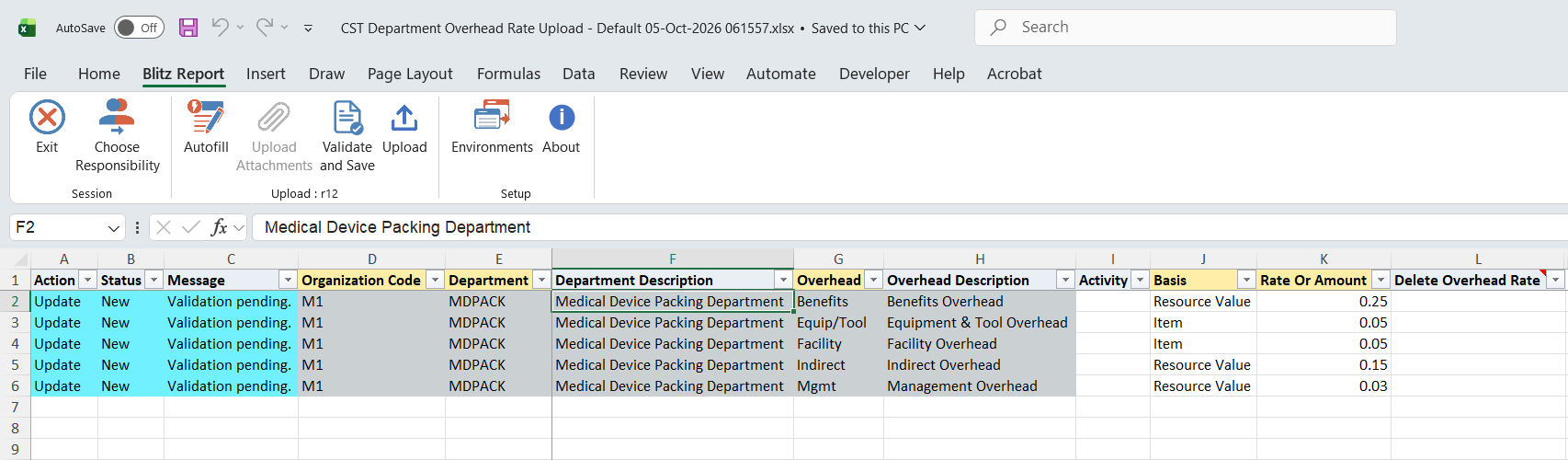
Click Run. The Excel file downloads and opens with one row per department and overhead in the source cost type.
Step 3 – Enter or change the rates
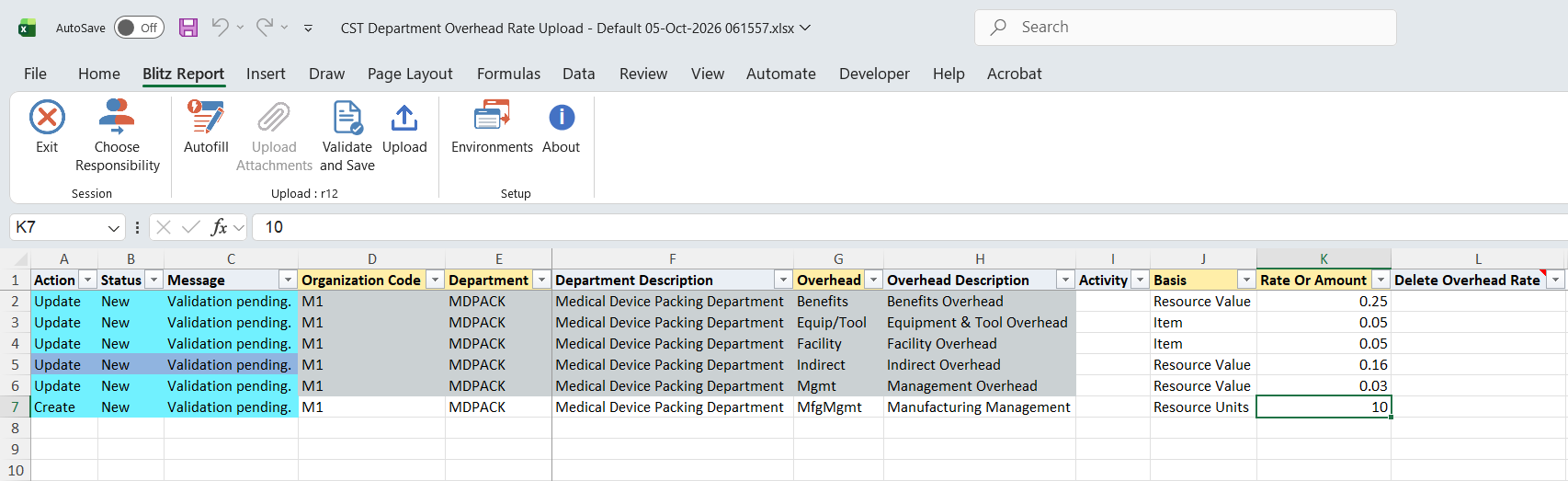
Organization Code, Department and Overhead identify a rate and cannot be changed on a downloaded row. Change the Basis, Rate Or Amount or Activity of a downloaded row, or add rows with Organization Code, Department, Overhead, Basis and Rate Or Amount. Basis is Item, Lot, Resource Units or Resource Value and defaults on a new row from the overhead’s default basis. Rate Or Amount is the amount per item, lot or resource unit, or for Resource Value the rate applied to the resource cost (0.15 = 15%). To remove a rate, set Delete Overhead Rate to Yes on its row.
Enter only one row per department and overhead: the Cost Import Process accepts one rate per department, overhead and cost type in a run, even with different bases.
Step 4 – Validate and Save
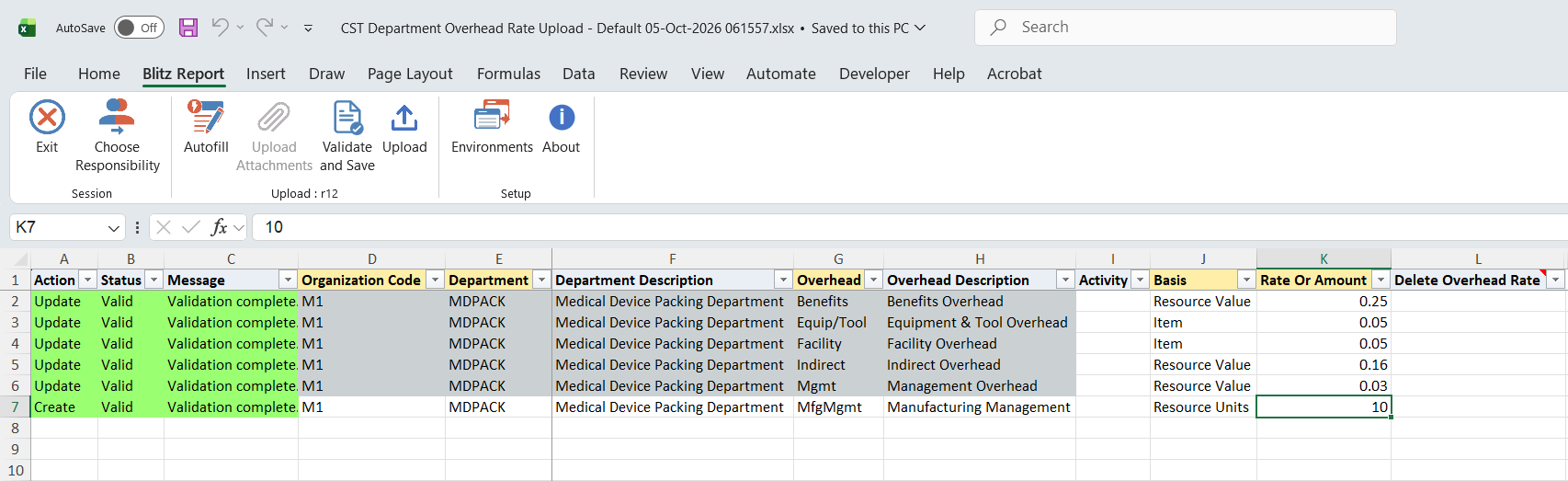
Click Validate and Save. This checks for missing required values and saves the file. Correct any rows it flags before uploading.
Step 5 – Upload the file
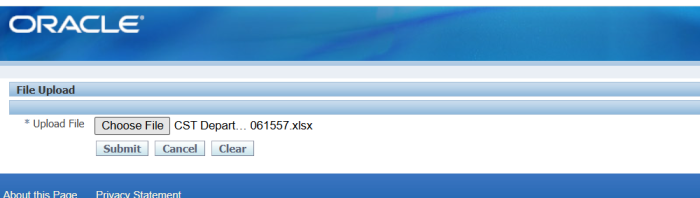
In Blitz Report click Upload and select the saved file. This submits the upload request, which loads the rates into the cost interface, runs the Cost Import Process for the target cost type and waits for it, then submits the cost rollup if requested.
Step 6 – Review the result report
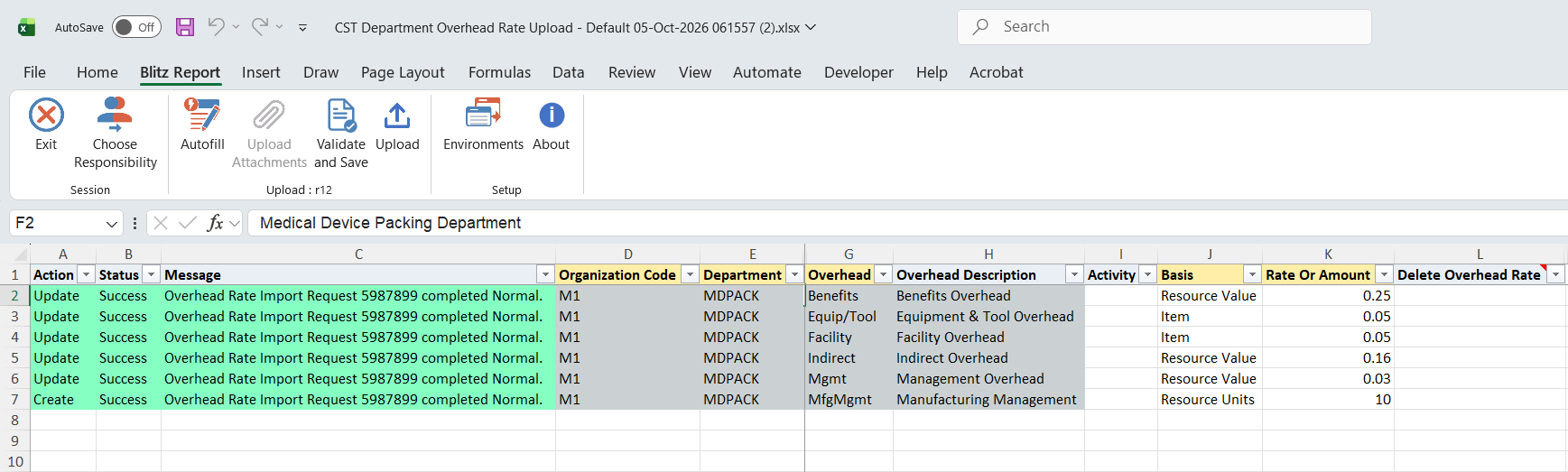
When the request completes, a result report opens listing every uploaded row with its status and message, including the Cost Import Process request number. Rows rejected by the import show the import’s error.
What’s produced
- Department overhead rates created, replaced or deleted in the target cost type.
- A Cost Import Process request for the target cost type, and Supply Chain Cost Rollup requests or a rollup of the affected items when a rollup is requested.
- A result report listing every row with a status (success or error) and a message.
Common questions
Why can I not select the Frozen cost type as target?
Uploading and deleting are allowed only for cost types that allow updates and are not the frozen standard cost type. Maintain rates in a pending cost type and move them into Frozen with a standard cost update.
How do I copy rates from one cost type to another?
Set Source Cost Type to the cost type to copy from and Target Cost Type to the one to copy into. With Auto Populate Upload Columns set to Yes, every downloaded rate is imported into the target.
Does a deleted rate go through the Cost Import Process?
No. The import cannot delete, so a row with Delete Overhead Rate set to Yes removes the rate directly, as the Overheads window does. A deletion is not covered by the cost rollup; run a rollup separately if item costs should reflect it.
Why did the Specific item rollup skip some items?
Specific item finds the items to roll up from their existing cost details in the target cost type. Items never rolled up in that cost type are not found, even if their routings use the department; use All items for those.
Does the upload wait for the cost rollup?
It waits for the Cost Import Process. In All items mode the Supply Chain Cost Rollup requests are submitted and the upload finishes without waiting for them.
Can I correct rows the import rejected and upload them again?
Yes. Correct the rows in the result file, click Validate and Save and upload it; the rejected rates are reprocessed.
Can I maintain the descriptive flexfield?
Yes. The Department Overhead Information descriptive flexfield columns are named after your flexfield segments. The Default template omits them; add them to a template of your own.
Troubleshooting
| Message | Cause | What to do |
|---|---|---|
| Department overhead rate not found for department …, overhead … and cost type … | A row marked for deletion has no rate in the target cost type. | Check the department, overhead and target cost type, or remove the delete flag. |
| Cost information cannot be deleted from the frozen standard cost type … | A deletion against the frozen standard cost type. | Delete in a pending cost type and run a standard cost update. |
| Cost information cannot be deleted from cost type … because the cost type does not allow updates. | The target cost type does not allow updates. | Use a cost type that allows updates, or change its setup. |
| Overhead Rate Import Request … completed Error (or Warning) | The Cost Import Process found invalid rows, for example a rate that already exists in Insert new cost information only mode or a second row for the same department and overhead. | Read the row messages and the import request log, correct the rows and upload the result file again. |
| Overhead Rate Import not Submitted due to … | The Cost Import Process request could not be submitted. | Check the message, for example concurrent manager availability, and upload again. |
| Warning: Supply Chain Cost Rollup request not submitted due to … | The rates were imported but the rollup could not be submitted. | Run the cost rollup manually. |
| Rollup Type and Rollup Option must be specified in order to Rollup Costs | Rollup Costs? is Yes without a Rollup Type and Rollup Option. | Set both, or clear Rollup Costs?. |