
AR Credit Memo Application Upload applies open on-account credit memos to invoices and debit memos from Excel, and unapplies existing credit memo applications, as the Applications window of the Transactions workbench does. The download lists the operating unit’s open credit memos together with their existing applications, so you can review the current state, enter the new applications and upload them in one go.
When to use it
- Apply a batch of on-account credit memos to the invoices or debit memos they belong to.
- Apply part of a credit memo to an invoice, and the remaining balance to other invoices of the same customer.
- Reverse credit memo applications that were made to the wrong invoice, then reapply them correctly.
- Review a customer’s open credit memos and how existing credits have been applied.
Before you start
- Access to the upload in Blitz Report and to the operating unit.
- The credit memos are complete and on account, with an open balance.
- The invoices or debit memos to apply to are open, belong to the same customer account and are in the same currency as the credit memo.
- The Receivables period of the application GL date is open.
Step 1 – Set the parameters
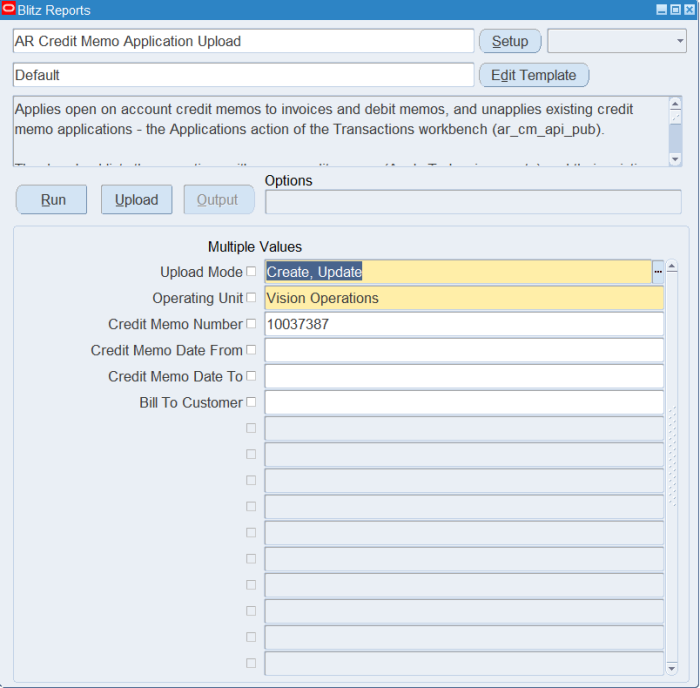
Open AR Credit Memo Application Upload in Blitz Report and set the parameters:
| Parameter | Meaning |
|---|---|
| Upload Mode | Create, Update (default) downloads the open credit memos and their existing applications. Create opens an empty sheet. |
| Operating Unit | The operating unit of the credit memos (required). |
| Credit Memo Number | Downloads a single credit memo. |
| Credit Memo Date From / Credit Memo Date To | Restricts the download to credit memos dated in this range. Date To defaults to the end of the month of Date From. |
| Bill To Customer | Downloads the credit memos of one customer. |
Step 2 – Run to download the Excel file
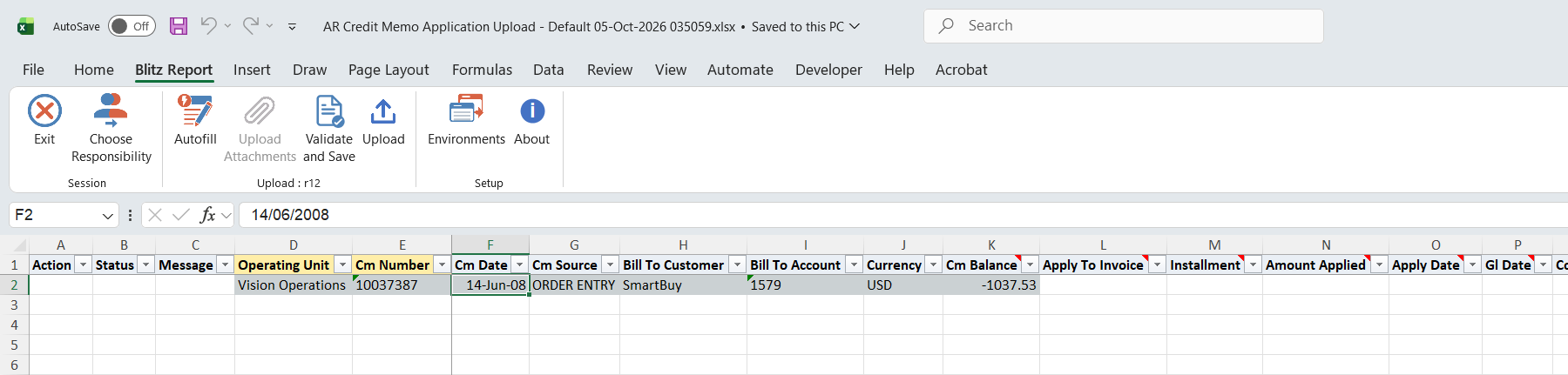
Click Run. The Excel file downloads and opens with one row per open credit memo, showing its remaining Cm Balance (negative) with Apply To Invoice empty, plus one row per existing active application of the downloaded credit memos, with the invoice and amount applied filled in.
Step 3 – Enter the applications
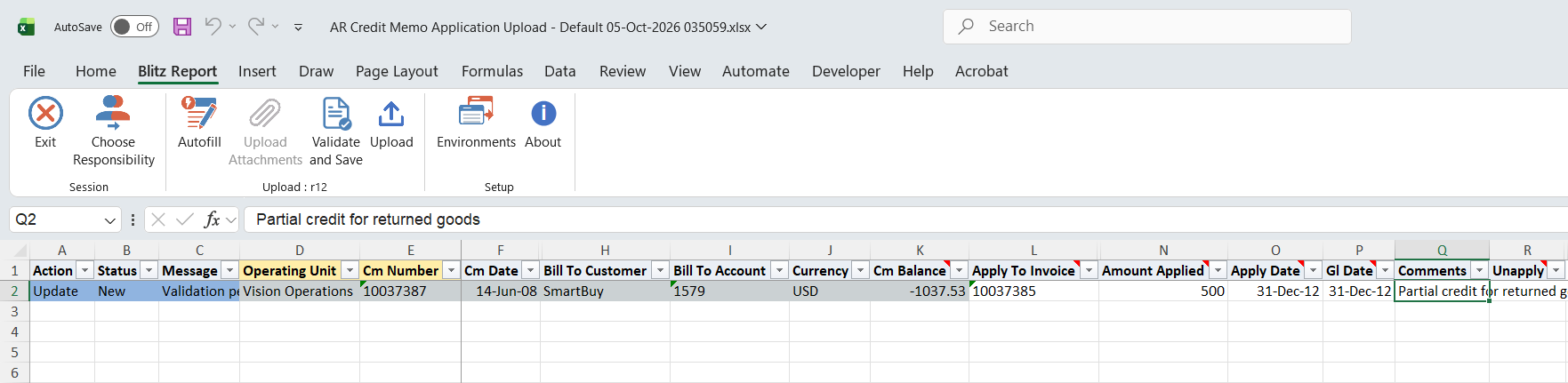
To apply a credit memo, enter Apply To Invoice on its open row. The list offers the customer account’s open invoices and debit memos in the credit memo’s currency, with their date and amount due. Then optionally enter:
- Amount Applied as a positive amount. Left blank, the smaller of the credit memo balance and the invoice amount due is applied.
- Installment, only for an invoice with several installments.
- Apply Date and Gl Date. Left blank, Receivables defaults them; the GL date must fall in an open period.
- Comments for the application.
To apply one credit memo to several invoices, copy its open row and enter a different Apply To Invoice and Amount Applied on each copy.
To unapply, set Unapply to Yes on an application row, and optionally enter the Reversal Gl Date. The amount returns to the credit memo balance. An existing application cannot be changed in place: unapply it, then enter the new application on the credit memo’s open row.
Step 4 – Validate and Save
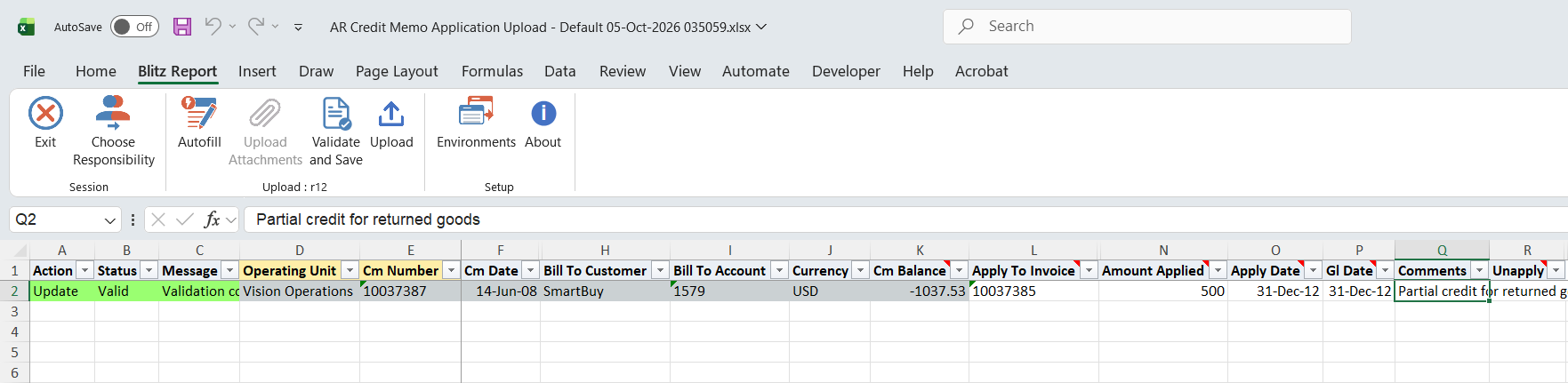
Click Validate and Save. This checks for missing required values and saves the file. Correct any rows it flags before uploading.
Step 5 – Upload the file
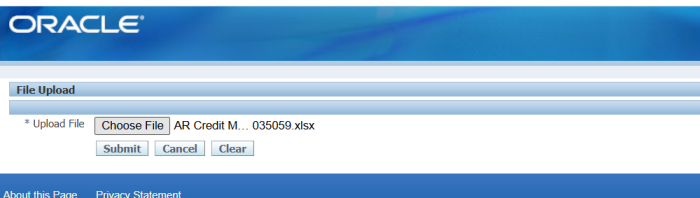
In Blitz Report click Upload and select the saved file. This submits the upload request, which applies and unapplies the credit memos row by row.
Step 6 – Review the result report
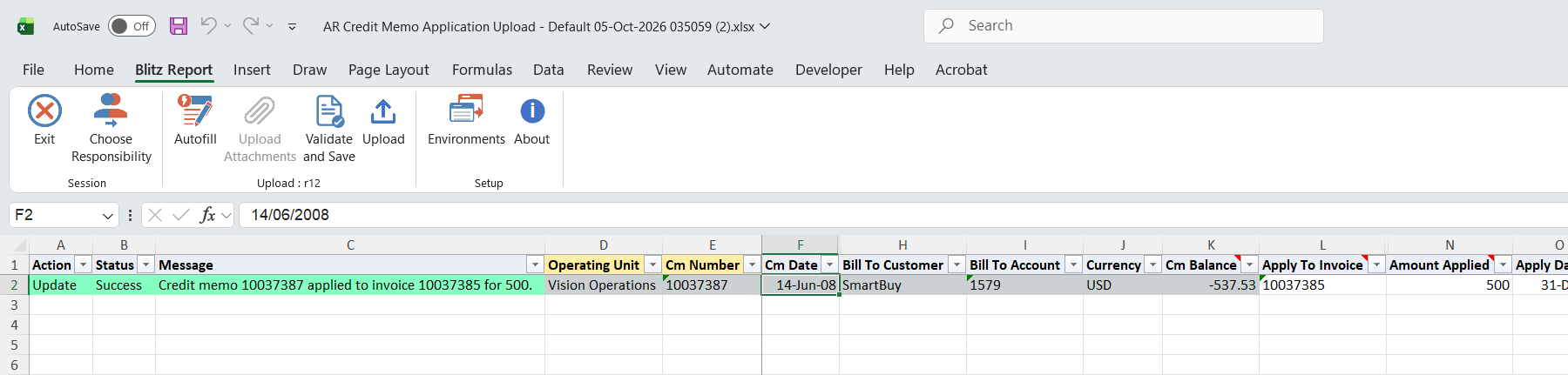
When the request completes, a result report opens listing every uploaded row with its status and message, for example Credit memo 10037387 applied to invoice 10037385 for 500., and the credit memo’s remaining balance after the upload.
What’s produced
- Credit memo applications to invoices and debit memos, as if entered in the Applications window of the Transactions workbench.
- Unapplied credit memo applications, with the amount returned to the credit memo balance.
- A result report listing every row with a status (success or error) and a message.
Common questions
Can I change the amount of an existing application?
No. Set Unapply to Yes on the application row, and enter the new application with the correct amount on the credit memo’s open row.
What is applied when I leave Amount Applied blank?
The smaller of the credit memo’s remaining balance and the invoice amount due, so the credit memo or the invoice is fully applied.
Why is my invoice not in the Apply To Invoice list?
The list shows only open invoices and debit memos of the credit memo’s bill-to customer account, in the same operating unit and currency, with an amount due.
Why does a fully applied credit memo not appear on an open row?
Only credit memos with a remaining balance get an open row. Their existing applications are still listed and can be unapplied.
Can I create credit memos with this upload?
No. Create credit memos with the AR Transaction Upload, which can also create a credit memo and apply it to an invoice in one step.
Troubleshooting
| Message | Cause | What to do |
|---|---|---|
| Credit memo … not found in this operating unit. | The Cm Number does not exist as a credit memo in the row’s operating unit. | Download the credit memo instead of typing it. |
| Credit memo … exists more than once in this operating unit. Download the credit memo to process it. | Several credit memos share the number, for example from different transaction sources. | Download the credit memo, so the row identifies it exactly. |
| Open invoice … not found in this operating unit. | The invoice is closed, or not an invoice or debit memo of this operating unit. | Pick the invoice from the Apply To Invoice list. |
| Invoice … exists more than once in this operating unit (different transaction sources). | Two open transactions share the invoice number. | Apply this credit memo in the Transactions workbench. |
| An existing application cannot be changed. Set Unapply to Yes on this row and enter the new application on an open credit memo row. | Values were changed on a row showing an existing application. | Unapply the application and reapply it from the credit memo’s open row. |
| Apply To Invoice is required to unapply a credit memo application. | Unapply is Yes on a row that does not come from the download and has no invoice. | Unapply on the downloaded application row. |
| No active application of credit memo … to invoice … found. | The application was already unapplied, or the credit memo was never applied to that invoice. | Download again to see the current applications. |
| Credit memo … has more than one active application to invoice …. Download the applications to unapply the correct one. | A typed or pasted unapply row matches several applications. | Download the applications and set Unapply on the right row. |
| Other Receivables messages, for example about the GL date or the amount | Receivables rejected the application, for example because the GL date is in a closed period or the amount exceeds the balance. | Correct the date or amount as the message says and upload again. |