
AP Invoice Hold Upload releases and places Oracle Payables invoice holds in bulk from Excel – the Excel equivalent of the Holds tab of the Invoice Workbench. Download the open holds, pick a Release Name on the rows to release, or add rows to place new manual holds, and upload. Releases go through the same Oracle logic as the form, including the holds workflow, the hold business event and the E-Business Tax synchronization.
When to use it
- Release many matching, variance or invoice holds at once, for example after a tolerance review or a supplier price correction.
- Place manual holds on a list of invoices, for example invoices under dispute or awaiting supplier confirmation.
- Review open holds by supplier, invoice, hold name, hold date, held by or purchase order in Excel.
- Release holds from a list prepared outside Oracle, by pasting the invoice and hold details instead of downloading them.
Before you start
- Access to the upload in Blitz Report, and access to the operating unit of the invoices.
- The holds to release are user releasable. System holds such as Line Variance or Distribution Variance cannot be released manually; they are removed by correcting the invoice and revalidating it.
- The invoice is not currently being validated by an Invoice Validation request.
Step 1 – Set the parameters
Open AP Invoice Hold Upload in Blitz Report and set the parameters to select the open holds to download:
| Parameter | Meaning |
|---|---|
| Upload Mode | Create, Update (default) downloads the open holds for release and lets you add rows for new holds; Create opens an empty sheet for placing new holds only. |
| Operating Unit | The operating unit of the invoices. |
| Supplier | Suppliers with open holds. |
| Invoice Number | Invoices with open holds. |
| Invoice Date From / To | Invoice date range. |
| Hold Name | Only holds of this name, for example Price or Qty Rec. |
| Hold Date From / To | Date range in which the holds were placed. |
| Held By | The user who placed the hold, or System for holds placed by Invoice Validation. |
| PO Number | Holds on invoices matched to this purchase order. |
| User Releasable Only | Yes (default) downloads only holds you can release. Set to No to also review system holds. |
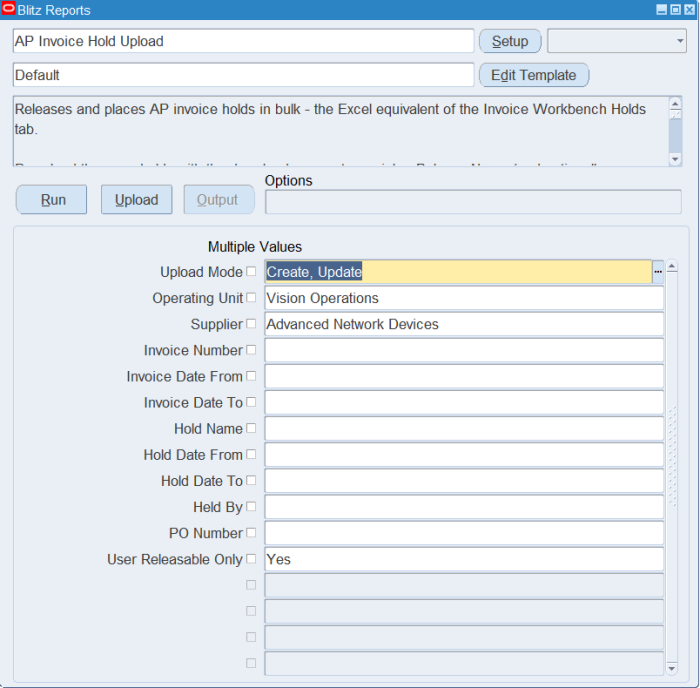
Step 2 – Run to download the Excel file
Click Run. The Excel file downloads and opens with one row per open hold, showing the invoice, the hold name and reason, the hold date, who placed it and, for matching holds, the PO Number, PO Line and PO Shipment.
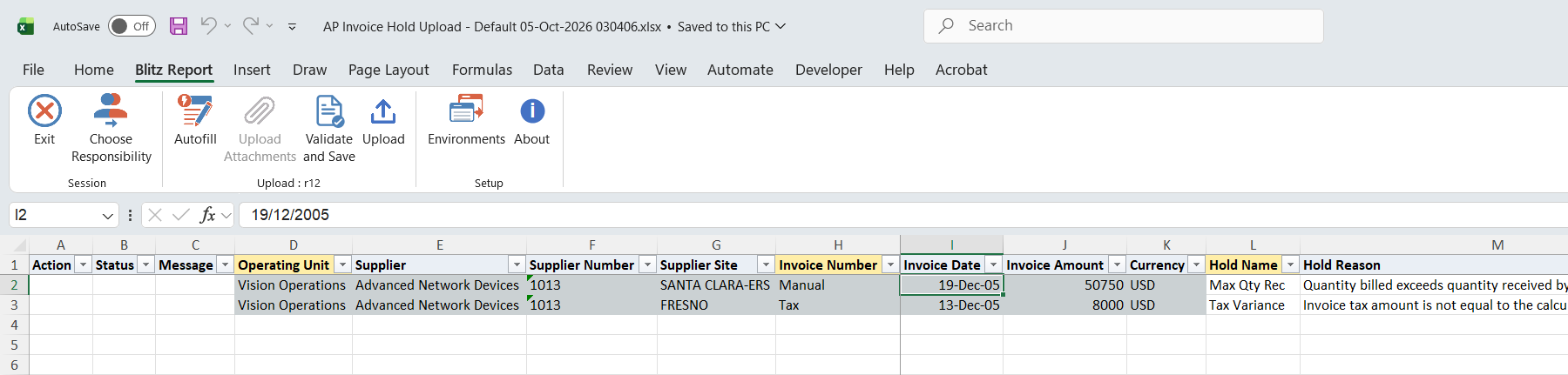
Step 3 – Release or place holds
To release a hold, pick a Release Name on its row. The list offers the release names that apply to the hold: matching release reasons for holds on a purchase order shipment, variance release reasons for Tax Variance, invoice release reasons for all other holds. Release Reason defaults to the release name description and can be overwritten. Rows you leave unchanged are not uploaded.
To place a new manual hold, add a row with the Operating Unit, Invoice Number and Hold Name, and leave Release Name blank. Supplier, invoice date, amount and currency fill in from the invoice. Enter a Hold Reason, or leave it blank to use the hold name description. Only user releasable hold names can be placed, and not twice on the same invoice.

Step 4 – Validate and Save
Click Validate and Save. This checks for missing required values and saves the file. Correct any rows it flags before uploading.
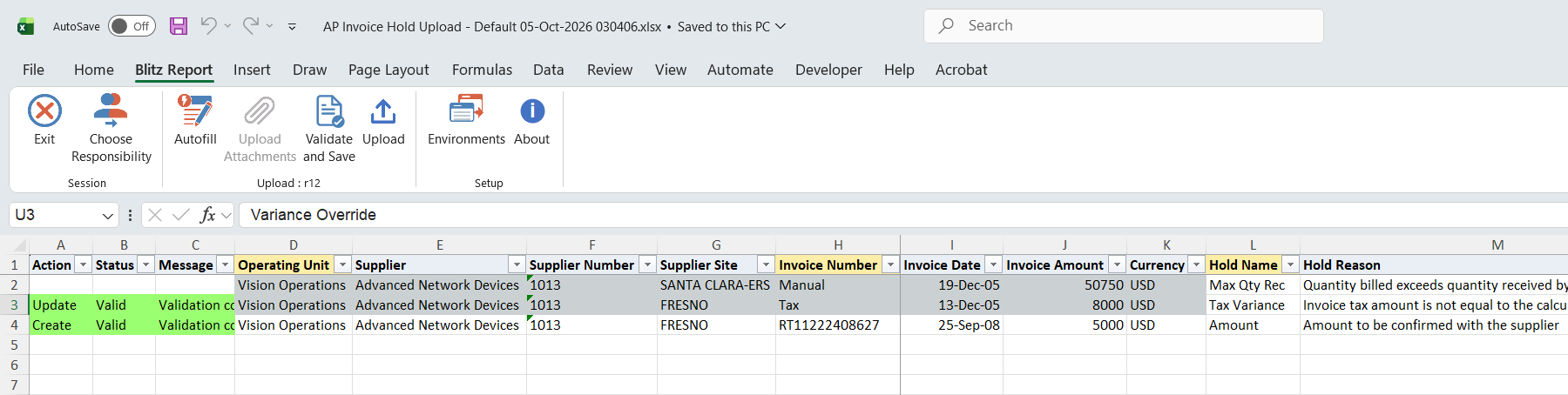
Step 5 – Upload the file
In Blitz Report click Upload and select the saved file. This submits the upload request, which releases or places each hold.
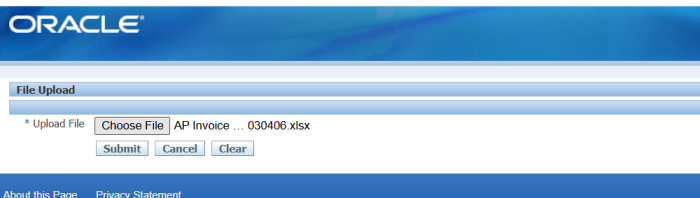
Step 6 – Review the result report
When the request completes, a result report opens listing every uploaded row with its status and message, such as Hold “Tax Variance” released. or Hold “Amount” placed.

What’s produced
- Released invoice holds with release name and release reason, and new manual holds with their hold reason, exactly as entered in the Invoice Workbench.
- A result report listing every row with a status (success or error) and a message.
Common questions
Does releasing the last hold revalidate the invoice?
No. The upload does not submit Invoice Validation. The invoice status is derived by Oracle and updates automatically, as after releasing holds in the form.
Can I release holds without downloading them first?
Yes. Holds are identified by Operating Unit, Invoice Number, Supplier and Hold Name, so you can paste rows from another list. When an invoice has several open holds of the same name, for example matching holds on different PO shipments, also enter the PO Number, PO Line, PO Shipment or Invoice Line.
Why are Line Variance and Distribution Variance holds not downloaded?
They are system holds that cannot be released manually. Set User Releasable Only to No to review them, then correct the invoice and revalidate it.
What happens if I upload the result file again?
Rows of holds that are already released report Hold “…” is already released. and change nothing.
Do I need to enter the Supplier on a new hold row?
Only when the same invoice number exists for more than one supplier in the operating unit. Otherwise the supplier fills in from the invoice.
Troubleshooting
| Message | Cause | What to do |
|---|---|---|
| Operating Unit “…” not found or not accessible for the current responsibility. | The responsibility has no access to the operating unit. | Use a responsibility with access to the operating unit. |
| Invoice “…” not found in Operating Unit “…”. | The invoice number does not exist in the operating unit, or not for the supplier entered. | Check the invoice number, operating unit and supplier. |
| Invoice “…” exists for more than one supplier in Operating Unit “…”. Enter the Supplier or Supplier Number to identify the invoice. | The invoice number is used by several suppliers. | Enter the Supplier or Supplier Number. |
| Multiple open “…” holds exist on invoice “…”. Enter the PO Number, PO Line, PO Shipment or Invoice Line to identify the hold. | The invoice has several open holds of this name. | Enter the PO or invoice line details of the hold, or download the holds instead of pasting them. |
| Hold “…” is not user releasable. | A system hold such as Line Variance. | Correct the invoice and revalidate it. |
| Invoice “…” is currently being validated by request …. Holds cannot be released until the validation completes. | An Invoice Validation request is processing the invoice. | Upload again after the request completes. |
| Release Name “…” is not a valid release reason for hold “…”. | The release name does not apply to this type of hold, or is reserved for automatic releases. | Pick a Release Name from the list on the row. |
| No open hold “…” found on invoice “…” to release. | The hold is already released or does not exist on the invoice. | Download the current open holds. |
| Hold “…” cannot be placed manually. | The hold name is a system hold or inactive. | Pick a Hold Name from the list. |
| Invoice “…” is already on hold “…”. | The invoice already has an open hold of this name. | No action needed, or pick another hold name. |