
INV Item Subinventory Upload creates, updates and deletes item subinventory assignments from Excel – the Item Subinventories window of Oracle Inventory – together with the item’s stock locator assignments in each subinventory. Maintain Min-Max planning quantities, order modifiers, replenishment sources and lead times per item and subinventory for many items and organizations in one file.
When to use it
- Assign a list of items to a subinventory, for example when setting up a new storeroom or van stock.
- Set or change Min-Max minimum and maximum quantities for many items at once.
- Maintain replenishment sources (Inventory, Supplier or Subinventory), order quantities and lead times per subinventory.
- Assign items to stock locators, or maintain PAR levels in PAR-planned subinventories.
- Remove obsolete item subinventory or locator assignments in bulk.
Before you start
- A responsibility with access to the inventory organizations you want to maintain.
- The subinventories exist as storage subinventories, and the items are assigned to the organization.
- Stock locators you assign already exist in the subinventory. Create them with the INV Stock Locator Upload.
Step 1 – Set the parameters
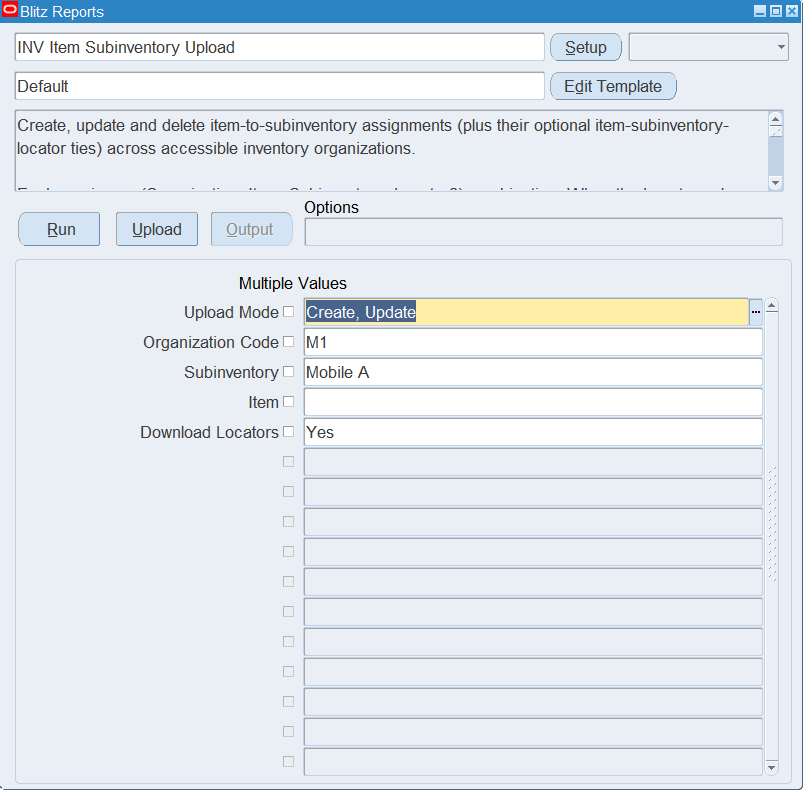
Open INV Item Subinventory Upload in Blitz Report and set the parameters:
| Parameter | Meaning |
|---|---|
| Upload Mode | Create opens an empty sheet for new assignments; Create, Update downloads existing assignments for editing and lets you add new ones. |
| Organization Code | The inventory organization to download. Defaults to your current inventory organization. |
| Subinventory | Restricts the download to one subinventory. Also the default Subinventory of new rows. |
| Item | Restricts the download to one item. |
| Download Locators | Yes (default) downloads one row per stock locator assignment next to its item subinventory assignment. Leave it blank to get one row per item subinventory assignment, when you only maintain planning values. |
Step 2 – Run to download the Excel file
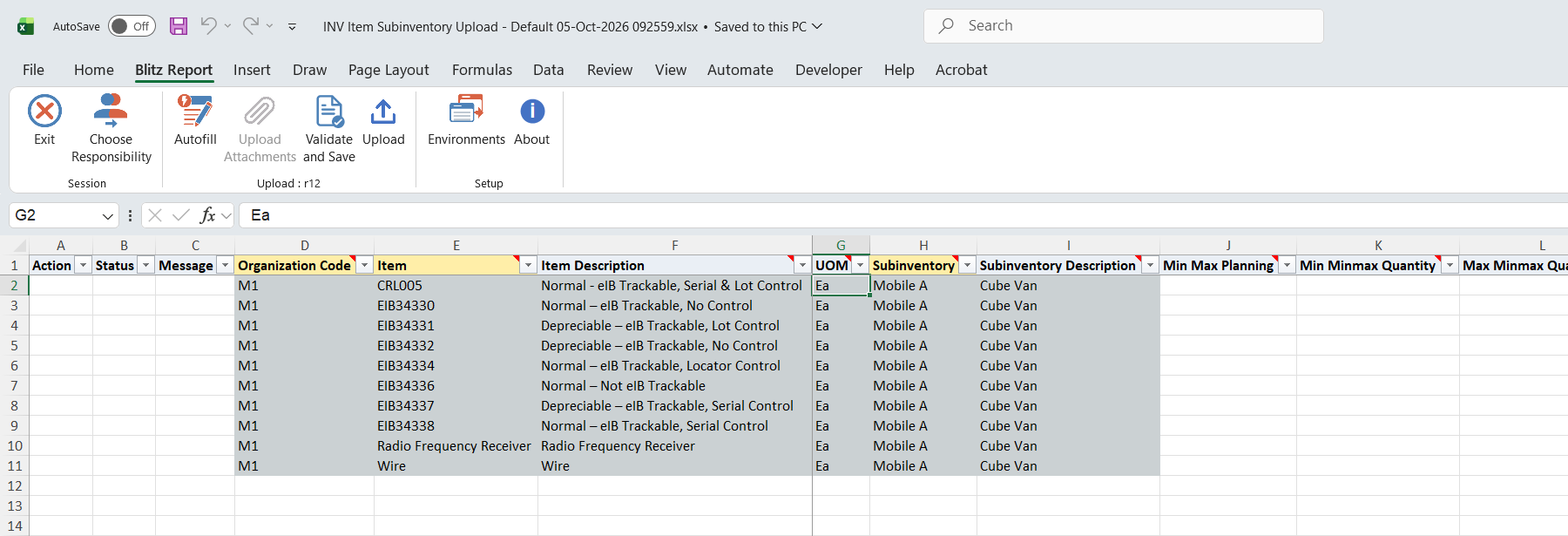
Click Run. The Excel file downloads and opens with one row per existing assignment, or an empty sheet in Create mode.
Step 3 – Enter or change the assignments
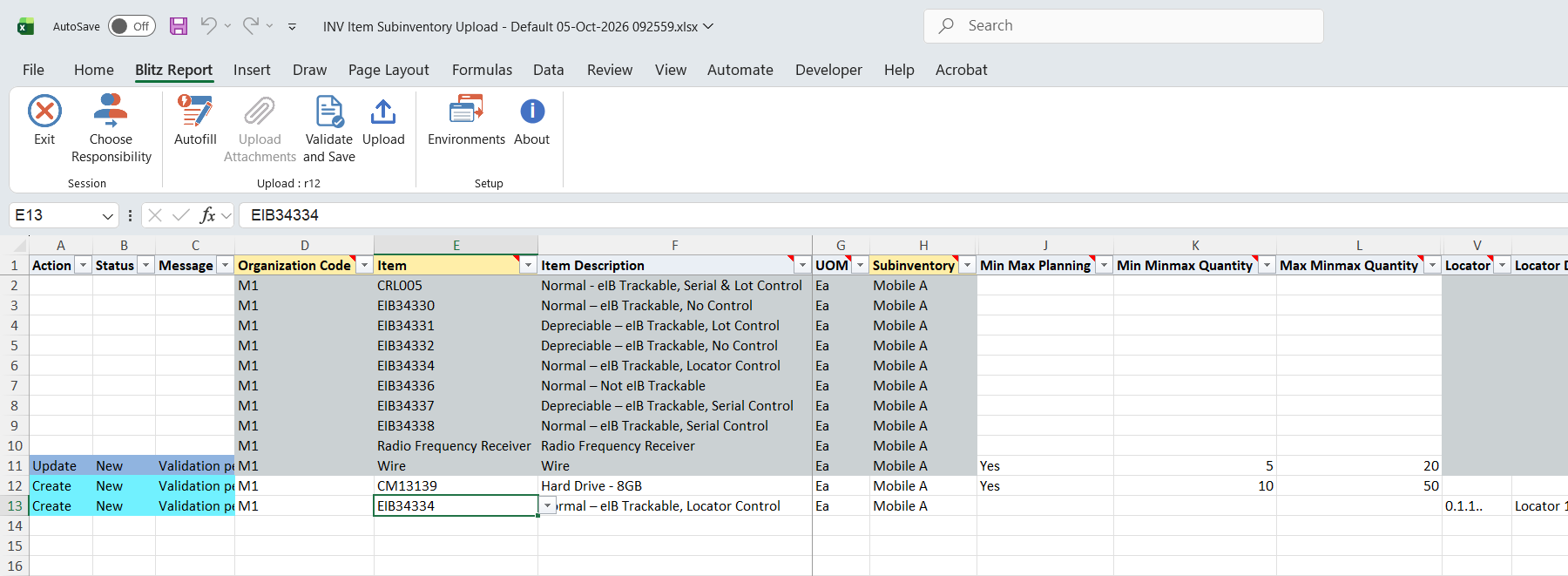
Each row is one combination of Organization Code, Item, Subinventory and, optionally, Locator. These columns cannot be changed on a downloaded row; to move an assignment, delete it and create a new one. Item Description, UOM, Subinventory Description and Locator Description fill in automatically.
- Min Max Planning – Yes enables Min-Max planning and requires Min Minmax Quantity and Max Minmax Quantity (minimum not above maximum); blank means not planned, and both quantities must be blank.
- Fixed Lot Multiple, Minimum Order Quantity and Maximum Order Quantity – optional order modifiers; the lot multiple must be greater than 0.
- Source Type – Inventory requires a Source Organization; Subinventory requires the row’s own organization as Source Organization; Supplier or blank requires Source Organization and Source Subinventory to be blank.
- Preprocessing, Processing and Postprocessing Lead Time – in days.
- Locator – enter a locator to assign the item to it as well. To assign an item to several locators, add one row per locator with the same organization, item and subinventory, directly below each other: the planning columns are taken from the first of these rows only.
- Par Level – saved only when the subinventory uses PAR level planning, and the only value that can be changed on an existing locator assignment.
- Delete Option – Subinventory deletes the item subinventory assignment together with all its locator assignments; Locator deletes only the locator assignment of that row.
Step 4 – Validate and Save
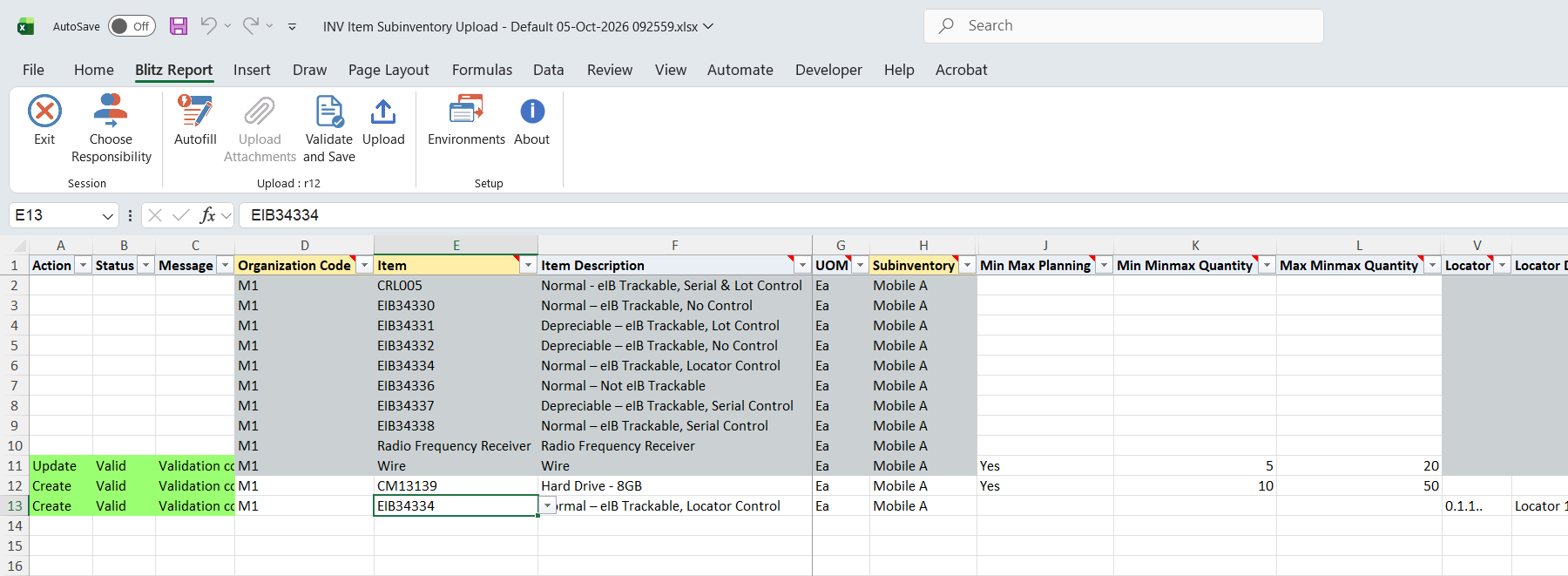
Click Validate and Save. This checks for missing required values and saves the file. Correct any rows it flags before uploading.
Step 5 – Upload the file
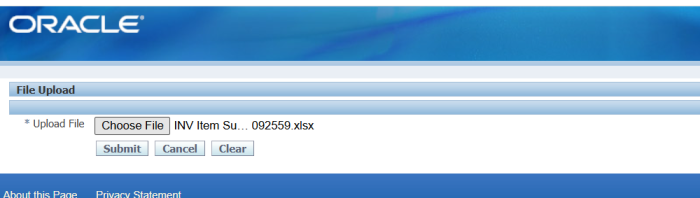
In Blitz Report click Upload and select the saved file. This submits the upload request, which creates, updates or deletes each item subinventory and locator assignment.
Step 6 – Review the result report
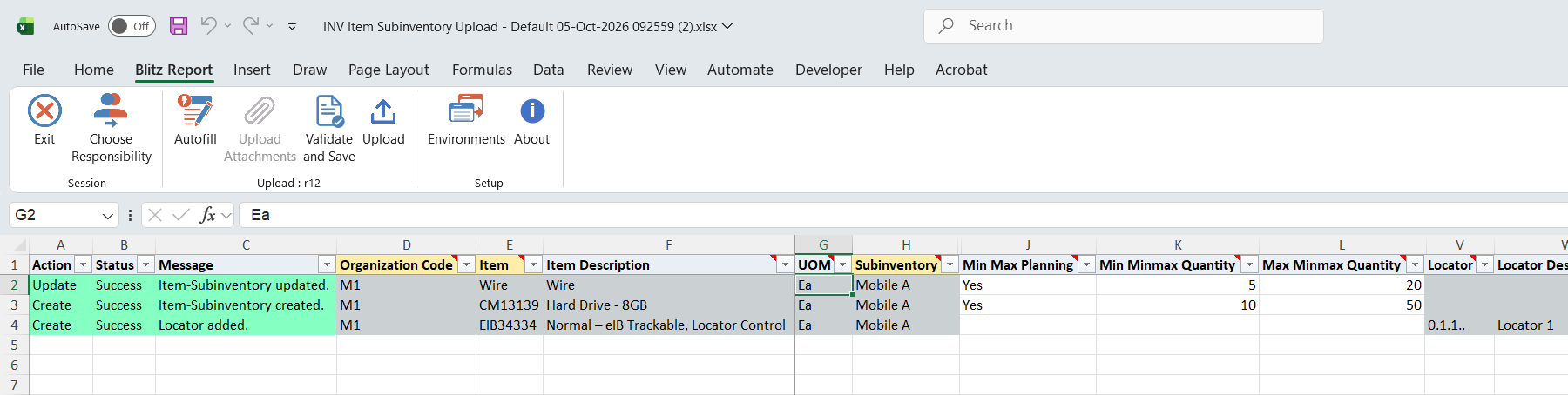
When the request completes, a result report opens listing every uploaded row with its status and message, for example Item-Subinventory created., Item-Subinventory updated. or Locator added. A row whose values match the stored assignment succeeds with an empty message.
What’s produced
- Item subinventory assignments created, updated or deleted, as in the Item Subinventories window.
- Item stock locator assignments added, PAR levels updated, or assignments deleted.
- A result report listing every row with a status (success or error) and a message.
Common questions
Can I change the organization, item or subinventory of an existing assignment?
No. Delete the assignment with Delete Option Subinventory and create a new row with the new values.
How do I assign one item to several locators?
Add one row per locator with the same Organization Code, Item and Subinventory, placed directly below each other. The item subinventory values are processed on the first of these rows; planning values on the following rows are ignored.
What happens to the locator assignments when I delete an item subinventory assignment?
They are deleted with it. Put Delete Option Subinventory on the first row of that item and subinventory; any following rows for the same assignment are rejected.
Why was my PAR Level not saved?
PAR levels apply only to subinventories with PAR level planning. For other subinventories the value is ignored, and an existing value is cleared when the locator assignment is updated.
Can I download the assignments of several subinventories at once?
Yes. Leave Subinventory blank to download all assignments of the organization, or tick Multiple Values to pick several subinventories or items.
Troubleshooting
| Message | Cause | What to do |
|---|---|---|
| Min Qty is required when Min-Max Planning is Yes. / Max Qty is required when Min-Max Planning is Yes. | Min-Max planning is enabled without both quantities. | Enter Min Minmax Quantity and Max Minmax Quantity. |
| Min Qty and Max Qty must be blank when Min-Max Planning is blank. | Quantities entered for an item that is not Min-Max planned. | Set Min Max Planning to Yes, or clear both quantities. |
| Max Qty must be greater than or equal to Min Qty. | The minimum quantity is above the maximum. | Correct the quantities. |
| Fixed Lot Multiple must be greater than 0. | A zero or negative lot multiple. | Enter a positive value or leave it blank. |
| Maximum Order Quantity must be greater than or equal to Minimum Order Quantity. | The minimum order quantity is above the maximum. | Correct the order quantities. |
| Source Organization and Source Subinventory must be blank when Source Type is blank. (or Supplier) | A source organization or subinventory without an internal source type. | Clear the source columns, or set Source Type to Inventory or Subinventory. |
| Source Organization is required when Source Type is Inventory. (or Subinventory) | The source organization is missing. | Enter the Source Organization. |
| Source Organization must equal the row’s Organization when Source Type is Subinventory (same-org self-sourcing only). | Subinventory sourcing from another organization. | Use the row’s own organization, or Source Type Inventory. |
| The Locator does not exist in the chosen Organization and Subinventory. | The locator belongs to another subinventory or does not exist. | Pick a locator of the row’s subinventory, or create it first with the INV Stock Locator Upload. |
| Delete Option ‘Subinventory’ must be on the first row for this item-subinventory. | The delete is on a following row of the same item and subinventory. | Move Delete Option Subinventory to the first row, and remove the other rows of that assignment. |
| Cannot delete: no matching item-subinventory found for the supplied keys. / Cannot delete: no matching locator tie found for the supplied keys. | The assignment to delete does not exist. | Check Organization Code, Item, Subinventory and Locator. |
| Cannot process: parent Item-Subinventory failed earlier in upload. | The first row of the same item and subinventory failed. | Fix the error on that row and upload again. |
| Cannot process: the item-subinventory assignment was deleted by an earlier row. | An earlier row deleted the assignment this row refers to. | Remove the row, or do not delete the assignment. |