
INV Item User Defined Attribute Upload creates, updates and deletes Oracle Product Information Management (PIM / Advanced Product Catalog) item user-defined attribute values from Excel. It works with the attribute groups associated to your item catalog categories – including multi-row attribute groups – at the Item, Item Organization and Item Revision data levels, and processes every change through Oracle’s standard PIM user attributes API, so the PIM validations apply: value sets, unique keys of multi-row groups, catalog category associations and item and attribute group security.
When to use it
- Mass-populate user-defined attribute values for new or existing items, for example after defining a new attribute group.
- Review and mass-update existing attribute values across many items in one spreadsheet.
- Maintain multi-row attribute groups (for example marketing documents or material lists) – add, change or delete individual rows.
- Maintain revision-level attribute values per item revision.
- Delete complete attribute group rows that are no longer needed.
Before you start
- Oracle E-Business Suite R12 with PIM item user-defined attributes in use, and a responsibility with access to the inventory organizations you want to maintain. The download only includes organizations your responsibility can access.
- Your user has PIM edit privileges on the items, for example the item owner role. Attribute groups that are secured by their own edit privilege also need that privilege in your item role – the same security as in the PIM pages.
- The attribute groups are associated to the items’ catalog categories (directly or through a parent category). The seeded Detailed Description and Images item features are not user-defined attribute groups and are not included, and the supplier data levels are not supported.
Step 1 – Set the parameters
Open INV Item User Defined Attribute Upload in Blitz Report and set the parameters:
| Parameter | Meaning |
|---|---|
| Upload Mode | Create opens an empty sheet for new attribute values; Create, Update (default) downloads the existing attribute values matching the other parameters and lets you add new ones. |
| Organization Code | The inventory organization to download, item master organizations included. |
| Item | Restricts the download to an item. |
| Item Catalog Category | Restricts the download to the items of an item catalog category. |
| Attribute Group | Restricts the download to an attribute group. |
| Data Level | Restricts the download to the Item, Item Organization or Item Revision data level. |
Tick Multiple Values next to a parameter to enter several values.
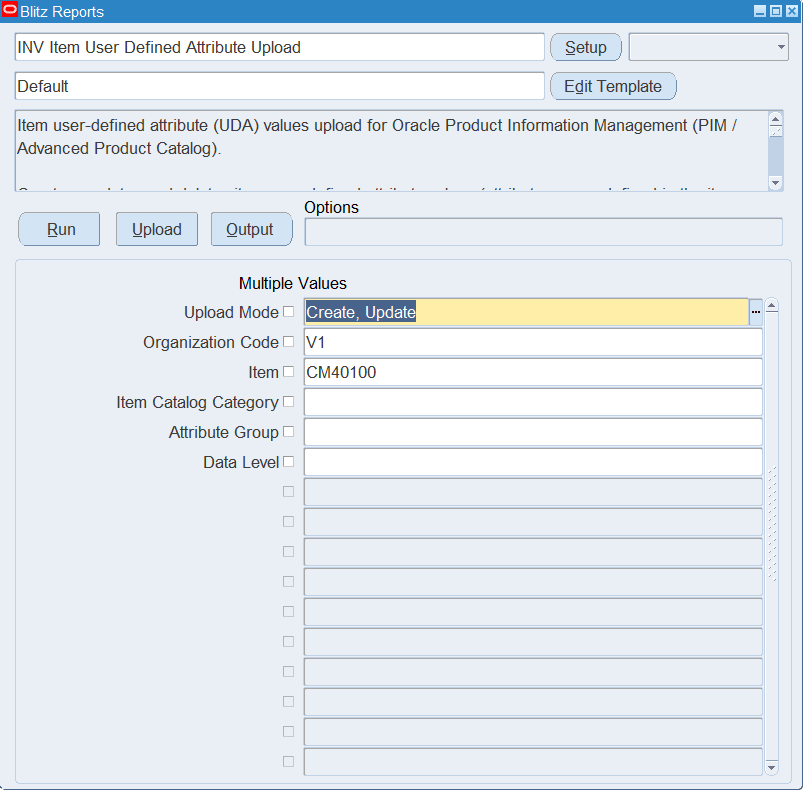
Step 2 – Run to download the Excel file
Click Run. The Excel file downloads and opens with one row per attribute of each existing attribute group row, including attributes that have no value yet, or an empty sheet in Create mode.
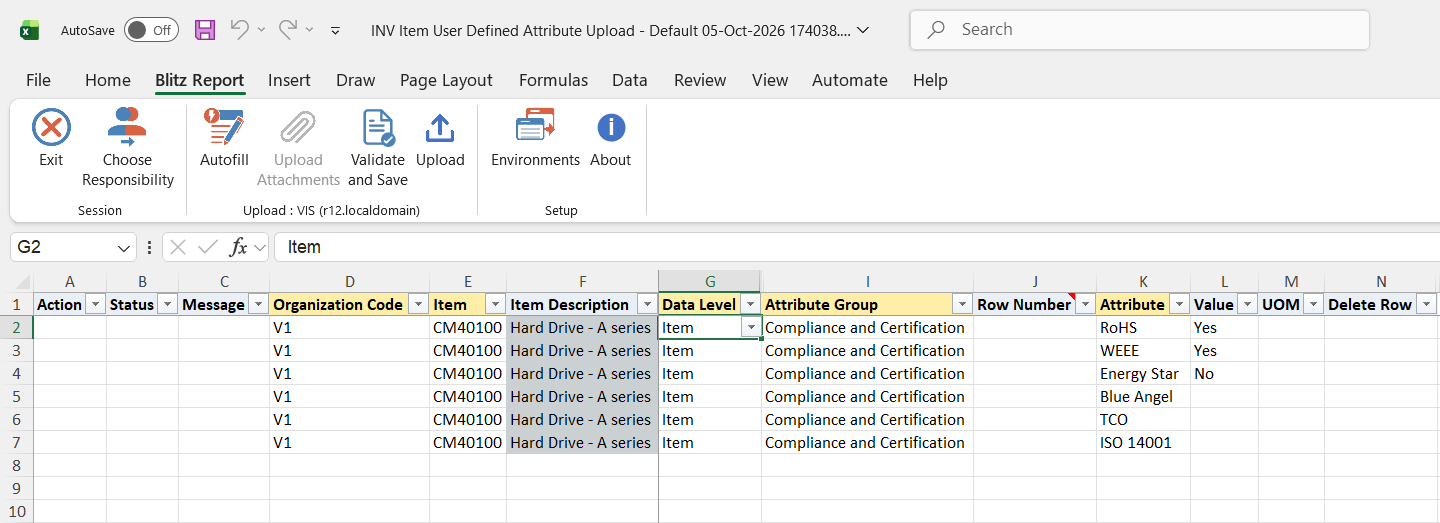
Step 3 – Enter or change the attribute values
Each row carries one attribute value, identified by Organization Code, Item, Data Level, Revision, Attribute Group, Row Number and Attribute. The lists of values cascade: Attribute Group lists only the groups associated to the item’s catalog category at the chosen data level, Attribute lists the attributes of the group, and Value and UOM offer the attribute’s value set and unit of measure class.
- Change a value – overwrite the Value cell of a downloaded row. Only the changed rows are uploaded; the other attributes of the group keep their values. Clearing the cell clears the stored value.
- Add values – enter new rows with Organization Code, Item, Attribute Group, Attribute and Value. Data Level defaults to Item and Item Description fills in automatically. New and downloaded rows can be mixed freely.
- Multi-row attribute groups – give all attribute values that belong to one row of the group the same Row Number, and include the group’s unique key attributes on every row so Oracle can match existing rows. Leave Row Number blank for single-row groups.
- Revision level – set Data Level to Item Revision and enter the Revision. Leave Revision blank for the other data levels.
- Value sets – enter the value as displayed in the PIM pages, for example Yes rather than Y.
- Numeric attributes with a unit of measure – enter the UOM code alongside the value, for example 260 and C for a temperature in Celsius.
- Dates – enter date attribute values in the format DD-MON-YYYY.
- Delete a row – set Delete Row to Yes to delete the complete attribute group row the spreadsheet row belongs to.
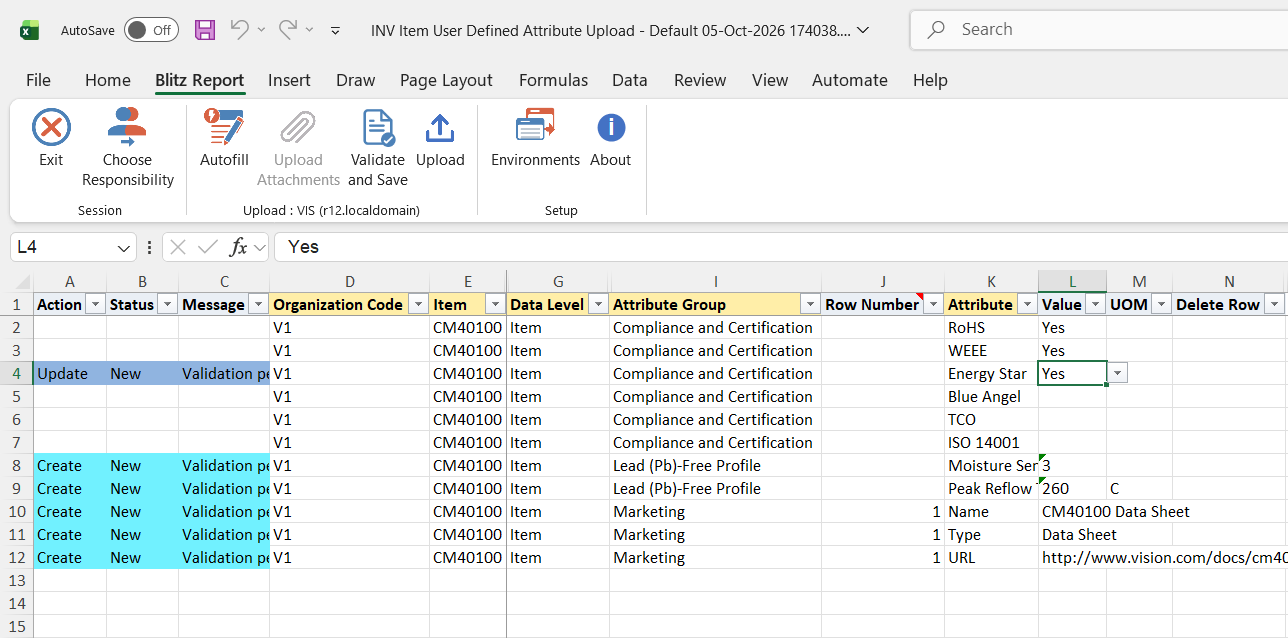
Step 4 – Validate and Save
Click Validate and Save. This checks for missing required values and saves the file. Correct any rows it flags before uploading.
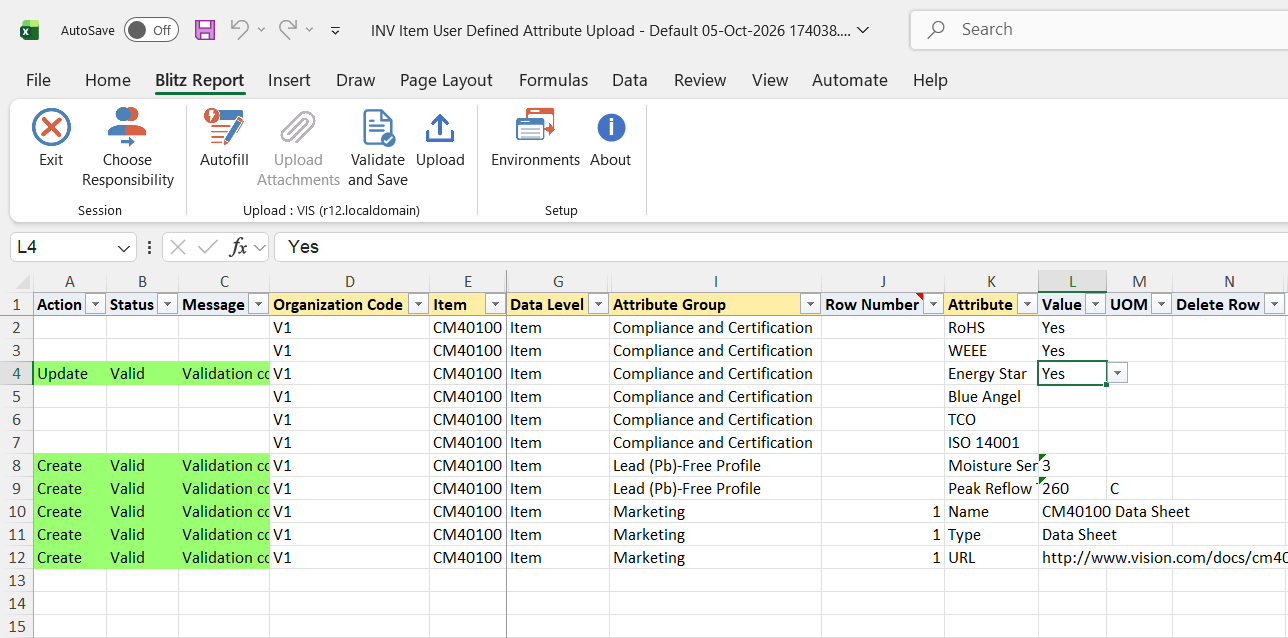
Step 5 – Upload the file
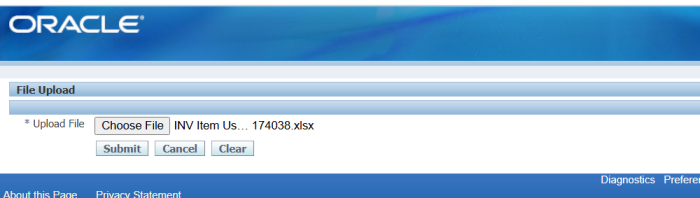
In Blitz Report click Upload and select the saved file. This submits the upload request, which processes the rows of each attribute group row together: same item, organization, data level, revision, attribute group and Row Number.
Step 6 – Review the result report
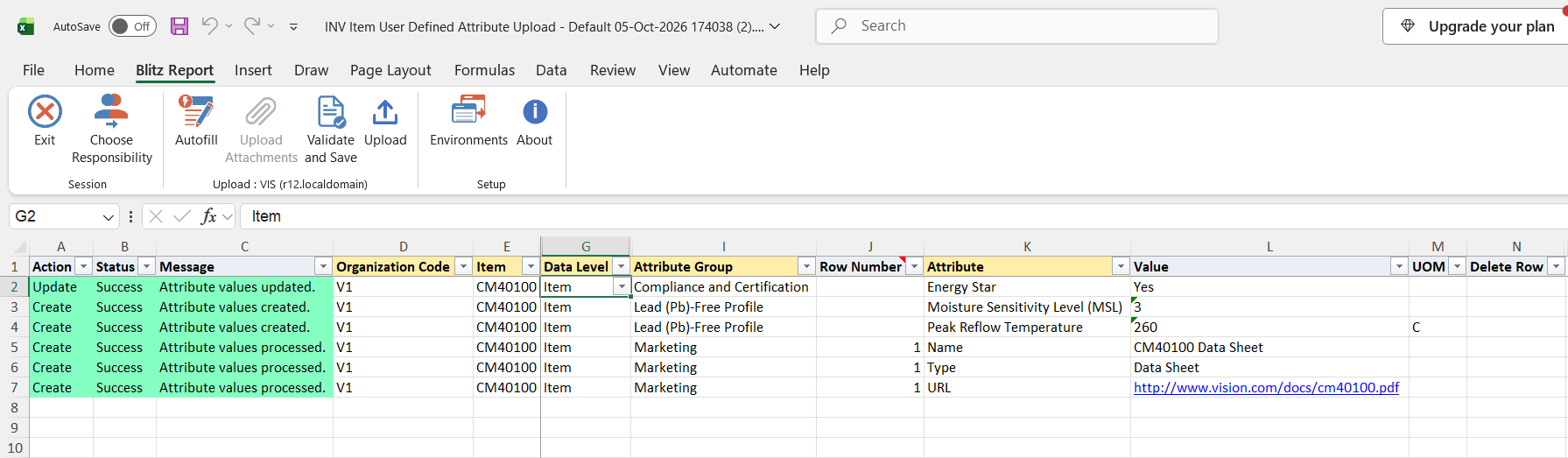
When the request completes, a result report opens listing every uploaded row with its status and message. If one attribute value of an attribute group row fails, the whole group row is rejected and each of its rows shows the reason.
What’s produced
- Item user-defined attribute values in PIM, exactly as if they had been entered on the item’s attribute group pages – created, updated or deleted according to the rows.
- Rows whose values equal the stored values are skipped with the message “No change.”, leaving the item untouched.
- A result report listing every row with a status (success or error) and a message such as “Attribute values created.”, “Attribute values updated.” or “Attribute group row deleted.”.
Common questions
Which attribute groups can I maintain?
All user-defined attribute groups associated to the items’ catalog categories, including associations inherited from parent categories, at the Item, Item Organization and Item Revision data levels.
How do I maintain a multi-row attribute group?
Enter one spreadsheet row per attribute and give all attributes of the same group row the same Row Number. Always include the group’s unique key attributes – they identify which existing row to update. Changing a unique key value creates a new row instead of updating the old one.
Why do I get a privileges error?
The upload enforces PIM security. Your user needs an item role with edit privileges on each item, and attribute groups with their own edit privilege also need that privilege in your role – the same requirement as editing the attributes in the PIM pages.
Can I clear a value?
Yes – download the rows, clear the Value cell and upload. To remove a complete attribute group row, set Delete Row to Yes instead.
Which date formats are accepted?
DD-MON-YYYY, optionally with a time (DD-MON-YYYY HH24:MI:SS), as well as YYYY-MM-DD and YYYY/MM/DD.
Troubleshooting
| Message | Cause | What to do |
|---|---|---|
| The current user … does not have sufficient privileges to edit Attribute Group … | Your user has no item role with edit privileges on the item, or lacks the attribute group’s edit privilege. | Have an item owner or PIM administrator grant you an item role that includes the required privileges. |
| Item … does not exist in organization … | The item is not assigned to the organization. | Check the Organization Code and Item. |
| Attribute group … is not associated with the item catalog category of item … at data level … | The group does not apply to the item’s catalog category at the chosen data level. | Check the item’s catalog category and the attribute group associations in the PIM setup, or correct the Data Level. |
| Attribute group … is not unique | Two attribute groups associated to the item have the same display name. | Ask your administrator to rename one of the attribute groups. |
| Attribute … does not exist in attribute group … | The attribute name does not belong to the group, or the attribute is disabled. | Pick the Attribute from the list of values. |
| Attribute … appears more than once for the same attribute group row | Two rows with the same item, attribute group, Row Number and attribute. | Remove the duplicate row, or give a multi-row group row its own Row Number. |
| The unique key attribute(s) … must be included for each row of this multi-row attribute group | A multi-row group row was uploaded without all its unique key attributes. | Add a row for each unique key attribute of the group, with the same Row Number. |
| Revision is required for data level … / Revision must only be entered for the item revision data level | The Revision column does not match the Data Level. | Enter a Revision only for the Item Revision data level. |
| Revision … does not exist for item … | The item has no such revision in the organization. | Pick the Revision from the list of values. |
| Value … is not a valid number / date for attribute … | The value does not match the attribute’s data type. | Enter numbers as plain numbers and dates as DD-MON-YYYY. |
| The attribute group row to delete does not exist | Delete Row is Yes for a group row that has no stored values. | Remove the row from the upload. |