
AR Transaction Update Upload changes the header fields of existing Oracle Receivables transactions from Excel – the fields you can still maintain in the Transactions window after a transaction is complete: comments, special instructions, print option, purchase order details, salesperson, remit-to address, late charges exemption, ship via, FOB, waybill number, cross reference and the transaction descriptive flexfield. Download the transactions, change the cells and upload the file; a result report lists every changed row with its status.
When to use it
- Add or correct the customer purchase order number, revision or date on many invoices at once.
- Reassign the primary salesperson or the remit-to address of a set of transactions.
- Mass-update comments, special instructions, print option, ship via, FOB or waybill numbers.
- Exempt transactions from late charges, or remove the exemption.
- Fill or correct the transaction descriptive flexfield.
Before you start
- Access to the upload in Blitz Report, in a responsibility with access to the operating unit.
- The transactions exist. The upload does not create transactions and does not change completion status, amounts, dates, customers or accounting.
- Deposits and guarantees (commitments) cannot be updated and are not downloaded.
Step 1 – Set the parameters
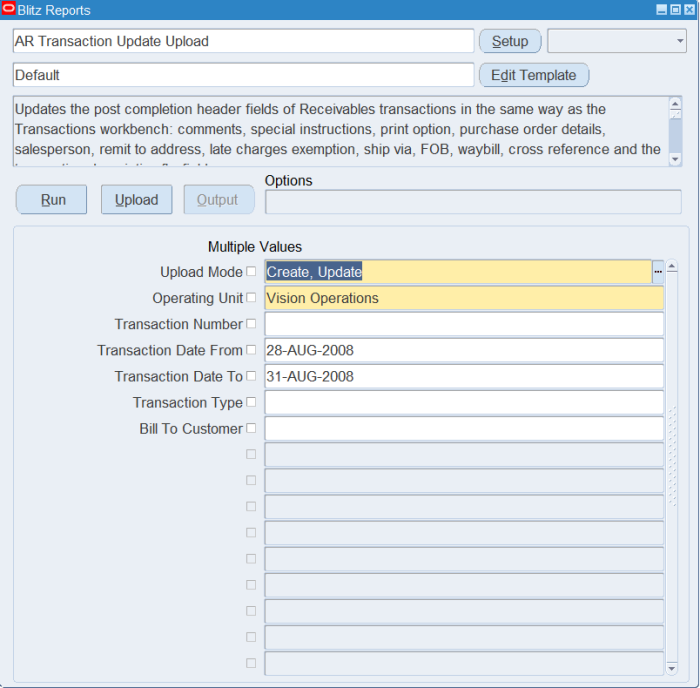
Open AR Transaction Update Upload in Blitz Report and set the parameters:
| Parameter | Meaning |
|---|---|
| Upload Mode | Create, Update (default) or Update downloads the selected transactions for editing; Create opens an empty sheet to paste transaction numbers and the values to set. |
| Operating Unit | The operating unit of the transactions (required). |
| Transaction Number | Downloads a single transaction. |
| Transaction Date From / To | Transaction date range. Date To defaults to the end of the month of Date From. |
| Transaction Type | Restricts the download to a transaction type. |
| Bill To Customer | Restricts the download to a bill-to customer. |
Step 2 – Run to download the Excel file
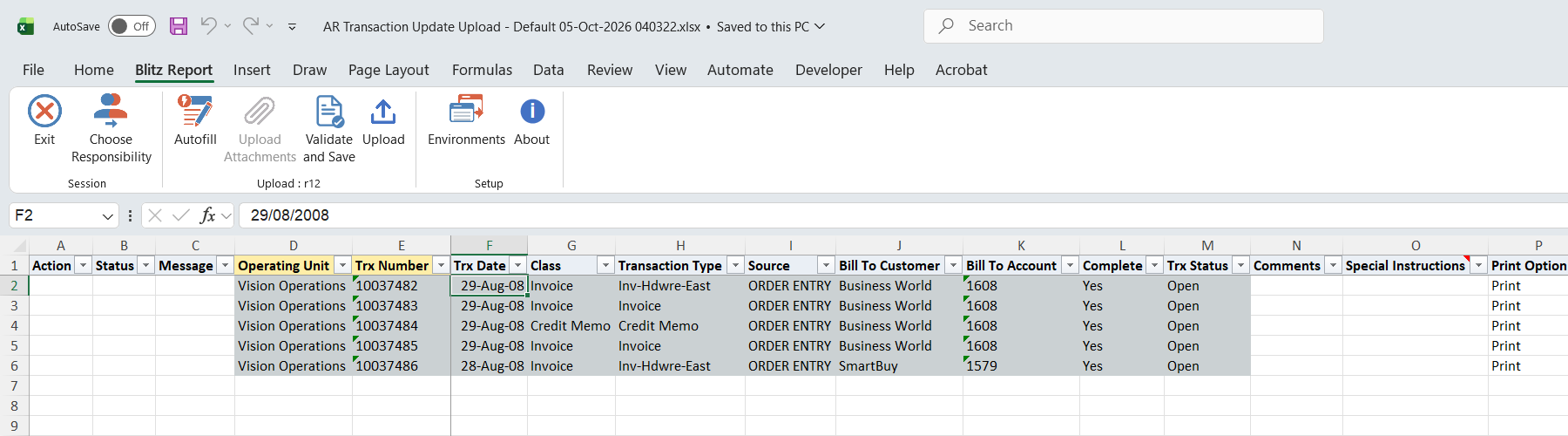
Click Run. The Excel file downloads and opens with one row per transaction. Operating Unit, Trx Number, Trx Date, Class, Transaction Type, Source, Bill To Customer, Bill To Account, Complete and Trx Status identify the transaction and are read-only.
Step 3 – Change the transaction header fields
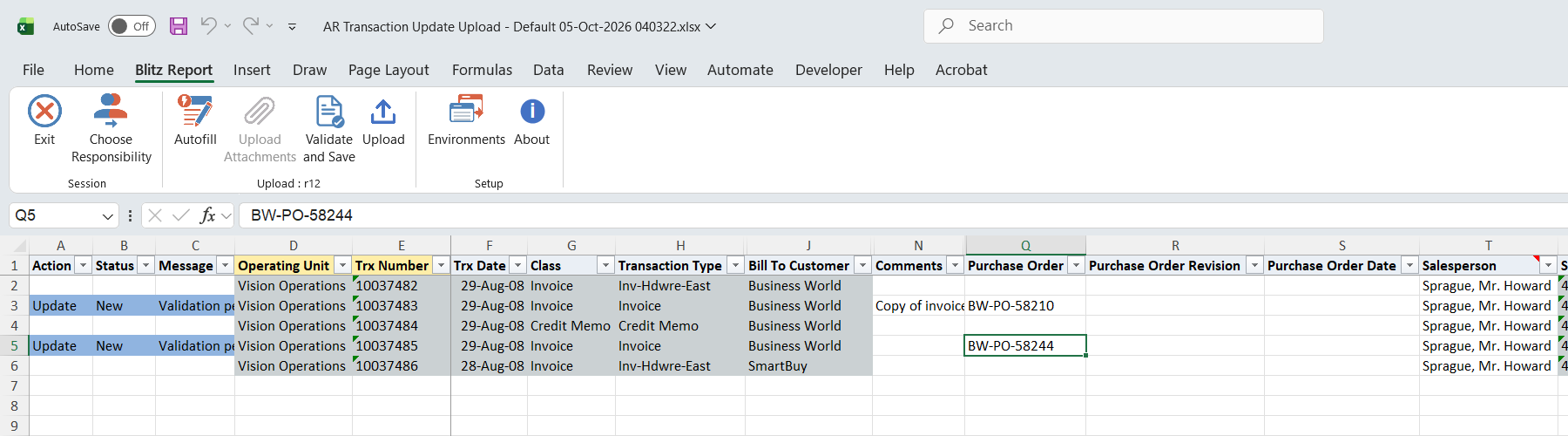
Change any of Comments, Special Instructions, Print Option, Purchase Order, Purchase Order Revision, Purchase Order Date, Salesperson, Remit To Address, Exempt From Late Charges, Ship Via, FOB, Waybill Number and Cross Reference. Changed rows are marked Update; only the cells you change are applied, so other fields keep their stored values. Clearing a cell clears the field.
- Special Instructions is free text up to 240 characters; the list offers the predefined texts.
- Salesperson is the primary salesperson of the transaction header. Sales credit lines are not changed.
- Cross Reference is the transaction Reference. Where the transaction source has a Reference Field Default Value, Receivables derives the reference from that setup and the entered value does not apply.
- The descriptive flexfield columns are not in the Default template; add them to a template of your own to maintain the flexfield.
Step 4 – Validate and Save
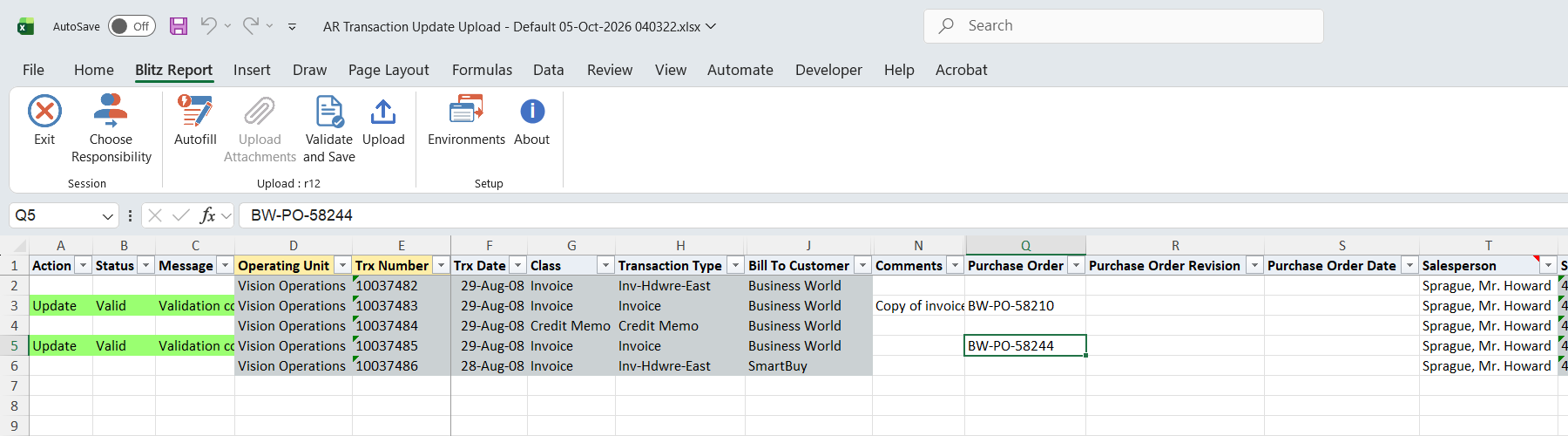
Click Validate and Save. This checks the changed rows for missing required values and saves the file. Correct any rows it flags before uploading.
Step 5 – Upload the file
In Blitz Report click Upload and select the saved file. This submits the upload request, which updates each changed transaction through the same header update logic as the Transactions window, so the form’s validations apply.
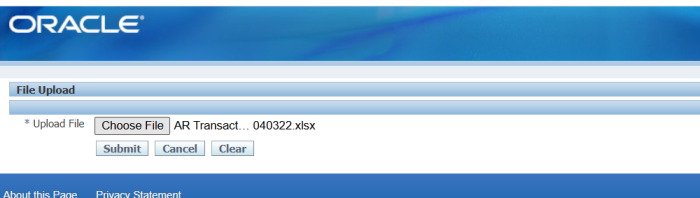
Step 6 – Review the result report
When the request completes, a result report opens listing every uploaded row with its status and message, showing the values stored on the transaction.
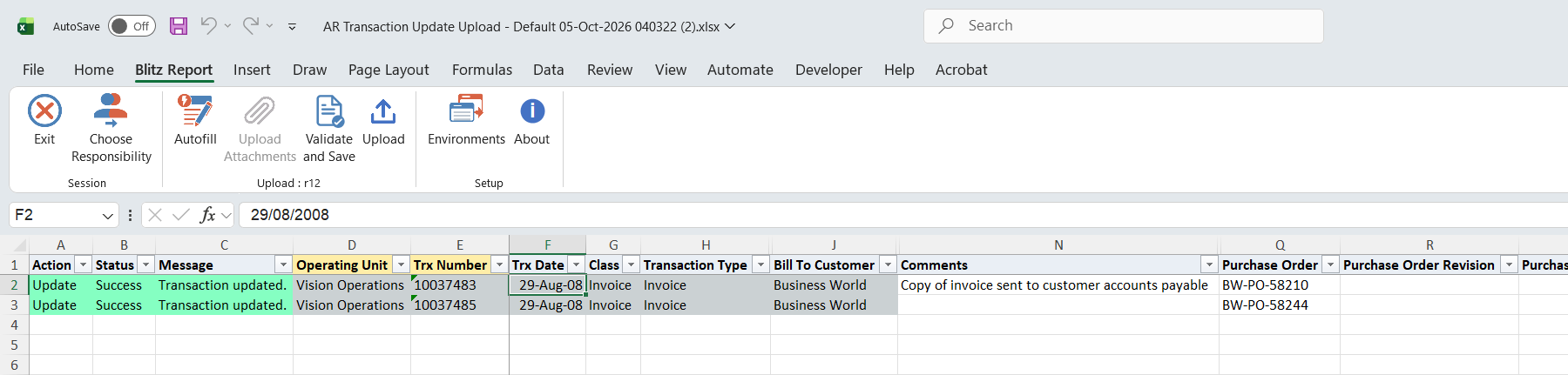
What’s produced
- Updated header fields on the existing Receivables transactions.
- A result report listing every row with a status (success or error) and a message: Transaction updated., or No change. when the values equal the stored ones.
Common questions
Can I update a transaction without downloading it first?
Yes. Run in Create mode and enter the Operating Unit, Trx Number and the fields to change. A downloaded row is linked to its transaction exactly; a pasted row is found by its number, so a number that exists under more than one transaction source in the operating unit is rejected – download that transaction instead.
Can I change amounts, dates, the customer or the completion status?
No. Those columns are read-only and are not changed by the upload.
Which transaction classes can I update?
All classes except deposits and guarantees, which are not downloaded.
Why did my Cross Reference not change?
The transaction source has a Reference Field Default Value, so Receivables takes the reference from the interface header attribute named there.
Does changing the salesperson move the sales credits?
No. Only the primary salesperson on the header changes; the sales credit lines stay as they are.
Troubleshooting
| Message | Cause | What to do |
|---|---|---|
| Transaction … exists more than once in this operating unit (different transaction sources). Download the transaction to update it. | A pasted transaction number is not unique in the operating unit. | Download the transaction with the Transaction Number parameter and change it on the downloaded row. |
| Transaction … not found in this operating unit. | The number does not exist in the row’s operating unit. | Check the Trx Number and Operating Unit. |
| Commitments cannot be updated through this upload. | The transaction is a deposit or guarantee. | Maintain commitments in the Transactions window. |
| Transaction update failed: … | Receivables rejected the header update, for example because of a validation the Transactions window also applies. | Read the message, correct the value and upload again. |
| … is invalid | A value is not in the column’s list, for example a Salesperson or Remit To Address not valid in the operating unit. | Pick the value from the list. |
| Flexfield validation message | A descriptive flexfield value or context is not valid. | Enter a valid context and segment values. |