
AR AutoAccounting Upload creates and updates the Receivables AutoAccounting definitions from Excel, the same setup as the Automatic Accounting form (Receivables > Setup > Transactions > AutoAccounting). For each account type you define, segment by segment, whether AutoAccounting takes the value from a table such as Transaction Types, Salesreps or Standard Lines, or uses a constant value. Each row of the sheet is one segment of one account type.
When to use it
- Set up AutoAccounting for a new operating unit, or copy the definitions of one operating unit to another.
- Review all AutoAccounting definitions of your operating units in one sheet.
- Change the source of a segment across several account types in one step, for example after a chart of accounts change.
Before you start
- EBS R12.
- Access to the upload in Blitz Report. It is available to the responsibilities that have the Automatic Accounting form on their menu. Your responsibility must have access to the operating units you maintain.
- Receivables system options are defined for each operating unit, so its chart of accounts is known.
Choose a template
The default template is Default.
| Template | Use it for |
|---|---|
| Default | Review and change the table name or constant of each segment of the existing AutoAccounting types, and add new ones. |
| New AutoAccounting Type | An empty sheet to define a new type: enter one row per segment of the chart of accounts. Upload Mode is fixed to Create. |
| Descriptive Flexfields | Maintain the descriptive flexfields of the AutoAccounting types and their segments. |
Step 1 – Set the parameters
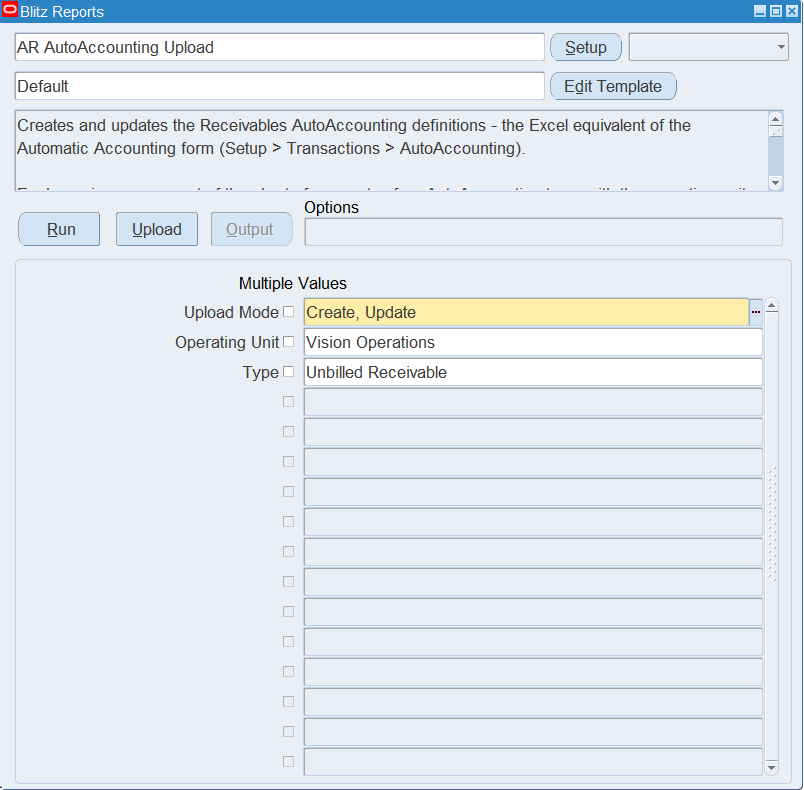
Open AR AutoAccounting Upload in Blitz Report, choose the template and set the parameters:
| Parameter | Meaning |
|---|---|
| Upload Mode | Create downloads an empty sheet. Create, Update (default) also downloads the existing AutoAccounting definitions. |
| Operating Unit | Downloads only the definitions of this operating unit, and is the default Operating Unit of new rows. |
| Type | Downloads only this AutoAccounting type, such as Revenue, Receivable or Unbilled Receivable, and is the default Type of new rows. |
Step 2 – Run to download the Excel file
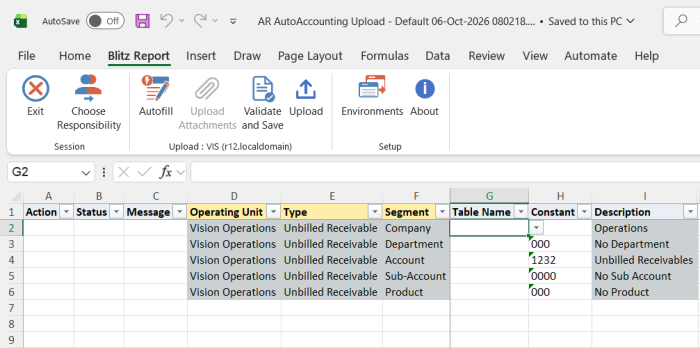
Click Run. The Excel file opens with one row per segment of each AutoAccounting type, in the order of the chart of accounts segments.
Step 3 – Enter or change the data
- Operating Unit, Type and Segment identify the row and cannot be changed on downloaded rows. Segment is the name of a segment of the operating unit’s chart of accounts.
- Enter either a Table Name or a Constant, not both. The Table Name list offers only the tables allowed for the type, as in the form. The Constant list offers the values of the segment’s value set, and Description shows the description of the constant.
- To define a new type, enter one row for every enabled segment of the chart of accounts. For a new Tax, Freight, Unbilled Receivable, Unearned Revenue or AutoInvoice Clearing type, the balancing segment defaults to the table name or constant of the Revenue type.
- The descriptive flexfield of a type is taken from its first row.
Step 4 – Validate and Save
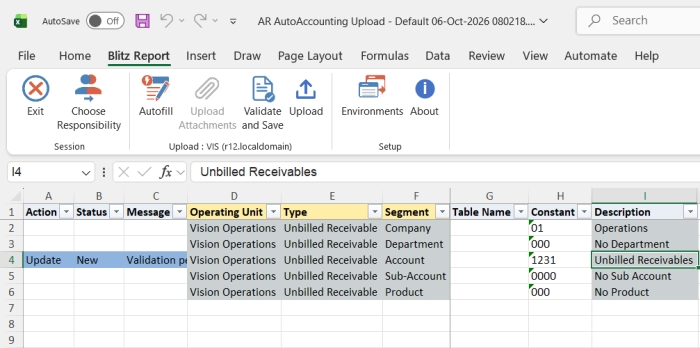
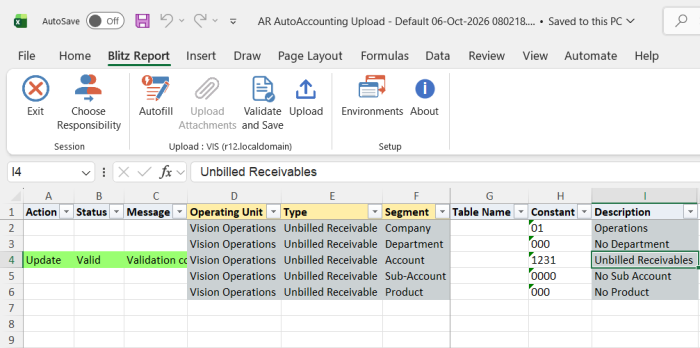
Click Validate and Save. This checks for missing required values and that each row has either a table name or a constant, then saves the file.
Step 5 – Upload the file
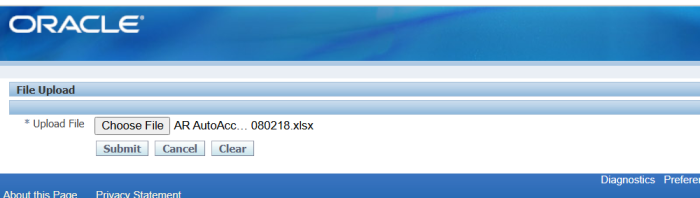
In Blitz Report click Upload and select the saved file. This submits the upload request.
Step 6 – Review the result report
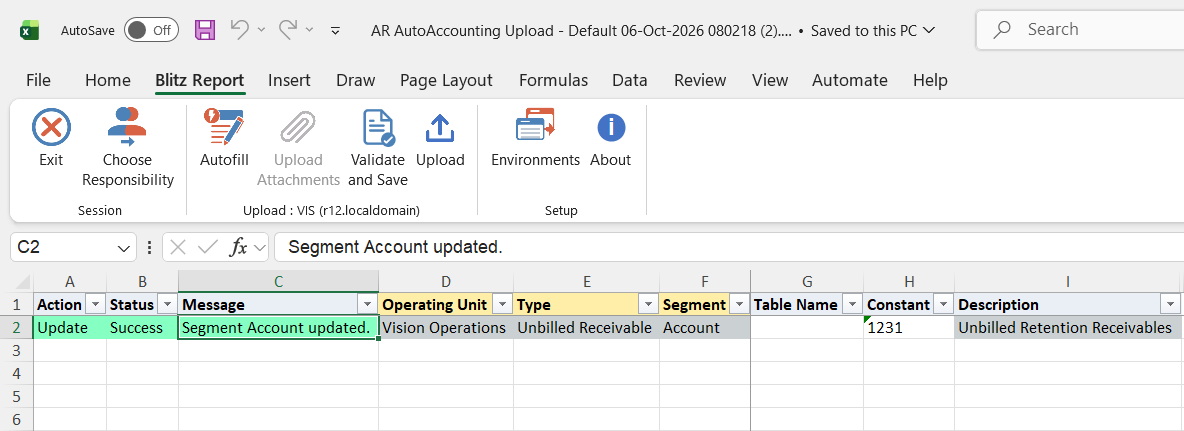
When the request completes, a result report opens listing every uploaded row with its status and message, and the values as they are now stored, for example “AutoAccounting type created. Segment Company created.”, “Segment Account updated.” or “No change.”.
What’s produced
- New or changed AutoAccounting definitions, exactly as the Automatic Accounting form stores them.
- A result report listing every uploaded row with a status (success or error) and a message.
Common questions
Why were rows not saved that had no error of their own?
Each AutoAccounting type is saved as a whole. When one row of a type fails, or the type is incomplete after the upload, none of its rows are saved and the other rows show “Not saved because of errors in other rows of type …”.
Why did the balancing segment of my Tax and Freight definitions change?
As in the form, changing the balancing segment of the Revenue or Receivable type also changes the balancing segment of the Tax, Freight, Unbilled Receivable, Unearned Revenue and AutoInvoice Clearing types, and a segment that depends on the balancing segment follows its table name. The message of the changed row then ends with “This change impacts your other Balancing Segment definitions.”
How are dependent segments handled?
A segment whose value set depends on another segment must use the same table name as its parent segment, or, when the parent has a constant, a constant that is valid for the parent value.
Can I delete an AutoAccounting type?
No. Delete types in the Automatic Accounting form.
Troubleshooting
| Message | Cause | What to do |
|---|---|---|
| Please enter either a table name or a constant segment value. | The row has neither a Table Name nor a Constant, or both. | Enter exactly one of them. |
| Segments … have no Table Name or Constant. | A segment of the chart of accounts is not defined for the type. | Add a row for each listed segment and upload again. |
| Segment … occurs more than once for this type. | The same segment is entered twice for one type. | Keep one row per segment. |
| Segment … depends on segment … and must use Table Name … / and must have a Constant valid for … | A dependent segment does not follow its parent segment. | Use the parent’s table name, or a constant valid for the parent constant. |
| The descriptive flexfield of the type is taken from its first row. Enter changes on the first row of the type. | Type descriptive flexfield values were changed on a later row of the type. | Enter the type’s descriptive flexfield values on its first row. |
| Table Name is invalid / Constant is invalid | The table is not allowed for the type, or the value is not in the segment’s value set. | Pick the value from the list. |
| Receivables system options are not defined for Operating Unit … | The operating unit has no Receivables system options, so its chart of accounts is unknown. | Define the system options first. |