
PER Person Assignment Upload creates and updates employee assignments from Excel with the fields of the Assignment window of the People form: organization, job, position, grade, payroll, location, assignment status, categories, supervisor, probation and notice periods, standard conditions, statutory information, salary basis, people group and the Additional Assignment Details flexfield. Each change takes effect from an effective date using standard HR datetrack, and a result report lists every row with its status and message.
It is available for Oracle EBS R12 and, as PER Person Assignment Upload 11i, for EBS 11i.
When to use it
- Mass transfers, promotions and reorganizations: new organization, job, position, grade, location or supervisor for many employees as of one date.
- Completing the primary assignment of newly hired employees: payroll, salary basis, people group, statutory information, working hours.
- Adding secondary assignments to existing employees.
- Suspending, reactivating or terminating assignments through the assignment status.
- Maintaining the Additional Assignment Details flexfield.
Before you start
- The upload is assigned to the People and Assignment forms of the HRMS responsibilities; open Blitz Report from there.
- Employees must exist already. People are hired with the PER Person Upload, which also creates their primary assignment.
- Only employee assignments of current employees are downloaded; applicant and contingent worker assignments are not covered.
- Decide the effective date first: downloaded values are shown as of that date and uploaded changes take effect from it.
Choose a template
| Template | Use it for |
|---|---|
| Default (default template) | All fields of the Assignment window, without the flexfield. Creates and updates assignments. |
| Organization and Job Change | Transfers and promotions: organization, job, position, grade, location, supervisor and change reason. |
| Assignment Flexfield | The Additional Assignment Details flexfield of existing assignments. |
| Create Secondary Assignments | An empty sheet to add secondary assignments to existing employees. Upload Mode is fixed to Create and the download filters are hidden. |
A field that is not in the chosen template keeps its stored value.
Step 1 — Choose the template and set the parameters
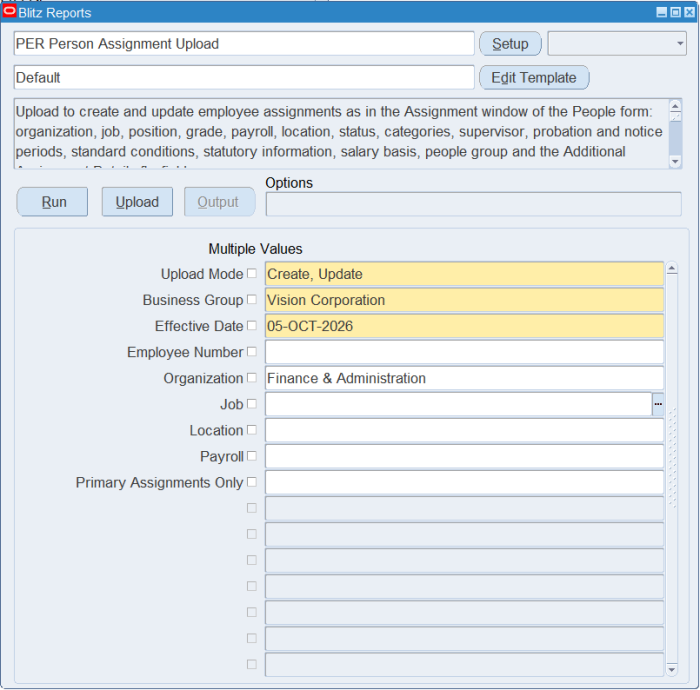
Run PER Person Assignment Upload in Blitz Report, select the template and set the parameters.
| Parameter | Description |
|---|---|
| Upload Mode | Create opens an empty sheet; Create, Update (default) also downloads the existing assignments to change. |
| Business Group | Required. Defaults from the HR: Business Group profile. |
| Effective Date | Required, defaults to today. Date the downloaded assignments are shown as of, and the default date the uploaded changes take effect. |
| Employee Number | Downloads one employee only. |
| Organization, Job, Location, Payroll | Download only assignments with these values. |
| Primary Assignments Only | Yes downloads primary assignments only. |
The Create Secondary Assignments template shows Business Group and Effective Date only.
Step 2 — Run and open the Excel file
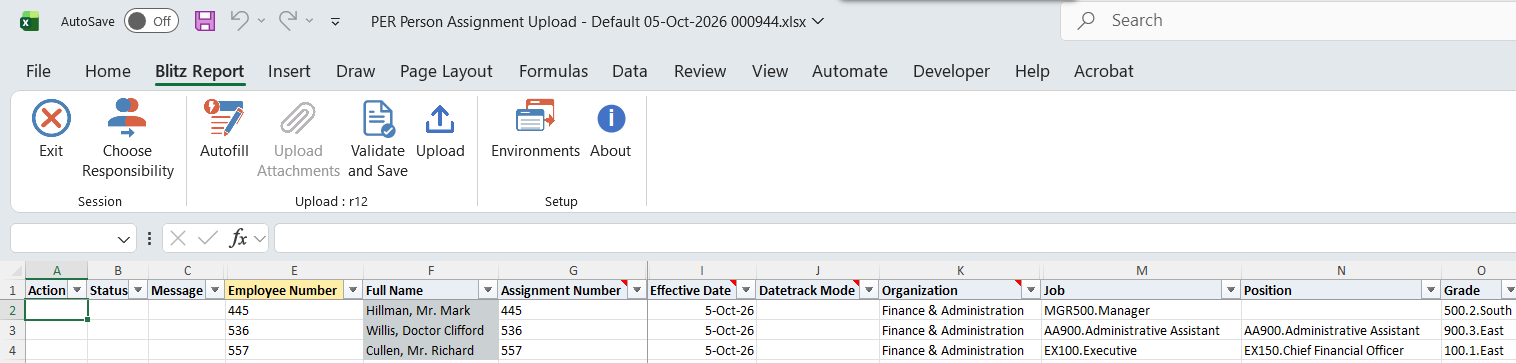
Click Run. The workbook downloads and opens in Excel with one row per assignment and its values as of the Effective Date. Coded columns such as Organization, Job, Position, Grade, Payroll, Location, Assignment Status, the categories, Supervisor Number and Salary Basis have lists of values.
Step 3 — Enter or edit the data
Change an assignment: overwrite values on the downloaded row. Set a different Effective Date on a row to make that change take effect on another date.
Datetrack Mode: leave it blank and the assignment is corrected when the Effective Date is the start date of its current record; otherwise the change is inserted from the Effective Date as Update, or as Update – Change Insert when later changes exist. Select Correction, Update, Update – Change Insert or Update – Override to choose the mode yourself.
Add a secondary assignment: add a row with Employee Number and Organization and leave Assignment Number blank to have it generated. Assignment Status defaults to the active status and must be an active status for a new assignment.
Suspend, reactivate or terminate: change Assignment Status to a status of another system status (active, suspended, terminated). Terminating ends a secondary assignment on the Effective Date. A change to another status of the same system status is an ordinary update.
People Group and Statutory Information: enter the concatenated segment values; a combination that does not exist is created. Statutory Information is the soft coded flexfield of the business group’s legislation, e.g. the GRE for the United States. Neither can be cleared once set.
Start Time and End Time use the format HH24:MI.
Additional Assignment Details: use the Assignment Flexfield template. The column headers and cell comments show your flexfield’s segments, and values are validated against their value sets.
Step 4 — Validate and Save
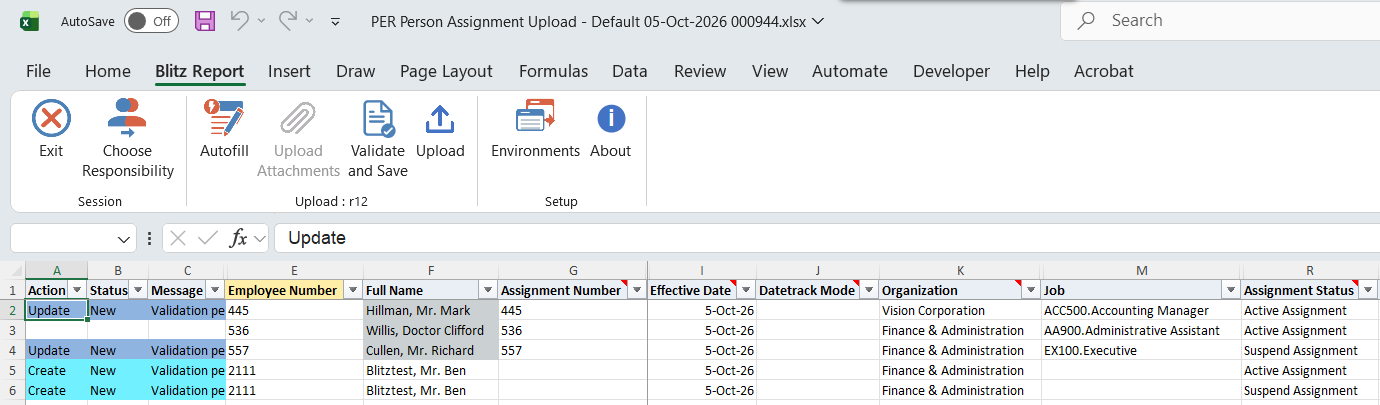
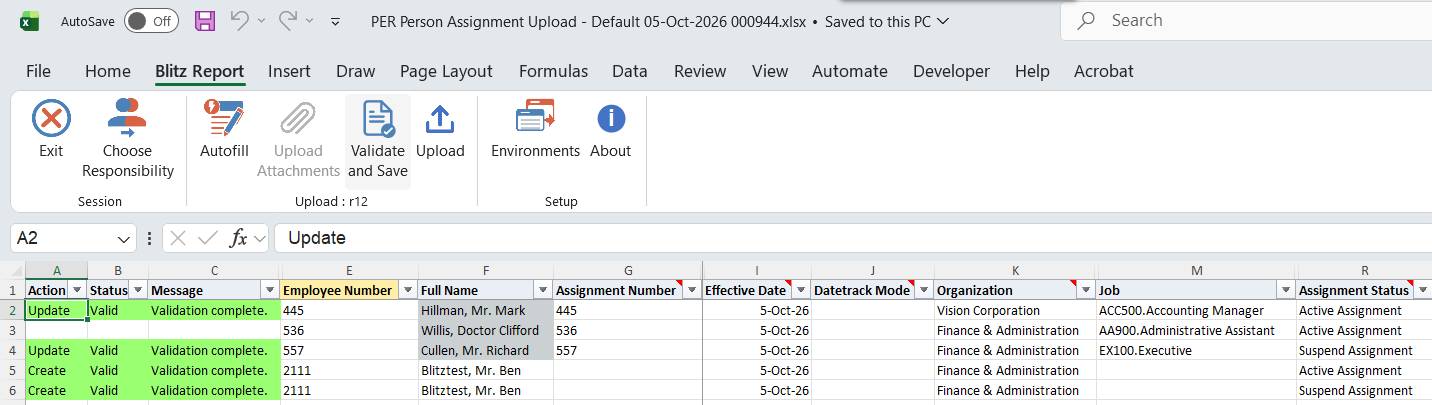
Click Validate and Save in the Blitz Report ribbon. Required values and list-of-values entries are checked, problems are shown in the Status and Message columns, and the file is saved.
Step 5 — Upload and view the result
In Blitz Report click Upload and select the saved file. This submits the Blitz Upload request; when it completes, the result report opens.
What’s produced
- New secondary assignments, created as of their Effective Date.
- Assignment changes stored with the datetrack mode of each row.
- Suspensions, reactivations and terminations from status changes.
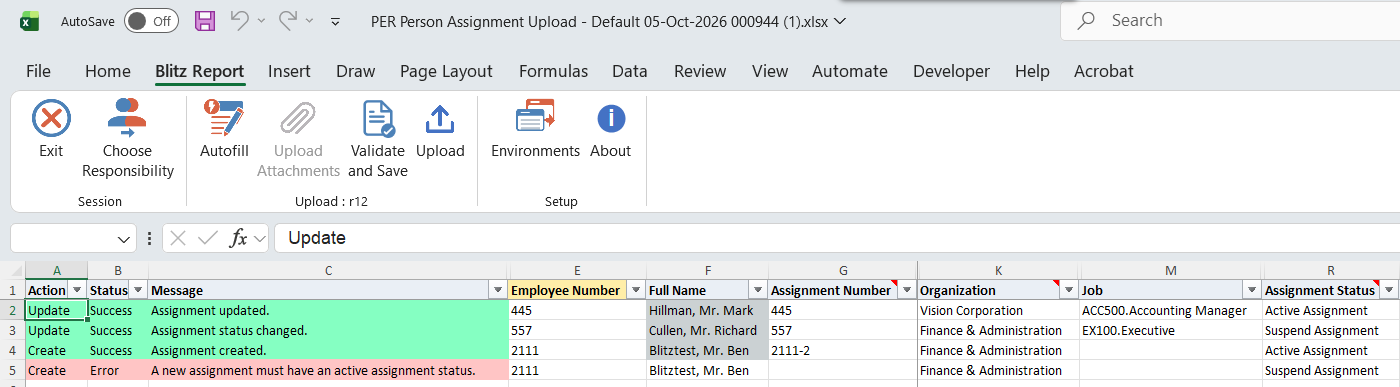
- A result report listing every uploaded row with the assignment values as stored (including generated assignment numbers), its status and the message Assignment created., Assignment updated., Assignment status changed., No change. or the error. A row in error changes nothing.
Common questions
Can I create a primary assignment?
No. It is created when the person is hired with the PER Person Upload. Download it afterwards with the Default template to complete payroll, salary basis, people group and the other fields.
Can I change several fields and the status in one row?
Yes. The first part of the change uses the row’s datetrack mode and the remaining parts correct that same record, so the employee gets one change dated on the Effective Date.
What happens to downloaded rows I don’t change?
Nothing. A row uploaded without changes reports No change.
Can I change the Primary Assignment flag?
No, it is shown for information only.
Troubleshooting
| Message | Cause | What to do |
|---|---|---|
| Employee number <number> does not exist on <date>. | No employee with that number in the business group on the Effective Date. | Check the number and that the Effective Date is not before the hire date. |
| Assignment <number> does not exist on <date>. | The assignment has no record on the Effective Date. | Use a date within the assignment’s lifetime. |
| Missing values for required field/s: Organization | A new assignment row has no Organization. | Enter the Organization. |
| A new assignment must have an active assignment status. | A new row has a suspended or terminated status. | Create it with an active status and change the status in a later upload. |
| Statutory Information and People Group cannot be cleared. | One of them was blanked on an existing assignment. | Enter a valid combination instead. |
| The legislation of the business group has no Statutory Information flexfield. | Statutory Information entered for a legislation that does not use it. | Leave it blank. |
| Additional Assignment Details validation error: … | A segment value fails its value set or a required segment is missing. | Correct the segment named in the message. |
| Other HR messages | The standard HR assignment validation rejected the change. | Correct the row as you would in the Assignment window, or choose another Datetrack Mode. |