
INV Item Cross Reference Upload creates, updates and deletes Oracle Inventory item cross references from Excel – the alternative part numbers held against an item, such as supplier, customer or GTIN numbers – as maintained in the Cross References window (Item form, Tools > Cross References). The cross reference types themselves are set up in the Cross Reference Types form.
When to use it
- Load supplier or customer part numbers in bulk during implementation or data migration.
- Add cross references for a newly created cross reference type.
- Mass-update cross reference values or their descriptions.
- Remove cross references that are no longer used.
Before you start
- Your responsibility has access to the upload and to the item master organization and organizations you maintain.
- The cross reference type exists and is not disabled.
- For an organization-specific cross reference, the item is assigned to that organization.
- Revision and Unit Of Measure are only used with the GTIN cross reference type named in the profile option INV: GTIN Cross Reference Type.
Step 1 – Set the parameters
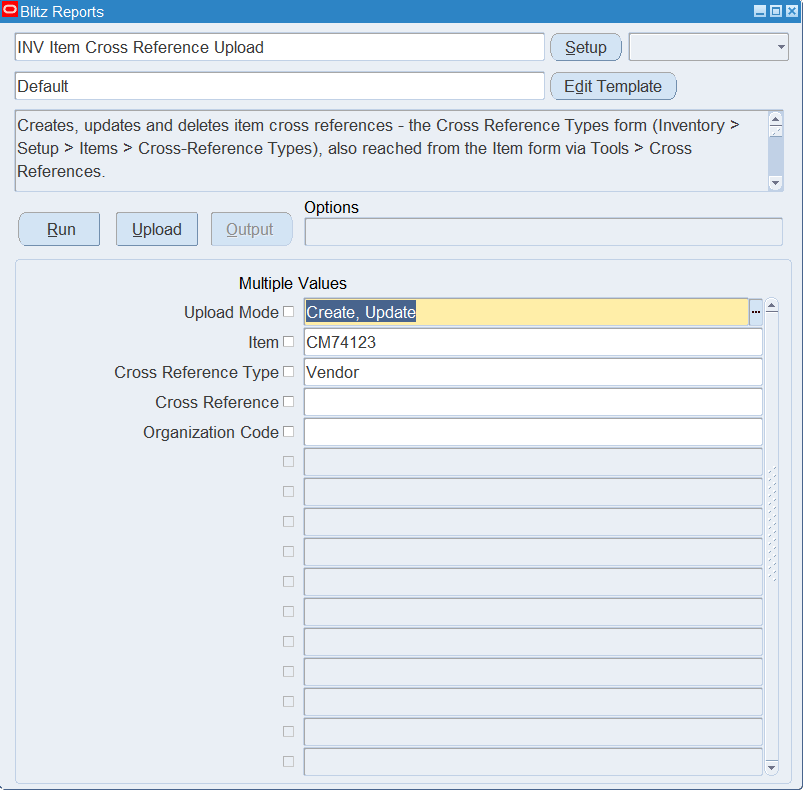
Open INV Item Cross Reference Upload in Blitz Report and set the parameters:
| Parameter | Meaning |
|---|---|
| Upload Mode | Create opens an empty sheet; Create, Update (default) downloads existing cross references for editing and lets you add new ones. |
| Item | Downloads the cross references of this item. |
| Cross Reference Type | Downloads cross references of this type, for example Vendor or GTIN. |
| Cross Reference | Downloads a specific cross reference value. |
| Organization Code | Downloads the cross references specific to this organization. Cross references applicable to all organizations are not included when it is set. |
Step 2 – Run to download the Excel file
Click Run. The Excel file downloads and opens with one row per existing cross reference, or an empty sheet.
Step 3 – Enter or change the cross references
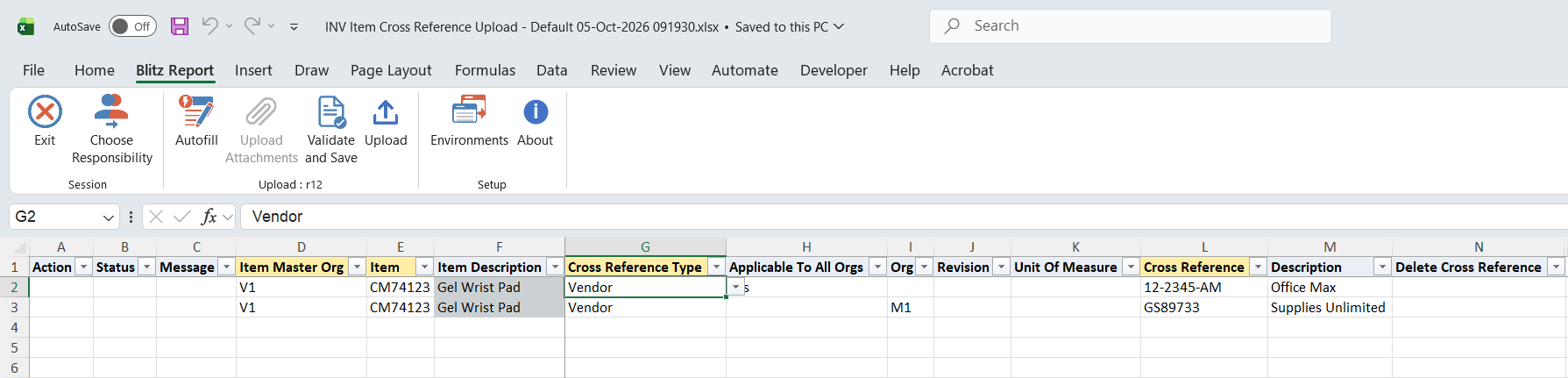
Identify the item with Item Master Org (defaults to the master organization of your current inventory organization) and Item; Item Description fills in automatically. Choose the Cross Reference Type and enter the Cross Reference – the alternative part number itself – and optionally a Description. Descriptions are stored in your session language.
Set Applicable To All Orgs to Yes for a cross reference valid in every organization, or leave it blank and enter an Org to restrict it to one organization. Revision (which also needs an Org) and Unit Of Measure apply to the GTIN cross reference type only.
On a downloaded row you can change any of these values, including the Cross Reference itself. To remove a cross reference, set Delete Cross Reference to Yes on its downloaded row.
Step 4 – Validate and Save
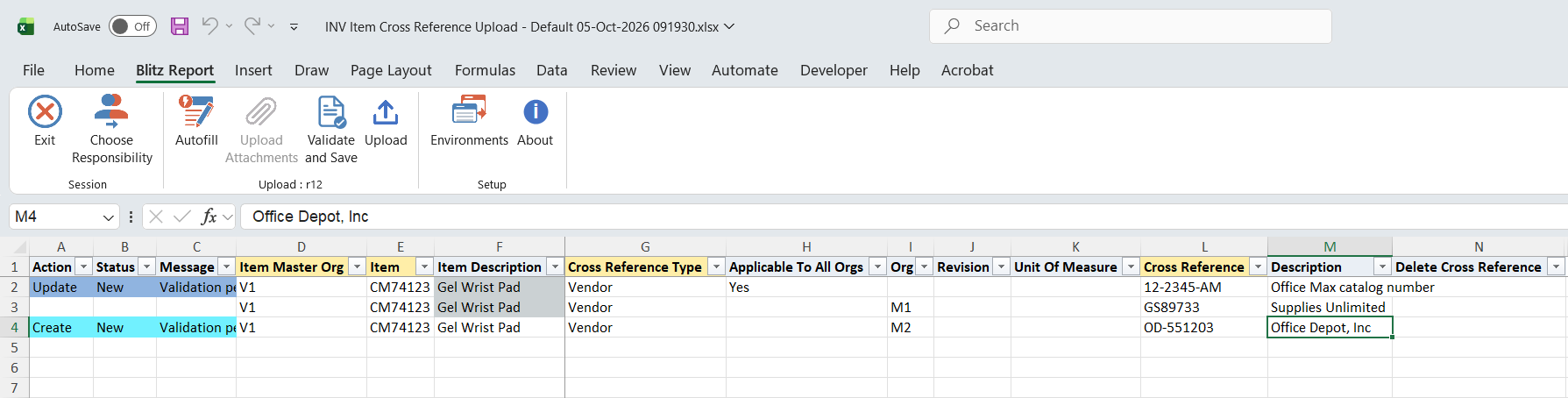
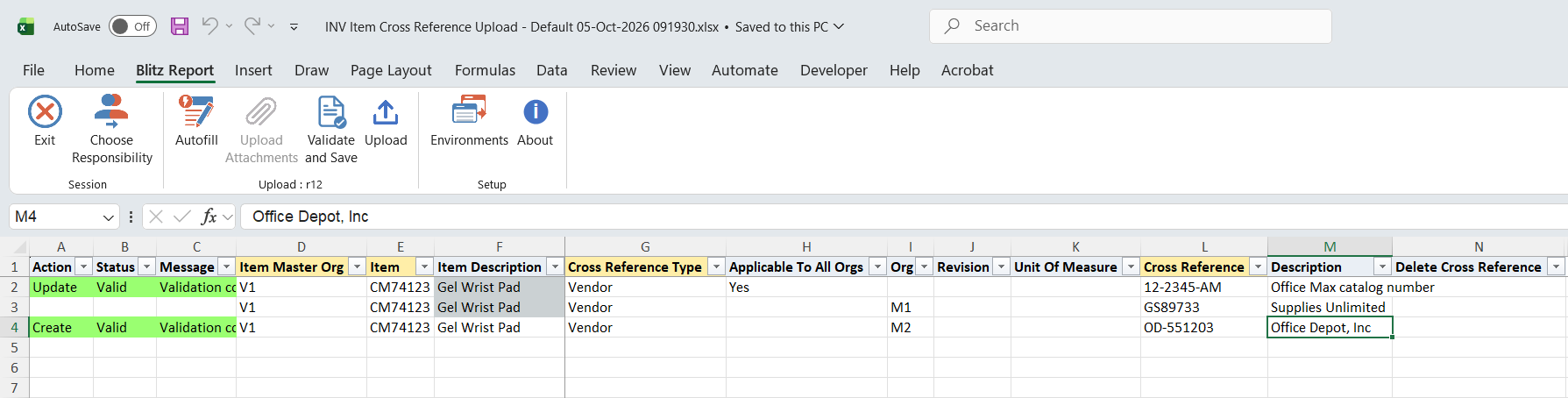
Click Validate and Save. This checks for missing required values and the Org, Revision and Unit Of Measure rules above, then saves the file. Correct any rows it flags before uploading.
Step 5 – Upload the file
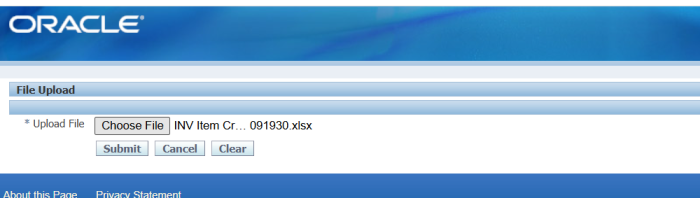
In Blitz Report click Upload and select the saved file. This submits the upload request, which creates, updates or deletes each cross reference.
Step 6 – Review the result report
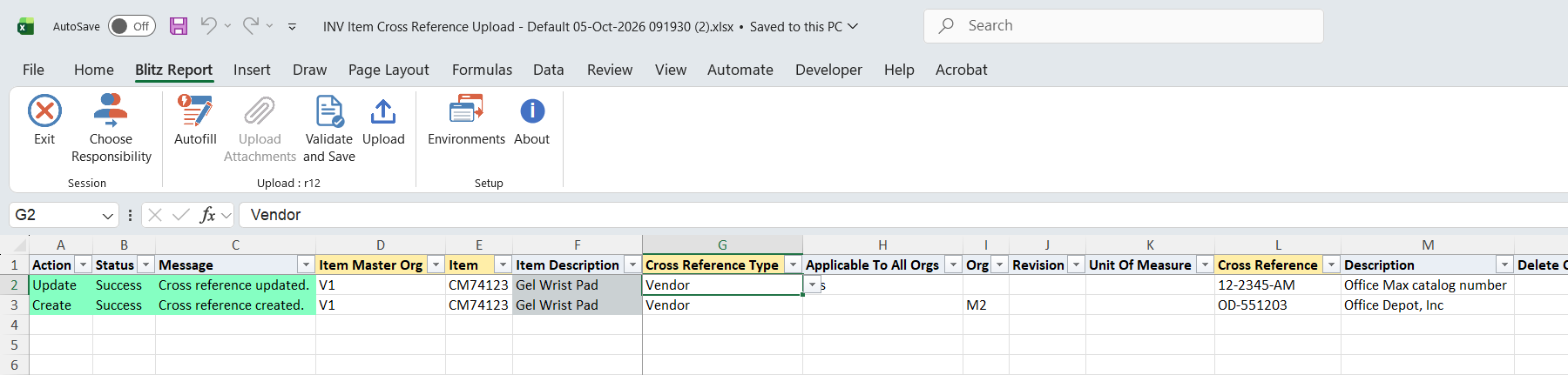
When the request completes, a result report opens listing every uploaded row with its status and message.
What’s produced
- Item cross references created, updated or deleted.
- A result report listing every row with a status (success or error) and a message.
Common questions
Why do I have to enter an Item Master Org?
Item numbers are unique only within an item master organization, and an instance can have more than one. It identifies the item and restricts the Item, Org, Revision and Unit Of Measure lists.
Does this create cross reference types?
No. Types are maintained in the Cross Reference Types form.
What is the difference between Applicable To All Orgs and Org?
Applicable To All Orgs makes the cross reference valid in every organization; an Org restricts it to that organization. A row has one or the other, never both.
Can I add the same cross reference twice?
No. A new row with the same item, type, cross reference and organization as an existing cross reference updates that cross reference, and a second row for the same cross reference in one file is rejected.
How do I maintain the descriptive flexfield?
The Default template excludes the descriptive flexfield columns. Create your own template that includes Xref Attribute Category and the attribute columns.
Why does my row say No change?
Nothing on the row differs from what is stored, so the cross reference was left as it is.
Troubleshooting
| Message | Cause | What to do |
|---|---|---|
| Org is required unless Applicable To All Organizations is set. | Neither an Org nor Applicable To All Orgs was entered. | Enter an Org, or set Applicable To All Orgs to Yes. |
| Org must be blank when Applicable To All Organizations is set. | Both were entered on the same row. | Clear one of them. |
| Unit of Measure is only applicable to the GTIN cross reference type. | A Unit Of Measure was entered for another type. | Clear the Unit Of Measure, or choose the GTIN type. |
| Revision is only applicable to the GTIN cross reference type. | A Revision was entered for another type. | Clear the Revision, or choose the GTIN type. |
| Revision requires an Org and is not applicable when Applicable To All Organizations is set. | A Revision was entered on a row without an Org. | Enter an Org, or clear the Revision. |
| Duplicate cross reference. This cross reference has already been processed in this upload. | The same cross reference appears on more than one row of the file. | Remove the duplicate row. |
| Cross reference cannot be deleted. The cross reference no longer exists. | Delete Cross Reference is Yes on a row whose cross reference is not in the database. | Download the cross references again and delete from the downloaded row. |
| <Column> is invalid | A value is not in the column’s list, for example an Org the item is not assigned to. | Pick the value from the cell’s list. |
| Other Oracle messages | The Oracle cross reference API rejected the row. | Read the message and correct the row. |