
PER Organization Upload creates and updates Oracle HRMS organizations from Excel, together with their classifications, organization information types and the HR Organization cost allocation flexfield, within your business group. It uses the standard Oracle HR organization API and works for all classifications, for example HR Organization, Company Cost Center, GRE/Legal Entity, Operating Unit and Inventory Organization.
When to use it
- Mass-create new organizations, such as departments, with their classifications and information types in one pass.
- Update organization header data (name, type, location, dates, internal address line) in bulk.
- Enable or disable an organization classification across many organizations.
- Maintain information type values in bulk, for example work schedules, costing information or operating unit and inventory organization settings.
- Populate the HR Organization cost allocation flexfield segments for many organizations.
- Copy a set of organizations from one environment to another.
Before you start
- Access to the upload in Blitz Report, from a responsibility whose HR:Business Group profile is the business group you work in. Organizations are downloaded and created in that business group only.
- The business group itself already exists. Business groups cannot be created with this upload.
- Locations, organization types and the values used in the information types (for example work schedules) already exist.
Choose a template
| Template | Use it for |
|---|---|
| Tabular Layout (default) | Mass uploads where data is prepared elsewhere and pasted in. The information type values are compact columns Org Information1 to Org Information20, with one Org Info Segment Labels column telling you which value goes in which position. |
| Form Layout | Small, targeted changes typed directly into the sheet. Each Org Information column is preceded by its own label column (Org Info Label1, Org Info Label2 …), as in the Organization window. |
Step 1 – Set the parameters
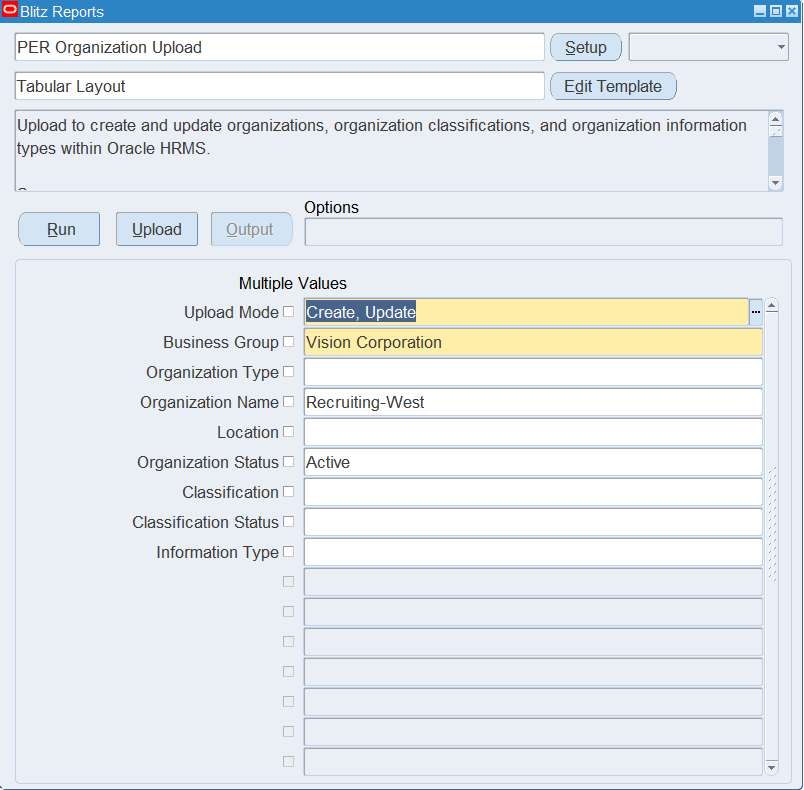
Open PER Organization Upload in Blitz Report, choose the template and set the parameters:
| Parameter | Meaning |
|---|---|
| Upload Mode | Create (default) opens an empty sheet for new organizations; Create, Update downloads existing organizations for editing and lets you add new ones. |
| Business Group | The business group of your responsibility (required). |
| Organization Type | Downloads organizations of this type only, for example Department. |
| Organization Name | Downloads the selected organization. |
| Location | Downloads organizations at this location only. |
| Organization Status | Active (default) downloads organizations effective today, Inactive those that are end-dated or not yet effective. |
| Classification | Downloads organizations with this classification only, for example HR Organization. |
| Classification Status | Active downloads only enabled classifications, Inactive only disabled ones. |
| Information Type | Downloads rows of this information type only, for example Work Schedule. |
Step 2 – Run to download the Excel file
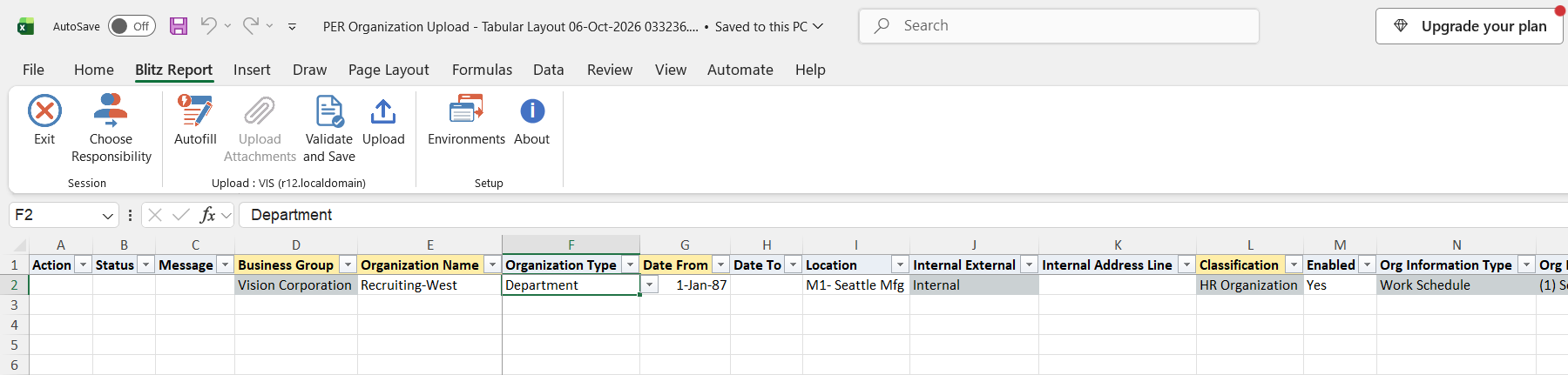
Click Run. The Excel file downloads and opens with one row per organization, classification and information type, or an empty sheet in Create mode.
Step 3 – Enter or change the organizations
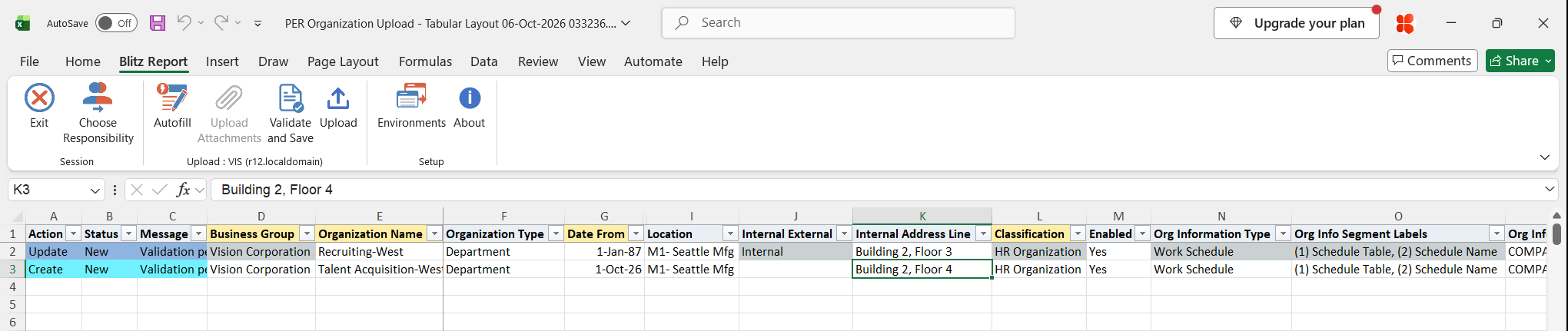
Each row holds the organization header, one Classification with its Enabled flag and, optionally, one Org Information Type with its values. An organization with several classifications or information types has several rows with the same Organization Name and header values.
On a downloaded row change the Organization Name, Organization Type, Date From, Date To, Location or Internal Address Line, set Enabled to No or Yes to disable or enable the classification, or change the Org Information values. Business Group, Classification and Org Information Type are read-only on downloaded rows.
To create an organization, add a row with the Organization Name, Date From, Organization Type, Location and the Classification, for example HR Organization. Add further rows with the same Organization Name for more classifications or information types. Entering the name of an existing organization on a new row fills its header values, so you can add a classification or information type to an existing organization the same way.
For an information type, select the Classification first, then the Org Information Type, then enter the values in the positions shown in Org Info Segment Labels, for example (1) Schedule Table and (2) Schedule Name for Work Schedule. Each column offers the valid values of its position. Information types that allow several records can be entered on several rows for the same organization and classification.
The Cost Alloc Segment columns are the cost allocation flexfield of the HR Organization classification. Their headings take the segment prompts of your business group’s costing structure (for example Cost Center), and values are only processed on HR Organization rows.
Step 4 – Validate and Save
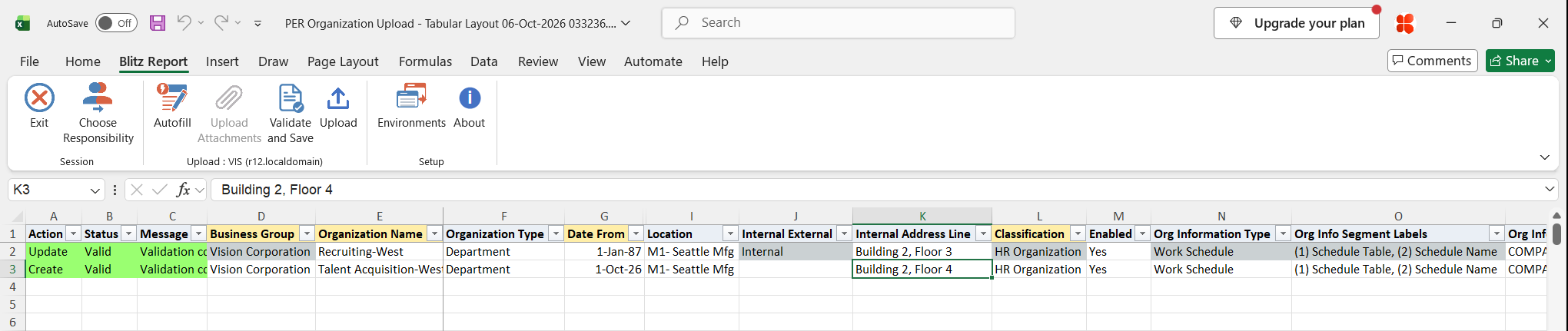
Click Validate and Save. This checks for missing required values and saves the file. Correct any rows it flags before uploading.
Step 5 – Upload the file
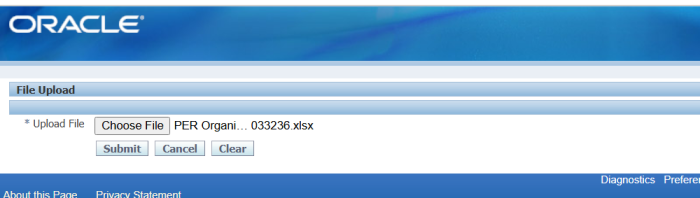
In Blitz Report click Upload and select the saved file. This submits the upload request, which creates or updates each organization, classification and information type.
Step 6 – Review the result report
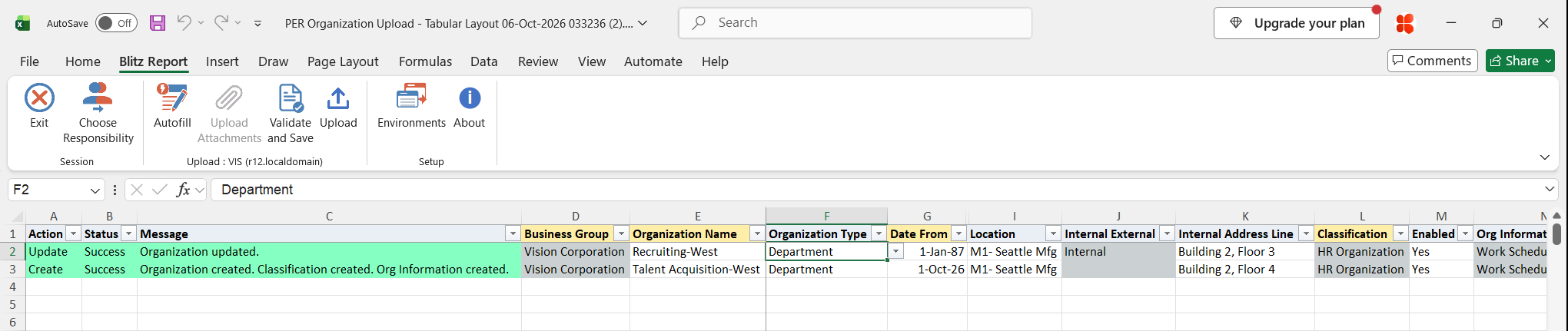
When the request completes, a result report opens listing every uploaded row with its status and a message saying what was done, for example Organization updated, or Organization created. Classification created. Org Information created.
What’s produced
- Organizations created or updated with their classifications, information types and cost allocation segments.
- A result report listing every row with a status (success, warning or error) and a message.
Common questions
Can I create a business group with this upload?
No. Create business groups in the Organization window. The upload works within the business group of your responsibility.
Can I delete an organization or a classification?
No. Set Enabled to No to disable a classification, or enter a Date To to end-date the organization.
How do I add a classification to an existing organization?
Add a row with the organization’s name and the new Classification. The header values are filled from the existing organization.
Why did I get a warning that an information type cannot be updated?
Business Group Information, Canada Employer Identification and the FPT bank and branch information types can be created with the upload but not changed afterwards. Change them in the Organization window.
An information value refers to another record created in the same file. What do I do?
Upload in two passes: first create the information type without that value, then download again and set the value.
Why is the Company Cost Center first value filled automatically?
As in the Organization window, it is built from the values you enter in positions 2 to 5 (the company and cost center value sets and values).
Troubleshooting
| Message | Cause | What to do |
|---|---|---|
| Business Group classification cannot be created via this upload. Use the Define Business Group form. | A row adds the Business Group classification to an organization. | Create business groups in the Organization window. |
| Information type … cannot be updated by this upload. | A change to Business Group Information, Canada Employer Identification or an FPT bank or branch information type (warning; the row is not changed). | Make the change in the Organization window. |
| Org DFF error: … | An organization descriptive flexfield value is not valid. | Pick valid values for the chosen context. |
| Org Information DFF error: … | An information type value is missing or not valid for its position. | Check Org Info Segment Labels and pick the values from the column lists. |
| Organization id … not found. Classification Org Information ID … not found. Org Information ID … not found. | A downloaded row refers to an organization or record that no longer exists. | Download again and reapply your changes. |