
PER Location Upload creates, updates and deletes Oracle EBS HR locations from Excel. These are the global and business-group locations shared across HR, Purchasing, Inventory and other modules. The upload covers country-specific addresses, site usage flags, inventory organization, designated receiver, time zone and the location descriptive flexfield, and uses the standard Oracle HR location API.
When to use it
- Mass-create new HR locations, for example when you open a new set of sites or start operating in a new country.
- Bulk-update the descriptions, addresses, telephone numbers or time zones of existing locations.
- Enable or disable site usages (Bill-To, Ship-To, Receiving, Office, Internal) across many locations.
- Re-point Ship-To relationships between locations.
- Inactivate locations, or delete unused ones.
- Maintain the location descriptive flexfield values in bulk.
Before you start
- Access to the upload in Blitz Report, from a responsibility whose HR:Business Group profile is the business group you work in. The download shows that business group’s locations plus all global locations.
- Address styles, countries, time zones, inventory organizations and employees (for the designated receiver) already exist.
- For addresses with validated fields (for example City, County and State of the United States address style), the values exist in the address validation data of your system.
Step 1 – Set the parameters
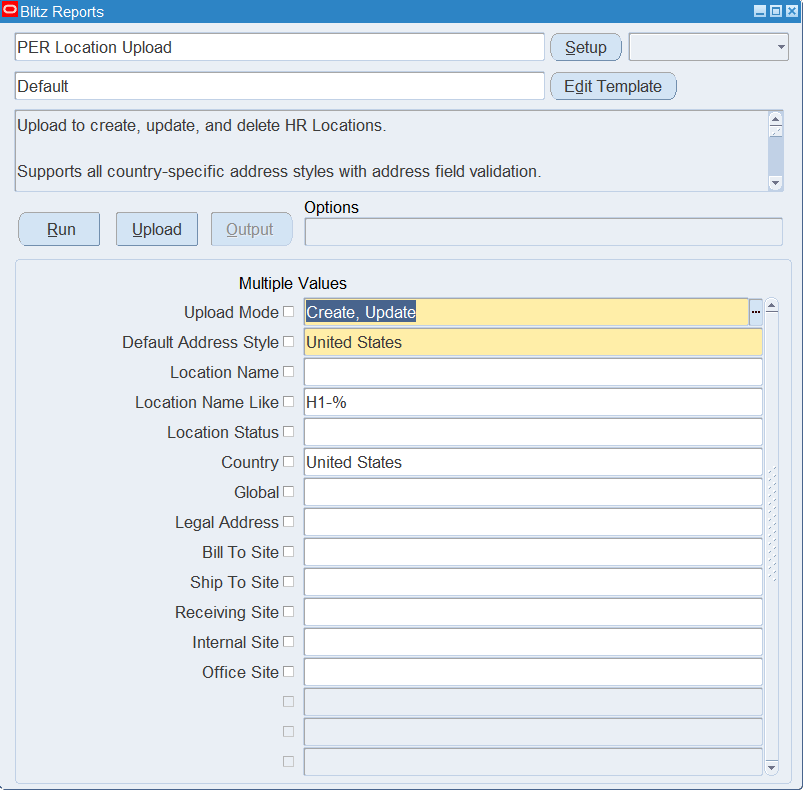
Open PER Location Upload in Blitz Report and set the parameters:
| Parameter | Meaning |
|---|---|
| Upload Mode | Create opens an empty sheet for new locations; Create, Update (default) downloads existing locations for editing and lets you add new ones. Each row is created or updated depending on whether its Location Code already exists. |
| Default Address Style | The address style used for new rows. It also sets the address column headings, which take the prompts of this style (for example City, County, State and Zip Code for United States). Defaults from the country of your business group. |
| Location Name | Downloads the selected location(s). |
| Location Name Like | Downloads all locations whose code matches this text, for example H1-%. |
| Location Status | Active or Inactive locations only. |
| Country | Locations in this country only. |
| Global | Yes downloads only global locations, No only the locations of your business group. |
| Legal Address | Yes downloads only legal address locations, No excludes them. |
| Bill To Site, Ship To Site, Receiving Site, Internal Site, Office Site | Set to Yes to download only locations with that site usage. |
Step 2 – Run to download the Excel file
Click Run. The Excel file downloads and opens with one row per location, or an empty sheet in Create mode.
Step 3 – Enter or change the locations
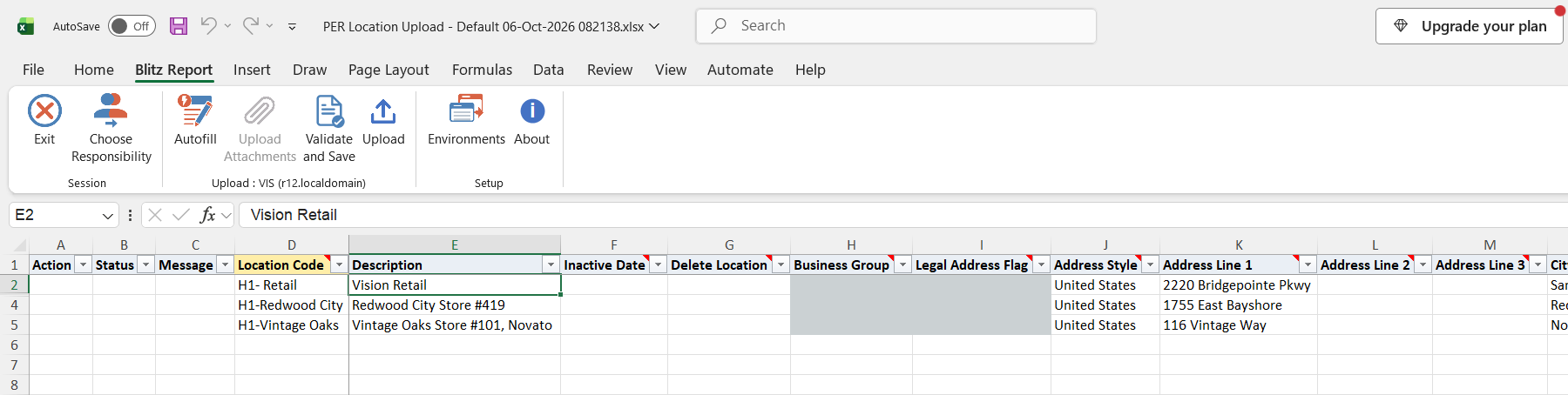
Location Code identifies the location. Change any other column of a downloaded row, or add a row with a new Location Code, a Description, the Address Style (defaults from the Default Address Style parameter) and its address fields, for example Address Line 1, City, State, County, Zip Code and Country for United States. Address fields are validated against the address style when you create a location or change an address field. Fill the State before the County, as the County list depends on it.
Set the site usages with Bill To Site Flag, Office Site Flag, In Organization Flag (internal site) and Receiving Site Flag, and optionally the Inventory Organization, the designated receiver in Contact and the Timezone Code. A blank flag is stored as No. Leave Ship To Location blank to make the location its own ship-to location; this sets Ship To Site Flag and Receiving Site Flag to Yes. Entering another location as Ship To Location sets Ship To Site Flag to No.
Business Group is read-only on downloaded rows. On a new row leave it blank to create a global location, or select your business group to make the location local to it. Legal Address Flag is for information only. To inactivate a location enter an Inactive Date; to delete an unused location set Delete Location to Yes.
The default template leaves out the location descriptive flexfield columns. To maintain them, add them to your template with Edit Template.
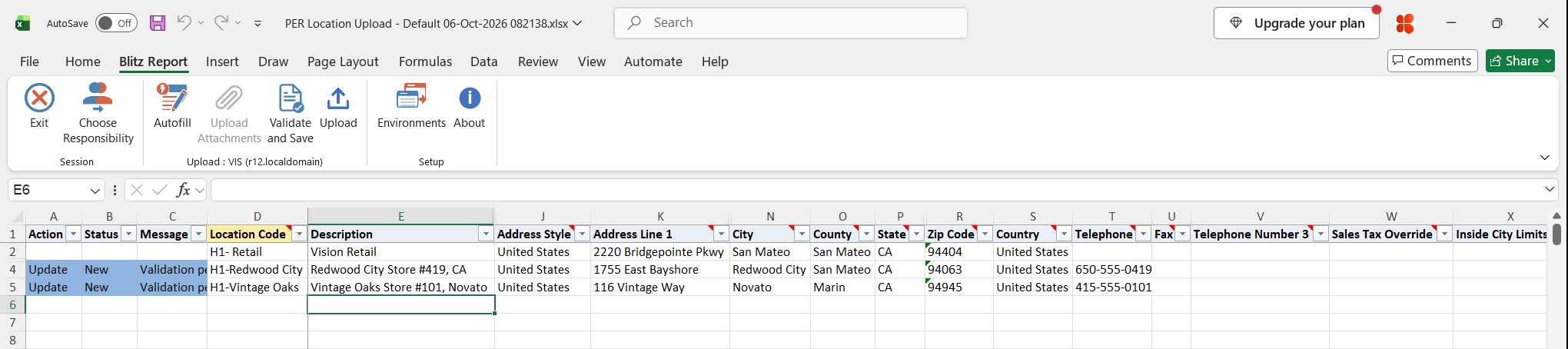
In the example below, the description and telephone of H1-Redwood City and the telephone of H1-Vintage Oaks are changed, so both rows are marked Update.
Step 4 – Validate and Save
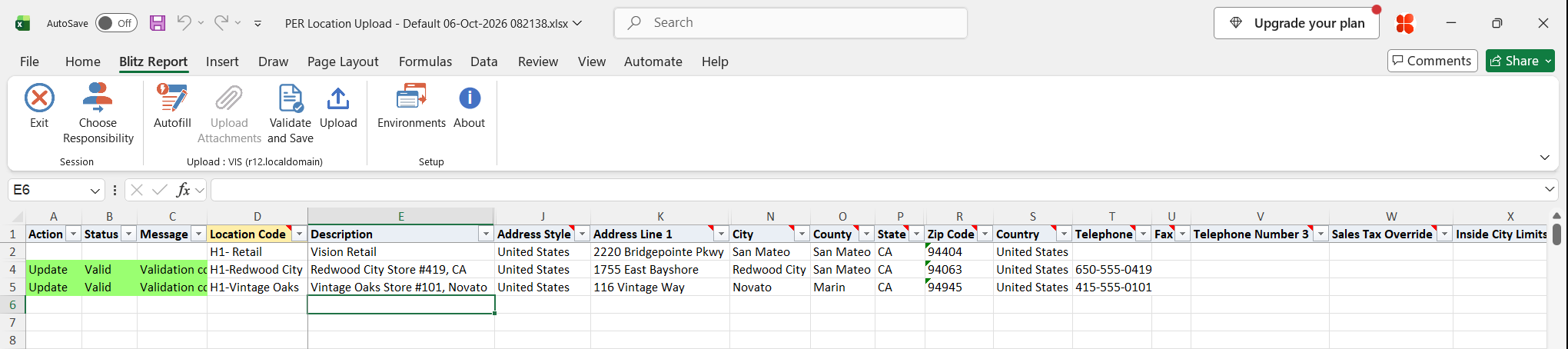
Click Validate and Save. This checks for missing required values and saves the file. Correct any rows it flags before uploading.
Step 5 – Upload the file
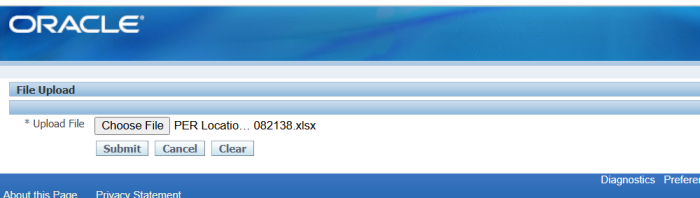
In Blitz Report click Upload and select the saved file. This submits the upload request, which creates, updates or deletes each location.
Step 6 – Review the result report
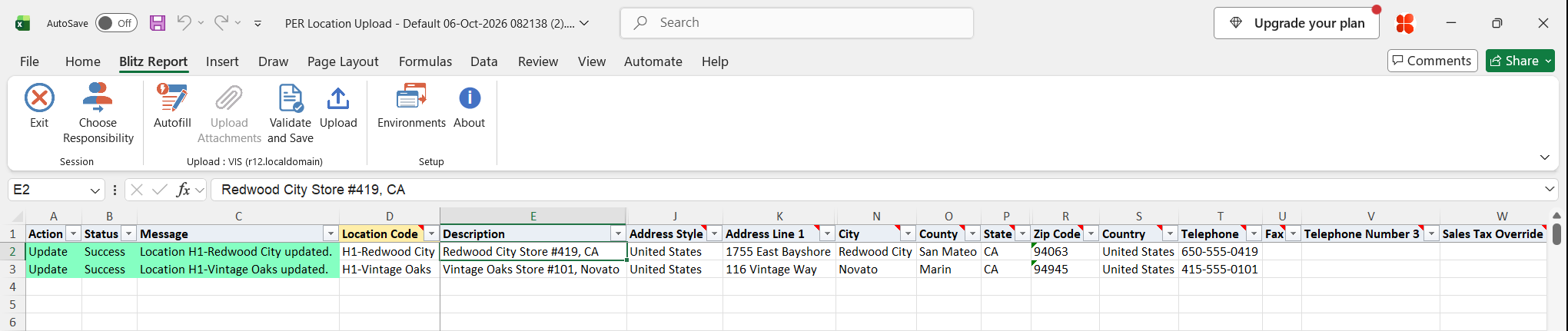
When the request completes, a result report opens listing every uploaded row with its status and message.
What’s produced
- HR locations created, updated, inactivated or deleted, with their addresses, site usages and flexfield values.
- A result report listing every row with a status (success or error) and a message.
Common questions
Are these the locations used by Purchasing and Inventory, or HR-only locations?
They are the standard HR locations used across HR, Purchasing, Inventory and other modules. Leave Business Group blank on a new row for a global location, or select your business group for a local one.
Why did my Ship To Site Flag or Receiving Site Flag change to something I didn’t enter?
They follow the Ship To Location. A blank Ship To Location, or the location itself, sets both flags to Yes. Another location as Ship To Location sets Ship To Site Flag to No, and Receiving Site Flag then keeps the value you entered.
Why are some address columns named City, County or State instead of Town Or City and Region?
The address column headings take the prompts of the Default Address Style. Rows can still use other address styles; each row’s fields are validated against its own Address Style.
Can I set the Legal Address Flag?
No. It is set when the location is used as a legal entity address, and is shown for information only.
Why can’t I set an Inactive Date on some locations?
Legal address locations cannot be inactivated.
Can I delete any location?
Only locations that are not used anywhere, for example by assignments, organizations or positions. Legal address locations cannot be deleted.
A row says “No changes detected.” – did anything happen?
No. The location already had the uploaded values, so it was not updated.
Troubleshooting
| Message | Cause | What to do |
|---|---|---|
| Location Code is required. | The Location Code is blank. | Enter a unique Location Code. |
| Cannot set Inactive Date on a Legal Address location. | An Inactive Date on a legal address location. | Remove the Inactive Date; legal address locations cannot be inactivated. |
| Location ‘…’ to delete does not exist. | Delete Location is Yes for a Location Code that does not exist. | Check the Location Code; only existing locations can be deleted. |
| Address validation error: … | An address field is missing or not valid for the row’s Address Style, for example a City, County or State that is not in the address validation data. | Correct the address fields, choosing validated values from the column lists, or change the Address Style. |
| Location DFF validation error: … | A descriptive flexfield value is not valid. | Pick valid values for the chosen context. |
| ORA-29273: HTTP request failed | With iRecruitment installed and the IRC: Geocode Host profile set, Oracle geocodes every new or changed address through an external web service, which could not be reached. | Ask your system administrator to correct the IRC: Geocode Host profile or the server’s network and certificate setup. |