
MRP Master Schedule Upload creates and updates entries of Oracle master demand schedules (MDS) and master production schedules (MPS) from Excel. Download the entries of one or more schedules, change quantities, dates or comments, add new entries for any item, and load them through Oracle’s standard master schedule interface.
When to use it
- Mass-load demand or production quantities into an existing MDS or MPS from a spreadsheet.
- Bulk-change quantities, reschedule entries to another date or convert entries to daily rates.
- Add comments to many schedule entries at once.
- Copy entries from one schedule to another.
Before you start
- The master schedule (MDS or MPS name) is defined and not disabled in the organization.
- Your responsibility has access to the schedule’s inventory organization.
- The items exist in that organization.
- Schedule dates fall within the organization’s manufacturing calendar.
- The Planning Manager is running. It loads the staged entries from the master schedule interface into the schedule.
Choose a template
| Template | Use it for |
|---|---|
| Create and Update (default) | Download existing entries, change them and add new ones. Sets Upload Mode to Create, Update. |
| Create | An empty sheet to enter new entries. Sets Upload Mode to Create and hides the Planner, Item and Schedule Date parameters, and the New Schedule Date and Rate End Date columns. |
| Update | Download existing entries and change them. |
Step 1 – Set the parameters
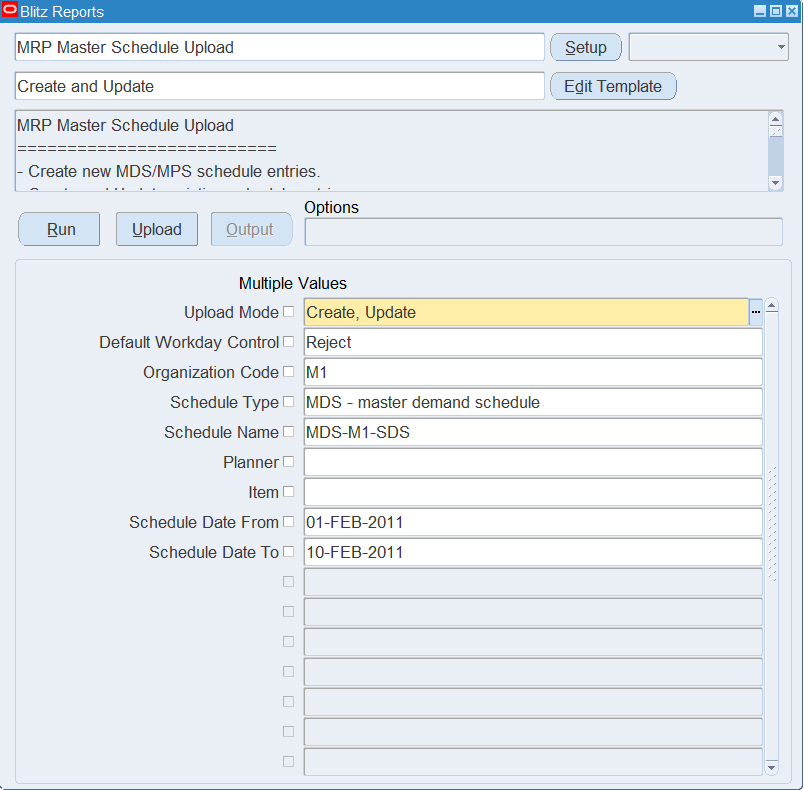
Open MRP Master Schedule Upload in Blitz Report, choose the template and set the parameters:
| Parameter | Meaning |
|---|---|
| Upload Mode | Create, Update downloads existing entries and lets you add new ones; Create opens an empty sheet for new entries. |
| Default Workday Control | How a schedule date or rate end date on a non-workday is handled for new and changed rows: Reject the entry (default), Shift backward to the previous workday or Shift forward to the next workday. |
| Organization Code | The inventory organization. Defaults to your current organization. |
| Schedule Type | Download only master demand schedules (MDS) or master production schedules (MPS), and restrict the Schedule Name list to that type. |
| Schedule Name | The MDS or MPS to download. |
| Planner / Item | Download only entries for items of this planner, or for this item. |
| Schedule Date From / Schedule Date To | Download only entries with a schedule date in this range. |
Step 2 – Run to download the Excel file
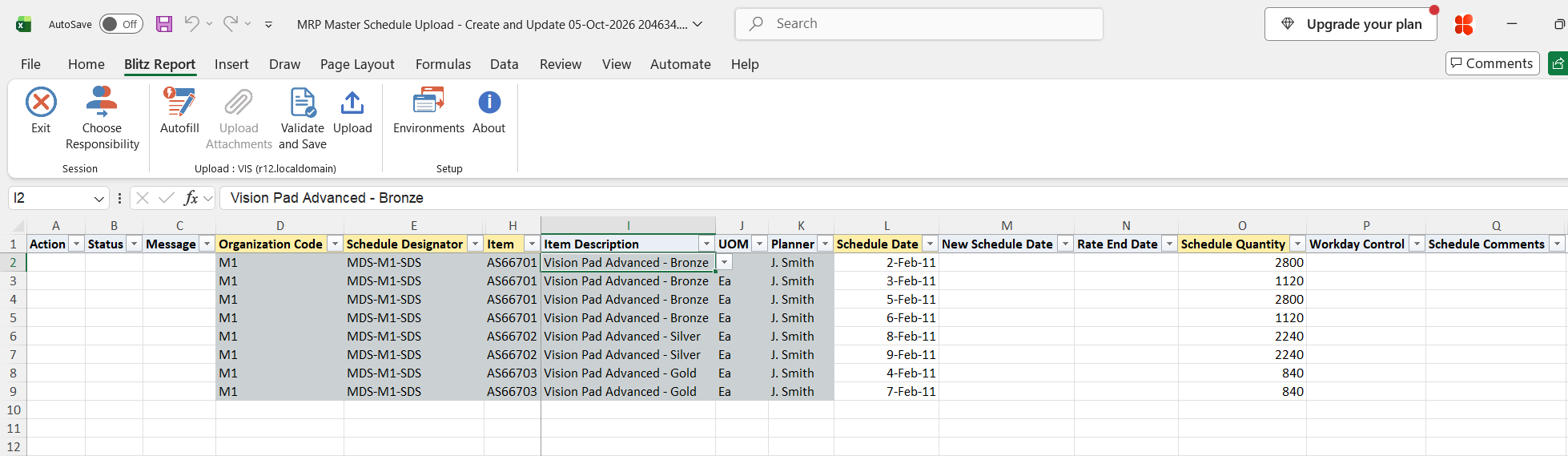
Click Run. The Excel file downloads and opens with one row per existing schedule entry (item-level entries), or an empty sheet in Create mode.
Step 3 – Enter or change the schedule entries
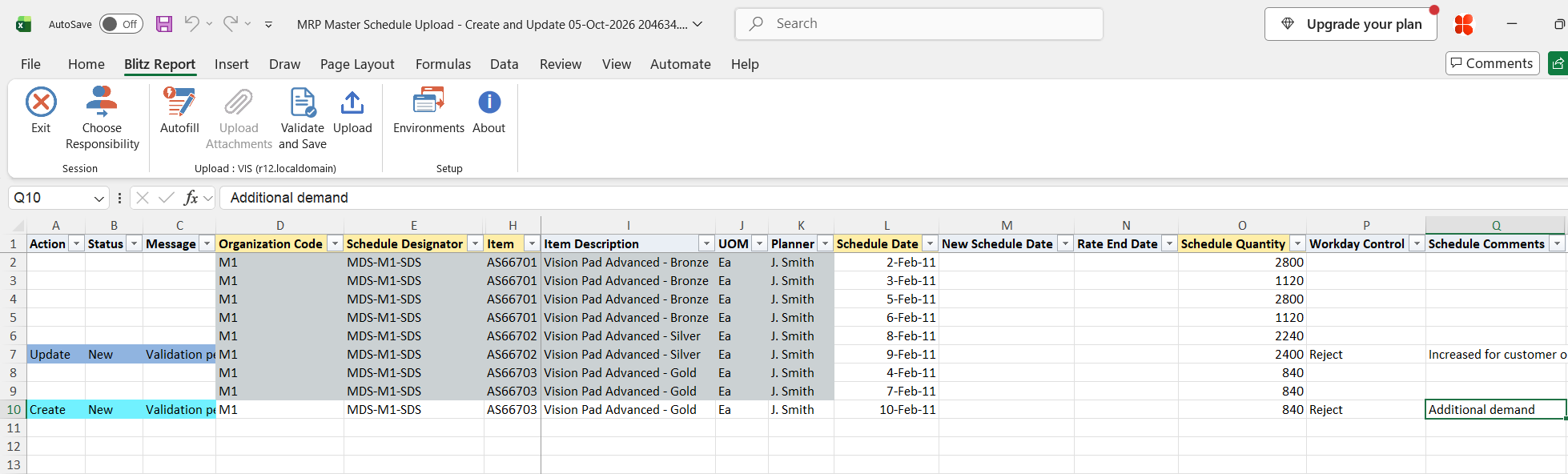
Organization Code, Schedule Designator and Item identify a downloaded entry and cannot be changed. On a downloaded row change the Schedule Quantity, Rate End Date, Workday Control or Schedule Comments. To move the entry to another date, enter the New Schedule Date and keep the Schedule Date unchanged.
For a new entry add a row with the Organization Code, Schedule Designator, Item, Schedule Date and Schedule Quantity. Enter a Rate End Date to schedule the quantity as a daily rate from the Schedule Date up to that date. Workday Control defaults from the parameter. Schedule Type, Schedule Description, Item Description, UOM and Planner are filled in for information.
Step 4 – Validate and Save
Click Validate and Save. This checks for missing required values and saves the file. Correct any rows it flags before uploading.
Step 5 – Upload the file
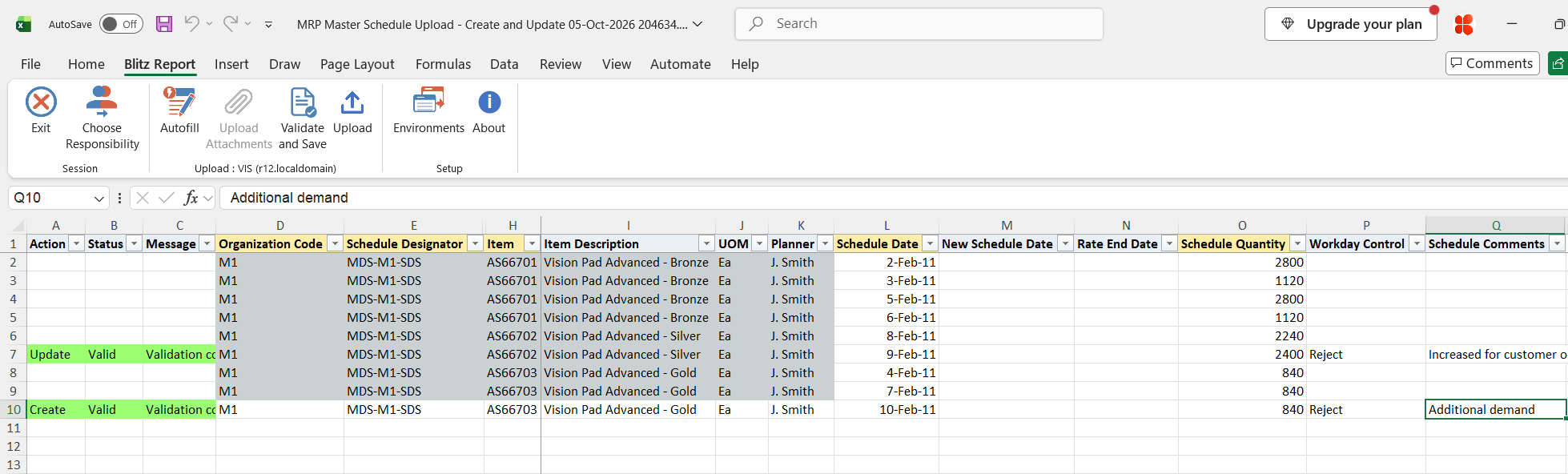
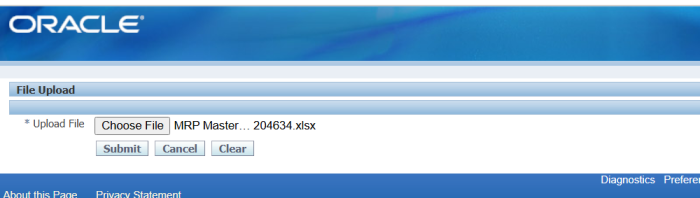
In Blitz Report click Upload and select the saved file. This submits the upload request, which validates each row and stages it in the master schedule interface.
Step 6 – Review the result report
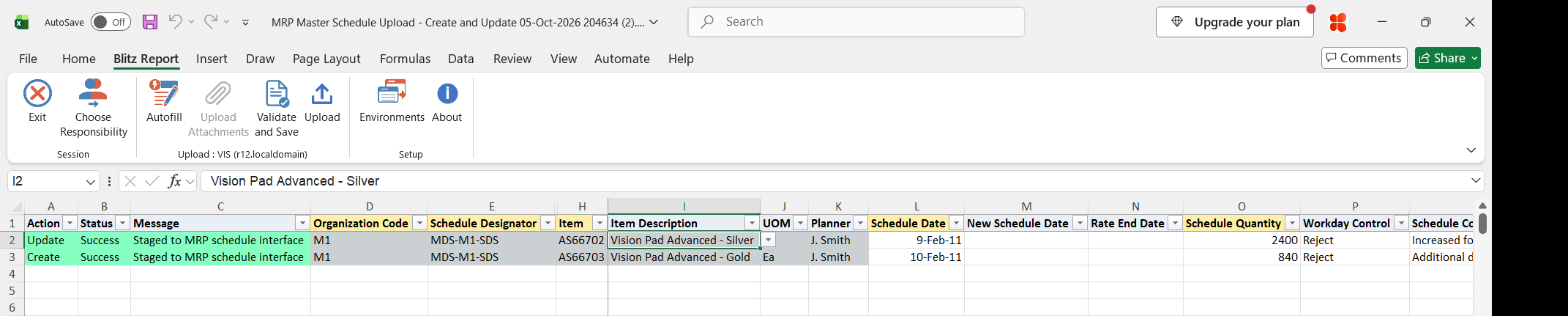
When the request completes, a result report opens listing every uploaded row with its status and message. Successful rows show Staged to MRP schedule interface. The Planning Manager then loads the staged entries into the master schedule; review them in the Item Master Demand Schedule Entries or Item Master Production Schedule Entries window.
What’s produced
- Master schedule entries created or updated in the chosen MDS or MPS, loaded by the Planning Manager.
- A result report listing every row with a status (success or error) and a message.
Common questions
Why does the entry not show in the schedule straight after the upload?
The upload stages the entries in Oracle’s master schedule interface. The Planning Manager picks them up on its next cycle and loads them into the schedule; this takes a few minutes and requires the Planning Manager to be running.
Can I create a master schedule with this upload?
No. The MDS or MPS name must already be defined; the upload maintains its entries.
How do I reschedule an entry?
Download it, enter the new date in New Schedule Date, leave Schedule Date as downloaded and upload.
How do I copy entries to another schedule?
Download the entries in Create, Update mode, copy the rows to new rows, change the Schedule Designator on the new rows and upload.
What happens if a date falls on a non-workday?
Workday Control decides: the entry is rejected, or the date is shifted to the previous or next workday. Set the default as a parameter and override it per row.
Troubleshooting
| Message | Cause | What to do |
|---|---|---|
| Invalid Organization Code | The organization code does not exist. | Pick the Organization Code from the list. |
| Invalid Schedule Name | The schedule does not exist in the row’s organization or is disabled. | Pick an active Schedule Designator of that organization from the list. |
| Invalid Item | The item does not exist in the row’s organization. | Pick the Item from the list for that organization. |
| Invalid Workday Control | The value is not a valid choice. | Pick Reject, Shift backward or Shift forward from the list. |
| Entry staged but not in the schedule | The Planning Manager is not running, or it rejected the entry, for example for a date outside the calendar or on a non-workday with Workday Control Reject. | Make sure the Planning Manager is running. Correct the date or Workday Control and upload the row again. |