
DIS Workbook Conversion Selection is the selection step of the Discoverer to Blitz Report migration. It downloads the Discoverer workbooks uploaded to Blitz Report, one row per workbook with its owner, description, sheet count, usage statistics and conversion status, and lets you mark the workbooks to convert. Uploading the file stores the selection and can submit the Blitz Report Discoverer Import, which converts the selected workbooks to Blitz Reports and templates.
When to use it
- Decide which Discoverer workbooks to migrate, based on when and how often they were run, by how many users, and when they were last changed.
- Select workbooks for conversion, or remove a previous selection.
- Re-select a converted workbook to convert it again.
- Convert the selection in one go, with the import submitted by the upload.
- Check which workbooks are converted and which Blitz Reports carry their worksheets.
Before you start
- The workbooks are exported from Discoverer (commands generated by the DIS Workbook Export Script report) and the zip file is uploaded through Setup > Tools > Import > XML Upload. Only uploaded workbooks are listed.
- With more than one end user layer, the profile option Blitz Report Discoverer Default EUL was set to the migrated end user layer before the upload.
- Run count, distinct users and last run date require Discoverer query statistics collection; without it these columns stay empty.
Step 1 – Set the parameters
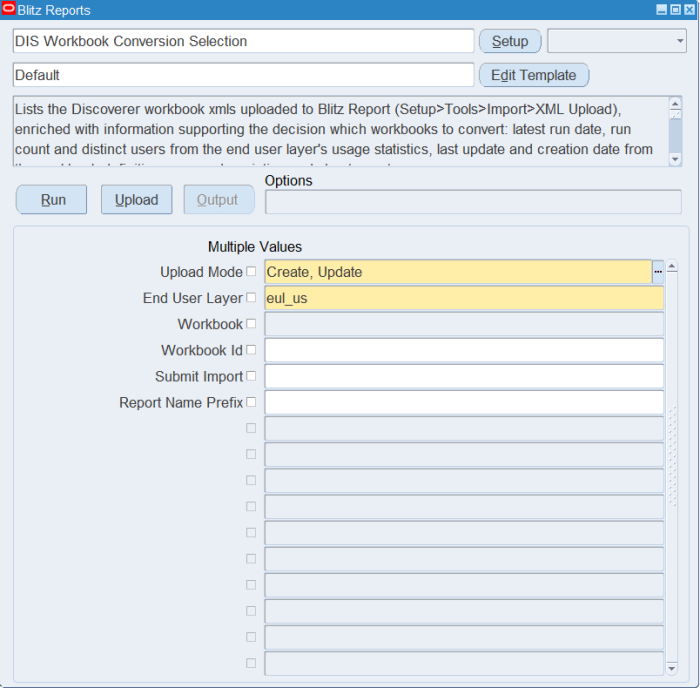
Open DIS Workbook Conversion Selection in Blitz Report and set the parameters:
| Parameter | Meaning |
|---|---|
| Upload Mode | Keep the default Create, Update, which downloads the uploaded workbooks for selection. |
| End User Layer | The Discoverer end user layer schema, defaulted from the profile option Blitz Report Discoverer Default EUL. |
| Workbook | Optionally restricts the download to specific uploaded workbooks. |
| Workbook Id | Optionally restricts the download to a workbook by its Discoverer document id. |
| Submit Import | Yes submits the Blitz Report Discoverer Import when the file is uploaded, waits for it to complete and reports the result per workbook. Leave it blank to only store the selection. |
| Report Name Prefix | Prefix of the created report names when the upload submits the import, defaulted from the profile option Blitz Report Discoverer Import Report Name Prefix. |
Step 2 – Run to download the Excel file
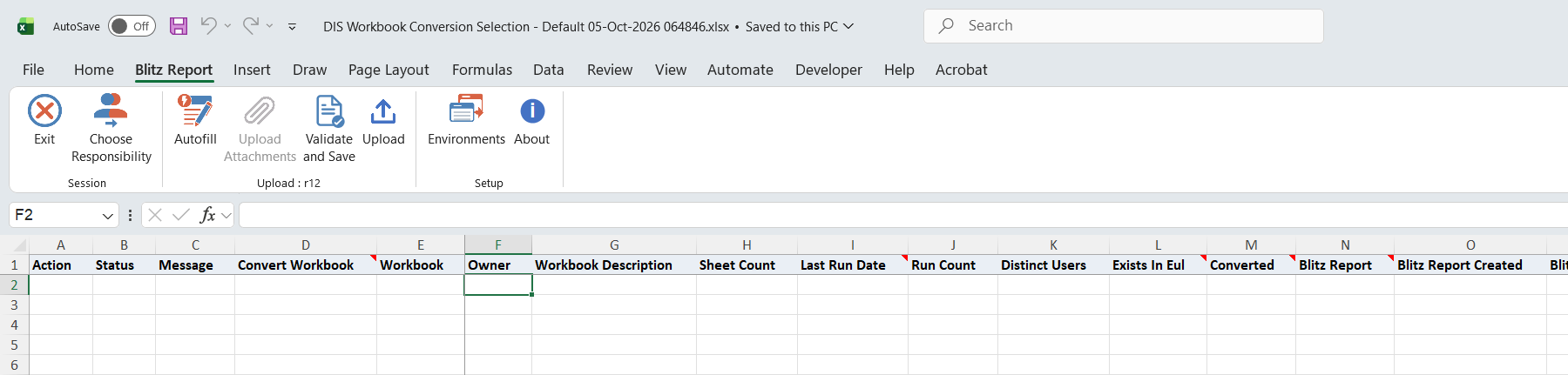
Click Run. The Excel file downloads and opens with one row per uploaded workbook of the end user layer.
Step 3 – Select the workbooks to convert
Set Convert Workbook to Yes for each workbook to convert, or clear it to remove a previous selection. All other columns are information for the decision and cannot be changed:
| Column | Shows |
|---|---|
| Last Run Date, Run Count, Distinct Users | Usage from the end user layer’s query statistics, matched by workbook name. Empty for workbooks without recorded usage. |
| Exists In Eul | Yes when the workbook still exists in the end user layer; empty when it was deleted from Discoverer after its export was uploaded. |
| Converted | Yes when the import converted every worksheet folder set of the workbook. |
| Blitz Report, Blitz Report Created, Blitz Report Updated | The migrated Blitz Reports that carry the workbook’s worksheets. |
| Folder Set Converted | Yes when a Blitz Report already exists for one of the workbook’s worksheet folder sets, for example converted from another workbook that uses the same folders. |
| Workbook Last Updated, Workbook Created and their users | From the workbook definition in Discoverer. |
| Eex Upload Date, Last Updated | When the workbook export was uploaded, and when its selection or conversion status last changed. |
To convert a converted workbook again, enter Yes in its Convert Workbook cell.
Step 4 – Validate and Save
Click Validate and Save. This checks for missing required values and saves the file.
Step 5 – Upload the file
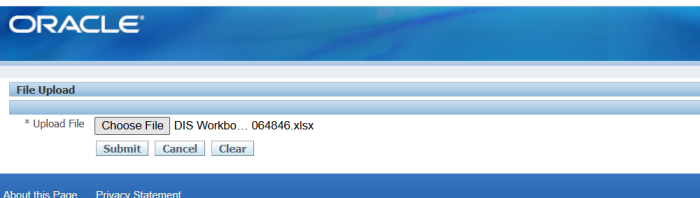
In Blitz Report click Upload and select the saved file. This submits the upload request, which stores the selection. With Submit Import set to Yes, the request then submits the Blitz Report Discoverer Import and waits until it completes, so it runs as long as the conversion.
Step 6 – Review the result report
When the request completes, a result report opens listing every uploaded row with its status and message, for example Workbook selected for conversion. or Workbook selection removed. With Submit Import, the message of a converted workbook gives the number of Blitz Reports and templates created for it and the import request number.
What’s produced
- The conversion selection stored on each uploaded workbook.
- With Submit Import: a Blitz Report Discoverer Import request that converts all selected workbooks of the end user layer to Blitz Reports and templates.
- A result report listing every row with a status and a message.
Common questions
What if I leave Submit Import blank?
The upload only stores the selection. Run the Blitz Report Discoverer Import concurrent program afterwards to convert the selected workbooks, as described in Run the Discoverer Import program.
Does the import convert only the workbooks in my file?
No. It converts every workbook of the end user layer that is selected for conversion, including workbooks selected in an earlier upload.
Why are workbooks without any usage listed?
The usage statistics are informational only. Every uploaded workbook is listed, with empty Run Count and Last Run Date when Discoverer recorded no usage for it.
Why is the downloaded file empty?
No workbooks are uploaded for this End User Layer. Upload the exported workbooks through Setup > Tools > Import > XML Upload, or check the End User Layer parameter and the Blitz Report Discoverer Default EUL profile option used at upload time.
What happens to a converted workbook when I clear Convert Workbook?
Nothing. A converted workbook keeps its status; enter Yes to select it for conversion again.
Why does a workbook show Folder Set Converted but not Converted?
Another workbook using the same folders was converted, so a Blitz Report exists for that folder set. The import’s Object Use Key parameter rebuilds such a report.
Troubleshooting
| Message | Cause | What to do |
|---|---|---|
| Not converted. One or more worksheet folder sets failed or were skipped – see the log of import request … | The import could not convert every worksheet of the workbook. | Check the log of the named import request, correct the cause and select the workbook again. |
| Blitz Report Discoverer Import submission failed: … | The upload could not submit the import request. | Correct the cause in the message, or run the Blitz Report Discoverer Import yourself. |
| The import was not submitted because no workbooks are selected for conversion. | Submit Import is Yes, but no workbook of the end user layer is selected. | Set Convert Workbook to Yes for at least one workbook. |
| No change. The workbook is already converted, enter Yes to select it for reconversion. | Convert Workbook was cleared on a converted workbook. | Enter Yes to convert it again, otherwise nothing to do. |
| Workbook xml not found in the staging table. Export and upload the workbook xml before selecting it for conversion. | The workbook export is no longer uploaded for this end user layer. | Export the workbook and upload it through XML Upload. |