
BOM Standard Operations Upload creates, updates and deletes Oracle EBS standard operations from Excel, together with their resources and substitute resources. It covers discrete Standard operations as well as Flow Event, Flow Process and Flow Line operations, and the Shop Floor Management fields of OSFM-enabled organizations. Each Excel row is one resource of a standard operation; the operation’s header columns repeat on every resource row.
When to use it
- Set up the standard operations of a new organization or production line in bulk.
- Mass-change usage rates, basis, schedule or charge settings of standard operation resources.
- Add, replace or remove resources and substitute resources across many operations.
- Review every operation that uses a given resource, in the context of its full resource list.
- Delete obsolete standard operations or individual resources.
Before you start
- Access to the upload in Blitz Report, under a responsibility with access to the inventory organization.
- The departments, resources and, for flow operations, the production lines exist in the organization.
- Shop Floor Management fields (yield, mandatory step flags, default subinventory and locator on discrete operations) need an OSFM-enabled organization, Shutdown Type an eAM-enabled organization, and Task Type an installed Warehouse Management.
Choose a template
Each template shows only the columns that apply to its operation type. The flow templates preset Manufacturing Mode and Operation Type.
| Template | Use it for |
|---|---|
| Discrete Standard Operation (default) | Discrete Standard operations, not tied to a production line, with their resources and substitute resources. |
| Discrete Standard Operation – Shop Floor Management | The same in OSFM-enabled organizations, adding Operation Yield Enabled, Yield, Lowest Acceptable Yield, the Queue, Run and To Move Mandatory flags, Default Subinventory and Locator, and the Show and Use Org Settings flags. |
| Flow Standard Events | Flow Event operations on a production line, with their resources, Value Added and Critical To Quality. |
| Flow Standard Processes | Flow Process operations on a production line, with Display Sequence and default completion subinventory and locator. No resources. |
| Flow Standard Line Operations | Flow Line operations on a production line, with the same columns as processes. |
Step 1 – Set the parameters
Open BOM Standard Operations Upload in Blitz Report, choose the template and set the parameters:
| Parameter | Meaning |
|---|---|
| Upload Mode | Create opens an empty sheet; Create, Update downloads existing operations for editing and lets you add new ones; Update only changes existing operations. |
| Organization Code | The inventory organization. Defaults to your current organization. |
| Manufacturing Mode | Standard downloads discrete Standard operations, Flow operations tied to a production line. Preset by the template. |
| Operation Type | For Flow, restricts the download to Event, Process or Line operations. Preset by the flow templates and not shown on the discrete ones. |
| Operation Code | One or more standard operation codes to download. |
| Operation Code like | Downloads the operation codes matching a pattern, for example F%. |
| Department | Downloads the operations of one or more departments. |
| Contains Resource | Downloads every operation that uses the selected resources, each with all of its resource and substitute rows. |
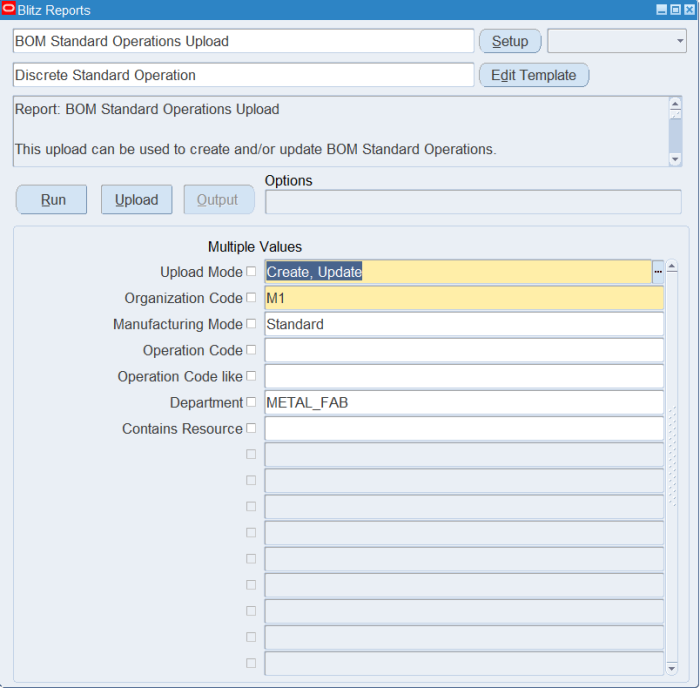
Step 2 – Run to download the Excel file
Click Run. The Excel file downloads and opens with one row per resource of each matching standard operation (one row for an operation without resources), or an empty sheet in Create mode.
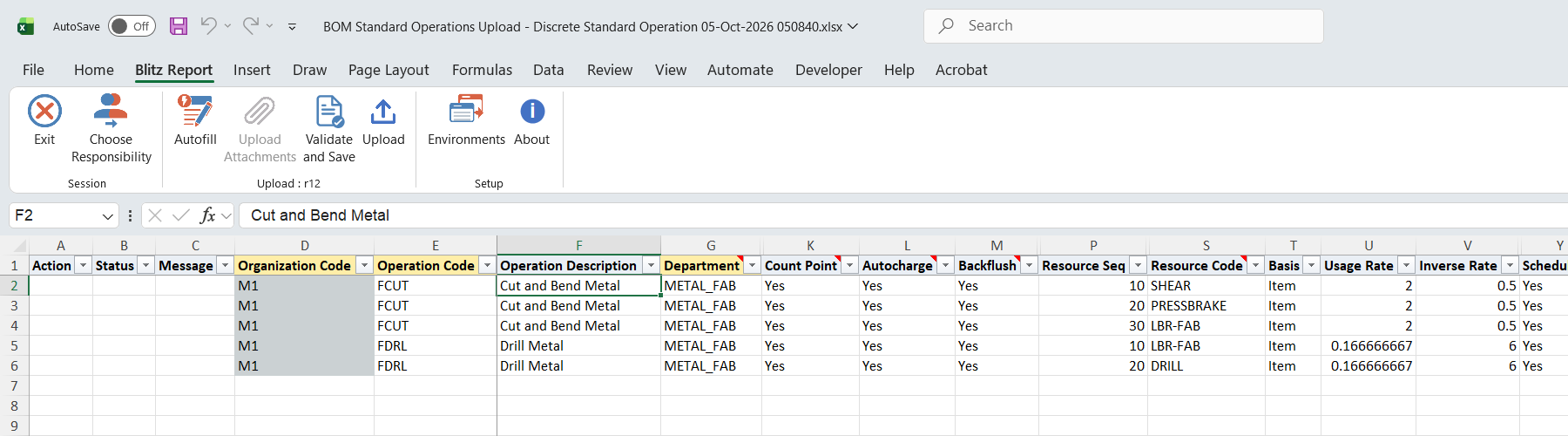
Step 3 – Enter or change the operations
Organization Code, Operation Code and (for flow operations) Line and Operation Type identify an operation. Change the header columns such as Operation Description or Min Transfer Qty, or the resource columns such as Basis, Usage Rate, Schedule or Assigned Units; Inverse Rate follows Usage Rate. To create an operation, add one row per resource with Organization Code, Operation Code, Department, Resource Seq and Resource Code; leave Resource Code blank for an operation without resources. Resource Code cannot be changed on an existing resource: delete it and add a new one.
For a substitute resource, set Substitute Resource to Yes and enter Substitute Group and Replacement Group; substitutes exist on discrete Standard operations only. To delete, set Delete Std Op (the operation with all its resources) or Delete Resource to Yes.
Value Added and Critical To Quality can be set to No only on Flow Events; Count Point, Autocharge and Backflush only on discrete Standard operations. Department can be changed only on Flow Process and Flow Line operations. Each such column carries a cell comment with its rule.
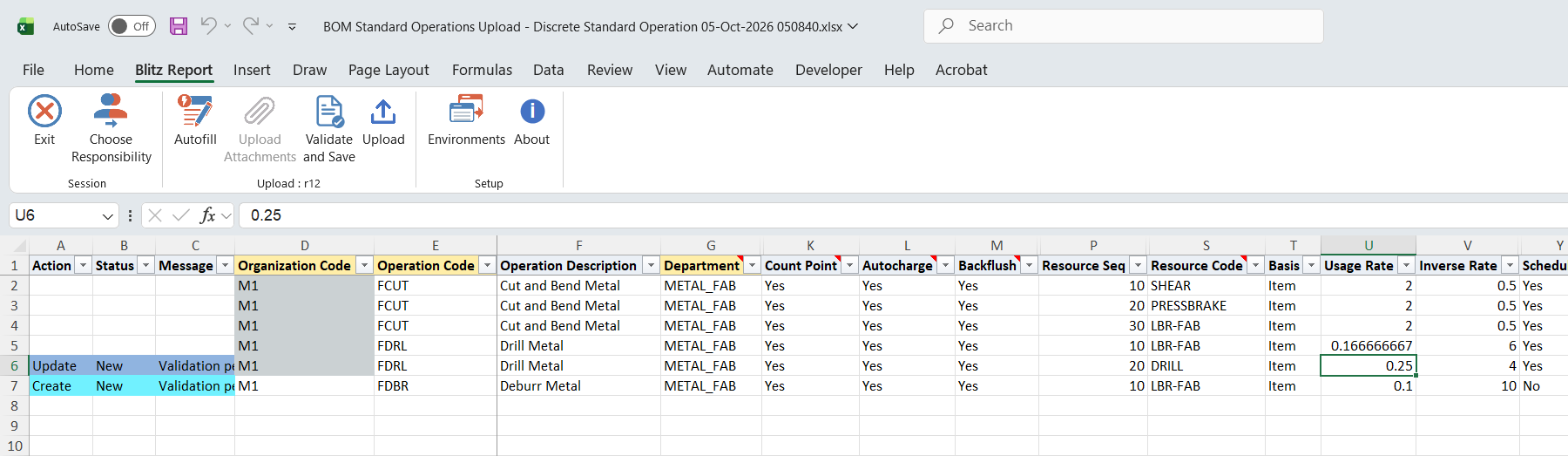
Step 4 – Validate and Save
Click Validate and Save. This checks for missing required values and for columns that do not apply to the operation type or organization, and saves the file. Correct any rows it flags before uploading.
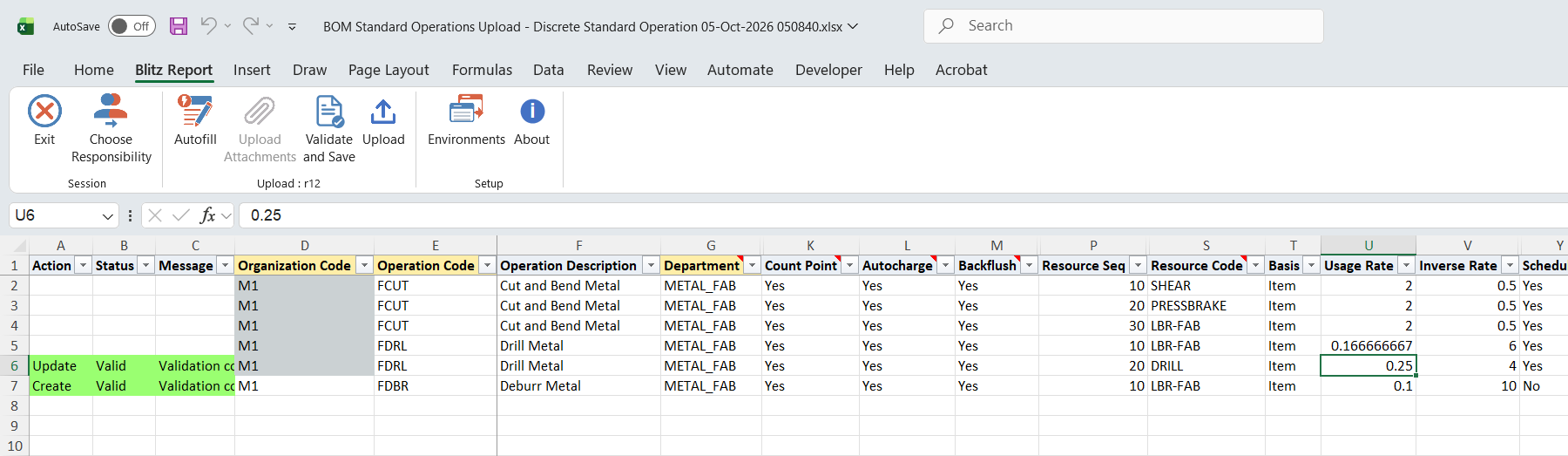
Step 5 – Upload the file
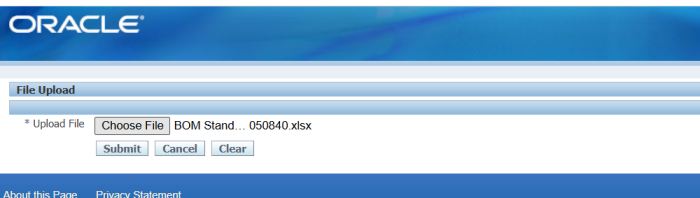
In Blitz Report click Upload and select the saved file. This submits the upload request, which creates, updates or deletes each operation and resource.
Step 6 – Review the result report
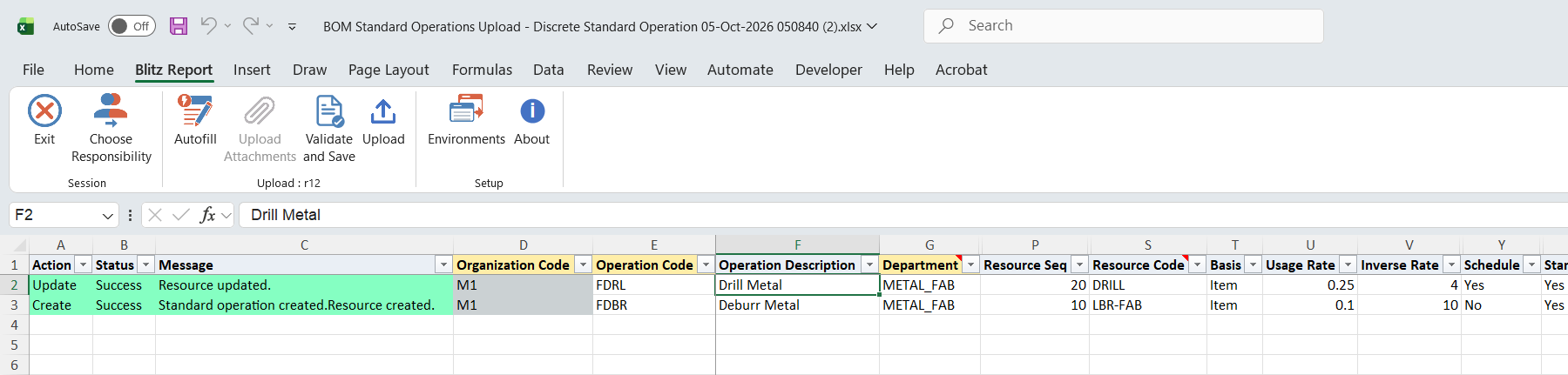
When the request completes, a result report opens listing every uploaded row with its status and message, for example Standard operation created, Resource updated or Resource deleted.
What’s produced
- Standard operations created, updated or deleted, with their resources, substitute resources and descriptive flexfield values.
- A result report listing every row with a status (success or error) and a message.
Common questions
How do I enter an operation with several resources?
One row per resource, repeating the operation’s header columns. The header is processed with the first row of the operation; if it fails, the following rows of that operation fail too.
Can I rename a standard operation?
Yes. Change the Operation Code on a downloaded row; the new code must not exist yet in the organization.
Why can’t I delete a standard operation?
An operation used by an active routing operation or as a setup transition cannot be deleted. The message names the routing item and operation sequence.
What does deleting a standard operation remove?
The operation with its resources, substitute resources, and the OSFM bonus codes, scrap codes and responsibility exclusions.
Why are resource columns rejected on a flow process?
Resources exist only on discrete Standard and Flow Event operations; Flow Process and Flow Line operations have none.
Troubleshooting
| Message | Cause | What to do |
|---|---|---|
| Line is required for Operation Type … | A Flow Process or Flow Line operation without a production line. | Enter the Line. |
| Resources are not applicable to … operations | A resource on a Flow Process or Flow Line operation. | Leave the resource columns blank. |
| Replacement Group is required for a substitute resource | Substitute Resource is Yes without a Replacement Group. | Enter Substitute Group and Replacement Group. |
| Replacement Group must not be entered for a resource | A Replacement Group on a primary resource row. | Clear it, or set Substitute Resource to Yes. |
| Count Point, Auto-charge and Backflush default to Yes and can only be set to No on discrete Standard operations | One of these set to No on a flow operation. | Set it to Yes or leave it blank. |
| Department cannot be changed on a Standard or Flow Event operation | A changed Department on an existing discrete or Flow Event operation. | Keep the department, or create a new operation. |
| Default Subinventory and Default Locator require an OSFM/WSM-enabled organization | A default subinventory or locator on a discrete operation outside OSFM. | Leave both blank. |
| Resource Code cannot be changed on an existing resource | A different resource entered on a downloaded resource row. | Delete the resource and add a new row. |
| Resource Seq is required when uploading a resource | A Resource Code without a Resource Seq. | Enter the Resource Seq. |
| Assigned Units must be 1 for resource … | The resource is batchable or has setups. | Set Assigned Units to 1. |
| Standard operation … cannot be deleted: referenced by active routing operation | A routing still uses the operation. | Remove or disable the routing operation first. |
| Operation Code … already exists for this organization | A rename to a code that is already used. | Choose an unused code. |