
INV Lot Upload creates and updates Oracle Inventory lots from Excel, with the fields of the Lot Numbers form: status, grade, the Disabled flag, the parent lot of a new lot, the origination, expiration, expiration action, retest, maturity and hold dates, and the Lot Attributes and lot descriptive flexfields. A row updates the lot when Organization Code, Item and Lot Number exist, and creates it otherwise.
When to use it
- Correct the expiration dates of many lots at once, for example after a shelf life change.
- Put lots on hold or release them by changing their material status or grade.
- Create lots ahead of receipt or production.
- Maintain lot attributes and descriptive flexfield values in bulk.
Before you start
- You are signed in to an Inventory responsibility with access to the organization.
- The items are lot controlled. Expiration, expiration action and retest dates apply only to items under shelf life control, Lot Status only to lot status enabled items, Grade only to grade controlled items, and Parent Lot only to child lot enabled items.
Choose a template
| Template | Use it for |
|---|---|
| Default (default) | Creating and updating lots with the fields of the Lot Numbers form, without the flexfields. |
| Expiration Date Correction | Correcting the expiration, expiration action and retest dates of existing lots. |
| Lot Status and Grade | Changing the material status, grade and Disabled flag of existing lots, for example to place lots on hold or release them. |
| Create Lots | An empty sheet to create new lots ahead of receipt or production. Upload Mode is fixed to Create. |
| Flexfields | Maintaining the Lot Attributes and the lot descriptive flexfield of existing lots. |
| Lots Expiring | Lots that expire within the given number of days, including lots already expired, with their on-hand quantity. Update the expiration, retest or expiration action of the downloaded lots. Expiring Within Days defaults to 30. |
Step 1 – Set the parameters
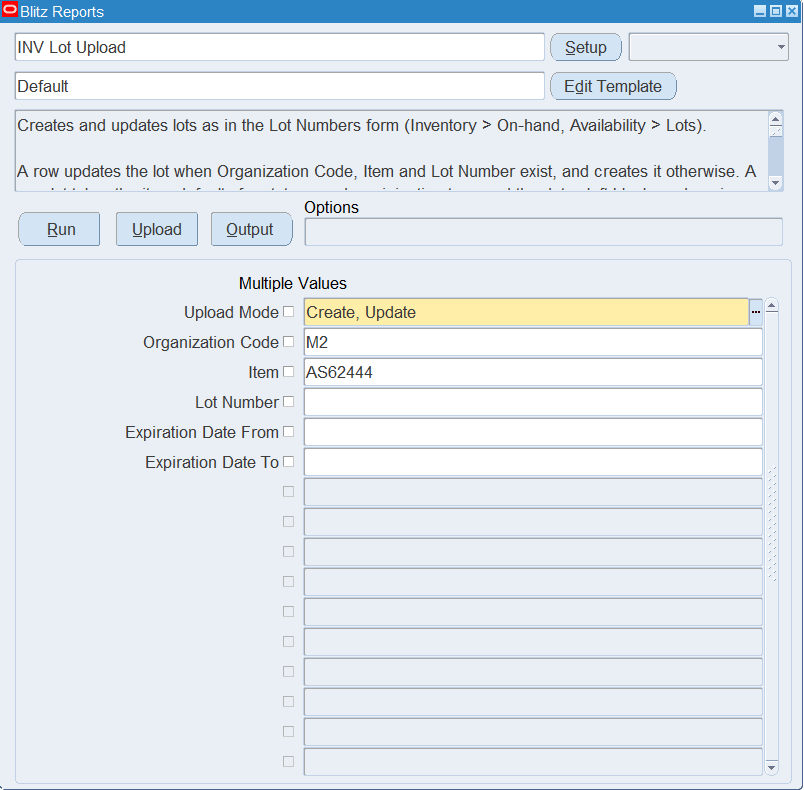
Open INV Lot Upload in Blitz Report, choose the template and set the parameters:
| Parameter | Meaning |
|---|---|
| Upload Mode | Create opens an empty sheet; Create, Update (default) downloads existing lots for editing and lets you add new ones. |
| Organization Code | The inventory organization of the lots. |
| Item | Restricts the download to the lots of one item. |
| Lot Number | Restricts the download to one lot. |
| Expiration Date From / To | Restricts the download to lots expiring in this date range. Expiration Date To defaults to the From date. |
| Expiring Within Days | Restricts the download to lots with an expiration date before today plus this number of days, including lots already expired. |
Step 2 – Run to download the Excel file
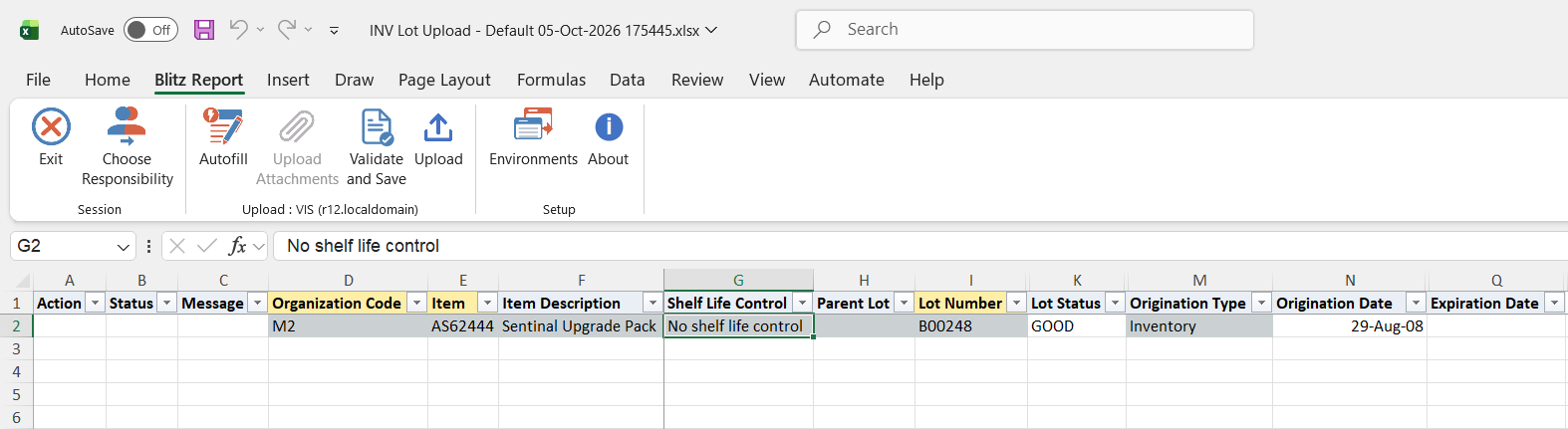
Click Run. The Excel file downloads and opens with one row per existing lot, or an empty sheet in Create mode.
Step 3 – Enter or change the lots
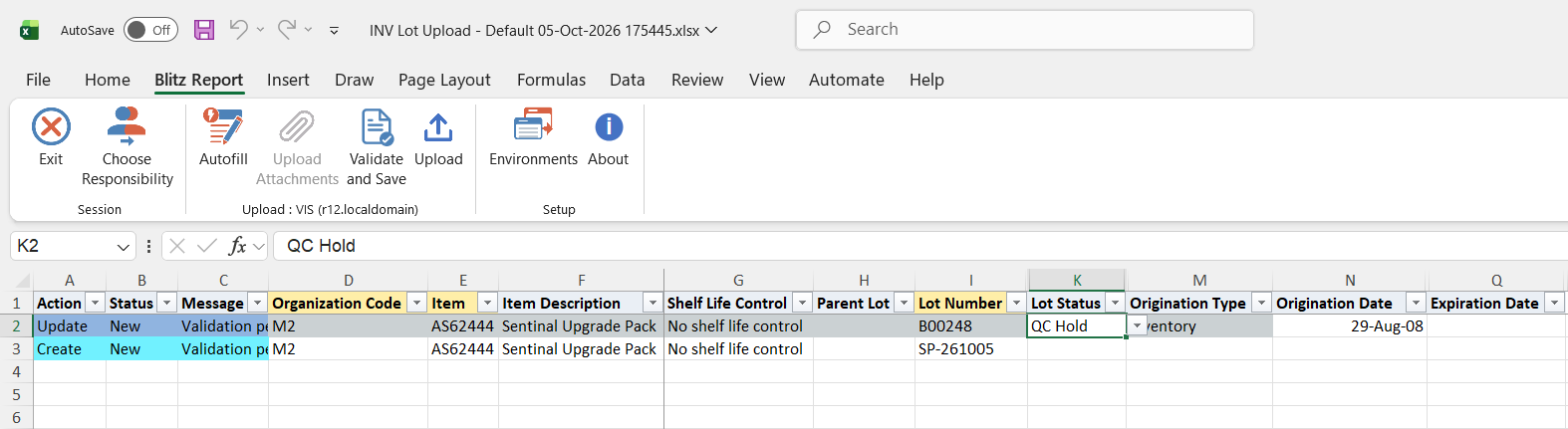
Organization Code, Item and Lot Number identify a lot and cannot be changed on a downloaded row. Item Description, Shelf Life Control and Origination Type are for information, as is Onhand Quantity in the Lots Expiring template: the on-hand quantity of the lot in all subinventories, in the primary unit of measure. Change the Lot Status, Grade, Disabled flag or dates of a downloaded row, or add rows with the Organization Code, Item and Lot Number of a new lot plus the values to set. Lot Status and Grade are picked from the values valid for the item.
For a new lot, the status, grade, origination type and dates left blank take the item defaults, a blank Origination Date defaults to today, and a child lot takes the parent lot attributes where the item or organization is set up to copy them. Parent Lot can only be entered for a new lot. Clearing the Expiration Action Date also clears the Expiration Action. Rows can also be pasted from another source: only the pasted columns are updated.
Step 4 – Validate and Save
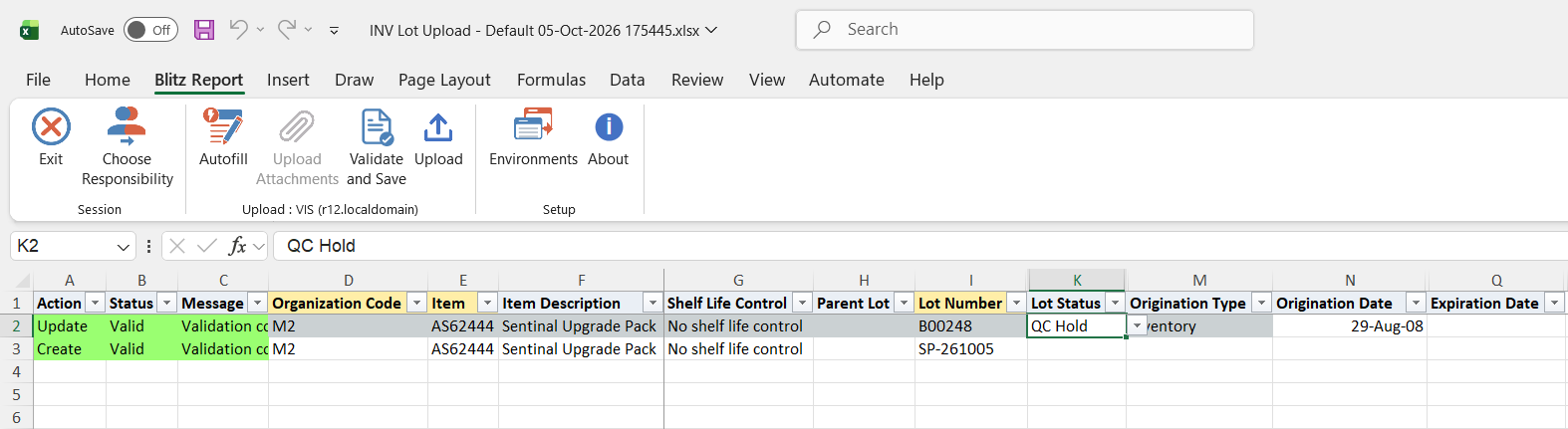
Click Validate and Save. This checks for missing required values and saves the file. Correct any rows it flags before uploading.
Step 5 – Upload the file
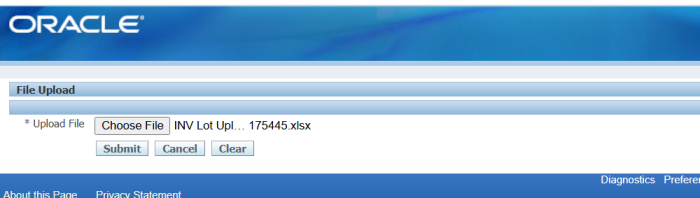
In Blitz Report click Upload and select the saved file. This submits the upload request, which creates or updates each lot.
Step 6 – Review the result report
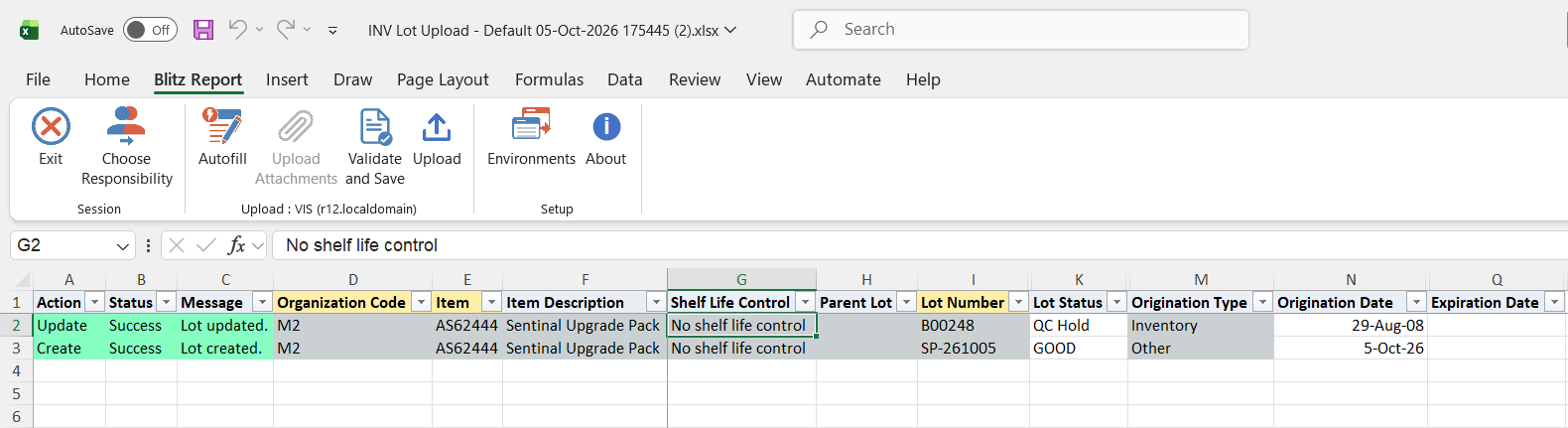
When the request completes, a result report opens listing every uploaded row with its status and message, and the values stored for each lot.
What’s produced
- New and updated lots, with the same defaulting, validation and status and grade history as the Lot Numbers form.
- With the profile INV: Global Lot Attributes set to Yes, changed dates and grades are applied to the same lot in all organizations, as in the form.
- A result report listing every row with a status (success or error) and a message.
Common questions
Can I clear an expiration date?
Not for an item under shelf life control: its lots need an expiration date, as in the form. For other items the expiration date cannot be changed at all.
Does changing the Origination Date recalculate the other dates?
No. As in the form, the other dates are derived from the origination date only when a lot is created.
Can I change the parent lot of an existing lot?
No. A parent lot can only be entered when the lot is created.
Can I delete lots?
No, the Lot Numbers form does not delete lots either. Use the Disabled flag or a material status instead.
Can I have the lot number generated?
No, enter the lot number for each new lot.
Troubleshooting
| Message | Cause | What to do |
|---|---|---|
| Expiration Date (or Expiration Action Date, Retest Date) cannot be changed because the item is not under shelf life control | The item has no shelf life control. | Leave these dates unchanged, or change the item’s shelf life control. |
| Expiration Date is required for items under shelf life control | The expiration date was cleared, or is missing on a new lot of an item with a user-defined expiration date. | Enter an expiration date. |
| Expiration Date must be on or after the Origination Date (similar for the other dates) | A date lies before the lot’s origination date. Retest, Maturity and Hold Date must be after it. | Correct the date or the origination date. |
| Origination Date cannot be cleared | The origination date of an existing lot was deleted. | Enter an origination date. |
| Expiration Action requires an Expiration Action Date | An expiration action was entered without a date. | Enter the expiration action date. |
| Lot Status is invalid | The value is not a lot status valid for the item. An item that is not lot status enabled has no valid statuses, so a downloaded row of such an item fails with the Default template. | Pick the status from the list. For items that are not lot status enabled, use a template without the Lot Status column, such as Expiration Date Correction. |
| Status / Grade / Parent Lot cannot be changed because the item is not … | The item is not lot status enabled, grade controlled or child lot enabled. | Leave the column blank for this item. |
| The Material Status cannot be modified. Pending Transactions exist for this Lot | The new status disallows transactions that are still pending for the lot. | Process or cancel the pending transactions, then upload again. |
| Cannot change the status if reservations are associated with this entity | The lot is reserved and the new status does not allow reservations. | Remove the reservations or choose another status. |
| Duplicate lot. This lot has already been processed in this upload | The same lot appears twice in the file. | Keep one row per lot. |