
BOM Routing Upload creates, updates and deletes Oracle manufacturing routings – standard, flow and lot based (network) – with their revisions, operations, operation resources, substitute resources and operation networks, and creates common routing assignments, from one Excel sheet through the standard routing API.
When to use it
- Mass-create standard, flow or lot based routings for many assemblies.
- Add operations to existing routings, or change operation attributes such as department, description, count point, backflush, yield and dates.
- Bulk-load or adjust operation resources and substitute resources, for example new usage rates.
- Build or maintain operation networks of lot based and flow routings.
- Assign items to a common routing so they share another item’s routing.
- Delete obsolete operations, resources, network links, revisions or whole routings.
Before you start
- A responsibility with Blitz Report and access to the inventory organization. Lot based routings need an organization enabled for Oracle Shop Floor Management.
- The assembly item exists in the organization and is BOM enabled.
- The departments, resources and standard operations you reference exist, and each resource is assigned to the operation’s department.
- For a common routing assignment, the routing of the common routing item already exists.
Choose a template
| Template | Use it for |
|---|---|
| Standard Routing (default) | Standard (discrete) routings with revisions, operations, resources and substitute resources. |
| Flow Routing | Flow routings, adding the line, process, line operation, cycle time and yield columns. Sets Routing Type to Flow. |
| Lot Based Routing | Lot based (network) routings including their network links. Sets Routing Type to Lot Based. |
| Routing Networks | Only the operations and their network links (Network To Operation Seq, Network Transition Type, Network Planning Pct) of lot based routings. |
| Common Routing Assignments | Routing headers with the Common Routing Item, downloading only routings assigned to a common routing. |
| Routing Headers Only | Routing header columns such as Completion Subinventory, Priority and Routing Comment, without operations. |
| All Columns excluding DFFs | All columns of all routing types, without the descriptive flexfield columns. |
Step 1 – Set the parameters
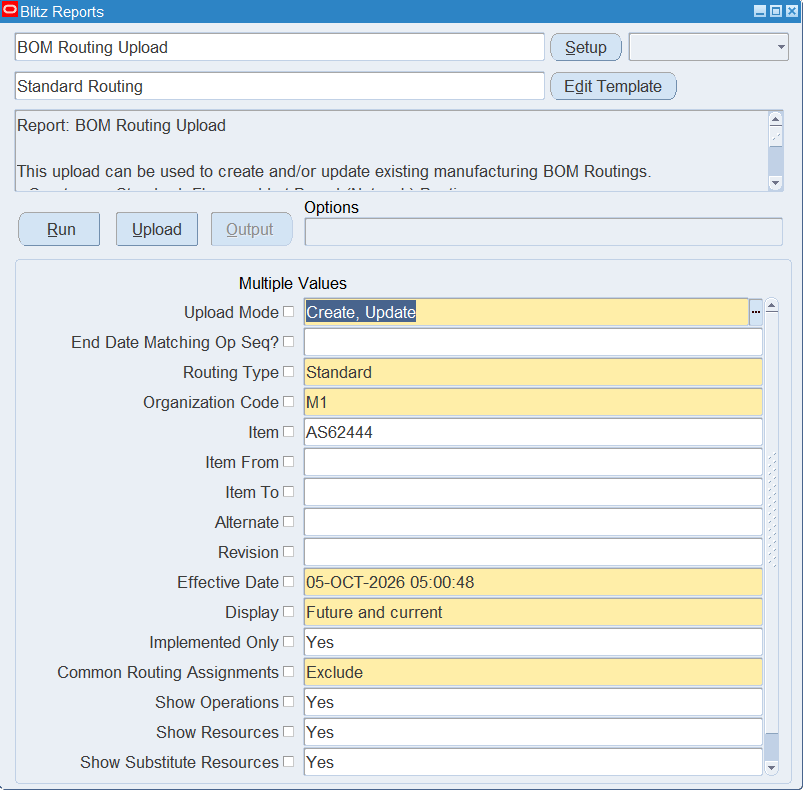
Open BOM Routing Upload in Blitz Report, choose the template and set the parameters:
| Parameter | Meaning |
|---|---|
| Upload Mode | Create (default) opens an empty sheet; Create, Update downloads existing routings for editing and lets you add new rows. |
| End Date Matching Op Seq? | Yes end-dates the active operation with the same Operation Seq when you create a new operation, so the new one replaces it. Has no effect on updates of existing operations. |
| Routing Type | Standard (default), Flow or Lot Based. |
| Organization Code | The inventory organization. Defaults to your current organization. |
| Item / Item From / Item To | One assembly, or a range of assemblies, whose routings of the selected Routing Type are downloaded. |
| Alternate | Downloads only the routings with this alternate routing designator. |
| Revision | A routing revision of the Item; sets the Effective Date to that revision’s effective date. |
| Effective Date / Display | Display Current, Future and current (default) or All operations, relative to the Effective Date (default: now). |
| Implemented Only | Yes (default) excludes operations not yet implemented through an engineering change order. |
| Common Routing Assignments | Exclude (default) skips items assigned to a common routing, Include adds them, Restrict To downloads only them. |
| Show Operations / Show Resources / Show Substitute Resources | Which routing detail is downloaded. Without operations you get one row per routing header. |
| Routings With Substibutes Only | Yes downloads only routings that have substitute resources. |
In Create, Update mode, restrict the download with Item, Item From / Item To or Alternate.
Step 2 – Run to download the Excel file
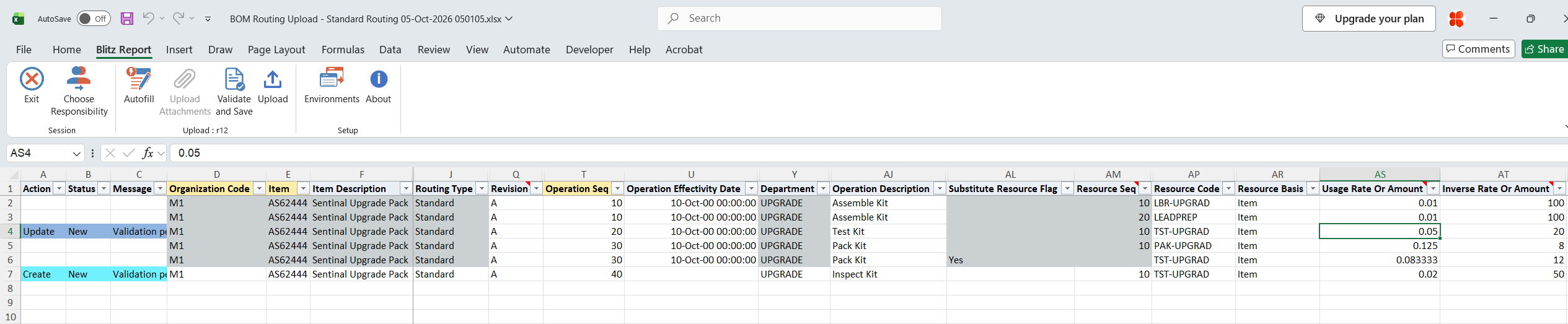
Click Run. The Excel file downloads and opens with one row per operation resource or substitute resource (one row per operation without resources), repeating the routing and operation values on each row, or an empty sheet.

Step 3 – Enter or change the routing data
Organization Code, Item and Alternate identify the routing; all rows with the same values are uploaded together as one routing. An operation is identified by Operation Seq, Operation Type and Operation Effectivity Date, a resource by its Resource Seq. Changed downloaded rows are uploaded as updates, rows you add as creates.
- New operation – add a row with the Organization Code, Item, Operation Seq, Department and Operation Description, or an Operation Code. A blank Operation Effectivity Date means now. When the operation references a standard operation (Referenced = Yes), its resources are copied from the standard operation and resource columns on the row are ignored.
- Operation resources – Resource Seq and Resource Code are required. Enter either Usage Rate Or Amount or Inverse Rate Or Amount; the other is calculated. If both are filled, the usage rate is used, so to change a rate through the inverse, clear the usage rate on that row.
- Substitute resources – set Substitute Resource Flag to Yes and enter Substitute Group Num, Replacement Group Num, Resource Code, Resource Basis and Schedule.
- Revisions – an existing revision cannot be changed; enter a higher Revision with a Revision Effectivity Date not earlier than today to create a new routing revision. The organization’s starting revision is always effective from when the routing is created.
- Network links (lot based and flow) – enter the Network To Operation Seq and Network Transition Type, and optionally Network Planning Pct.
- Common routing – enter a Common Routing Item on a routing header without operations.
- Deletes – set Delete Operation, Delete Resource, Delete Network Link or Delete Revision to Yes on the row, or Delete Routing to Yes to delete the whole routing.
Step 4 – Validate and Save
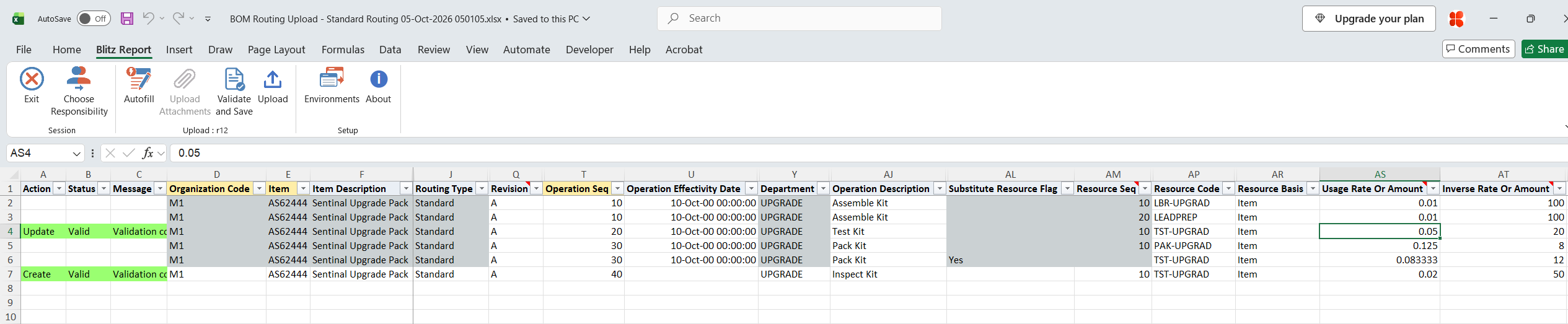
Click Validate and Save. This checks for missing required values and saves the file. Correct any rows it flags before uploading.
Step 5 – Upload the file
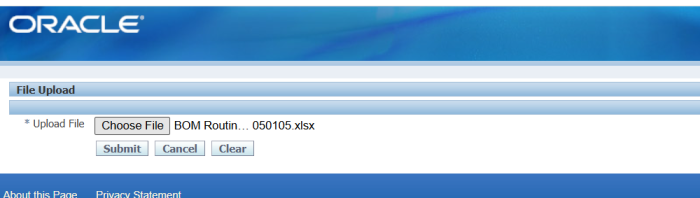
In Blitz Report click Upload and select the saved file. This submits the upload request, which creates, updates and deletes the routings through the routing API.
Step 6 – Review the result report
When the request completes, a result report opens listing every uploaded row with its status and a message naming what was done, for example Resource Updated or Operation Created,Resource Created.

What’s produced
- Created, updated and deleted routings, revisions, operations, resources, substitute resources and network links, and common routing assignments.
- A result report listing every row with a status (success or error) and a message.
Common questions
Do I need to set an action?
No. Rows you change are marked Update and rows you add are marked Create. A routing that does not exist yet is created; deletes are driven by the Delete columns.
Why was my whole routing rejected when only one row was wrong?
All rows of a routing are processed together. If one row fails, the other rows of that routing show “One or more rows for this routing are in error” and nothing of that routing is saved.
How do I replace an operation from a future date?
Set End Date Matching Op Seq? to Yes and add a new row with the same Operation Seq and the new Operation Effectivity Date. The active operation is end-dated just before the new one starts.
Can I change the routing type or remove a common routing assignment?
No. Routing Type and assembly type are fixed once the routing exists, and a common routing assignment cannot be removed or added to a routing that has operations.
Which template should I use?
Standard Routing (the default) for discrete routings; Flow Routing, Lot Based Routing or Routing Networks for those routing types; Common Routing Assignments or Routing Headers Only for header-level changes.
Troubleshooting
| Message | Cause | What to do |
|---|---|---|
| One or more rows for this routing are in error | Another row of the same routing failed. | Fix the row with the real error message and upload the routing again. |
| Operation Sequence is required to process an Operation | An operation row without Operation Seq. | Enter the Operation Seq. |
| Operation Sequence, Operation Type, and Operation Effective Date are not unique | Rows with the same Operation Seq, Operation Type and Operation Effectivity Date carry a different Operation Code or Department. | Make the operation values identical on all its rows, or give the new operation another Operation Seq or effectivity date. |
| Both the Resource Sequence and Resource Code are required to process a Resource | A resource row without Resource Seq or Resource Code. | Enter both. |
| Operation Resource Sequence is not unique | The same Resource Seq with different Resource Codes on one operation. | Use a different Resource Seq for the second resource. |
| Resource Sequence cannot be updated | Resource Seq changed on a downloaded resource row. | Keep the Resource Seq; delete the resource and add a new row instead. |
| Substitute Group Num, Replacement Group Num, Resource Code, Resource Basis, and Schedule are all required to process a Substitute Resource | A substitute resource row with one of these values missing. | Fill all five columns. |
| Substitute Group Num cannot be updated | Substitute Group Num changed on a downloaded resource row. | Keep the existing value. |
| Routing Type cannot be changed / Routing Assembly Type cannot be changed | The routing exists with another routing or assembly type. | Keep the existing type. |
| This Routing contains both a Common Routing Assignment and Operations | A Common Routing Item on a routing that also has operation rows. | Remove either the Common Routing Item or the operation rows. |
| Routing cannot be assigned to a common routing. Operations have already be defined for this routing | A Common Routing Item entered for a routing that has operations. | Only routings without operations can be assigned to a common routing. |
| Routing is assigned to a common routing. The common routing assignment cannot be removed | Common Routing Item cleared on a downloaded routing. | Restore the Common Routing Item. |
| Routing cannot be deleted. Routing does not exist (likewise Revision, Operation, Resource, Substitute Resource, Network Link) | A Delete column is Yes on a row that does not exist. | Correct the identifying columns or clear the Delete column. |
| Organization is invalid | The Organization Code does not exist. | Pick the Organization Code from the list. |