
WSH Pick Confirm Upload confirms released sales order pick tasks in bulk from Excel, as done one by one in the Transact Move Orders window or on a mobile device. Download the pick allocations that pick release created for an organization, record what was actually picked (quantity, subinventory, locator and lot, the staging location and, in WMS enabled organizations, the LPN the material was packed into) and upload. Each pick task is confirmed through the standard Oracle pick confirm API, which moves the material to the staging subinventory and sets the delivery line to Staged/Pick Confirmed. Optionally, a delivery is ship confirmed as soon as its last released line has been picked.
When to use it
- Confirm a whole pick list at once when pick release does not auto pick confirm, for example after the warehouse has worked from printed pick slips.
- Record short picks, picks from a different subinventory, locator or lot, or picks split over several lots.
- Pack picked material into LPNs during pick confirm in a WMS enabled organization.
- Pick confirm and ship confirm complete deliveries in one step.
- Review all open pick tasks of an organization, order, delivery, trip or move order in one sheet.
Before you start
- Access to the upload in Blitz Report, with a responsibility that has access to the inventory organization.
- The sales order lines are pick released (delivery line status Released to Warehouse) with allocated pick tasks, and pick release did not already auto pick confirm them.
- The inventory period of the current date is open in the organization: pick confirm transacts with today’s date.
- The items are not serial controlled. Serial controlled items cannot be pick confirmed with this upload.
Step 1 – Set the parameters
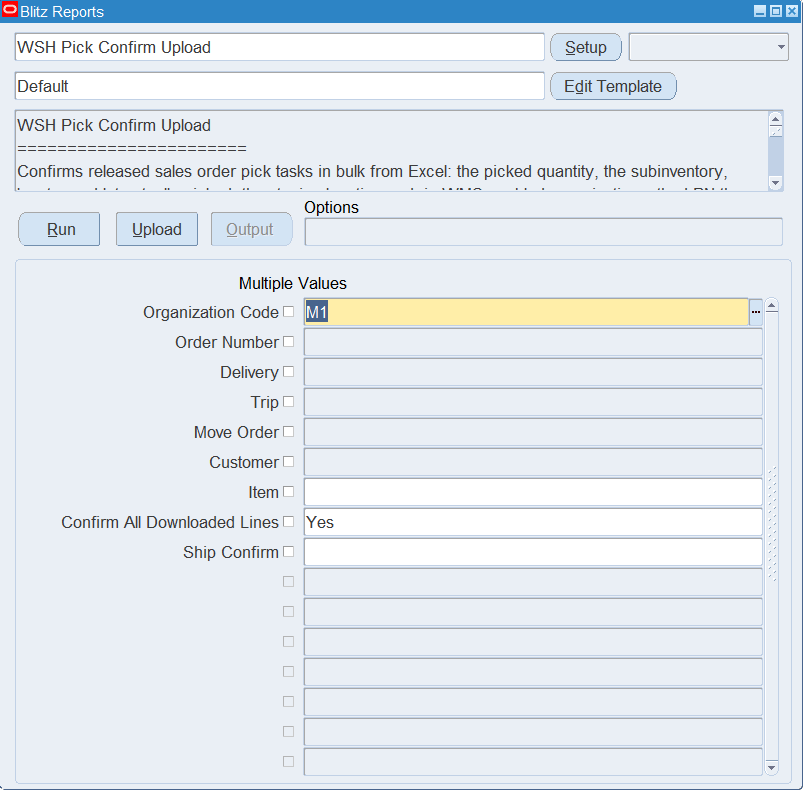
Open WSH Pick Confirm Upload in Blitz Report and set the parameters. The lists of Order Number, Delivery, Trip, Move Order, Customer and Item show only values that have released to warehouse lines with open pick tasks in the organization.
| Parameter | Meaning |
|---|---|
| Organization Code | Required. The inventory organization of the pick tasks. Defaults from the profile PO: MFG Organization ID; check that it shows the warehouse you want to confirm. |
| Order Number | Downloads only the pick tasks of this sales order. |
| Delivery | Downloads only the pick tasks of this delivery. |
| Trip | Downloads only the pick tasks of the deliveries picked up on this trip. |
| Move Order | Downloads only the pick tasks of this pick wave move order. |
| Customer | Downloads only the pick tasks of orders of this customer. |
| Item | Downloads only the pick tasks of this item. |
| Confirm All Downloaded Lines | Yes pre-flags every downloaded row for upload, so an unchanged pick list is confirmed as it is. Leave it empty to upload only the rows you change. |
| Ship Confirm | Yes also ship confirms a delivery as soon as its last released line has been confirmed by the upload. Unpicked quantities are backordered. |
Step 2 – Run to download the Excel file
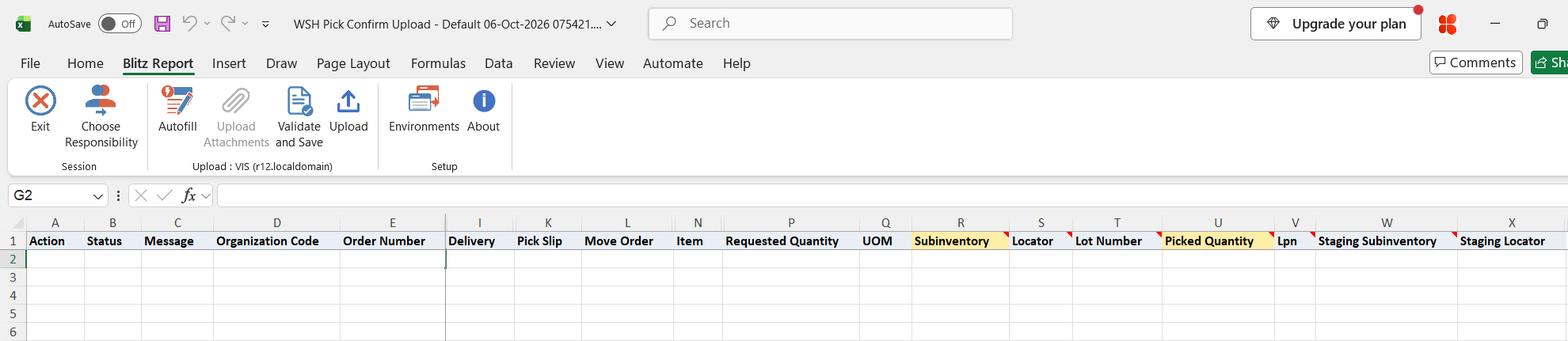
Click Run. The Excel file downloads and opens with one row per pick allocation, and one row per allocated lot for lot controlled items. Each row shows the order and line, customer and ship-to, delivery, trip, pick slip, move order, the WMS task status, the item with its requested quantity and unit of measure, and the allocation pre-filled in the editable columns. With Confirm All Downloaded Lines set to Yes, every row is already marked for upload.
Step 3 – Record what was picked
Leave rows that were picked as allocated unchanged and overwrite the pre-filled values where the pick differs. Changing a value marks the row for upload.
- Picked Quantity is pre-filled with the allocated quantity, in the UOM shown. Reduce it for a short pick; it cannot exceed the open quantity of the move order line.
- Subinventory and Locator are pre-filled with the allocated source location. Overwrite them when the material was picked elsewhere.
- Lot Number is the lot actually picked; the list shows the on-hand lots in the subinventory and locator with quantity and expiration date. To pick from an additional lot, copy a row of the same pick task and enter the other lot and its quantity. A Picked Quantity of 0 on a lot row removes that lot from the pick.
- All rows of one pick task (for example the lot rows of one allocation) must have the same Subinventory, Locator and staging location.
- Lpn (WMS enabled organizations only) is the LPN the material is packed into. Pick an existing pregenerated or picked LPN, or enter a new name to create the LPN in the organization.
- Staging Subinventory and Staging Locator are the staging lane the picked material is dropped at, defaulted from the pick release rule.
Step 4 – Validate and Save
Click Validate and Save. This checks for missing required values, a lot number on every row of a lot controlled item and on none of an item without lot control, and LPNs entered in organizations without Warehouse Management, and saves the file. Correct any rows it flags before uploading.
Step 5 – Upload the file
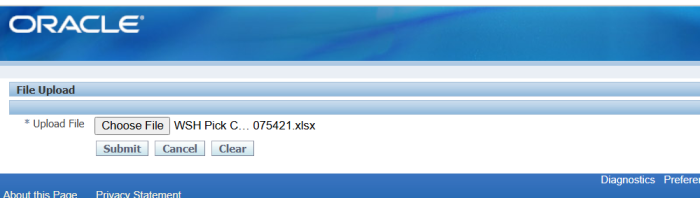
In Blitz Report click Upload and select the saved file. This submits the upload request, which first validates all rows and then confirms each pick task whose rows are all valid. With Ship Confirm set to Yes, it then ship confirms each delivery that has no lines left to release or pick.
Step 6 – Review the result report
When the request completes, a result report opens listing every uploaded row with its status and message, for example Pick task confirmed, quantity 2., followed by Delivery … ship confirmed. when the delivery was ship confirmed.
What’s produced
- Pick confirm transactions that move the picked material from the source subinventory and locator to the staging subinventory and locator, with the lots picked and, in WMS organizations, packed into the LPN.
- Delivery lines with status Staged/Pick Confirmed, ready for ship confirm.
- With Ship Confirm: deliveries ship confirmed with trip closure and the material set in transit. The Interface Trip Stop is deferred, so the inventory and order management updates happen when the Interface Trip Stop program runs.
- A result report listing every row with a status (success or error) and a message.
Common questions
How do I confirm a pick list exactly as released?
Run the download with Confirm All Downloaded Lines set to Yes, then Validate and Save and upload the file without changes.
The material came from two lots. How do I record that?
Copy the row of the pick task, enter the second lot in Lot Number and split the quantity over both rows in Picked Quantity. Both rows must keep the same Subinventory, Locator and staging location.
What happens when one row of a pick task fails?
The whole pick task is not confirmed. Its other rows return Pick task not confirmed. Another row of the same pick task has an error. Other pick tasks of the file are confirmed independently.
Why was my delivery not ship confirmed although Ship Confirm is Yes?
A delivery is ship confirmed only when it is open and none of its lines is still not ready to release, ready to release or released to warehouse. Confirm the remaining lines (or upload them in the same file) and the last confirmed line triggers the ship confirm.
Can I use it for serial controlled items?
No. Rows of serial controlled items return Serial controlled items are not supported. Confirm those picks in the Transact Move Orders window or on the mobile device.
Troubleshooting
| Message | Cause | What to do |
|---|---|---|
| Lot Number is required for lot controlled item … | A row of a lot controlled item has no Lot Number. | Enter the lot picked. |
| Item … is not lot controlled. | A Lot Number is entered for an item without lot control. | Clear the Lot Number. |
| LPN requires a WMS enabled organization. | An Lpn is entered in an organization without Warehouse Management. | Clear the Lpn. |
| Picked Quantity must be greater than zero. | A negative quantity, or 0 on a row without lot. | Enter the quantity picked. To pick nothing, do not upload the row. |
| Pick task … no longer exists. It was confirmed or cancelled after the download. | The pick task was confirmed or cancelled by someone else since the download. | Download the pick tasks again. |
| The delivery line is no longer released to warehouse. Status: … | The delivery line was backordered, staged or otherwise changed since the download. | Download the pick tasks again. |
| Serial controlled items are not supported. | The item of the pick task is serial controlled. | Confirm the pick in the Transact Move Orders window or on the mobile device. |
| LPN … is in use (…). Only new, pregenerated or picked LPNs can be used. | The LPN exists with another context, for example resides in inventory. | Use a new LPN name or one from the list. |
| Subinventory, Locator, LPN and staging location must be the same on all rows of pick task … | The rows of one pick task have different source or staging locations. | Enter the same Subinventory, Locator, Staging Subinventory and Staging Locator on all rows of the task. |
| Pick task not confirmed. Another row of the same pick task has an error. | Another row of the same pick task failed validation. | Fix the failed row and upload the task again. |
| At least one lot with a picked quantity is required. | All lot rows of a pick task have a Picked Quantity of 0. | Enter a quantity on at least one lot row, or do not upload the task. |
| Picked Quantity … exceeds the requested quantity … | The total picked over the rows of the task is more than the open move order line quantity. | Reduce the Picked Quantity. |
| Pick confirm failed. … | The pick confirm API rejected the transaction, for example a closed inventory period, insufficient on-hand quantity or a lot that is not available. | Correct the cause named in the message and upload again. |
| Ship confirm of delivery … failed. … | The pick was confirmed but the shipping API rejected the ship confirm. | Correct the cause named in the message and ship confirm the delivery in the Shipping Transactions window. |
| The delivery is not ship confirmed yet, other lines are still released to warehouse. | Ship Confirm is Yes, but other lines of the delivery are not yet picked or released. | Confirm the remaining lines; the last one ship confirms the delivery. |
| The line is not assigned to a delivery, no ship confirm. | Ship Confirm is Yes, but the picked line has no delivery. | Assign the line to a delivery and ship confirm it in the Shipping Transactions window. |