
QP Price List Copy and Adjust Upload copies Oracle Advanced Pricing price lists and adjusts their prices from Excel, one row per price list, as the Copy Price List and Adjust Price List windows do. A row can copy a price list with its qualifiers to a new price list, raise or lower the prices of the new list or of the existing list by a percent or an amount, and end-date the source price list, so a price increase across hundreds of price lists becomes one upload.
When to use it
- Prepare next year’s price lists: copy each price list to a new list that starts on a later date, with a percent or amount increase.
- Increase or decrease the prices of existing price lists, for all items or only for an item range, an item category or an item status.
- End-date the old price lists the day before the new ones start.
- Copy only an item range or a category of a price list to a new price list.
Before you start
- Access to Blitz Report from a responsibility with the Copy Price List or Adjust Price List window of Advanced Pricing.
- The names of the new price lists must not exist yet.
- Prices can be adjusted on standard price lists that are not end-dated and that your pricing security allows you to update.
Choose a template
The default template is Default.
| Template | Use it for |
|---|---|
| Default | Copy price lists, adjust their prices and end-date the source price lists, with the item and category filters. |
| Copy Price List Only | Copy price lists without adjusting prices. |
| Adjust Price List Only | Adjust the prices of existing price lists. Adds Adjust Item Status and Adjust Creation Date to limit the adjustment. |
Step 1 – Set the parameters
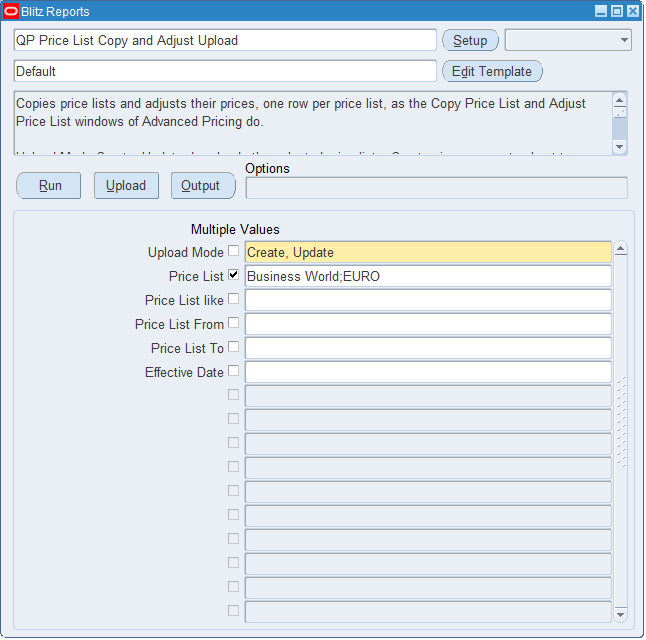
Open QP Price List Copy and Adjust Upload in Blitz Report, choose the template and set the parameters. The price lists offered are the standard and agreement price lists you can view.
| Parameter | Meaning |
|---|---|
| Upload Mode | Create (the default) opens an empty sheet to paste price lists into. Create, Update downloads the price lists selected by the other parameters. |
| Price List | One or more price lists. Tick Multiple Values to enter several, separated by semicolons. |
| Price List like | A name pattern, for example Wholesale%. |
| Price List From / Price List To | The price lists whose names are from Price List From to Price List To, compared as text. |
| Effective Date | The price lists effective on this date. |
In the example, Upload Mode is Create, Update and the price lists are Business World and EURO.
Step 2 – Run to download the Excel file
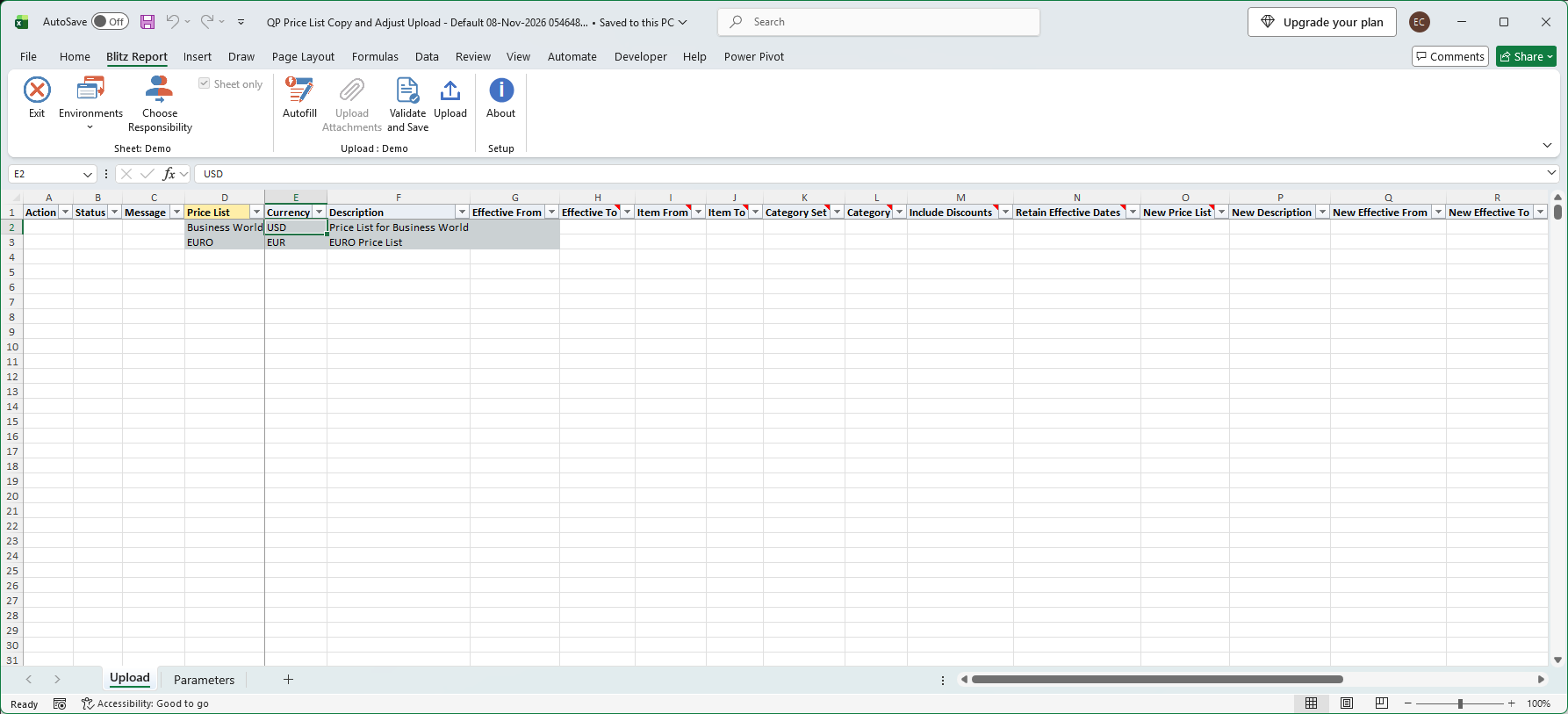
Click Run. The Excel file opens with one row per price list and the Blitz Report tab. Currency, Description and the effective dates show the price list; New Global and New Operating Unit default from it, and Adjust By defaults to Percent. Price List is required (yellow), and the columns describing the price list are read-only (grey).
Step 3 – Enter the changes
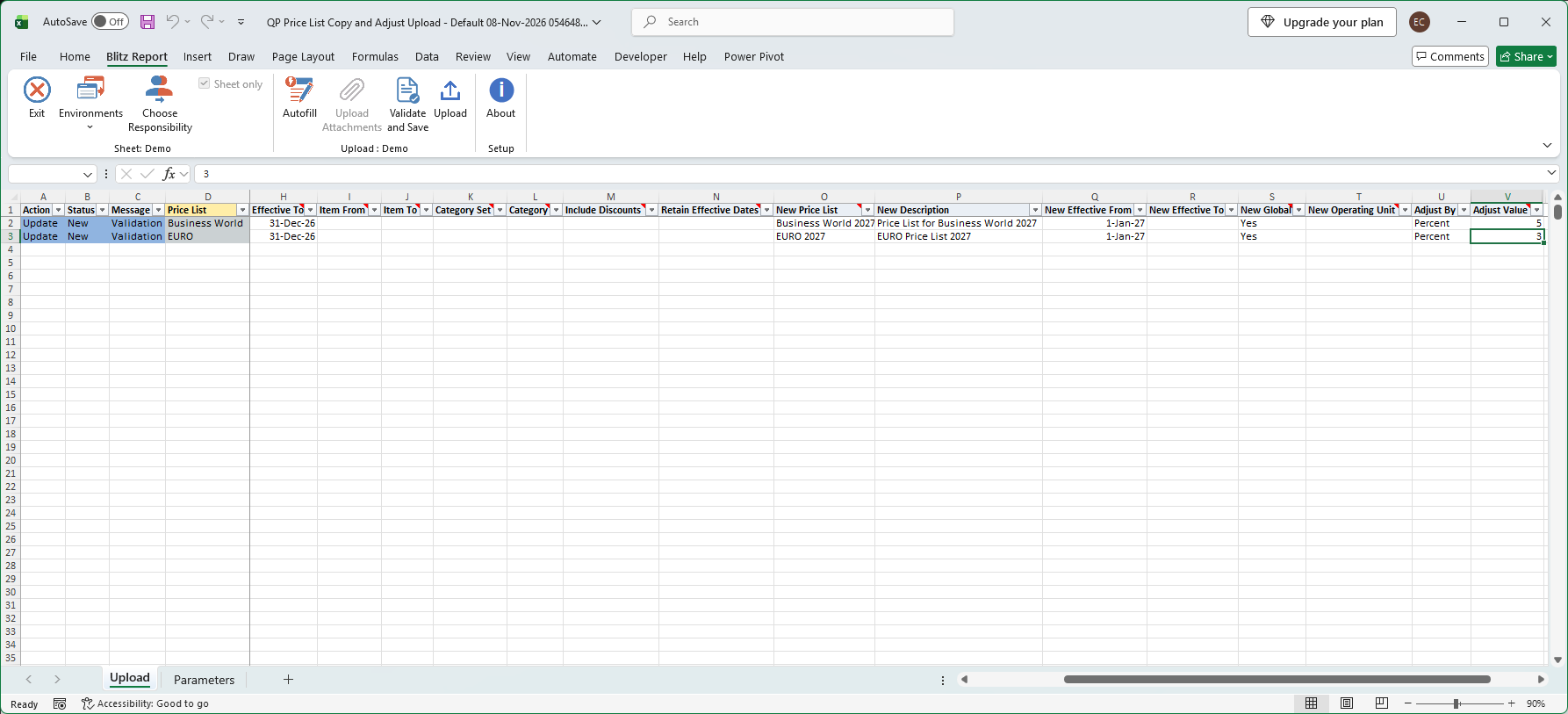
Fill in what each price list should get. The add-in marks each changed row Update and each new row Create.
- Copy: enter a New Price List name to copy the row’s price list with the lines active today, and with its qualifiers when it is a standard price list. New Description, New Effective From and New Effective To set the new list’s description and dates, and New Global or New Operating Unit its scope. Retain Effective Dates keeps the effective dates of the copied lines.
- Adjust: choose Adjust By (Percent or Amount) and enter an Adjust Value; a negative value lowers the prices. The adjustment applies to the new price list, or to the row’s own price list when no New Price List is entered.
- Filters: Item From and Item To, or Category Set and Category, limit both the copy and the adjustment to those items. Adjust Item Status and Adjust Creation Date, in the Adjust Price List Only template, limit the adjustment only. With any filter, only lines priced by item number are copied or adjusted.
- End-date: enter Effective To to end-date the source price list, for example the day before the new price list starts. This works for a price list without an end date.
- New rows: type or paste a price list name in Price List on an empty row; the other source columns fill in from it.
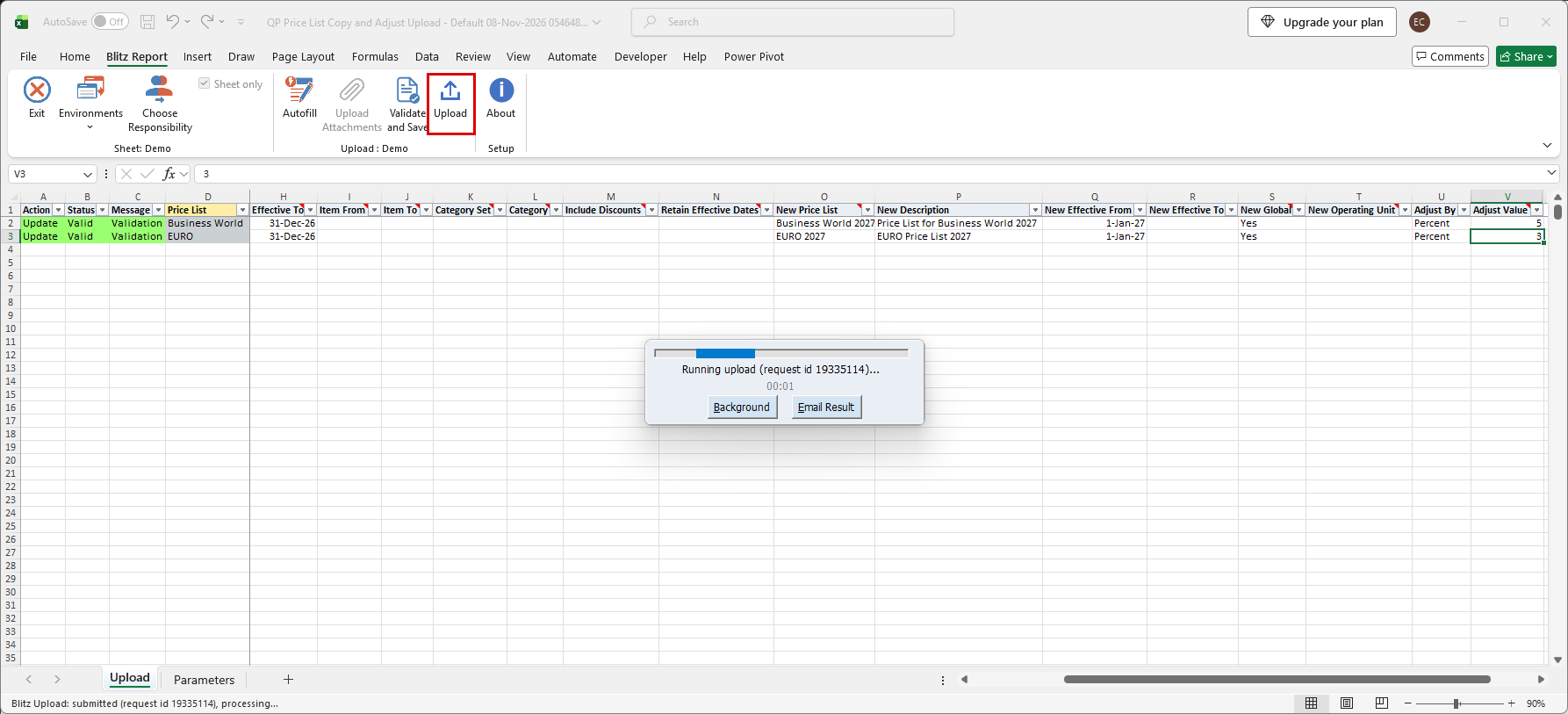
In the example, Business World and EURO are copied to Business World 2027 and EURO 2027, starting 1-Jan-2027 with prices increased by 5% and 3%, and both source price lists end on 31-Dec-2026.
Step 4 – Validate and Save
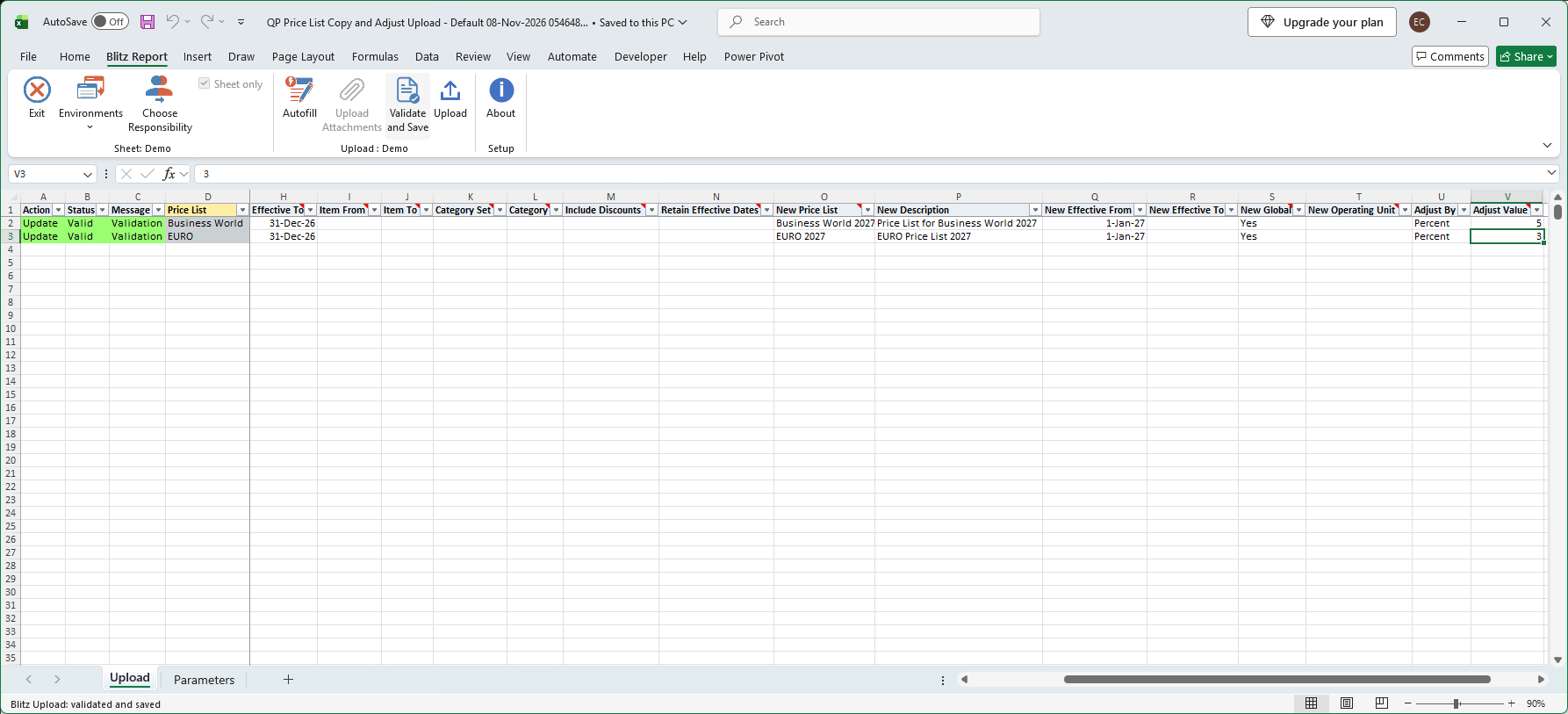
Click Validate and Save on the Blitz Report tab. It checks for missing required values and values that are not in their lists, marks the rows Valid and saves the file. Correct any rows it flags before uploading.
Step 5 – Upload
Click Upload on the Blitz Report tab. The add-in sends the valid rows to Oracle and submits the upload request, and a progress window shows it running. Each row first copies the price list, then adjusts the prices, then end-dates the source price list.
Step 6 – Review the result
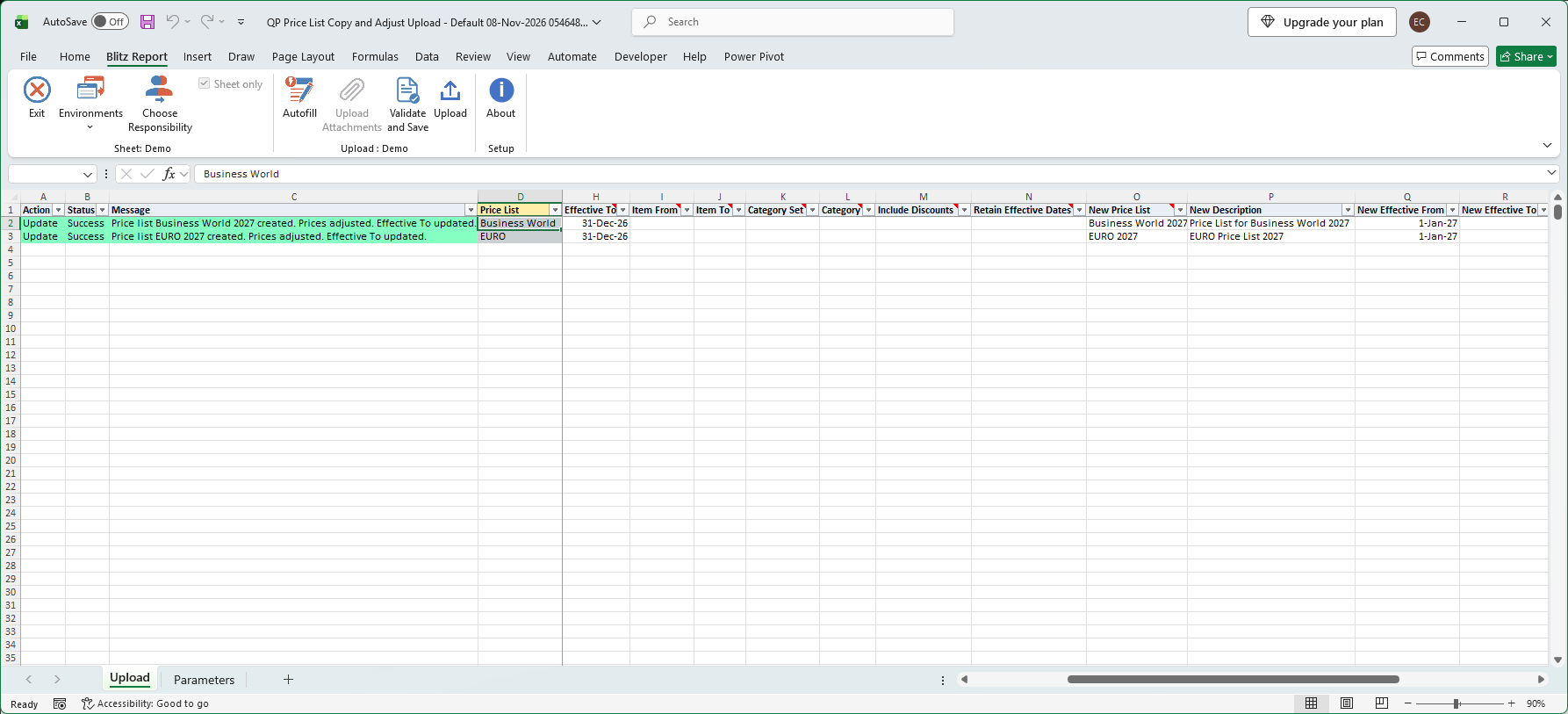
When the request completes, the add-in writes the result to the sheet: every row with its status and a message saying what was done, for example Price list Business World 2027 created. Prices adjusted. Effective To updated.
What’s produced
- New price lists with the name, description, dates and scope you entered, the source list’s lines active today with their pricing attributes and price breaks, and the qualifiers of a standard price list.
- Adjusted list prices on the new price lists, or on the existing ones for rows without a New Price List.
- Source price lists end-dated on the Effective To you entered.
- The result in the Excel file: every row with a status (success or error) and a message.
Common questions
Can I copy an agreement price list?
Yes. A copy keeps the type of its source, so an agreement price list is copied to an agreement price list. The copy gets no qualifiers and is not attached to an agreement. Prices can only be adjusted on standard price lists.
Are modifiers copied?
No. Include Discounts copies only the discount lists qualified by the price list that exist for price lists carried over from Release 11. Leave it blank otherwise.
Can I lower prices?
Yes. Enter a negative Adjust Value. A percentage cannot go below -100.
Can I change or remove the end date of a price list?
No. Effective To only end-dates a price list that has no end date. A blank Effective To leaves the price list unchanged, so rows pasted without it never reactivate a price list. Change an existing end date in the Price Lists window.
Can I use wildcards in Item From and Item To?
No. The range is compared as text segment by segment, so it can start or end between item numbers, but it cannot contain %.
What if a row fails after the price list was copied?
The copy and the adjustment are saved as soon as they run. If a later step of the row fails, the new price list stays and the message says so: adjust or end-date in a separate row instead of uploading the row again.
Troubleshooting
| Message | Cause | What to do |
|---|---|---|
| Missing values for required field/s: New Price List or Adjust Value | The row has an item or category filter but neither copies nor adjusts. | Enter a New Price List, an Adjust Value, or both. |
| Missing values for required field/s: Item From (or Item To) | Only one end of the item range is entered. | Enter both Item From and Item To. |
| Please remove “%” from your item range. … | Item From or Item To contains a wildcard. | Enter the item numbers, or their first characters, without %. |
| Please enter the name of a new price list to copy to. | New Description, the new dates, Include Discounts or Retain Effective Dates are entered without a New Price List. | Enter the New Price List, or clear the copy columns. |
| You cannot copy to a price list that already exists. … | A price list with the New Price List name exists. | Enter a unique name. |
| Missing values for required field/s: New Operating Unit | New Global is blank and no New Operating Unit is entered. | Set New Global to Yes, or enter the operating unit. |
| Start Date must start before End Date. | New Effective From is after New Effective To, or Effective To is before the start date of the source price list. | Correct the dates. |
| Please enter an adjustment percentage or amount. | Adjust Item Status or Adjust Creation Date is entered without an Adjust Value. | Enter the Adjust Value. |
| Prices can only be adjusted on a standard price list. | The row’s price list is an agreement price list. | Copy the agreement price list without adjusting it. |
| Prices can only be adjusted on a price list that is active and that you can update. | New Effective To is before today, or the price list to adjust is end-dated or not updatable for you. | Use a New Effective To of today or later, or adjust a price list you can update. |
| The source price list already ends on …, so its Effective To cannot be changed. | The source price list already has an end date. | Clear Effective To or leave the downloaded date, and change the end date in the Price Lists window. |