
GL Setup Upload creates and updates the General Ledger setup that you would otherwise maintain one screen at a time across the GL Setup menu: accounting calendars and their periods, period types, journal sources and categories, encumbrance types, statistical units of measure, ledger options, ledger sets, data access sets, and the AutoReverse and AutoPost criteria. Fifteen supplied templates mean you only ever see the columns for the one thing you are maintaining, and it is equally useful for downloading an existing setup to review or to document it.
When to use it
- Build a new calendar – create a calendar and all of its periods in one file rather than a row at a time.
- Set up reference data in bulk – period types, journal sources, journal categories, encumbrance types and statistical units of measure.
- Maintain ledger sets and data access sets – create the sets and add or remove their member ledgers.
- Change ledger options – update the options of existing ledgers.
- Maintain journal automation – AutoReverse criteria and their options, and AutoPost sets and their priorities.
- Review an existing setup – download any of the above without uploading a change, for review or documentation.
Before you start
- You are signed in to a responsibility with access to the upload in Blitz Report.
- Anything you reference already exists – each value is validated against its list. Ledgers in particular cannot be created here, so a ledger you assign to a ledger set must already exist.
- You know which entity you are maintaining, so you can pick the matching template.
Choose a template
There is one template per entity. It shows only that entity’s columns and sets the Row Type on every row, and it shows only the parameters that apply to that entity.
| Area | Template | Maintains |
|---|---|---|
| Calendars | Calendar Period (default) | Calendars and their periods: year, quarter, period number, start and end dates, adjusting periods. |
| Period Type | Period types: periods per year, year type in name, descriptive flexfield. | |
| Journal reference data | Journal Source | Journal sources: import references, journal approval, import using key, freeze journals, effective date rule, descriptive flexfield. |
| Journal Category | Journal categories: key, description, descriptive flexfield. | |
| Encumbrance Type | Encumbrance types and whether they are enabled. | |
| Statistical Unit of Measure | The statistical unit of measure of a natural account segment value. | |
| Ledgers and security | Ledger | Options of an existing ledger: accounts, average balances, budgetary control, journal approval, rate types, reconciliation, reversal criteria set. |
| Ledger Set | Ledger sets: short name, chart of accounts, calendar, period type, default ledger. | |
| Ledger Set Assignment | The ledgers and ledger sets that make up a ledger set. | |
| Data Access Set | Data access sets: full ledger, balancing or management segment security, default ledger. | |
| Data Access Set Assignment | The ledgers a data access set grants, with all segment values or a single segment value. | |
| Journal automation | AutoReverse Criteria Set | Journal reversal criteria sets. |
| AutoReverse Option | The reversal option of each journal category in a criteria set. | |
| AutoPost Set | AutoPost criteria sets. | |
| AutoPost Option | The posting priorities within an AutoPost set. |
Step 1 – Set the parameters
Open GL Setup Upload in Blitz Report, choose the template for the entity you are maintaining and set the parameters. Calendar, Period Type and Chart of Accounts appear only on the templates they apply to.
| Parameter | Meaning |
|---|---|
| Upload Mode | Create opens an empty sheet. Create, Update (default) downloads the existing records so you can review or change them, and lets you add new ones. |
| Row Type | The entity to download. Each template sets it for you. |
| Calendar | Limits Calendar Period rows to one calendar. |
| Period Type | Limits Period Type and Calendar Period rows to one period type. |
| Chart of Accounts | Limits the rows that belong to a chart of accounts: statistical units of measure, ledgers, ledger sets and their assignments, data access sets and their assignments, and AutoPost sets. |
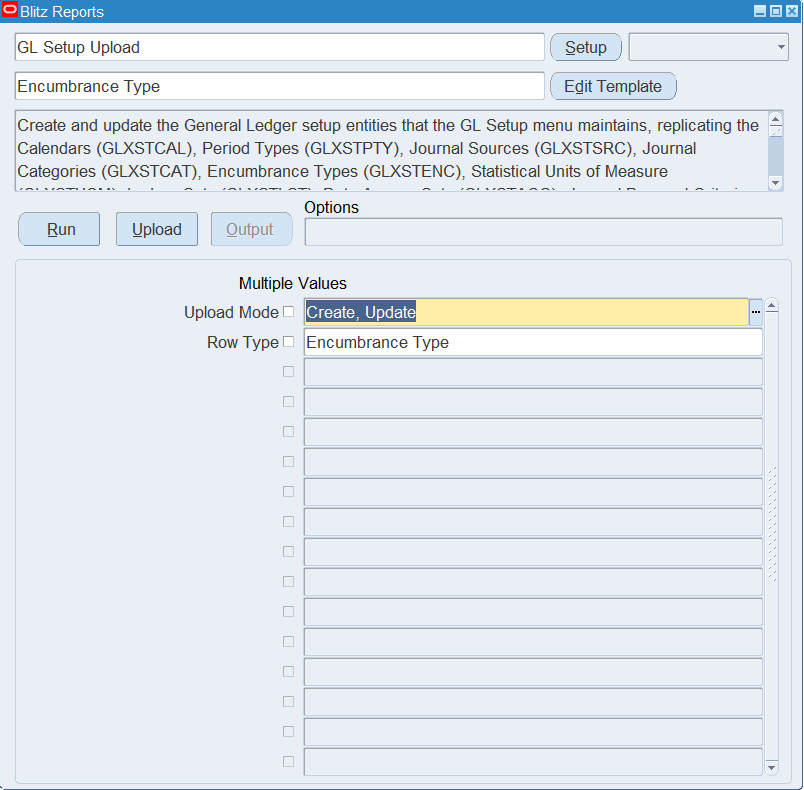
The example below uses the Encumbrance Type template with Upload Mode Create, Update.
Step 2 – Run to download the Excel file
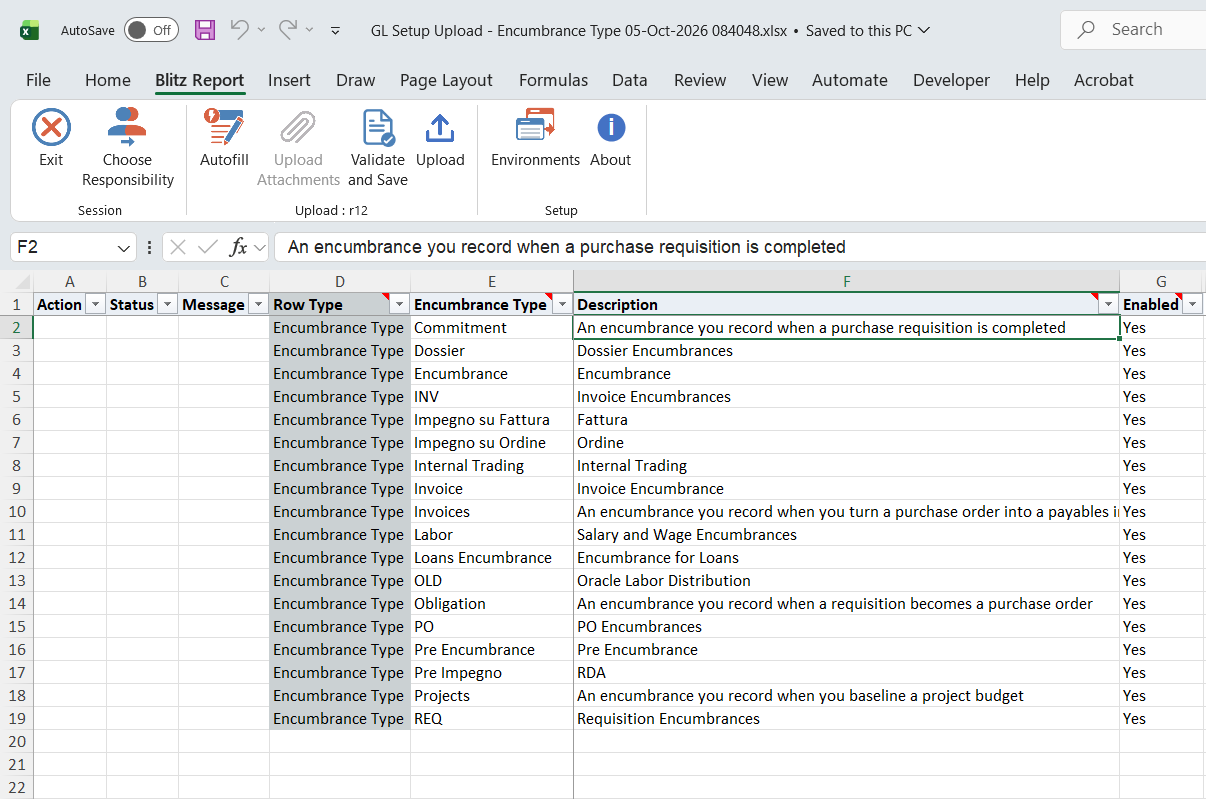
Click Run. The Excel file downloads and opens with one row per existing record of the selected entity, or an empty sheet in Create mode.
Step 3 – Enter or change the data
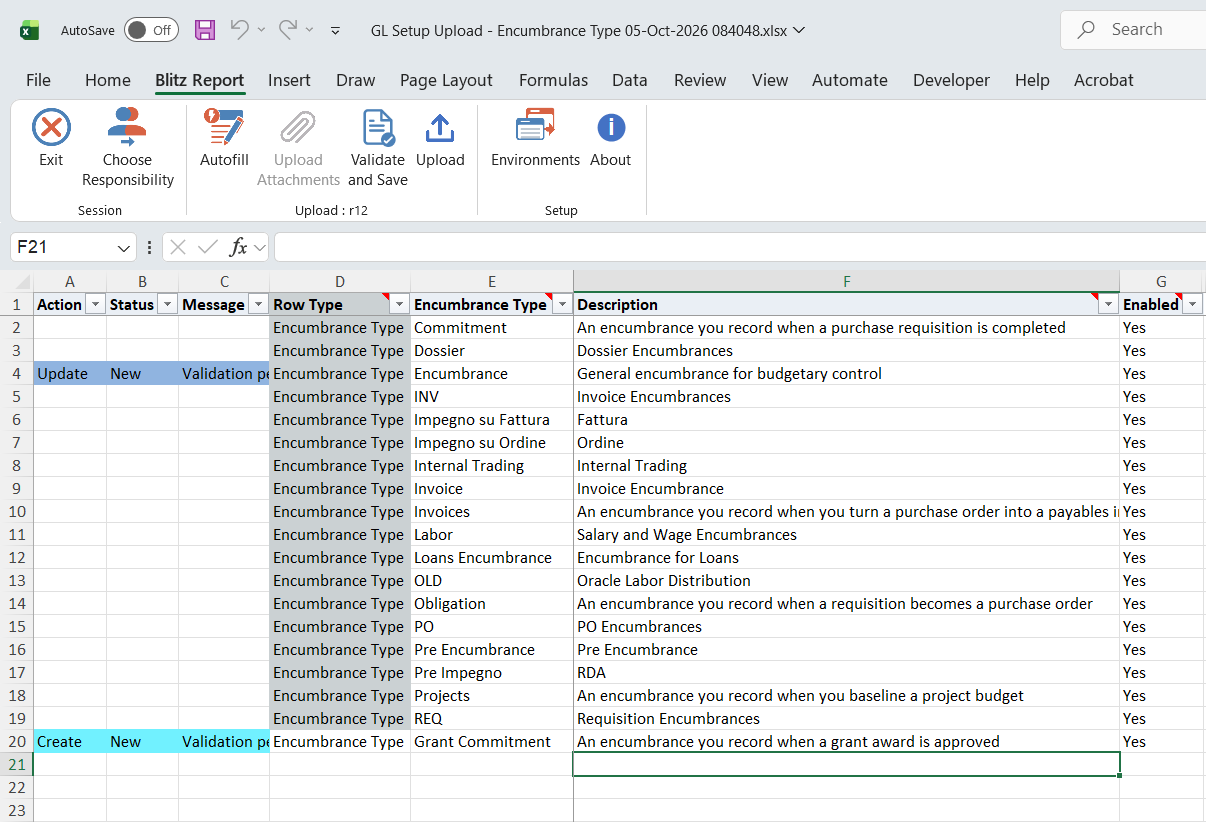
Change the columns of a downloaded row, or add new rows below. A row is created when the record does not yet exist and updated otherwise; edited rows are marked Update and new rows Create. Only the columns belonging to the row’s Row Type are read. A cell left blank keeps the stored value, and a row that changes nothing is reported as No change. and is not written. The rules for each row type are listed under Row types in detail below.
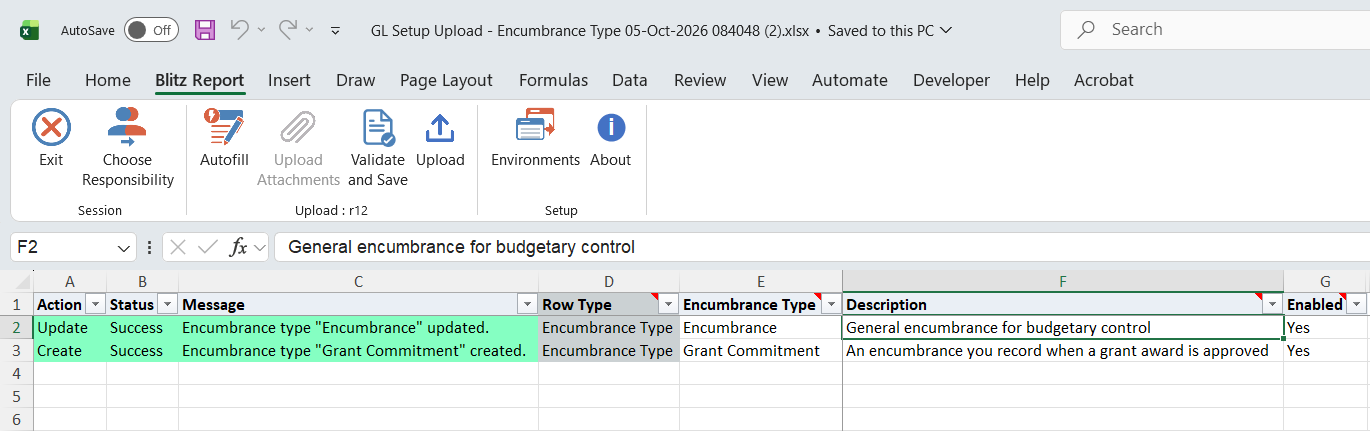
In the example, the Description of encumbrance type Encumbrance is changed and a new encumbrance type Grant Commitment is added.
Step 4 – Validate and Save
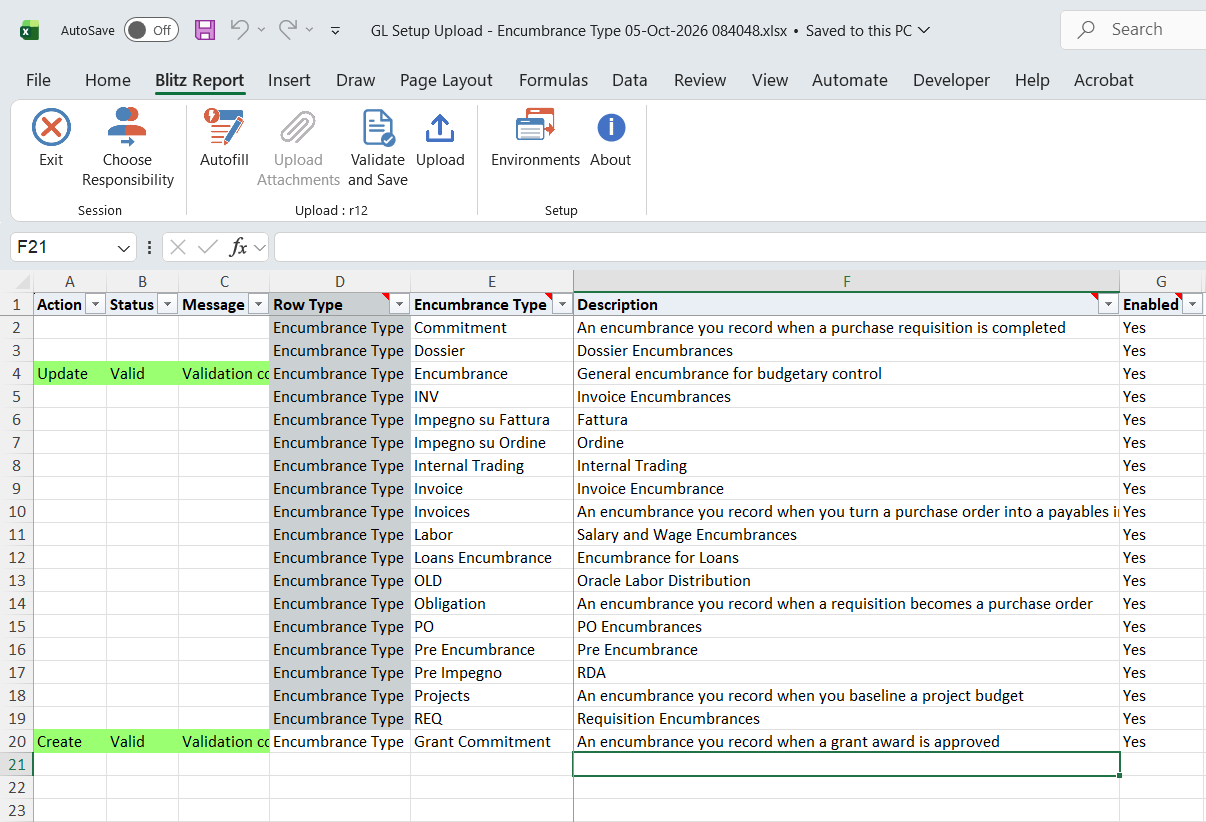
Click Validate and Save. This checks for missing required values and the upload’s own rules for each row type (for example, Periods Per Year for a new period type, Quarter between 1 and 4, Start Date on or before End Date), then saves the file. Correct any rows it flags before uploading.
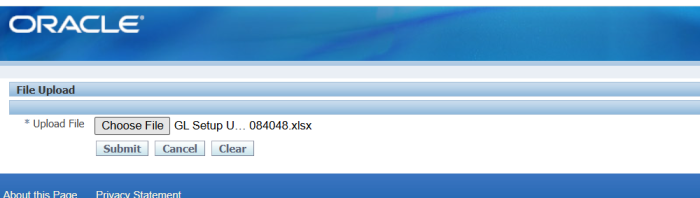
Step 5 – Upload the file
In Blitz Report click Upload and select the saved file. This submits the upload request, which processes each row independently, so one bad row does not stop the rest. Rows are processed in row type order (period types before calendar periods, a set before its assignments or options), and new calendar periods in year and period number order.
Step 6 – Review the result report
When the request completes, a result report opens listing every uploaded row with its status and message, for example Encumbrance type “Grant Commitment” created.
Row types in detail
Calendars
A Period Type row needs Periods Per Year and Year Type In Name to create it, and neither can be changed afterwards. Year Type In Name decides whether the two-digit year appended to a period prefix comes from the period start date (Calendar) or from the period year (Fiscal).
A Calendar Period row creates or updates one period. The calendar itself is created together with its first period, so you can simply type a new calendar name rather than creating the calendar separately; Calendar Description and Enable Security belong to the calendar. Enter either a Period Name or a Period Prefix (up to 12 characters, no spaces or quotes); a prefix is expanded to prefix-YY. Period Num cannot exceed the periods per year of the period type, and the dates of a non-adjusting period cannot overlap another period of the same period type. Once a period has been used, only its description and descriptive flexfield can still be changed. Set Delete Period to Yes to remove a period that has never been used. After the upload the calendar is checked for gaps and overlaps between its periods; any are reported as a warning on the row, and the Calendar Validation Report gives full details.
Journal reference data
Journal Source rows carry Import Journal References, Require Journal Approval, Import Using Key, Freeze Journals and the Effective Date Rule; Journal Source Key defaults to the source name. Journal Category rows create the category and, on creation, also seed its document sequence category and its AutoReverse options; Journal Category Key defaults to the category name. Encumbrance Type rows maintain the type and its Enabled flag – disable a type rather than trying to remove it. Statistical Unit of Measure rows assign a unit of measure to a natural account segment value of a chart of accounts, and Delete Stat UOM removes the assignment.
Ledgers and security
Ledger rows update the options of an existing ledger. New ledgers cannot be created here – only the Accounting Setup Manager can create a ledger, because creating one also builds the accounting setup around it.
Ledger Set and Data Access Set rows create or update the set itself; a new set needs at least one assigned ledger before it can be used. The short name, chart of accounts, calendar and period type of a ledger set, and the access set type, chart of accounts, calendar and period type of a data access set, are fixed once it exists. The sets themselves cannot be deleted by the upload.
The Ledger Set Assignment and Data Access Set Assignment rows add a member ledger, and Delete Assignment removes one. Assignments take effect once Oracle’s General Ledger Accounting Setup Program has processed them, so the upload submits that program for you, once per chart of accounts, and reports its request id in the row message.
Journal automation
An AutoReverse Criteria Set row creates the set together with an option for every journal category. An existing criteria set cannot be updated or deleted from the upload; change its AutoReverse Option rows instead, one per journal category, with Reversal Method, Reversal Period, Reversal Date, Autoreverse and Autopost Reversal.
AutoPost Set rows create or update the set, and AutoPost Option rows hold the priorities within it. The chart of accounts, calendar and period type of an AutoPost set are fixed once it exists. Delete Option set to Yes deletes the AutoPost set on an AutoPost Set row, and the priority on an AutoPost Option row.
What’s produced
- Created or updated General Ledger setup records for the entity of your rows, including their descriptive flexfield values.
- For ledger set and data access set assignments, a submitted General Ledger Accounting Setup Program request, with its request id reported on the row.
- A result report listing every row with a status (success, warning or error) and a message.
Common questions
Do I have to set the Row Type myself?
No. Pick the template for what you are maintaining and the Row Type is set on every row for you.
Does Upload Mode decide whether a row is created or updated?
No. A record is created when it does not exist and updated when it does. Upload Mode only decides whether the existing records are downloaded.
How do I create a new calendar?
Use the Calendar Period template and type the new calendar name on the period rows. The calendar is created together with its first period, so there is no separate step. The period type must already exist; create it first with the Period Type template if needed.
Why can I only change the description on some periods?
Because those periods have already been used. Oracle only allows the description and flexfield to change once a period has been used, and the upload enforces the same rule.
Why have my ledger set changes not taken effect?
Assignments take effect once Oracle’s General Ledger Accounting Setup Program has processed them. The upload submits that program automatically and reports its request id; if the request is still running, wait for it to complete.
How do I remove something?
Set the relevant Delete column to Yes: Delete Period for an unused calendar period, Delete Stat UOM for a statistical unit of measure, Delete Assignment for a ledger set or data access set member, and Delete Option for an AutoPost set or one of its priorities. Encumbrance types are disabled rather than deleted. Ledger sets, data access sets and AutoReverse criteria sets are deleted in their Oracle forms.
Troubleshooting
| Message | Cause | What to do |
|---|---|---|
| You can only modify periods that have never been used. | The period has been used. | Change only its description or flexfield. To extend a used calendar, add new periods instead. |
| Either Period Name or Period Prefix is required. | A Calendar Period row identifies no period. | Enter a Period Name, or a Period Prefix which is expanded to prefix-YY. |
| Period Prefix and Period Name cannot contain spaces. / cannot contain quotes. | The period name would be invalid in Oracle. | Remove the spaces or quotes from the name or prefix. |
| Period dates overlap with existing period “…” | The start and end dates overlap another non-adjusting period of the same period type. | Correct the dates, or set Adjustment Period to Yes for an adjusting period. |
| Calendar “…” has gap between “…” and “…” | A warning: after the upload, the calendar has a gap or overlap between consecutive periods. | Add or correct the periods concerned; run the Calendar Validation Report for full details. |
| Periods Per Year cannot be changed on an existing period type. | Periods Per Year and Year Type In Name are fixed once a period type exists. | Leave them as downloaded, or create a new period type. |
| Chart of Accounts cannot be changed on an existing ledger set. | The short name, chart of accounts, calendar and period type of a set are fixed once it exists. | Leave them as downloaded, or create a new set. |
| Ledger “…” does not exist. A ledger can only be created in the Accounting Setup Manager. | A Ledger row names a ledger that does not exist. | Create the ledger in the Accounting Setup Manager, then update its options here. |
| No change. A reversal criteria set cannot be updated, only its options can. | A criteria set row tried to change the set itself. | Change its AutoReverse Option rows instead. |
| A reversal criteria set can only be deleted in the Journal Reversal Criteria Set form. | The upload does not delete criteria sets. | Delete it in that form. |
| Autopost Reversal cannot be Yes when Autoreverse is No. | The two options contradict each other. | Set Autoreverse to Yes, or clear Autopost Reversal. |
| The General Ledger Accounting Setup Program could not be submitted. | The program that applies ledger set and data access set assignments could not be submitted. | Check the reason that follows in the message, correct it and upload the row again. |