
CE Bank Statement Upload loads bank statements into Oracle Cash Management from Excel, one statement line per row, and runs Oracle’s Bank Statement Import for you. The statement header values repeat on every row and the header is created once per bank account and statement number. Optionally, Oracle’s AutoReconciliation runs in the same step, so the imported lines are matched against your receipts, payments and journals and cleared automatically.
When to use it
- Load a daily, weekly or monthly bank statement exported from your bank portal.
- Import and reconcile a statement in one step instead of running the import and reconciliation programs separately.
- Load several statements, or statements for several bank accounts, in one file.
- Correct and re-load statement lines that failed a previous import.
- Replace manual keying in the Bank Statements window or a custom statement loader.
Before you start
- The bank account exists in Cash Management and its bank transaction codes are defined. The Transaction Code list shows the codes of the account entered on the row.
- For AutoReconciliation, the transaction codes and matching rules are set up, and the GL date is in an open or future-enterable Payables and Receivables period.
- Access to the upload in Blitz Report. It is assigned to the Enter/Reconcile Bank Statements function.
Step 1 – Set the parameters
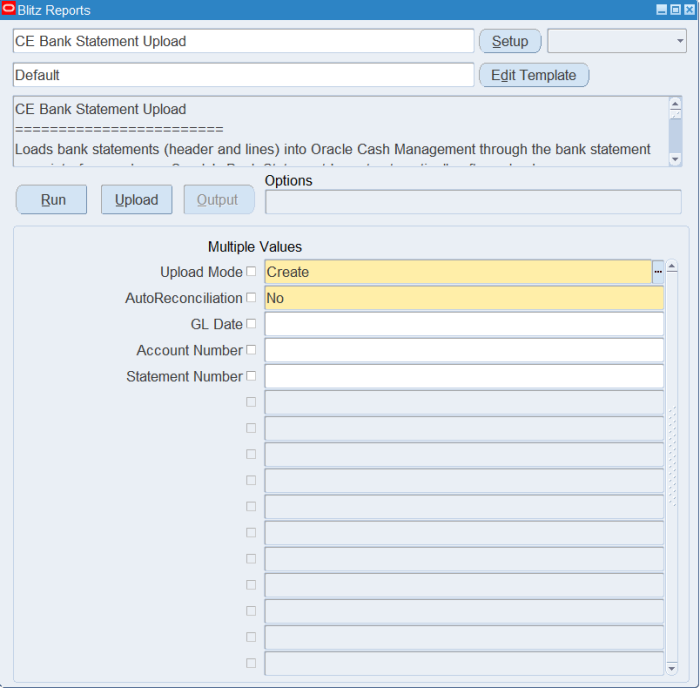
Open CE Bank Statement Upload in Blitz Report and set the parameters:
| Parameter | Meaning |
|---|---|
| Upload Mode | Create (default) opens an empty sheet for a new statement. Create, Update also downloads statement lines that are still waiting in the bank statement interface because they did not import, so you can correct and re-load them. |
| AutoReconciliation | Yes runs Oracle’s AutoReconciliation right after the import, as the standard Bank Statement Import & AutoReconciliation program does. Default No (import only). |
| GL Date | Accounting date for the import and for the accounting created when lines are reconciled. Blank uses the latest statement date in the file. |
| Account Number | In Create, Update mode, restricts the downloaded interface lines to one bank account. |
| Statement Number | In Create, Update mode, restricts the downloaded interface lines to one statement. |
Step 2 – Run to download the Excel file
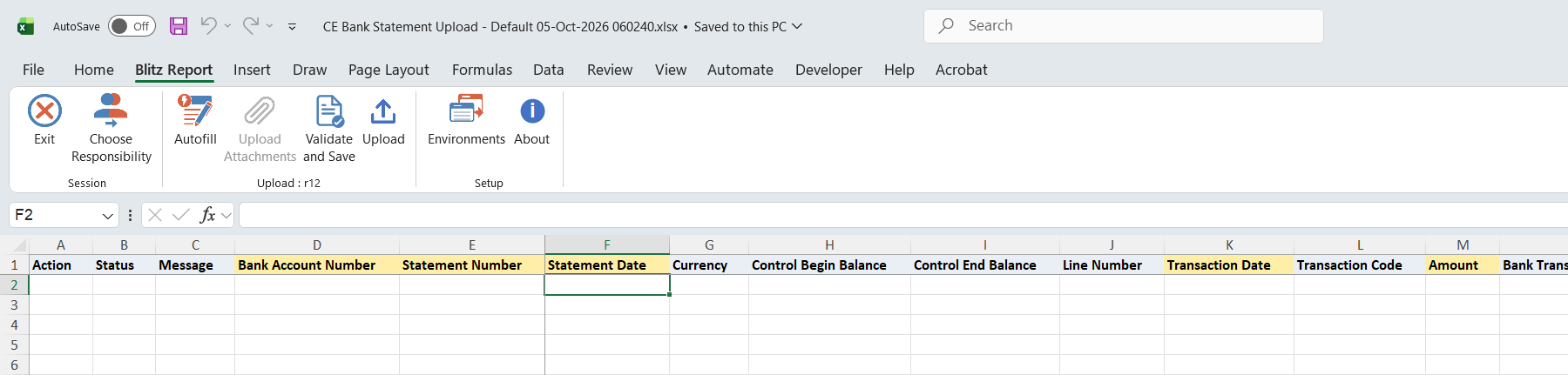
Click Run. The Excel file downloads and opens: empty in Create mode, or with the pending interface lines in Create, Update mode.
Step 3 – Enter the statement lines
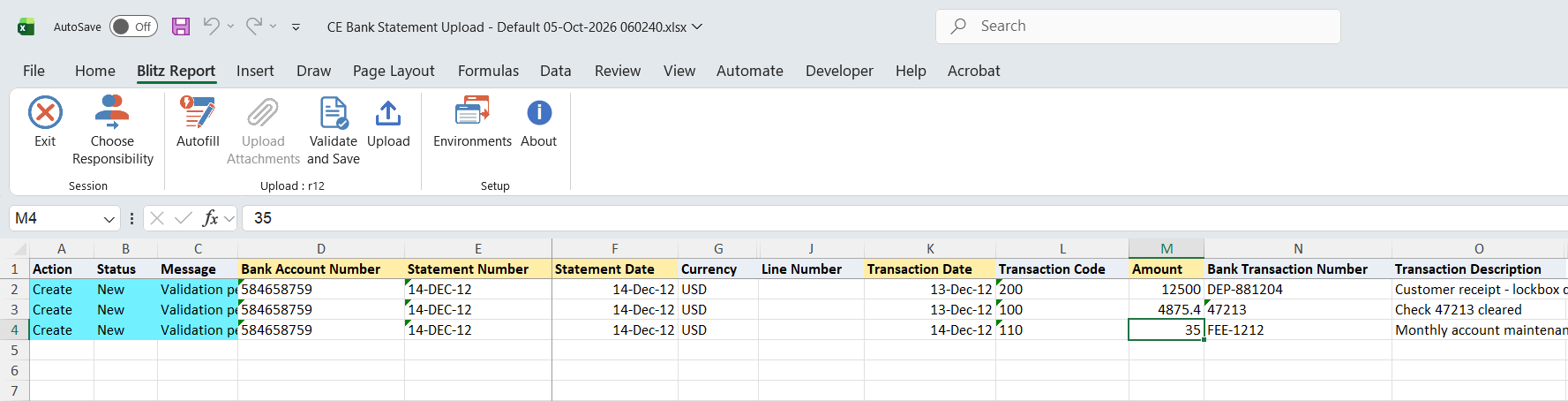
On every row enter the statement header: Bank Account Number (pick from the list), Statement Number and Statement Date. Currency defaults from the bank account and must match it. Control Begin Balance and Control End Balance are optional; when entered, the import checks the statement lines against them. Rows with the same bank account and statement number form one statement; continue with other header values to load further statements in the same file.
For each line enter the Transaction Date, the Amount and the Transaction Code from the codes of that bank account. Enter amounts as positive values: the type of the transaction code (receipt, payment, miscellaneous, NSF) decides the direction. The credit and debit control totals are calculated from the lines and their transaction code types.
Bank Transaction Number, Transaction Description, Invoice Text, Customer Text and Value Date are optional and give AutoReconciliation more to match on. Leave Line Number blank to number the lines automatically in file order, or enter the bank’s line numbers.
Step 4 – Validate and Save
Click Validate and Save. This checks for missing required values, that the bank account exists and that the statement number has not already been imported for that account, then saves the file. Correct any rows it flags before uploading.
Step 5 – Upload the file
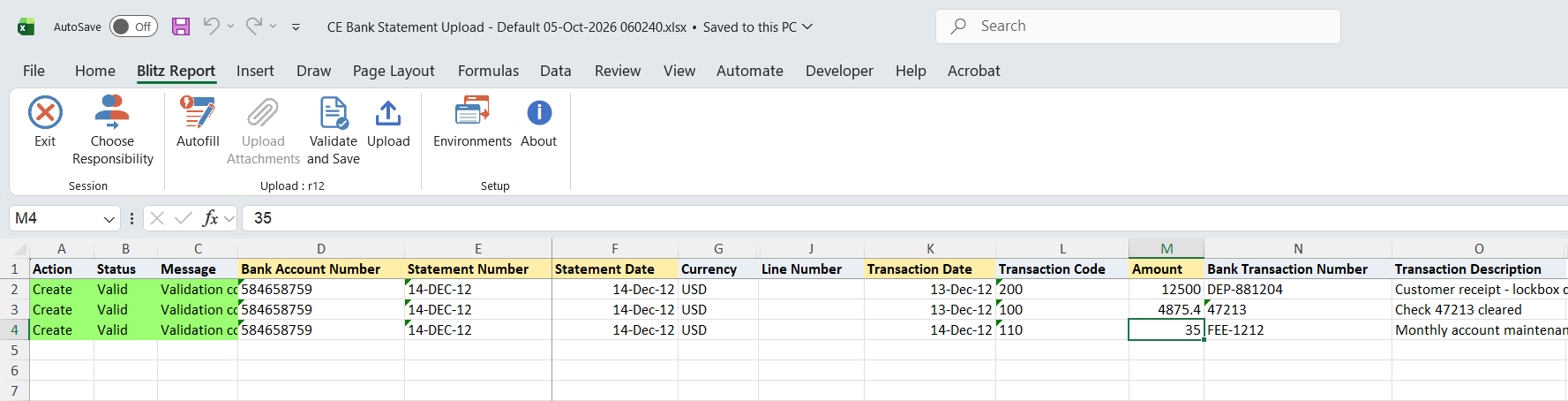
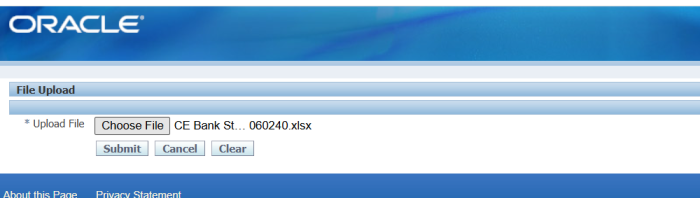
In Blitz Report click Upload and select the saved file. This submits the upload request, which stages the statements in the bank statement interface, runs the Bank Statement Import once per bank branch and, if selected, AutoReconciliation.
Step 6 – Review the result report
When the request completes, a result report opens listing every uploaded line with its status and message. An imported line shows its reconciliation status (Reconciled or Unreconciled); a line that did not import shows the Cash Management import error.
What’s produced
- Bank statements and their lines in Cash Management, available in the Bank Statements window and the standard reconciliation reports.
- With AutoReconciliation, matched lines reconciled and the matching receipts and payments cleared, as by Oracle’s Bank Statement Import & AutoReconciliation program.
- A result report listing every line with a status (success or error) and a message.
Common questions
Do I have to enter line numbers?
No. Blank line numbers are assigned in file order, continuing after the highest line number already in the interface for that statement.
Should payments be entered as negative amounts?
No. Enter all amounts as positive values; the transaction code type decides whether a line is a receipt or a payment.
What does AutoReconciliation match?
It is Oracle’s own AutoReconciliation, using the transaction codes and matching rules of your Cash Management setup. Lines it cannot match are imported as Unreconciled for manual reconciliation.
What happens if I load the same statement twice?
Validate and Save flags a statement number that is already imported for the bank account. To load it again, remove the existing statement in Cash Management first.
How do I fix lines that failed to import?
Failed lines stay in the bank statement interface. Run the upload in Create, Update mode, correct the downloaded lines and upload again: the corrected lines replace the earlier interface records and are imported again.
Can I delete a statement with this upload?
No. It creates statements and lines only.
Troubleshooting
| Message | Cause | What to do |
|---|---|---|
| Bank account … does not exist. | The bank account number is not defined in Cash Management. | Pick the account from the list. |
| Bank account number … exists more than once and cannot be identified uniquely. | The same account number is defined for several bank accounts. | Have the duplicate account numbers made unique in the bank account setup. |
| Statement … is already imported for bank account … | A statement with this number already exists for the account. | Use the bank’s statement number of the new statement, or remove the existing statement first. |
| Transaction Code is invalid | The code is not defined for the row’s bank account. | Pick the code from the list, or add it to the bank account’s transaction codes. |
| Check the opening and closing balances in the control totals. | Control Begin Balance plus the lines does not give the Control End Balance. | Correct the balances, or leave both blank. |
| The currency code in the statement header must be the same as the bank account currency. | Currency differs from the bank account currency. | Clear Currency so it defaults from the account. |
| AP period not open or future / AR period not open or future | AutoReconciliation with a GL date outside an open Payables or Receivables period. | Open the period or enter a GL Date in an open period. |
| Statement line was not imported. Check the Bank Statement Import Execution report. | The import rejected the line without a specific interface error. | Review the Bank Statement Import Execution report, then correct the line in Create, Update mode. |