
AP Invoice Payment Upload records Manual and Quick payments of open Payables invoices and voids existing payments from Excel, the equivalent of entering a payment and selecting its invoices in the Payments window. Each payment is created through the same Payables and Oracle Payments processing as the window, and a result report lists every row with its outcome.
When to use it
- Record a batch of payments already issued outside Payables (manual checks, wires) against open invoices.
- Pay one or several installments of a supplier by Quick payment, in full or partially.
- Void Manual or Quick payments, optionally putting their invoices on hold or cancelling them.
Before you start
- Oracle EBS R12. The upload is available from responsibilities with access to the Payables Payments window.
- The Payment Date (and the Void Date when voiding) must be in an open Payables period.
- The internal bank account must be enabled for Payables use in the operating unit, with a payment method and payment process profile applicable to it. A Quick payment with a printed payment process profile also needs a payment document on that bank account.
- Invoices to pay must be validated, approved, not on hold and not selected by a payment process request.
- The void invoice actions follow the Payments window: Put Invoices on Hold needs function Payment Invoice Holds, Cancel Invoices needs function Payment Invoice Cancel.
Choose a template
| Template | Use it to |
|---|---|
| Default (default) | Enter Manual and Quick payments of open invoices and void downloaded payments, with all fields of the Payments window. Upload Mode and Open Invoices can be set freely. |
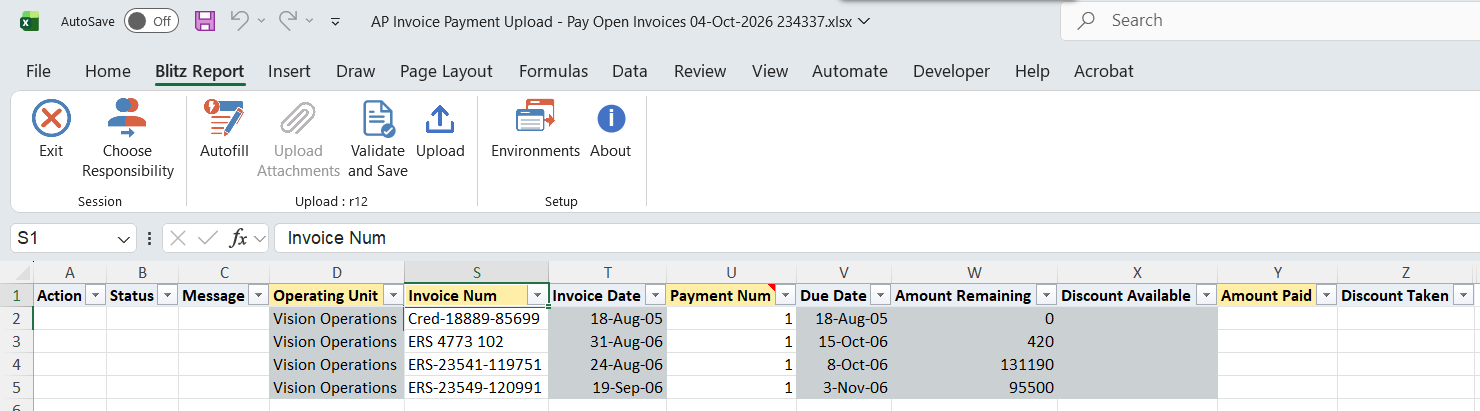
| Pay Open Invoices | Download the open installments of a supplier as rows to pay. Upload Mode is fixed to Create and Open Invoices to Yes; the payment date and document number filters are hidden. Enter the payment columns on the rows to pay and delete the others. |
| Void Payments | Download existing Manual and Quick payments to void them. Upload Mode is fixed to Create, Update; Open Invoices is hidden. |
Step 1 — Select the template and parameters
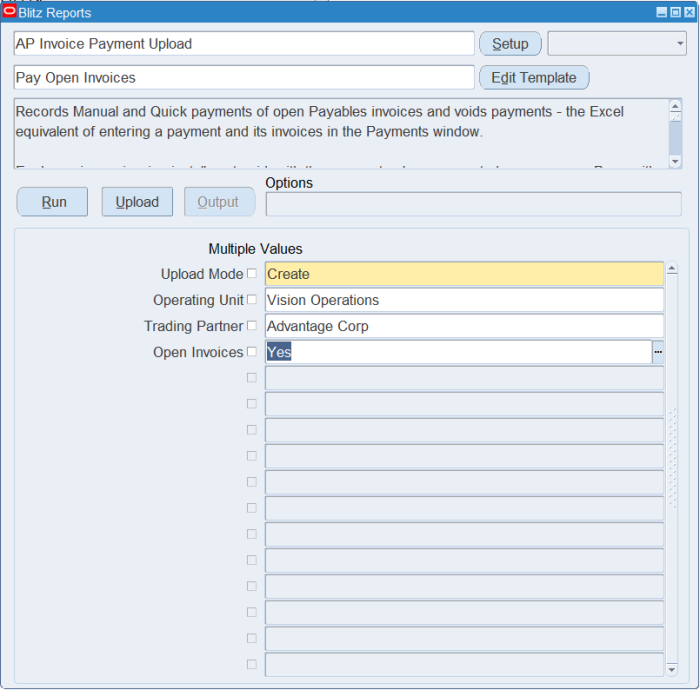
Open the upload in Blitz Report, pick the template and set the parameters:
| Parameter | Effect |
|---|---|
| Upload Mode | Create gives an empty sheet (plus open installments when Open Invoices is set). Create, Update also downloads existing Manual and Quick payments, one row per invoice paid. |
| Operating Unit | Restricts downloaded payments and open installments to one operating unit and defaults it on new rows. |
| Trading Partner | Restricts downloaded payments and open installments to one supplier. |
| Payment Date From / To | Restricts the downloaded existing payments by payment date. |
| Document Num | Downloads the existing payment with this document number. |
| Open Invoices | Downloads the open installments of the Operating Unit and Trading Partner as new rows to pay. |
Step 2 — Run and open the Excel file
Click Run. The upload workbook (.xlsm) downloads and opens in Excel, with downloaded payments or open installments already filled in according to the parameters.
Step 3 — Enter the payments
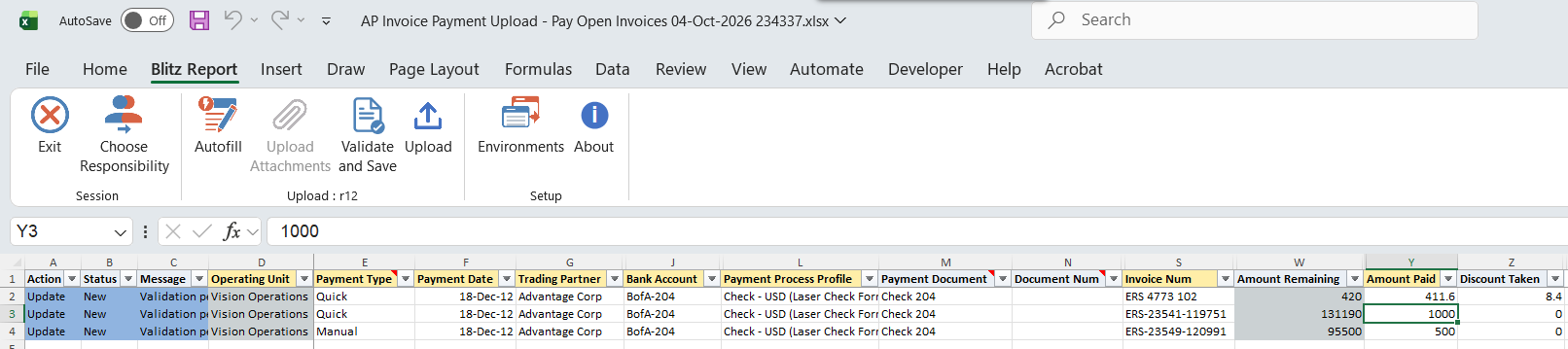
Each row is one invoice installment paid, with the payment columns repeated on every row. Rows with identical payment columns (Operating Unit, Payment Type, Payment Date, Trading Partner, Supplier Site, Bank Account, Payment Method, Payment Process Profile, Payment Document, Document Num, Currency and the exchange rate columns) are paid by one payment.
- Payment Type: Manual records a payment issued outside Payables and needs its Document Num. Quick takes the next number of the Payment Document when Document Num is left blank, and is submitted to Oracle Payments as a single payment. Payment Document is required for a Quick payment with a printed payment process profile.
- Payment Date defaults to today. Supplier Site, Payment Method, Currency and Payment Num default from the invoice when they are unambiguous.
- Amount Paid defaults to the amount remaining less the discount available at the Payment Date, Discount Taken to that discount. Reduce them to pay an installment partially.
- For a foreign currency payment, Exchange Rate Type defaults from the Payables options and Exchange Date from the Payment Date; Exchange Rate is required for rate type User and derived from the daily rates otherwise.
- The Payment Process Profile list offers only profiles applicable to the operating unit, payment method, currency and bank account.
Step 4 — Void payments (optional)
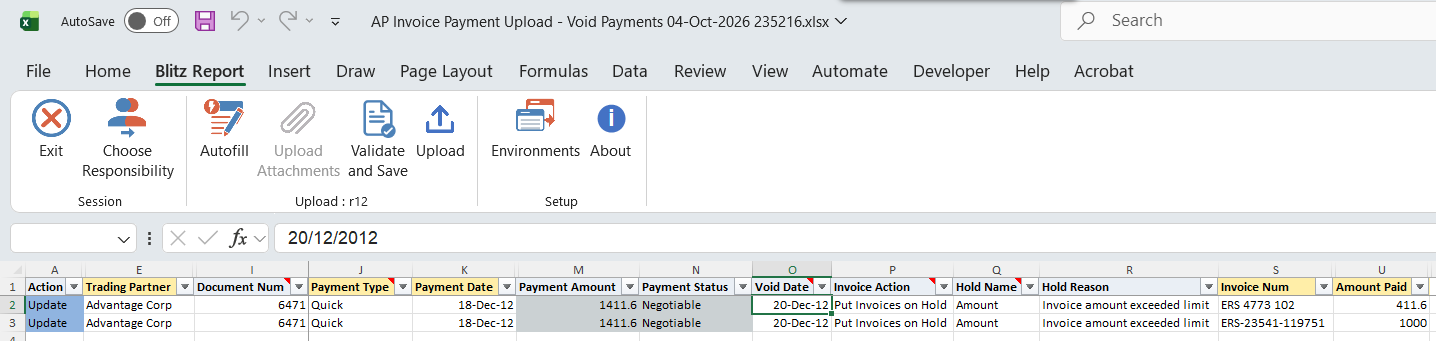
Download existing payments with the Void Payments template (or Upload Mode Create, Update). On the rows of a payment to void:
- Enter a Void Date in an open period, not before the Payment Date. Voiding reverses all invoice payments of the payment and leaves the invoices unpaid.
- Optionally set Invoice Action: Put Invoices on Hold requires a Hold Name (user-releasable holds only; Hold Reason defaults from the hold), Cancel Invoices cancels the invoices of the payment.
Other columns of a downloaded payment cannot be changed.
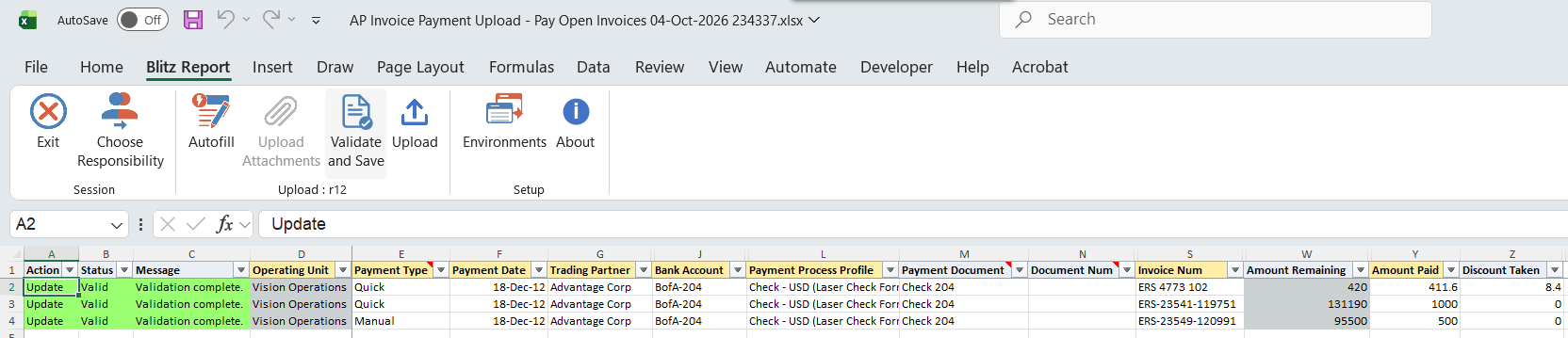
Step 5 — Validate and Save
Use Validate and Save in the Blitz Report Excel add-in. It checks the entered rows for missing required values, marks them as valid and saves the workbook.
Step 6 — Upload and view the result
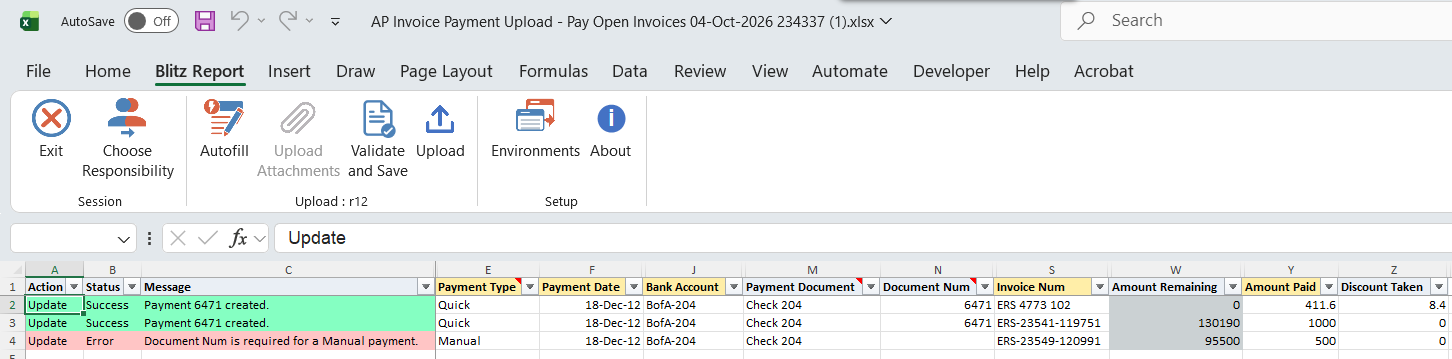
Back in Blitz Report, click Upload and select the saved file. This submits the Blitz Upload request; when it finishes, a result report opens listing every row as success or error with its message.
What’s produced
- New payments: the payment, its invoice payments and its accounting event, created as from the Payments window. A Quick payment is submitted to Oracle Payments as a single payment and gets its document number there. Every row of the payment shows Payment <number> created.
- Voided payments: the invoice payments are reversed and the payment gets status Voided with the Void Date. The rows show Payment <number> voided., followed by the count of cancelled and not cancelled invoices for Cancel Invoices.
- Downloaded payments left unchanged show No change.
- The result report shows the values stored in Payables, including the Payment Amount and Payment Status of each payment.
Common questions
How are rows grouped into payments?
Rows whose payment columns are identical form one payment. Change any of them, for example the Document Num, to start another payment.
What happens when one row of a payment fails?
Each payment is processed as a whole: none of its rows are saved, the failing row shows its error and the others show Not saved because of errors in other rows of this payment. Other payments in the file are not affected.
Can I pay an installment partially?
Yes, reduce Amount Paid (and Discount Taken). Their sum cannot exceed the amount remaining, and a prepayment must be paid in full.
Can I change an existing payment?
No. A downloaded payment can only be voided.
Why does a Quick payment reject some invoices?
Invoices that would get withholding tax or an interest invoice at payment time cannot be paid by a Quick payment through the upload. Pay them with a Manual payment or in the Payments window.
Are cancelled invoices rolled back if the void fails afterwards?
No. Cancelling invoices is committed by Oracle Payables as it happens, as in the Payments window.
Troubleshooting
| Message | Cause | What to do |
|---|---|---|
| Document Num is required for a Manual payment. | Manual payment without a document number. | Enter the number of the issued document. |
| Document Num <n> is already used by a payment from Bank Account “<x>”. | Another active payment from the bank account has this number. | Correct the number. |
| Invoice <x> installment <n> cannot be paid. It is paid, on hold, cancelled, not validated or not approved, or is selected by a payment process request. | The installment is not ready to pay. | Resolve the hold, validation or approval, or remove the row. |
| Amount Paid plus Discount Taken (<a>) exceeds the amount remaining (<b>) of invoice <x> installment <n>. | Overpayment of the installment. | Reduce Amount Paid or Discount Taken. |
| Invoice <x> installment <n> occurs more than once in this payment. | Duplicate row within one payment. | Combine the rows into one. |
| Invoice <x> is payable in <currency>, not in the payment currency <currency>. | Payment currency differs from the invoice payment currency. | Pay it in a payment of its own currency. |
| Invoice <x> must be paid alone. | The invoice is flagged for exclusive payment. | Give it its own payment (different payment columns). |
| Invoice <x> has a different remit-to supplier site than the other invoices of this payment. | Invoices of one payment must share the remit-to site. | Split them into separate payments. |
| Bank Account “<x>” does not allow payments in currency <c>. | Single-currency bank account. | Use a bank account in the payment currency or a multi-currency account. |
| An existing payment cannot be changed. Enter a Void Date to void it. | A downloaded payment row was edited. | Revert the change, or void the payment and enter a new one. |
| Invoice Action and Hold Name apply only when voiding a payment. | Invoice Action or Hold Name without a Void Date. | Enter a Void Date or clear the columns. |
| Void Date cannot be before the Payment Date. | Void Date earlier than the payment. | Correct the Void Date. |
| Payment <n> with status <status> cannot be voided. | Only negotiable, issued and stop-initiated payments can be voided. | Check the payment status in Payables. |
| Invoice Action “<x>” is not allowed for the current responsibility. | The responsibility lacks the hold or cancel function of the Payments window. | Use a responsibility with that function. |
| Not saved because of errors in other rows of this payment. | Another row of the same payment failed. | Fix the failing row and upload the payment again. |