
FND Profile Option Value Upload creates, changes and deletes profile option values from Excel, on every level the System Profile Values form offers: site, application, responsibility, server, operating unit and user. Download the existing values of one or many profile options, edit them in Excel and upload them back.
When to use it
- Set a profile option for many users or responsibilities at once, for example MO: Operating Unit for all users of a new operating unit.
- Copy profile option values from one user or responsibility to another.
- Review all values of a profile option, or all values set for one user or responsibility, and correct them in one upload.
- Remove redundant user or responsibility level values so that the site value applies.
- Move profile option settings from a test instance to production: download them on one instance and upload the file on the other.
Before you start
- The upload is available in responsibilities with access to the System Profile Values form, or you have Blitz Report System access.
- The users, responsibilities, applications, servers and operating units you set values for exist. The upload sets their profile option values, it does not create them.
Choose a template
| Template | Use it to |
|---|---|
| Default | Download existing values to review, change or delete them, and add new rows. This is the default template. |
| Create | Open an empty sheet to enter new values only. The download parameters are hidden. |
Step 1 – Set the parameters
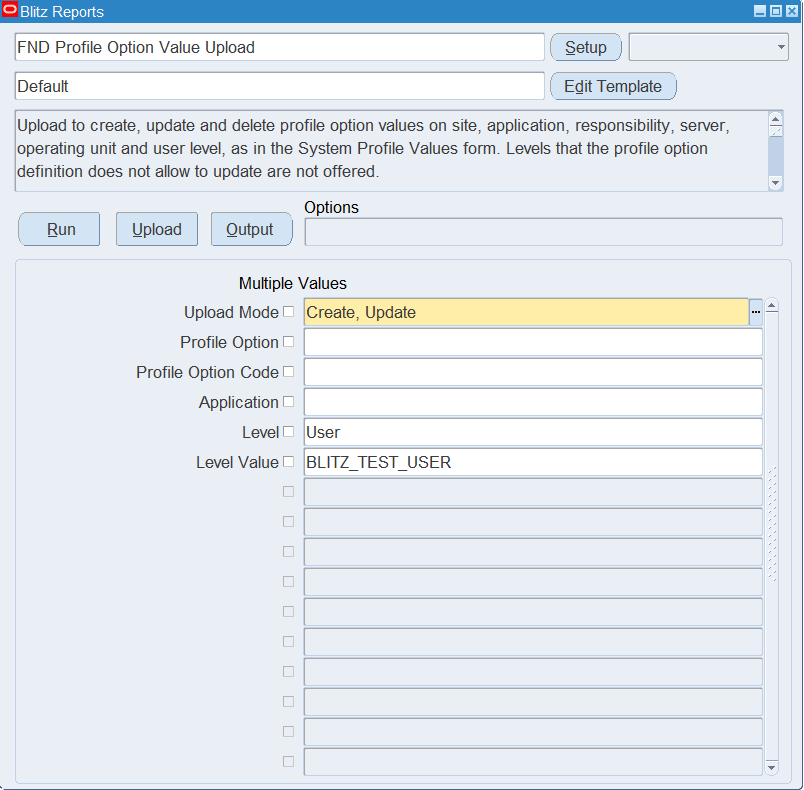
Open FND Profile Option Value Upload in Blitz Report, choose the template and set the parameters. Use the filters to limit the download: without them, every profile option value of the instance is downloaded.
| Parameter | Meaning |
|---|---|
| Upload Mode | Create opens an empty sheet; Create, Update downloads the existing values matching the filters below. |
| Profile Option | The profile option to download, by its user name, e.g. MO: Operating Unit. Several can be selected. |
| Profile Option Code | The same by its internal name, e.g. ORG_ID. |
| Application | Downloads the profile options belonging to this application. |
| Level | Downloads only the values set on this level. |
| Level Value | Downloads only the values set for this application, responsibility, server, operating unit or user, e.g. all profile option values of one user. |
Step 2 – Run to download the Excel file
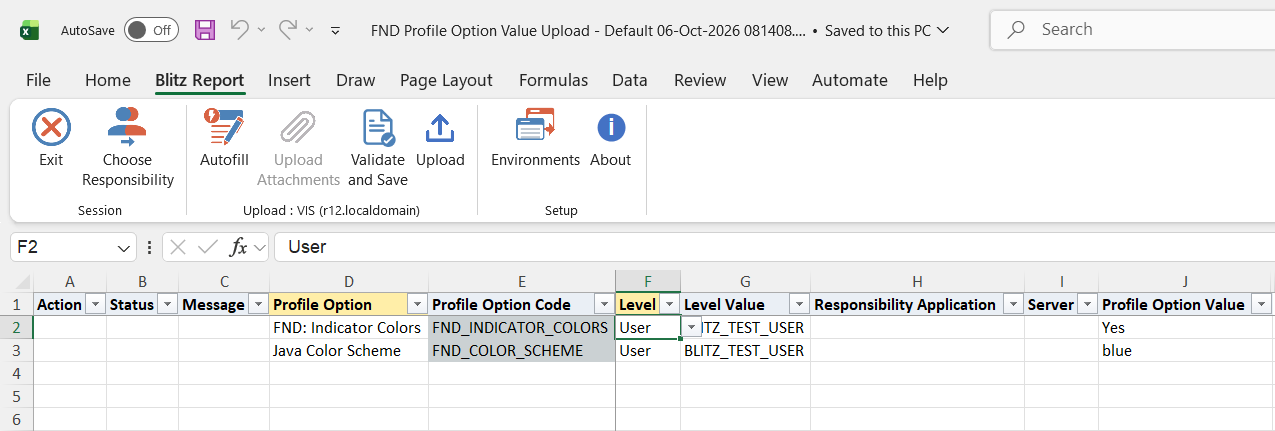
Click Run. The Excel file downloads and opens with one row per profile option value and level.
Step 3 – Enter or change the data
| Column | Meaning |
|---|---|
| Profile Option | The profile option’s user name. |
| Profile Option Code | The internal name, filled in automatically. |
| Level | The list offers only the levels the profile option can be updated on. |
| Level Value | The application, responsibility, server, operating unit or user name. Blank for Site. |
| Responsibility Application | The responsibility’s application, filled in automatically. Needed only when a responsibility name exists in several applications. |
| Server | Only for profile options with the server and responsibility hierarchy, to set a value for a responsibility on one server. |
| Profile Option Value | The value, as shown in the System Profile Values form. |
To change a value, edit the Profile Option Value of a downloaded row. To add a value, add a row with the profile option, level, level value and value; you can also copy a row and change its level value. To delete a value, clear the Profile Option Value cell.
For profile options validated by a list, such as MO: Operating Unit or FND: Debug Log Enabled, the Profile Option Value column offers the same list as the profile form and shows the visible value, e.g. the operating unit name rather than its id. The upload translates it to the stored value. Typing the stored value, e.g. the organization id, works as well.
Step 4 – Validate and Save
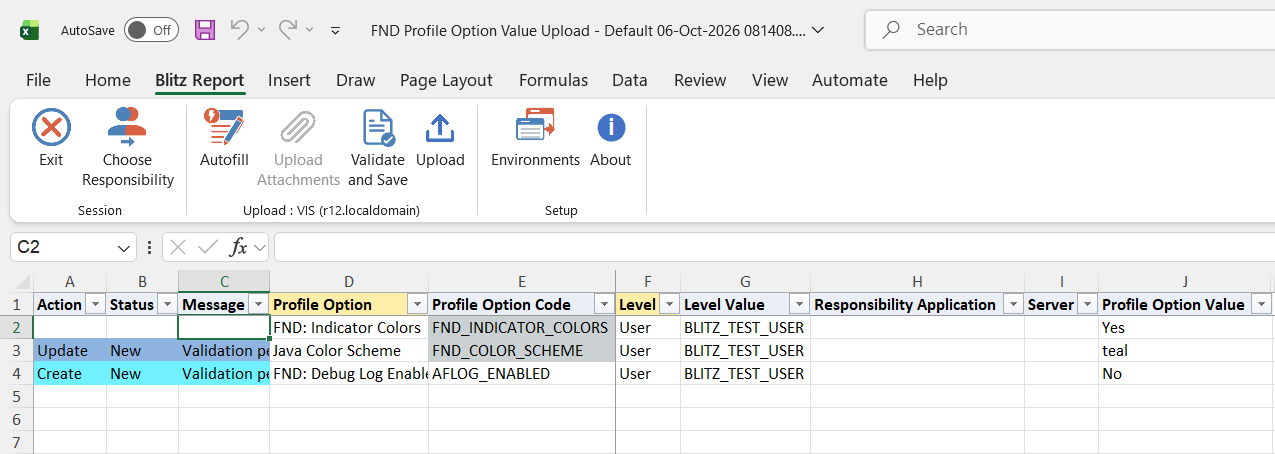
Click Validate and Save. This checks for missing required values and for Level, Level Value, Responsibility Application and Server values that are not in their lists, and saves the file. Correct any rows it flags before uploading. The Profile Option Value is checked against the profile option’s list during the upload.
Step 5 – Upload the file
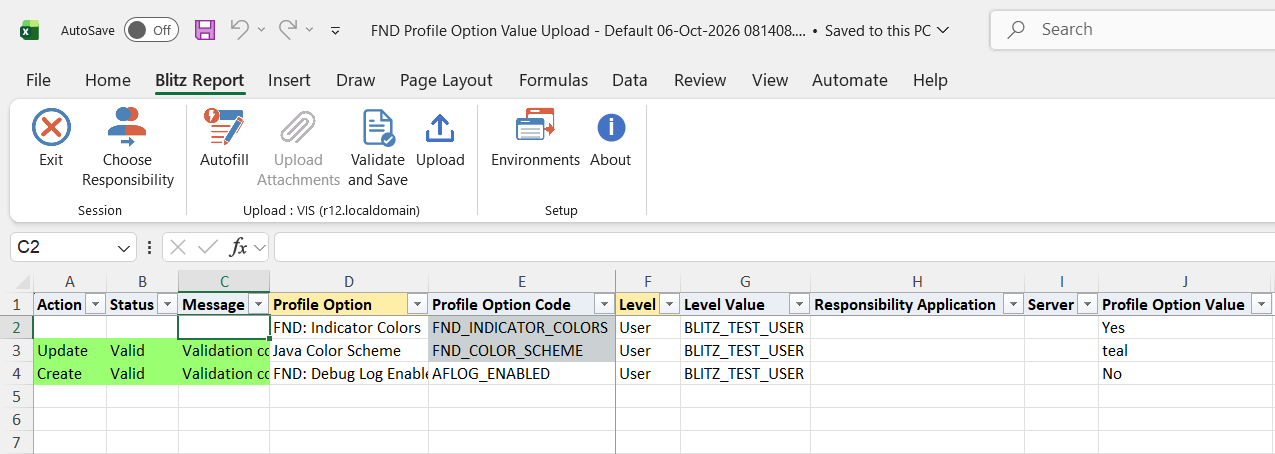
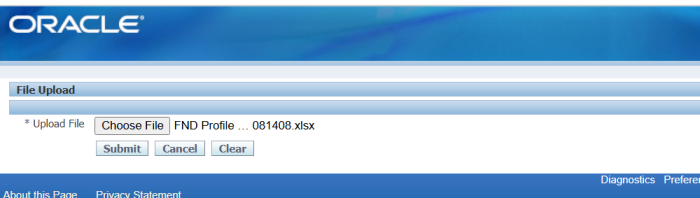
In Blitz Report click Upload and select the saved file. This submits the upload request, which saves the profile option value of each row.
Step 6 – Review the result report
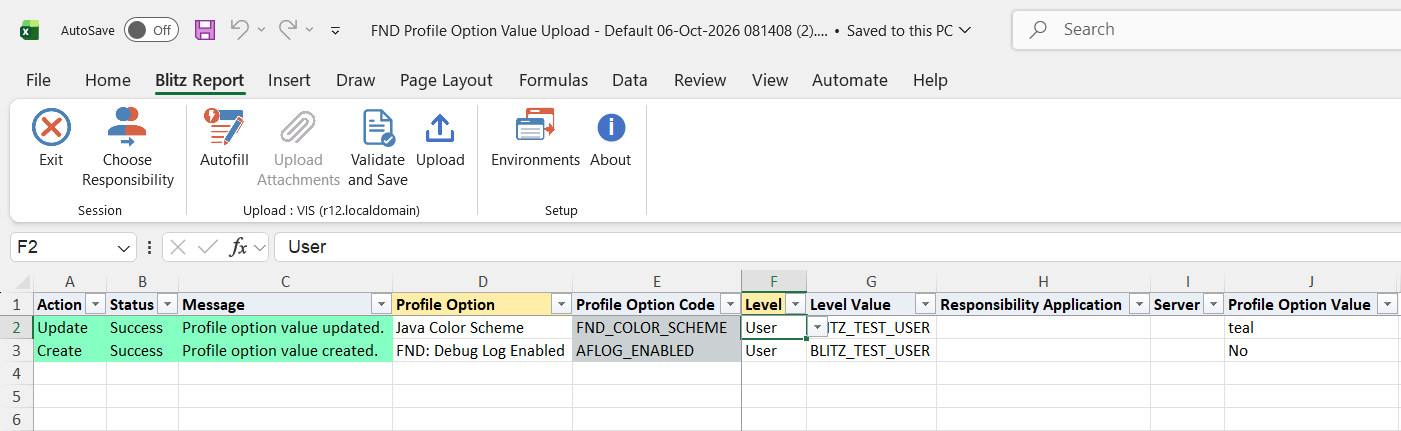
When the request completes, a result report opens listing every uploaded row with its status and message. The values are shown as saved in the database.
What’s produced
- Profile option values created, changed or deleted on the level of each row.
- A result report listing every row with a status (success or error) and a message: Profile option value created., updated., deleted. or No change.
Common questions
How do I delete a profile option value?
Clear the Profile Option Value cell of the downloaded row and upload it. The value on that level is deleted, so the next level applies: a user falls back to the responsibility value, then the application and site value.
Can I copy a user’s values to another user?
Yes. Download with Level User and the Level Value of the source user, change the Level Value of the rows to the target user and upload. Each row creates or overwrites the target user’s value.
Why is a level missing from the Level list?
The list shows only the levels the profile option definition enables and allows to be updated, as the System Profile Values form does.
Why does the Profile Option Value column show no list for some profile options?
Profile options without a list of values in their definition accept any text. A few lists depend on the profile form itself, for example on the responsibility being updated, and cannot be shown outside it. Such a value is saved as entered, and the row message says so.
Can I enter the stored value instead of the visible one?
Yes, for example the organization id of MO: Operating Unit. When a visible value belongs to several stored values, the upload asks for the stored value.
Troubleshooting
| Message | Cause | What to do |
|---|---|---|
| Value … is not a valid value for profile option … | The value is not in the profile option’s list. | Pick the value from the list. |
| Value … matches several stored values of profile option …. Enter the stored value instead. | Several list entries show the same text. | Enter the stored value, shown as the description in the list. |
| Profile option … is not updatable on this level. | The profile option cannot be updated on this level. | Pick the Level from the list. |
| Level Value is required. | The level needs an application, responsibility, server, operating unit or user. | Enter the Level Value. |
| Level Value … is invalid. | No application, responsibility, server, operating unit or user of that name exists for the level. | Pick the Level Value from the list. |
| Responsibility … exists in several applications. Enter the Responsibility Application. | The responsibility name is not unique. | Pick the Responsibility Application. |
| Profile option … is not active. | The profile option is end-dated or not yet active. | Values of inactive profile options cannot be maintained. |
| Server is entered only for responsibility values of profile options with the server and responsibility hierarchy. | A server was entered for another level or profile option. | Clear the Server cell. |
| Profile option value update failed. | Oracle’s profile API rejected the value without a message. | Check the value and level in the System Profile Values form. |