
WSH Container Items Upload creates, updates and deletes Oracle Shipping container-item relationships from Excel, as maintained in the Container-Item Relationships window (Shipping > Setup > Container Load Details). A relationship states the maximum quantity of a load item that fits into a container item in one inventory organization, and whether that container is the load item’s preferred container, which auto-pack uses. Download the existing relationships of an organization, change maximum quantities or preferred containers, add new relationships or delete obsolete ones, and upload them in one step.
When to use it
- Set up the container load details for many new items at once, for example when introducing new packaging.
- Change maximum load quantities in bulk after a packaging or pallet pattern change.
- Switch the preferred container of load items for auto-pack.
- Move relationships to a different container or load item, or delete relationships that are no longer used.
- Review all container-item relationships of an organization in one sheet.
Before you start
- Access to the upload in Blitz Report, with a responsibility that has access to the inventory organization.
- The container items are defined with the Container flag set in the Master Items window (Physical Attributes tab), and both container and load items are assigned to the organization.
Step 1 – Set the parameters
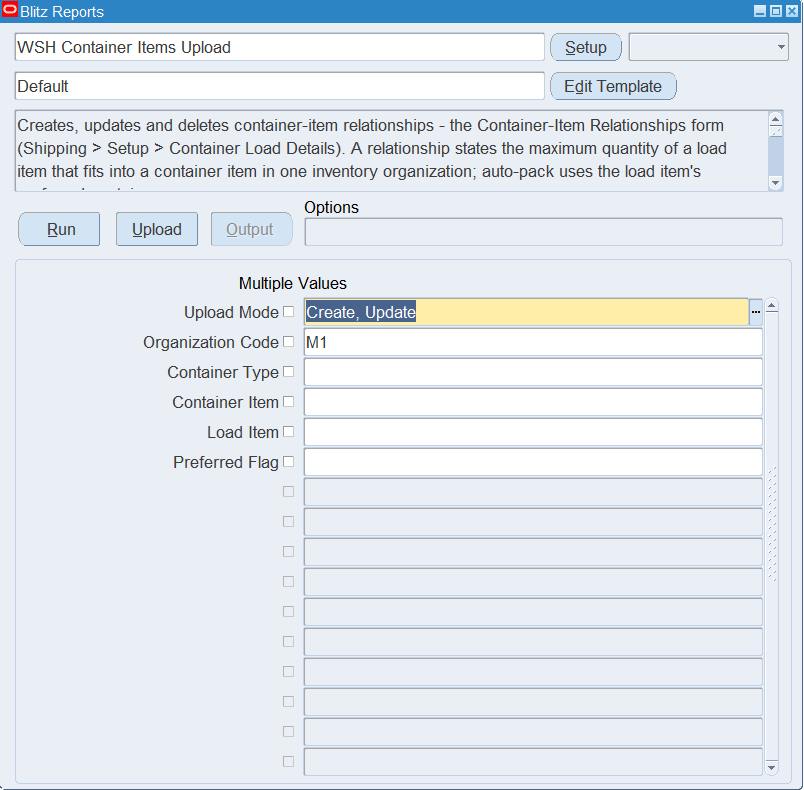
Open WSH Container Items Upload in Blitz Report and set the parameters:
| Parameter | Meaning |
|---|---|
| Upload Mode | Create downloads an empty sheet for new relationships; Create, Update (default) also downloads the existing relationships for editing. |
| Organization Code | The inventory organization of the relationships. Defaults to your session organization, and is also the Organization Code of new rows. |
| Container Type | Downloads only relationships whose container item has this container type, for example Box or Pallet. |
| Container Item | Downloads only relationships of this container item. |
| Load Item | Downloads only relationships of this load item. |
| Preferred Flag | Yes downloads only the preferred container of each load item. |
Step 2 – Run to download the Excel file
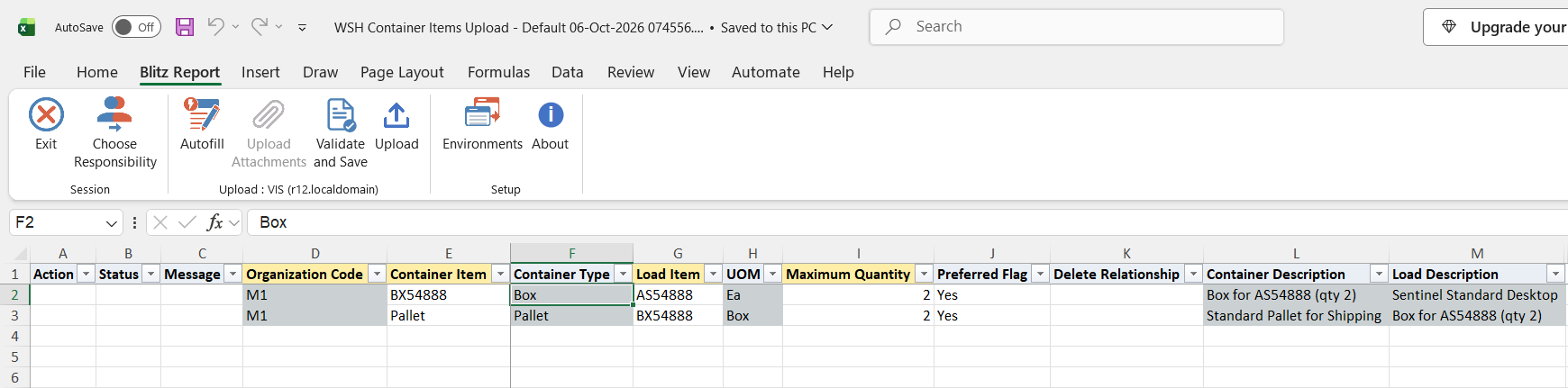
Click Run. The Excel file downloads and opens with one row per existing relationship, showing the container and load items with their descriptions, the container type and the load item’s unit of measure, or an empty sheet in Create mode.
Step 3 – Enter or change the relationships
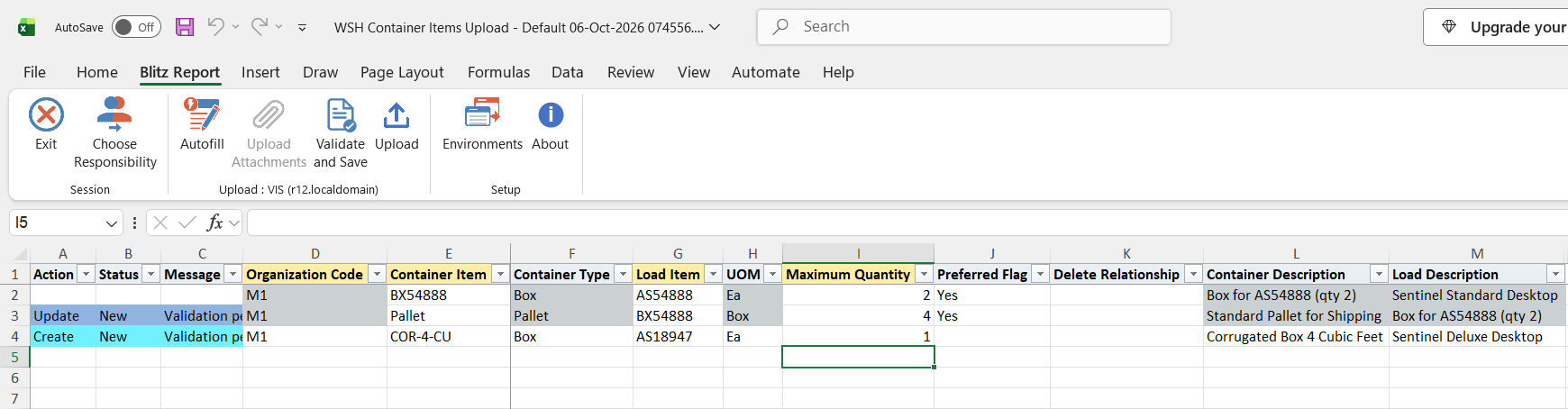
Change the Maximum Quantity or Preferred Flag of a downloaded row, or add rows with a Container Item, a Load Item and a Maximum Quantity. New rows take the Organization Code of the parameter; Container Type, UOM and the descriptions fill in from the items. The Container Item list shows only items flagged as containers, and container and load item must be different.
- Maximum Quantity is in the load item’s primary unit of measure (UOM column) and is rounded to five decimals. It must be a whole number for serial controlled and indivisible load items.
- Preferred Flag Yes makes this the preferred container of the load item. The load item’s previous preferred container loses the flag, as in the form, and the result message names it. When several rows of one file make different containers preferred for the same load item, the last row wins.
- Changing the Container Item or Load Item of a downloaded row moves that relationship to the new item.
- To remove a relationship, set Delete Relationship to Yes on its downloaded row.
Step 4 – Validate and Save
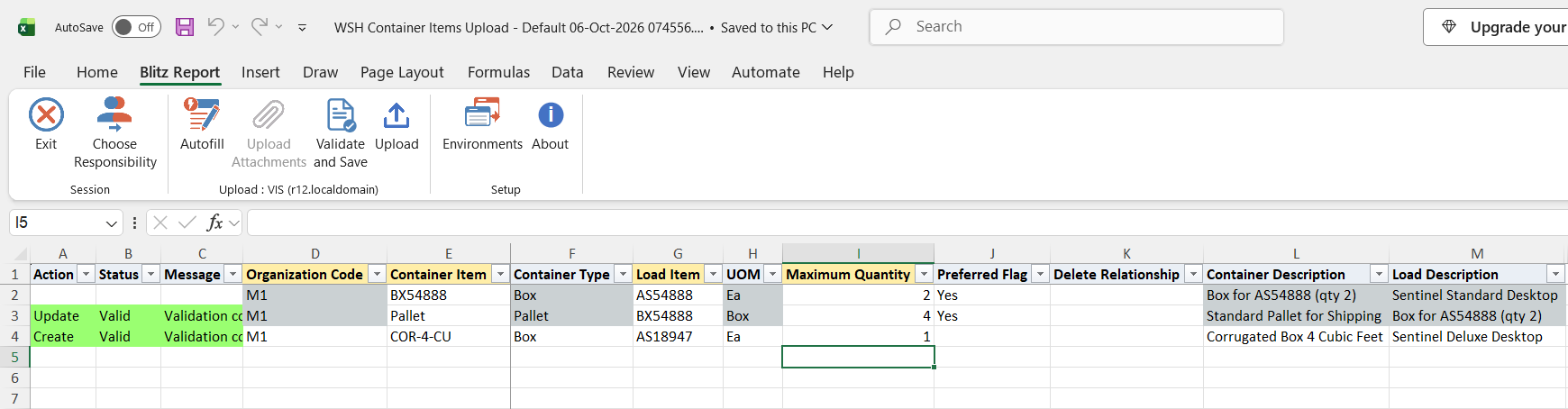
Click Validate and Save. This checks for missing required values, identical container and load items, negative quantities and decimal quantities that the load item does not allow, and saves the file. Correct any rows it flags before uploading.
Step 5 – Upload the file
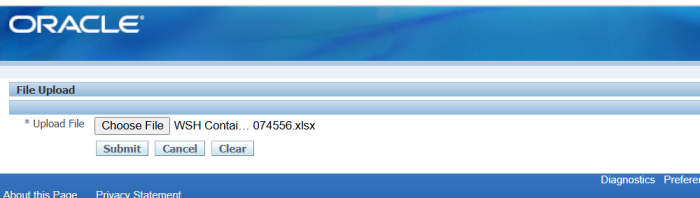
In Blitz Report click Upload and select the saved file. This submits the upload request, which creates, updates or deletes each relationship.
Step 6 – Review the result report
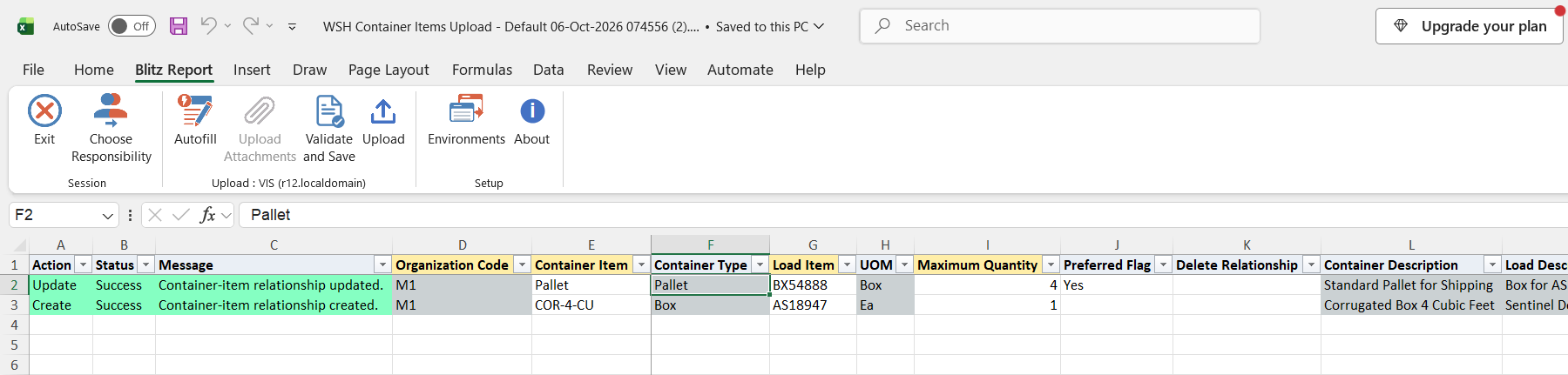
When the request completes, a result report opens listing every uploaded row with its status and message, for example Container-item relationship updated. or Container-item relationship created.
What’s produced
- Container-item relationships created, updated or deleted in the organization, ready for auto-pack and container load calculations in Shipping Execution.
- A result report listing every row with a status (success or error) and a message.
Common questions
Can a load item have more than one preferred container?
No. Setting Preferred Flag to Yes on one relationship removes the flag from the load item’s other relationships in the organization, and the message reports which container is no longer preferred.
How do I set up relationships in several organizations?
Relationships are stored per organization. Run the upload once per organization with the Organization Code parameter set to it; new rows take that organization.
Why is Delete Relationship empty for my new row?
Only existing relationships can be deleted, so the Yes value is offered only when the container and load item already have a relationship.
What happens to an unchanged downloaded row?
Rows you do not change are not uploaded. A row marked for update without any real change returns the message No change.
Troubleshooting
| Message | Cause | What to do |
|---|---|---|
| Missing values for required field/s: … | Organization Code, Container Item, Load Item or Maximum Quantity is empty. | Fill the listed columns. |
| Load and Container Items must be different. | The same item is entered as container and load item. | Enter a different load item. |
| Maximum Quantity cannot be negative. | A negative Maximum Quantity. | Enter zero or a positive quantity. |
| Please Check the Container Flag of the Container Item(s) … in the “Master Item” Form. | The container item is not flagged as a container in this organization. | Set the Container flag on the item, or pick a container item from the list. |
| … is already defined as containing … | A downloaded row was moved to a container and load item combination that already has a relationship. | Change the existing relationship instead, or delete one of them. |
| The downloaded container-item relationship no longer exists. | The relationship of a moved row was deleted or changed by someone else since the download. | Download again and repeat the change. |
| The container-item relationship cannot be deleted because it does not exist. | Delete Relationship is Yes on a row without an existing relationship. | Download the relationships again and mark the existing row. |
| Delete Relationship cannot be combined with a change of the Container Item or Load Item. | A downloaded row has Delete Relationship Yes and a changed container or load item. | Restore the original items to delete the relationship, or clear Delete Relationship to move it. |