
OKS Contract Termination Upload terminates Oracle Service Contracts from Excel. It works like the Terminate action in the Service Contracts Authoring window. Download the lines of the contracts you want to change, then mark rows to terminate a whole contract, to terminate a single line or subline, or to delete a line from a contract that is still in Entered status. Oracle’s termination process sets the statuses, credits, billing schedules and history, just as it does when you terminate from the form.
When to use it
- Terminate many service contracts at once, for example when customers cancel or end their agreements.
- End coverage for individual service lines or covered products (partial termination) and keep the rest of the contract active.
- Schedule terminations for a future date.
- Remove unwanted lines from contracts that are still in Entered status, before they are signed.
Before you start
- Access to the upload in Blitz Report, under a responsibility that has access to the contracts’ operating unit.
- The contracts are service contracts. Warranty and other contract types are not downloaded or processed.
- Decide the termination date and termination reason for each contract or line.
- A termination cannot be reversed by the upload. Check the downloaded rows carefully before you upload.
Step 1 – Set the parameters
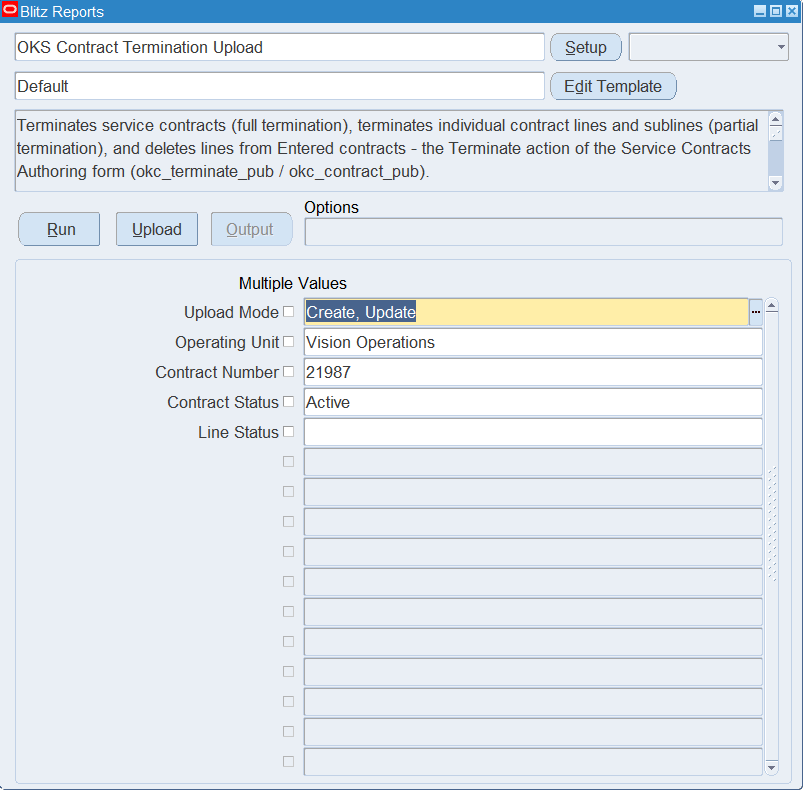
Open OKS Contract Termination Upload in Blitz Report and set the parameters:
| Parameter | Meaning |
|---|---|
| Upload Mode | Keep the default, Create, Update. It downloads the contract lines that match the other parameters. |
| Operating Unit | Downloads only the contracts of this operating unit. |
| Contract Number | The service contract(s) to download. |
| Contract Status | Downloads only contracts in this status, for example Active or Entered. |
| Line Status | Downloads only lines and sublines in this status. |
Step 2 – Run to download the Excel file
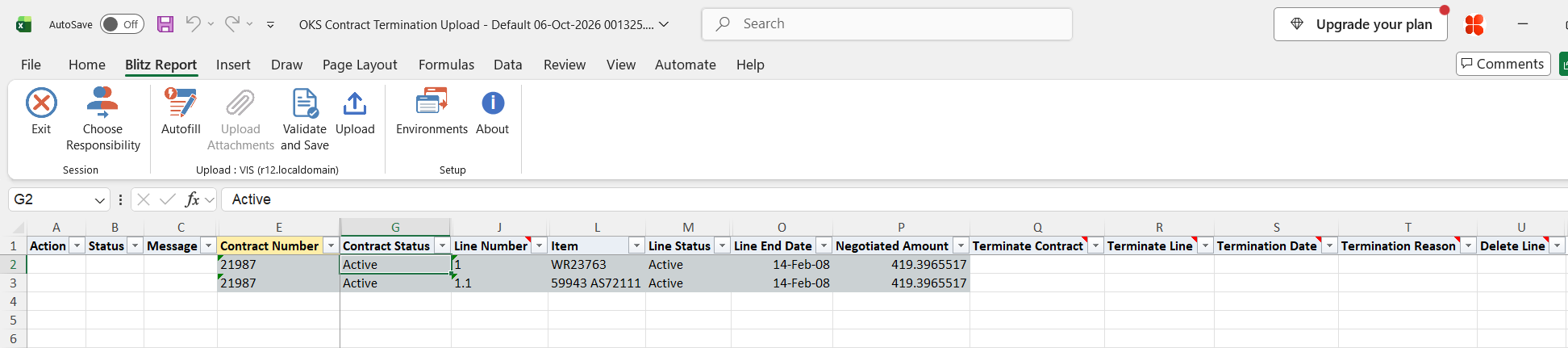
Click Run. The Excel file downloads and opens. It has one row for each service line (for example 1) and each subline (for example 1.1) of the selected contracts, with the contract and line status, dates, item and negotiated amount.
Step 3 – Mark the rows to terminate or delete
The contract and line columns are for reference and cannot be changed. On each row, choose one action:
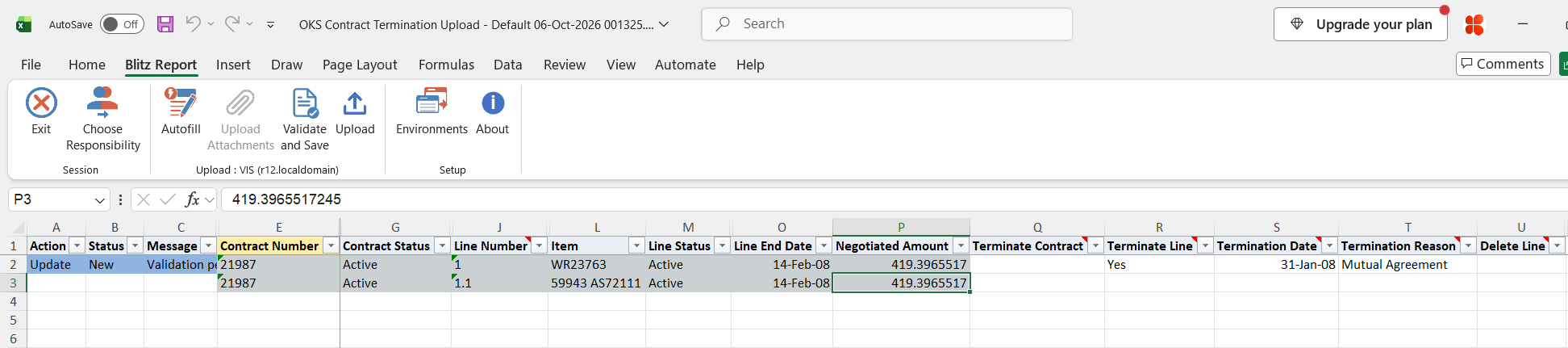
- Terminate Contract = Yes terminates the whole contract with all its lines. You only need to set it on one row of the contract. If more than one row of the contract has it, the contract is still terminated only once.
- Terminate Line = Yes terminates only this row’s line or subline. If you terminate a line, its sublines are terminated too.
- Delete Line = Yes deletes this row’s line. You can delete lines only while the contract is in Entered status.
For a termination, also enter the Termination Date and choose a Termination Reason from the list, for example Mutual Agreement or End of Term. A date on or before today terminates immediately. A future date schedules the termination. Rows with no action are not changed.
Step 4 – Validate and Save
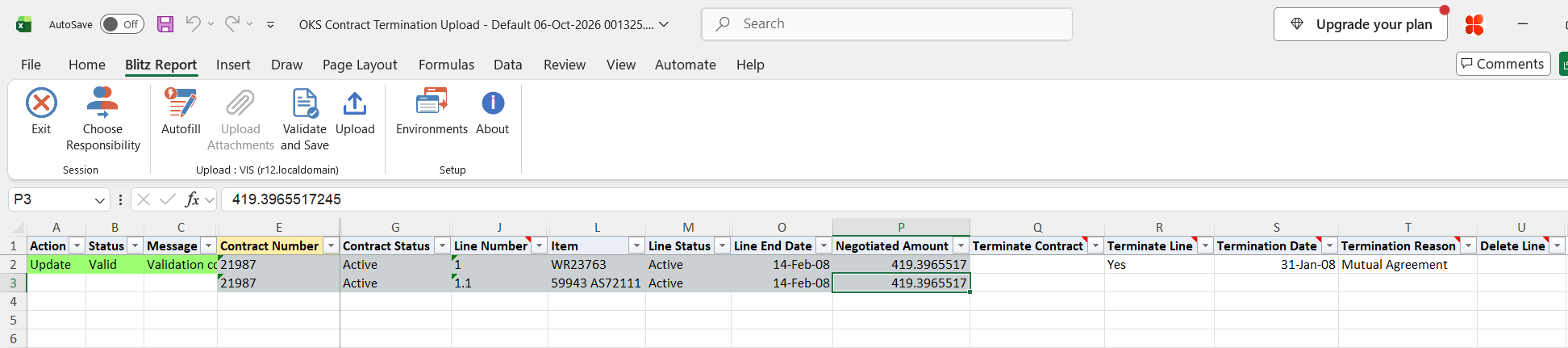
Click Validate and Save. This checks for missing required values and saves the file. Correct any rows it flags before uploading.
Step 5 – Upload the file
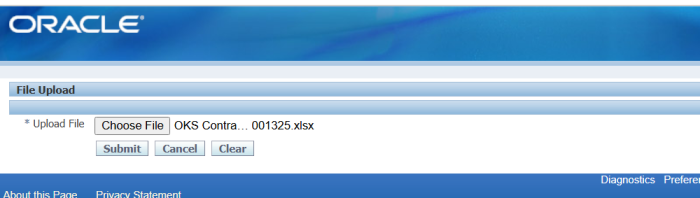
In Blitz Report click Upload and select the saved file. This submits the upload request, which terminates the marked contracts and lines and deletes the marked lines.
Step 6 – Review the result report
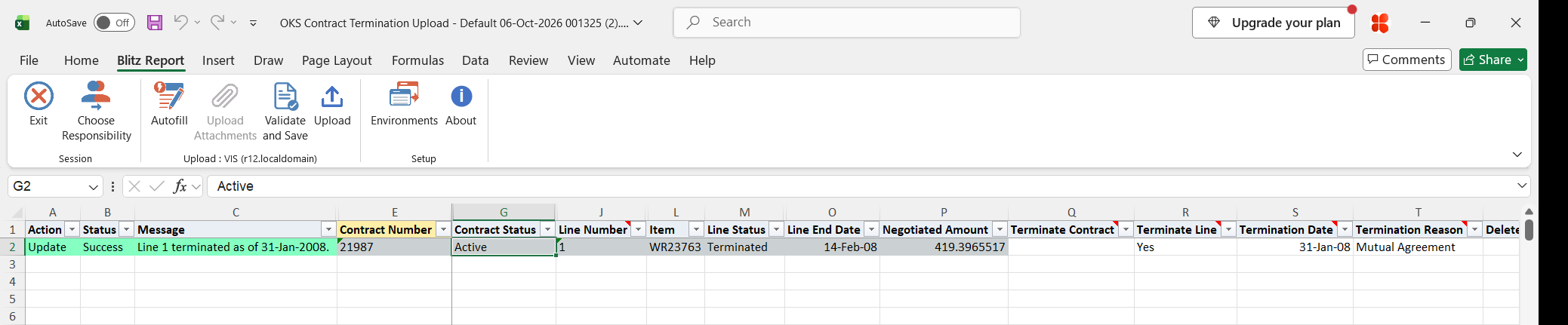
When the request completes, a result report opens listing every uploaded row with its status and message, for example “Line 1 terminated as of 31-Jan-2008.”, together with the new line status.
What’s produced
- Service contracts, lines and sublines terminated as of the termination date, with the termination reason. Oracle Service Contracts calculates the credits and adjusts the billing schedules.
- Lines deleted from Entered contracts.
- A result report listing every row with a status (success or error) and a message.
Common questions
Can I undo a termination?
No, the upload cannot reverse it. Test on a few rows first, and check the termination date and reason before you upload.
What is the difference between terminating and deleting a line?
A terminated line stays on the contract with the status Terminated, a termination date and a reason, and Oracle calculates any credit for it. A deleted line is removed from the contract completely. You can only delete lines from contracts in Entered status.
Does terminating a line terminate its sublines?
Yes. If you terminate a service line, its covered products and other sublines are terminated too. To end coverage for only one covered product, set Terminate Line on the subline row, for example line 1.1.
Does terminating all lines terminate the contract?
No. Terminate Line changes only the line. To terminate the contract itself, set Terminate Contract to Yes on one of its rows.
Can I terminate warranty contracts?
No. The upload processes only service contracts.
Can I set more than one action on a row?
No. Choose only one of Terminate Contract, Terminate Line and Delete Line on each row.
Troubleshooting
| Message | Cause | What to do |
|---|---|---|
| Termination Date and Termination Reason are required to terminate. | Terminate Contract or Terminate Line is Yes, but there is no termination date or reason. | Enter the Termination Date and choose a Termination Reason. |
| Choose only one of Terminate Contract, Terminate Line and Delete Line per row. | The row has more than one action. | Keep one action on the row. |
| Lines can only be deleted while the contract is in Entered status. | Delete Line is Yes, but the contract is signed or active. | Use Terminate Line instead. |
| Line Number is required to terminate or delete a line. | The row has no line number. | Use a downloaded row of the line, or enter its Line Number. |
| Line … not found on contract … | The line number does not exist on the contract. | Use a top line number (1) or a subline number (1.1) from a new download. |
| Line … exists more than once on contract … | The contract has more than one line with the same number. | Terminate or delete the line in the Service Contracts Authoring window. |
| Contract … not found. | The contract number and modifier do not match an existing contract. | Download the contract again and use the downloaded row. |
| Contract … is not a service contract. | The contract is a warranty or another contract type. | Terminate it in the application that owns that contract type. |
| You do not have access to the operating unit of contract … | Your responsibility has no access to the contract’s operating unit. | Upload under a responsibility with access to that operating unit. |
| Contract terminated by an earlier row of this upload. | Terminate Contract was set on more than one row of the same contract. This is not an error. | No action needed. The contract was terminated once. |