
QP Qualifier Group Upload creates and updates qualifier groups in Oracle Advanced Pricing from Excel: the named group and its member qualifiers. It can also delete individual qualifiers from a group. A qualifier group is a reusable set of eligibility conditions, such as customer classes or named customers, that you can attach to price lists and modifiers.
When to use it
- Create new qualifier groups in bulk instead of one at a time in the Qualifier Groups window.
- Add qualifiers to an existing group, for example more customers or customer classes.
- Change qualifier values, operators, precedence or effective dates on existing groups.
- Remove individual qualifiers from a group without deleting the group.
- Copy qualifier groups between environments by downloading from one and uploading to another.
Before you start
- Access to the upload in Blitz Report from a responsibility used for pricing setup.
- The profile options QP: Pricing Transaction Entity and QP: Source System Code are set for your responsibility. The pricing transaction entity determines which qualifier contexts and attributes you can use (Order Fulfillment if the profile is not set).
- The qualifier contexts and attributes you want to use are enabled in the pricing attribute setup, and the values exist, such as the customer accounts or customer classes.
Step 1 – Set the parameters
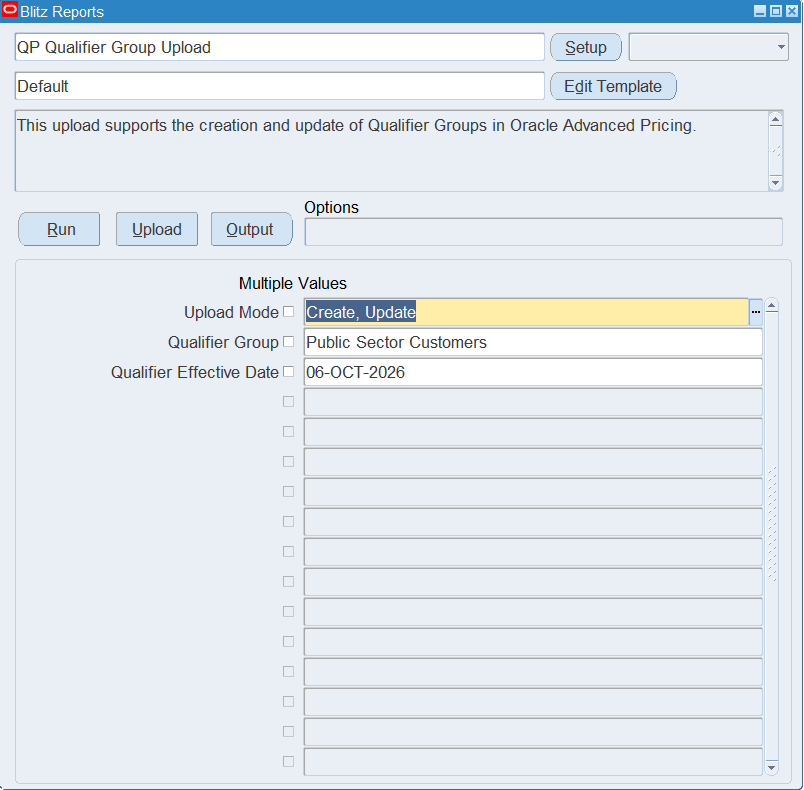
Open QP Qualifier Group Upload in Blitz Report and set the parameters:
| Parameter | Meaning |
|---|---|
| Upload Mode | Create opens an empty sheet for new groups; Create, Update (default) downloads existing groups for editing and lets you add new ones. |
| Qualifier Group | The qualifier group to download. Leave it empty to download all groups. |
| Qualifier Effective Date | Downloads only the qualifiers active on this date. Defaults to today. |
Step 2 – Run to download the Excel file
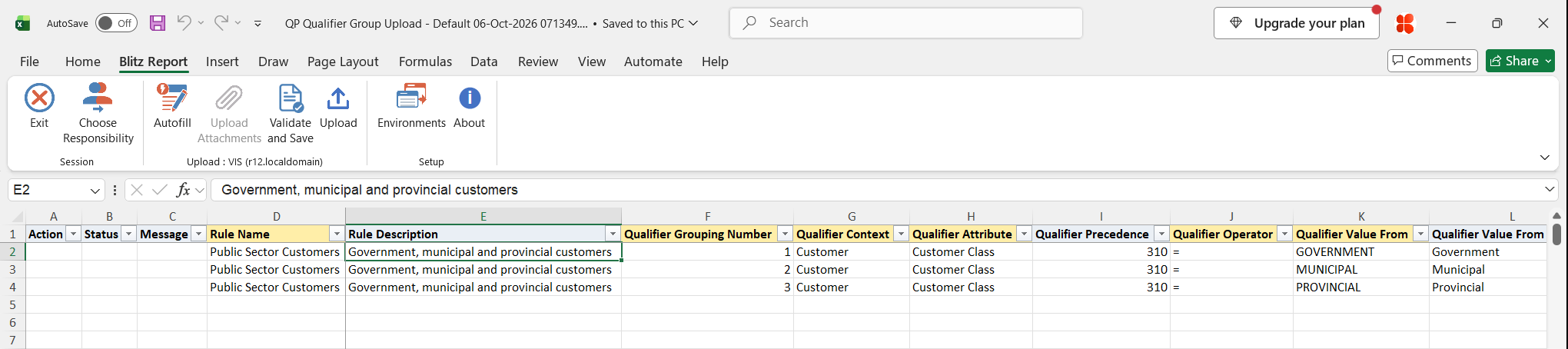
Click Run. The Excel file downloads and opens with one row per qualifier of the selected groups, or an empty sheet in Create mode.
Step 3 – Enter or change the qualifier groups
Each row is one qualifier of a group. Rows with the same Rule Name belong to the same group, and the Rule Description is the group’s description. For each qualifier enter the Qualifier Grouping Number, Qualifier Context (for example Customer), Qualifier Attribute (for example Customer Class or Customer Name), Qualifier Operator and Qualifier Value From. Qualifiers with the same grouping number must all be met together (AND); different grouping numbers are alternatives (OR).
Pick the context, attribute and value from the lists. Qualifier Value From takes the value as the pricing setup shows it, for example the customer class code or the customer name; Qualifier Value From Desc fills in automatically with its description. Use Qualifier Value To only with the BETWEEN operator. Qualifier Precedence defaults from the attribute setup if left empty. For date attributes such as Order Date, enter the values in DD-MON-YYYY HH:MI:SS format.
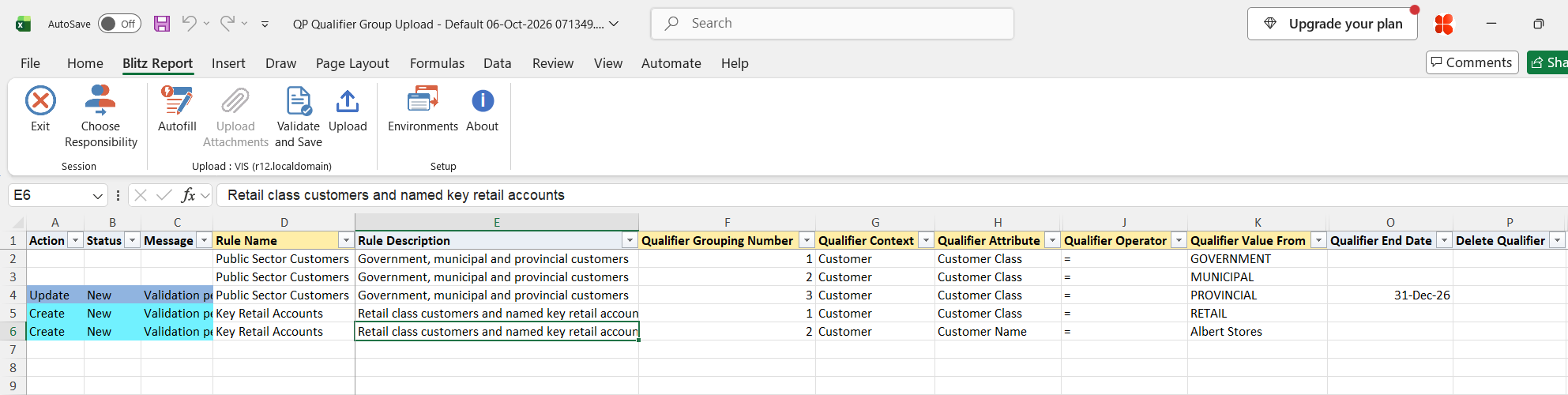
On downloaded rows you can change the qualifier details and the Qualifier Start Date / Qualifier End Date, for example to end-date a qualifier. To add a qualifier to an existing group, add a row with the group’s Rule Name. A new Rule Name creates a new group. Set Delete Qualifier to Yes to remove that qualifier from its group.
Step 4 – Validate and Save
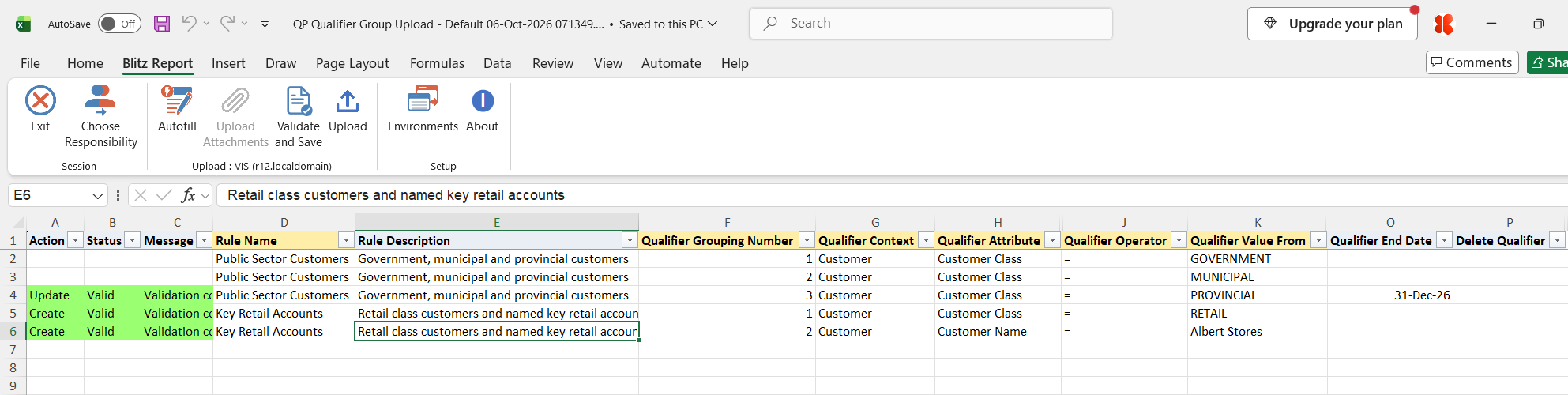
Click Validate and Save. This checks for missing required values, runs the upload’s validation of the qualifier values and operators, and saves the file. Correct any rows it flags before uploading.
Step 5 – Upload the file
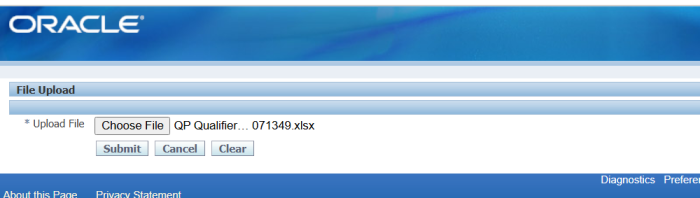
In Blitz Report click Upload and select the saved file. This submits the upload request, which creates or updates each group and qualifier through the Oracle Advanced Pricing API.
Step 6 – Review the result report
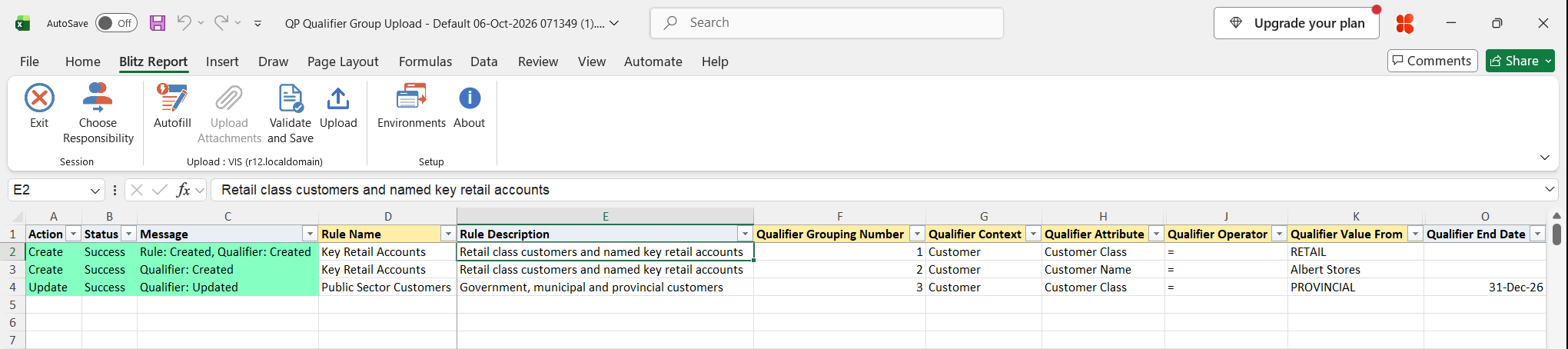
When the request completes, a result report opens listing every uploaded row with its status and a message such as Rule: Created, Qualifier: Created or Qualifier: Updated.
What’s produced
- Qualifier groups created or updated, with their qualifiers created, updated or deleted.
- A result report listing every row with a status (success or error) and a message.
Common questions
Can I delete a whole qualifier group?
No. Delete Qualifier = Yes removes only the qualifier on that row, never the group itself.
How do I put several qualifiers in one group?
Enter one row per qualifier with the same Rule Name. Use the same Qualifier Grouping Number for conditions that must all be met, and different grouping numbers for alternative conditions.
How does the upload find an existing qualifier?
Downloaded rows are updated directly. On a row you add, an existing group is found by its Rule Name, and an existing qualifier in that group by its grouping number, context, attribute and operator. If one matches, it is updated instead of created.
When do I fill Qualifier Value To?
Only with the BETWEEN operator, where both Value From and Value To are required. For other operators leave it empty.
Why are some qualifiers of a group missing in the download?
Only qualifiers active on the Qualifier Effective Date are downloaded. Change the date to see qualifiers that have ended or start in the future.
Troubleshooting
| Message | Cause | What to do |
|---|---|---|
| Qualifier Grouping Number, Context, Attribute, Operator and Value From are required when specifying a qualifier | A qualifier is only partly filled in. | Enter all five values. |
| Qualifier Value From/To are required when using the BETWEEN operator | BETWEEN without a Qualifier Value To. | Enter both Value From and Value To. |
| Qualifier Value To is only applicable when using the BETWEEN operator | Qualifier Value To entered with another operator. | Clear Qualifier Value To, or use BETWEEN. |
| Qualifier Attribute Value From must be a valid Number / Date in dd-mon-yyyy hh:mi:ss format | The attribute expects a number or date. | Enter the value in the required format. |
| Qualifier Attribute Value From is invalid | The value is not valid for the qualifier attribute. | Pick the value from the list. |
| Qualifier Attribute Value From is not unique. Please select specify the Qualifier Value From Description as well | The value matches more than one record, for example two customers with the same name. | Also select the Qualifier Value From Desc, for example the customer’s account number. |
| Qualifier cannot be created when Delete Qualfier Flag is set to Yes | Delete Qualifier is Yes on a row that does not match an existing qualifier. | Clear Delete Qualifier, or correct the grouping number, context, attribute and operator to match the qualifier to delete. |
| Qualifier Orig Sys Ref is not unique or multiple qualifiers exist for this Qualifier Grouping Number, Context, Attribute and Comparison Operator | The group has several qualifiers with the same grouping number, context, attribute and operator, so the row cannot be matched to one of them. | Update these qualifiers from a downloaded file, where each row is matched exactly. |
| Upload Failed: followed by an Oracle Pricing message | The Oracle Advanced Pricing API rejected the group or qualifier. | Read the Oracle message in the result report, correct the data and upload again. |