
QP Modifier Upload creates and updates Oracle Advanced Pricing modifier lists and their modifier lines from Excel – discount and surcharge lists, promotions, deal lists and freight and special charge lists – together with each line’s price breaks, buy and get products, pricing attributes, excluders, qualifiers and limits. Individual child records such as a qualifier, pricing attribute or limit can also be deleted.
When to use it
- Mass-create discount, surcharge, promotion or freight charge modifier lines for many items or item categories.
- Bulk-update existing modifier lines, for example their values, application methods, effective dates or incompatibility groups.
- Add or change qualifiers that control who a modifier list or line applies to.
- Maintain price breaks, buy and get products, pricing attributes, excluders and usage limits.
- Roll out new pricing by end-dating the active matching modifier lines while creating their replacements.
- Maintain modifier list header data, list qualifiers and list limits without touching the lines.
Before you start
- Use a responsibility with access to Blitz Report whose profile options QP: Pricing Transaction Entity and QP: Source System Code match the modifier lists you maintain (for example Order Fulfillment and Oracle Pricing), and with access to the operating units of non-global lists.
- The items, item categories, formulas, price lists, qualifier values, units of measure and currencies you reference already exist.
- For updates, the modifier lists already exist and are not GSA lists (GSA pricing is maintained with the QP GSA Pricing Upload).
Choose a template
| Template | Use it for |
|---|---|
| Modifier Lines Template (default) | Creating and updating modifier lines with their price breaks, buy and get products, pricing attributes, excluders, line qualifiers and line limits. List-level qualifiers and limits are not downloaded. |
| List Header Template | Updating modifier list header data, list qualifiers and list limits only. Modifier lines are not downloaded. |
| All Columns | Every list, line and child record column, including list-level qualifiers and limits together with the lines. |
Step 1 – Set the parameters
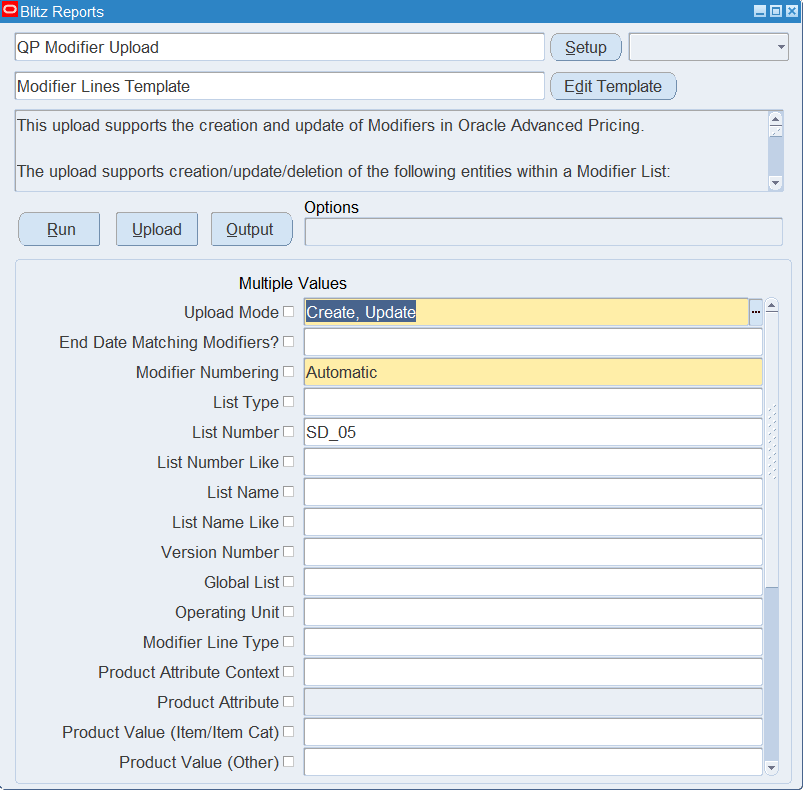
Open QP Modifier Upload in Blitz Report, choose the template and set the parameters:
| Parameter | Meaning |
|---|---|
| Upload Mode | Create opens an empty sheet; Create, Update (default) downloads existing modifiers for editing and lets you add new ones. |
| End Date Matching Modifiers? | Yes end-dates the active modifier line that matches a newly created line (same list, modifier type, level, product and unit of measure, pricing attributes and qualifiers) on the day before the new line’s start date. Requires Modifier Numbering Automatic. |
| Modifier Numbering | Automatic (default) replaces the Line No of new lines with a system-generated number; Manual keeps the Line No you enter. |
| List Type | Downloads only modifier lists of this type, for example Discount List or Surcharge List. |
| List Number / List Number Like | The modifier list number(s) to download, or all list numbers starting with this text. |
| List Name / List Name Like | The modifier list name(s) to download, or all names starting with this text. |
| Version Number | Restricts the download to this list version. |
| Global List | Yes downloads only global lists, No only operating unit specific lists. |
| Operating Unit | Downloads only lists of this operating unit. |
| Modifier Line Type | Downloads only modifier lines of this type, for example Discount or Price Break Header. |
| Product Attribute Context / Product Attribute / Product Value (Item/Item Cat) / Product Value (Other) | Downloads only modifier lines for this product, for example a specific item number or item category. |
| Item Category Set / Item Category | Downloads the modifier lines of all items assigned to this item category. |
| Effective Date | Downloads the modifier lines active on this date (default today). |
| Download Modifier Lines, Price Breaks, Buy/Get Products, Pricing Attributes, Excluders, Line Qualifiers, Line Limits | Yes (default) includes these records in the download; clear a parameter to leave the records out. |
Enter at least one list or product parameter so the download contains only the modifiers you want to work on.
Step 2 – Run to download the Excel file
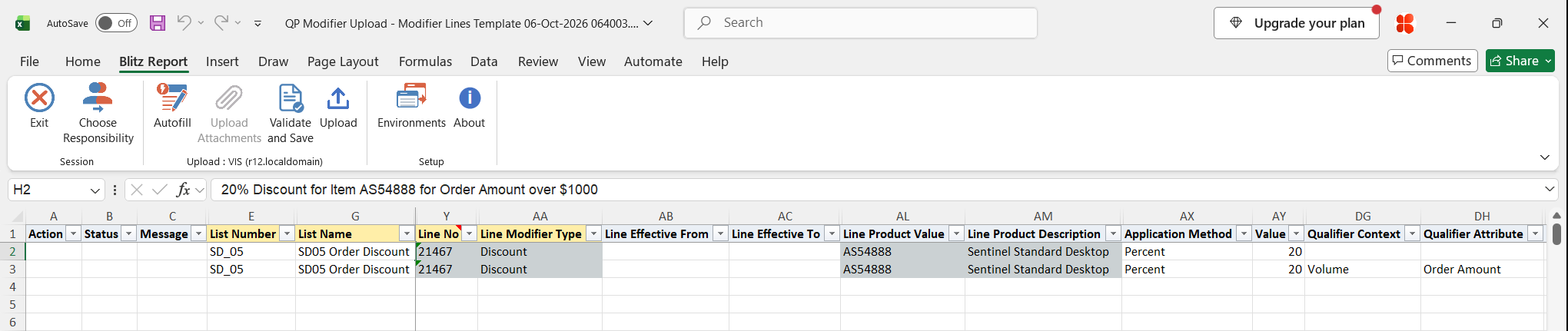
Click Run. The Excel file downloads and opens with one row per modifier line and further rows for each of its price breaks, buy and get products, pricing attributes, excluders, qualifiers and limits, or an empty sheet in Create mode.
Step 3 – Enter or change the modifiers
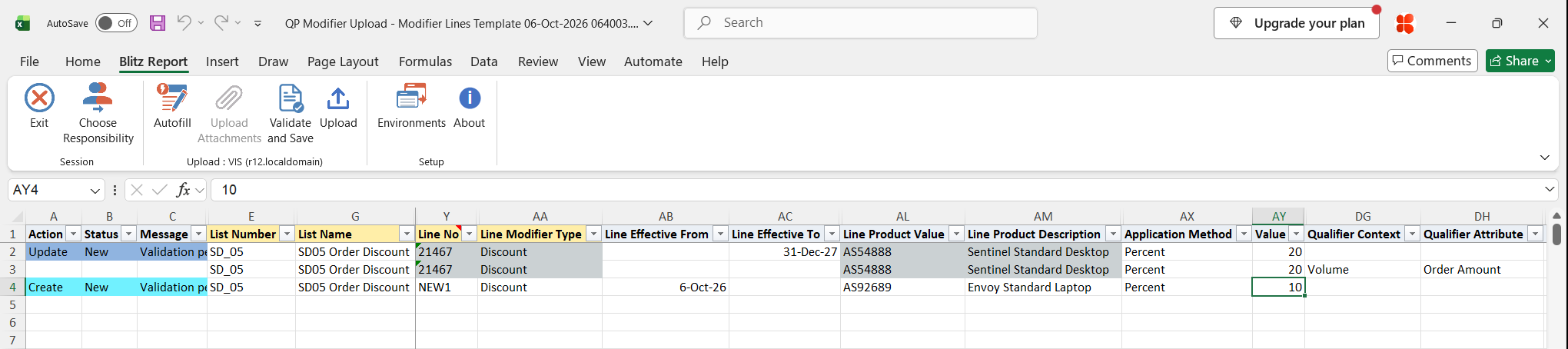
List Number, List Version and Line No identify a modifier list and line: if the combination exists, the row updates it, otherwise it creates it. Rows that belong to the same line repeat the same List Number, List Version and Line No. Change a downloaded line’s columns, such as Value, Application Method, Line Effective From / Line Effective To or Line Incompatibility Group, or add a row for a new line.
A new line needs the list columns (List Type, List Number, List Name, Global List or Operating Unit), a Line No (any unique text when Modifier Numbering is Automatic), Line Modifier Level, Line Modifier Type, Line Pricing Phase, the product (Line Product Attribute, Line Product Value, Line Product Uom) and the benefit (Application Method and Value, or a Formula). On a new line, its price break, buy and get, pricing attribute, qualifier and limit columns can be entered on the same row.
- Price breaks: use Line Modifier Type Price Break Header and repeat the line on one row per break with the Price Break Value From / To, Price Break Application Method and Price Break Value.
- Qualifiers: a qualifier on a row without line details is a list qualifier, on a line row a line qualifier; Qualifier Assignment Level overrides this. Enter Qualifier Grouping Number, Context, Attribute, Operator and Value From. To copy a qualifier group, select only the Qualifier Group, or select the Qualifier Group Qualifier Id on one row per qualifier to copy.
- Limits: Limit No identifies a limit within the list or line; enter Limit Basis, Limit Enforced, Limit Amount and Limit When Exceeded. Limit Assignment Level assigns a limit entered on a line row to the list header.
- Deleting: set Delete Qualifier, Delete Pricing Attribute, Delete Excluder, Delete Buy Item, Delete Limit or Delete Limit Oth Att to Yes to delete that record only. Modifier lists and lines are not deleted; end-date them instead.
Step 4 – Validate and Save
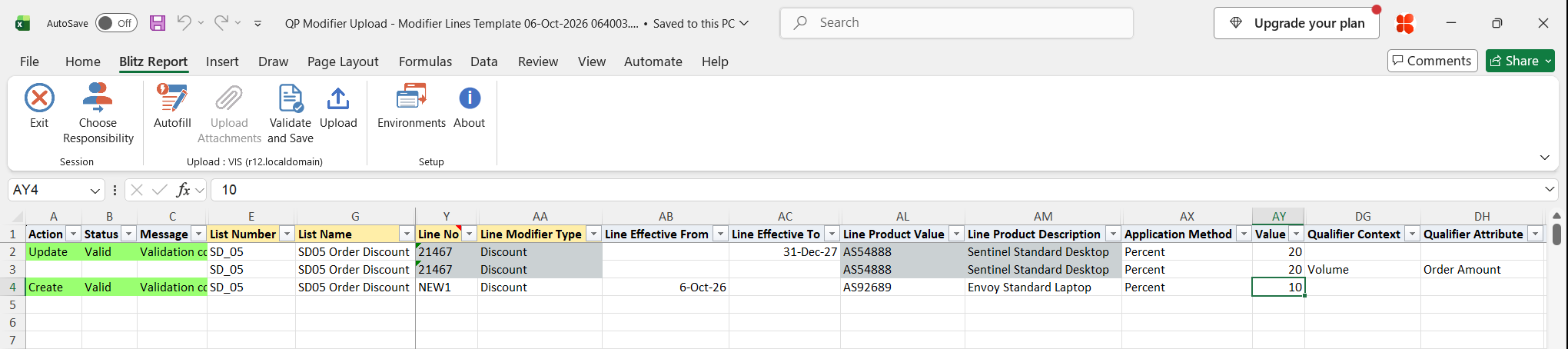
Click Validate and Save. This checks for missing required values and the upload’s own rules (for example a complete qualifier, a Line No for every line, Value To only with the BETWEEN operator) and saves the file. Correct any rows it flags before uploading.
Step 5 – Upload the file
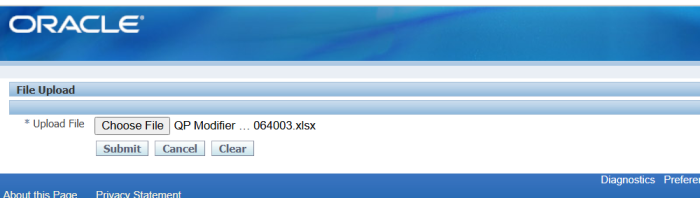
In Blitz Report click Upload and select the saved file. This submits the upload request, which creates or updates the modifier lists, lines and their child records through the Oracle Advanced Pricing APIs.
Step 6 – Review the result report
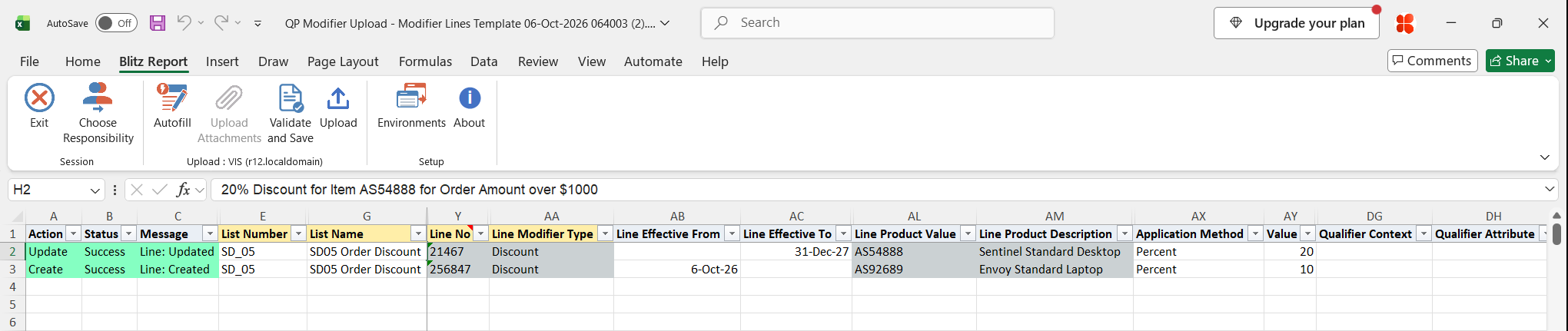
When the request completes, a result report opens listing every uploaded row with its status and a message showing what was done, for example Line: Updated or Line: Created. For new lines, the Line No column shows the line number assigned on upload.
What’s produced
- Modifier lists and modifier lines created or updated, with their price breaks, buy and get products, pricing attributes, excluders, qualifiers and limits.
- Active matching modifier lines end-dated when End Date Matching Modifiers? is Yes.
- A result report listing every row with a status (success or error) and a message.
Common questions
Does this upload maintain price lists?
No. It maintains modifier lists and their lines. Price lists are maintained with the QP Price List Upload.
How does the upload decide between create and update?
It matches modifier lists on List Number and List Version, lines additionally on Line No, and limits on Limit No. A match is updated; otherwise a new record is created. Qualifiers, pricing attributes, price breaks and buy and get products are matched within their line.
Why does my new line have a different Line No?
With Modifier Numbering Automatic, the Line No you enter only groups the rows of the new line; the line is created with a system-generated number shown in the result report. Choose Manual to keep your own numbers.
What happens when End Date Matching Modifiers? is Yes?
When a new line is created and an active line with the same modifier type, level, product, unit of measure, pricing attributes and qualifiers exists in the list, that line is end-dated on the day before the new line’s Line Effective From (or today). If an active matching line already starts on that date, it is updated instead.
Why are list qualifiers and limits not in my download?
The default Modifier Lines Template does not download list-level qualifiers and limits. Use the List Header Template or All Columns.
Can I change the type of an existing modifier list?
No. Create a new list with the required List Type.
Troubleshooting
| Message | Cause | What to do |
|---|---|---|
| A List Header with this Name already exists with a different List Type, PTE Code, or Source System Code | The list number is already used by a list of another type or pricing setup. | Use a different List Number, or the existing list’s List Type and a responsibility with the matching pricing setup. |
| Modifier List Type cannot be changed | The List Type differs from the existing list’s type. | Keep the existing List Type, or create a new list. |
| Operating Unit must be specified for non Global Price Lists | Global List is No and the Operating Unit is empty. | Enter the Operating Unit, or set Global List to Yes. |
| Modifier Line No is required when entering a modifier line | A row with line details has no Line No. | Enter a Line No (any unique text for a new line when Modifier Numbering is Automatic). |
| Line Product Value is invalid | The product value does not exist for the Line Product Attribute. | Pick the value from the list. |
| Could not uniquely identify the Modifier Line to End Date. Multiple matches exist | End Date Matching Modifiers? is Yes and several active lines match the new line. | Download the active lines and end-date the right one by updating its Line Effective To. |
| Cannot override active Modifier List Line. Active Line Start Date (…) is equal to or later than the new Price List Line Start Date (…) | End Date Matching Modifiers? is Yes and the matching active line starts on or after the day before the new line’s Line Effective From. | Use a later Line Effective From for the new line. |
| Price Break Value From is required | A price break row of a Price Break Header line has no Price Break Value From. | Enter the break’s Value From, Application Method and Value. |
| Qualifier Grouping Number, Context, Attribute, Operator and Value From are required when specifying a qualifier | An incomplete qualifier. | Complete all qualifier columns, or clear them. |
| Qualifier Attribute Value From is invalid | The qualifier value does not exist for the qualifier attribute. | Pick the value from the list. |
| Limit Basis, Limit Enforced, Limit Amount, and Limit When Exceeded are required when entering Limits | An incomplete limit. | Complete the limit columns. |
| Qualifier cannot be created when Delete Qualifier Flag is set to Yes | Delete Qualifier is Yes on a qualifier that does not exist (the same applies to the other Delete columns). | Check the qualifier values, or clear the Delete column. |
| Error in prior row for this list line | An earlier row of the same line failed. | Fix the first failing row of the line and upload again. |
| Upload Failed: followed by an Oracle message | Oracle Advanced Pricing rejected the record. | Correct the value named in the message and upload again. |