
QP GSA Pricing Upload creates and updates GSA (government) pricing in Oracle Advanced Pricing from Excel: GSA lists, their price lines (item, unit of measure and GSA price) and the list qualifiers that control who receives the GSA price. Existing qualifiers can also be deleted. Download existing GSA lists to change prices and dates, or add new lists and lines.
When to use it
- Mass-load new GSA price lines (item and government price) into a GSA list.
- Bulk-update GSA prices, effective dates or units of measure on existing GSA list lines.
- Replace current GSA prices with new prices from a future date, with the current lines end dated automatically.
- Create a new GSA list together with its lines and qualifiers in one spreadsheet.
- Add, change or delete the qualifiers of a GSA list.
Before you start
- Access to the upload in Blitz Report, from a responsibility with update access to the GSA lists under pricing security.
- Run the upload from a responsibility where the profiles QP: Pricing Transaction Entity and QP: Source System Code resolve to the pricing transaction entity and source system of your GSA lists, usually Order Fulfillment and Oracle Pricing, for example an Order Management responsibility. The upload takes both from these profiles. Responsibilities of other applications, such as Inventory or Purchasing, often have other values set at application level, and a user-level value overrides them all; if the profiles do not match the GSA lists, or the source system is not valid for the pricing transaction entity, the download returns no rows.
- The items you price exist in the pricing item validation organization.
Step 1 – Set the parameters
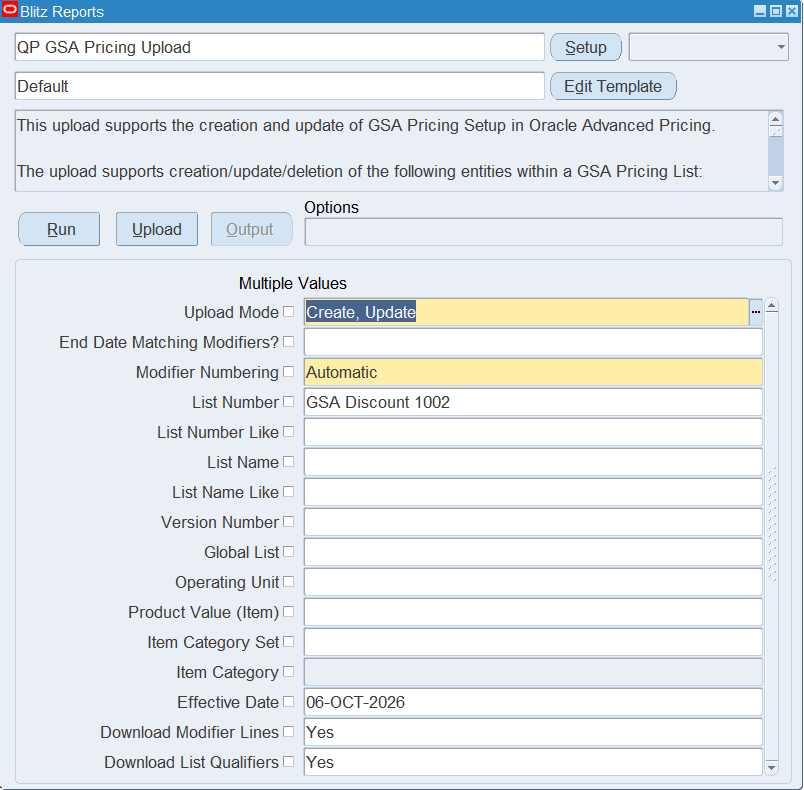
Open QP GSA Pricing Upload in Blitz Report and set the parameters:
| Parameter | Meaning |
|---|---|
| Upload Mode | Create opens an empty sheet to enter new lists, lines and qualifiers; Create, Update downloads the existing GSA lists for editing and lets you add new rows. |
| End Date Matching Modifiers? | Yes downloads the existing lines as new rows (Action Create). Enter the new Value and a later Line Effective From: the upload creates the new line and end dates the matching active line on the day before. Only Automatic modifier numbering is available with this option. |
| Modifier Numbering | Automatic (default) assigns system-generated line numbers to new lines, replacing the Line No in the file; Manual keeps the Line No you enter. |
| List Number, List Number Like | The GSA list number(s) to download, or all list numbers starting with this text. |
| List Name, List Name Like | The GSA list name(s) to download, or all list names starting with this text. |
| Version Number | Restricts the download to this list version. |
| Global List | Yes downloads only global lists, No only lists restricted to an operating unit. |
| Operating Unit | Restricts the download to lists of this operating unit. |
| Product Value (Item) | Downloads only the lines for this item. |
| Item Category Set, Item Category | Downloads only the lines for items assigned to this category. |
| Effective Date | Downloads the lines active on this date. Defaults to today. |
| Download Modifier Lines | Yes (default) downloads the list lines. |
| Download List Qualifiers | Yes (default) downloads the list qualifiers. |
Only active GSA lists are downloaded.
Step 2 – Run to download the Excel file
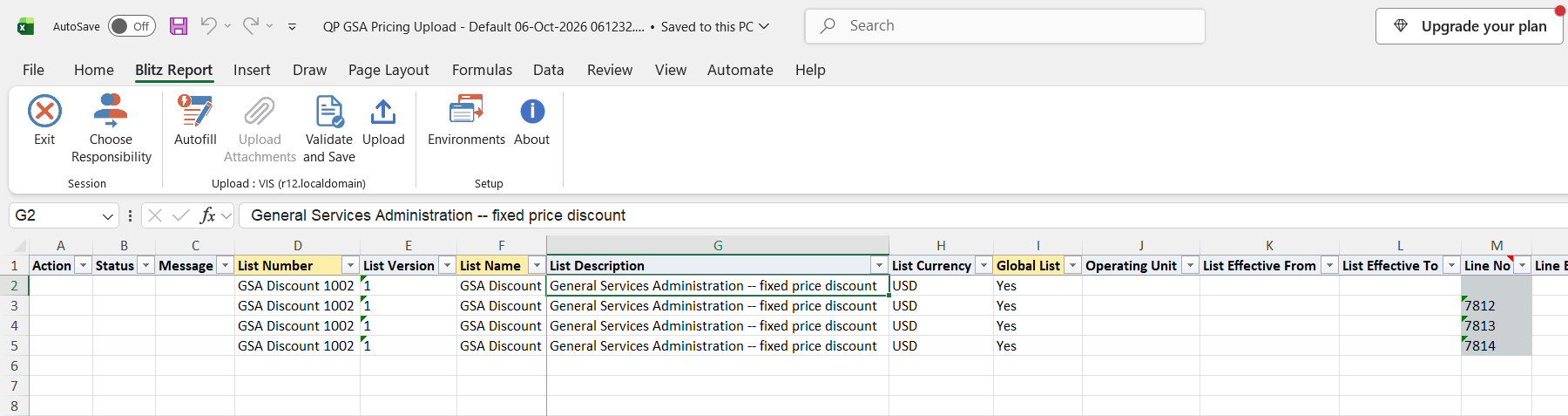
Click Run. The Excel file downloads and opens with the list qualifiers and the list lines of each GSA list in separate rows, or an empty sheet in Create mode.
Step 3 – Enter or change the GSA pricing
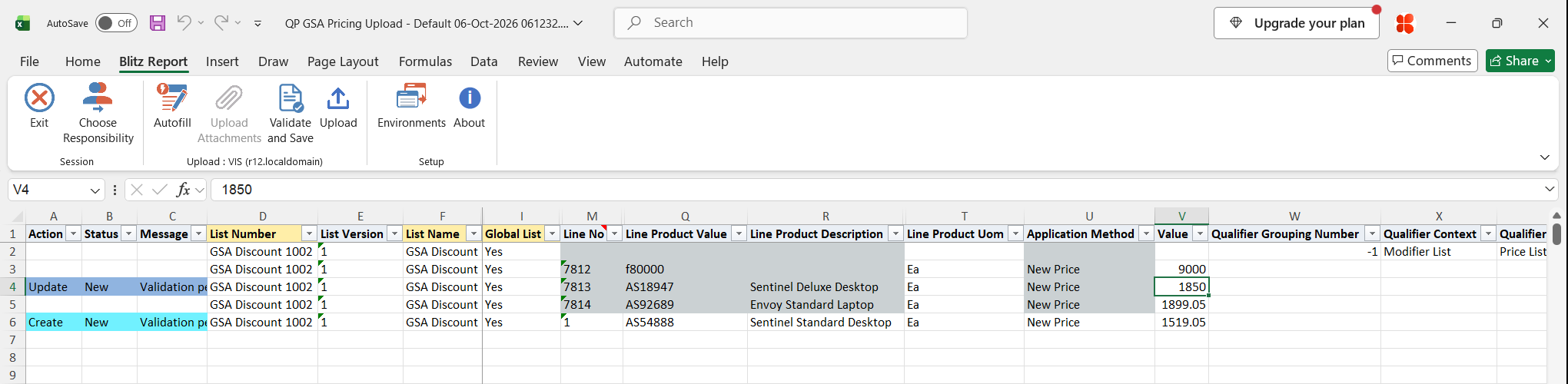
Every row carries the list columns List Number, List Version, List Name, List Currency, Global List and, for a list that is not global, Operating Unit. A list is identified by its List Number and List Version. On a list line, change the Value (the GSA price), Line Product Uom, Line Effective From / Line Effective To or Line Allow Override. To add a line, enter a row with the list columns, a Line No, the item in Line Product Value, the Line Product Uom and the Value. New lines are created as automatic line-level lines with application method New Price. A new row for an item, unit of measure and start date that already exist on the list updates that line instead of creating a duplicate.
Qualifiers are entered at list level with Qualifier Grouping Number, Qualifier Context, Qualifier Attribute, Qualifier Operator and Qualifier Value From (and Qualifier Value To for a range). A qualifier can be entered on the same row as a list line. To remove a qualifier, set Delete Qualifier to Yes on its downloaded row.
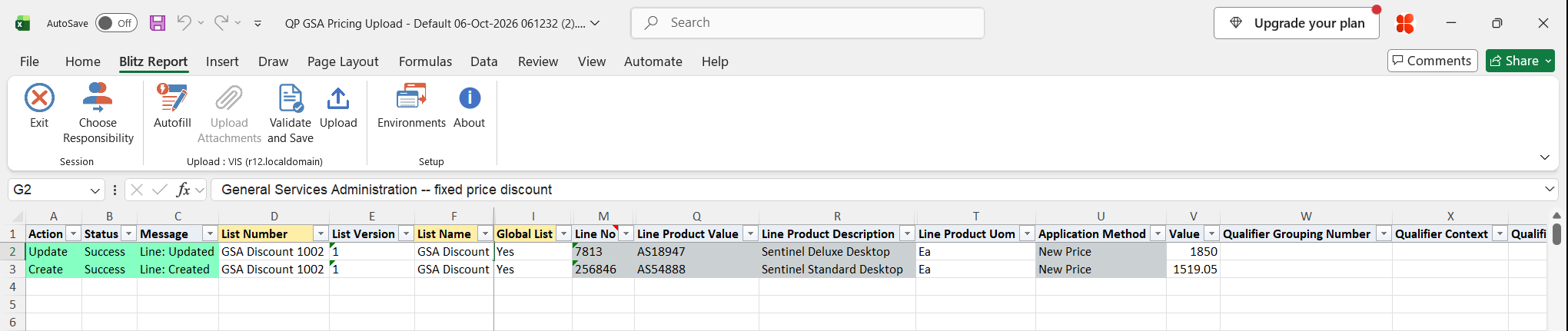
In the example, the GSA price of item AS18947 is lowered to 1850 and a new line is added for item AS54888 at 1519.05.
Step 4 – Validate and Save
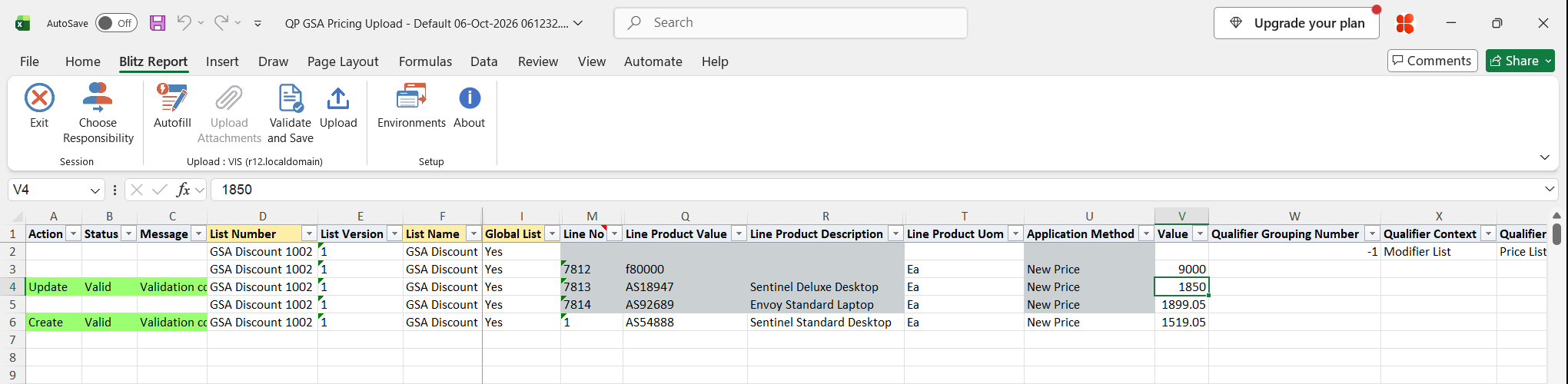
Click Validate and Save. This checks for missing required values and runs the upload’s list validation (for example the Operating Unit against Global List), then saves the file. Correct any rows it flags before uploading.
Step 5 – Upload the file
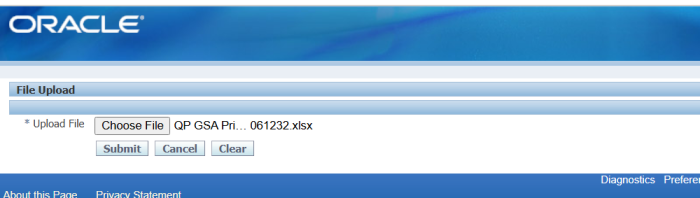
In Blitz Report click Upload and select the saved file. This submits the upload request, which creates or updates the GSA lists, lines and qualifiers through the Oracle Pricing modifier API.
Step 6 – Review the result report
When the request completes, a result report opens listing every uploaded row with its status and message. With Automatic numbering, a new line shows its system-generated Line No.
What’s produced
- GSA lists, list lines and list qualifiers created or updated, and qualifiers deleted.
- With End Date Matching Modifiers?, new GSA lines plus the end dated lines they replace.
- A result report listing every row with a status (success or error) and a message.
Common questions
How does the upload decide whether to create or update a line?
By List Number, List Version and Line No. If the line exists, it is updated, otherwise a new line is created. A new row whose item, unit of measure and start date match an existing line of the list updates that line.
Which column holds the GSA price?
Value. It is the new price of the item; the application method is always New Price.
How do I load a price change from a future date?
Set End Date Matching Modifiers? to Yes, download the list, enter the new Value and the new Line Effective From on the rows you want to change and delete the other rows. The upload creates the new lines and end dates the current lines on the day before. The new start date must be later than the start date of the current line.
Why does the download not show the GSA customer qualifier?
The GSA list’s standard qualifier Customer GSA = Yes is not downloaded, so only your own qualifiers appear.
Can I delete a GSA line or list?
No. Only qualifiers can be deleted. To stop a line, set its Line Effective To; to stop a list, set its List Effective To.
Why is my download empty?
Check that Upload Mode is Create, Update, that the list is active and has lines active on the Effective Date, and that your QP: Pricing Transaction Entity and QP: Source System Code profiles match the GSA lists.
Troubleshooting
| Message | Cause | What to do |
|---|---|---|
| Modifier Line No is required when entering a modifier line | A row with line details has no Line No. | Enter a Line No on every line row. With Automatic numbering any number works for new lines. |
| Operating Unit must be specified for non Global Price Lists | Global List is No and Operating Unit is empty. | Enter the Operating Unit, or set Global List to Yes. |
| Operating Unit can not be specified for Global Price Lists | Global List is Yes and an Operating Unit is entered. | Clear the Operating Unit, or set Global List to No. |
| MOAC Security is not enabled, only Global Price Lists are supported | Global List is No but pricing security is not enabled. | Set Global List to Yes. |
| A List Header with this Name already exists with a different List Type, PTE Code, or Source System Code | The List Number is used by another price or modifier list. | Use a unique List Number for a new GSA list. |
| Line Product Value is invalid | The item does not exist in the pricing item validation organization. | Pick the item from the Line Product Value list. |
| GSA Modifier Line is not unique | Several lines of the list have the same item, unit of measure and start date as the new row. | Download the list and update the existing line by its Line No. |
| Cannot override active Modifier List Line. Active Line Start Date (…) is equal to or later than the new Price List Line Start Date (…) | With End Date Matching Modifiers? the new Line Effective From is not after the start of the current line. | Enter a Line Effective From later than the current line’s start date. |
| Could not uniquely identify the Modifier Line to End Date. Multiple matches exist | More than one active line matches the new line. | End date the duplicate lines first, or update the lines directly. |
| Modifier List no longer exists / Modifier Line no longer exists / Qualifier no longer exists | The record was deleted in Oracle after the download. | Download the data again and redo your changes. |
| Qualifier cannot be created when Delete Qualifier Flag is set to Yes | Delete Qualifier is Yes on a qualifier that does not exist. | Clear Delete Qualifier, or set it only on downloaded qualifiers. |
| Upload Failed: followed by Oracle messages | The Oracle Pricing API rejected the row. | Correct the data according to the Oracle message. |