
PA Transaction Upload loads pre-approved expenditure items into Oracle Projects from Excel – labor hours, usages, expenses, supplier costs and other cost transactions from external cost collection systems. Each row is staged in the Projects transaction interface, and Transaction Import then creates the expenditures and expenditure items for each transaction source and batch. The upload creates new transactions; it does not change existing expenditure items.
When to use it
- Import costs from external or legacy systems (third-party payroll, timekeeping, usage or expense feeds) as project expenditure items.
- Load labor, usage, miscellaneous or supplier-cost transactions in bulk against projects and tasks.
- Bring in accounted transactions that already carry their GL date and debit and credit accounts.
- Post negative transactions or accruals that reverse in the next period for period-end adjustments.
- Stage transactions only, and run Transaction Import later from Oracle Projects.
Before you start
- Your responsibility has access to the operating unit, and Projects is implemented for it.
- An active Transaction Source for the kind of cost you load. Its setup decides what each row needs: costed sources need a Raw Cost, accounted sources a GL Date with debit and credit accounts, and sources that disallow duplicate references a unique Original Transaction Ref.
- The projects and tasks exist and are chargeable on the expenditure item date, and the Projects and GL periods for that date are open.
- Employees on labor and expense rows have an active primary assignment with a job.
Step 1 – Set the parameters
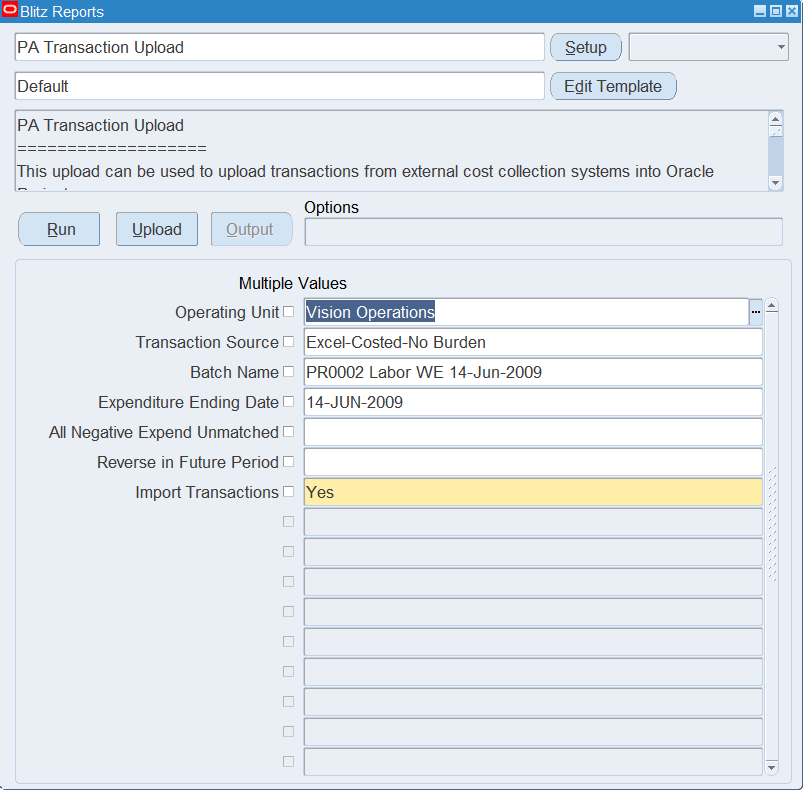
Open PA Transaction Upload in Blitz Report and set the parameters. They only default values into new rows of the Excel file:
| Parameter | Meaning |
|---|---|
| Operating Unit | Defaults the Operating Unit of each row. Lists the operating units with Projects implemented. |
| Transaction Source | Defaults the Transaction Source, and with it the Expnd Type Class (the source’s expenditure type class, for example Straight Time). |
| Batch Name | Defaults the Batch Name. Transaction Import processes the rows by transaction source and batch. |
| Expenditure Ending Date | Defaults the Expnd Ending Date to the week-ending date of the expenditure week that contains this date, following the operating unit’s expenditure cycle. |
| All Negative Expend Unmatched | Yes defaults Negative Txn Flag to Yes on rows with a negative Quantity, so they are imported as unmatched negative transactions instead of reversing a matching original item. |
| Reverse in Future Period | Yes defaults Accrual Flag to Yes on every row, so the transactions are imported as accruals that reverse in the next period. |
| Import Transactions | Yes (default) runs Transaction Import right after the rows are staged. No only stages them in the interface for a later Transaction Import run. |
Step 2 – Run to download the Excel file
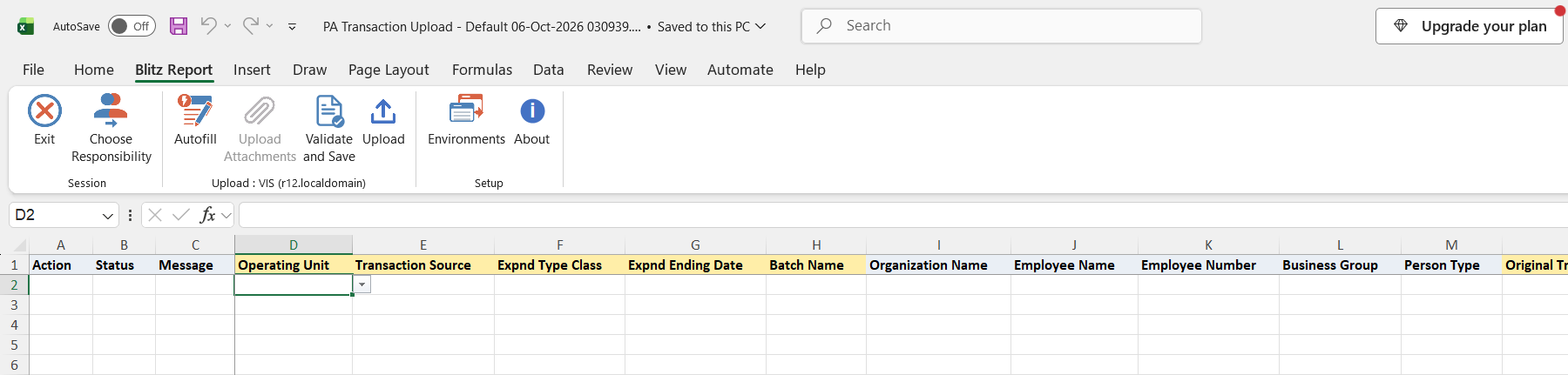
Click Run. The Excel file downloads and opens with an empty sheet for entering new transactions.
Step 3 – Enter the transactions
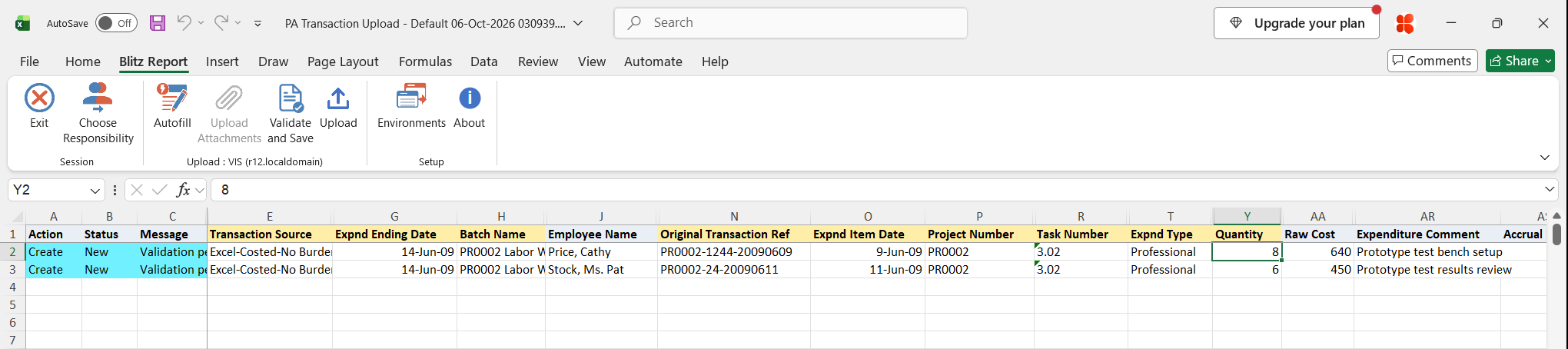
Enter one row per expenditure item. Each row needs the Operating Unit, Transaction Source, Expnd Type Class, Expnd Ending Date and Batch Name (defaulted from the parameters), an Original Transaction Ref that identifies the transaction in the source system, the Expnd Item Date, Project Number, Task Number, Expnd Type and Quantity. The Expnd Item Date must fall within the expenditure week ending on the Expnd Ending Date.
- Labor (Straight Time, Overtime) and expense report rows need the employee: pick the Employee Name, and Employee Number, Business Group and Person Type default. Other rows, except supplier invoices, need an employee or an Organization Name.
- Usage rows need a Non Labor Resource; its Non Labor Org defaults.
- Enter Raw Cost for costed sources and Burdened Cost for sources that allow burdening. For a currency other than the ledger currency, enter the Currency and, on accounted sources, the Acctd Exchange Rate Type and Date (and the rate for a User rate type).
- Accounted sources also need the Gl Date, Debit Acct, Credit Acct and Acctd Raw Cost.
- Optionally enter an Expenditure Comment, the Assignment Name and Work Type Name, or the supplier and purchase order columns for contingent worker costs.
Step 4 – Validate and Save
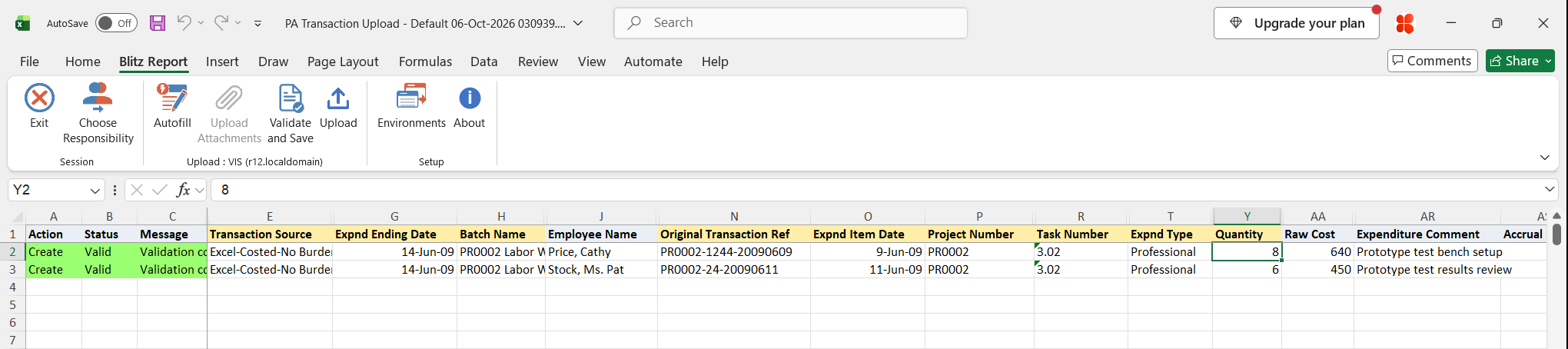
Click Validate and Save. This checks for missing required values and runs the upload’s validation against the transaction source rules (week-ending date, duplicate reference, employee, costed, burdened and accounted rules, currency and usage requirements), then saves the file. Correct any rows it flags before uploading.
Step 5 – Upload the file
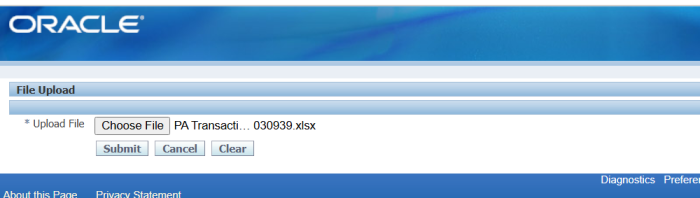
In Blitz Report click Upload and select the saved file. This submits the upload request, which validates the project, task and employee of each row, inserts the rows into the transaction interface and, unless Import Transactions is No, runs Transaction Import.
Step 6 – Review the result report
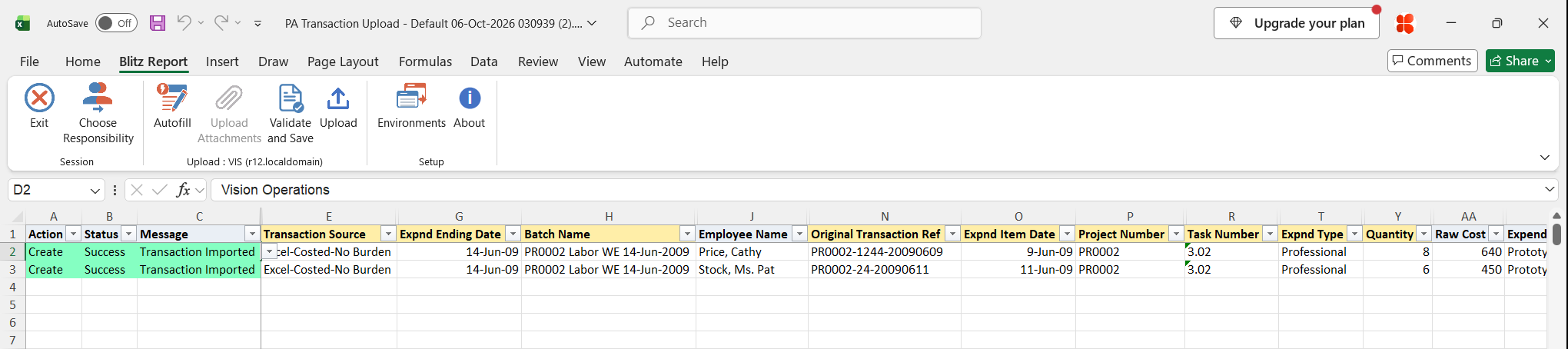
When the request completes, a result report opens listing every uploaded row with its status and message. Imported rows show Transaction Imported with the created expenditure item’s details; rows that Transaction Import rejected show the rejection reason.
What’s produced
- Pre-approved expenditure items in Oracle Projects, grouped into expenditures by the transaction source and batch, or staged interface rows when Import Transactions is No.
- A result report listing every row with a status (success or error) and a message.
Common questions
Does the upload create the expenditure items directly?
No. It writes the rows to the Projects transaction interface and then runs Transaction Import, which applies the standard Oracle Projects validation and creates the expenditure items.
Can I change or reverse an item that is already imported?
Not by editing it: the upload only creates transactions. To reverse an item, upload a negative transaction with its reference in Reversed Orig Transaction Ref, or adjust it in Oracle Projects.
How are duplicates prevented?
If the transaction source does not allow duplicate references, Validate and Save rejects a row whose Original Transaction Ref already exists on an expenditure item of that source.
Which Expnd Ending Date do I need?
The week-ending date of the operating unit’s expenditure cycle for the week of the item date. Set the Expenditure Ending Date parameter to any date in that week and the column defaults correctly.
What happens with Import Transactions = No?
The rows stay pending in the transaction interface. Run Transaction Import in Oracle Projects for the transaction source and batch to create the items.
Troubleshooting
| Message | Cause | What to do |
|---|---|---|
| Expenditure Ending Date is not a valid Week Ending Date | The Expnd Ending Date is not the last day of an expenditure week for the operating unit. | Use the defaulted date, or the week-ending date of the item’s week. |
| Expenditure Item Date cannot be later than the Expenditure Ending Date. | The Expnd Item Date is after the Expnd Ending Date. | Correct the item date, or use the ending date of the item’s week. |
| An expenditure item with this Original Transaction Reference already exists. | The source does not allow duplicate references and the reference is already used. | Use a unique Original Transaction Ref, or check that the item was not already imported. |
| Transaction Source is invalid. | The source does not exist or is not active. | Pick an active Transaction Source from the list. |
| Expnd Type Class is invalid | The class is not a valid expenditure type class. | Pick the Expnd Type Class from the list, or let it default from the source. |
| Employee number is mandatory | A labor or expense report row has no employee. | Enter the Employee Name or Employee Number. |
| Employee or organization is mandatory. | A row of another class has neither an employee nor an organization. | Enter an employee or the Organization Name. |
| Invalid Employee | No employee with that number and name has a primary assignment with a job on the Expnd Ending Date. | Check the employee and their assignment, or the Organization Name and Business Group entered. |
| Raw Cost is required for Costed Transactions. | The source is costed and Raw Cost is empty. | Enter the Raw Cost. |
| Burdened Cost is not allowed for this Transaction Source. | Burdened Cost was entered for a source that does not allow burdening. | Clear Burdened Cost, or use a burdened source. |
| Burdened Cost is required for this Transaction Source. | The source allows burdening, or the row is a burden transaction, and Burdened Cost is empty. | Enter the Burdened Cost. |
| GL Date, Debit Account and Credit Account are required for Accounted Transactions. | The source is accounted and the GL accounting columns are incomplete. | Fill Gl Date, Debit Acct and Credit Acct. |
| Acctd Raw Cost is required for Non-Burdened Accounted Transactions. | An accounted source row has no Acctd Raw Cost. | Enter the Acctd Raw Cost. |
| Acctd Rate Type and Acctd Rate Date is required for this transaction. | A foreign-currency row of an accounted source has no exchange rate type or date. | Enter Acctd Exchange Rate Type and Acctd Exchange Rate Date. |
| Non Labor Resource and Non Labor Org are required for Usage Transactions. | A usage row is missing its resource or organization. | Pick the Non Labor Resource and its Non Labor Org. |
| Unaccounted Expense report transactions are not allowed. | An expense report row uses a source that is not accounted. | Use an accounted transaction source for expense reports. |
| Negative Accrual Transactions are not permitted in this Operating Unit. | A negative row with Accrual Flag Yes in an operating unit that does not allow negative accruals. | Set Accrual Flag to No, or post a positive accrual. |
| Invalid Project / Invalid Task | The project is not chargeable in the operating unit, or the task is not a task of that project. | Pick the Project Number and Task Number from the lists. |
| Transaction Import has not been processed | The row was staged but Transaction Import did not process it. | Check the upload request log, then run Transaction Import for the source and batch. |
| One or more related expenditure items is in error | Transaction Import rejected another row of the same expenditure, so the whole expenditure was rejected. | Fix the rejected row of that expenditure and upload the rows again. |