
PA Task Upload creates and updates Oracle Projects tasks from Excel: top tasks and subtasks in the work breakdown structure of existing projects, with their dates, organization, task manager, classification, flags, billing, burden and transfer price schedules and descriptive flexfield values. Each row is created as a new task or updated as an existing one, depending on whether its task number already exists in the project.
When to use it
- Build out the work breakdown structure of an existing project with new top tasks and subtasks.
- Add several subtasks under existing parent tasks in one pass.
- Mass-update task attributes such as names, descriptions, dates, organization, task manager, service type or work type.
- Apply consistent billing, burden and transfer price schedules across many tasks at once.
- Download the tasks of one or more projects, edit them in Excel and upload the changes instead of editing them one at a time.
Before you start
- Access to the upload in Blitz Report under a Projects responsibility for the operating unit of the projects.
- The projects already exist. The upload does not create projects.
- For projects with workplan versioning enabled, the project has a working structure version that is not locked by another user. Tasks are added to and updated in that working version.
Step 1 – Set the parameters
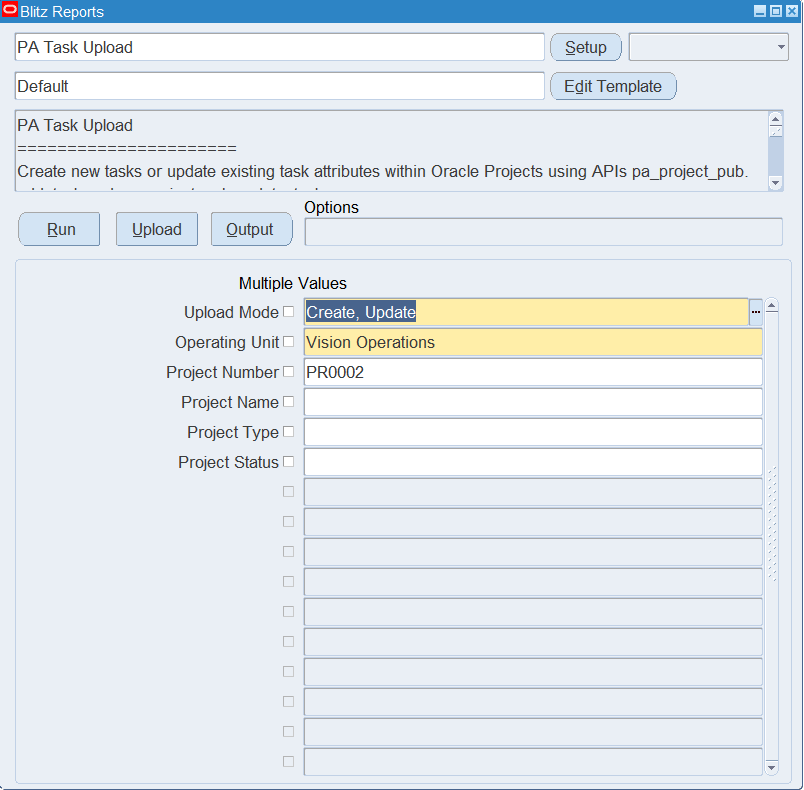
Open PA Task Upload in Blitz Report and set the parameters:
| Parameter | Meaning |
|---|---|
| Upload Mode | Create (default) opens an empty sheet to enter new tasks; Create, Update downloads the existing tasks for editing and lets you add new ones. |
| Operating Unit | The operating unit of the projects (required). |
| Project Number | Downloads the tasks of this project. |
| Project Name | Downloads the tasks of the project with this name. |
| Project Type | Restricts the download to projects of this type. |
| Project Status | Restricts the download to projects with this status. |
Step 2 – Run to download the Excel file
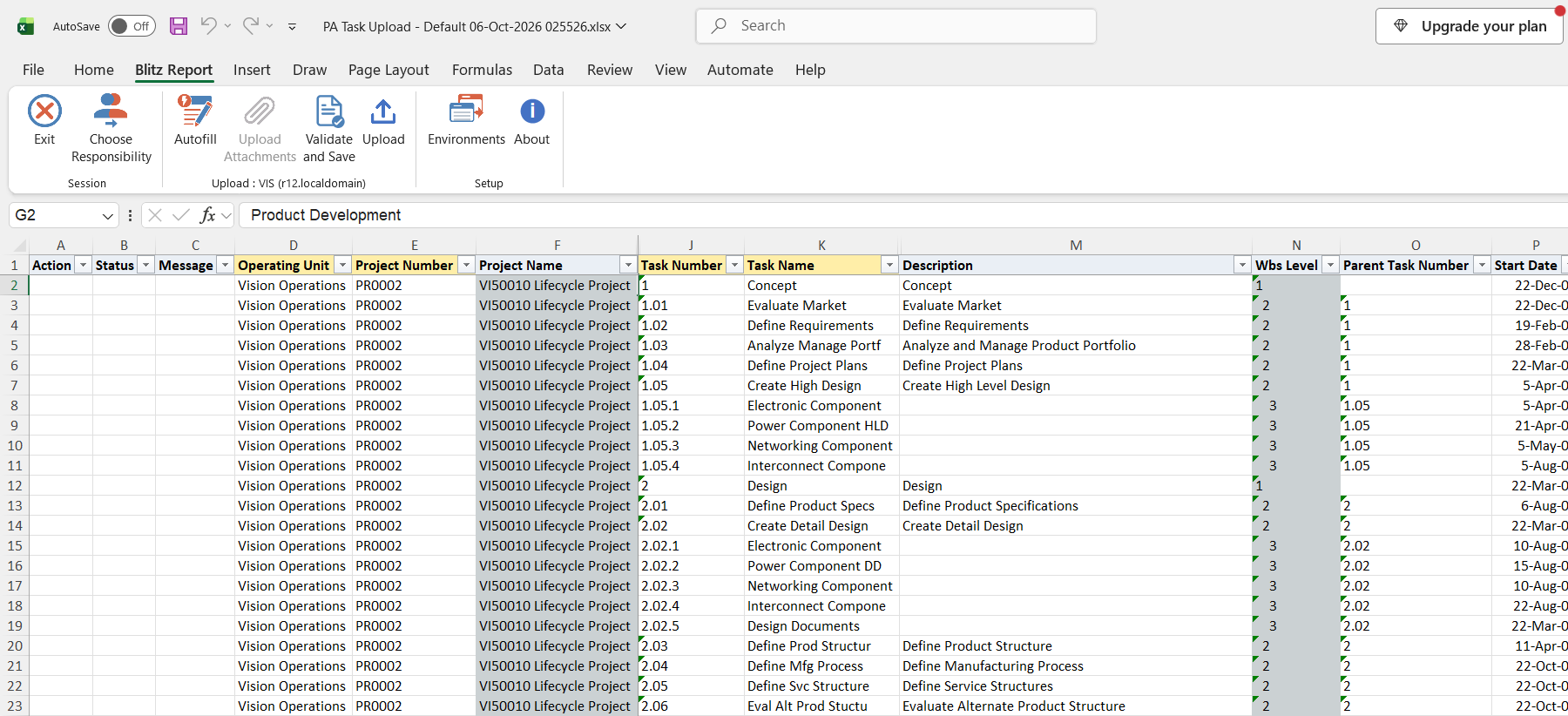
Click Run. The Excel file downloads and opens with one row per existing task in work breakdown structure order, showing each task’s WBS level and parent task number, or an empty sheet in Create mode.
Step 3 – Enter or change the tasks
Operating Unit, Project Number, Task Number and Task Name are required. The project’s name, type, status and manager fill in from the Project Number. The Task Number identifies the task and cannot be changed on a downloaded row; change the Task Name (up to 20 characters), Long Task Name, Description, Start Date, End Date, Organization, Task Manager, Service Type, Work Type or any of the flag, schedule and rate columns.
To add a task, enter a row with a new Task Number. Leave Parent Task Number blank for a top task, or enter the number of an existing task in the same project to create a subtask. Flag columns such as Allow Charges and Billable accept Yes; a blank flag leaves the current setting unchanged.
Step 4 – Validate and Save
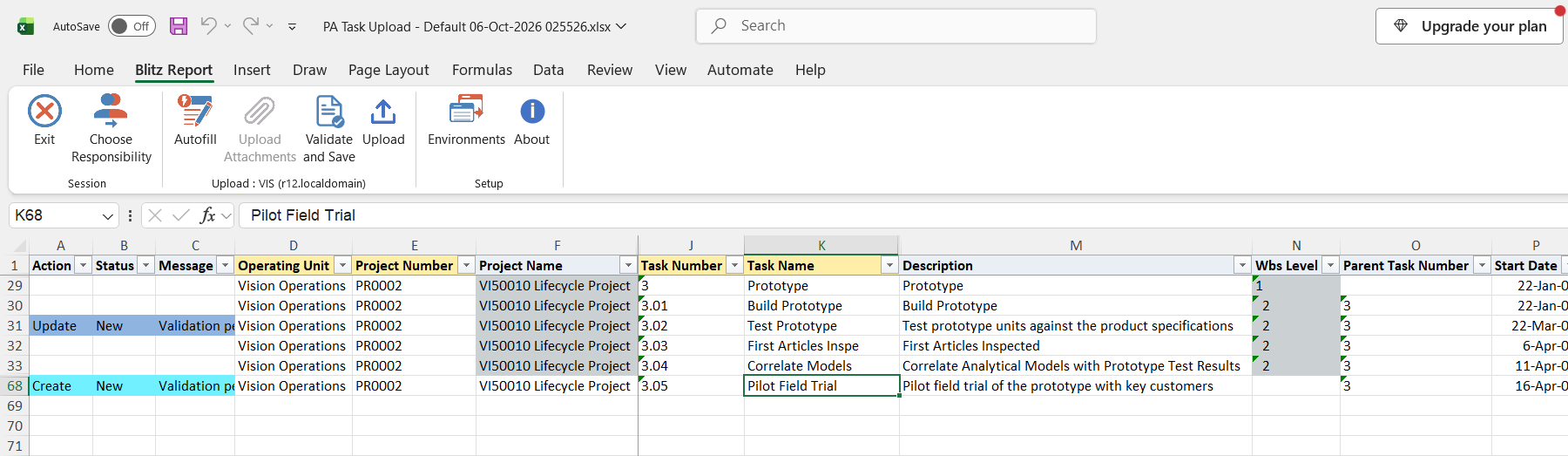
Click Validate and Save. This checks for missing required values and saves the file. Correct any rows it flags before uploading.
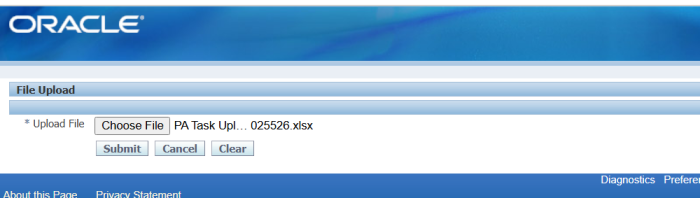
Step 5 – Upload the file
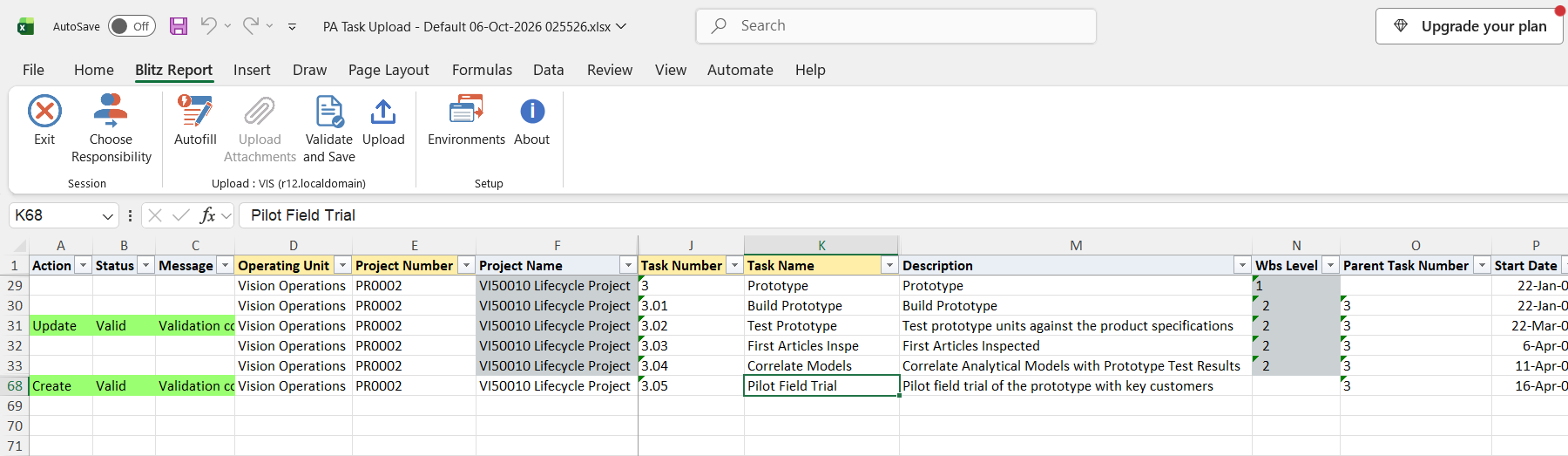
In Blitz Report click Upload and select the saved file. This submits the upload request, which adds each new task and updates each changed task.
Step 6 – Review the result report
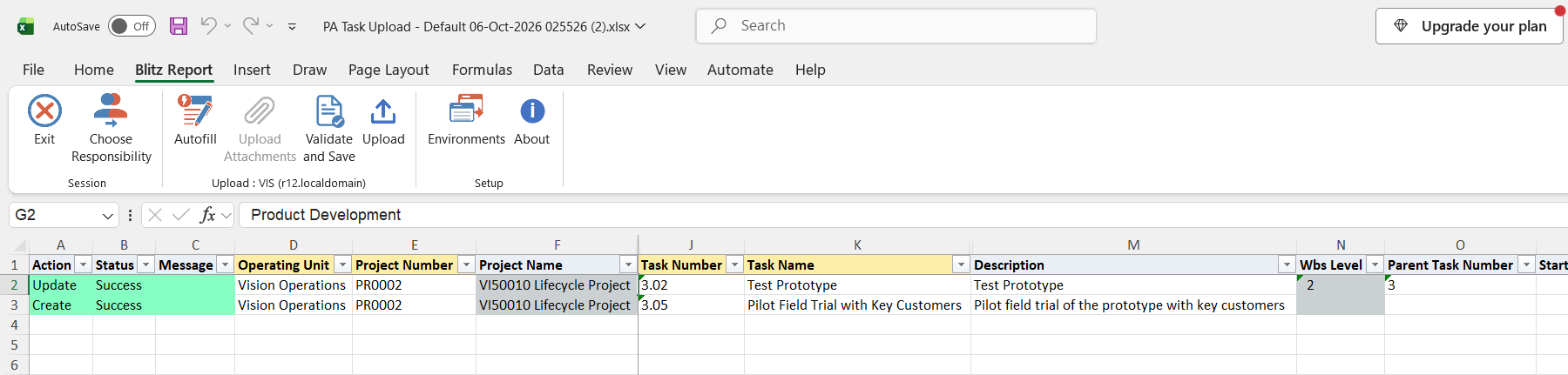
When the request completes, a result report opens listing every uploaded row with its status and message.
What’s produced
- New top tasks and subtasks, and updated task attributes, in the projects’ work breakdown structure. For projects with workplan versioning, the changes are made in the working structure version.
- A result report listing every row with a status (success or error) and a message.
Common questions
Can I create a project with this upload?
No. It only adds and updates tasks of existing projects.
Can I delete a task?
No. There is no delete action.
Can I change a task number?
No. The Task Number is the key used to find the task; a different number creates a new task.
How do I make a subtask?
Enter the parent’s task number in Parent Task Number. The parent must already be a task of the same project.
When are new tasks of a versioned project available for charging?
For projects with workplan versioning, new tasks are added to the working structure version. Publish the working version in Projects to make them part of the financial structure, after which they also appear in the download.
Can I switch a flag such as Billable off?
No. The flag columns accept Yes, and a blank flag keeps the task’s current setting.
Troubleshooting
| Message | Cause | What to do |
|---|---|---|
| Parent task number … not found in project. | The Parent Task Number is not a task of that project. | Correct the parent task number, or create the parent task first. |
| The structure version cannot be updated. Please specify a different structure version. | The project’s structure version cannot take new tasks, for example because its working version is locked by another user or the project has workplan versioning without a working version. | In Projects, have the working version unlocked, or create a working version from the Workplan tab, then upload again. |
| MOAC initialization failed | The operating unit context could not be set for the row’s operating unit. | Run the upload under a responsibility with access to that operating unit. |
| API returned an unspecified error. | Oracle Projects rejected the row without a message. | Check the row’s values against the project setup, for example dates within the project dates and an organization that is valid for project tasks. |