
PA Project Upload creates and updates Oracle Projects projects from Excel: the project header, project manager, primary customer, dates, currency and billing setup, flags, and descriptive flexfield attributes. New projects are copied from a project template you choose, and existing projects are downloaded for editing and updated with only the values you change.
When to use it
- Mass-create new projects from a standard project template with consistent header and billing setup.
- Bulk-update header attributes such as status, dates, description, organization, billing setup and flags on many projects.
- Reassign the project manager across a set of projects.
- Set the primary customer for many new projects at once.
- Populate project descriptive flexfield attributes in bulk.
Before you start
- A responsibility with Blitz Report and project access to the operating unit, such as an Oracle Projects responsibility.
- An active project template exists in the operating unit for every new project. Its quick entry fields marked as required decide which columns a new project must fill.
- The project manager is an active employee.
Step 1 – Set the parameters
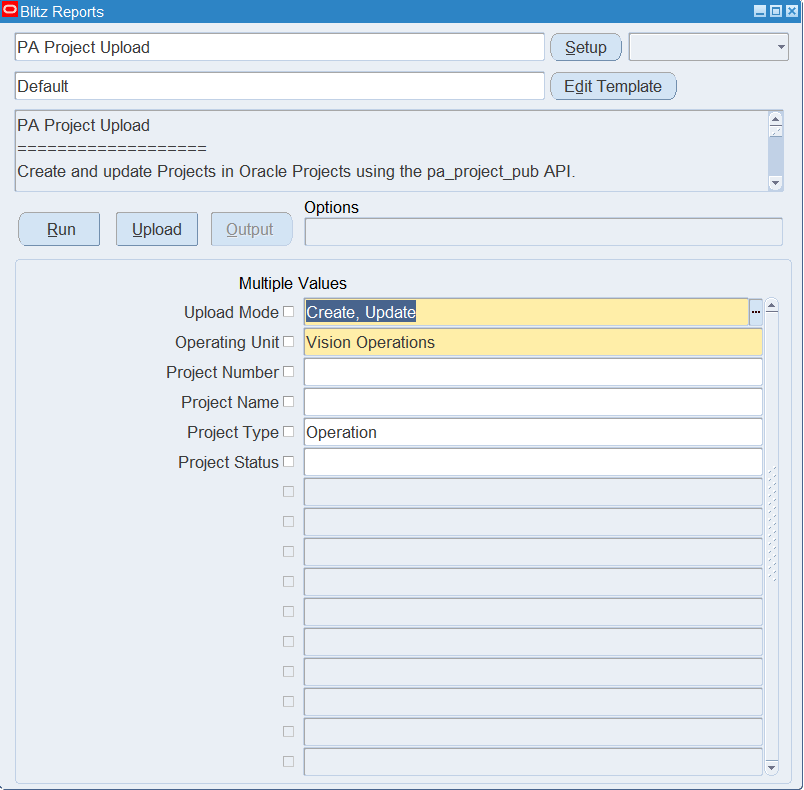
Open PA Project Upload in Blitz Report and set the parameters:
| Parameter | Meaning |
|---|---|
| Upload Mode | Create (default) opens an empty sheet for new projects; Create, Update downloads existing projects for editing and lets you add new ones. |
| Operating Unit | The operating unit of the projects (required). |
| Project Number | Downloads this project only. |
| Project Name | Downloads the project with this name. |
| Project Type | Downloads projects of this project type. |
| Project Status | Downloads projects with this status. |
Project templates are never downloaded, only projects.
Step 2 – Run to download the Excel file
Click Run. The Excel file downloads and opens with one row per project, showing its template, current project manager, primary customer and header settings, or an empty sheet in Create mode.
Step 3 – Enter or change the projects
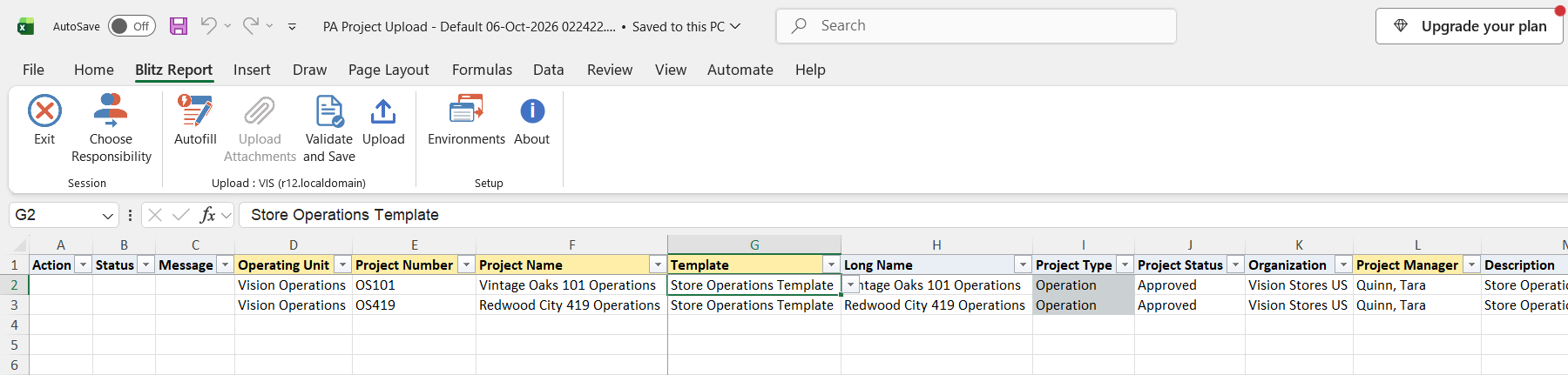
To change a downloaded project, overwrite the values you want to change, for example the Description, Long Name, Project Status, Completion Date or Project Manager. Only changed values are sent to Oracle; clearing a cell clears that value on the project.
To create a project, add a row with the Operating Unit, a new Project Number (up to 25 characters), the Project Name (up to 30 characters) and the Template to copy from. Entering the Template fills the other columns with the template’s values, such as Project Type, Project Status, Organization, Project Manager, dates, currency and billing setup. Overwrite what differs for the new project, at least the Start Date, and check that the Completion Date copied from the template is not before it. Customer Name becomes the project’s primary customer, and Pm Product Code (default Primavera Systems) records the external project management system that owns the project.
Step 4 – Validate and Save
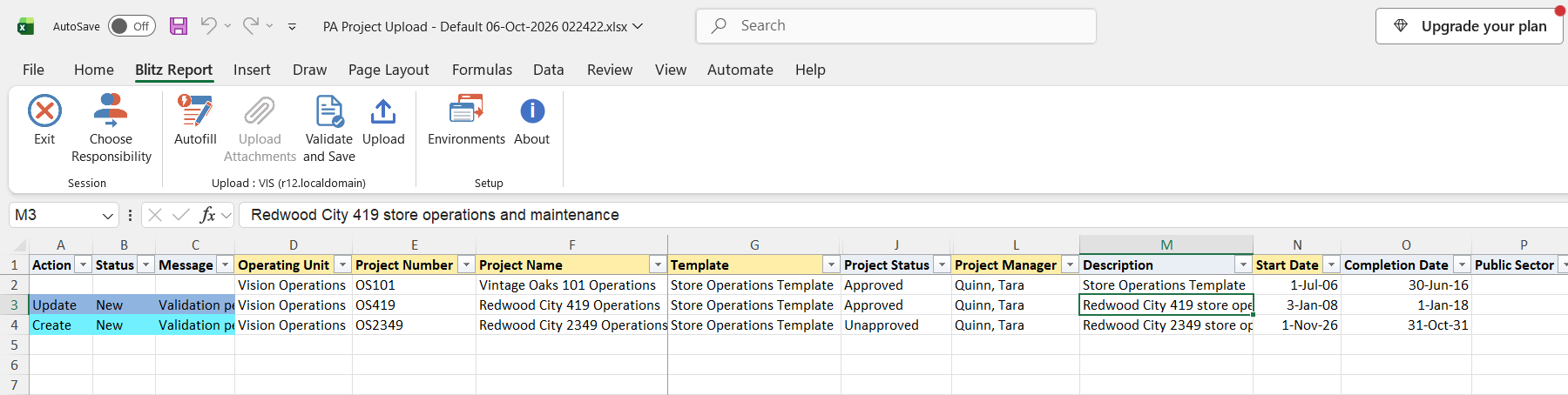
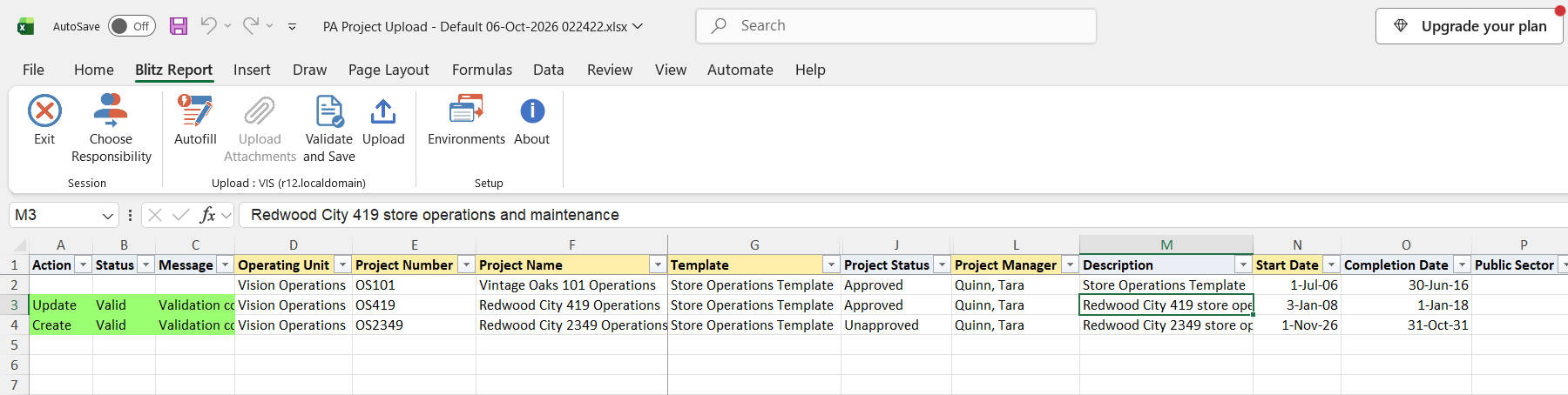
Click Validate and Save. This checks for missing required values, the field lengths and the fields the template requires, then saves the file. Correct any rows it flags before uploading.
Step 5 – Upload the file
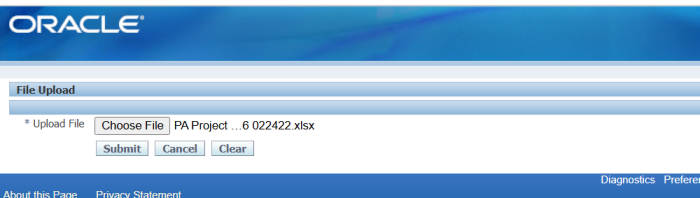
In Blitz Report click Upload and select the saved file. This submits the upload request, which creates or updates each project.
Step 6 – Review the result report
When the request completes, a result report opens listing every uploaded row with its status and message, for example Project created: <project number> or Project updated: <project number>, followed by a note when the project manager was replaced or assigned.
What’s produced
- New projects copied from their template, with their project manager, primary customer and header setup.
- Existing projects updated with the changed values, and project manager changes recorded with dates.
- A result report listing every row with a status (success, warning or error) and a message.
Common questions
How does the upload decide between create and update?
A row updates the project if a project with that Project Number already exists in the operating unit, otherwise it creates a new project from the Template.
What happens when I change the project manager?
On an existing project the current project manager is end-dated as of yesterday and the new one is assigned from today. On a new project, a manager different from the template’s replaces the template’s manager from the project start date.
Can I change the customer or the Pm Product Code of an existing project?
No. Customer Name and Pm Product Code are applied when the project is created and are not changed by an update.
Which Pm Product Code should I use?
Keep the default Primavera Systems unless the project is maintained in another external system. Do not use Microsoft Project: it prevents later date updates on the project (Oracle bug 12954344).
Can I add tasks with this upload?
No. New projects get the tasks of their template. Use PA Task Upload to create and update tasks.
Where are the descriptive flexfield columns?
The Default template shows all columns except the descriptive flexfield attributes. Run the upload without a template to include the Attribute Category and attribute columns.
Troubleshooting
| Message | Cause | What to do |
|---|---|---|
| Required for template: … | The template marks the listed fields (Organization, Project Manager, Description, start date, finish date or customer) as required and they are empty. | Fill the listed columns. |
| Project Number exceeds 25 characters, Project Name exceeds 30 characters, Long Name exceeds 240 characters, Description exceeds 250 characters | A value is longer than Oracle Projects allows. | Shorten the value. |
| Template is required for project creation. | A new project row has no Template. | Select an active project template of the operating unit. |
| MOAC initialization failed | Your responsibility has no access to the row’s operating unit. | Upload from a responsibility with access to the operating unit. |
| DFF validation: … | A descriptive flexfield value is not valid for the project flexfield. | Correct the Attribute Category or attribute value. |
| … (PM creation failed: …), (New PM creation failed: …), (PM replace failed: …) | The project was saved, but the project manager change was rejected, so the row ends with a warning. | Check that the project manager is an active employee with a valid assignment on the start date, and correct the manager in Oracle Projects or upload the row again. |