
1 Why your own skills
2 How a skill is written
2.1 Ask for a skill
2.2 Answer the interview
2.3 Reports found on your own instance
2.4 The skill, written into a worksheet
2.5 Save the skill
2.6 Run it
3 Change a shipped skill
4 Security and control
5 Share skills with your team
6 Getting started
Introduction
The Blitz Report AI skills library gives Microsoft 365 Copilot in Excel and Claude in Excel a tested method for common Oracle E-Business Suite tasks: period close readiness, payables holds, stock levels, reconciliations, collections. Each skill knows which Blitz Reports to run, which checks to apply and what the result looks like.
Every finance and operations team also has questions of its own, with its own reports, its own thresholds and its own way of presenting the answer. The Blitz Report Skill Author writes those skills for you. You describe the task in a conversation in Excel; the skill author asks what it needs, looks the reports and parameters up on your own Oracle EBS instance through the Blitz Report Excel add-in, and writes the complete skill into a worksheet. Save it, and from then on Copilot or Claude answers that question with your method, the same way every time.
No programming is involved, and nothing is installed on the EBS server beyond Blitz Report.
The following video shows a stock optimization review skill being written and run in Copilot in Excel.
1 Why your own skills
A question that comes up every month is usually answered by a prompt typed again each time, worded a little differently and answered a little differently. A skill turns it into a method:
- The same method on every run: the reports, parameters, thresholds and checks are written down once, so the result does not depend on how the question is phrased.
- Your own rules: dead stock after six months or after twelve, holds older than 30 days, a materiality floor. The thresholds are yours, and the output shows them as its assumptions.
- Your own reports: the custom Blitz Reports in your library are found and used like the standard ones.
- Readable: a skill is a short text file in plain language, so a controller or an auditor can read exactly what it does.
- Shared: the skill is saved once and handed to colleagues, so the whole team works with the same method.
2 How a skill is written
The example in the video is an inventory planner who wants a repeatable stock optimization review for warehouse M1.
2.1 Ask for a skill
Open a new workbook, log in to Blitz Report with the Excel add-in under the responsibility the task needs, and ask in your own words, for example:
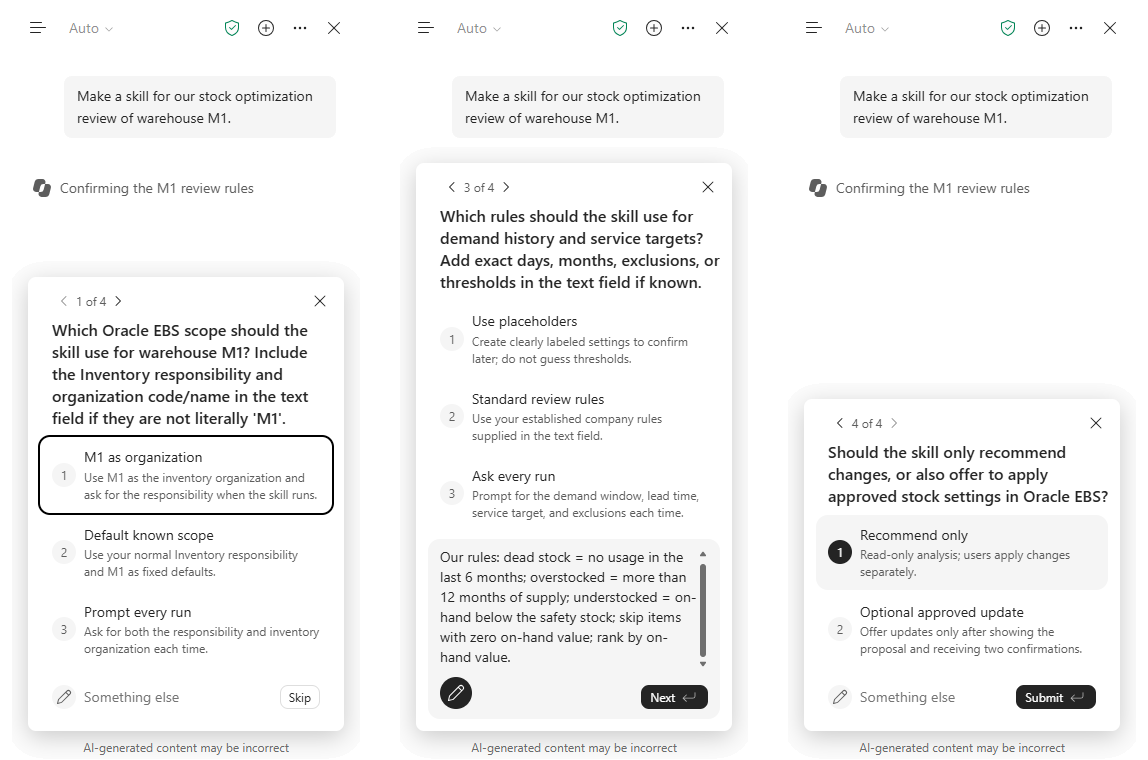
- “Make a skill for our stock optimization review of warehouse M1.”
- “Turn my monthly payables aging check into a skill.”
- “Customise the holds analysis to flag holds older than 30 days.”
- “Add our own receivables report to the collections skill.”
2.2 Answer the interview
Before it writes anything, the skill author asks, in one round, only what it does not know yet:
- the question the skill answers, and two or three ways you would ask it;
- the scope: the module and responsibility, and the inputs every run needs, such as the organization, operating unit, ledger or period, and which of them may default;
- what comes back: a ranked list, a red, amber and green scorecard, a dashboard or a count, and the decision you take with it;
- your rules and thresholds;
- whether the skill should only recommend, or also change data in Oracle EBS.
In the example the rules are one sentence: dead stock is no usage in the last six months, overstocked is more than twelve months of supply, understocked is on-hand below the safety stock, items with zero on-hand value are skipped, and the result is ranked by on-hand value. The skill recommends only. A threshold you do not know yet is never guessed: it goes into the skill as a clearly labelled placeholder, to be confirmed later.
2.3 Reports found on your own instance
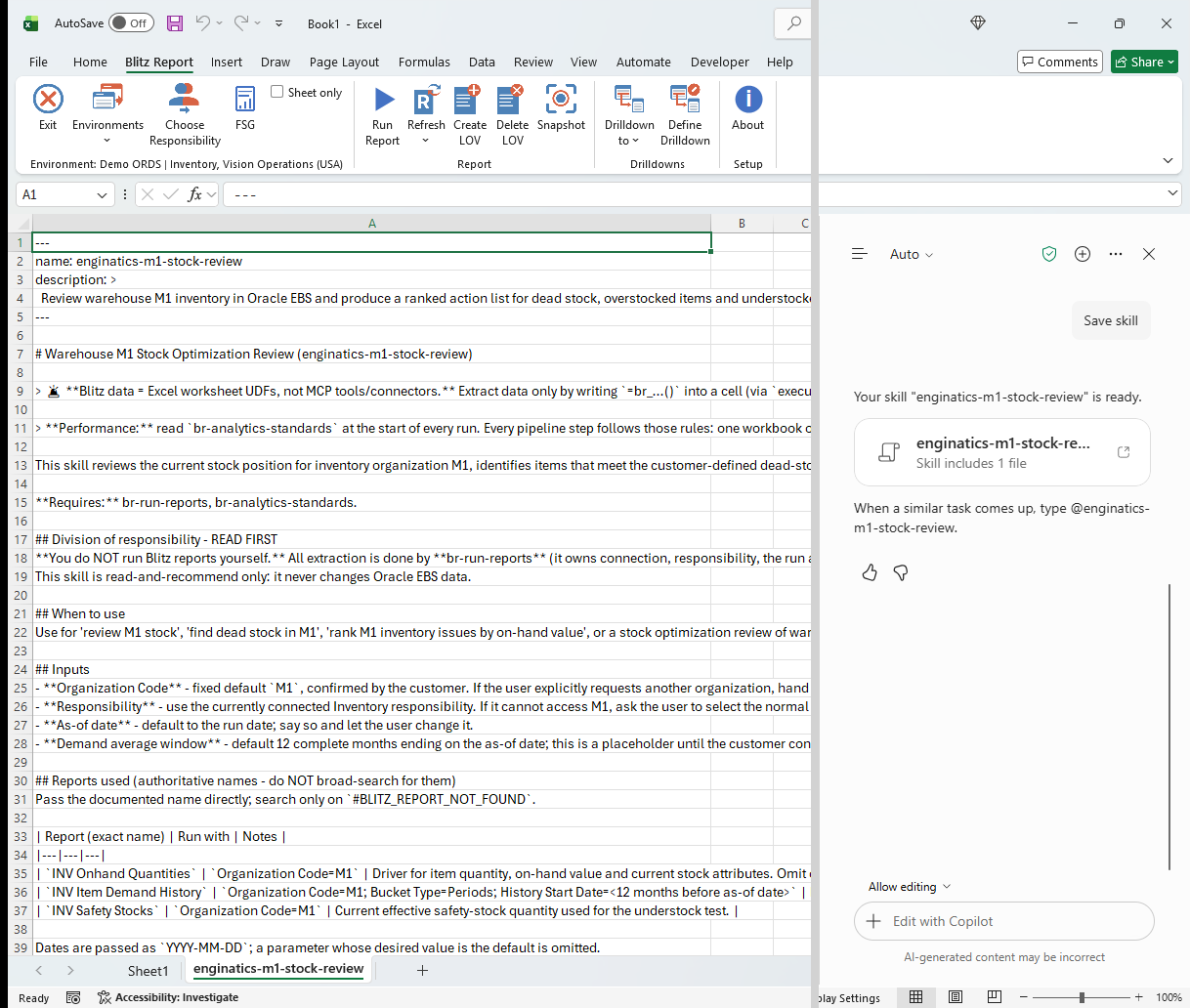
The skill author looks every report it needs up on your instance through the Blitz Report add-in: the exact report names, the exact parameter spellings, which parameters are required, and the exact list values for anything the skill fixes, such as a status or a period type. For the stock review it picks INV Onhand Quantities, INV Item Demand History and INV Safety Stocks. Your own custom reports are found the same way.
No report is run while the skill is written, and no data from your instance goes into the skill: it holds report names, parameter names and your settings only.
2.4 The skill, written into a worksheet
The skill author writes the complete skill into a new sheet named after it, one line per row, in the format of the shipped skills:
- a name, and a description containing your own trigger phrases, which is how Copilot or Claude knows when to use the skill;
- a table of the reports used, with their exact names and the parameters passed;
- a configuration section with every threshold, each marked as confirmed by you or as a placeholder;
- the steps of the analysis, built as Excel formulas over the report output, and the output sheets in tab order;
- a validation section that ties the result back to the report totals, and what to do when a report returns no rows.
2.5 Save the skill
In Copilot in Excel, select Save skill on the card Copilot shows once the skill is written. Copilot stores it in your skills folder and lists it under Custom skills at once.
In Claude in Excel, copy column A of the skill’s sheet into a text editor, save it as SKILL.md in a folder named after the skill, compress the folder to a zip file and upload it once on claude.ai under Customize, Skills. The skills in your Claude account are available in Claude in Excel; they need code execution, which is switched on under Settings, Capabilities, or by the owner of a Team or Enterprise plan for the organization.
The skill author gives you these steps in its own answer, together with the first prompt to try.
2.6 Run it
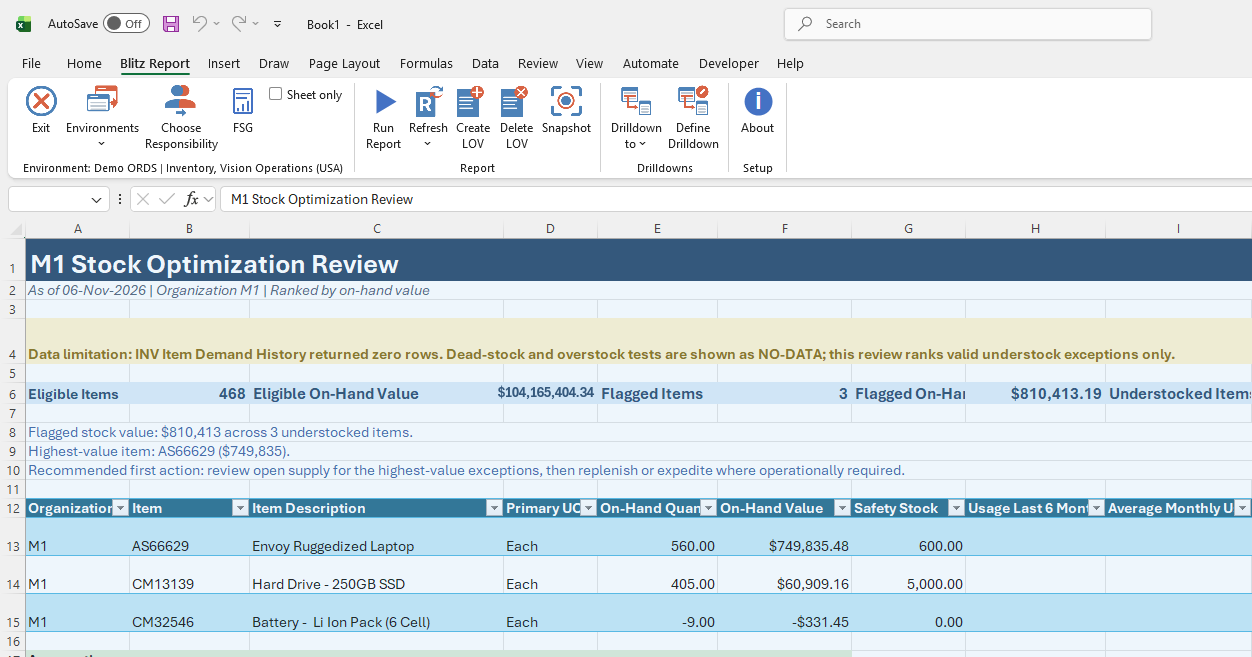
Ask the question the way you described it, or name the skill directly: in Copilot, type @ followed by the skill name. The skill runs its reports through Blitz Report under your login, applies your thresholds, ranks the result and shows your rules as its assumptions.
Where the data does not support a test, the skill says so instead of guessing. On the demo instance used for the video the item demand history returned no rows, so the review marks the dead stock and overstock tests as NO-DATA and ranks the understocked items it could evaluate.
3 Change a shipped skill
Many teams start from a shipped skill rather than from scratch: the holds analysis with other age buckets, the collections skill with their own receivables report, a close readiness check for one ledger only. Ask the skill author for the change, and paste the shipped skill’s text into a sheet or describe the change. It keeps the structure of the shipped skill and changes only what you asked for:
- Changed as you ask: the description and its trigger phrases, the reports used, every threshold, the output sheets and their order, and the scope, such as a date window, an organization or a category.
- Kept as shipped: how the data is read, the hand-over of report runs and uploads to the Blitz Report skills, and for action skills the two confirmations.
The changed skill gets a name of its own with your company’s prefix, such as acme-ap-holds-3-months. Shipped skills are replaced when the library is updated, so a skill under your own name is never overwritten.
4 Security and control
- Your own access: every skill runs under your own Oracle EBS login and responsibility through the Blitz Report add-in, and sees only the data you can see in Blitz Report.
- Real figures: every number comes from your EBS instance through Blitz Report, never invented by the AI, and the result ties back to the report totals.
- Read-only by default: an analysis skill never changes Oracle EBS data. A skill that should change data, an action skill, prepares the changes in a Blitz Upload, shows them to you, and submits them only after you have confirmed twice.
- No data in the skill: a skill holds report names, parameter names and settings only, so it can be stored and shared without exposing your data.
5 Share skills with your team
Copilot in Excel reads skills from each user’s OneDrive skills folder: copy the skill folder to your colleagues’ folders, or your Microsoft 365 administrator distributes it for the organization. For Claude in Excel, each user uploads the zip file once, or the owner of a Claude Team or Enterprise plan adds the skill for the whole organization in the organization settings. Keep one master copy of each skill and always share the whole folder.
6 Getting started
You need:
- Blitz Report with the Excel add-in installed and connected to your Oracle EBS instance;
- Microsoft 365 Copilot in Excel or Claude in Excel;
- the skills br-skill-author, br-run-reports and br-analytics-standards, whose pages have the install steps for both assistants.
Then ask for your first skill. The post AI Skills for Blitz Report in Excel describes the shipped skills, and the AI skills use cases page lists the questions they answer.
Contact us if you would like help writing the first skills for your team.