
QA Collection Result Upload enters and updates quality results of any collection plan from Excel, the way the Enter Quality Results and Update Quality Results forms do. You choose the plan on the run screen, and the columns of the Excel file take the plan’s elements, with the column headings showing the element prompts. Every value is validated by Oracle’s quality results API, and the outcome of every row is shown in the Excel file.
When to use it
- Enter many inspection or test results at once, for example from a measuring device export or a supplier’s certificate.
- Correct values of results that were already entered, in one sheet instead of result by result.
- Use one upload for all your collection plans, without building a separate upload per plan.
Before you start
- You are signed in to a responsibility with access to the upload in Blitz Report. It is assigned to the Enter Quality Results and Update Quality Results functions.
- The collection plan is effective, and collection plan security allows you to enter or update its results.
- The plan has no actions and no Sequence or Date and Time elements. The upload refuses plans that have them.
- The plan has at most 40 text and comment elements, 20 number elements and 10 date elements.
Step 1 – Set the parameters
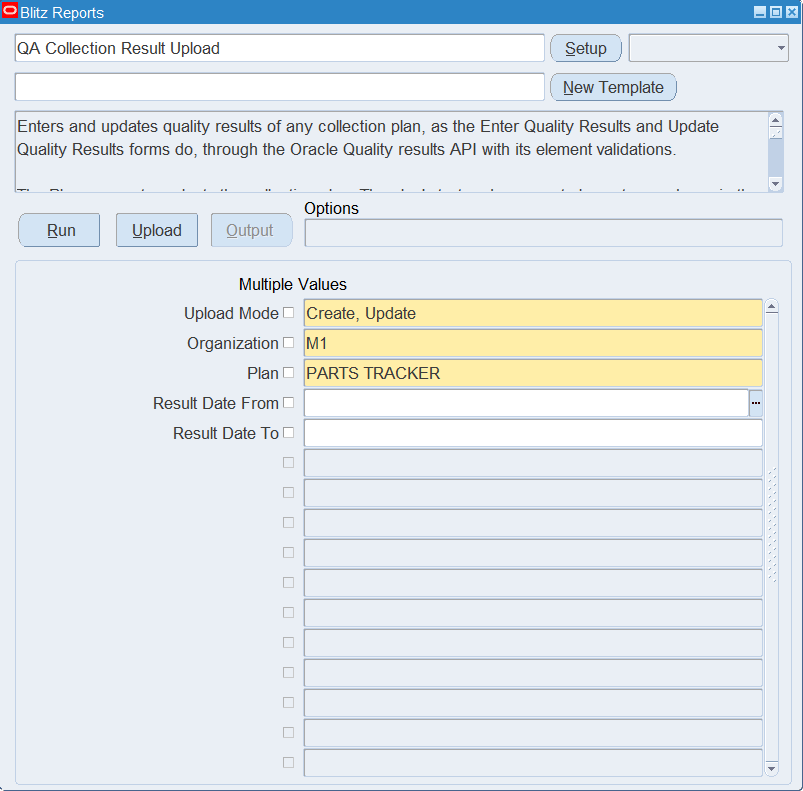
Open QA Collection Result Upload in Blitz Report and set the parameters.
| Parameter | Meaning |
|---|---|
| Upload Mode | Create (default) gives you an empty sheet for new results. Create, Update also downloads the plan’s existing results. |
| Organization | The inventory organization of the collection plan. It defaults to the organization you chose for your session. |
| Plan | The collection plan. It decides which elements the columns take. |
| Result Date From, Result Date To | Downloads only results entered in this period. Result Date To defaults to the end of the month of Result Date From. |
Step 2 – Run to download the Excel file
Click Run. The plan’s text and comment elements fill the columns Char1 to Char40, its number elements Number1 to Number20 and its date elements Date1 to Date10, each type in the plan’s prompt sequence, and the column headings show the element prompts. A column without an element keeps its generic heading, such as Char7, and stays empty. With Create, Update, each existing result is one row.
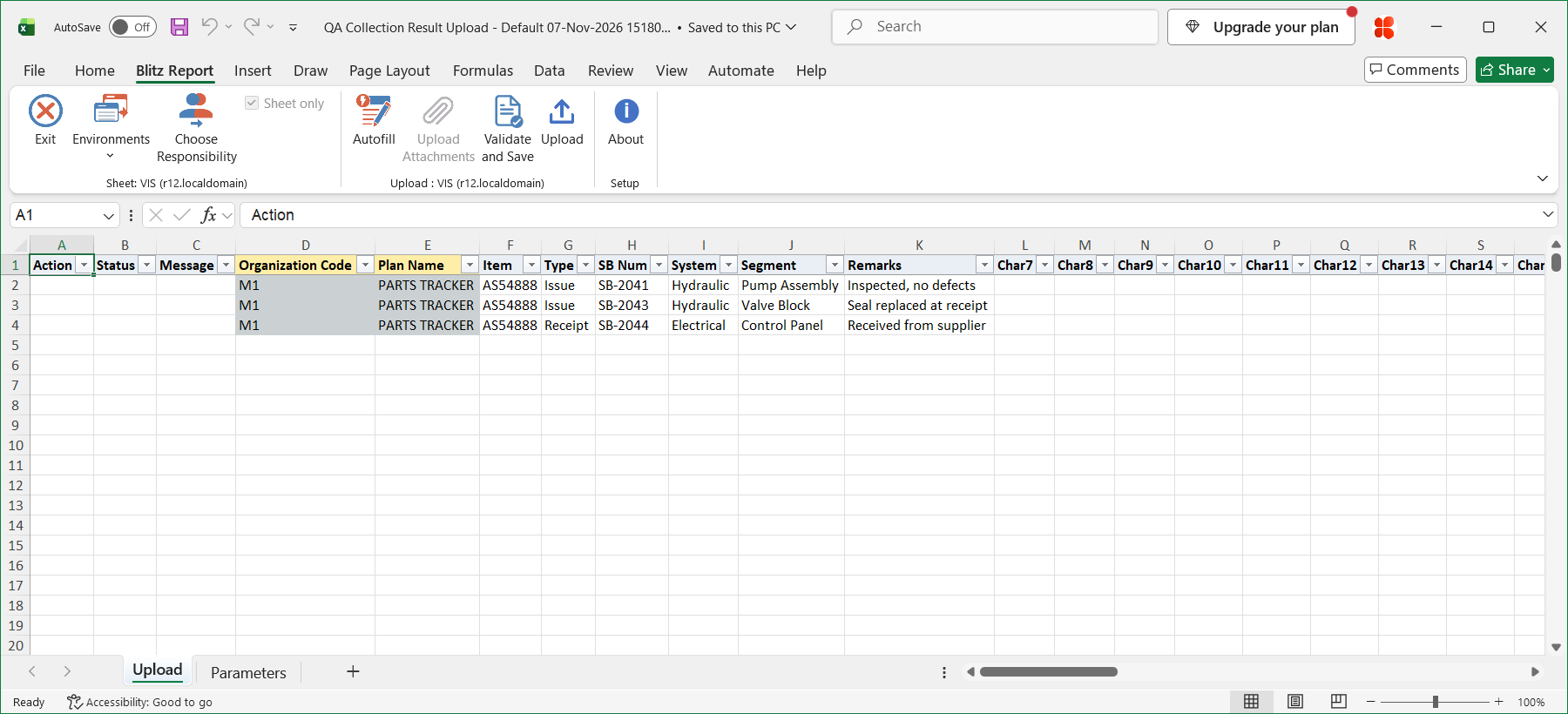
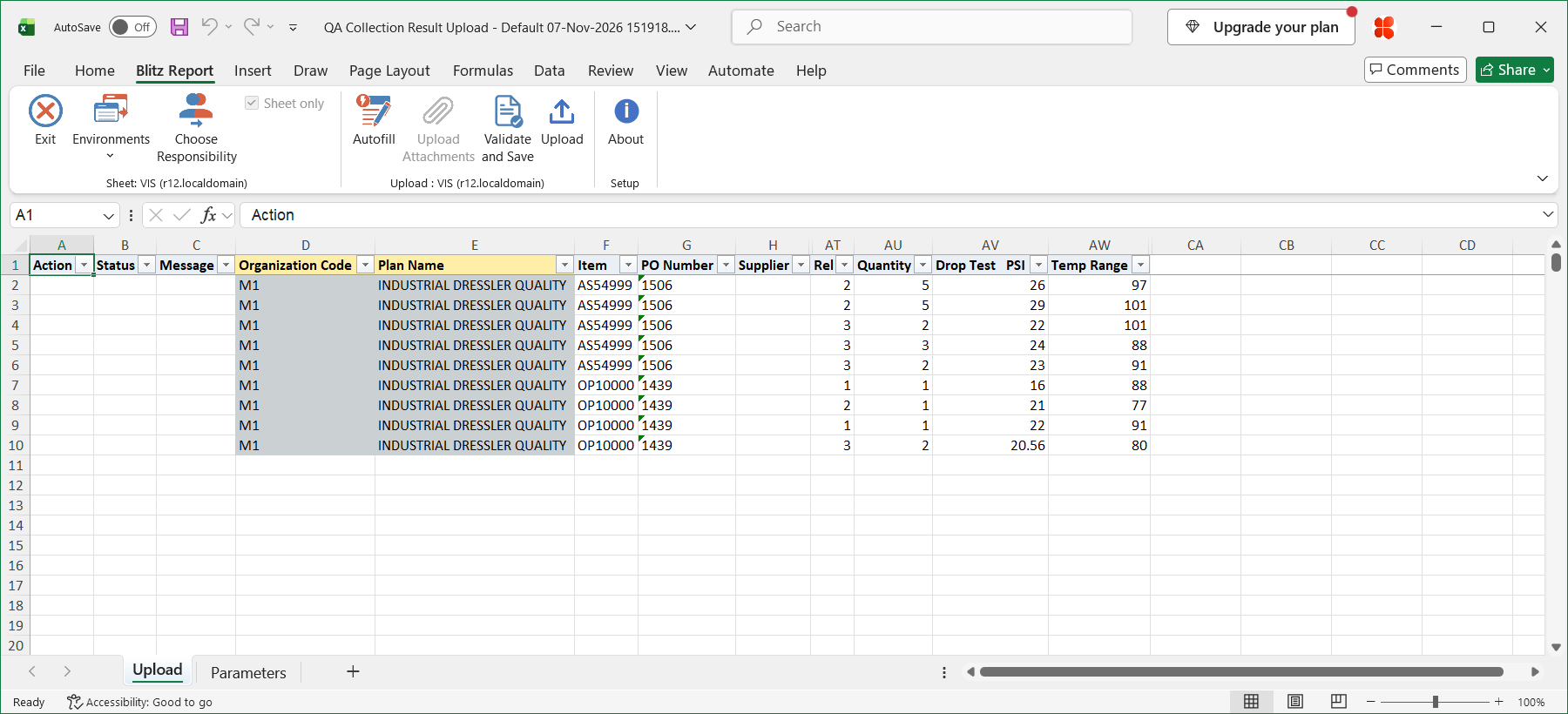
The headings follow the plan. The next picture shows the same upload run for another plan, with the columns without an element hidden. Save a template per plan to hide them for good.
Step 3 – Enter the results
Change the downloaded rows, or add rows for new results.
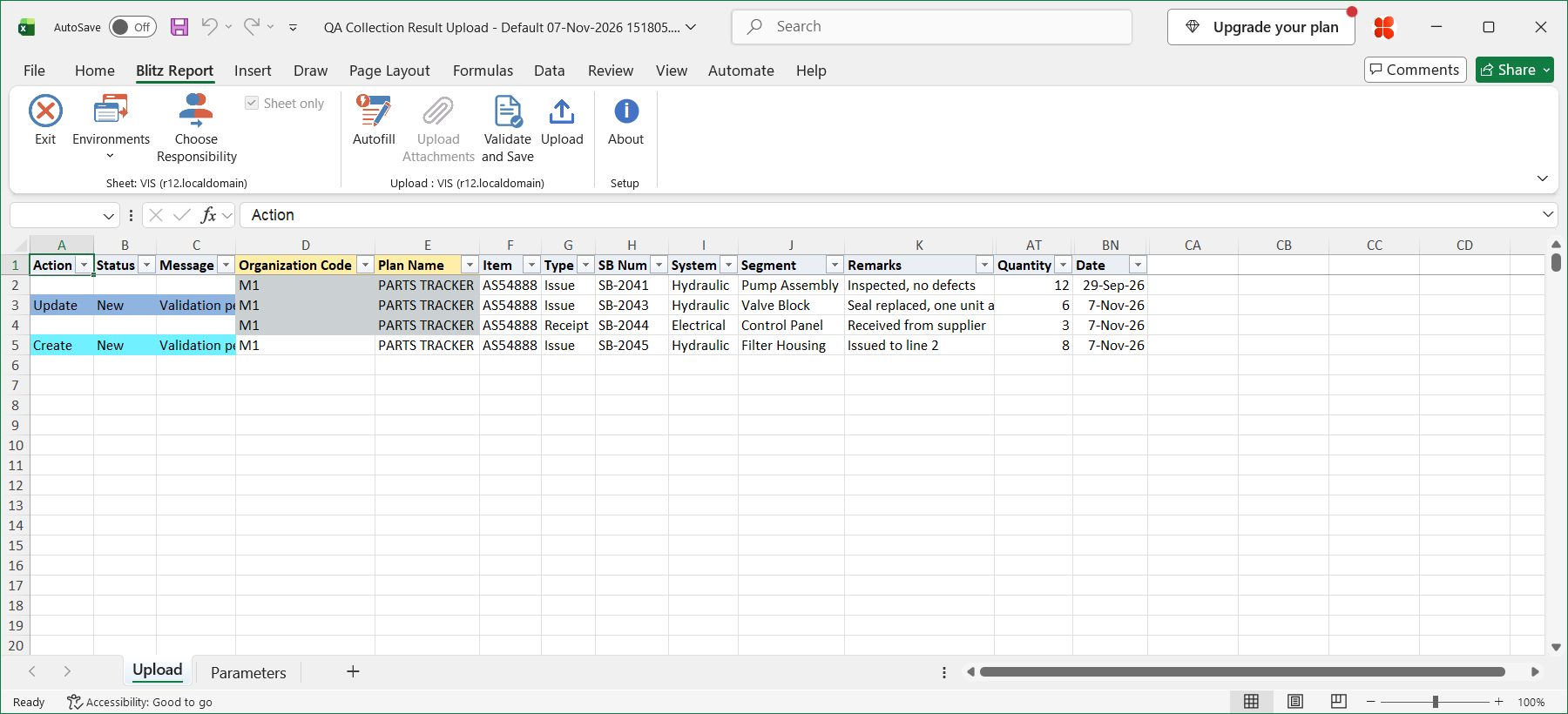
- Organization Code and Plan Name – required on a new row, read-only on a downloaded row.
- The element columns – enter the values as you would in the form. An element with a list of values offers that list in Excel, and a dependent element such as Lot or Serial Number is listed for its parent element in the same row.
- A row you add, or copy from a downloaded row, creates a new result. A changed downloaded row updates its result.
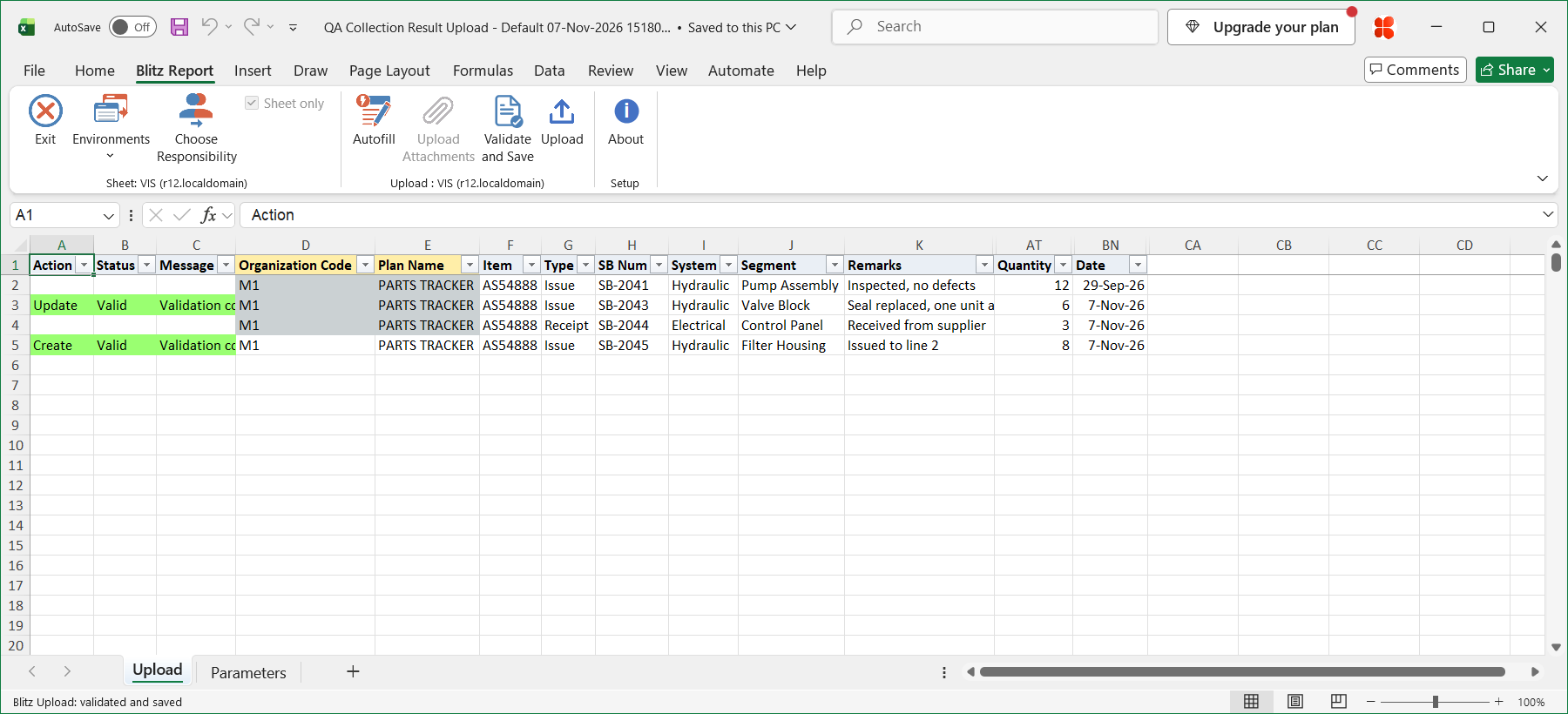
In the example, the Quantity and Remarks of the result with SB Num SB-2043 change, and a new result with SB Num SB-2045 is added to the PARTS TRACKER plan.
Step 4 – Validate and Save
Click Validate and Save on the Blitz Report tab. This checks for missing required values and for values that are not in their lists, marks the rows Valid and saves the file. Correct any rows it flags before uploading.
Step 5 – Upload the file
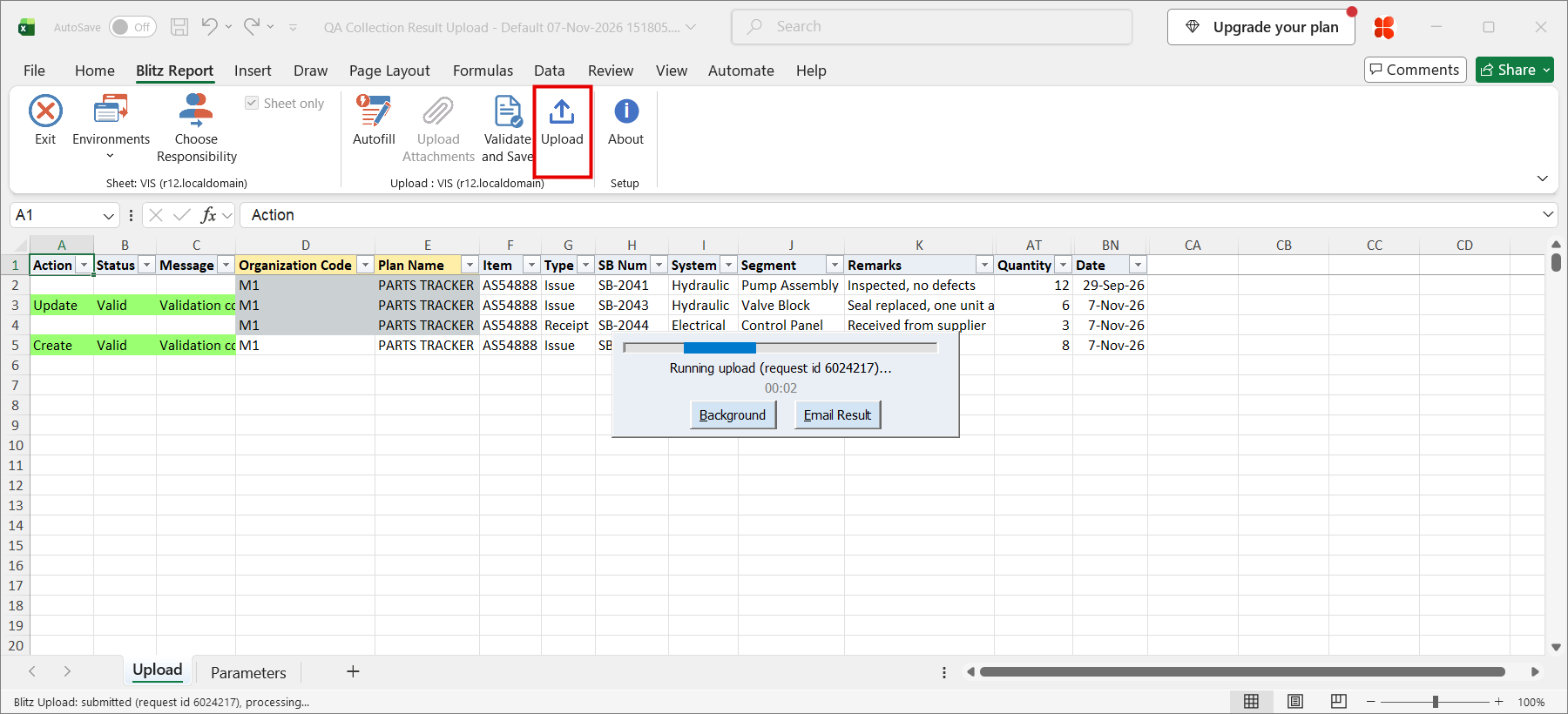
Click Upload on the Blitz Report tab. The add-in sends the valid rows to Oracle and submits the upload request. Each row is saved or rejected on its own, so a rejected row leaves nothing behind and does not affect the other rows.
Step 6 – Review the result
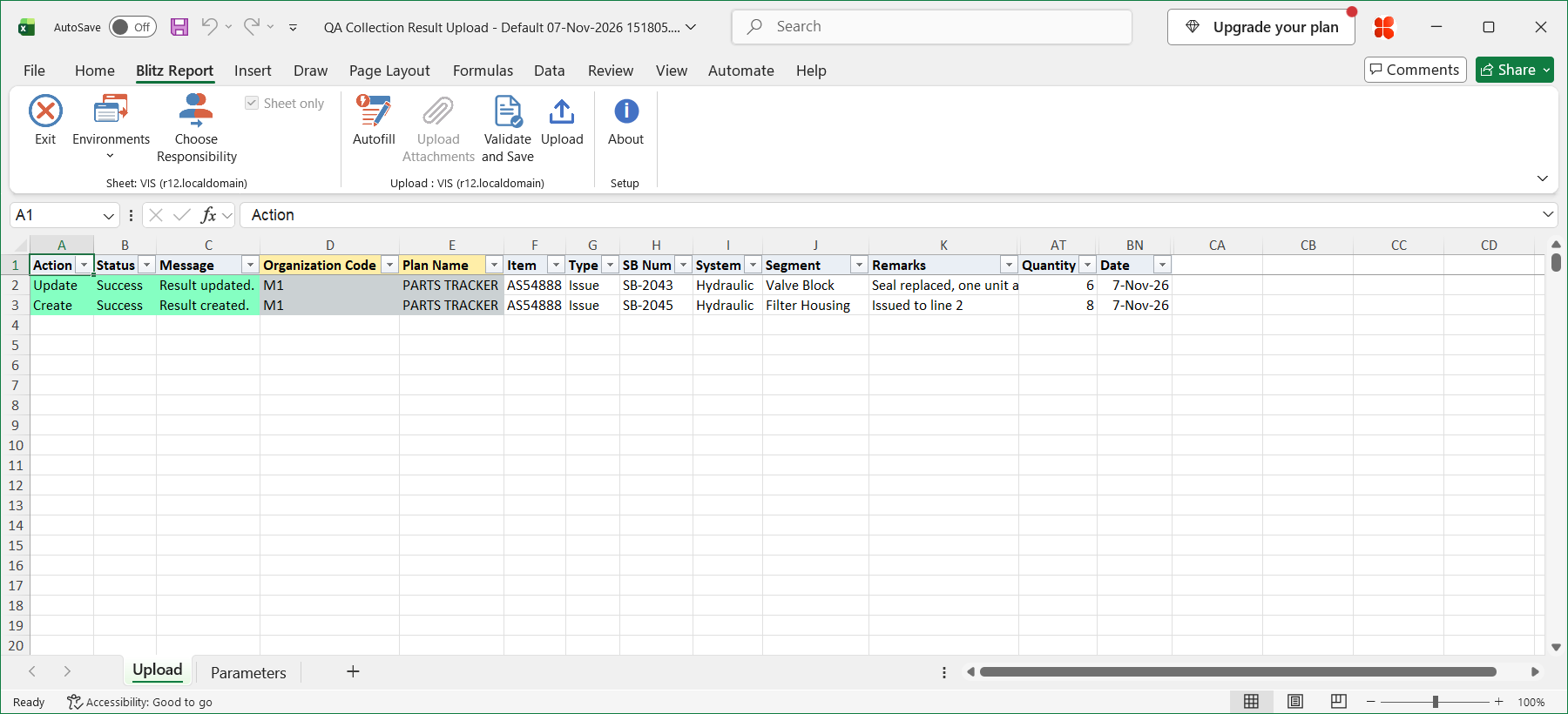
When the request completes, the add-in writes the result to the sheet, listing every uploaded row with its status and a message such as Result created., Result updated. or No change., or the reason the row was rejected.
What’s produced
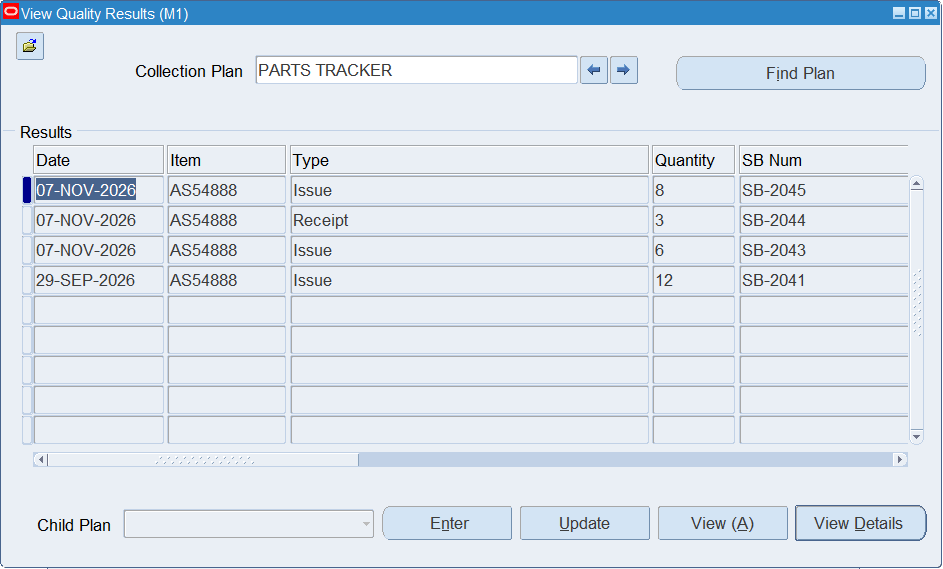
- Quality results of the collection plan, as if entered in Enter Quality Results or changed in Update Quality Results. They show in View Quality Results and in the plan’s own results view.
- An updated row writes only the element values that were changed, and Oracle records each of them in the result update history.
- The result in the Excel file, listing every row with a status and a message.
The results of the example in the View Quality Results form:
Common questions
Can I upload results of several plans in one file?
No. The Plan parameter selects one plan, and the columns are mapped to it. Run the upload once per plan.
Why does my sheet have columns such as Char7 or Number2?
These columns have no element in the chosen plan. They stay empty. Hide them and save a template for the plan, so that the plan’s sheet shows only its own elements.
Which of my plans can I use?
Any plan with at most 40 text and comment elements, 20 number elements and 10 date elements, and without actions, Sequence elements or Date and Time elements.
Are the actions of a plan triggered?
No. The upload refuses a plan with actions, so enter its results in the form.
Does the upload apply element default values?
No. Enter every value you want the result to have.
How long can a text value be?
150 characters. A longer value is rejected.
Are numbers rounded?
Yes. Oracle rounds a number to the decimal precision of the element in the plan, without a message.
Troubleshooting
| Message | Cause | What to do |
|---|---|---|
| Missing values for required field/s: … | Organization Code or Plan Name is blank on a new row. | Fill in the columns named. |
| Collection plan … does not exist in organization … | The plan name is not defined in that organization. | Correct the Plan Name or the Organization Code. |
| Collection plan … is not effective. | Today is outside the effective dates of the plan. | Correct the plan’s effective dates, or use another plan. |
| Collection plan … has actions, which this upload does not support. | The plan has actions. | Enter its results in the form. |
| Element … of collection plan … is a … element, which this upload does not support. | The plan has a Sequence or a Date and Time element. | Enter its results in the form. |
| You are not allowed to enter results of collection plan … / You are not allowed to update results of collection plan … | Collection plan security does not allow you this action on the plan. | Ask your Quality administrator for access to the plan. |
| Result … does not exist in collection plan … | The result of a downloaded row was deleted after the download. | Download again. |
| Column … does not show an element of collection plan … | A value was entered in a column without an element. | Clear the value. |
| … is longer than 150 characters. | A text value is too long. | Shorten the value. |