
ONT Sales Quote Close Upload closes open Oracle Order Management sales quotes in bulk from Excel. Download the open quotes, set a Close Reason on the rows to close, and upload: each quote is set to status Lost through the standard Order Management negotiation workflow, and the reason and comments are recorded against the quote.
When to use it
- Clean up large numbers of old draft or expired quotes that are no longer pursued.
- Close all quotes created before a given date in one step.
- Close a list of quotes supplied from another system or spreadsheet, by pasting their quote numbers.
Before you start
- A responsibility with Blitz Report and access to the operating units of the quotes, typically an Order Management responsibility.
- The close reasons come from the Order Management lookup type OFFER_LOST (seeded values such as Competition, Price and No Response). To keep win/loss reporting clean, add a value such as Obsolete to this lookup and use it for data cleanup, so these closures are not counted as genuine competitive losses.
- Closing a quote cannot be undone: a lost quote cannot be reopened or converted to an order.
Step 1 – Set the parameters
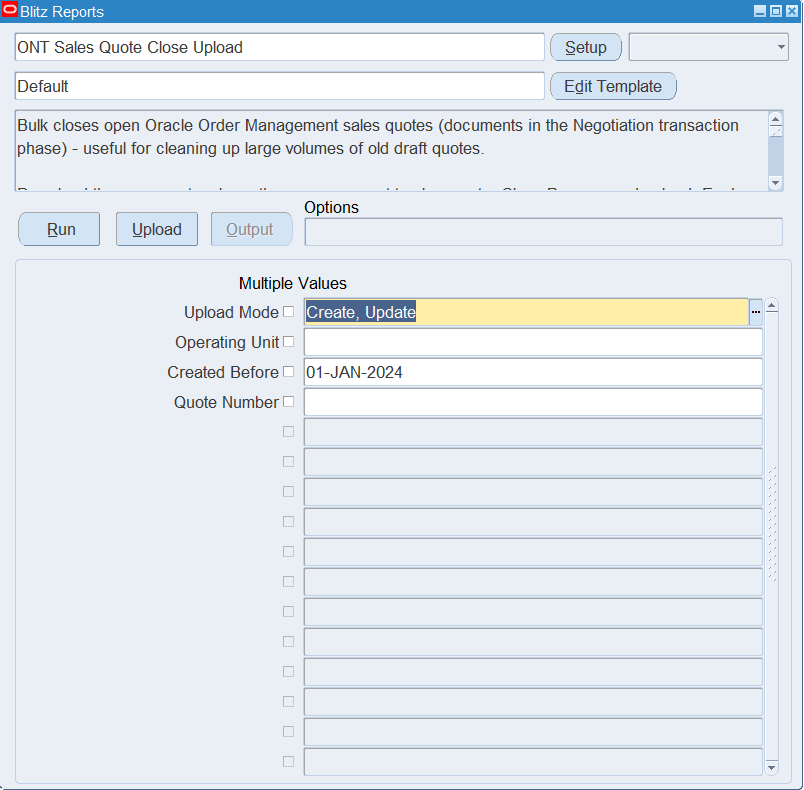
Open ONT Sales Quote Close Upload in Blitz Report and set the parameters. Operating Unit, Created Before and Quote Number only restrict which open quotes are downloaded:
| Parameter | Meaning |
|---|---|
| Upload Mode | Create, Update (default) downloads the open quotes; Create opens an empty sheet to paste quote numbers into. |
| Operating Unit | The operating unit of the quotes. Defaults to your current operating unit; leave it empty to download the open quotes of all operating units. |
| Created Before | Downloads only quotes created before this date, for example to target quotes older than a year. |
| Quote Number | Downloads one specific quote. The list shows the open quotes with their order type, customer and status. |
Step 2 – Run to download the Excel file
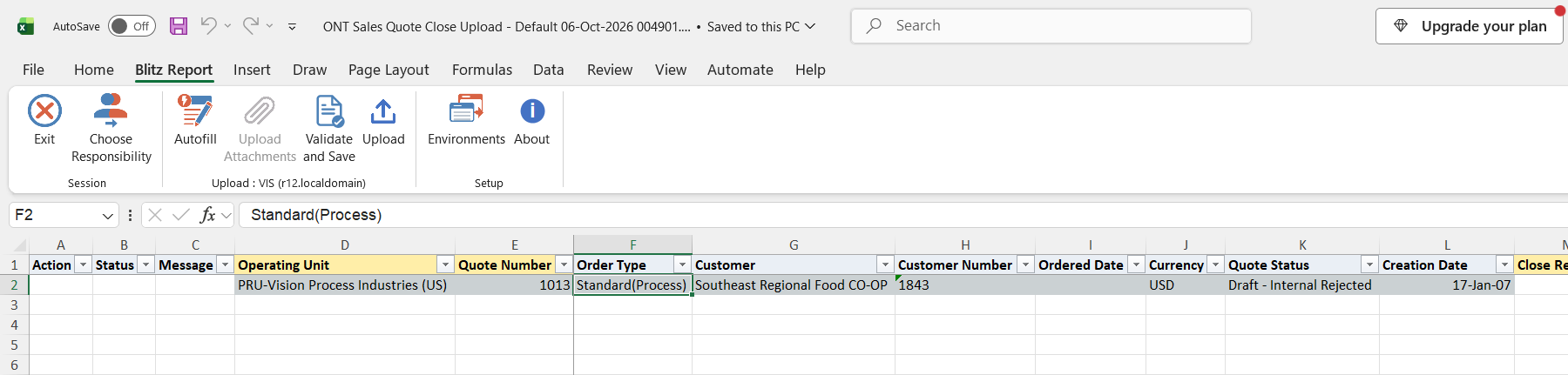
Click Run. The Excel file downloads and opens with one row per open quote, showing its Operating Unit, Quote Number, Order Type, Customer, Customer Number, Ordered Date, Currency, Quote Status and Creation Date. Only open quotes (documents in the negotiation phase) are downloaded, never sales orders.
Step 3 – Set the Close Reason
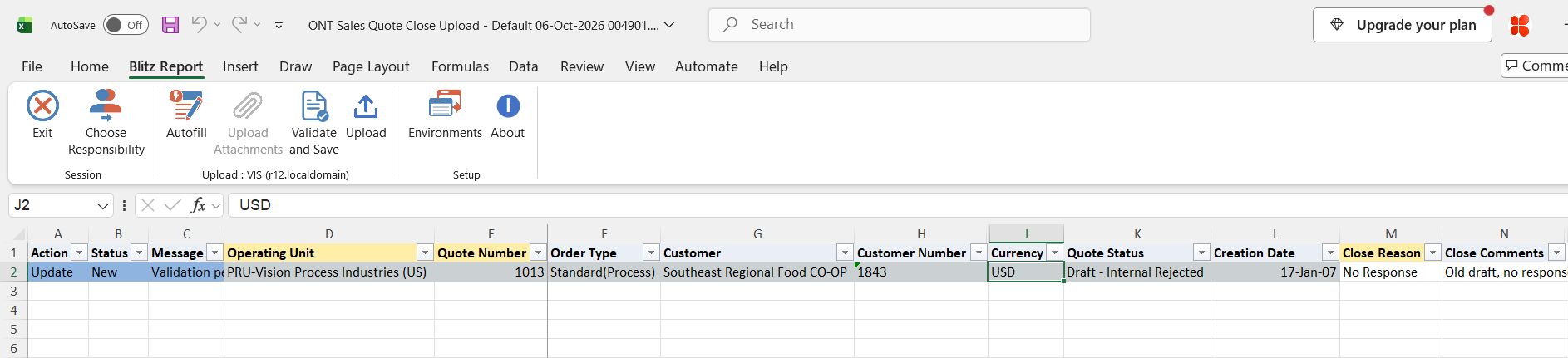
On each quote to close, choose a Close Reason from the list and optionally enter Close Comments. This marks the row for upload. Rows you leave unchanged are not uploaded, so you can keep quotes in the sheet that should stay open, or delete those rows.
To close quotes from an external list, add rows with the Operating Unit and Quote Number (or use Create mode for an empty sheet). The other quote columns fill in automatically for reference.
Step 4 – Validate and Save
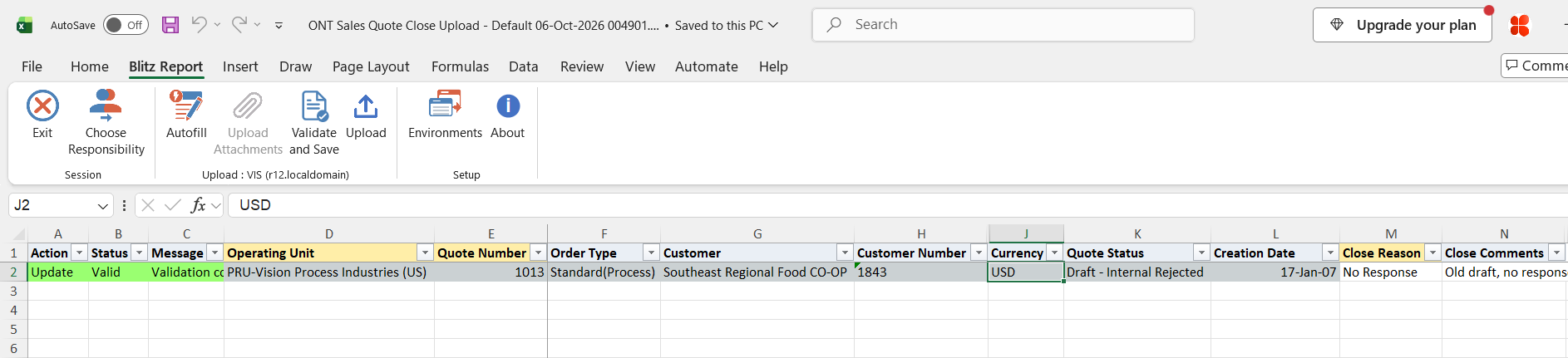
Click Validate and Save. This checks that every marked row has an Operating Unit, Quote Number and a Close Reason from the list, and saves the file. Correct any rows it flags before uploading.
Step 5 – Upload the file
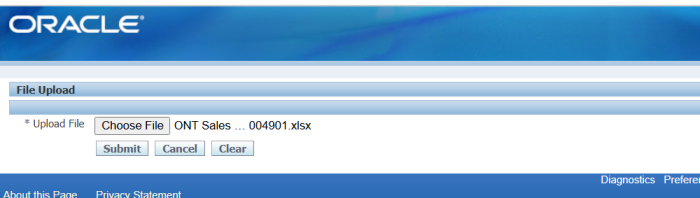
In Blitz Report click Upload and select the saved file. This submits the upload request, which closes each quote as Lost and records the close reason and comments. Each quote is processed and committed on its own, so an error on one quote does not affect the others.
Step 6 – Review the result report
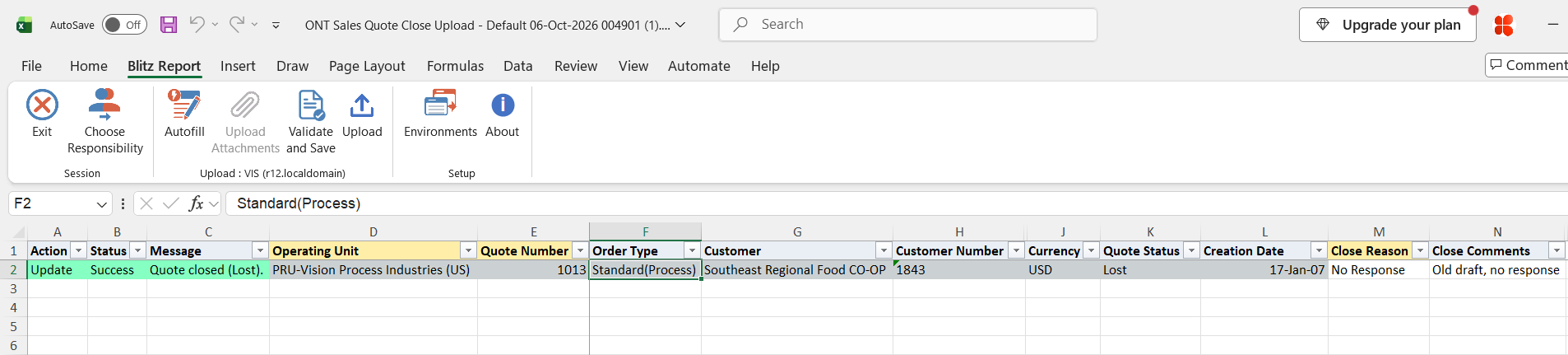
When the request completes, a result report opens listing every uploaded row with its status and message. Closed quotes show the message Quote closed (Lost). and Quote Status Lost.
What’s produced
- The selected quotes set to status Lost and no longer open, with the close reason and comments recorded as the quote’s lost reason.
- A result report listing every row with a status (success or error) and a message.
Common questions
Why are quotes closed as Lost and not Cancelled or Closed?
Cancelled and Closed are order fulfillment statuses and do not apply to quotes. Lost is the standard final status of a quote that is no longer pursued.
Can I close a sales order with this upload?
No. Only open quotes are closed; an order number is reported as an error and left unchanged. To cancel orders, use ONT Order Upload.
What happens if a quote is already closed?
It is left unchanged and the row is reported as successful with the message Quote already closed and its current status, so uploading the same file twice is safe.
Can I close quotes of another operating unit?
Only quotes in operating units your responsibility has access to. A row for any other operating unit is rejected.
Can a lost quote be reopened?
No. Losing a quote ends its negotiation workflow. Create a new quote if the customer comes back.
Troubleshooting
| Message | Cause | What to do |
|---|---|---|
| Operating Unit “…” not found or not accessible. | The operating unit name is wrong or your responsibility has no access to it. | Correct the Operating Unit, or upload with a responsibility that has access to it. |
| Quote “…” not found in operating unit “…”. | There is no document with this number in the operating unit. | Check the Quote Number and Operating Unit. |
| “…” is a sales order, not a quote. This upload only closes quotes. | The number belongs to a sales order. | Remove the row. Cancel orders with ONT Order Upload. |
| Quote already closed (status …). | The quote is no longer open, for example already lost or expired. The row is reported as successful. | No action needed. |
| Quote could not be closed (return status …). or an Oracle Order Management message | The negotiation workflow rejected the close, for example because the quote’s workflow is not in a state that allows it. | Check the quote in the Sales Orders form and its workflow status, correct the cause and upload the row again. |
| Error closing quote: … | An unexpected database error. Nothing was changed for this quote. | Read the Oracle error in the message, correct the cause and upload the row again. |