
IEX Collection Note Upload creates and updates Oracle Advanced Collections notes from Excel – the same notes collectors see in the Collections work area. Each note is attached at one Note Level: Party, Account, Bill To or Collections Transaction. For transaction notes, the upload can also record an Unpaid Reason, creating the collections delinquency it needs.
When to use it
- Log the outcome of a collections call campaign or dunning run as notes on many customers at once.
- Record notes against specific open invoices, with the customer’s unpaid reason.
- Migrate collection history notes from a legacy or third-party collections system.
- Reclassify existing notes by changing their Note Type or Note Status in bulk.
Before you start
- Access to the upload in Blitz Report, with a responsibility that can see the operating units of the accounts and transactions.
- The customers, accounts, bill-to sites and open transactions the notes belong to exist in Oracle Receivables.
Step 1 – Set the parameters
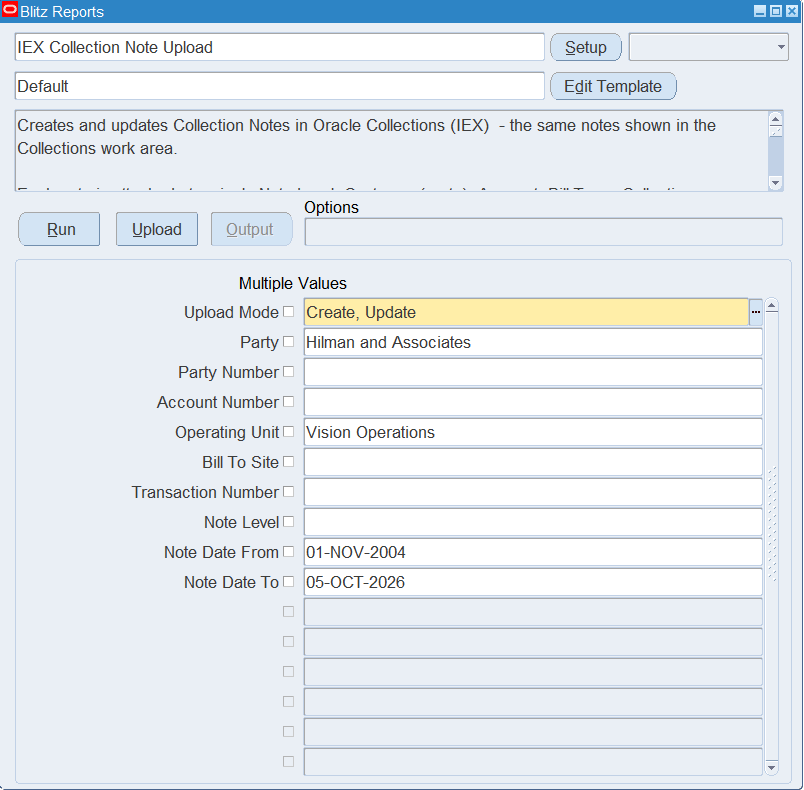
Open IEX Collection Note Upload in Blitz Report and set the parameters:
| Parameter | Meaning |
|---|---|
| Upload Mode | Create (default) opens an empty sheet for new notes; Create, Update downloads existing notes for editing and lets you add new ones. |
| Party / Party Number | Downloads the notes of this customer at every level (party, its accounts, bill-to sites and transactions). |
| Account Number | Restricts the download to notes of this account and its sites and transactions. |
| Operating Unit | Restricts bill-to and transaction notes to this operating unit. Party and account notes are always included. |
| Bill To Site | Restricts the download to notes of this bill-to site and its transactions. |
| Transaction Number | Restricts the download to notes of this transaction. |
| Note Level | Downloads only notes of this level: Party, Account, Bill To or Collections Transaction. |
| Note Date From / Note Date To | The entered date range of the notes to download. Both default to today, so widen the range to download older notes. |
Step 2 – Run to download the Excel file
Click Run. The Excel file downloads and opens with one row per existing note, or an empty sheet in Create mode.
Step 3 – Enter or change the notes
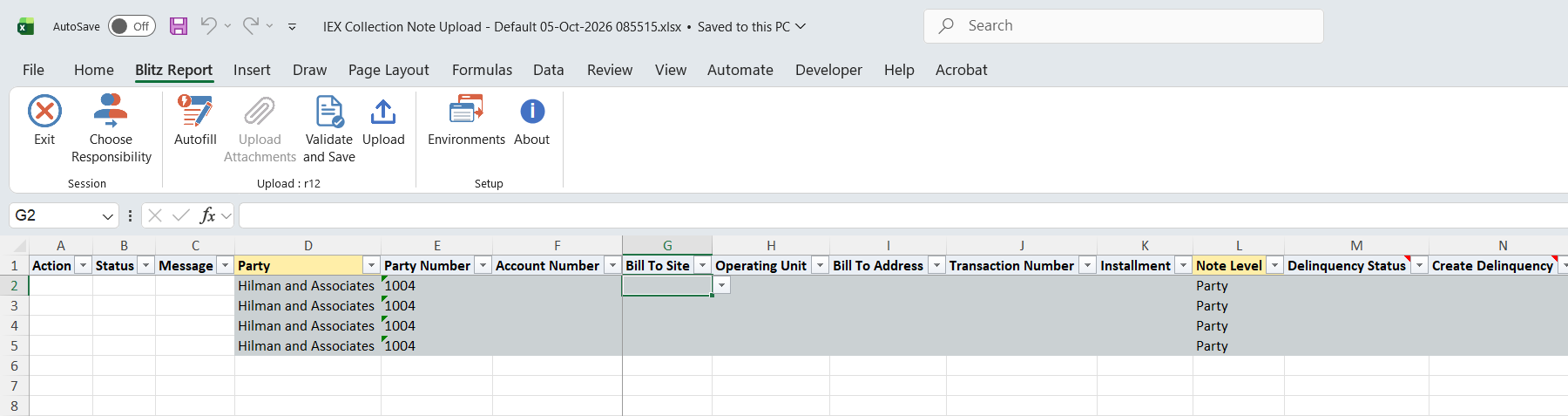
For a new note, enter the columns that identify its target and pick the Note Level, which lists only the level matching the columns you filled:
| Note Level | Columns to enter |
|---|---|
| Party | Party (Party Number only when the party name is not unique). Leave Account Number blank. |
| Account | Party and Account Number. |
| Bill To | Party, Account Number and Bill To Site. Operating Unit only when the same bill-to location exists in several operating units. |
| Collections Transaction | Party, Account Number and Transaction Number of an open transaction. Bill To Site and Operating Unit only when the transaction number is not unique for the account; Installment when the transaction has several installments. |
Then enter the Note (up to 2,000 characters), an optional Note Detail for longer text (cut at 4,000 characters), the Note Type and the Note Status (defaults to Public). Entered Date defaults to the current date and time. Bill To Address and Delinquency Status are filled in for information.
On a new Collections Transaction note you can also set an Unpaid Reason. Collections holds it on the transaction’s delinquency, not on the note, so it applies to every note of that transaction. If Delinquency Status is blank the transaction has no delinquency yet: set Create Delinquency to Yes to create one with status Current, as the Collections form asks.
On a downloaded note only the Note Type, Note Status and descriptive flexfield columns can be changed; the note text and its target are fixed.

Step 4 – Validate and Save
Click Validate and Save. This checks for missing required values and saves the file. Correct any rows it flags before uploading.

Step 5 – Upload the file
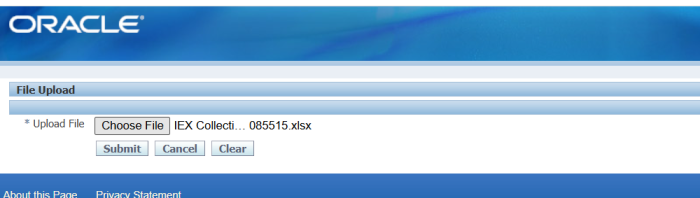
In Blitz Report click Upload and select the saved file. This submits the upload request, which creates or updates each note.
Step 6 – Review the result report
When the request completes, a result report opens listing every uploaded row with its status and message, including the bill-to site, operating unit and delinquency status the note was attached to.

What’s produced
- Collection notes created at the chosen level, or existing notes with a changed type, status or flexfield values. A note is also linked to the levels above it (bill-to site, account, party) and to the customer’s collections contact, so it shows at each of those levels in Collections.
- For transaction notes with an Unpaid Reason: the reason stored on the transaction’s delinquency, and the delinquency created when Create Delinquency is Yes.
- A result report listing every row with a status (success or error) and a message.
Common questions
Can I change the text of an existing note?
No. Only Note Type, Note Status and the descriptive flexfield can be changed on an existing note. Add a new note instead.
Can I delete notes?
No. The upload only creates and updates notes.
Why can’t I set an Unpaid Reason on a downloaded note?
The unpaid reason, like Create Delinquency, can only be set when a note is created, as in the Collections notes window.
Why does the Note Level list show only one value?
It lists the level that matches the identifying columns entered on the row. To attach a note to an account rather than the party, enter the Account Number first; to attach it to a transaction, enter the Transaction Number.
Can I add notes to closed transactions?
No. Transaction notes can only be attached to open transactions.
Troubleshooting
| Message | Cause | What to do |
|---|---|---|
| Party Name is not unique. Please enter the Party Number. | Several active parties have this name. | Enter the Party Number. |
| Customer with with this Party Name and/or Party Number not found or is not active. | No active party matches the Party or Party Number. | Pick the party from the list. |
| Customer with this Account Number not found for this customer or is not active. | The account does not belong to the party or is inactive. | Pick the Account Number from the list after entering the Party. |
| Bill To location is not unique for this account. Please enter the Operating Unit as well. | The bill-to location exists in several operating units. | Enter the Operating Unit. |
| Bill To location not found or is not active. | No active bill-to site with this location for the account. | Pick the Bill To Site from the list. |
| Transaction/Installment not found or is not open. | The transaction or installment does not exist for the account, or is closed. | Pick an open transaction from the list. |
| Transaction Number is not unique for this account. Please enter the Bill To Location and Operating Unit as well. | Several transactions of the account share this number. | Enter Bill To Site and Operating Unit. |
| Transaction has multiple installments. Enter the Installment to attach the note. | The transaction has several open installments. | Enter the Installment. |
| Unpaid Reason and Create Delinquency only apply to a Transaction note. | Unpaid Reason or Create Delinquency entered on another note level. | Clear them, or attach the note to a transaction. |
| Transaction is not delinquent. Set Create Delinquency to Yes to create a delinquency with status Current. | Unpaid Reason entered for a transaction without a delinquency. | Set Create Delinquency to Yes. |
| Note exceeds 2000 characters. Use the Note Detail column for longer text. | The Note is longer than 2,000 characters. | Shorten the Note and put the rest in Note Detail. |
| Note ID is required for update. Download the note before updating it. | An Update row that was not downloaded. | Download the note in Create, Update mode and change it there. |