
1 Why consolidate on Blitz Report
2 Why Blitz FSG
3 What the converters convert
3.1 GL Wand
3.2 Spreadsheet Server
4 Migration process
4.1 Install Blitz Report
4.2 Open a Blitz FSG workbook
4.3 Copy your worksheets into Blitz FSG
4.4 Run the converter
4.5 Validate the conversion
4.6 Publish the statements
5 After the migration
6 Summary
Introduction
GL Wand, originally from Excel4apps, and Spreadsheet Server, originally from Global Software, are Excel add-ins that many Oracle E-Business Suite finance teams use for their financial statements. Both are now insightsoftware products. A formula in a cell returns a GL balance, and the workbook around it holds the layout, the formatting and the calculations that turn the balances into a statement.
Blitz FSG, the GL Financial Statement and Drilldown (FSG) report of Blitz Report, works the same way: a Balance formula in a cell returns a GL balance live from your EBS instance, and every balance drills down to its journals, subledger transactions and the source transaction in EBS. Because the concept is the same, a migration keeps your workbooks. You copy the worksheets into a Blitz FSG workbook, and the GL Wand or Spreadsheet Server converter rewrites the balance, period and description formulas as Blitz FSG functions. Layout, formatting, headings, charts and your own Excel formulas stay as they are, so moving your statements is a conversion and a tie-out, not a rebuild.
1 Why consolidate on Blitz Report
Finance teams that build their statements with GL Wand or Spreadsheet Server often run it next to other tools for operational reporting and for loading data into EBS. Moving the statements to Blitz FSG brings them into one product:
- Statements, reports and uploads in one product: Blitz Report provides Blitz FSG for financial statements, a library of ready-made operational reports, and Blitz Upload for creating and updating EBS data from Excel.
- One installation and upgrade cycle: one vendor and one support contact instead of a separate product with its own licence, installation and upgrades.
- Security from EBS: users log in with their EBS user or through single sign-on and see only the ledgers of their responsibilities, and GL segment value security applies to balances and lists of values. There is no separate user or security setup to maintain.
- Your workbooks stay: the converters rewrite the formulas in place, so users keep the statements they know.
2 Why Blitz FSG
Blitz FSG keeps the way of working that GL Wand and Spreadsheet Server users know, formulas in cells driven by parameter cells for the ledger, period, amount type and segment values, and adds:
- Live statements in Excel: every amount is a Balance formula for a ledger, period, amount type and segment values, which accept ranges, lists, exclusions, wildcards and parent values. Formats, charts, variance columns and your own formulas sit next to the Oracle balances.
- Refresh on demand: change the period or a segment value in a cell and refresh a range, a sheet or the whole workbook. Balances are fetched in batches, so large statements refresh quickly, also over remote connections.
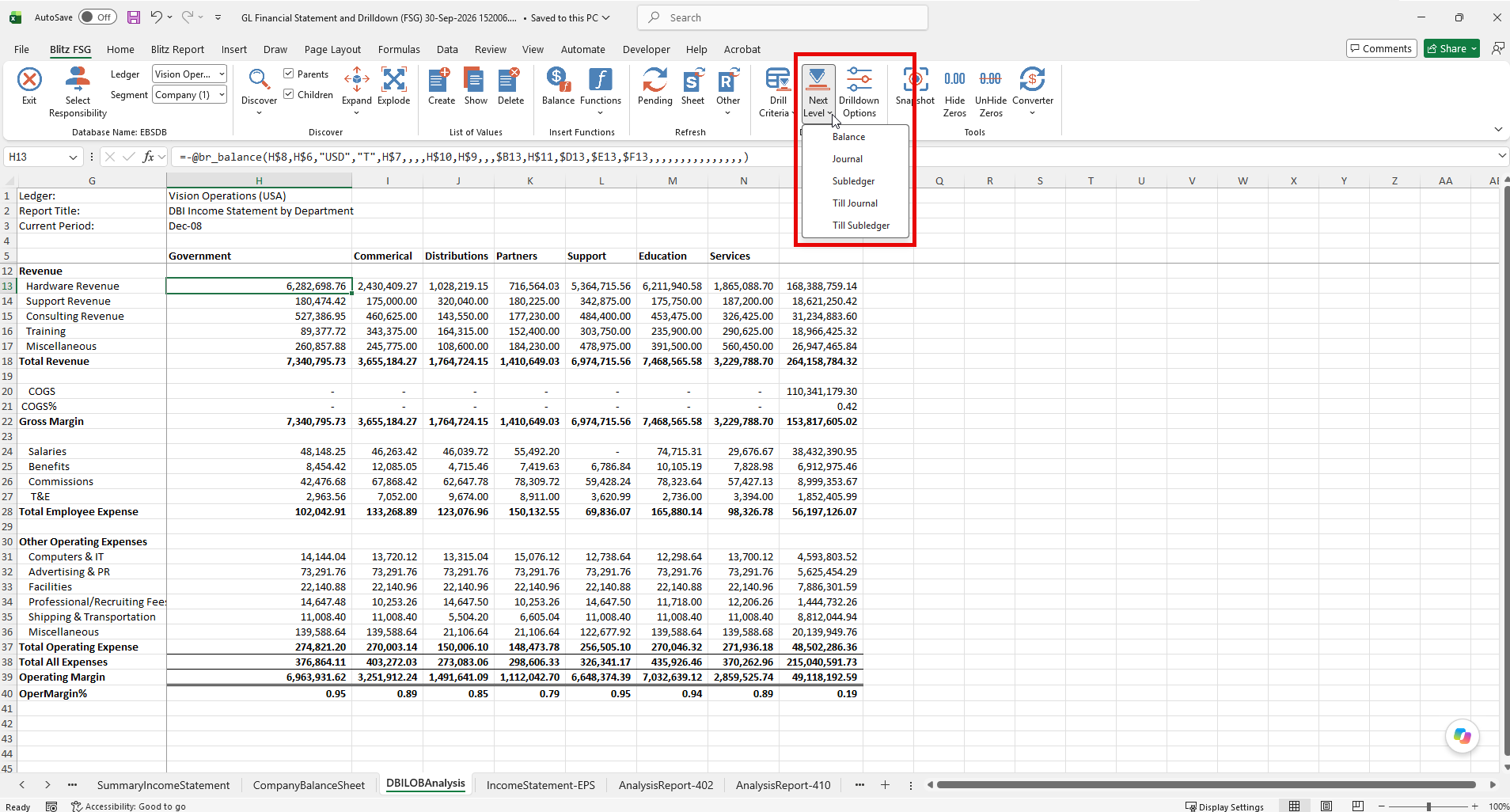
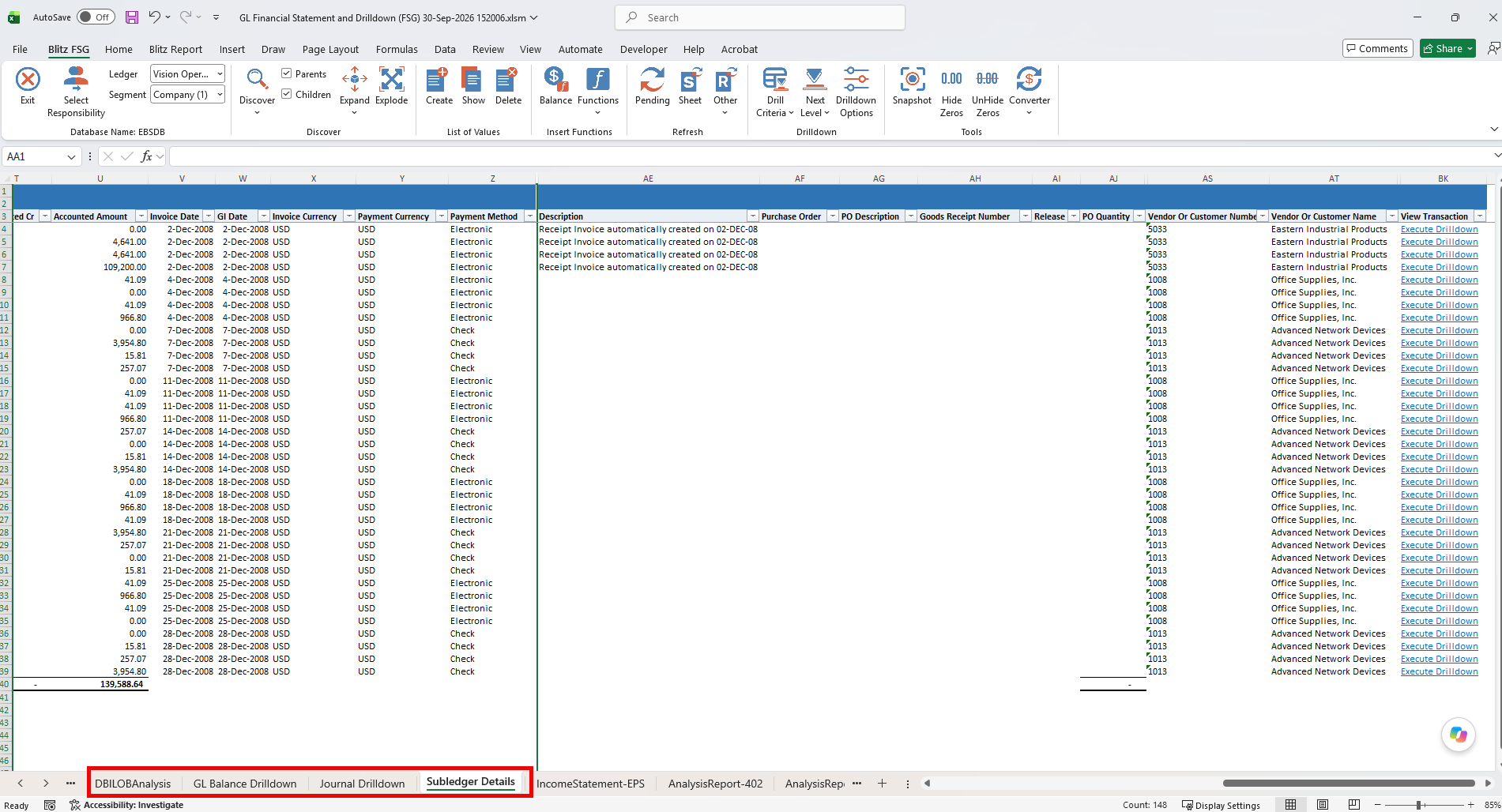
- Drilldown: from any balance to GL balances, journals, full journals, journal attachments and subledger details, and on to the transaction in its EBS form. Till Journal and Till Subledger produce every level in one action, each on its own sheet.
- Static copies: Snapshot replaces the formulas with their values, for distribution or archiving.
- No additional infrastructure: Blitz FSG is part of Blitz Report, installed into your existing EBS instance, and runs on Release 12 and Release 11i.
3 What the converters convert
Both converters work on the open workbook. They go through every formula on every worksheet and replace the GL Wand or Spreadsheet Server functions with their Blitz FSG equivalents, also where a formula combines several of them or wraps them in Excel arithmetic. Everything else in the workbook, from the layout and formatting to your own formulas, stays as it is.
3.1 GL Wand
- Balances: GET_BALANCE becomes Balance, with its period, amount type, currency, balance type, budget, encumbrance type, ledger and segment values. The journal source, Debit or Credit movement and multiply factor of GET_BALANCE_OPTIONS are carried over.
- Periods: PERIOD_NAME and PERIOD_OFFSET become Period Name and Period Offset, so the period columns still follow the period parameter.
- Descriptions: GET_SEGMENT_DESCRIPTION becomes Segment Description.
- Ledgers: SET_OF_BOOKS_NAME and set of books ids become ledger names.
- Lists of values: parameter cells with a drop-down list for the ledger, amount type, balance type or journal source get the Blitz FSG list of values, filled from EBS.
3.2 Spreadsheet Server
- Balances and descriptions: GXL becomes Balance and GXD becomes Segment Description, with the balance type Actual, Budget with its budget name or Encumbrance with its encumbrance type, and the ledger, currency and currency type of the formula.
- Formats: PER becomes the amount type PTD, and QTR becomes QTD. LTD, which includes the opening balance, becomes YTD, and Spreadsheet Server YTD, which excludes it, becomes CTD over the periods of the year, the same as RANGE.
- Periods: the year and period number become a period name through a Period Name formula on the period cell, so the parameter cells still drive the sheet. A period cell calculated as the previous period plus one becomes a Period Offset, which keeps 13-period layouts working.
- Segment values: ranges, lists and exclusions are rewritten in Blitz FSG syntax, so [1000.1999,/1500] becomes 1000-1999;~1500, and the * mask becomes %. A ^^ hierarchy value becomes its parent value, which Blitz FSG expands to its child values.
- Delimiters: the range, list and exclusion characters are user settings in Spreadsheet Server. When a workbook uses characters other than the defaults, the converter names each character and the cell where it appears, and asks for the delimiters that were used.
- Formulas to check: cells that cannot be converted are left unchanged and listed with the reason, and warnings point at formulas that need a look, for example translated balances in a foreign currency, or your own formulas that used a period number cell which now holds the period name. Spreadsheet Server functions other than GXL and GXD, ^ lists and @ fields have no Blitz FSG equivalent and are not converted.
4 Migration process
4.1 Install Blitz Report
Download and install Blitz Report into your EBS environment. Blitz FSG connects Excel to EBS through web services. ORDS is the default, and the installation configures it automatically when ORDS is already deployed, see webservice connectivity. If your EBS instance uses single sign-on, also set the Blitz Report SSO Enabled profile option.
4.2 Open a Blitz FSG workbook
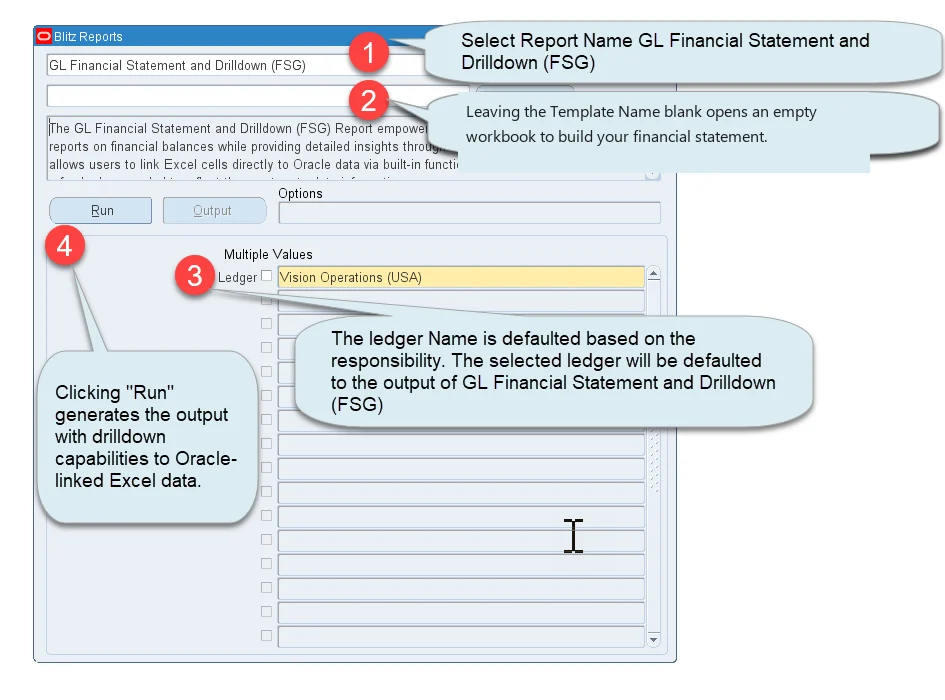
Run the GL Financial Statement and Drilldown (FSG) report from the Blitz Report form with a blank template. An empty workbook opens with the Blitz FSG ribbon, connected to EBS. Select the ledger that your statements report on. Formulas that do not name a ledger are converted for this ledger.
4.3 Copy your worksheets into Blitz FSG
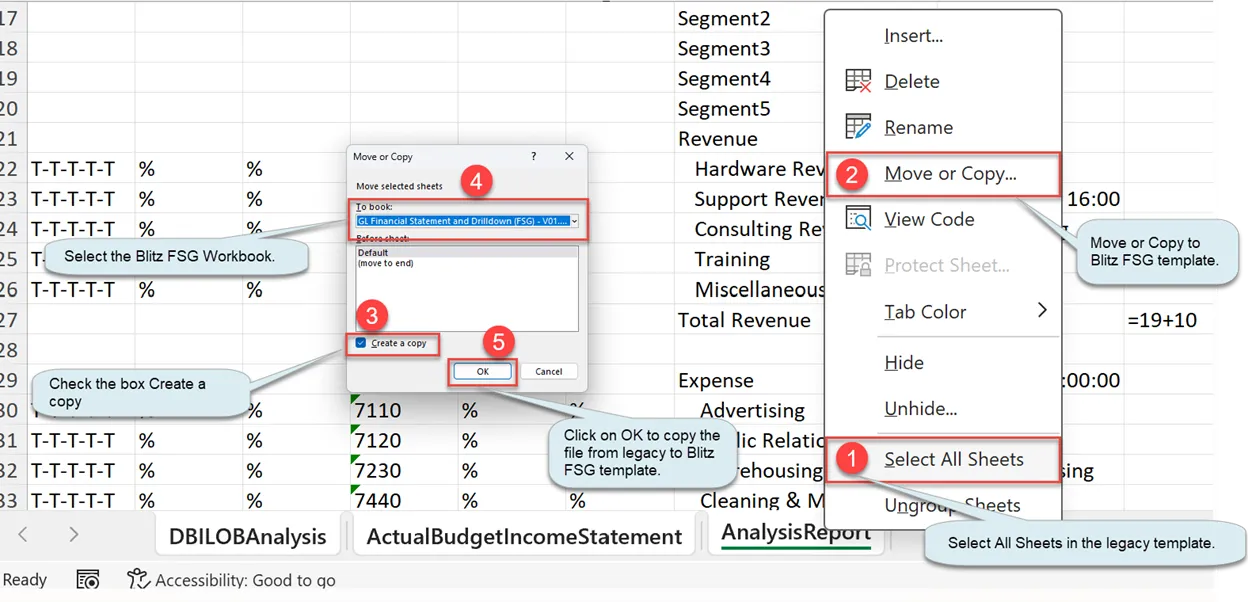
Open the GL Wand or Spreadsheet Server workbook next to the Blitz FSG workbook and copy its worksheets across:
- Right-click a sheet tab and click Select All Sheets.
- Right-click a sheet tab again and click Move or Copy.
- Tick Create a copy and select the Blitz FSG workbook in the To book list.
- Click OK.
The copies keep their formulas and formatting, and the original workbook stays unchanged for the tie-out.
4.4 Run the converter
Click Converter and select GL Wand or Spreadsheet Server. The converter goes through all worksheets of the workbook and shows its progress. For Spreadsheet Server, it asks for the range, list and exclusion delimiters only when the workbook uses characters other than the defaults. At the end, it reports how many cells could not be converted.

4.5 Validate the conversion
Refresh the workbook and compare the amounts with the original workbook for the same ledger and period. Where an amount differs, the Balance formula shows exactly what the cell selects, and a drilldown shows the accounts and journals behind it. Review the cells that the converter reported, and replace any construct without a Blitz FSG equivalent with segment values, ranges or lists.
4.6 Publish the statements
Remove the helper rows and columns you no longer need. Then upload the workbook as a template of the GL Financial Statement and Drilldown (FSG) report and share it with the users who need it. They run the report with the template and receive the statement connected to EBS, ready to change the period, refresh and drill down.
5 After the migration
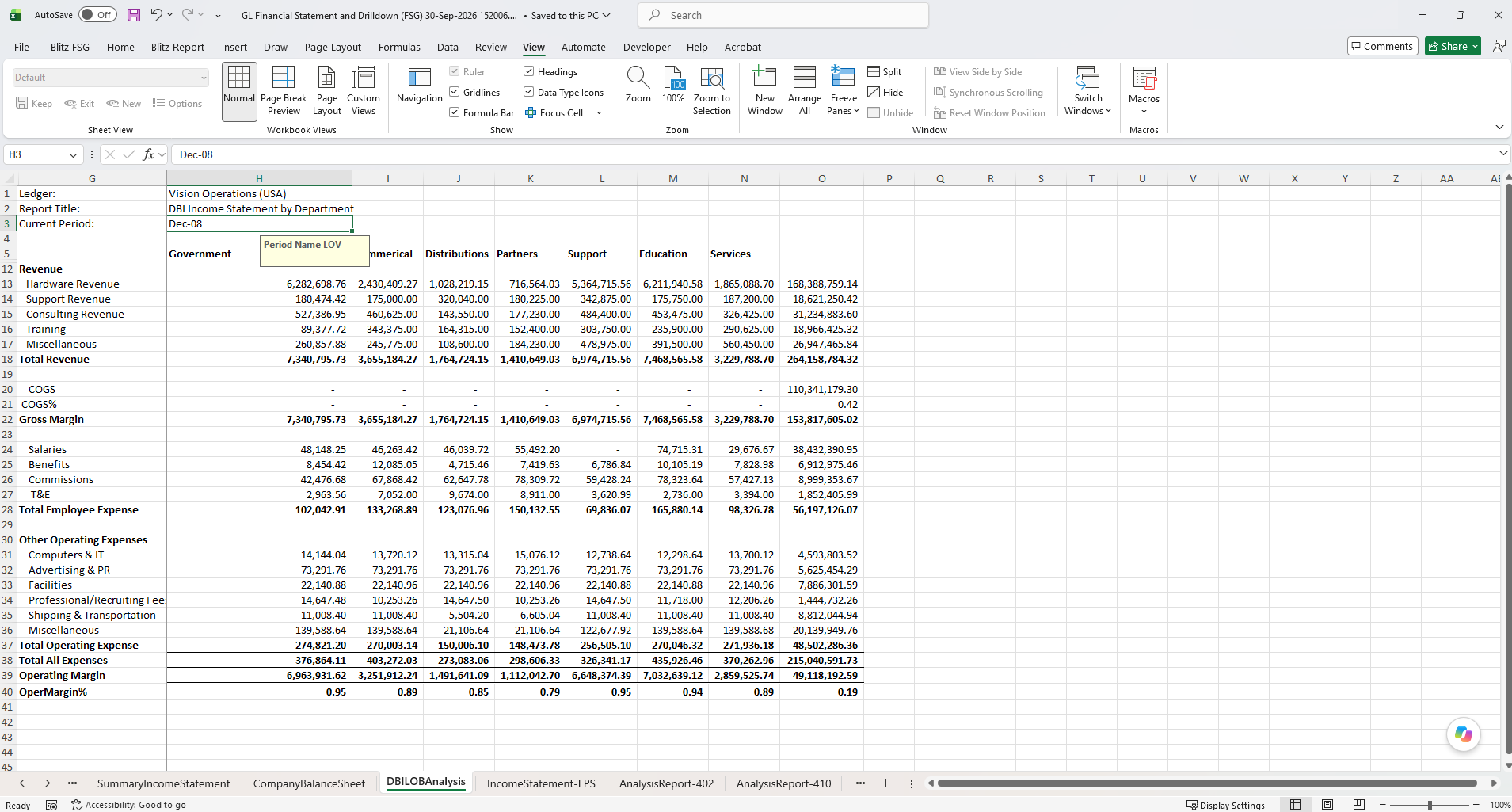
Finance users keep working in Excel as before: they change the period in a cell, refresh, and drill down from any amount to the journals and subledger transactions behind it. New statements are built the same way, with the Balance function form and the Discover, Expand and Explode tools, which list segment values directly from EBS. If you also have Oracle FSG reports, the Oracle FSG converter rebuilds them as Blitz FSG worksheets too.
For a demonstration, watch the Blitz FSG video. Enginatics supports the conversion and the tie-out of your statements. Contact us to plan your GL Wand or Spreadsheet Server replacement.
6 Summary
- Download and install Blitz Report into your EBS environment
- Run GL Financial Statement and Drilldown (FSG), copy your GL Wand or Spreadsheet Server worksheets into it and convert them with Converter > GL Wand or Converter > Spreadsheet Server
- Tie out the converted statements, upload them as templates and retire the add-in
Your statements keep their layout, formatting and formulas, and become Blitz FSG workbooks with drilldown to journal and subledger detail, secured by EBS and refreshed on demand.