
1 Why custom reports are worth migrating
2 Why Blitz Report
3 What the converter gathers
4 How the reports are converted
5 Migration process
5.1 Install Blitz Report
5.2 Open the converter and set the parameters
5.3 Download the template
5.4 Mark the programs to convert
5.5 Save and upload the file
5.6 Send the zip to Enginatics
5.7 Conversion by Enginatics
5.8 Test the converted reports
6 After the migration
7 Summary
Introduction
Most Oracle E-Business Suite instances carry a library of custom reports built up over many years: Oracle Reports (RDF), BI Publisher data templates and PL/SQL programs, each registered as a concurrent program with its own executable, value sets, layout templates and often custom database objects. Keeping them running means keeping the development tools and the skills for each of these technologies, and every change to a report is a small development project.
The Blitz Report Custom Reports Converter moves this library to Blitz Report. It lists the concurrent programs of your instance with their usage, so you can see which reports are still worth migrating, and gathers everything a conversion needs into a single zip file: the report source, the parameter definitions, the layouts, the custom database objects and the request group access. Enginatics converts the reports from that package into Blitz Reports that keep their parameters, lists of values, column headings and access, and produce their output directly in Excel.
Your part is one upload: download the list of programs to Excel, mark the ones to convert, upload the file and send the zip. A batch of ten programs is typically gathered in under a minute.
1 Why custom reports are worth migrating
Custom reports were built for the requirements of their time, and they age with the technology they were built in:
- Output made for printing: RDF and BI Publisher reports produce PDF, text or RTF output. Users who analyse the data copy it into Excel and rework it after every run.
- Every change is development work: a new column or parameter means changing the data model and the layout in Oracle Reports Builder or the BI Publisher template, then moving the program to the other instances with FNDLOAD. Reports Builder is a 10g client tool, and fewer developers know it every year.
- Slow for large volumes: BI Publisher builds the complete XML document before it applies the layout, so a report with many rows takes long and needs a lot of memory in the output post processor.
- Unknown usage: custom programs accumulate, and after a few years nobody knows which ones are still run and by whom, so none of them can be retired safely.
2 Why Blitz Report
Blitz Report runs the converted reports inside EBS, with the same responsibilities and security:
- No additional infrastructure: Blitz Report is installed into the existing EBS database and application tier. There are no additional servers, agents or cloud services.
- EBS security: reports run under the user’s own EBS responsibility, with operating unit and ledger security applied, and assignments control who sees which report.
- Excel output: reports are generated directly as Excel files, with templates for column selections, pivot tables and charts, or run straight into a worksheet with the Excel Add-in.
- One place to maintain: a report’s SQL, parameters and lists of values are edited in the Blitz Report setup window. There is no report file, layout template or executable to register, and a report moves between instances as one XML file.
- Speed: Blitz Report is the fastest reporting solution for Oracle EBS, even for reports with millions of rows.
- Ready-made content: the Blitz Report library provides a large number of ready-to-use EBS reports and uploads. Many custom reports are copies of standard Oracle reports with a few changes, and a library report replaces them without a conversion.
- More than reporting: Blitz Report also includes Blitz Upload, which creates and updates EBS data directly from Excel, and GL financial statements with drilldown to journal detail.
3 What the converter gathers
The Custom Reports Converter is a Blitz Upload. Its download lists the concurrent programs of your instance, one row per program, with the application, program type (RDF, BI Publisher or data extract), executable, execution method, output format, number of runs, number of distinct users, and first and last run date. Filters narrow the list to your own developments, to the programs of a responsibility or request group, or to programs run by a minimum number of users or within a period, so a migration can be scoped by department or by usage.
For every program you mark for conversion, the converter gathers:
- Program definition: the concurrent program with its parameters, value sets and defaults.
- Report source: the Oracle Reports file together with an XML conversion of its data model, the BI Publisher data definition and RTF templates, or the source of the PL/SQL package.
- Custom dependencies: the DDL of every custom table, view, package and function the report uses, identified by your custom object prefixes, and of the custom objects these depend on in turn.
- Access: the request groups from which the program can be run.
- Custom views, optionally: views whose name starts with your prefix, for example those behind Discoverer workbooks, with the views they are built on.
The converter only reads these definitions and changes no program or database object. All files are collected in one zip file, the output of the gather request.
4 How the reports are converted
Enginatics loads the package on a conversion instance and decides for each program, from the tables and objects its SQL reads rather than from its name, which of three results it gets:
- Library report: a custom copy of a standard Oracle report is replaced by the matching Blitz Report from the library, with a template that shows the custom report’s columns in their original order.
- Extended library report: where a library report covers most of a custom report, the missing standard columns or parameters are added to it, again with a template for the custom layout.
- New Blitz Report: a report with its own logic or custom objects becomes a new Blitz Report in the category Custom Reports, followed by your customer abbreviation.
A converted report keeps what the original does:
- SQL and logic: the data model query, together with everything the original computes outside it: formula columns, summaries, before-report triggers and the values a PL/SQL program writes row by row. SQL that the original assembles at run time, such as a column list read from a lookup, stays dynamic.
- Parameters: every concurrent program parameter with its prompt, required flag, default and hidden setting, taken from the program definition. Lists of values reuse the original value sets or the shared Blitz Report lists of values, which apply the operating unit and ledger security of the user’s responsibility.
- Column headings: each column shows the heading the original printed.
- Layouts: a BI Publisher cross-tab becomes an Excel pivot table template.
- Access: the request group access of the original program becomes Blitz Report assignments, so the same users see the report.
- Description: each report’s description names the original program and says what the report shows, so every Blitz Report can be traced back to its source.
All reports of the migration are delivered in one XML file, imported in a single step, together with a tracker workbook that lists every gathered program with its result, the Blitz Report and template that replace it, and its test status.
5 Migration process
5.1 Install Blitz Report
Download and install Blitz Report into your EBS environment. Before you start, you need:
- Blitz Report 3.3.5 or later.
- The Blitz Report Custom Reports Converter upload visible under your responsibility.
- A Customer Abbreviation of 1 to 5 letters and digits, for example ACME, agreed with Enginatics. It keeps your programs apart from those of other customers on the Enginatics conversion instance.
- Your Custom Object Prefix, if your custom objects do not follow the XX prefix recommended by Oracle. If you use more than one prefix, list them separated by commas, for example XX,APL.
5.2 Open the converter and set the parameters
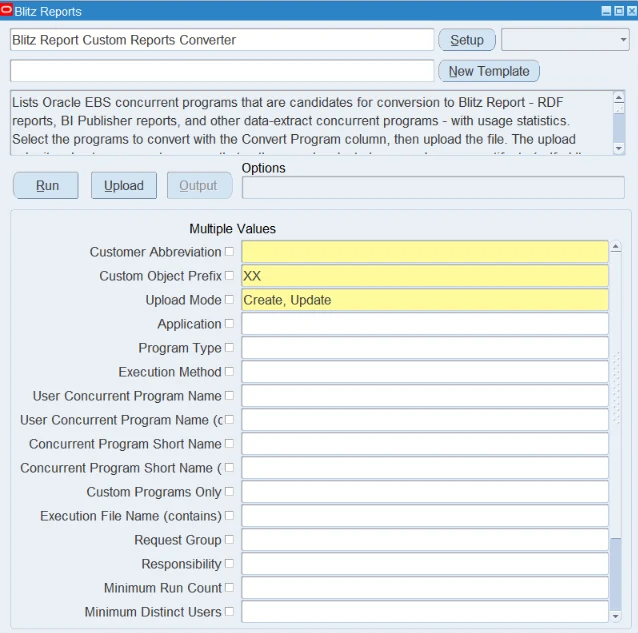
From the Blitz Report form, open Blitz Report Custom Reports Converter. Enter your Customer Abbreviation and check the Custom Object Prefix, which defaults to XX. All other parameters are optional filters on the list of programs, and the ones with a Multiple Values checkbox accept several entries at once:
- Custom Programs Only: set to Yes to list only the programs whose short name starts with one of your prefixes, usually the quickest way to isolate your own developments.
- Application, Program Type and Execution Method: restrict the list to EBS applications, to RDF, BI Publisher, data extract or custom view, or to the method of the executable.
- Program name and short name: pick programs by their user-visible name or their short name, or search on part of either.
- Request Group and Responsibility: list the programs a request group or a responsibility can run, a natural way to scope a migration to one department.
- Minimum Run Count, Minimum Distinct Users and Last Run Date From and To: separate the reports people use from one-off developments.
- Include Custom Views: set to Yes to also list the custom database views whose name starts with your prefix, for example the views behind Discoverer reports.
5.3 Download the template
Click Run. Blitz Report generates an Excel workbook with one row per candidate program, showing Application, Program, Short Name, Program Type, Executable, Method, Output Format, Run Count, Distinct Users and the first and last run dates: everything you need to decide which programs are worth migrating.

5.4 Mark the programs to convert
Set Convert Program to Yes on each program you want migrated. The Customer Abbreviation and the Custom Object Prefix are already filled in on every row.

5.5 Save and upload the file
Upload the workbook with Validate and Save on the Blitz Upload ribbon. The upload request waits for the gather to complete, so that the result file can show the status of each program. As a rough guide, a BI Publisher program takes 3 to 5 seconds, an RDF program 5 to 15 seconds and a data extract program 1 to 2 seconds, so a batch of ten programs typically completes in under a minute.
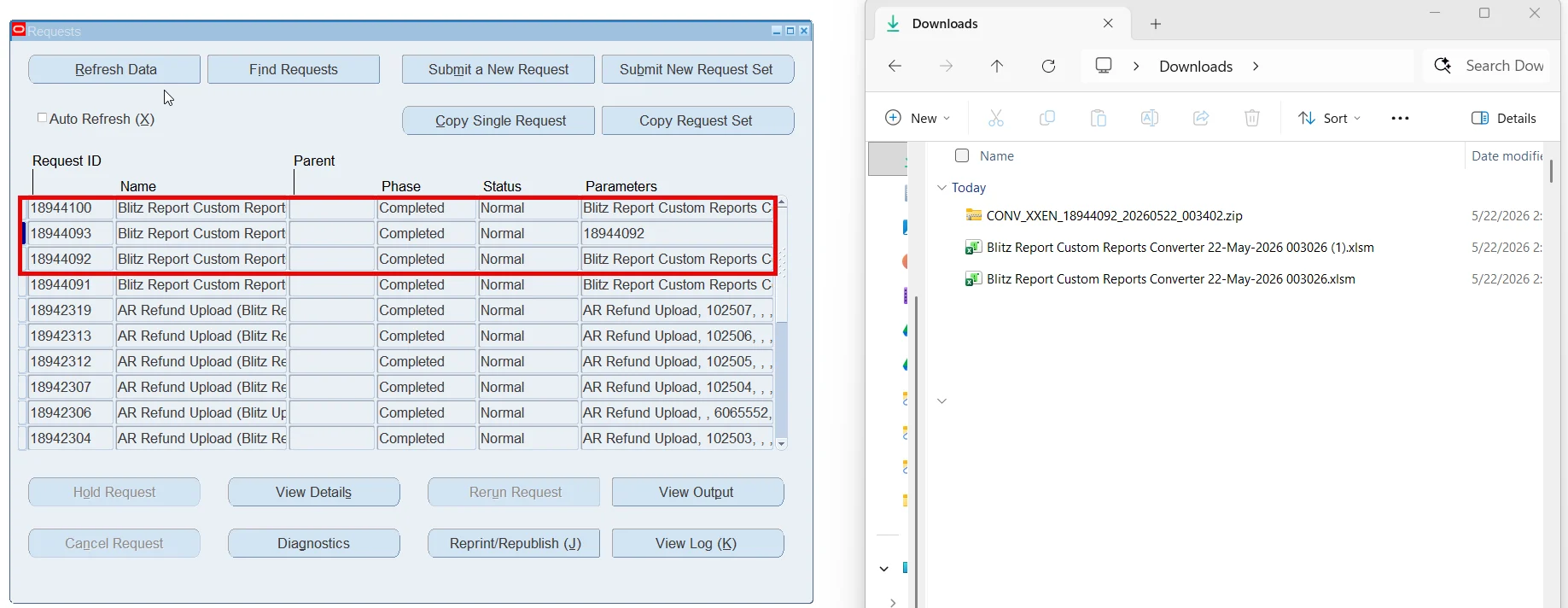
Two requests complete in your concurrent request list:
- The upload, which produces the result Excel file with a Status for every row, your Convert Program selection and a Gather Status such as 7 file(s) written.
- The gather, whose output is the zip file, named
CONV_<abbreviation>_<batch>_<timestamp>.zip.
5.6 Send the zip to Enginatics
Download the zip file from the output of the gather request and send it to Enginatics, or attach it to your support ticket. Add one output of each report from your system, with the parameters it was run with: the converted reports are tested against these outputs. The zip file contains:
CONV_ACME_5923949_20260519_132951.zip
├── manifest.txt                  customer abbreviation, prefix, batch id, gather date, program list
├── gather_summary.txt            gather status of each program
├── import_reports.sh             installer that Enginatics runs
└── <PROGRAM_SHORT_NAME>/         one folder per program
     ├── <SHORT>.ldt             concurrent program definition
     ├── <SHORT>_ds.ldt          BI Publisher data source
     ├── <SHORT>_tpl.ldt         BI Publisher template registrations
     ├── *.rtf                   BI Publisher templates
     ├── <EXEC_FILE>.rdf         Oracle Reports file
     ├── <EXEC_FILE>_rdf.xml     XML conversion of the Oracle Reports file
└── <owner>.<object>.<type>.sql DDL of every custom dependency |
For a custom view, the folder holds the view definition and the DDL of everything the view depends on.

The converter’s library page describes every parameter and answers common questions.
5.7 Conversion by Enginatics
Enginatics decides the result for each program, converts the reports and tests them on the conversion instance before delivery: every parameter and list of values against the program definition, every column and heading against the original layout, and the values against the outputs you supplied. The run time of each report is measured before delivery, and slow reports are tuned.
5.8 Test the converted reports
Import the delivered XML file in the Blitz Report setup window with Tools > Import > XML Upload. Then run each converted report with the same parameters as the original and compare the outputs. Where they differ, send both outputs to Enginatics; where a report ends in error, send its request log. When testing is complete, run the Blitz Report History report for the test period and send its output, so the run times of all converted reports can be reviewed.
6 After the migration
Users run the converted reports from the Blitz Report form or directly in Excel with the Excel Add-in, save their own column selections and pivot tables as templates, and schedule reports as before. Developers maintain the SQL and parameters in the Blitz Report setup window, and a new reporting requirement starts from the Blitz Report library rather than from a new concurrent program. Once the converted reports are accepted, the custom concurrent programs, their report files and layout templates can be retired.
Discoverer workbooks and EIS eXpress reports have imports of their own, described in Discoverer replacement with Blitz Report and EIS eXpress Reporting replacement.
Enginatics carries out the conversion and supports the testing of your reports. Contact us to plan the migration of your custom reports.
7 Summary
- Download and install Blitz Report into your EBS environment
- Run Blitz Report Custom Reports Converter, set Convert Program to Yes on the programs to migrate, upload the workbook with Validate and Save and send the zip to Enginatics
- Import the converted reports, test them against the originals and retire the custom programs
Your custom reports keep their parameters, lists of values, column headings and access, and run inside EBS as Blitz Reports with fast Excel output, maintained in one place.