
QA Collection Element Upload creates, updates and deletes Oracle Quality collection elements from Excel – the user-defined data characteristics (name, element type, datatype, prompt, default value, decimal precision, UOM, data entry hint, SQL validation string and sequence configuration) that collection plans collect against.
When to use it
- Create many new collection elements at once instead of one at a time in the Collection Elements window.
- Bulk-update prompts, default values, mandatory and enabled flags, UOMs, hints or validation strings on existing elements.
- Configure sequence elements (prefix, suffix, separator, start, increment, number segment length, zero pad) consistently.
- Delete obsolete elements that are not used on any collection plan.
- Copy an element library between environments by downloading from one and uploading to another.
Before you start
- Access to the upload in Blitz Report.
- The units of measure you want to use exist in Oracle Inventory.
- To delete an element, it must not be assigned to any collection plan.
Step 1 – Set the parameters
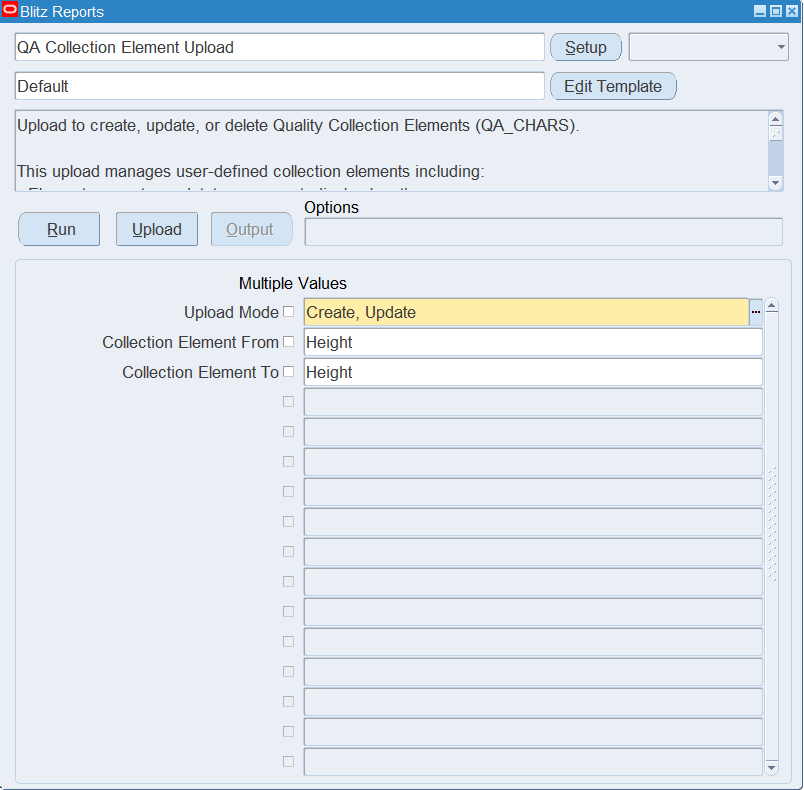
Open QA Collection Element Upload in Blitz Report and set the parameters:
| Parameter | Meaning |
|---|---|
| Upload Mode | Create (default) opens an empty sheet for new elements; Create, Update downloads existing elements for editing and lets you add new ones. |
| Collection Element From | Downloads elements whose name is alphabetically from this element onwards. |
| Collection Element To | Downloads elements whose name is alphabetically up to this element. |
Without a range, Create, Update downloads all user-defined collection elements.
Step 2 – Run to download the Excel file
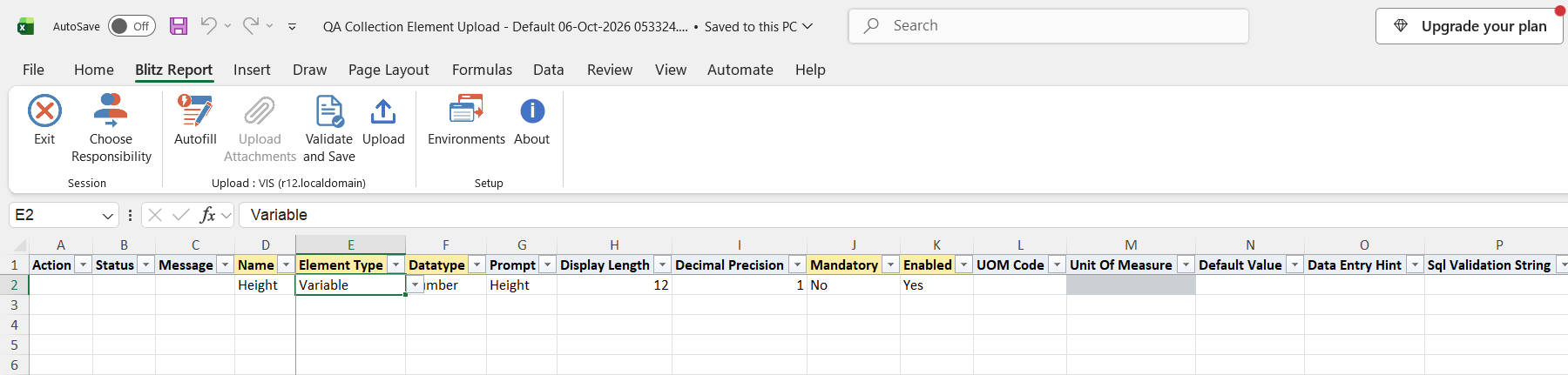
Click Run. The Excel file downloads and opens with one row per existing collection element, or an empty sheet.
Step 3 – Enter or change the collection elements
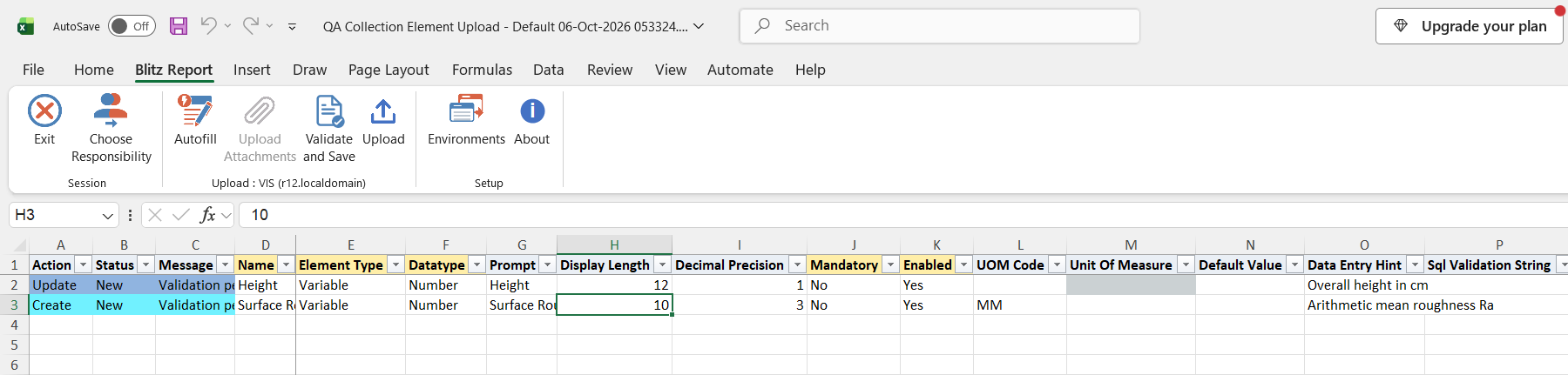
The Name identifies an element: a row whose name already exists updates that element, any other row creates a new one. For a new element enter the Name, Element Type and Datatype, set Mandatory and Enabled, and fill Prompt, Display Length, Decimal Precision (required for Number elements), UOM Code, Default Value, Data Entry Hint and Sql Validation String as needed. A blank Prompt defaults to the Name, and a blank Display Length to the standard length of the datatype. For Sequence elements fill Sequence Prefix, Sequence Suffix, Sequence Separator, Sequence Start (default 100), Sequence Increment (default 1), Number Segment Length (default 8) and Zero Pad. The Datatype of an existing element cannot be changed. To delete an element, set Delete Record to Yes on its row.
Step 4 – Validate and Save
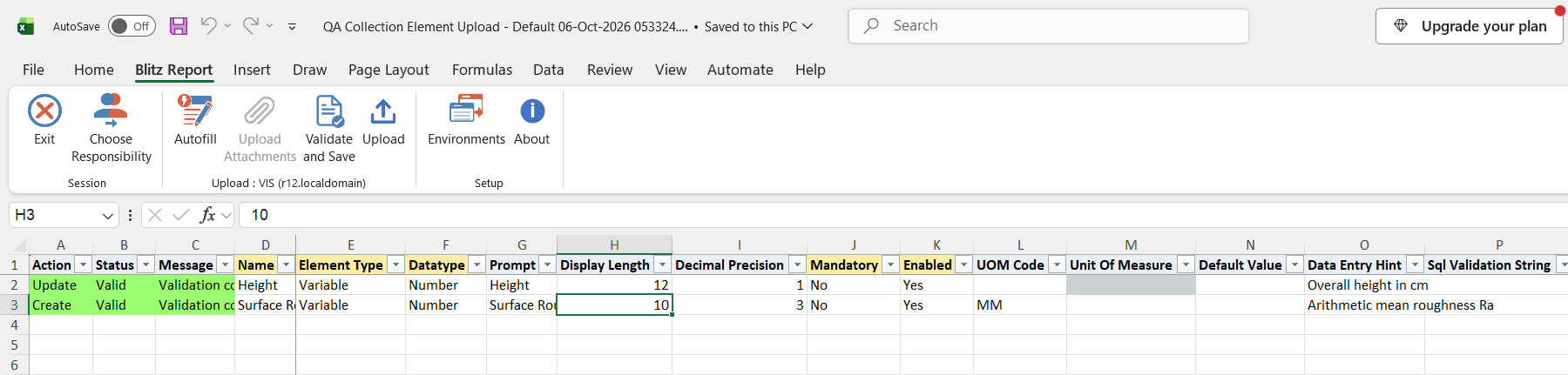
Click Validate and Save. This checks for missing required values and saves the file. Correct any rows it flags before uploading.
Step 5 – Upload the file
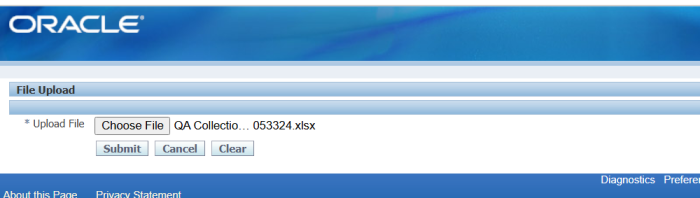
In Blitz Report click Upload and select the saved file. This submits the upload request, which creates, updates or deletes each collection element.
Step 6 – Review the result report
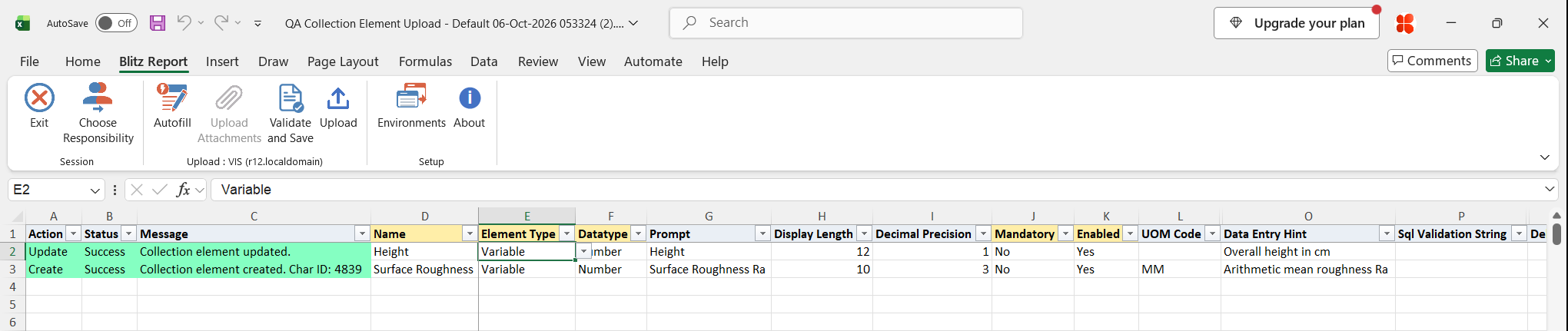
When the request completes, a result report opens listing every uploaded row with its status and message. Created elements show their internal element ID in the message.
What’s produced
- Collection elements created, updated or deleted, ready to be added to collection plans.
- A result report listing every row with a status (success or error) and a message.
Common questions
Can I change an element’s datatype after it is created?
No. The datatype is fixed at creation and the upload rejects a changed Datatype. Create a new element instead.
Why can’t I delete an element?
It is still assigned to one or more collection plans. Remove it from every plan first, then delete it.
What happens to an element’s values and actions when I delete it?
Its list of values and its element-level action triggers and actions are deleted together with the element.
Does the upload maintain element values, specification limits or actions?
No. Values, specification limits and actions are maintained in Oracle Quality; the upload only maintains the element definition.
How many sequence elements can I create?
Up to 15 sequence elements can exist in total, as in the Collection Elements window.
Which elements are downloaded?
User-defined collection elements only. Oracle’s predefined elements, such as Item or Lot Number, are not included.
Troubleshooting
| Message | Cause | What to do |
|---|---|---|
| Cannot change datatype for existing element “…” | The row’s Datatype differs from the stored datatype. | Restore the original datatype, or create a new element with a different name. |
| Cannot delete – element is assigned to collection plans. | The element is still used on at least one collection plan. | Remove it from all collection plans, then upload the delete again. |
| Collection element “…” not found for deletion. | Delete Record is Yes but no element has this name. | Check the spelling of the Name. |
| A collection element with a similar name already exists. | A new element’s name matches an existing one when case, spaces and apostrophes are ignored. | Choose a distinct name, or use the existing element’s exact name to update it. |
| Name contains special characters. | The name contains punctuation such as – . , / ( ) or quotes. | Use letters, digits, spaces and underscores only. |
| Name “…” is a reserved name. | The name is a reserved collection result column name such as NAME, PLAN_ID, OCCURRENCE or CREATION_DATE (in any case). | Choose another name. |
| Decimal Precision is required for Number datatype. | A Number element without Decimal Precision. | Enter a Decimal Precision. |
| SQL Validation String must start with SELECT. | The Sql Validation String is not a select statement. | Enter a select statement returning the valid values. |
| Sequence Increment must be >= 1. | A Sequence element with an increment of 0 or less. | Enter an increment of 1 or more. |
| Number Segment Length is required when Zero Pad is Yes. | Zero Pad is Yes without a Number Segment Length. | Enter the Number Segment Length. |
| No available sequence slots (maximum 15). | 15 sequence elements already exist. | Reuse an existing sequence element or delete an unused one. |