
PO Requisition Upload creates Oracle Purchasing requisitions, purchase or internal, with their lines and distributions from Excel through the standard Requisition Import program, and updates key line values such as quantity, price and need-by date on existing requisitions that are not yet on a purchase order.
When to use it
- Load many purchase requisitions from a spreadsheet, for example bulk indirect or MRO buys.
- Load internal requisitions to replenish one inventory organization from another.
- Create requisitions with suggested supplier, buyer, charge account and project details in one pass.
- Attach a document or note to each new requisition (use a “(with attachment)” template).
- Mass-change quantities, prices, need-by dates, buyers or notes to buyer on open requisitions.
Before you start
- Access to the upload in Blitz Report, in a responsibility with access to the operating unit.
- Your user is linked to an employee: new requisitions are prepared by the current user’s employee.
- Items are purchasable (or internal order enabled) in the inventory organization of the operating unit and the destination organization; lines without an item need an item description and a category.
- Deliver-to locations, requestors and, for supplier lines, suggested suppliers and sites exist.
Choose a template
| Template | Use it for |
|---|---|
| Create Purchase Requisition (default) | Purchase requisitions, sourced from suppliers. Sets Requisition Type to Purchase Requisition. |
| Create Internal Requisition | Internal requisitions, sourced from another inventory organization. Sets Requisition Type to Internal Requisition. |
| Create Purchase Requisition (with attachment) Create Internal Requisition (with attachment) | The same, plus the Attachment columns to attach a note, web page or file to each new requisition. |
Step 1 – Set the parameters
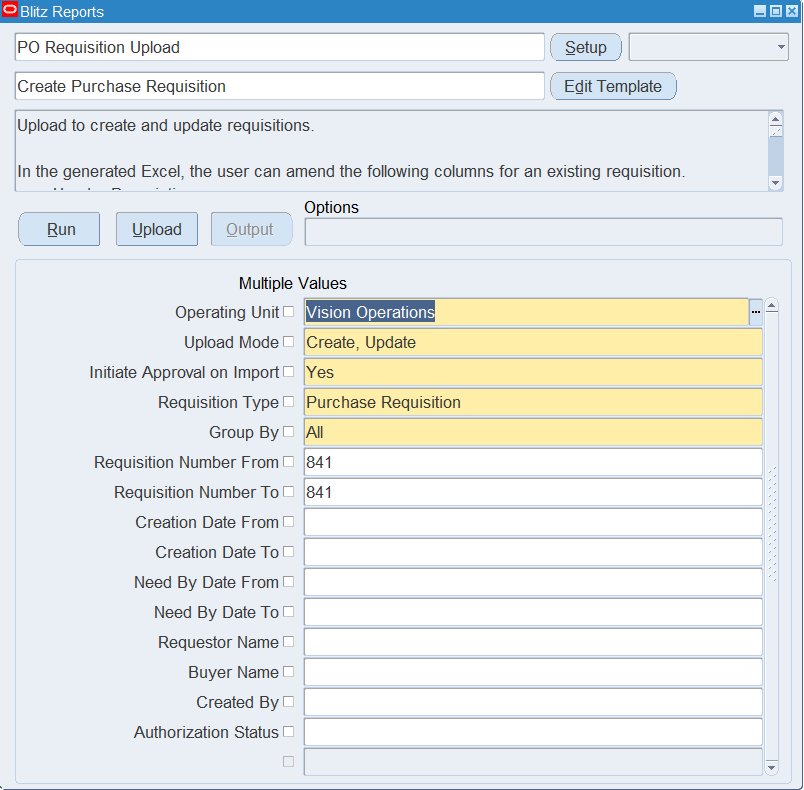
Open PO Requisition Upload in Blitz Report, choose the template and set the parameters:
| Parameter | Meaning |
|---|---|
| Operating Unit | The operating unit of the requisitions. Defaults to your current operating unit. |
| Upload Mode | Create (template default) opens an empty sheet for new requisitions; Create, Update downloads existing requisitions for editing and lets you add new ones. |
| Initiate Approval on Import | Yes (default) submits new requisitions for approval after the import; No leaves them Incomplete. |
| Requisition Type | Purchase Requisition or Internal Requisition, set by the template. |
| Group By | How Requisition Import groups lines without a Group Code into requisitions: All (template default, one requisition per upload), Buyer, Category, Item, Location or Vendor. |
| Requisition Number From / To | Downloads a requisition number range. |
| Creation Date From / To | Downloads requisitions created in this date range. |
| Need By Date From / To | Downloads requisition lines needed in this date range. |
| Requestor Name | Downloads lines for this deliver-to requestor. |
| Buyer Name | Downloads lines with this suggested buyer. |
| Created By | Downloads requisitions created by this user. |
| Authorization Status | Downloads requisitions in this approval status. |
The download parameters apply in Create, Update mode only. It includes requisitions that are not cancelled, pre-approved, in process or finally closed, with lines that are not yet on a purchase order or an internal sales order.
Step 2 – Run to download the Excel file
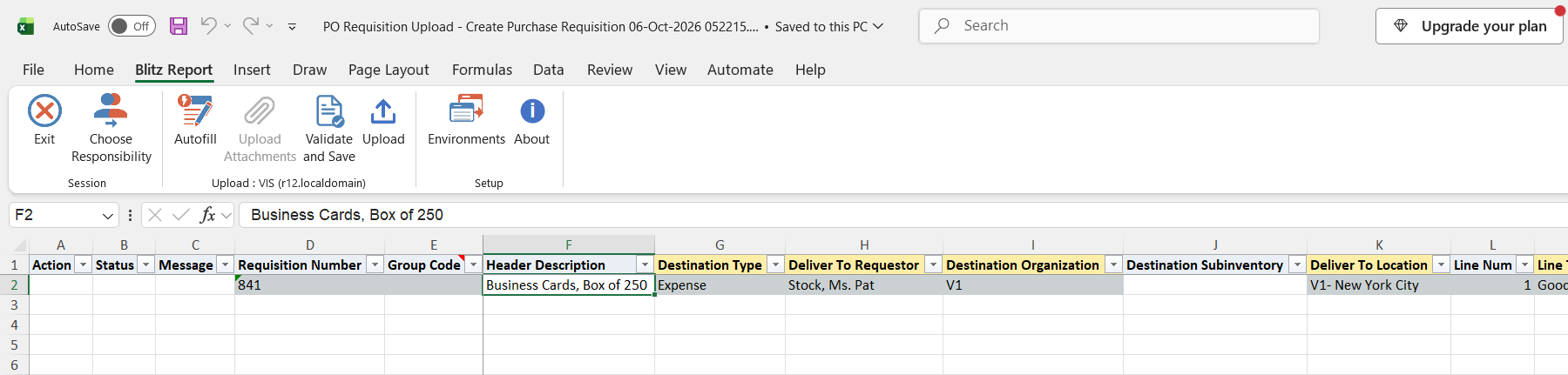
Click Run. The Excel file downloads and opens with one row per requisition distribution, or an empty sheet in Create mode.
Step 3 – Enter or change the requisitions
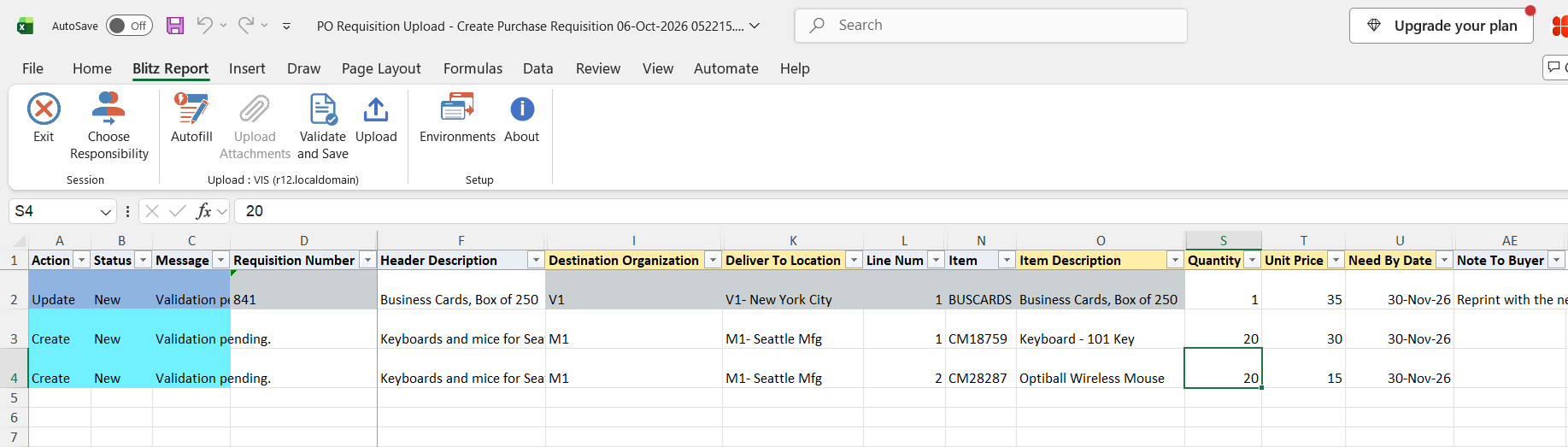
For a new requisition line enter the Header Description, Destination Type (Expense, Inventory or Shop Floor), Deliver To Requestor, Destination Organization, Destination Subinventory for inventory destinations, Deliver To Location, Line Num, Line Type, Item (the Item Description and Unit Price default from the item), Category, Unit Of Measure, Quantity, Need By Date and Source Type. Supplier lines can suggest a Supplier, Supplier Site, Supplier Contact, Supplier Item and Buyer; internal lines need a Source Organization and can name a Source Subinventory.
Lines with the same Group Code become one requisition; lines without one are grouped by the Group By parameter. Leave the Charge Account Segment columns empty to let Oracle build the charge account as in the Requisitions window, or enter all segments. For project-related lines set Project Accounting to Yes and enter the Project Number, Task Number, Expenditure Type, Expenditure Organization and Expenditure Item Date. For a foreign currency enter the Currency, Conversion Type, Conversion Date; the Conversion Rate defaults from the daily rates.
On downloaded rows you can change the Header Description, Quantity, Unit Price, Need By Date, Reference Number, Supplier Item, Buyer, Note To Buyer, Currency, Conversion Type, Conversion Date, Conversion Rate and the descriptive flexfield columns. The other columns are read-only.
Step 4 – Validate and Save
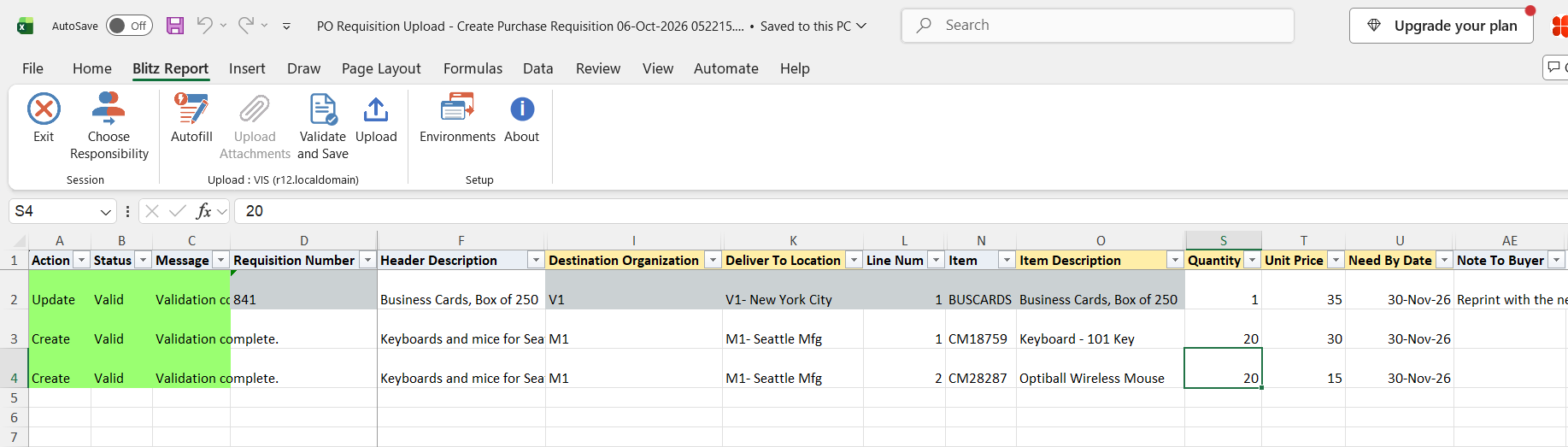
Click Validate and Save. This checks for missing required values and saves the file. Correct any rows it flags before uploading.
Step 5 – Upload the file
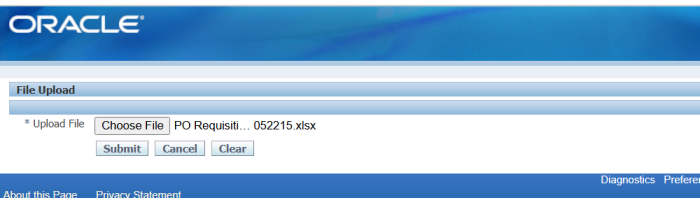
In Blitz Report click Upload and select the saved file. This submits the upload request, which updates the changed requisitions directly and loads the new lines into the requisitions open interface. It then runs the standard Requisition Import program, one per operating unit and requisition type, which creates the requisitions and, if Initiate Approval on Import is Yes, submits them for approval.
Step 6 – Review the result report
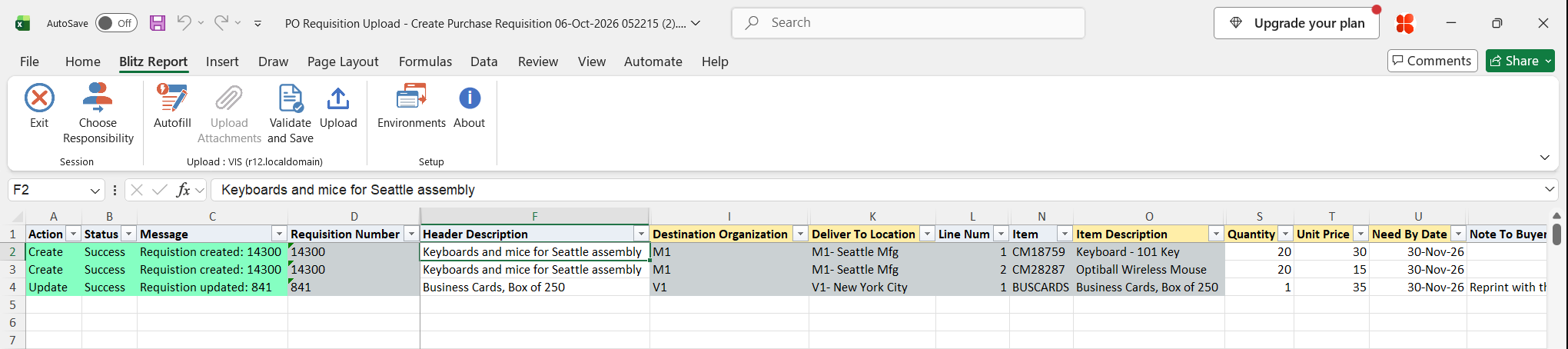
When the request completes, a result report opens listing every uploaded row with its status and message, including the number of each created or updated requisition. Rows rejected by Requisition Import show the import error.
What’s produced
- New purchase or internal requisitions with their lines and distributions, submitted for approval if requested, with their attachments.
- Updated header descriptions and line values on existing requisitions.
- A result report listing every row with a status (success or error) and a message.
Common questions
Does it use the standard Oracle import?
Yes. New requisitions are created by the standard Requisition Import program, which the upload submits for you, so the same defaulting, sourcing and validation rules apply as for any imported requisition.
Who is the preparer of the new requisitions?
The employee linked to your user. Each line can still have a different Deliver To Requestor.
Will it approve the requisition?
With Initiate Approval on Import = Yes the new requisitions go through the standard approval workflow; a preparer with enough approval authority gets them approved straight away. With No they stay Incomplete.
Which requisitions can I update?
Requisitions that are not cancelled, pre-approved, in process or finally closed, and only lines not yet placed on a purchase order or internal sales order. Updates do not resubmit the requisition for approval.
Can I add lines to an existing requisition or delete lines?
No. New rows always create new requisitions, and the upload does not delete or cancel requisitions or lines.
Troubleshooting
| Message | Cause | What to do |
|---|---|---|
| Could not get Preparer from current user | Your user is not linked to an active employee. | Link the user to an employee in the Users window, or upload with a user that is. |
| Operating Unit is invalid | The operating unit name does not exist. | Pick the Operating Unit from the list. |
| Invalid Item | The item does not exist in the inventory organization of the operating unit. | Pick the item from the list, or use a line without an item. |
| Header DFF Error: … / Line DFF Error: … / Distribution DFF Error: … | A descriptive flexfield value is not valid for its context. | Set the matching attribute category and pick valid values. |
| Requisition Import completed in Error. Oracle request id: … | The standard Requisition Import program failed. | Open the log of the named request, correct the data and upload again. |
| Requisition Import not Submitted due to “…” | The Requisition Import request could not be submitted. | Check that your responsibility can run Requisition Import, then upload again. |
| Requisition Import error, for example an invalid charge account or location | Requisition Import rejected the line; the result report shows its error message. | Correct the value in the row and upload it again. |