
PO Purchasing Document Upload creates and updates Oracle Purchasing documents from Excel: standard purchase orders, blanket purchase agreements, contract purchase agreements and quotations. New documents, and new lines, shipments and price breaks, are loaded through Oracle’s standard Purchasing Documents Open Interface import. Changes to existing standard purchase orders (buyer, dates, quantities, prices, shipment splits, project details and descriptive flexfields) are applied through Oracle’s standard purchase order change process. A result report lists every row with its status and message, including the purchase order number created.
When to use it
- Mass-create standard purchase orders, blanket or contract agreements, or quotations with their lines, shipments or price breaks and distributions.
- Add lines, shipments or price breaks to existing standard purchase orders, blanket agreements and quotations.
- Change existing standard purchase orders in bulk: buyer, need-by and promised dates, quantities, unit prices, receipt routing, distribution project and expenditure values, descriptive flexfields.
- Split a shipment on an existing standard purchase order line.
- Migrate open purchasing documents from a legacy system.
Before you start
- A responsibility with access to the upload and to the operating unit you are loading.
- Suppliers and supplier sites, buyers, items, categories, ship-to organizations and locations, and charge accounts already exist in Oracle.
- Existing documents are in a status Oracle allows to change. Contract purchase agreements can be created but not updated.
Choose a template
Each template shows only the columns that apply to one document type and sets the matching Document Type parameter.
| Template | Use it for | Oracle import program |
|---|---|---|
| Standard Purchase Order (default) | Standard purchase orders: header, lines, shipments and distributions. | Import Standard Purchase Orders |
| Blanket Purchase Order | Blanket purchase agreements: header, lines and price breaks. | Import Price Catalogs |
| Contract Purchase Order | Contract purchase agreements: header only. | Import Contract Purchase Agreements |
| Standard Quotation | Quotations: header, lines and price breaks. | Import Price Catalogs |
Each template also has a (with attachment) version that adds the Attachment Category, Title, Description, Type and Content columns, to load document attachments at the same time. Category and Type are required for an attachment.
Step 1 – Set the parameters
Open PO Purchasing Document Upload in Blitz Report, choose the template and set the parameters:
| Parameter | Meaning |
|---|---|
| Operating Unit | The operating unit of the documents. Required; defaults to your current operating unit. |
| Upload Mode | Create opens an empty sheet for new documents; Create, Update downloads existing documents to change them and lets you add new ones. |
| Create Empty File | Yes downloads an empty sheet whatever the mode. Defaults to Yes for Create. |
| Document Type | Standard Purchase Order, Blanket Purchase Agreement, Contract Purchase Agreement or Quotation. Required; set by the template. |
| Document Status | Downloads only documents in this status, for example Approved or Incomplete. |
| Active Price Breaks Only | Yes leaves out price breaks whose end date has passed (blanket agreements and quotations). |
| Document Number, Document Number From, Document Number To | Downloads one document or a range of document numbers. |
| Supplier | Downloads the documents of this supplier. |
| Creation Date From, Creation Date To | Downloads documents created in this date range. |
| Need By Date From, Need By Date To | Downloads the shipments with a need-by date in this range. |
| Agent Name | Downloads the documents of this buyer. |
| Created By | Downloads the documents created by this user. |
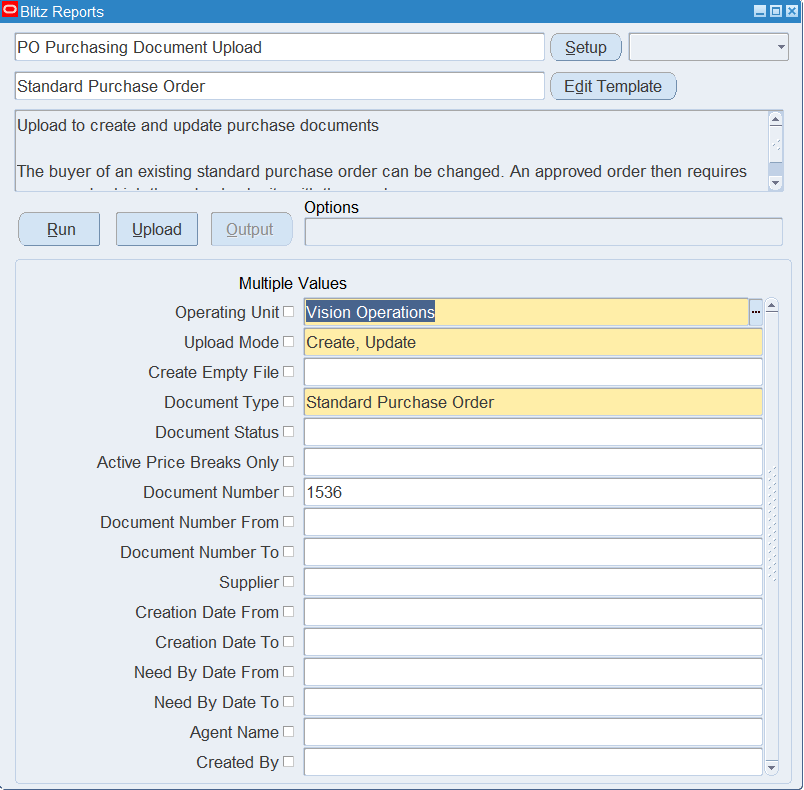
Step 2 – Run to download the Excel file
Click Run. The Excel file downloads and opens with one row per distribution of the selected documents (one row per price break for agreements and quotations), or an empty sheet.
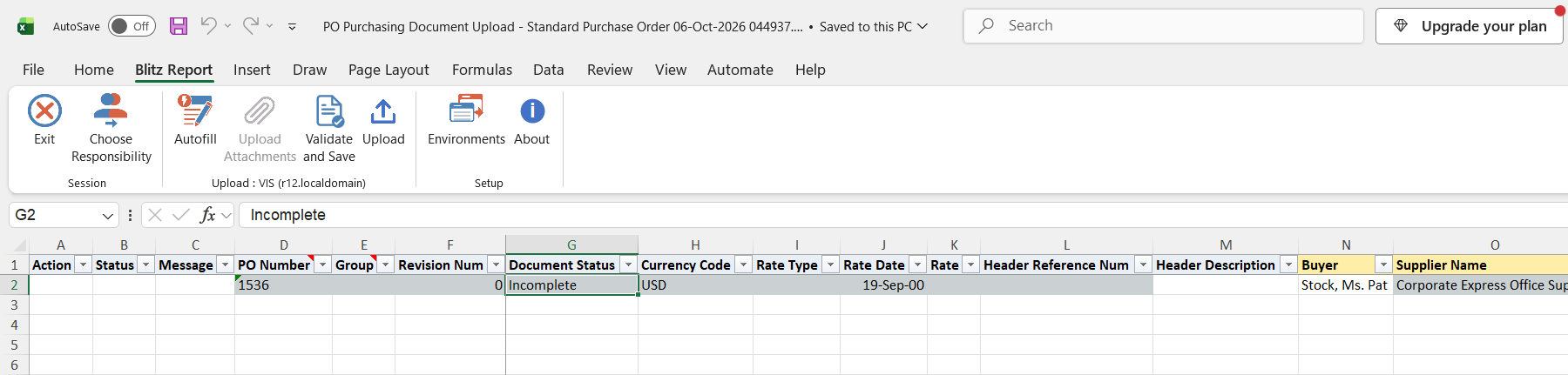
Step 3 – Enter or change the documents
One row carries the header, line, shipment and distribution of a document. The header repeats on every row of the document, the line on every row of its shipments, and the shipment on every row of its distributions. Each level is identified by these columns:
| Level | Identified by | Created when you fill |
|---|---|---|
| Header | PO Number for an existing document; Group for a new one | Group (all rows with the same Group become one new document) |
| Line | Line Num (for quotations, a line for an item that is already on the quotation is matched by Item) | Line Type |
| Shipment or price break | Shipment Num | Ship Quantity (standard purchase orders, quotations) or Break Price (blanket agreements) |
| Distribution | Distribution Num | Distribution Num |
New standard purchase order: enter a Group, the Buyer, Supplier Name and Supplier Site; for each line the Line Num, Line Type, an Item (Description and Price default from the item) or a Description, Category and Unit Of Measure, the Price and Line Quantity; for the shipment the Ship Quantity, Need By Date, Ship To Organization Code and Ship To Location Code; for the distribution the Distribution Num, Quantity Ordered and Charge Account (or the project columns for a project-related distribution). Currency Code defaults from the supplier site. Enter Document Number only to use your own document number instead of the generated one.
New blanket agreement or quotation: header and line as above; a blanket price break needs Break Price (Shipment Num numbers it), a quotation price break needs Ship Quantity, Break Price and optionally Break Unit Of Measure and Price Break Start Date / End Date. A contract agreement has only header columns, including Amount Agreed and Effective Start Date / End Date.
Approval Status (default Approved) is the status the import leaves new documents in, and Create Or Update Items (default No) lets the import create or update items in the item master.
Change an existing standard purchase order: keep the identifying columns of the downloaded row and edit only the values you want to change. Unchanged cells are ignored.
| To change | Edit |
|---|---|
| Header | Buyer, Header Description, header descriptive flexfield |
| Line | Price, Line Quantity, Description, Category, Unit Of Measure, Supplier Item, line descriptive flexfield |
| Shipment | Ship Quantity, Need By Date, Promised Date, Ship To Location Code, Receipt Routing, shipment descriptive flexfield |
| Distribution | Quantity Ordered, Project Number, Task Number, Expenditure Type, Expenditure Org, Expenditure Date, distribution descriptive flexfield |
| Split a shipment | On the line, enter a new Shipment Num with the Ship Quantity to split off. The quantity is taken from the line’s first shipment, and the new shipment inherits its charge account, tax classification, match approval level, receipt routing, destination and deliver-to location. |
| Add a line, shipment or distribution | Repeat the PO Number and enter a new Line Num, Shipment Num or Distribution Num with the values for the new record. |
Header Reference Num, the header notes, Header Ship To Location, Header Bill To Location, Supplier Name, Supplier Site, Supplier Contact, Payment Terms, Freight Terms, FOB, Carrier, Line Reference Num, Line Type, Item, Item Revision, the line note to vendor, Ship To Organization Code, Tax Classification Code, Match Approval Level, Charge Account, Requestor, Destination Type, Deliver To Location and the WIP columns can be set when a record is created but cannot be changed on an existing purchase order. When a change puts an approved purchase order into Requires Reapproval, the upload resubmits it for approval with its buyer as preparer.
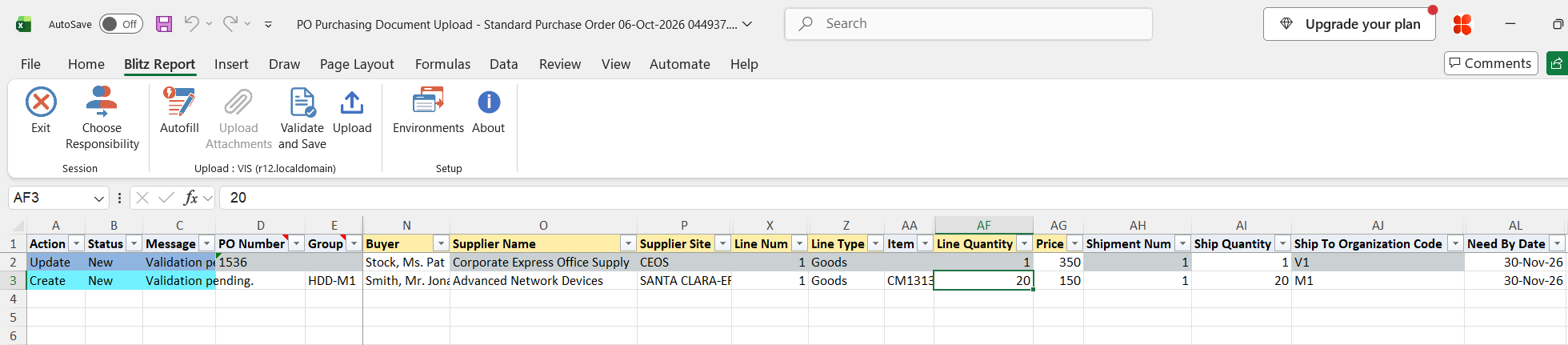
Step 4 – Validate and Save
Click Validate and Save. This checks for missing required values and that every new document row has a Group or an existing PO Number, and saves the file. Correct any rows it flags before uploading.
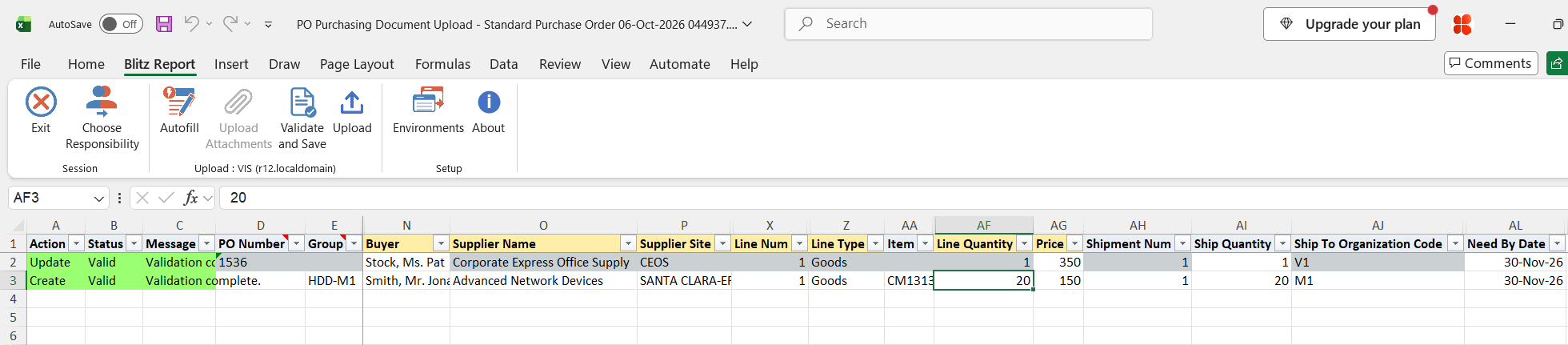
Step 5 – Upload the file
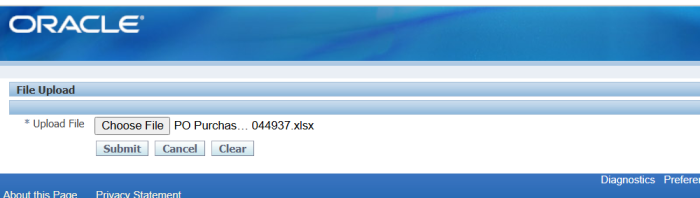
In Blitz Report click Upload and select the saved file. This submits the upload request, which applies the changes to existing purchase orders and submits Oracle’s import program for the new documents and lines.
Step 6 – Review the result report
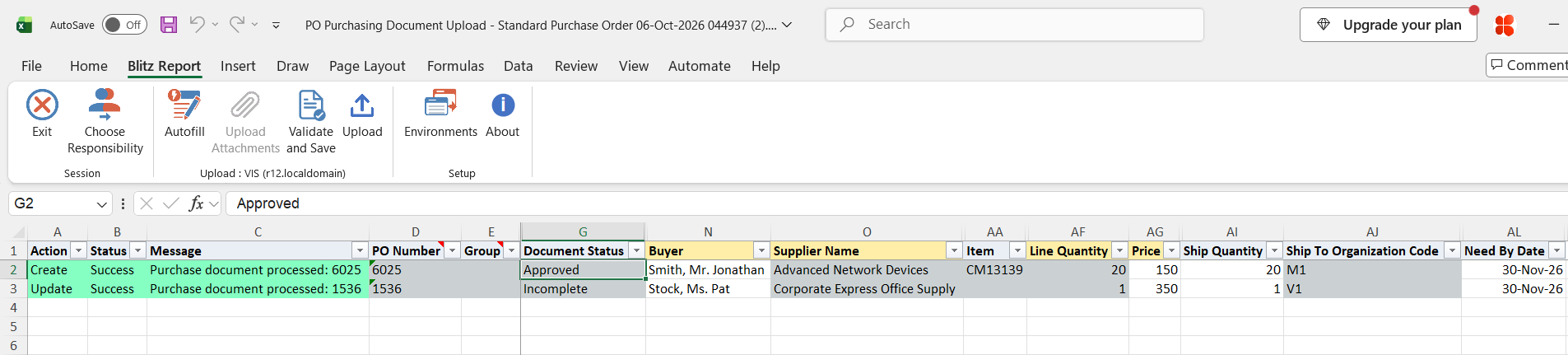
When the request completes, a result report opens listing every uploaded row with its status and message, with the document number of each created or updated document. Rows the Oracle import rejected show the import’s error message.
What’s produced
- New standard purchase orders, blanket and contract agreements and quotations in the chosen approval status, created by Oracle’s import programs.
- Lines, shipments, price breaks and distributions added to existing documents.
- Changed standard purchase orders, resubmitted for approval when the change requires it.
- A result report listing every row with a status (success or error) and a message.
Common questions
How do I put several lines on one new purchase order?
Give all their rows the same Group value. Rows with a different Group become a different document.
I changed one cell but the row says “No change.”
The upload compares each cell with the stored value and ignores unchanged ones. Check that the value really differs and that the identifying columns (PO Number, Line Num, Shipment Num, Distribution Num) are unchanged.
Why was my change to the supplier, item or charge account rejected?
Oracle’s change process cannot change these on an existing purchase order. They can only be set when the record is created.
Can I change the buyer of an approved purchase order?
Yes. The order then requires reapproval, which the upload submits with the new buyer as preparer.
Can I update a contract agreement?
No. Contract agreements can be created but not updated with this upload.
Can I give a split shipment a different charge account?
No. The new shipment inherits the charge account of the shipment it is split from.
Troubleshooting
| Message | Cause | What to do |
|---|---|---|
| Please enter a value for Group. | A new row has no Group and no PO Number of an existing document of the selected type. | Enter a Group to tie the rows into a new document, or a valid PO Number. |
| The following cannot be changed on an existing purchase order: … Remove these changes and re-upload. | An update row changes a column that can only be set on creation. | Restore the listed values and upload again. |
| Charge Account on a new shipment is inherited from the original shipment and cannot be set via this upload. | A shipment split has a different charge account. | Leave the charge account of the original shipment. |
| The following are inherited from the original shipment on a shipment split and cannot be set via this upload: … | A shipment split has a different tax classification, match approval level, receipt routing, destination type, deliver-to location or WIP job. | Keep the values of the original shipment. |
| Contract Agreements cannot be updated through this upload. | An update row for an existing contract agreement. | Maintain existing contract agreements in Oracle Purchasing. |
| Receipt Routing can only be changed on standard purchase order shipments. On other document types it can only be set when the shipment is created. | Receipt Routing changed on an existing blanket or contract agreement. | Restore the original value. |
| Receipt Routing cannot be changed on a drop shipment. | The shipment is a drop shipment. | Restore the original value. |
| Receipt Routing must be Inspection Required while the Match Approval Level is 4-Way. | The shipment uses 4-way matching. | Use Inspection Required. |
| WIP Operation Seq and WIP Resource Seq require a WIP Job. | Operation or resource sequence without a WIP Job. | Enter the WIP Job of the outside processing distribution. |
| This action cannot be performed by the upload. | The row neither creates a record (no Line Type, Ship Quantity, Break Price or Distribution Num) nor changes one. | Fill the column that creates the intended record, or the value to change. |
| Oracle import error messages | The import program rejected the document, for example a missing or invalid line, shipment or distribution value. | Correct the value named in the message and upload the rows again. |