
PO Approved Supplier List Upload creates, updates and deletes Oracle Purchasing Approved Supplier List (ASL) entries from Excel, using the standard Oracle Purchasing ASL API. Each row is an item or commodity assigned to a supplier, distributor or manufacturer, global or for one using organization, together with its supplier attributes (purchasing, supplier scheduling, planning, inventory, VMI and consigned settings), source documents, authorizations, capacities and tolerances.
When to use it
- Create many new ASL entries linking items or commodities to suppliers, distributors or manufacturers.
- Change ASL status, disable entries or update comments, review dates and supplier item numbers in bulk.
- Maintain supplier attributes such as purchasing UOM, release method, supplier scheduling, VMI or consigned settings across many entries.
- Define local (organization specific) attributes for a using organization against an existing global ASL.
- Attach or remove source documents (blanket agreements, contract agreements, quotations), and load supplier scheduling authorizations, capacities and tolerances.
- Delete obsolete ASL entries.
Before you start
- Access to the upload in Blitz Report, with a responsibility that has access to the owning and using inventory organizations.
- The item or purchasing commodity exists, and the supplier with a purchasing site in the operating unit of the owning organization, or the manufacturer, exists.
- Referenced ASL statuses, schedulers, bucket patterns, delivery calendars and source documents are set up.
- A distributor ASL needs an existing manufacturer ASL for the same item or commodity.
Step 1 – Set the parameters
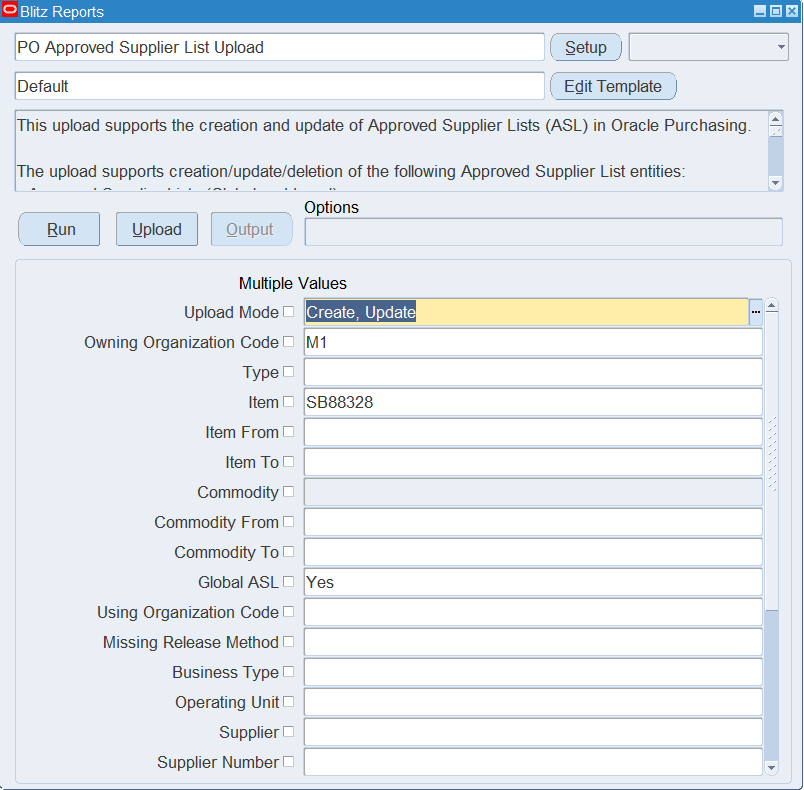
Open PO Approved Supplier List Upload in Blitz Report. With Upload Mode Create, Update the other parameters select the existing ASL entries to download; with Create the Excel file opens empty for new entries.
| Parameter | Meaning |
|---|---|
| Upload Mode | Create, Update (default) downloads existing ASL entries to change and lets you add new rows. Create opens an empty sheet for new entries only. |
| Owning Organization Code | Downloads the ASL entries owned by this inventory organization. Defaults to your current inventory organization. |
| Type | Item or Commodity ASL entries only. |
| Item, Item From, Item To | One item or a range of items. |
| Commodity, Commodity From, Commodity To | One purchasing commodity or a range of commodities. |
| Global ASL | Yes for global entries (valid for all using organizations), No for local entries. |
| Using Organization Code | Entries that apply to this using organization: global entries and the entries local to it. Their local attributes for this organization are downloaded too. |
| Missing Release Method | Yes downloads only entries without a release method. |
| Business Type | Direct, Distributor or Manufacturer entries. |
| Operating Unit, Supplier, Supplier Number, Supplier Site | Entries of this supplier, supplier site or operating unit of the supplier site. |
| Manufacturer | Manufacturer entries of this manufacturer and the distributor entries that reference it. |
| ASL Status | Entries with this status, for example New or Approved. |
| ASL Disabled | Yes for disabled entries only, No for enabled entries only. |
| Source Document | Entries that have this purchasing document number as a source document. |
| Download Authorizations, Download Capacities, Download Tolerances | Yes also downloads the supplier scheduling authorizations, supplier capacities or supplier tolerances. They are not downloaded by default. |
Step 2 – Run to download the Excel file
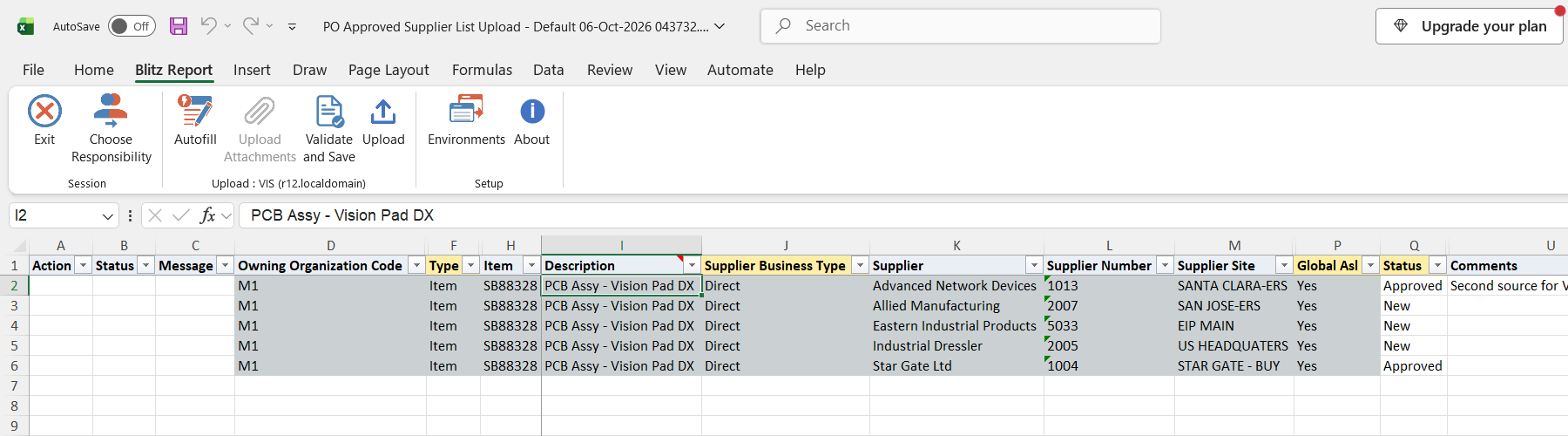
Click Run. The Excel file downloads and opens with one row per ASL entry. Source documents, authorizations, capacities and tolerances are downloaded on rows of their own, repeating the ASL entry columns.
Step 3 – Enter or change the data
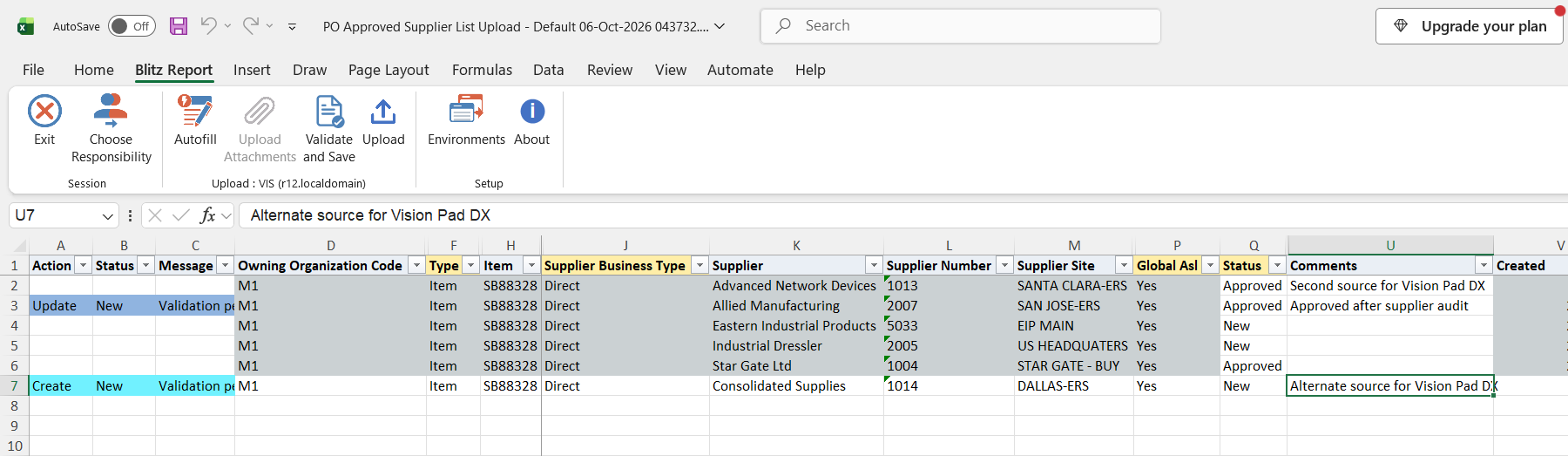
Change the values of existing rows, or add new rows at the end of the sheet. Changed rows are marked Update and new rows Create. The key columns of an existing entry (organization, type, item or commodity, business type, supplier, supplier site, manufacturer, global flag and using organization) are read only; to change them, add a new entry and delete the old one.
- For a new entry enter the Owning Organization Code, the Type and the Item or Commodity, the Supplier Business Type and, depending on it, the Supplier and Supplier Site (Direct), the Supplier, Supplier Site and Distributor Manufacturer (Distributor) or the Manufacturer (Manufacturer). Set Global Asl and the Status; Supplier Number fills from the supplier and Status defaults to the default ASL status.
- Disabled, Supplier Item, Review By Date and Comments can be changed on existing entries.
- The attribute columns from Purchasing UOM to Consigned Aging Period Days set the supplier attributes, the same as in the Supplier-Item Attributes window. To create local attributes for one organization against a global ASL, enter that organization in Using Organization Code; leave it empty otherwise. Manufacturer entries have no attributes, source documents, authorizations, capacities or tolerances.
- A row can carry one source document (Source Document Seq, Source Document Type, Source Document Number, Source Document Line), one authorization, one capacity and one tolerance. Add further rows with the same ASL entry columns for more of them.
- To delete, set Delete This Asl, Delete This Document, Delete This Authorization, Delete This Capacity or Delete This Tolerance to Yes. Deleting the local attributes of a using organization keeps the global ASL. Manufacturer entries cannot be deleted with this upload.
- If the same ASL entry and using organization appear on several rows, the attributes of the first row are used and those of the other rows are ignored.
Step 4 – Validate and Save
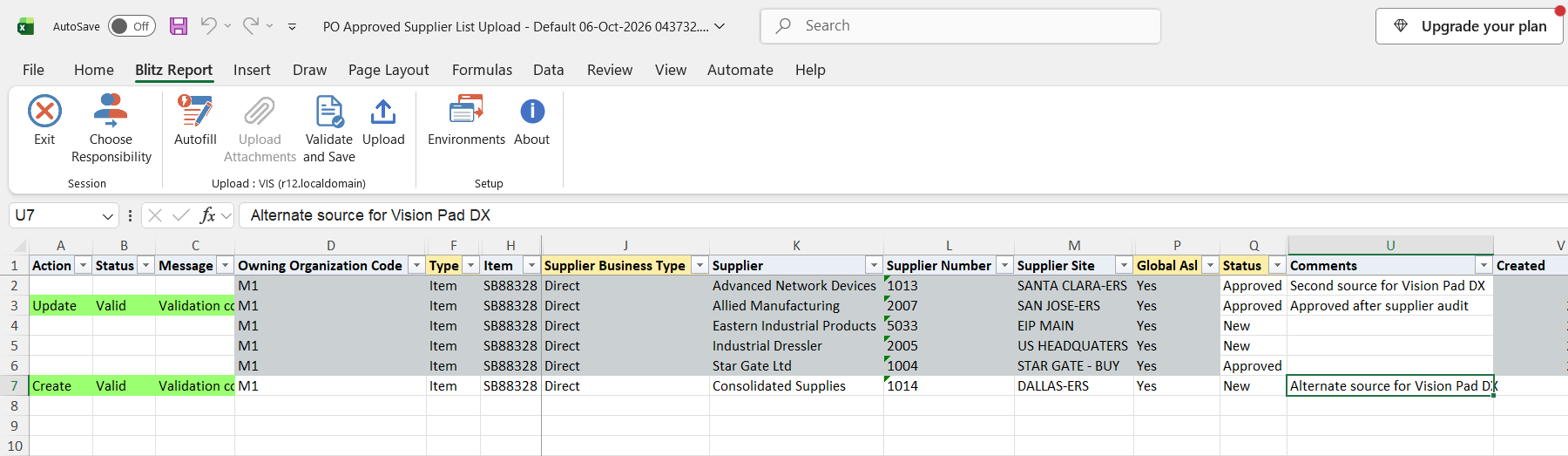
Click Validate and Save. This checks for missing required values and saves the file. Correct any rows it flags before uploading.
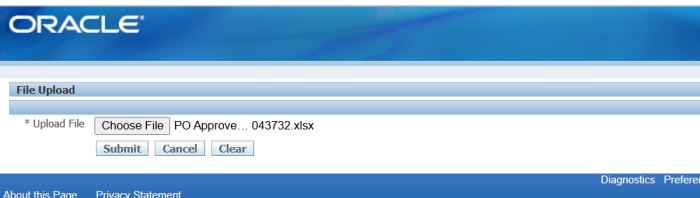
Step 5 – Upload the file
In Blitz Report click Upload and select the saved file. This submits the upload request, which creates, updates or deletes each ASL entry and its attributes, source documents, authorizations, capacities and tolerances.
Step 6 – Review the result report
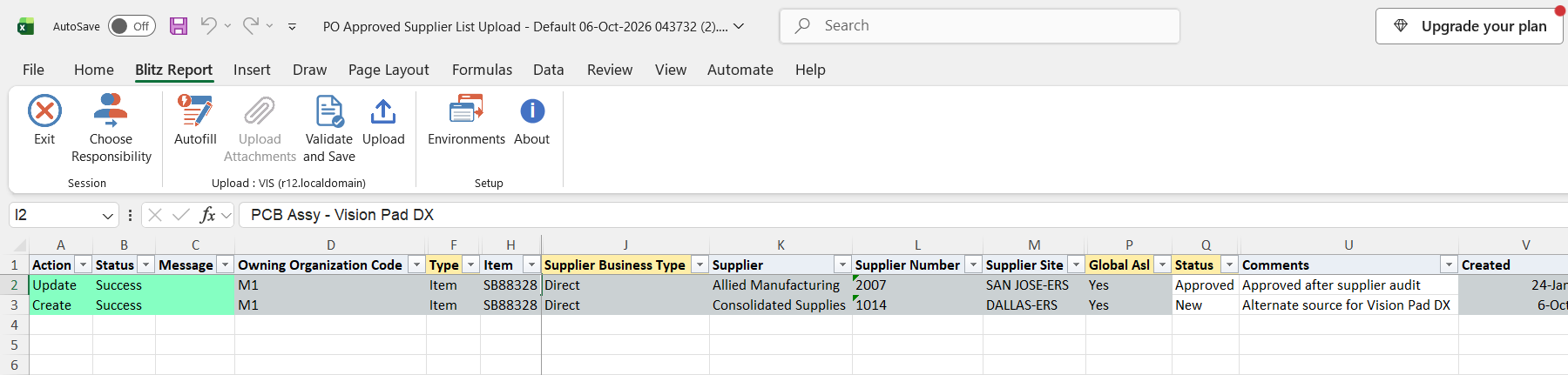
When the request completes, a result report opens listing every uploaded row with its status and message.
What’s produced
- New, changed or deleted ASL entries with their supplier attributes, source documents, authorizations, capacities and tolerances, visible in the Approved Supplier List window.
- A result report listing every row with a status (success or error) and a message.
Common questions
How does the upload decide between creating and updating an entry?
It looks up the ASL entry by item or commodity, business type, supplier, supplier site, manufacturer, owning organization and global flag. If the entry exists it is updated, otherwise it is created. The same applies to the local attributes of a using organization, a source document (by document), an authorization (by sequence), a capacity (by date range) and a tolerance (by number of days).
Why are authorizations, capacities and tolerances missing from my download?
They are only downloaded when Download Authorizations, Download Capacities or Download Tolerances is set to Yes.
Can I enter a source document, authorization, capacity and tolerance on the same row?
Yes. The download puts each on a row of its own, but for new data one row can carry one of each.
What happens to an existing source document when I clear its columns?
Nothing. A row without a Source Document Number does not change the source documents of the entry. Use Delete This Document to remove one.
Can I update a capacity that has already started?
No. The Oracle API rejects capacities with a from date in the past. You can still delete such a capacity if its to date is empty or in the future.
Can I delete a manufacturer ASL?
No. The standard Oracle API does not support it; delete it in the Approved Supplier List window.
Can I enter descriptive flexfield values?
The default template does not include the ASL, attribute and source document descriptive flexfields. Add those columns to a template of your own to upload them.
Troubleshooting
| Message | Cause | What to do |
|---|---|---|
| Invalid Owning Organization. / Invalid Using Organization. | The organization code is not a valid inventory organization. | Pick the organization from the list. |
| Invalid Item. / Invalid Commodity. / Item or Commodity is required. | The item does not exist in the owning organization, the commodity does not exist, or neither is entered. | Pick the Item or Commodity from the list that matches the Type. |
| Invalid Vendor. / Invalid Vendor Site. / Invalid Manufacturer. | The supplier or manufacturer does not exist, or the site does not exist for the supplier. | Pick the value from the list. |
| Vendor Site “…” exists in multiple operating units; none matches the Owning Organization’s operating unit. | The supplier has sites with this name in several operating units, none in the operating unit of the owning organization. | Pick a site of the owning organization’s operating unit. |
| Multiple Vendors named “…” exist. Please populate the Supplier Number to disambiguate. | More than one supplier has this name. | Also enter the Supplier Number. |
| Vendor is required. / Manufacturer is required. / Distributor Manufacturer is required. | A column required for the Supplier Business Type is empty. | Direct needs a supplier, Distributor a supplier and a distributor manufacturer, Manufacturer a manufacturer. |
| Manufacturer cannot be specified for Direct Business Type. / Vendor cannot be specified for Manufacturer Business Type. | The supplier or manufacturer columns do not match the Supplier Business Type. | Clear the column that does not belong to the business type. |
| An ASL for this Manufactuer does not exist for this Item/Commodity. | A distributor entry references a manufacturer that has no ASL entry for the item or commodity. | Create the manufacturer entry first, then the distributor entry. |
| Manufacturer ASLs cannot be deleted using this upload due to a restriction in the standard Oracle API | Delete This Asl is Yes on a manufacturer entry. | Delete the entry in the Approved Supplier List window. |
| ASL cannot be deleted. Using Organization does not exist for this ASL. | Delete This Asl is Yes for a using organization that has no attributes for this entry. | Check the Using Organization Code of the row. |
| Source Document cannot be deleted. Source Document does not exist for this ASL. Authorization cannot be deleted. No Authorization Sequence n exists for this ASL. Capacity cannot be deleted. No capacity for date range … exists for this ASL. Tolerance cannot be deleted. No tolerance for n days exists for this ASL. | A Delete This … flag is set for a source document, authorization, capacity or tolerance that does not exist. | Download the entry with the matching Download parameters and delete from the downloaded row. |
| Source Document: Document Header is invalid | The Oracle API did not find the document for this entry: it must be an approved, not cancelled, frozen, finally closed or expired agreement or quotation of the same supplier and site that contains the item. In Oracle EBS 12.1.3 the API only finds global agreements, so downloaded rows with a local blanket agreement fail even if you changed another column. | Pick the document from the list. To change other columns of such a row, clear its source document columns; the existing source document is kept. |
| Approved Supplier List DFF Error: … / Attributes DFF Error: … / Document DFF Error: … | A descriptive flexfield value failed validation. | Correct the flexfield context and attribute values. |
| Approved Supplier List: … / ASL Attribute: … / Authorization: … / Capacity: … / Tolerance: … | The Oracle API rejected the row; the message names the entity and gives the Oracle reason. | Correct the columns of that entity as the message describes. |