
PO Receiving Transaction Upload records goods receipts against approved purchase orders from Excel. You enter a quantity and a transaction date for each open PO shipment, and the upload runs Oracle’s standard Receiving Transaction Processor to receive the goods and deliver them to their destination in one step. It is the spreadsheet alternative to keying receipts one at a time in the Receipts form, and suits receiving many lines or many purchase orders at once.
When to use it
- Record goods receipts in bulk against approved purchase orders.
- Receive a partial or the full remaining quantity of a shipment.
- Receive and deliver to inventory (subinventory and locator), expense or shop floor in a single step.
- Capture receipt details such as item revision, country of origin, supplier lot number and comments.
Before you start
- A responsibility with access to Blitz Report and to the receiving organization.
- The purchase order shipment is approved, not cancelled, not closed for receiving, and still has a quantity remaining to receive.
- The purchasing and inventory periods are open for the transaction date.
- For locator-controlled subinventories or items you know the locator to deliver to.
Step 1 – Set the parameters
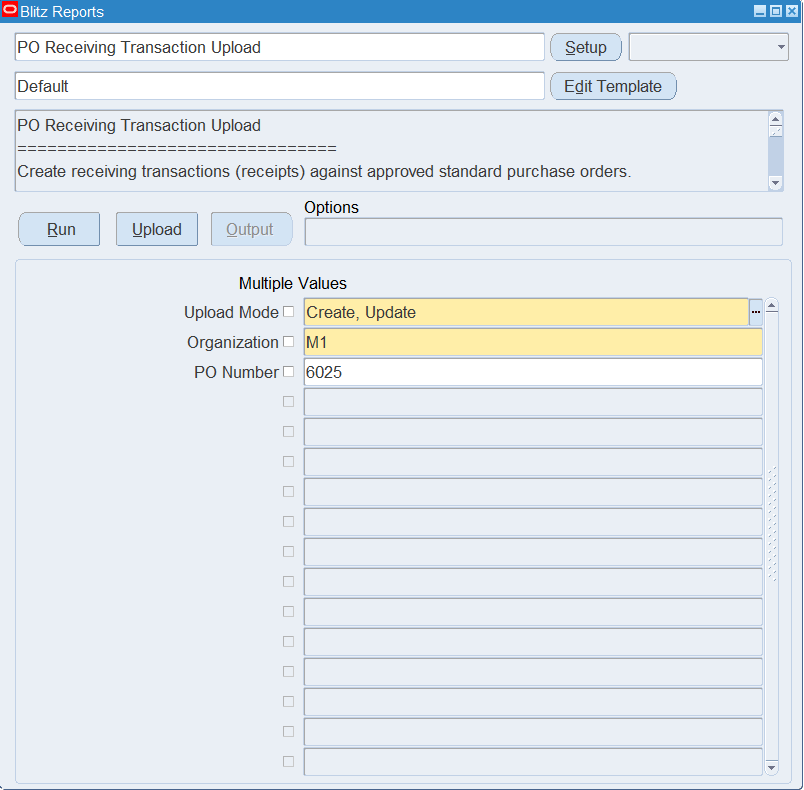
Open PO Receiving Transaction Upload in Blitz Report and set the parameters:
| Parameter | Meaning |
|---|---|
| Upload Mode | Create (default) opens an empty sheet to enter receipts; Create, Update downloads the open PO shipments of the organization with their quantity remaining. |
| Organization | The receiving inventory organization. Required; the list shows the organizations your responsibility can access. |
| PO Number | Downloads the open shipments of this purchase order only. |
Step 2 – Run to download the Excel file
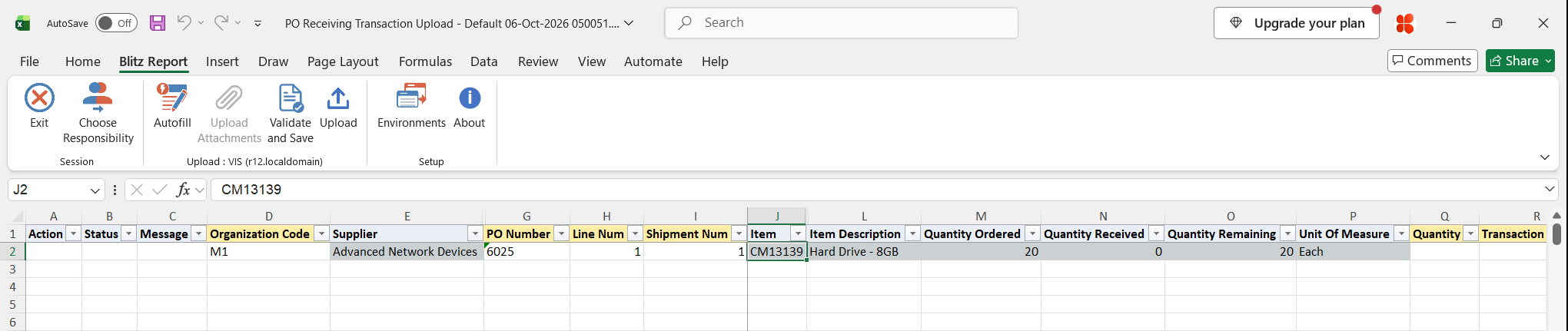
Click Run. The Excel file downloads and opens with one row per open PO shipment, showing the supplier, item, quantity ordered, quantity received, quantity remaining and the destination defaults of the purchase order, or an empty sheet in Create mode.
Step 3 – Enter the receipts
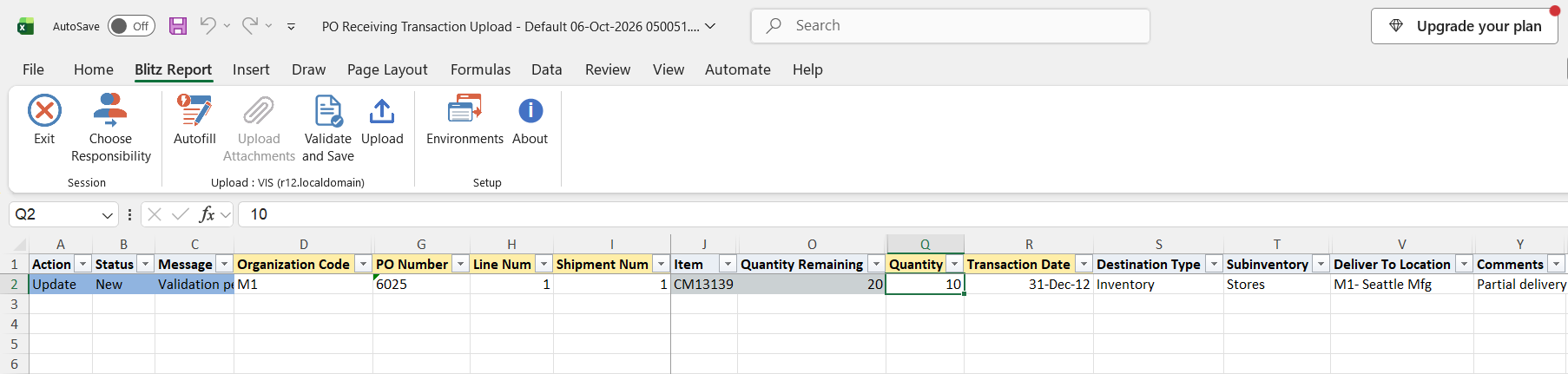
For each shipment to receive, enter the Quantity (greater than zero, for a partial receipt less than the Quantity Remaining) and the Transaction Date. Rows you leave untouched are not uploaded. To add a receipt in an empty sheet, pick the Organization Code, PO Number, Line Num and Shipment Num from their lists; the list of shipments shows the quantity remaining, and the supplier, item and quantity columns fill in. On new rows Quantity defaults to the quantity remaining and Transaction Date to today.
- Destination Type, Subinventory and Deliver To Location default from the purchase order distribution. Leave them or pick another value; a blank Destination Type is delivered to Inventory, and a blank Subinventory uses the one on the distribution.
- Locator lists the locators of the chosen subinventory. Enter it when the subinventory or item is locator controlled.
- Item Revision defaults from the purchase order line; set it for revision-controlled items.
- Country Of Origin, Vendor Lot Num and Comments are optional. Comments are stored on the receipt header.
Step 4 – Validate and Save
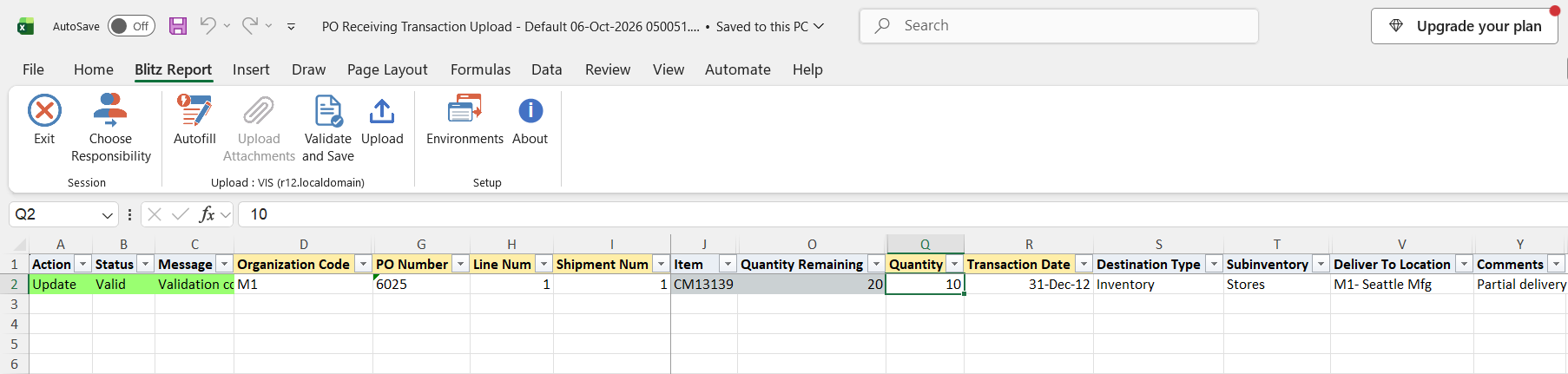
Click Validate and Save. This checks for missing required values and saves the file. Correct any rows it flags before uploading.
Step 5 – Upload the file
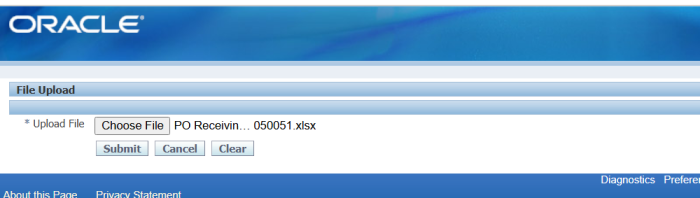
In Blitz Report click Upload and select the saved file. This submits the upload request, which stages the receipts and runs the Receiving Transaction Processor, waiting for it to complete.
Step 6 – Review the result report
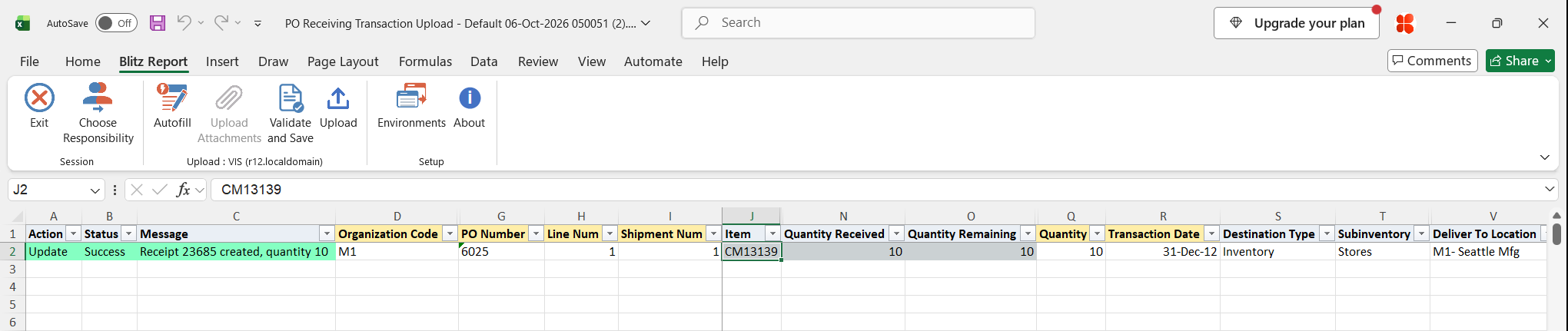
When the request completes, a result report opens listing every uploaded row with its status and message. Successful rows show the receipt number and quantity received, together with the updated Quantity Received and Quantity Remaining of the shipment.
What’s produced
- One receipt per purchase order in each upload, with a receive and a deliver transaction for every row, visible in the Receiving Transactions Summary and the Receipts form.
- The delivered quantity in the destination subinventory, expense or shop floor, and the received quantity on the PO shipment.
- A result report listing every row with a status (success or error) and a message.
Common questions
Can I receive only part of a shipment?
Yes. Enter a Quantity smaller than the Quantity Remaining. The next download shows the rest as still open.
Can I correct or return a receipt?
No. The upload only creates new receipts (receive and deliver). Corrections and returns to the supplier are entered in the standard Receiving forms.
Why is my purchase order not in the list?
The lists show only approved shipments that are not cancelled, not closed for receiving, still have a quantity remaining and ship to the selected organization. A fully received or closed purchase order does not appear.
Are several rows of the same purchase order one receipt?
Yes. All rows of one purchase order in an upload go into one receipt. Its comments are taken from the first row of that purchase order.
Does the upload create the supplier invoice?
Not itself. For supplier sites set up for pay on receipt, Oracle’s standard pay on receipt processing creates the invoice from the receipt as usual.
Troubleshooting
| Message | Cause | What to do |
|---|---|---|
| Quantity must be greater than zero | The Quantity is zero or negative. | Enter a positive quantity, no greater than the quantity remaining. |
| PO n line n shipment n not found or not open for receiving | The purchase order, line and shipment do not match an approved, open shipment of the organization, or it was closed or cancelled after the download. | Download again to refresh the open shipments and check the purchase order status. |
| Receiving Transaction Processor not submitted: … | The receiving request could not be submitted. | Check the message and that your responsibility can run the Receiving Transaction Processor. |
| Receiving Transaction Processor request n failed: … | The receiving request ended with an error or warning. | Review the log of that request in View Requests. |
| Other messages on a failed row | The Receiving Transaction Processor rejected the row, for example for a closed period, a missing locator or a quantity over tolerance. Its error is shown on the row. | Correct the data as the message says and upload the row again. |