Blitz Report™ for Oracle APEX Developer Guide
Introduction
This guide is for report developers and administrators of Blitz Report for Oracle APEX: the Blitz Report web application that runs in your own Oracle APEX workspace, on an Oracle database without Oracle E-Business Suite, with or without Oracle Fusion Cloud. It explains how reports are built on the Setup page, how access is controlled, how content moves between instances and how the application is administered. Running reports and editing templates are described in the User Guide, installation and configuration in the Installation Guide.
The report engine is the same as that of Blitz Report for Oracle E-Business Suite: the SQL, anchors, parameters, lists of values and templates of a report work in the same way, and reports move between the two editions as XML files. What differs in this edition:
- A report runs as a background database scheduler job. Its output and log are stored in the database and listed on the Runs page.
- A copy of the output can be written to an Oracle directory object, not to an operating-system folder of an application server.
- Users sign in with an Oracle APEX account or a database account. What they may do is decided by their Blitz Report access level, set under Administration.
- Reports of type ERP (Fusion) run their SQL on Oracle Fusion through Oracle BI Publisher. Fusion users sign in through Fusion.
- The Excel add-ins connect through the webservice module installed in Oracle REST Data Services (ORDS).
1 Concepts
This chapter explains the building blocks of Blitz Report before the following chapters describe them in detail. Reading it first makes the rest of the guide much easier to follow.
1.1 How a report runs
A Blitz Report is a SQL query plus a set of parameters. At run time, the entered parameter values are combined with the SQL: bind parameters are bound directly, optional filter conditions are injected at anchor positions in the WHERE clause, and lexical parameters replace placeholders with SQL fragments. The resulting query runs as a background database scheduler job and produces the output file, formatted by the selected template. The output and the log of every run are stored in the database, where users open them from the Requests list of the run screen and from the Runs page.
A report of type ERP (Fusion) sends its SQL to Oracle Fusion, where Oracle BI Publisher runs it as the signed-in Fusion user. The rows come back to the database and are formatted like those of any other report. See ERP (Fusion) reports.
1.2 Parameters, lists of values and anchors
Parameters carry a type (Char, Number, Date, DateTime, LOV or LOV custom), an optional list of values, a default value and dependencies on other parameters. The anchor decides how a parameter reaches the SQL: a bind anchor (:parameter) binds the value where the bind appears, a WHERE anchor (1=1) injects the parameter’s SQL condition only when a value is entered, and a lexical anchor (&name) replaces a placeholder with a SQL fragment. Lists of values are shared components that can be reused by many reports.
1.3 Templates
Templates define how the output looks without changing the SQL: which columns are displayed in which order, formatting, pivot tables, per-template parameter defaults and exclusions, and conditions that restrict the rows returned. Every report can have several templates, and templates can be shared with all users or with individual users. Templates can also freeze panes, lock parameter default values, and be restricted to specific users.
1.4 Assignments and categories
Assignments control who can see and run a report: they grant it to all users (Site level), to individual users or to the holders of a database role, with include and exclude rules. Categories group reports into the folders shown in the category list of the Reports page. A report without an assignment is only visible to users with User Admin, Developer or System access.
1.5 Security
Four access levels (User, User Admin, Developer, System) control what a user may do in Blitz Report. Users sign in with an APEX account or a database account, or through Oracle Fusion on an installation with the Fusion integration. A standard report reads the data the Blitz Report database schema can read, so the reports a user sees, and the values their parameters offer, are what restricts the data: assignments decide the reports, and lists of values that return the allowed values only restrict the rows. An ERP (Fusion) report runs in BI Publisher as the user’s own Fusion identity: BI Publisher checks that the user may run the Blitz Report data model, but SQL that selects from Fusion tables directly is not subject to Fusion data security, apart from the tables of personal data, which keep their database-level security. The report SQL and its lists of values therefore restrict the rows, as on a standard report. The Security chapter covers access levels, assignments, template security, restricted developers and licensing in one place.
1.6 Multi-language support
Report names, descriptions, parameter names, categories and column headings are kept in the language of the installation, the primary language of the APEX application, in which every session runs. An import keeps a report’s texts in that language and leaves out its other translations. The pages of the application are in English.
1.7 Architecture
Blitz Report for Oracle APEX consists of the report engine and its repository, installed as database packages and tables in the schema that parses the APEX application, the APEX application itself, whose one page serves every screen, and the webservice module in ORDS that serves the Excel add-ins and the desktop application. Technical architecture shows how the pieces connect.
1.8 Delivered content and upgrades
The reports of the categories Enginatics and DBA Diagnostics Pack, with their templates, are delivered content. Every upgrade installs the delivered reports again and replaces their definitions with the shipped versions. Your own reports, lists of values, categories, templates, schedules, runs, users, profile option values and the license are never changed by an upgrade, and neither are the templates you created on a delivered report.
| Delivered item | The upgrade replaces | The upgrade keeps |
|---|---|---|
| Report | SQL, name, description, parameters and the run options of the report | The Disabled flag, the parameters and categories you added, and the number format when the report was changed on your installation after its last upgrade |
| Template | Name, description, owner, columns, pivot table and Excel file, and the delivered conditions and parameter defaults you left unchanged | Sharing once you changed it, the global default once you changed it, the excluded parameters, conditions and parameter defaults you added, and the parameter defaults and locks you changed |
| List of values | Name, query, description and Execute on Fusion | Filter before display |
To change delivered content so that the change survives upgrades:
- Report SQL: copy the report with Copy Report and change the copy. To extend a delivered report without copying it, add parameters of your own: the upgrade keeps them.
- Template layout: copy the template with Copy in the template editor, or with Copy Template in the Actions menu of the run screen. The template editor shows a delivered template’s layout read-only and says so: This template is delivered by Enginatics, and the next upgrade replaces its layout: copy it to change the name, columns, pivot table or Excel file. Its sharing, global default, excluded parameters, parameter defaults and conditions are kept by the upgrade and can be changed here. The Excel add-in and the desktop application refuse a layout change of a delivered template in the same way.
- List of values: copy it with Copy in the Lists of Values dialog and select the copy in your parameters.
- A delivered report you do not want: tick its Disabled flag. A deleted delivered report is installed again by the next upgrade.
- A delivered report you rename becomes your own: the upgrade keeps it and installs the delivered version again under its original name.
Reports and templates imported from files of the Enginatics library carry the library’s identifiers, so a later import of the same file replaces them as well.
2 Tutorial: your first report
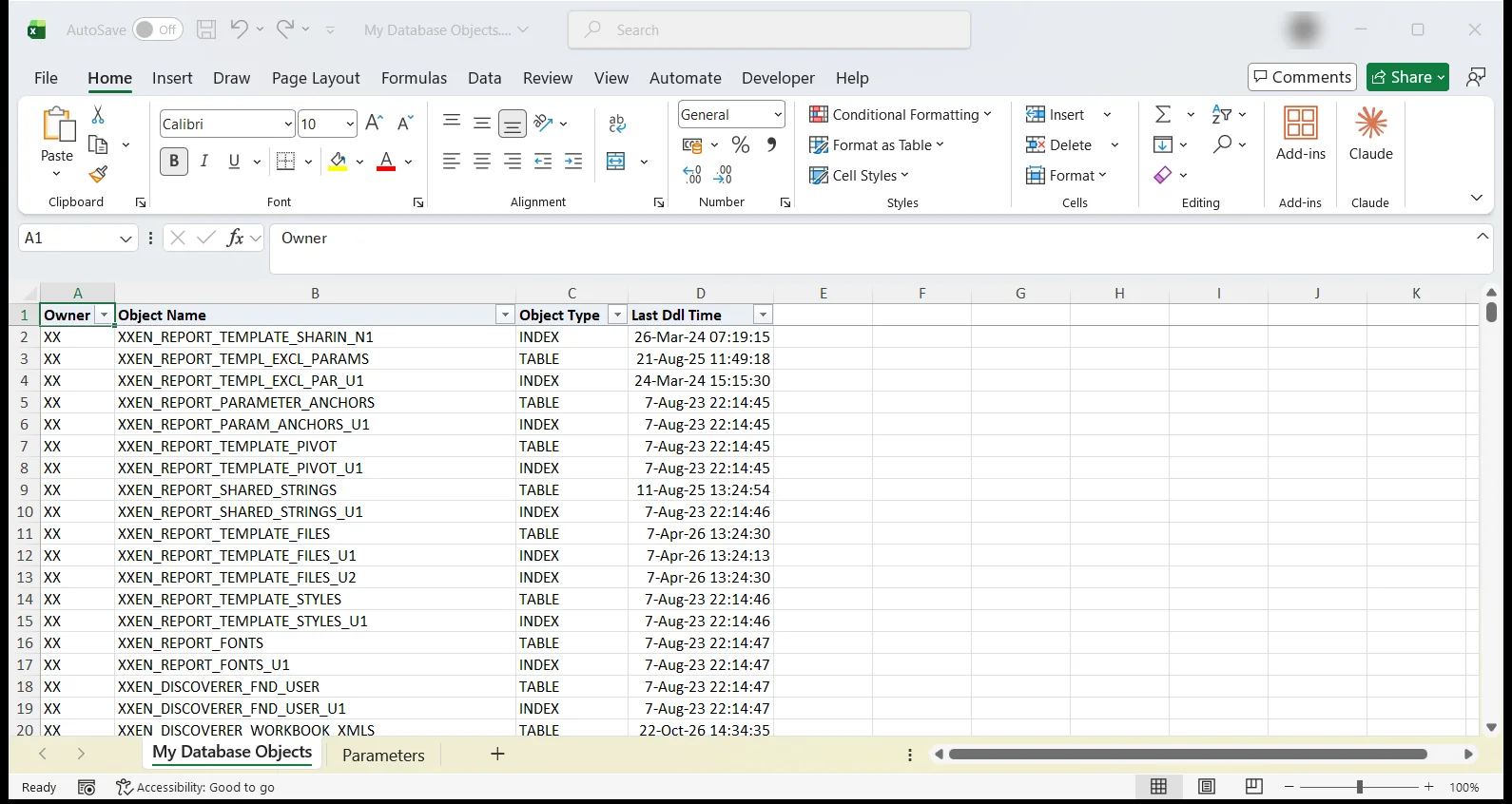
This tutorial creates a small report from scratch on the Setup page. It takes about fifteen minutes and touches every concept a report developer needs: SQL, a parameter with an anchor, an assignment and a first run. The report lists the database objects the Blitz Report schema can see, so it works on every installation. The following chapters describe each step’s options in full detail.
- Sign in with Developer or System access and click Setup in the page header. Click New Report, enter the name
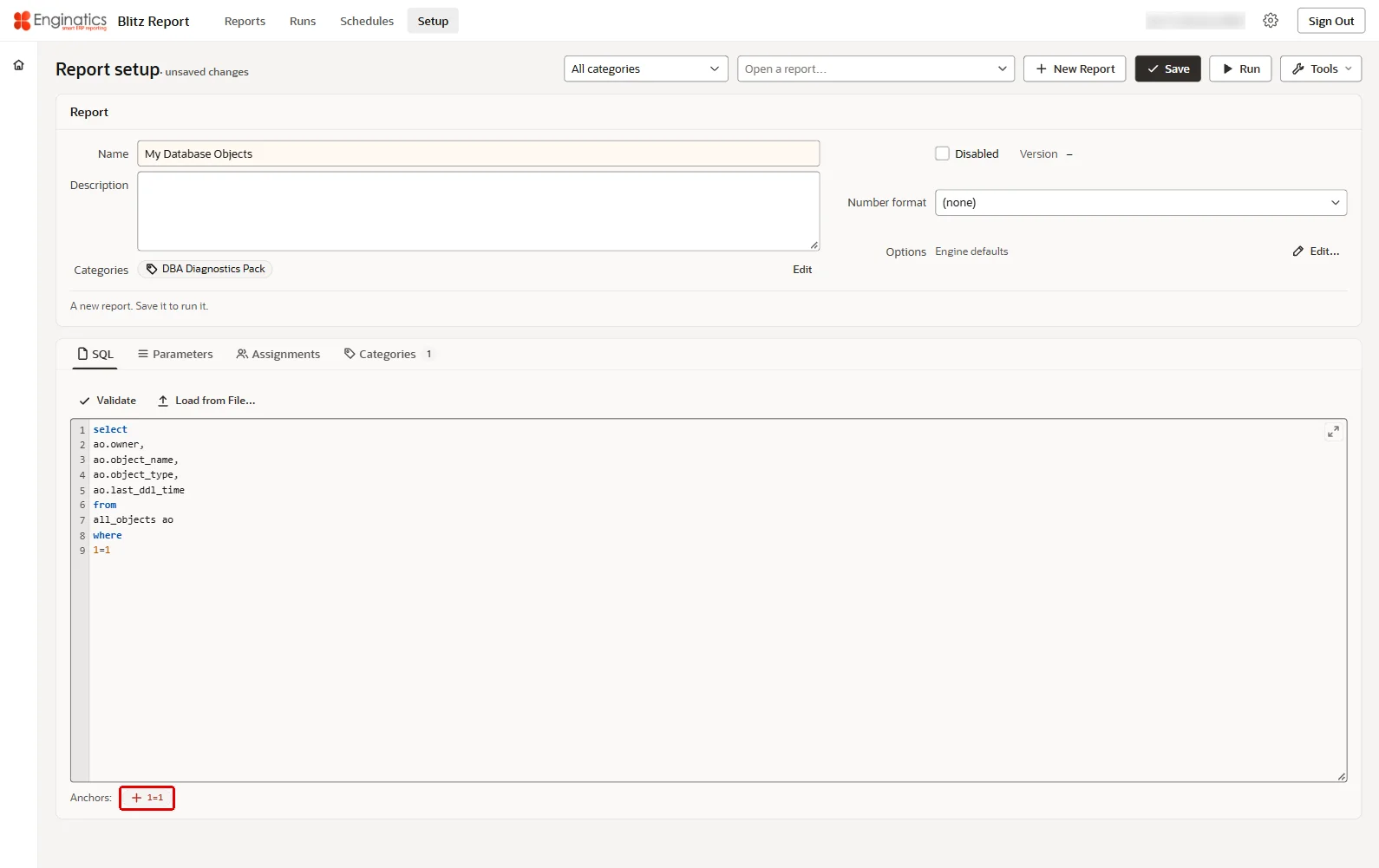
My Database Objectsin the Name field of the Report card, and tick a category of your choice on the Categories tab. - Enter the report SQL on the SQL tab. The literal 1=1 is the anchor where optional parameter filters are injected:
select
ao.owner,
ao.object_name,
ao.object_type,
ao.last_ddl_time
from
all_objects ao
where
1=1
The anchor 1=1 appears under Anchors below the editor.
The new report with its SQL on the SQL tab and the anchor 1=1 under Anchors:
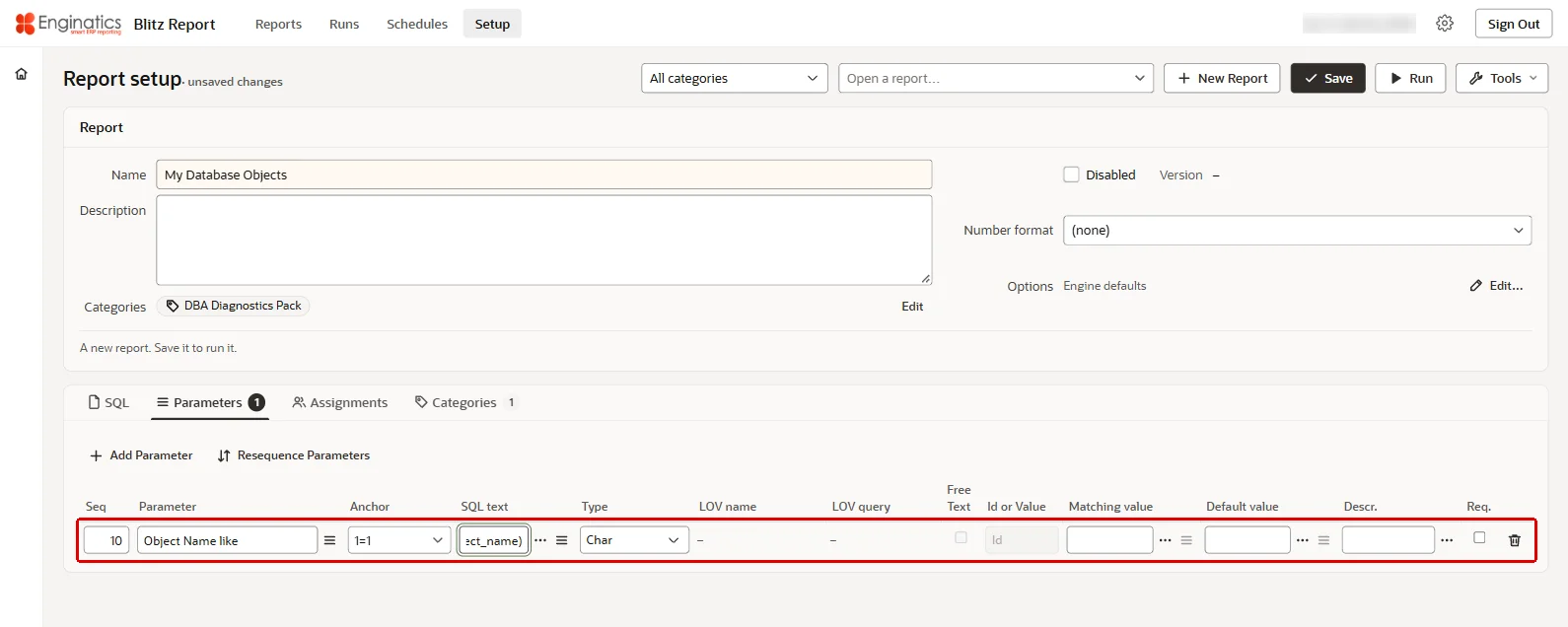
- Click the anchor 1=1 under Anchors: a new row for that anchor, of type
Char, is added on the Parameters tab. Enter the parameter nameObject Name likeand the SQL text below. When the user enters a value, the condition is injected at the anchor; when the parameter is left empty, no filter is applied:ao.object_name like upper(:object_name)
Clicking the anchor adds a parameter row on the Parameters tab:
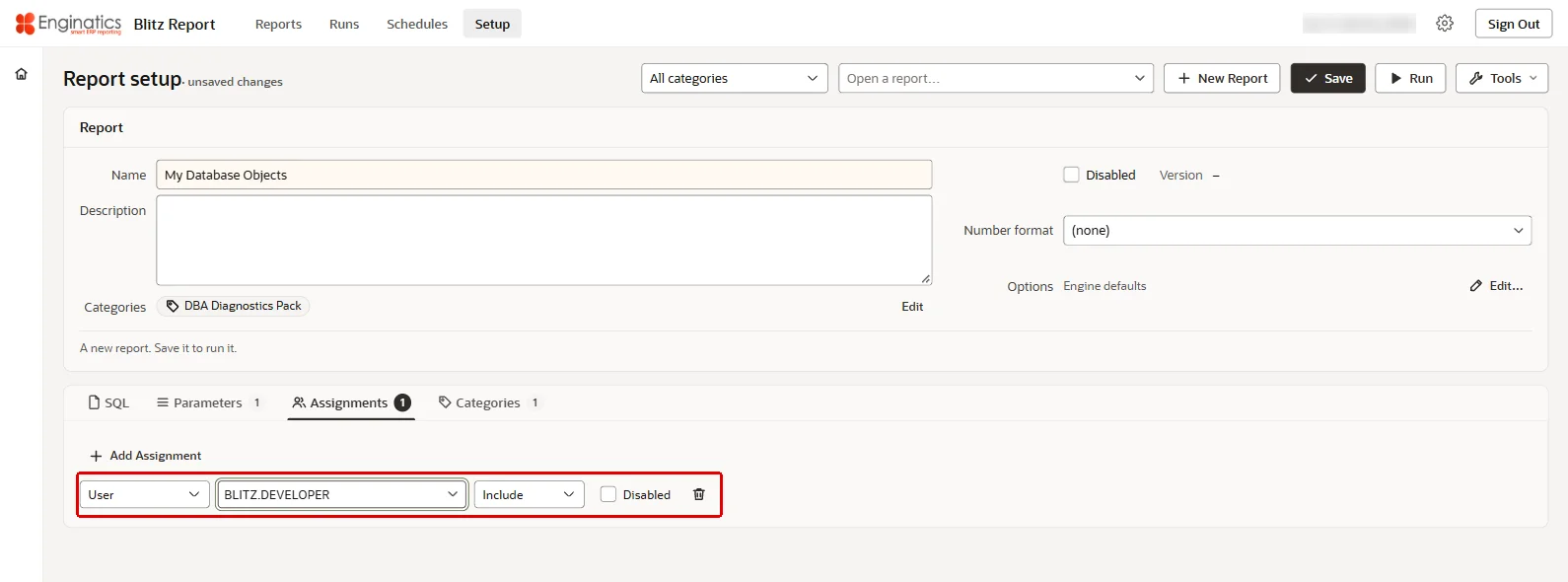
- Assign the report so users can see it: on the Assignments tab click Add Assignment, choose the level
Userand your own user as the value, or the levelSiteto offer it to everyone. Without an assignment, the report is visible to users with User Admin, Developer or System access only.
The Assignments tab with the assignment for your own user:
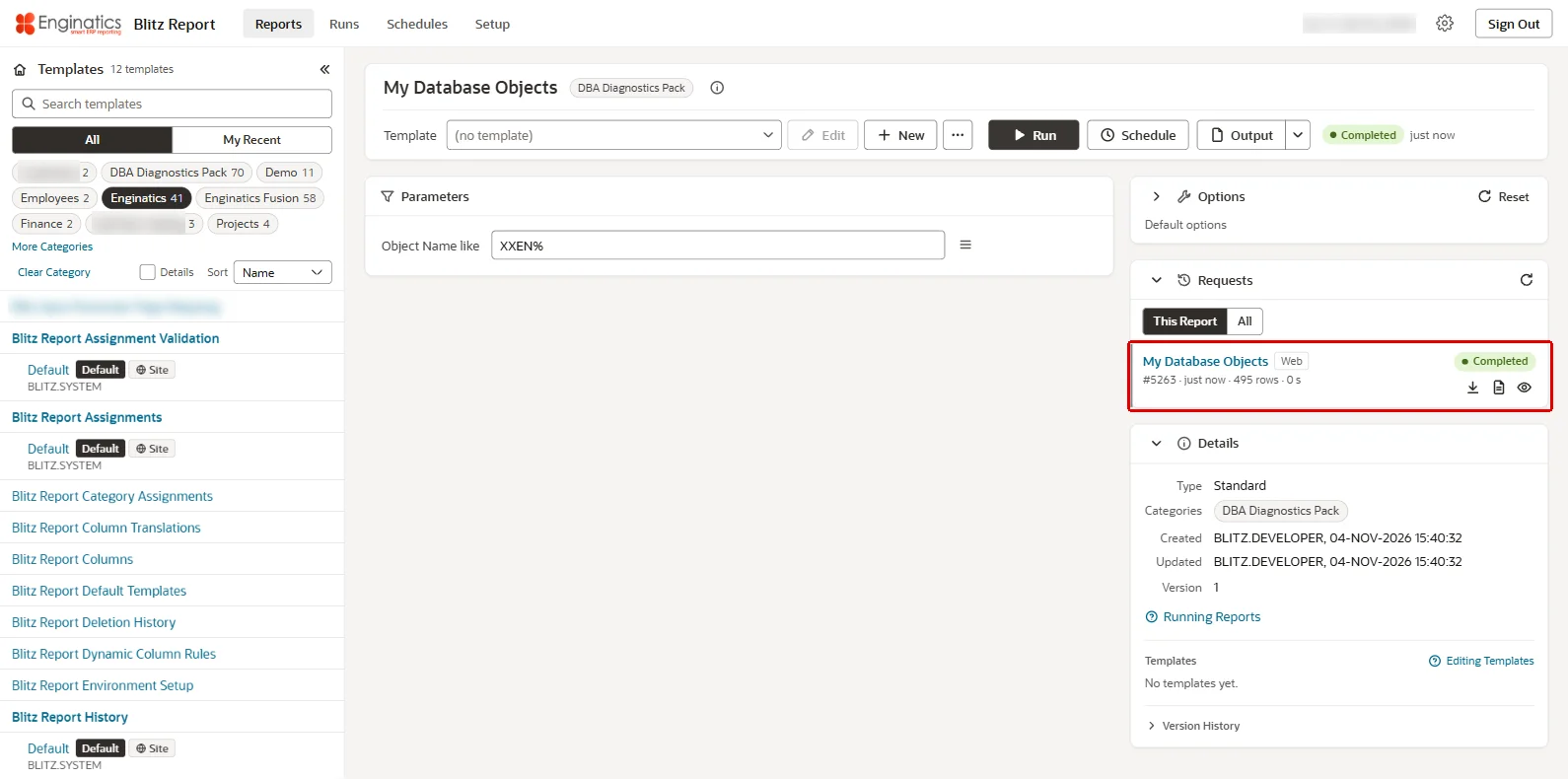
- Click Save, then Run. The run screen opens with the report. Enter a name pattern such as
XXEN%in Object Name like and click Run. The request is listed under Requests, and its output opens when it completes.
The report on its run screen with the completed request:
The output opens in Excel:
- Optionally create a template to reorder columns or add a pivot table, and make it the global default of the report.
3 Report development
Reports are created and changed on the Setup page. Users with User Admin, Developer or System access open it with Setup in the page header, or with Setup in the Actions menu of the run screen, which opens the report shown there.
3.1 The Setup page
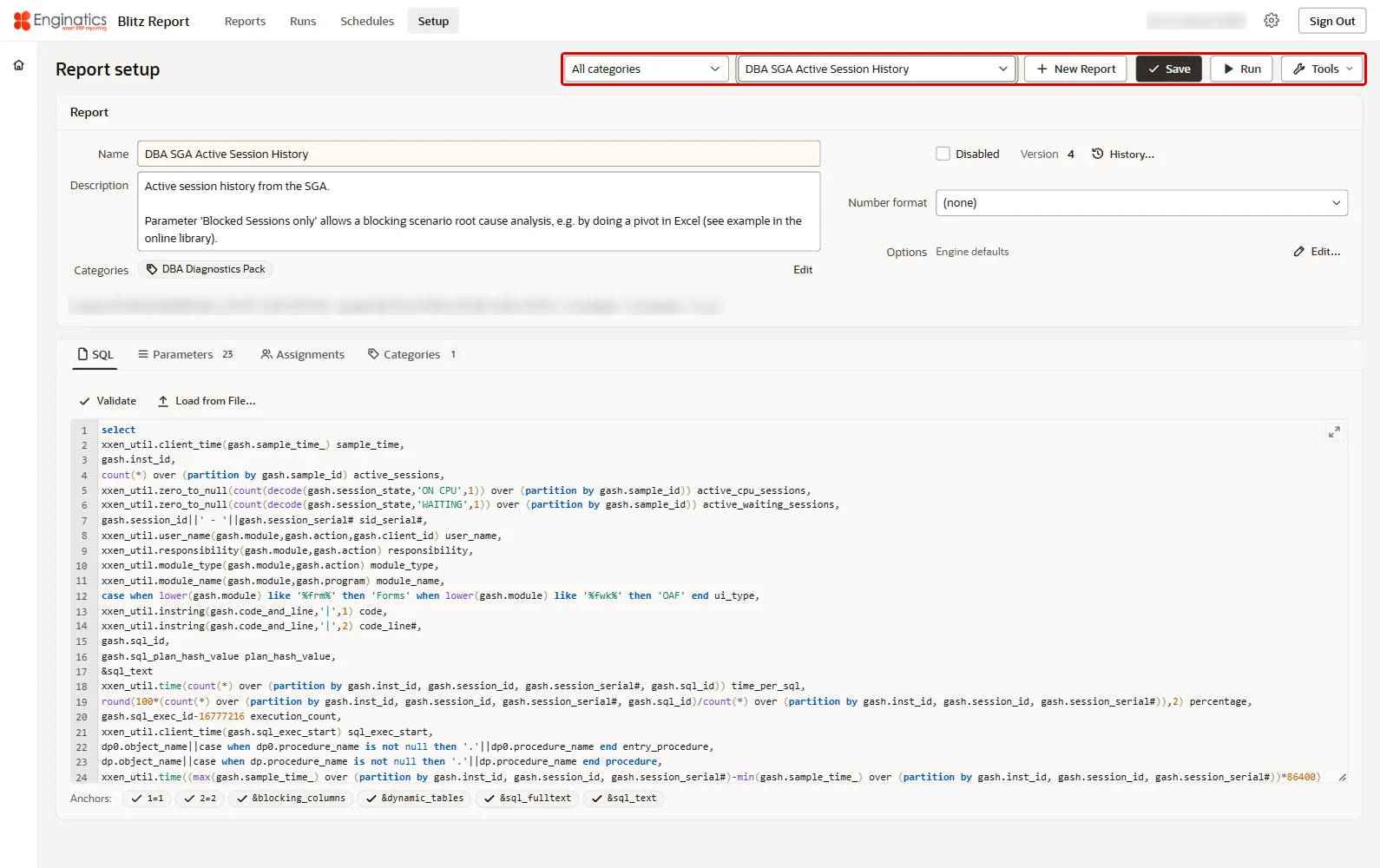
The toolbar at the top of the page:
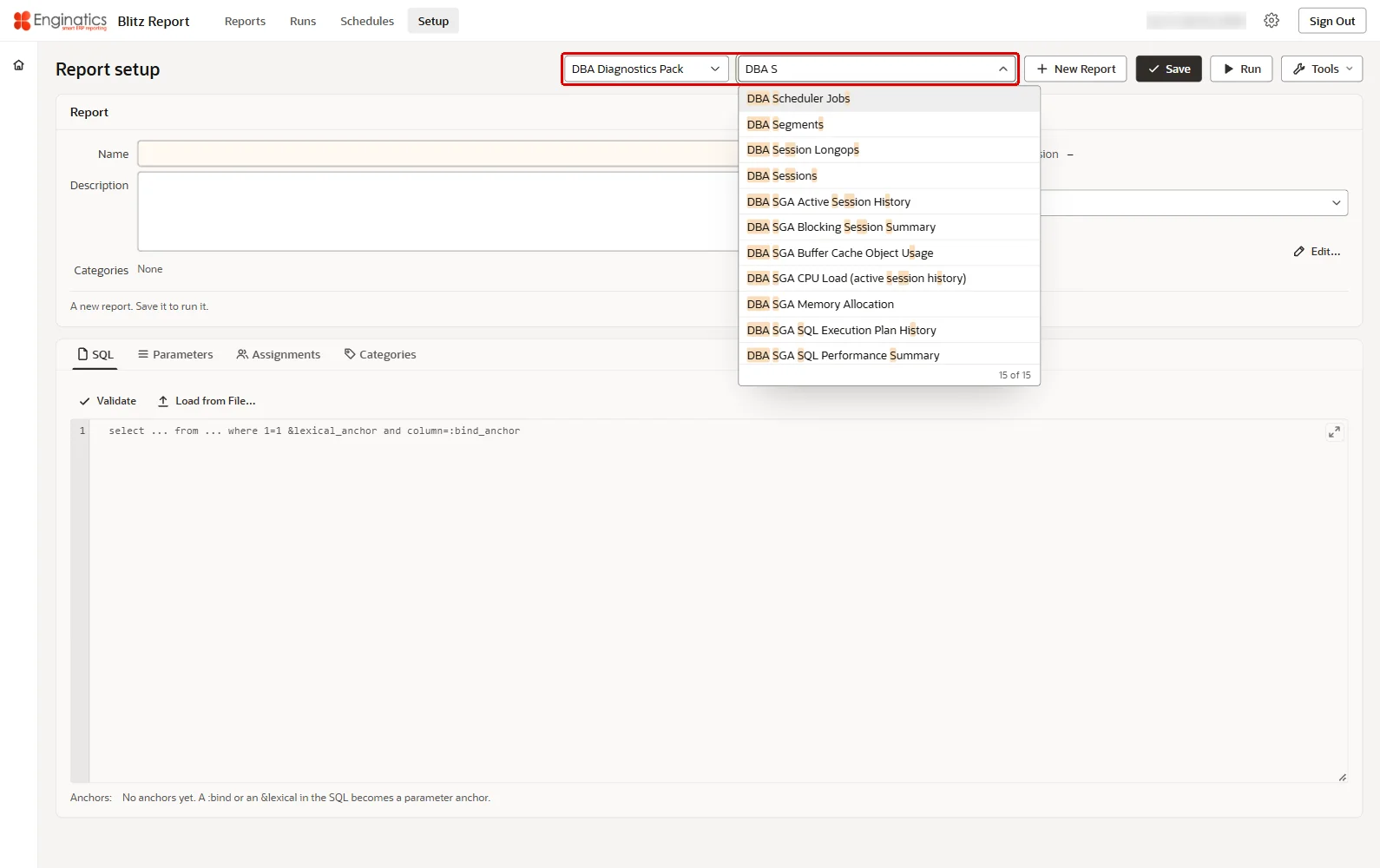
- Category restricts Open a report… to the reports of one category; All categories lists every report.
- Open a report… finds a report by name and opens it.
- New Report starts a new report.
- Save (Ctrl+S) saves the report, its SQL, parameters, categories and assignments in one step.
- Run saves the report and opens it on the run screen.
- Tools opens the setup tools.
Category restricts Open a report… to one category; the list finds a report by name:
Below the toolbar, the Report card holds the report’s header fields, followed by the tabs SQL, Parameters, Assignments and Categories. A line at the bottom of the card shows who created and last updated the report and how many templates, schedules and runs it has. Leaving a report with unsaved changes asks whether to discard them. While a report has unsaved changes the page title says so, a report the user’s access cannot change is marked read-only with your access on the Report card, each tab shows the number of its rows, and a new report reads A new report. Save it to run it. until it is saved.
What a user can change depends on the access level:
| Access level | On the Setup page |
|---|---|
| User Admin | Sees the definition of every report read-only and changes the assignments and categories of reports of type Standard and ERP (Fusion); Save then saves only those. Uses Lists of Values, Categories, Report assignments, Export and License Key. |
| Developer | Creates, changes and deletes reports of type Standard and ERP (Fusion), switches a report between those two types, and uses every setup tool. Reports of another type are read-only. |
| System | Changes every report and its type. The assignments and categories of a report of type System cannot be changed by anyone: System access runs it without an assignment. |
A field or tool the user’s access does not allow is shown read-only or disabled, with its tooltip giving the reason, such as Needs developer access or Your access does not change this report.
The Setup page with the toolbar, the Report card and the tabs:
3.2 Anchors and binds
Anchors are ‘placeholders’ in the extraction SQL, which allow the precise placement of additional (optional) parameterized SQL clauses at run time. These clauses are constructed from user-specified parameters, which are then inserted into the extraction SQL at run time. There are two types of Anchors:
n=n
WHERE clause SQL anchors, such as ‘1=1’, ‘2=2’ etc. Blitz Report inserts the associated SQL text directly before these anchors, automatically adding the keyword ‘and’ and a line feed, to create valid SQL. This allows quick parameter creation – no need to consider the precise position of the ‘and’ keyword.
A typical example for a SQL text would be ‘column_name=:bind_variable’, where :bind_variable would be bound with the parameter value entered by the user.
Note: A common coding practice is to write non-Blitz Report SQL with a ‘where 1=1’ clause, usually for formatting purposes. This does no harm when importing the SQL into Blitz Report, and may actually be useful, since it serves as the obvious anchor for any parameterized WHERE clauses.
&lexical
Lexical parameter references work in the same way as lexical parameters in SQL*Plus or Oracle Reports. Blitz Report replaces these placeholders completely with the parameter SQL text at run time. To replace a lexical with the user entered parameter value, use the string <parameter_value> in the SQL text field. If a parameter value is left blank, the corresponding reference is removed before SQL execution.
Note that the two different anchor types achieve a similar goal, which is to inject additional (optional) parameterized SQL clauses into the extraction SQL.
However, the ‘n=n’ anchor can only be used for WHERE clauses (since the ‘n=n’ syntax remains in the run-time SQL).
The ‘&lexical’ anchor can be used to add whatever SQL ‘snippets’ are required by the report, featuring (but not limited to):
- WHERE clauses
- Dynamic tables and columns
- ORDER BY, GROUP BY
- HINTS
- Complete subselects or EXISTS clauses
The same anchor may be used multiple times inside a report SQL. Blitz Report inserts the corresponding parameter text for each occurrence.
A lexical parameter SQL text may contain a bind variable, which will be bound with the parameter value entered by the user when running the report.
In case you require the parameter value to show up as lexical text in the SQL, e.g. to purposefully enforce reparsing for different parameter values, you can use the placeholder <parameter_value> as shown in the examples table below.
:bind
Similar to other reporting solutions, Blitz Report also supports the use of bind parameters. To avoid performance issues due to nvl(:bind_variable, column_name) coding for optional parameters however, it is recommended to use one of the above anchors for dynamic SQL instead.
Some words are reserved by Oracle and cannot be used as bind variables. To find a list of such words use the following query:
select vrw.keyword from v$reserved_words vrw where vrw.reserved='Y' or vrw.res_semi='Y' order by vrw.keyword |
Examples
| Anchor type | Report SQL | Parameter SQL text | Run-time SQL |
|---|---|---|---|
| n=n | where | au.username=:user_name | where |
| n=n | where | ao.owner in (select au.username from all_users au where au.username like :user_name) | where |
| &lexical | where | ao.object_type=:object_type and | where |
| &lexical | group by | ao.object_type, | group by |
| &lexical | select | ao.created, | select |
| &lexical | select | <parameter_value> | select |
| :bind | where | where |
The sixth example takes the parameter value sys.
:sheet_name
By default the Excel output’s data sheet name is the same as the report name. A parameter referencing the :sheet_name anchor allows you to define a custom sheet name. It can be set up as a standard visible parameter, but also hidden by using a negative display sequence, for example dependent on another parameter. A hidden Sheet name parameter can, for example, take its value from an Owner parameter concatenated with the word ‘objects’ by using the following default value: :$flex$.owner||' objects'
3.3 Dynamic SQL example
n=n anchor example
A query on parties and accounts (see below) should allow users to extract all customers’ information or to restrict the data by optional parameters such as customer name or account number. The tables are those of Oracle Fusion, so the example is an ERP (Fusion) report.
select hp.party_number, hp.party_type, hp.party_name, hca.account_number from hz_parties hp, hz_cust_accounts hca where 1=1 and hp.party_id=hca.party_id |
A restriction to customer name would require addition of a WHERE clause:
upper(hp.party_name) like upper(:customer_name) |
In Blitz Report, the parameterized WHERE clauses are set up separately from the report SQL. Blitz Report only inserts individual WHERE clauses into the extraction SQL (at run time) if the user enters a value for that particular parameter.
In this example, if the user provides a value for the customer name parameter, Blitz Report would add the above WHERE clause at the position of the anchor ‘1=1’ and execute the below SQL for data extraction, with the entered value bound to :customer_name.
select hp.party_number, hp.party_type, hp.party_name, hca.account_number from hz_parties hp, hz_cust_accounts hca where upper(hp.party_name) like upper(:customer_name) and 1=1 and hp.party_id=hca.party_id |
Pivot table in SQL
A pivot table can be built dynamically in the SQL itself, using a &lexical parameter reference. For example, a report lists the Oracle Fusion general ledger balances by ledger and code combination:
select gl.name ledger, gb.code_combination_id, gb.period_name, sum(nvl(gb.period_net_dr,0)-nvl(gb.period_net_cr,0)) amount from gl_balances gb, gl_ledgers gl where 1=1 and gb.ledger_id=gl.ledger_id and gb.currency_code=gl.currency_code and gb.actual_flag='A' group by gl.name, gb.code_combination_id, gb.period_name |
The report gets a required Ledger parameter, whose calendar gives the periods, and a pivot table with one column per period of the year up to the period the user enters. The ledger restriction gl.name=:ledger is placed at the anchor 1=1. The list of period columns is inserted at the lexical reference &gl_period_pivot:
select * from ( select gl.name ledger, gb.code_combination_id, gb.period_name, sum(nvl(gb.period_net_dr,0)-nvl(gb.period_net_cr,0)) amount from gl_balances gb, gl_ledgers gl where 1=1 and gb.ledger_id=gl.ledger_id and gb.currency_code=gl.currency_code and gb.actual_flag='A' group by gl.name, gb.code_combination_id, gb.period_name ) pivot (sum(amount) for period_name in (&gl_period_pivot)) |
The Period parameter is placed at the lexical reference, and its SQL text is a query that returns the period list: the periods of the ledger’s year from the first one up to the entered one, each period name in single quotes followed by its column alias, separated by commas (see Dynamic parameter SQL text):
select x.pivot_text||decode(x.effective_period_num,max(x.effective_period_num) over (),null,',') pivot_text from ( select ''''||gps.period_name||''' '||decode(gps.adjustment_period_flag,'Y','adj'||gps.period_num||'_'||gps.period_year,to_char(gps.start_date+8,'mon_yyyy','nls_date_language=american')) pivot_text, gps.effective_period_num from gl_ledgers gl, gl_period_statuses gps0, gl_period_statuses gps where gl.name=:ledger and gl.ledger_id=gps0.ledger_id and gps0.period_name=:period_name and gps0.application_id=101 and gps0.ledger_id=gps.ledger_id and gps0.application_id=gps.application_id and gps0.period_year=gps.period_year and gps0.period_num>=gps.period_num ) x order by x.effective_period_num |
An adjustment period gets an alias of its own, such as adj13_2026. For the period Aug-26 the SQL at run time reads:
select * from ( select gl.name ledger, gb.code_combination_id, gb.period_name, sum(nvl(gb.period_net_dr,0)-nvl(gb.period_net_cr,0)) amount from gl_balances gb, gl_ledgers gl where gl.name=:ledger and 1=1 and gb.ledger_id=gl.ledger_id and gb.currency_code=gl.currency_code and gb.actual_flag='A' group by gl.name, gb.code_combination_id, gb.period_name ) pivot (sum(amount) for period_name in ( 'Jan-26' jan_2026, 'Feb-26' feb_2026, 'Mar-26' mar_2026, 'Apr-26' apr_2026, 'May-26' may_2026, 'Jun-26' jun_2026, 'Jul-26' jul_2026, 'Aug-26' aug_2026 )) |
3.4 Report card
The Report card holds the header fields of the report.
Name
The report name uniquely identifies a report. Names should be short and descriptive. Good practice is to prefix report names with a short code of the module or area they report on.
The name must be unique in the session language and cannot contain a backslash. A name with a percent sign is saved after a confirmation, since the percent sign acts as a wildcard in report name searches. To rename a report, change its name and save.
Disabled
Defines whether a report is hidden from end users. When the Disabled flag is set, the report is removed from the user report list. This may be useful during the development and testing phase, or to hide specific delivered reports during a phased rollout. Even if a report is disabled, it may still be run by users having User Admin, Developer or System access.
Version
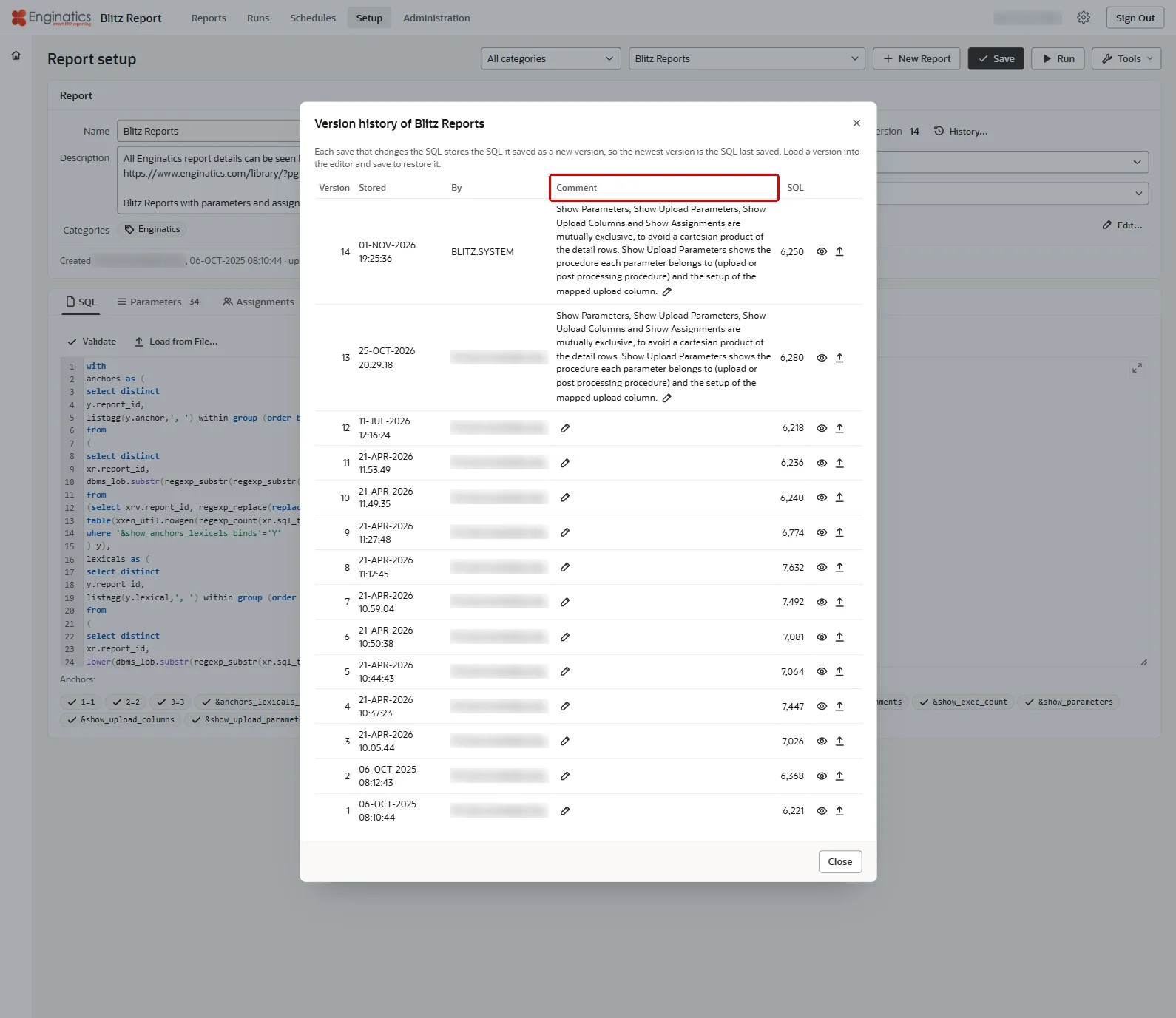
The version number of the report SQL. Each save that changes the SQL stores the SQL it saved as a new version, so the newest version is the SQL last saved. Other report setup modifications such as report name, description or parameter changes are not tracked in the version history.
History… opens the version history of the report, with the columns Version, Stored, By, Comment and SQL. View the SQL shows a version’s SQL, Load into the editor copies it to the SQL tab, where a save restores it as a new version, and Edit the comment changes a version’s comment. Mass Change stores its comment with the versions it creates.
History… opens the version history of the report:
Type
The Type field determines a report’s purpose and who can run or modify it:
- Standard — regular reports, available to all users with the appropriate assignments.
- ERP (Fusion) — reports whose SQL runs on Oracle Fusion, see ERP (Fusion) reports. Offered when the Oracle Fusion integration is enabled for the user.
Developer and System access change the type, and only while the Oracle Fusion integration is enabled for that user: without it the Type field is read-only, since ERP (Fusion) is the only other type a report can be given. A report imported with another type, such as Upload, FSG, System or Drilldown, shows that type and keeps it; it can be changed by System access only.
Description
An optional report description of at most 4000 characters may be set up to assist users in understanding and using the report.
Categories
The categories the report belongs to. Edit opens the Categories tab.
Options
The run options set for the report, or Engine defaults when none is set. Edit… opens the run options of the report.
Number format
Format for numeric value display in Excel output files. By setting the number format, you can, for example, change the number of decimals or the display style and colour of negative numbers.
The number format can either be set by a profile option, for all columns in a report, or for individual columns as described in the column translations section.
The list of available format codes is defined in lookup XXEN_REPORT_NUMBER_FORMATS under Administration > Lookups, which can be extended with additional custom format codes according to your needs. Note that the lookup codes represent Microsoft’s internal style ids, which must be numeric values above 200, as the lower range style ids are reserved for Microsoft’s standard formats.
An explanation of how to use Microsoft’s custom number format codes can be found in this blog or on the Microsoft website.
3.5 SQL tab
The report extraction SQL must start either with the word ‘select’ or ‘with’. The editor takes a SQL of any size.
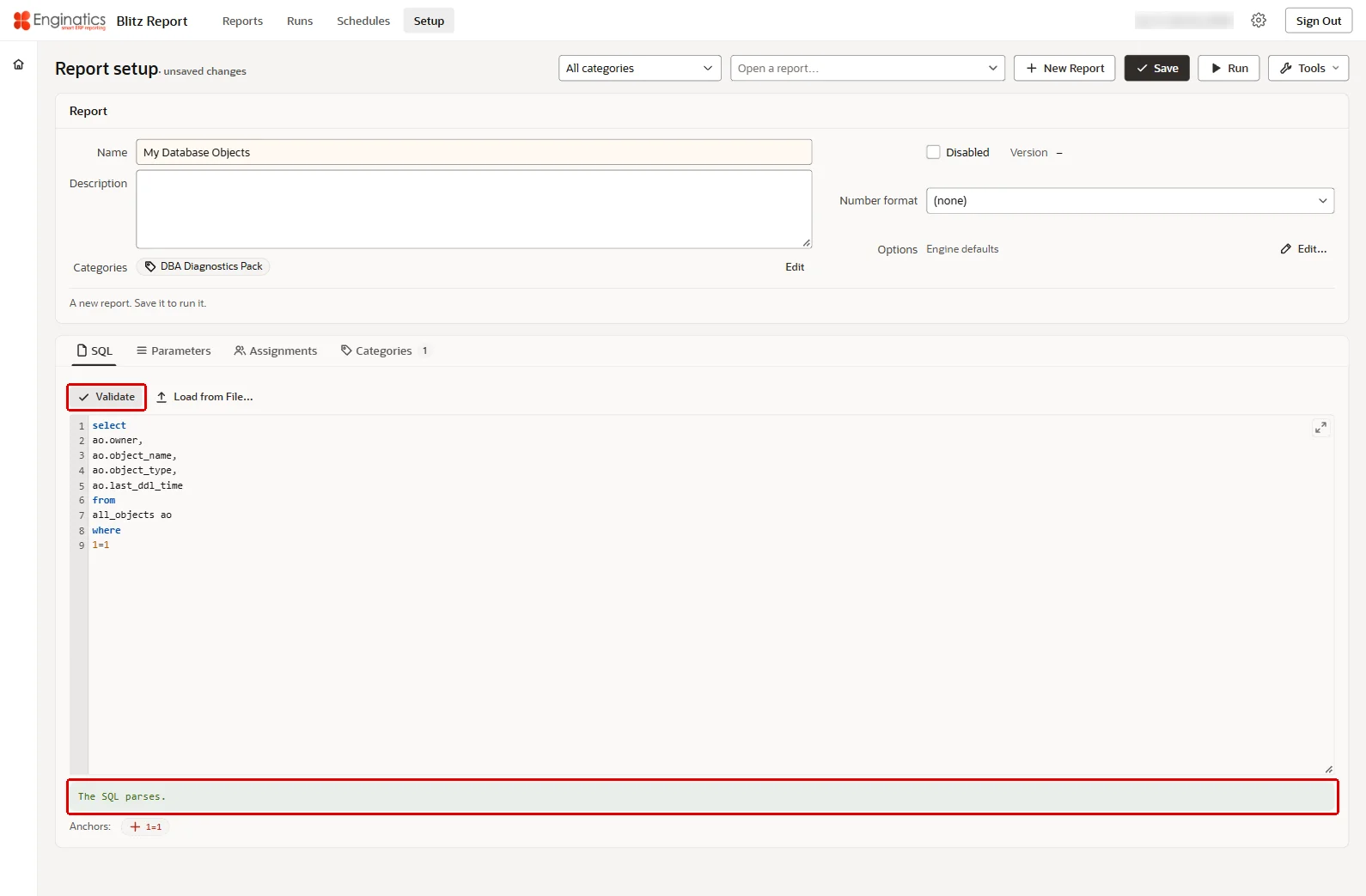
- Validate parses the SQL with the report engine and answers The SQL parses. or the database error. Save stores the SQL as entered, so validate it before saving.
- Load from File… replaces the SQL with the content of a file, read as UTF-8 text; save to keep it.
- Anchors, below the editor, lists the anchors the SQL contains: every :bind, &lexical and n=n of the SQL. An anchor that no parameter uses yet shows a plus sign; clicking it adds a parameter for it on the Parameters tab. The anchor :sheet_name is offered in the Anchor list of every parameter.
Validate parses the SQL with the report engine:
The editor completes names and anchors with Ctrl+Space, finds with Ctrl+F, replaces with Shift+Ctrl+F or every occurrence with Shift+Ctrl+R, and opens full screen with F11 or the button in its corner; Tab inserts two spaces.
For a report of type ERP (Fusion), Validate parses the SQL on Oracle BI Publisher.
3.6 Parameters tab
Parameter definitions consist of:
- a parameter name, display sequence and optional parameter description and default value
- SQL text to be inserted into the report SQL dynamically at run time
- an anchor as a reference to a position for the insertion
- a parameter type and optional list of values
- an optional matching value to restrict the SQL text insertion to certain parameter values
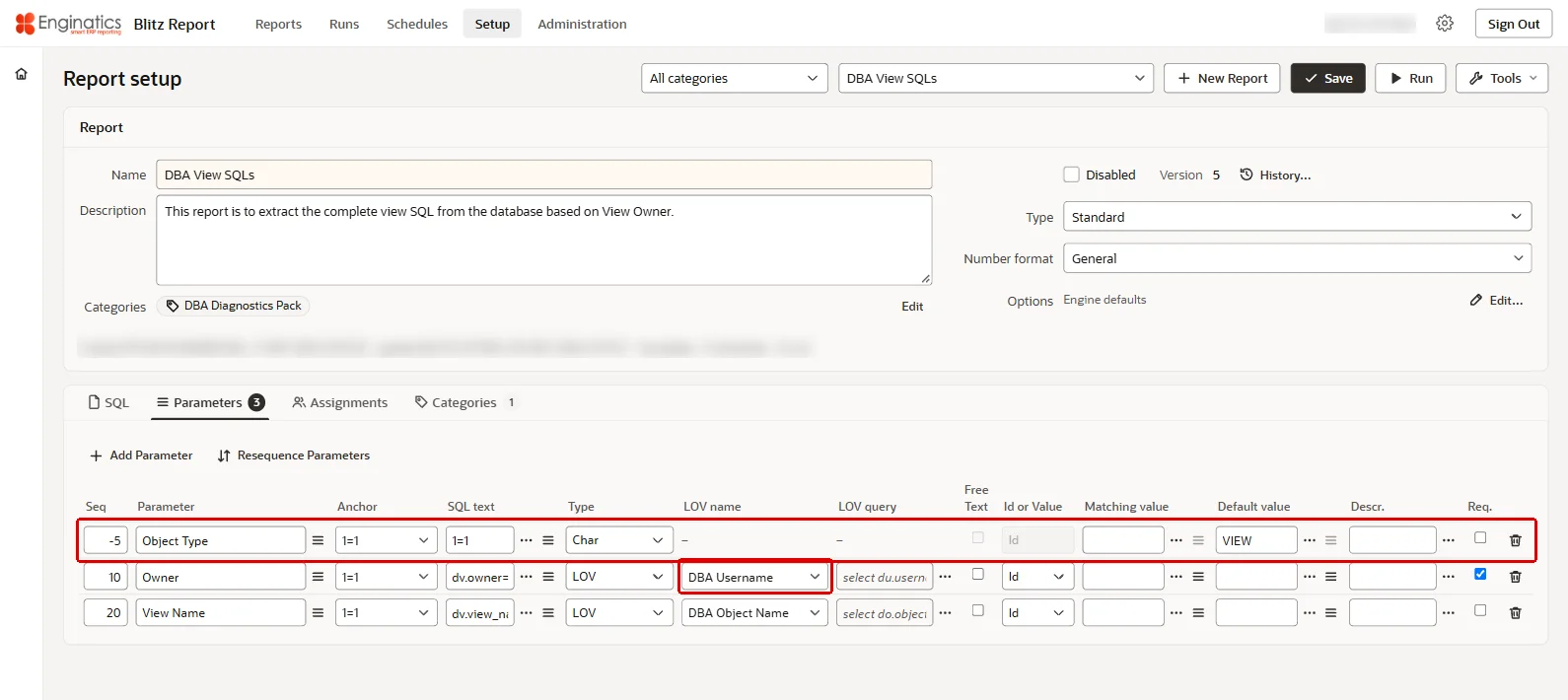
The grid shows one row per parameter definition, with the columns Seq, Parameter, Anchor, SQL text, Type, LOV name, LOV query, Free Text, Id or Value, Matching value, Default value, Descr. and Req. A cell of SQL text, Matching value, Default value or Descr. is edited in place while it holds one line; a value of several lines shows as a one-line preview, and the button beside the cell opens it in a larger box. Add Parameter adds a row below the row that has the cursor, or at the end, with a sequence number between its neighbours; it needs at least one anchor in the SQL. The bin icon at the end of a row removes the parameter. Resequence Parameters renumbers the parameters, see Resequence parameters.
A row added for a :bind or &lexical anchor takes its name from the anchor, Start Date for :start_date; a row added for an n=n anchor starts without a name. A row added between two rows whose sequence numbers are one apart gets no sequence and starts hidden, so renumber the parameters first. A lexical row without SQL text is marked until the text is entered.
The Parameters tab with two list of values parameters and a hidden parameter:
Seq
Sequence number that defines the order in which parameters are displayed.
If different WHERE clauses are used for the same parameter name, e.g. to insert a different SQL text at different SQL positions or depending on different parameter matching values, display sequence is populated only for one record and left blank for subsequent lines of that parameter name. On a row without a sequence the cells Type, Free Text, Id or Value, Default value, Descr. and Req. are disabled: the displayed row of the same name holds them.
Negative display sequence numbers are used to define hidden parameters. These can be used to populate an &lexical with a SQL text dynamically before report execution.
Parameter
Parameter identifier. The list button of the cell copies the definition of a parameter of another report into the row; a row that already has a type, SQL text or list of values asks before it is replaced. On a row without a sequence, the name is chosen from the displayed parameters of the report.
If you need a different SQL text in different SQL positions for one parameter, you can have more than one entry for the same parameter name, but only one of them can have a display sequence, parameter type and list of values setup.
Anchor
The position inside the report SQL where the parameter SQL text is inserted. The list of this field shows all anchors used in the SQL. See here for a detailed explanation of anchors.
SQL text
Parameter specific text added dynamically into the report SQL if a value for the parameter is entered at run time. Usually, the SQL text forms a where-clause restriction including a bind variable name starting with a colon e.g. ‘:account_number’. Blitz Report automatically detects the variable and binds it with the value entered by the user. Each parameter binds one bind variable: the first bind of its SQL text takes the parameter’s value. Further binds in the same SQL text are taken in turn by the parameters that follow in the display sequence, so a SQL text between :date_from and :date_to on a Date From parameter binds the value of the next parameter, Date To, to :date_to.
Blitz Report also allows the conditional insertion of different SQL text for the same parameter, depending on the parameter value entered by the user, using matching values. If you define a matching value, Blitz Report inserts the corresponding SQL text only if the user enters a parameter value that matches the specified matching value.
A :bind anchor takes no SQL text, so the cell is disabled for it; a lexical anchor needs one. The list button of the cell offers the SQL texts of the other parameters with the same anchor, and <parameter_value> for a lexical anchor.
Multiple values
If the SQL text includes a bind variable restriction and the user switches the parameter to multiple values on the run screen, Blitz Report automatically replaces the restriction with an IN-clause during SQL execution. This replacement works for restrictions using ‘equal’, ‘like’, ‘not equal’ or ‘not like’ operators such as:
column_name=:bind_variable column_name<>:bind_variable column_name!=:bind_variable column_name like :bind_variable column_name not like :bind_variable |
You can also use functions, for example:
upper(column_name) like upper(:bind_variable) |
If the parameter SQL text is too complex or there is a different operator used e.g. column>=:bind_variable, automated IN-clause replacement is not possible and multiple values are not offered for this parameter. For multiple values, it is required to have the table column on the left and the :bind on the right side of the comparison operator. A SQL text such as :bind_variable=column_name will not work.
Note: The multiple values functionality is only available for parameters with anchor styles 1=1 or &lexical, not for :bind anchors.
Type
The parameter type definition controls validation of parameter values at run time and there are the following types:
- Char: free text / no validation
- Date: a valid date, bound as midnight of the date entered, without a time zone conversion.
- DateTime: a valid date including timestamp, converted from the user’s time zone, profile option Blitz Report User Local Time Zone, to the server’s time zone, profile option Blitz Report Server Time Zone, before it is used as a bind.
- Number: a valid number
- LOV: a shared list of values, chosen in the LOV name cell. The LOV query cell shows its query, and the cell’s button opens it in the Lists of Values dialog. Note that changes to the list of values affect all parameters referencing it. If you want to modify the list for the current parameter only without affecting other parameter validations, switch the parameter type to LOV custom before modifying the query: the custom list starts with the query of the shared one.
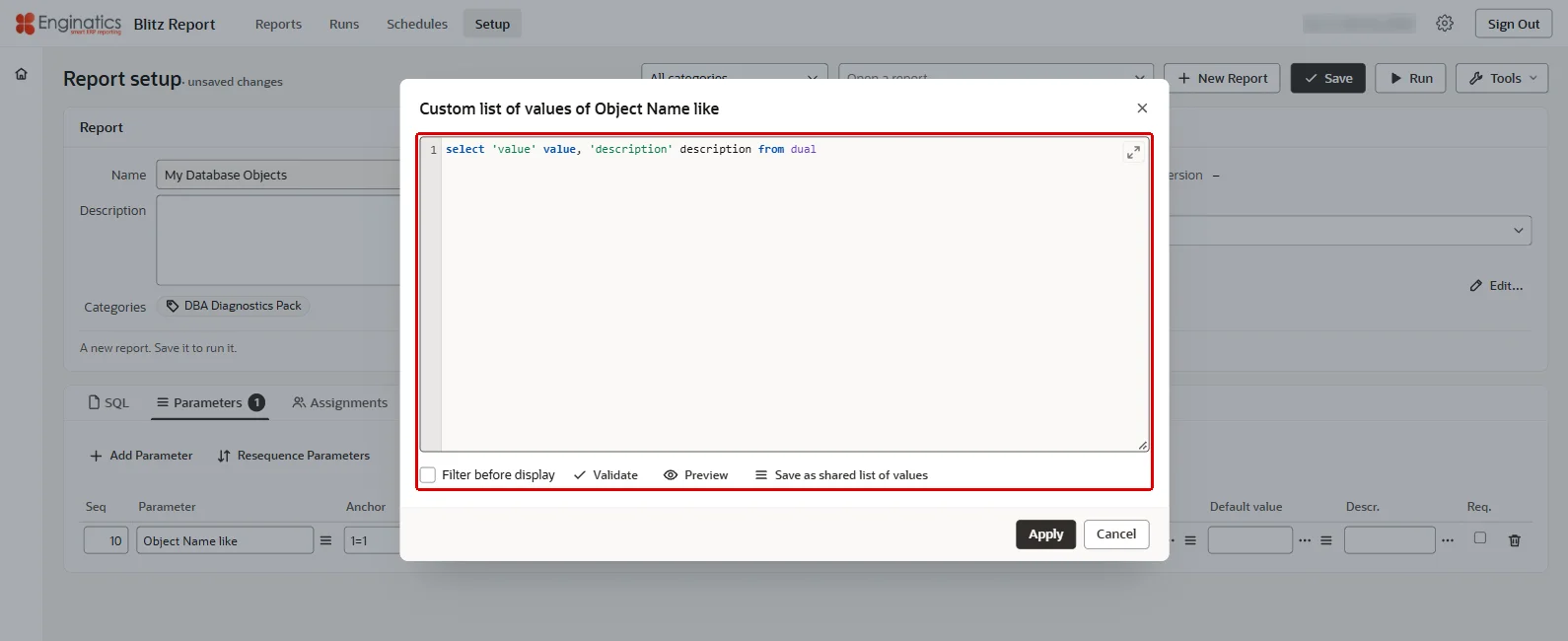
- LOV custom is used to create an ad hoc list of values based on an SQL statement for validation of the current report parameter only. A new custom list starts with the query
select 'value' value, 'description' description from dual; the button of the LOV query cell opens its dialog, with the Query, Filter before display, Validate, which parses the query, and Preview, which runs it and shows its first 100 rows. The LOV SQL may select an optional ‘id’ column and must include the two columns ‘value’ and ‘description’. If ‘id’ is included, it is used to bind the parameter restriction for report execution; otherwise ‘value’ is used when no ‘id’ column is selected. If you want to re-use the query for other report parameters, click Save as shared list of values: the query is saved as a shared list of values under the name you enter, and the parameter uses it from then on; save the report to keep the change.
LOV custom opens an ad hoc list for this parameter only:
Changing the type clears the list settings the new type does not use.
LOV name
Name of a shared list of values. The list shows each shared list with the number of parameters using it and its description.
LOV query
SQL statement of a list of values, read-only in the grid: its button opens the shared list in the Lists of Values dialog, or the custom list in its own dialog. The LOV query must select the columns ‘value’ and ‘description’, and it may include an optional ‘id’ column. If you include an ‘id’ column, this value is used as the parameter’s :bind value for report execution; otherwise the ‘value’ column is used.
Large lists of values are queried only after the user has entered a partial value, see Filter before display.
Free Text
A parameter of type LOV or LOV custom accepts only values that its list of values returns. Check Free Text to offer the list as a suggestion only and accept any value, for example for a parameter that takes wildcards such as ‘Supplier Name like’. Free Text is checked automatically when the type of a parameter whose SQL text contains a like comparison is changed to a list type.
Id or Value
For a list of values with an ‘id’ column, Id or Value decides which column the parameter binds: Id, the default, binds the id and Value binds the displayed value. One shared list of values can so serve parameters that restrict by id and parameters that restrict by name. Dependent parameters read the id through :$flex$.parameter_name and the displayed value through :$flex$.parameter_name.value.
Matching value
If the parameter value entered at run time matches the matching value, then the corresponding SQL text is inserted.
Matching values may contain wildcard characters. If, for the same Anchor, the parameter value entered by the user matches more than one matching value due to use of wildcards, then the SQL text of the best (longest string) match is inserted.
For example, a parameter Object Kind with the values Code and Data has two rows for the anchor 1=1. The row with the matching value Code inserts ao.object_type in ('PACKAGE','PACKAGE BODY','PROCEDURE','FUNCTION','TRIGGER'); the row with the matching value Data inserts ao.object_type in ('TABLE','VIEW','MATERIALIZED VIEW'). A user who enters Code gets the first condition only.
A :bind anchor takes no matching value. On a parameter with a list of values, the list button of the cell picks the value from the list.
Default value
Specifies a default parameter value. If the value starts with the keyword ‘select’, then Blitz Report would execute the SQL to derive the default value dynamically instead of using a fixed value. Example: To get the current date in a period format such as JAN-26, use the following SQL as a default value:
select to_char(sysdate,'MON-RR') from dual |
Some functions can be used without selecting from dual making report development easier. Here’s the list of those functions:
abs, add_months, bitand, cast, ceil, chr, coalesce, decode, greatest, initcap, instr, last_day, least, length, lower, lpad, mod, months_between, next_day, nvl, nvl2, power, regexp_replace, regexp_substr, replace, round, rtrim, sign, substr, substrb, to_char, to_date, to_number, translate, trim, trunc, upper, userenv |
The same applies to calls of the packages xxen_util, fnd_profile and fnd_global, to sys_context, to a :$flex$ reference, to a case expression and, for a Date parameter, to an expression starting with sysdate.
On a parameter with a list of values, the list button of the cell picks the default from the list; the cell keeps the displayed value, and the save stores the id. For a parameter that accepts multiple values, several values are picked and stored separated by semicolons. A SQL, a function or a list of values in the cell is replaced by a picked value only after a confirmation.
Descr.
Additional parameter description shown to the user on the run screen: beside the field while the parameter has the focus, in a bubble over the next row where there is no room beside it, and as the tooltip of the field.
Req.
The required flag enforces a parameter value entry by the user, for example to prevent accidental report submission with insufficient parameter restrictions. A rule over several parameters, such as either one or the other, is set up with Required Parameters.
Locked
Parameter default values stored against a template can be marked as Locked on the Parameters tab of the template editor. The parameter is then displayed greyed out on the run screen and its value is enforced when the report is submitted, including submissions from the Excel add-in and through the API, so that the value cannot be bypassed. A locked value also overrides the user’s own saved parameter defaults.
Note: Locked values apply to business users only. Users with Blitz Report Access level ‘Developer’ or ‘System’ are not restricted by them.
Dependent parameters
You can define parameter dependencies in LOV queries and default values using the syntax:
:$flex$.parameter_or_lov_name |
where parameter_or_lov_name is a reference to either the parameter name in the language of the installation or to the LOV name of the parameter, which the query depends on. The match to parameter or LOV name is case insensitive and spaces or other non word characters are replaced with an underscore. A list of tables of the owner chosen in an Owner parameter, for example:
select at.table_name value, at.tablespace_name description from all_tables at where at.owner=:$flex$.owner |
In case you want to use multiple values functionality for a parameter which the query depends on, the function xxen_util.contains can help.
Dynamic parameter SQL text
A parameter SQL text that starts with select (or with) is a query that Blitz Report executes when the report runs: the first column of every row it returns, the rows separated by line feeds, is inserted at the anchor in place of the query. The query’s bind variables take the run’s values of the report’s parameters, so the inserted text can depend on what the user entered, for example a list of columns for a pivot. On an ERP (Fusion) report the query runs on Oracle Fusion. The text is inserted only when the parameter has a value, so a lexical the SQL cannot do without belongs to a required parameter. A query that fails stops the run, and the log shows the error and the query.
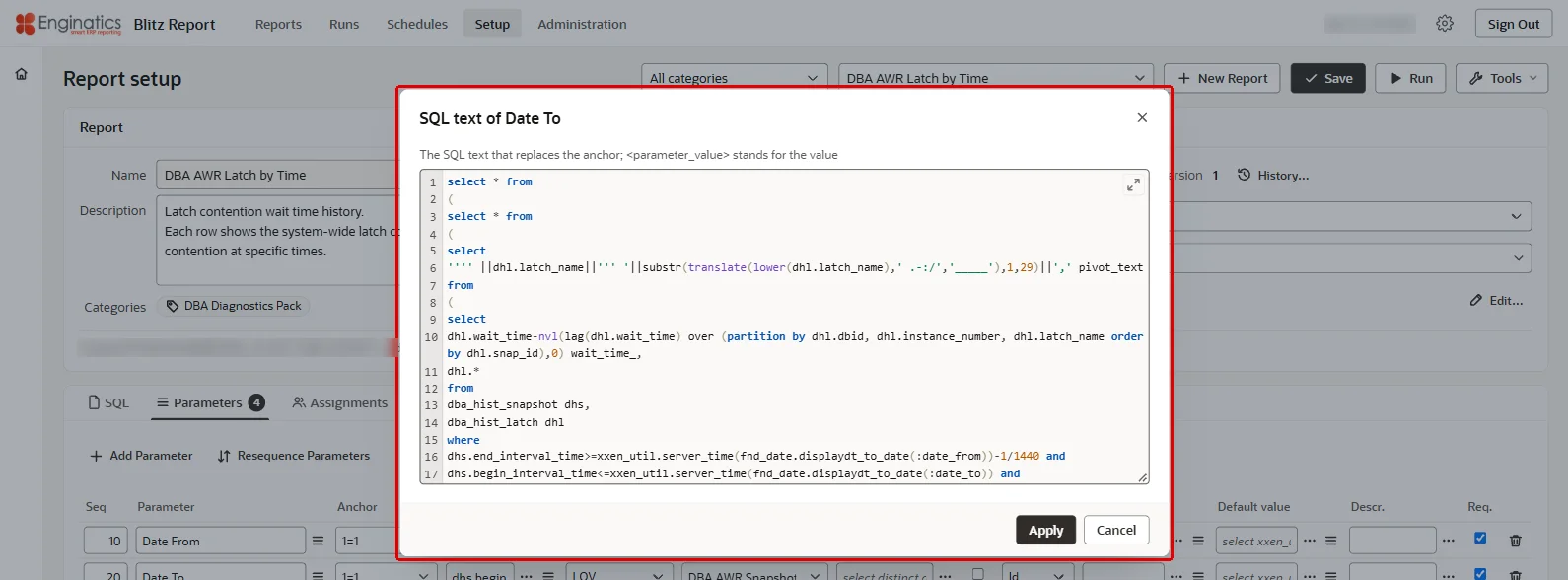
The Period parameter of the pivot example works this way: its query returns one line per period of the ledger’s year up to the entered period. Among the delivered reports, DBA AWR Latch by Time builds its pivot over the busiest latches with two such queries on its Date To parameter.
A parameter SQL text that starts with select is run when the report runs; the button beside the cell opens it in a larger box:
3.7 Assignments tab
Access to individual reports for normal users, those with access level User, is controlled with the following levels:
- Site: all users; the Value column reads everyone
- User: inclusion or exclusion by specific user
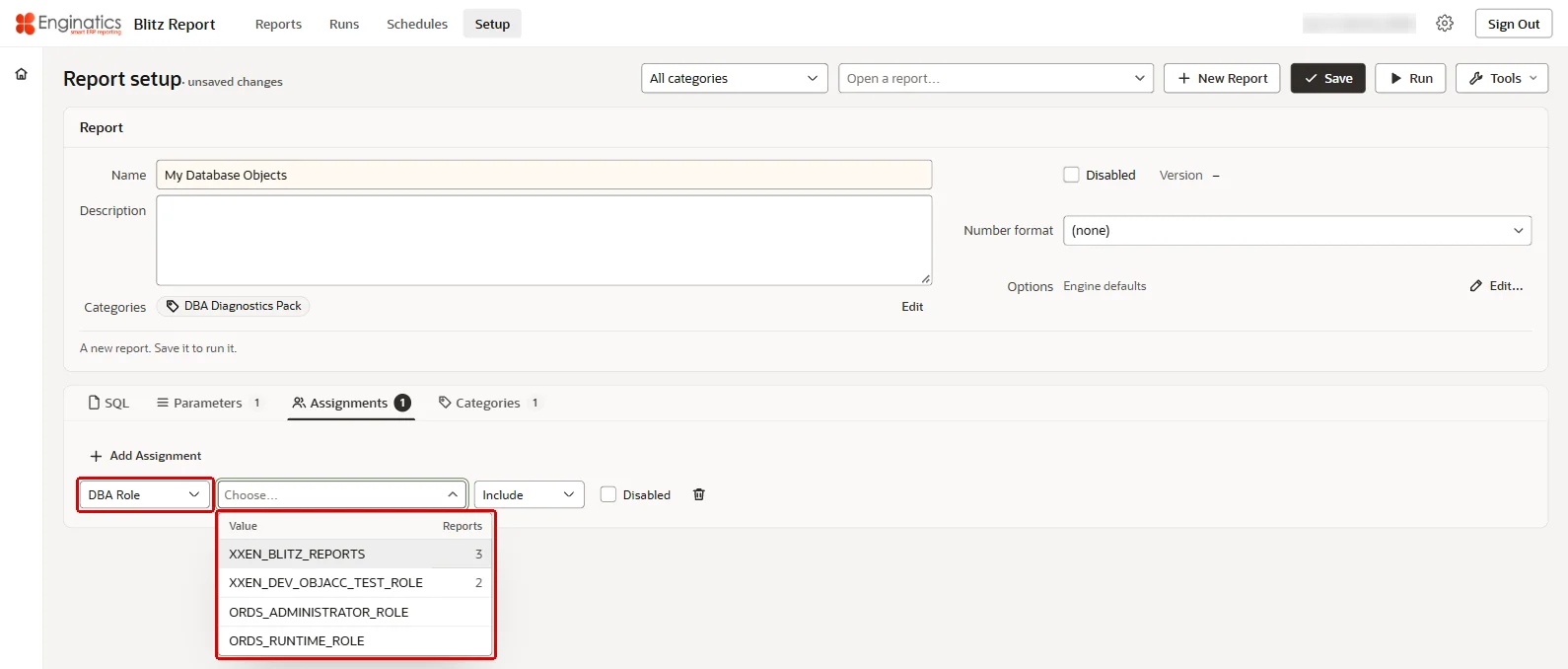
- DBA Role: the users holding a database role. The list offers the roles that are granted to someone and not maintained by Oracle. The assignment applies to a user whose Blitz Report user name is a database account holding the role through a direct grant; a user who signs in with an APEX account and has no database account of that name needs a User assignment.
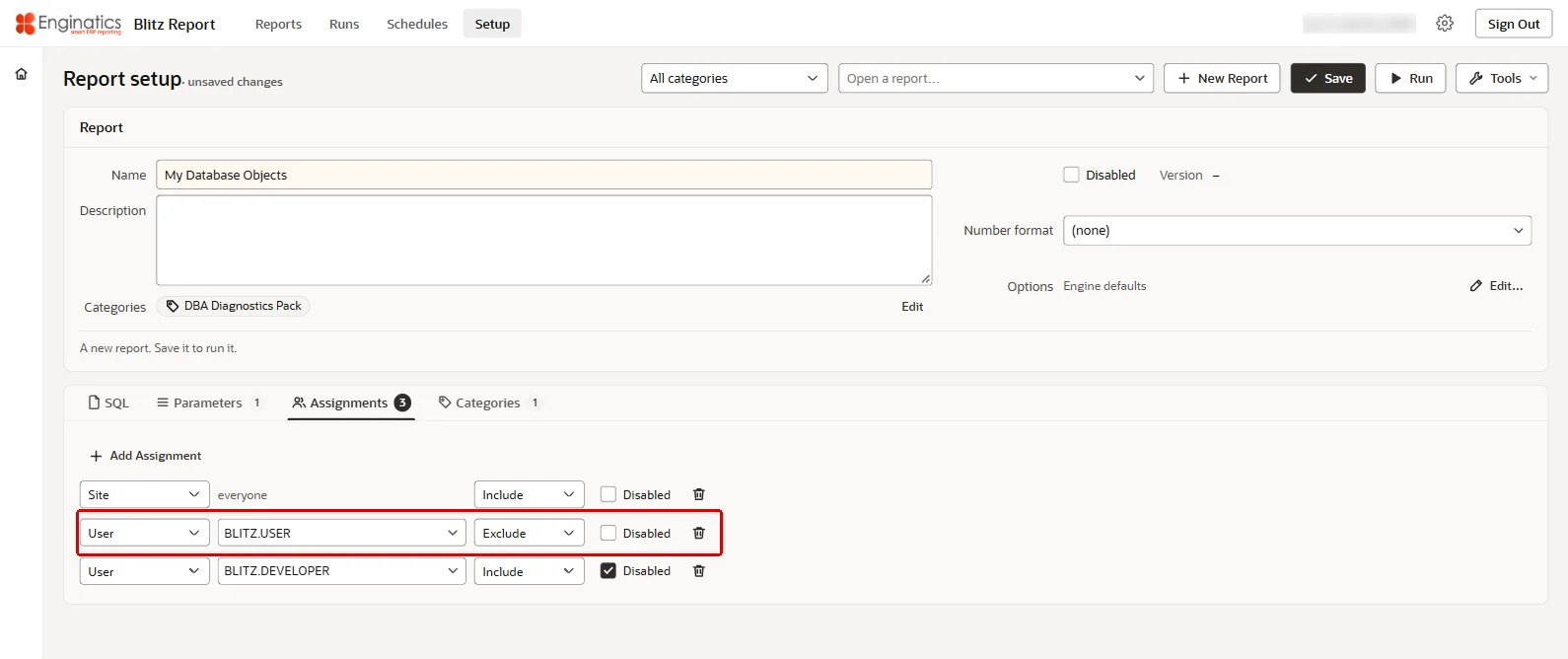
Add Assignment adds a row. Choose the level and the value; the value list shows how many reports each value already has and leaves out the values this report already has at that level. Include or Exclude decides the direction: exclusions take precedence over inclusions. A report included on Site level, but excluded for one user, for example, is accessible by all users except that one. A Disabled assignment is kept but not applied. Without an assignment, the report is not offered to any user at the User level.
Add Assignment adds a row; the value list shows how many reports each value has:
Rows of the level Report are the drilldowns of the Excel add-in between this report and another report; the row shows the level Report, the other report and the parameters it maps. They are created and changed with Define Drilldown in the Drilldowns group of the Excel add-in’s ribbon, see drilldowns in the Excel add-in chapter of the Blitz Report user guide. Here they can be disabled or removed.
Please note that assignments control report access only for normal users. Users having their access set to ‘User Admin’, ‘Developer’ or ‘System’ can access all reports in the system, irrespective of report assignments, and can run them, depending on report type and access level as described here.
The assignments of many reports at one level are maintained in Tools > Report assignments….
The Assignments tab:
3.8 Categories tab
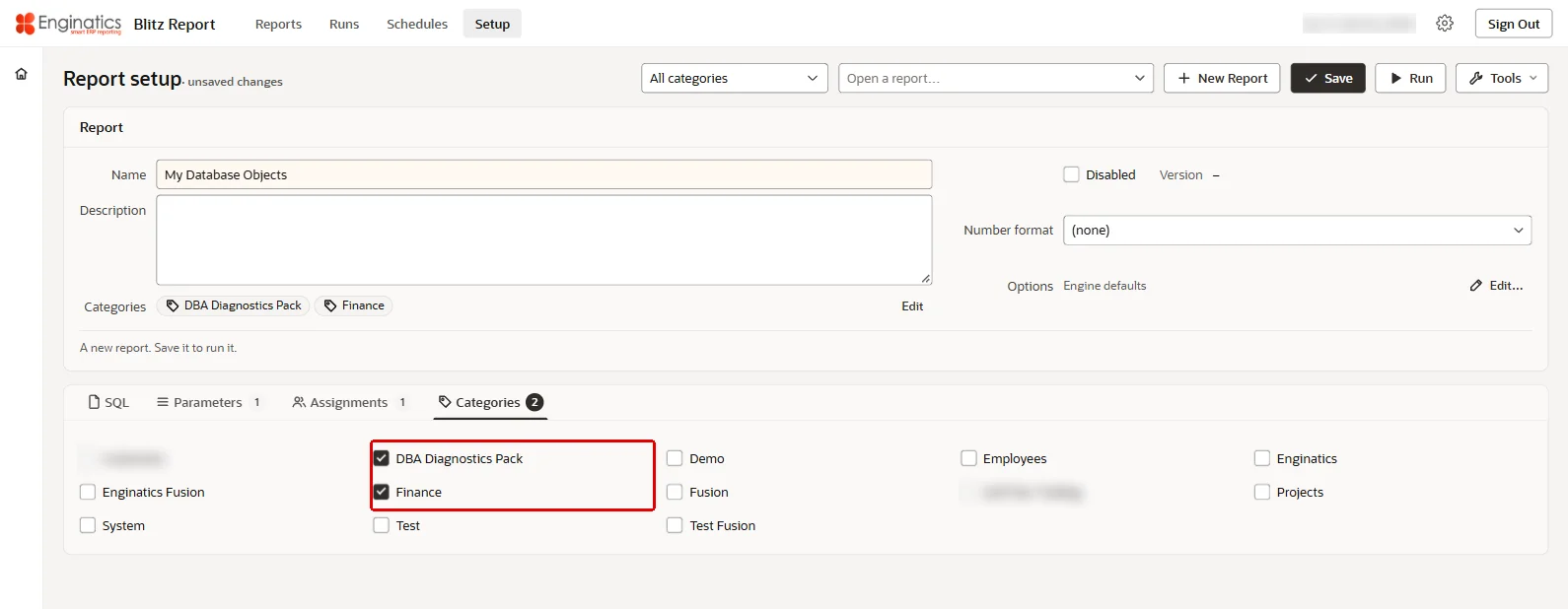
If you have a large number of reports in your system, categories help users to find the reports they require through the category list of the Reports page. Tick the categories the report belongs to. A report can be in several categories.
To create a new category, use Tools > Categories….
The Categories tab:
3.9 Run options of a report
Edit… beside Options on the Report card opens the run options of the report. They default the options of the run screen for this report, and a user can change them for a run. Fields that hold a file name offer Insert token…, which inserts the tokens of the report: its name, the template name, the request id (the number of the schedule that submitted the run), its displayed parameters and date formats; the Tokens section of the User Guide describes them.
Edit… beside Options opens the run options of the report:
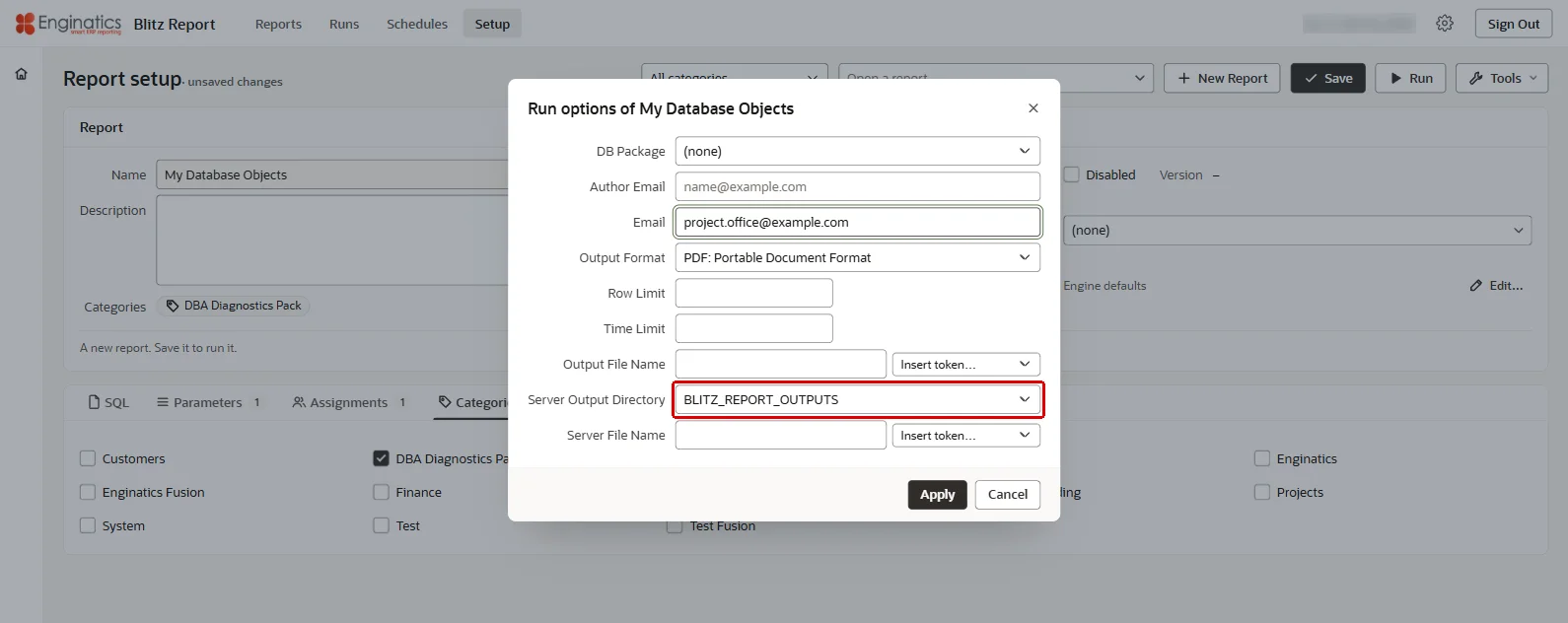
Copied From
The report this one was copied from, shown when the report is a copy. The profile option Blitz Report Disable Copied From Tracking leaves it empty on copies.
DB Package
Package name containing pre and post processing functions, which can be used for example to run additional processes before or after report execution. The functions need to follow the naming convention: afterpform, beforereport, afterreport and return the boolean data type. The list offers the packages of the Blitz Report schema that have one of them. The variables declared in the package specification are listed as :bind anchors on the SQL tab: before the run, the value of each parameter with such an anchor is written to the package variable of the same name, then afterpform and beforereport run, and every &lexical of the SQL takes the value of the package variable of the same name, so beforereport can build SQL text for it. afterreport runs after the report.
Author Email
Email address of the report author. The field suggests the email addresses of the Blitz Report users.
Default email address for sending output files. If no email is set on the report, the run screen takes the user’s profile option Blitz Report Default Email Address.
It is possible to populate this field in two formats:
- Comma-separated email list. E.g. [email protected],[email protected]
- SQL statement returning one column containing email addresses.
Emails are sent through the mail settings of the APEX instance, see the Installation Guide.
Output Format
Allows changing the output format from XLSX (Excel) to CSV (comma separated values), TSV (tab separated values) or PDF. PDF is offered once the administrator has set up PDF output.
Row Limit
Limits the maximum number of lines for report execution.
Time Limit
Maximum run time limit in minutes. The Blitz Report Monitor terminates runs exceeding the set time limit. This avoids excessive server load if a user submits a report with insufficient parameter restrictions for example. The monitor runs only when it is scheduled or started under Administration > Housekeeping.
A time limit can also be set when running reports or using profile option Blitz Report Time Limit in minutes. The run screen fills the Time Limit option from the report, else from the profile option, so the order of precedence is:
- Time limit in the Options card of the run
- Time limit on report level
- Profile option on user level
- Profile option on site level
The monitor enforces the Time Limit of the run’s Options card, else the user’s profile value, else the site value; the report level only pre-fills the Options card, so a run whose Time Limit was cleared falls back to the profile values. A scheduled run takes the time limit of its schedule.
Output File Name
Defaults the name of the output file for the report, as the Output File Name runtime option. Tokens create the name dynamically, for example from parameter values.
Server Output Directory
The Oracle directory object a run writes an additional copy of the output file to, as the Server Output Directory runtime option. The list offers the directory objects the Blitz Report schema has write access to; the database administrator creates and grants them, see the Installation Guide. A changed directory outside that list is refused on save.
Server File Name
Defaults the naming convention for the copy written to the server output directory, as the Server File Name runtime option. Tokens can be used to create a file name dynamically, for example based on report parameter values. The name cannot contain a slash.
3.10 Multi-language support
Report data
Report name and description, parameter names and descriptions, categories and list of values descriptions are kept in the language of the installation, the primary language of the APEX application, and the Setup page reads and writes them in it.
Column headings
Column headings are translated in Tools > Column translations…, which shows the languages each column has a translation in.
Lookups
The meanings of lookup values are maintained under Administration > Lookups, in the language of the installation.
3.11 Functions for report SQL
The package xxen_util provides functions for report SQL and lists of values. This section shows the patterns they are used for. The functions run in the Blitz Report database: they are available in standard reports and in lists of values and default values that run there, not in SQL that runs on Oracle Fusion. An ERP (Fusion) SQL that uses one of them is refused before it is sent, with the message The SQL for Fusion uses XXEN_UTIL, which exists only in the Blitz Report database, not in Fusion.
Flag columns
A flag column shows the translated ‘Yes’ for Y and stays blank otherwise, so a report does not show a wall of ‘No’ values. xxen_util.yes does exactly that:
select ut.table_name, xxen_util.yes(ut.temporary) temporary_table from user_tables ut |
Lookup codes
Show the translated meaning of a lookup code with xxen_util.meaning, and translate a parameter value entered as a meaning back to the code with xxen_util.lookup_code. The lookups are those maintained under Administration > Lookups; the third argument is 0 for every lookup, delivered or created under Administration > Lookups.
select ut.table_name, xxen_util.meaning(ut.temporary,'YES_NO',0) temporary_table from user_tables ut |
select xxen_util.lookup_code('Yes','YES_NO',0) from dual --returns: Y |
Multiple values in dependent lists of values
A dependent list of values whose parent parameter allows multiple values cannot compare the parent with an equality. xxen_util.contains returns Y when the column value is one of the selected values:
(:$flex$.owner is null or xxen_util.contains(:$flex$.owner,at.owner)='Y') |
Splitting a delimited value into rows
A parameter that takes a delimited list, or a column that stores one, is split into one row per element with the row generator xxen_util.rowgen:
select regexp_substr('A;B;C','[^;]+',1,rowgen.column_value) element from table(xxen_util.rowgen(regexp_count('A;B;C','[^;]+'))) rowgen |
Time zones
Dates are stored in the time zone of the database server, profile option Blitz Report Server Time Zone, and each user’s time zone is taken from the browser at sign-in, profile option Blitz Report User Local Time Zone. A date column with a time component is shown in the user’s time zone with xxen_util.client_time, and a date parameter entered by the user is converted back for comparison with stored dates with xxen_util.server_time:
select ao.object_name, xxen_util.client_time(ao.last_ddl_time) last_ddl_time from all_objects ao where ao.last_ddl_time>=xxen_util.server_time(:changed_since) |
3.12 ERP (Fusion) reports
On an installation with the Oracle Fusion integration, a report of type ERP (Fusion) reads the tables of Oracle Fusion Cloud: its SQL is sent to Oracle BI Publisher on the Fusion pod, which runs it through the Blitz Report data model and returns the rows. The integration is enabled for a user by the profile option Blitz Report Fusion Integration, at site level for everyone or at user level, and set up as the Installation Guide describes. Fields and boxes for Fusion show only for users with the integration enabled.
Report
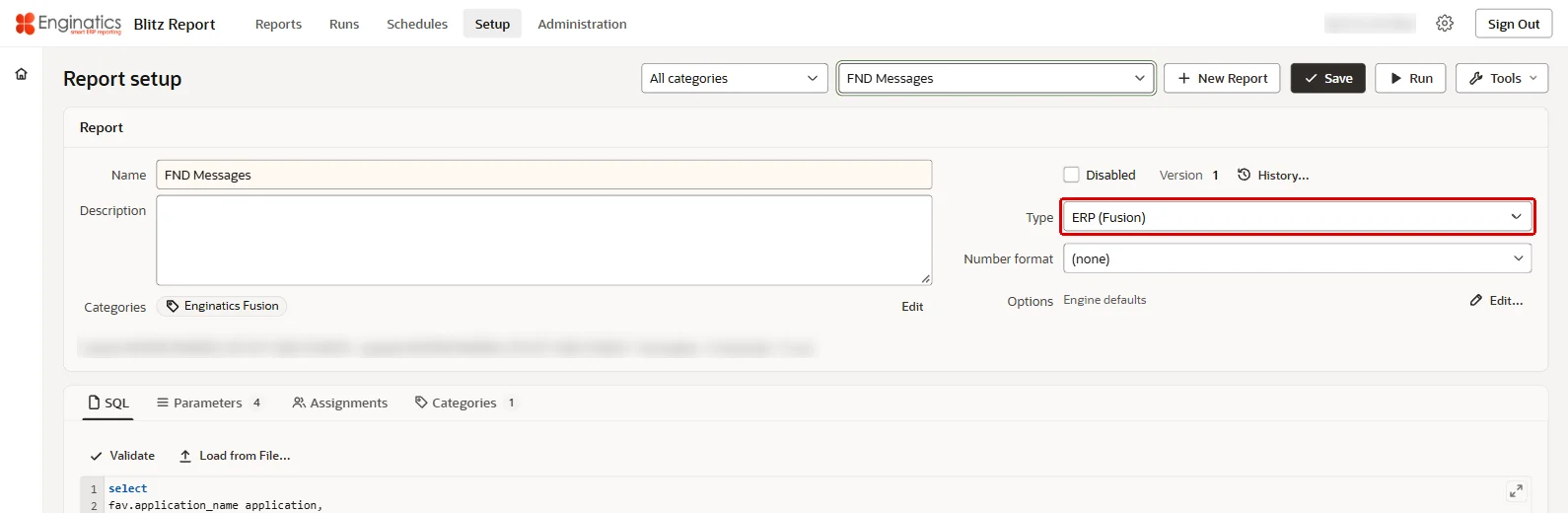
- A Developer or System access user sets the type ERP (Fusion) on the Report card.
- The SQL is written against the Fusion tables and views, with the same anchors and parameters as any report. Validate parses it on BI Publisher, and the template editor and Column translations read its columns there, which takes a few seconds.
- A run needs a Fusion sign-in: users open Blitz Report from Fusion, see the User Guide. A scheduled run signs in with the signing key, as its owner when the owner is registered for scheduled runs under Administration > Profile Options, otherwise as the site Fusion user.
A Developer or System user sets the type ERP (Fusion) on the Report card:
Lists of values and default values
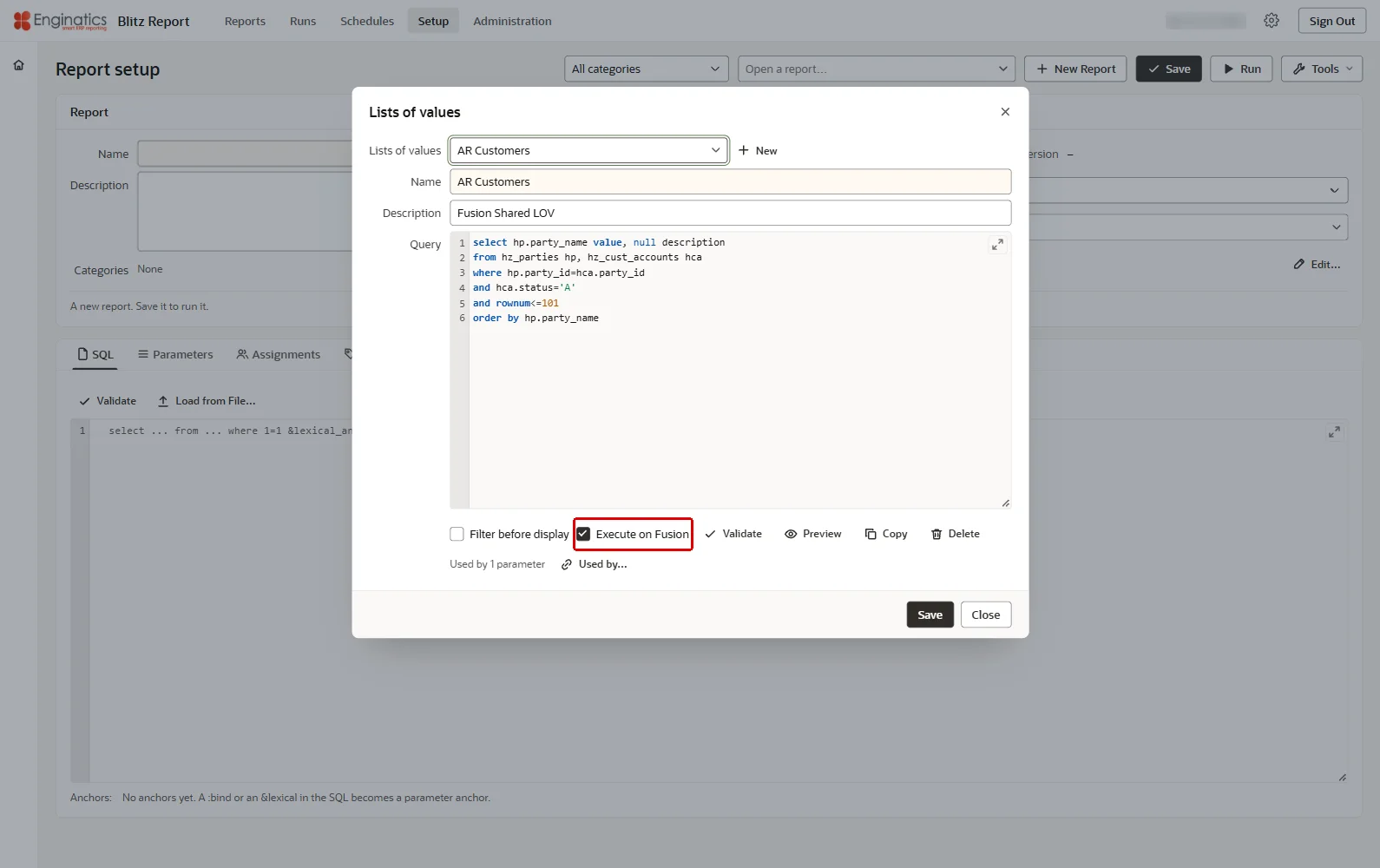
- Execute on Fusion in the Lists of Values dialog and in the dialog of a custom list of values runs the list’s query on Fusion. Preview then shows the first 100 rows from BI Publisher.
- Execute on Fusion in the editor of a parameter’s default value runs the default value SQL on Fusion. Matching values are always compared in the Blitz Report database.
- The list button of a Default value or Matching value cell reads the list from Fusion, with the values of the parameters it depends on. The cell shows the displayed values, and the save stores the list’s ids; a value the list does not have is refused.
- Save warns about a parameter whose list runs on Fusion while the report is not of type ERP (Fusion), and about a list parameter running on Fusion that has Free Text ticked.
Execute on Fusion runs the query of the list on Oracle Fusion:
An ERP (Fusion) report imported into an installation without the Fusion integration shows its type read-only and does not run: the run screen refuses to open it with the message This report runs on Oracle Fusion, and the Oracle Fusion integration is not enabled for you.
4 Security
This chapter describes how access to Blitz Report and to the reported data is controlled: the access levels that decide what a user can do, the assignments that decide which reports a user sees, template security, restricted developer access and the licensing.
4.1 Access levels and users
Every user who signs in has a Blitz Report user, created at the first sign-in and maintained under Administration > Users. Users sign in with the authentication scheme of the APEX application: Oracle APEX accounts unless the installation made another scheme, such as database accounts, the current one. On an installation with the Oracle Fusion integration, Fusion users sign in through Fusion, and their Fusion user name is their Blitz Report user.
The profile option Blitz Report Access controls what a user may do, from the user value set under Administration > Users or, without one, the site value. The installation sets the site value User and gives the installing administrator System access. A user without a value at either level cannot sign in: the sign-in answers You have no Blitz Report Access: the profile option is set neither for your user nor for the site. Please contact your administrator. The site value cannot be removed. To license fewer users than have an account, assign reports only to the users who need them: a user counts as an active user of the license only while a run of theirs is less than 60 days old.
Developers typically have the access level ‘Developer’ set at user level, which gives them all reports and the Setup page. The access to modify a report also depends on its type: reports of a type other than Standard and ERP (Fusion) can be modified by ‘System’ access only.
The Administration page is open to users with System access. On an installation that signs in with Oracle APEX accounts, an administrator of the APEX workspace can also open it while the site value of Blitz Report Access is not set, so that access can be given back when nobody has it. Where nobody has access, a workspace administrator who signs in sees only the Administration page, with the message: Blitz Report Access is set neither for your user nor for the site, so nobody can use the reports. As a workspace administrator you can repair it here: open your user and give it System access, or set the site value under Profile Options. The page reloads once you have access.
| Functionality | User | User Admin | Developer | System |
|---|---|---|---|---|
| Run reports (Standard or ERP (Fusion)) | yes1 | yes | yes | yes |
| Run reports (System) | no | no | no | yes |
| Open the Setup page | no | read-only | yes | yes |
| Assign reports and change their categories (Standard or ERP (Fusion)) | no | yes | yes | yes |
| Assign reports of type System | no | no | no | no |
| Create, modify or delete categories | no | yes | yes | yes |
| Create, modify or delete reports (Standard or ERP (Fusion)) | no | no | yes | yes |
| Create, modify or delete reports of other types | no | no | no | yes |
| Change a report’s type (with the Fusion integration) | no | no | yes | yes |
| Change lists of values, column translations; import reports; mass change | no | no | yes | yes |
| Edit licensing information | no | yes | yes | yes |
| Create, modify or delete templates | yes2 | yes | yes | yes |
| Administration page | no3 | no3 | no3 | yes |
- Users can only see and run assigned reports. Users with access level ‘User Admin’, ‘Developer’ or ‘System’ can access all reports in the system, irrespective of report assignments, and can run them, depending on report type and access level as shown above.
- Depending on the profile option Blitz Report Template Access, users can create and modify only their own templates or modify other owners’ templates.
- Yes for an administrator of the APEX workspace while the site value of Blitz Report Access is not set, on an installation with Oracle APEX accounts.
4.2 Report assignments
Assignments decide which reports a user with access level User can see and run. A report can be assigned at Site level to all users, to individual users or to the holders of a database role, with include and exclude rules. They are set on the Assignments tab of a report, and for many reports at once in Tools > Report assignments….
4.3 Template security
A template restriction is a control the report developer places on the template’s users, and it is deliberately separate from template ownership. An owner with ‘User’ or ‘User Admin’ access may change what the template contains, but never the restrictions placed on it: only the access levels ‘Developer’ and ‘System’ can set or remove one. Note that the Blitz Report Template Access profile option set to ‘Super User’ grants full access to other users’ templates, but it does not grant the right to change a restriction.
Three template properties are treated as restrictions:
| Property | Where | Effect |
|---|---|---|
| Restrict on a sharing entry | Sharing tab | Pins the shared user to the restricted templates of that report |
| The restricted sharing entry itself | Sharing tab | Cannot be changed or removed, so the pinned set cannot be widened |
| Locked on a parameter default | Parameters tab | Makes the template level default mandatory: read only on the run screen and enforced when the report is submitted |
One further point follows from this. Clear Template Parameter Defaults in the Actions menu of the run screen never clears locked ones, unless the user may change restrictions. Template conditions are template content, not a restriction: anyone who may change the template can change or remove them, so a filter users must not remove is set as a locked parameter default.
Restrictions and locked values apply to business users only: the access levels ‘Developer’ and ‘System’ are exempt, so a developer always sees all templates and can always change parameter values.
Scenario 1: the developer keeps ownership
The developer builds the template, restricts the sharing to the intended users, and keeps ownership. The users are not the owner, so they can only run the template exactly as it was built: the columns the developer selected, with the parameter values the developer locked. Use this where the report has to be identical for everyone.
Scenario 2: the users maintain the template themselves
The developer builds the template, locks the parameter defaults, and then sets the Owner to the user. The user can then add and remove columns and look after the template themselves, while the locked parameter defaults and the restricted sharing entries stay developer territory: they are deactivated in the template editor for anyone below ‘Developer’ access. To pin the owning user to the restricted templates as well, give them a restricted sharing entry too.
4.4 Restricted developer access
Developers who sign in with their own database account can be restricted to the database objects that account may read. With the profile option Blitz Report Enforce Developer Object Grants set to Yes for such a developer, at user or site level:
- A report, list of values or parameter whose SQL reads a database object the developer’s account cannot select is refused when it is saved, validated, previewed or run, with a message naming the objects.
- The Reports page and the Setup page list only the reports assigned to the developer, plus those of the categories in Blitz Report Exempt Developer Report Categories.
- Import is refused, with the message Import is not available to a restricted developer.
The restriction applies only while the application’s current authentication scheme is database accounts, and only to users at the access level Developer. Objects of the schemas in Blitz Report Exempt Developer Object Grant Schemas always count as readable; the installation sets it to XXEN, so set it to the name of your Blitz Report schema if it differs.
The check is exact when the Blitz Report schema holds the execute grant on sys.dbms_sys_sql: the SQL is then parsed as the developer’s account. Without the grant it follows the developer’s object grants, role grants and system privileges. The database administrator grants it, as listed among the privileges of the Installation Guide:
grant execute on sys.dbms_sys_sql to xxen; |
Use the name of your Blitz Report schema in place of xxen.
4.5 License key
Setup > Tools > License Key…, or Administration > Tools > License Key…
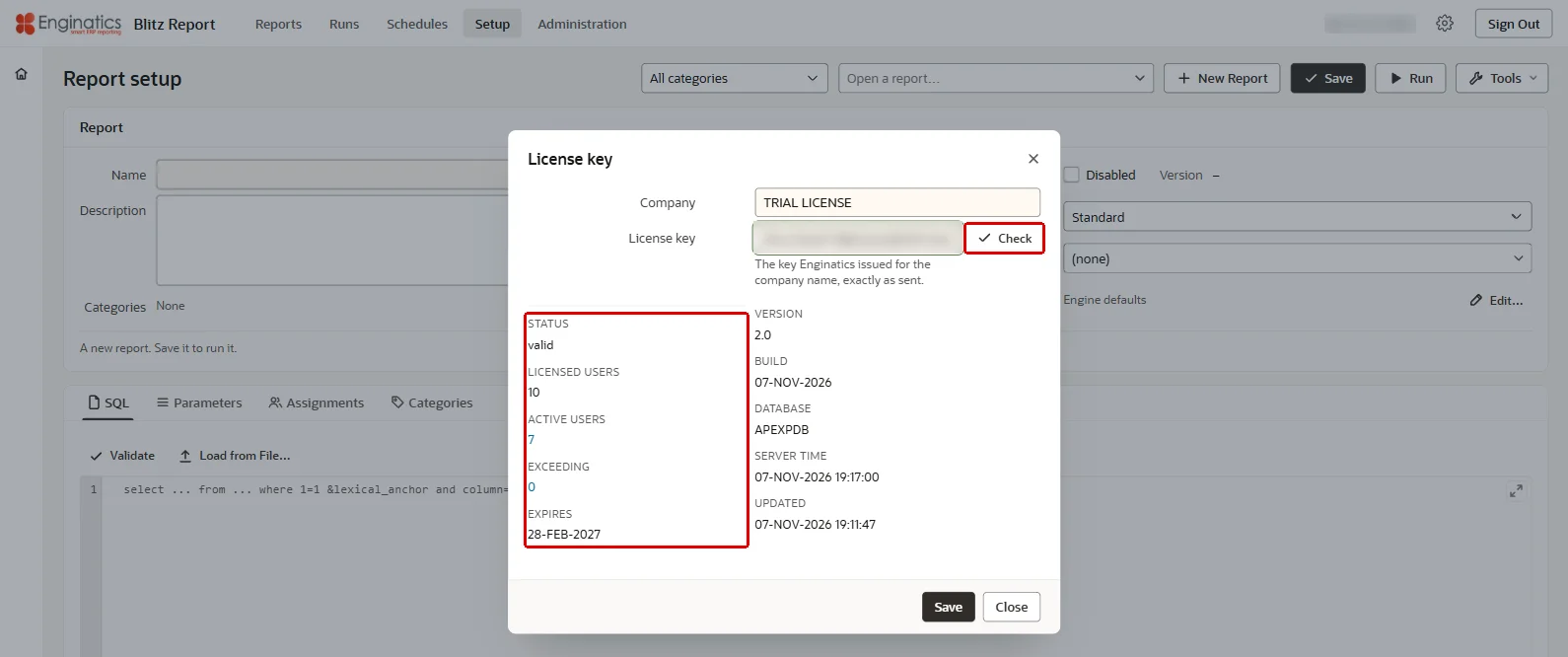
Enter the company name and the license key Enginatics issued for it, exactly as sent. The dialog shows the version and build of the installation, the number of licensed users, the expiry date, the number of active users, the number of exceeding users, the status of the key and when it was last updated, together with the database name and the server time. Check shows the status, licensed, active and exceeding users and expiry date of the company name and key as entered, without saving them; Save stores them. Active users are the users who ran a report in the last 60 days and are not end-dated; the count is shown for a key with a user limit and is capped at that limit. Exceeding is the number of active users refused with Invalid License: maximum users exceeded within the past 60 days who hold no licensed seat now, the additional user licenses needed. A click on Active users runs the report Blitz Report License Users and downloads its output, a click on Exceeding the report Blitz Report License Exceeding Users; the runs are listed under Runs. The status reads free – limited to 30 reports without a key, expired – limited to 30 reports after the expiry date, invalid license key or maximum users reached. Saving a valid key clears the postponed expiry warnings of every user.
The License Key dialog shows the status of the key:
Before a license expires, users see a license expiration warning, which they can postpone for 3 days. The profile option Blitz Report License Expiration Warning Days sets how many days before the expiry it starts.
Note: Without a license key you can still use Blitz Report’s full functionality for storing and maintaining SQLs, but Blitz Report will generate an output for the 30 most recently created reports only, delivered reports included. The reports that administer Blitz Report itself always run.
5 Setup tools
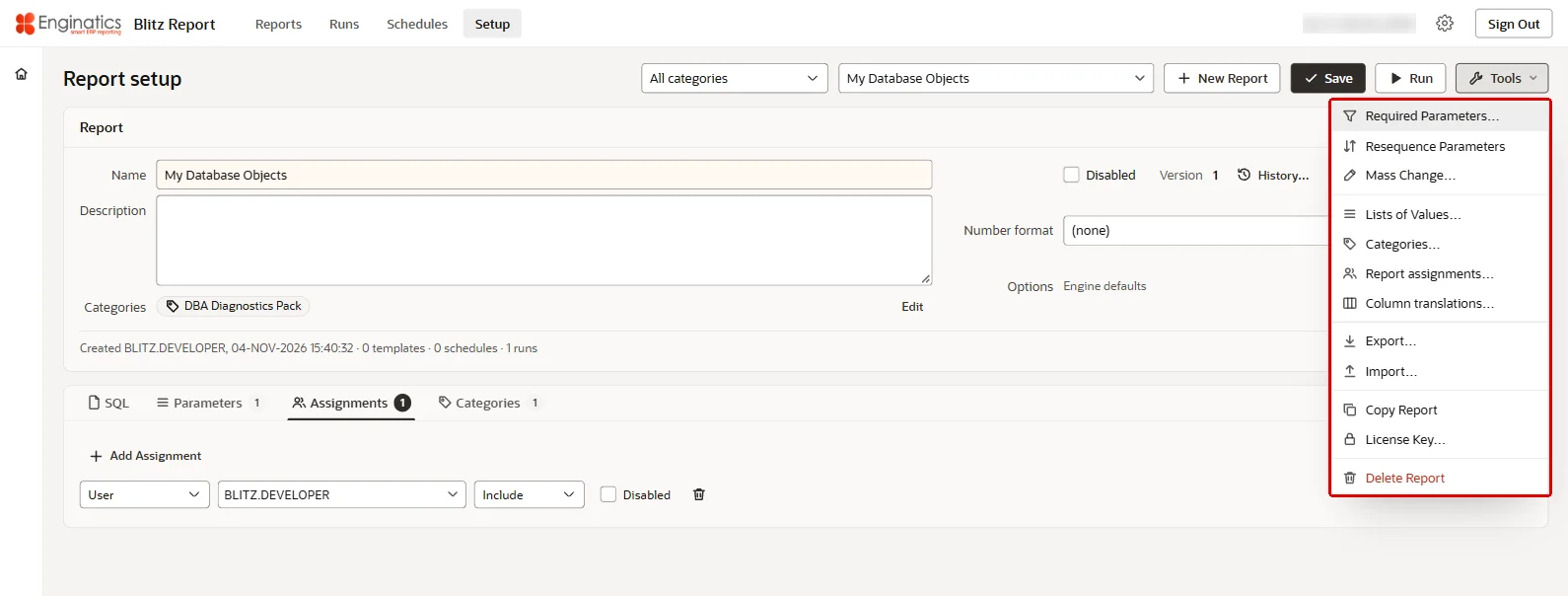
The Tools menu of the Setup page holds, in this order:
- for the open report: Required Parameters…, Resequence Parameters and Mass Change…
- the shared definitions: Lists of Values…, Categories…, Report assignments… and Column translations…
- Export… and Import…
- Copy Report and License Key…
- Delete Report
An entry the user’s access does not allow is disabled, with the reason as its tooltip. The Tools menu of the Administration page offers Report Setup, which opens the Setup page, and the shared tools Lists of Values…, Categories…, Report assignments…, Column translations…, Import… and License Key….
The Tools menu of the Setup page:
5.1 Lists of values
Use Lists of Values… to define lists of values shared by different report parameters. Changes to a shared list of values affect all report parameters referencing it. Choose a list or click New. Below Developer access the dialog shows the lists read-only.
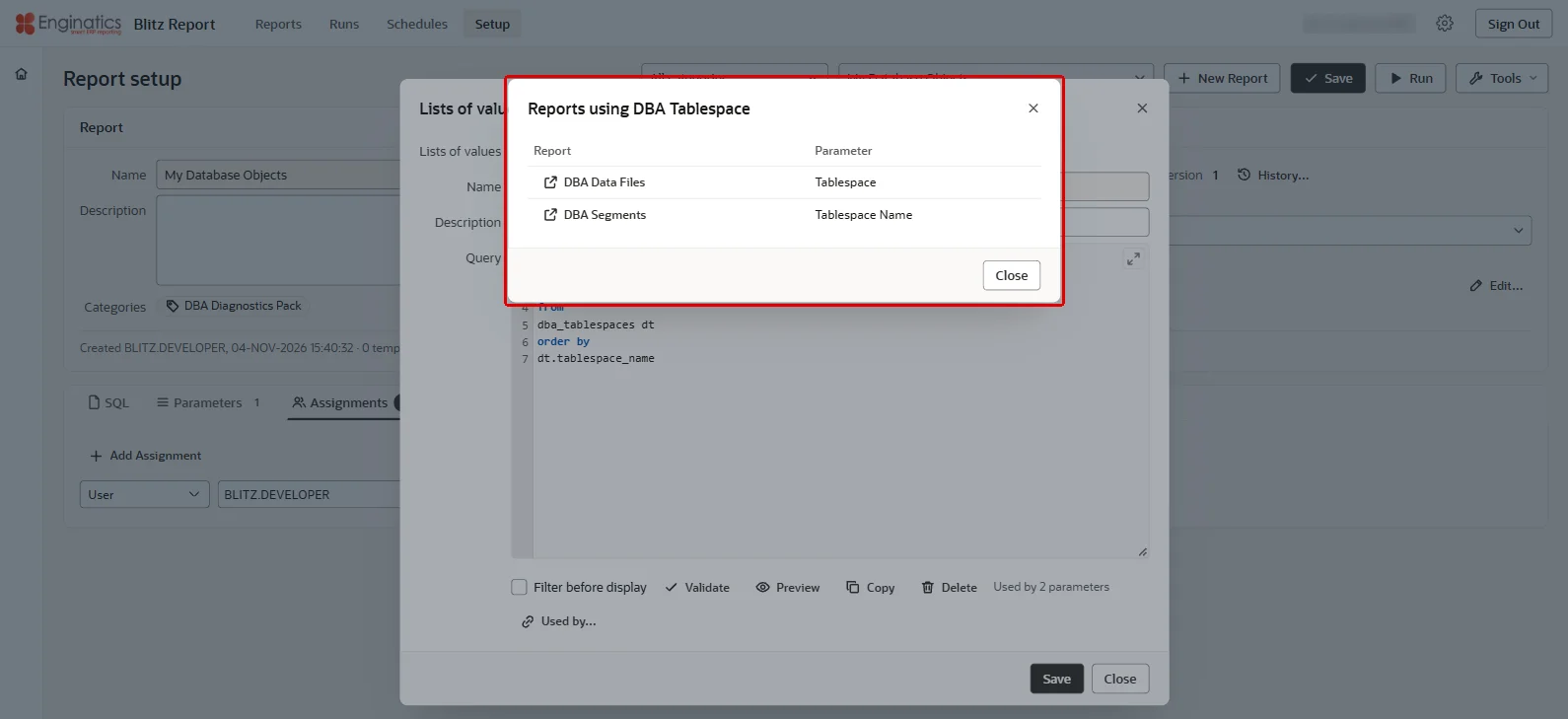
Lists of Values… defines the lists shared by parameters; Used by… lists the reports whose parameters use the open list:
Name
Unique name of the shared list of values. The search finds lists by name. The dialog shows how many parameters use the list.
Description
Description of the shared list of values.
Query
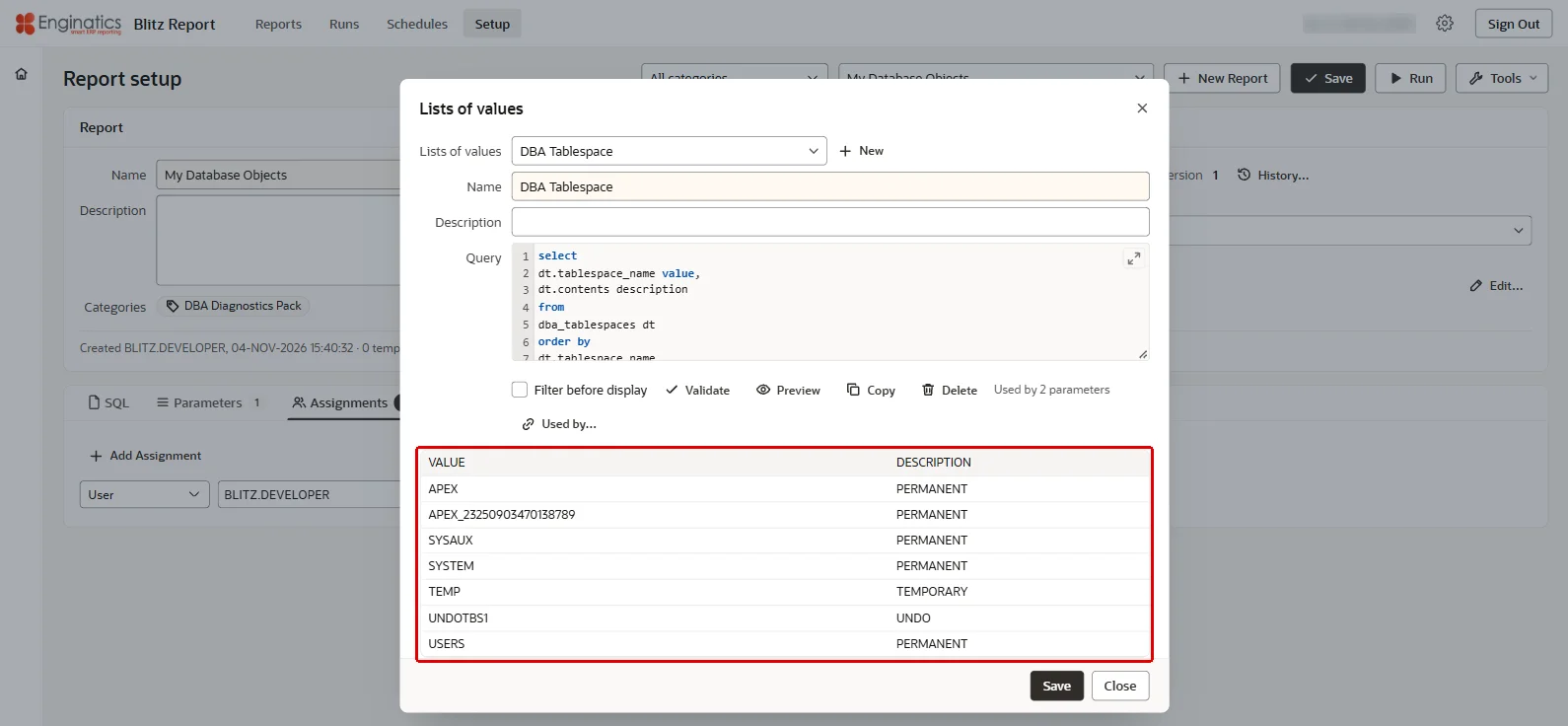
SQL query of the list, selecting the two mandatory columns ‘value’ and ‘description’, optionally preceded by an ‘id’ column. Validate parses the query and answers The query parses. or the database error, and Preview runs it and shows its first 100 rows.
Preview runs the query and shows its first 100 rows:
Filter before display
Filter before display prompts the user to enter a (partial) value before the list of values is displayed, and the list then queries only the matching records instead of all of them, which avoids performance issues for large lists of values. Whether a list of values is validated or accepts any value is set on each parameter with Free Text.
Execute on Fusion
Shown with the Oracle Fusion integration: the query runs on Oracle Fusion through BI Publisher, see ERP (Fusion) reports.
Used by
Used by… lists all reports and parameters using the list of values; each report opens in the Setup page.
Copy and Delete
Copy creates a new copy of the list of values. Use it to change a delivered list of values: an upgrade replaces the query of delivered lists, see section 1.8. Delete removes a list; the parameters that use it keep its query as their own, template conditions that used it are unlinked and the list’s history is deleted.
5.2 Categories
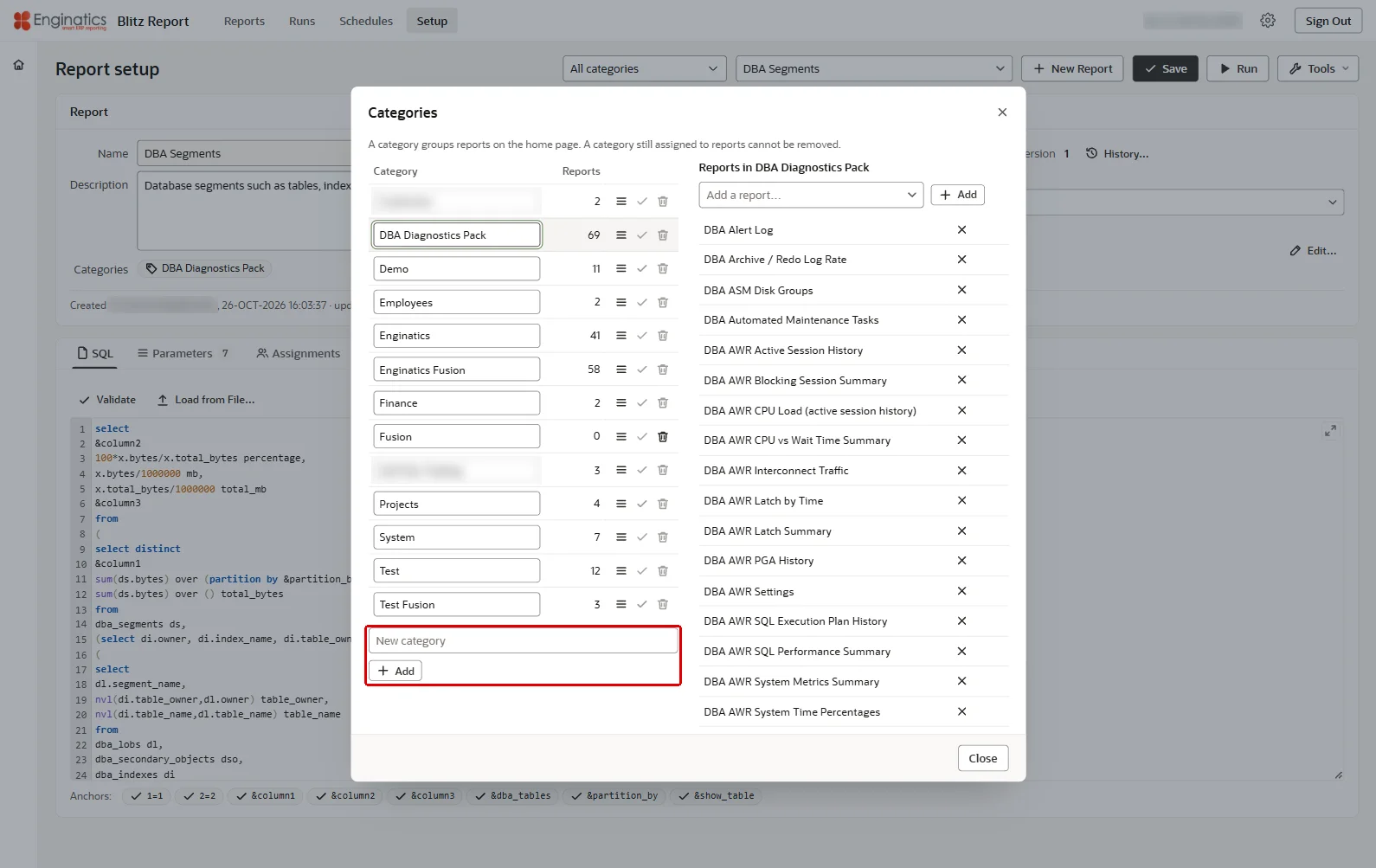
Categories can be defined to help users find reports, or to migrate specific reports between environments through the export and import options. A category groups reports on the Reports page. Enter a name under New category and click Add; change a name in place and save it, or delete the category. A category still assigned to reports cannot be removed. Selecting a category shows its reports, where Add a report… adds one and the remove button takes one out.
Categories… maintains the categories and their reports:
5.3 Report assignments
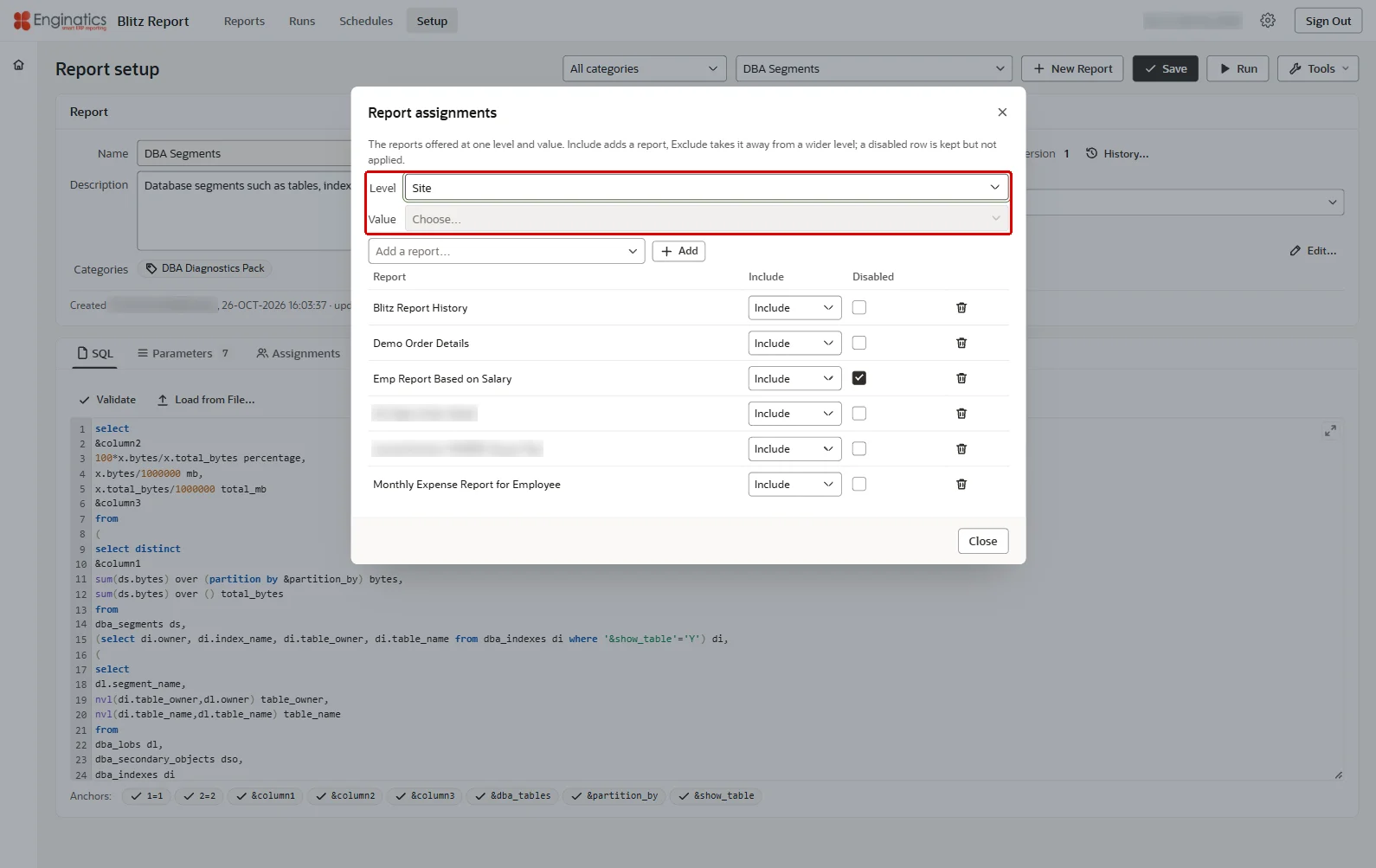
Report assignments… lists the reports offered at one level and value and assigns many reports to it, or reviews the existing assignments. Choose the Level and the Value to list its reports. Add a report… adds one. Include adds a report, Exclude takes it away from a wider level; a disabled row is kept but not applied.
Report assignments… lists the reports offered at one level and value:
5.4 Column translations
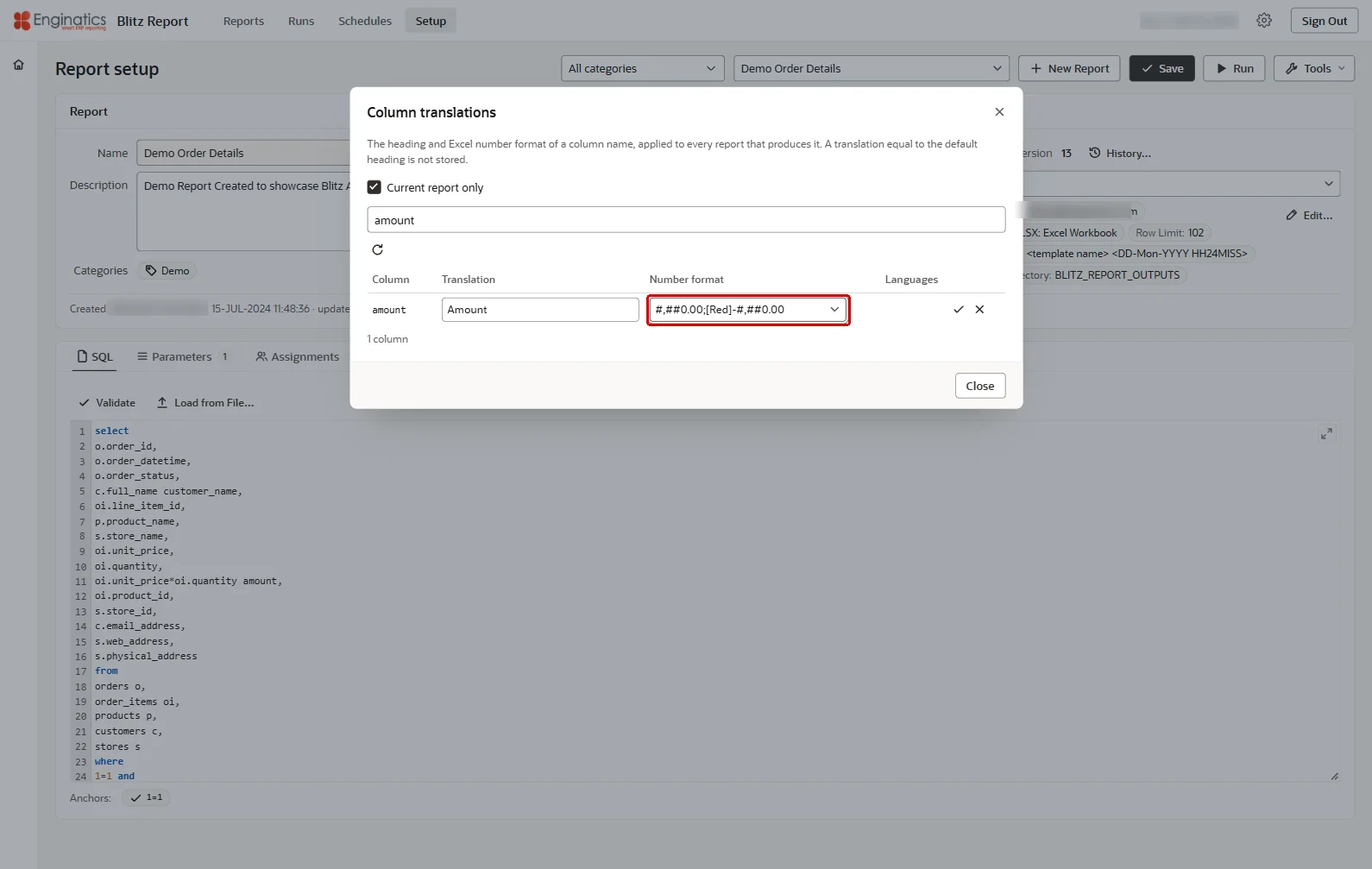
Column translations… maintains the heading and Excel number format of a column name, applied to every report that produces it. A translation equal to the default heading is not stored. With Current report only the dialog lists the columns of the open report, which it parses first; otherwise it lists the columns that have a translation or a number format, the first 500. Search by column or translation, enter the Translation or the Number format and save the row; the Languages column shows the languages a column has translations in. Refresh reads the rows again, Clear empties the search, and a saved translation is written to every installed language.
Note: Column translations and number formats are global, which means that they apply to all reports in the system. If you would like to set a number format for a column in one specific report only, you would need to make sure that the column name is unique to that report.
Column translations… maintains the heading and the number format of a column name:
5.5 Required parameters
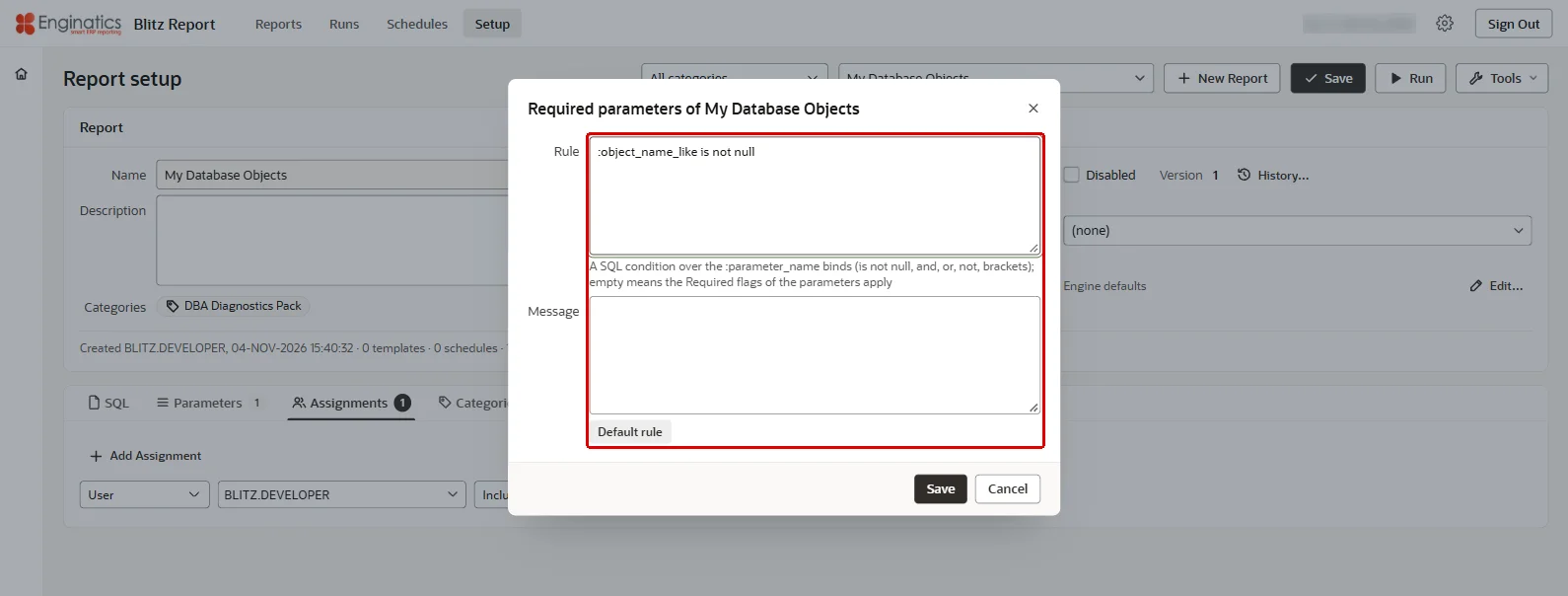
Required Parameters… sets a rule for the parameters a user must enter, beyond the Req. flags of single parameters. This allows creating an either-or logic, for example, if at least one, but not all parameters are required. The rule is a SQL condition over the parameters, each referenced by its name in the installed base language, prefixed with a colon and with spaces or other non-word characters replaced by a single underscore. It may use is not null, and, or, not and brackets:
:start_date is not null and (:customer is not null or :invoice_number is not null) |
Blitz Report evaluates the rule when the report is run and shows the Message when the rule is not met. Without a Message, a rule that asks for at least one of the optional parameters shows Please enter at least one parameter., and any other rule shows Please enter sufficient parameters as below. followed by the rule. An empty rule means that the Req. flags of the parameters apply. Default rule fills in the rule the engine applies when none is stored: the parameters not ticked Req., in display order, each with is not null, joined with or, so that the user must enter at least one of them. When every parameter is ticked Req., it leaves the rule empty and says so: the Req. flags apply on their own. One rule can be set up per report.
Required Parameters… sets the rule for the parameters a user must enter:
5.6 Resequence parameters
Resequence Parameters, in the Tools menu and on the Parameters tab, numbers the displayed parameters 10, 20, 30 … in their current order and saves the report; hidden parameters are numbered -10, -20, -30 …. Use it when there is no spare sequence number left to insert a parameter. When the report has unsaved changes, it asks whether to save them and renumber the parameters, or to discard them and renumber the saved parameters. A new report is renumbered on the page; save it to keep the numbers.
5.7 Mass change
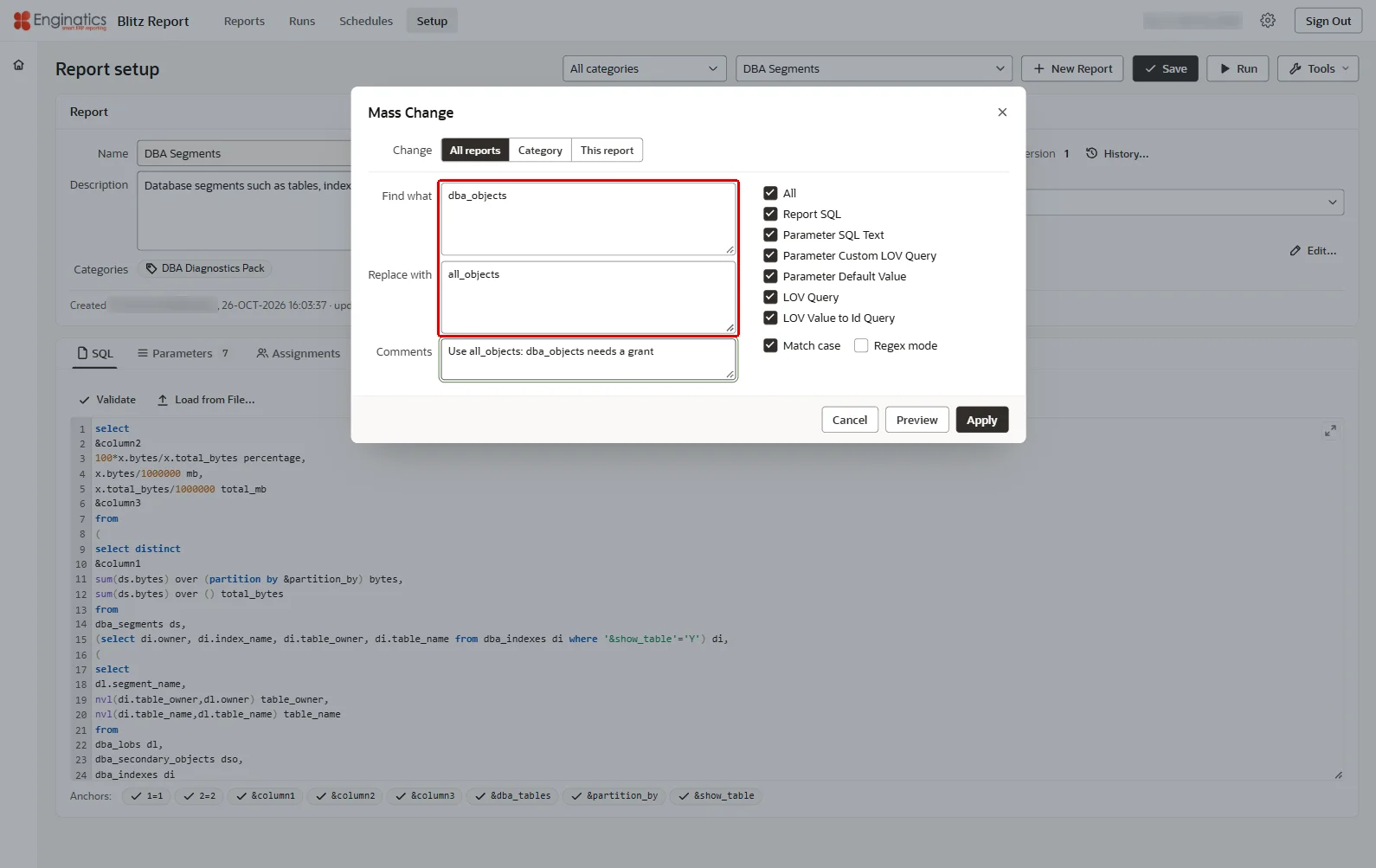
Mass Change… replaces a text in the SQL and the lists of values of many reports at once.
- Find what and Replace with: the text to replace. The text to find has at most 512 bytes. With Regex mode it is a regular expression; Match case, ticked by default, makes the search case sensitive.
- Change: All reports, the reports of a Category, or This report.
- The record types to change, or All: Report SQL, Parameter SQL Text, Parameter Custom LOV Query, Parameter Default Value, LOV Query and LOV Value to Id Query.
- Comments are stored with the versions of changed report SQL and lists of values.
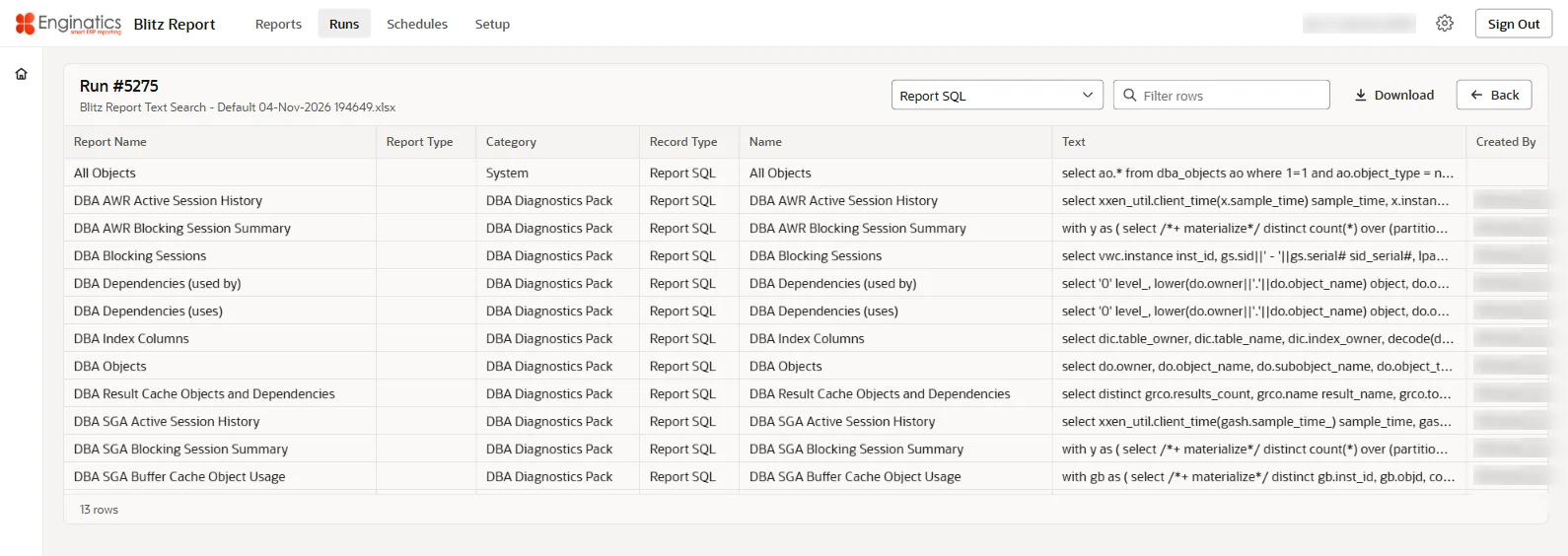
Preview runs the report Blitz Report Text Search with these choices in a new tab, listing what would change. Apply asks for a confirmation, writes the change at once, versions it where the engine keeps versions, and reports how many report SQLs, parameters and lists of values changed. With unsaved changes on the open report it first asks whether to save or discard them. An empty Replace with is taken from Find what, and Comments is enabled for the record types that keep versions. Preview is disabled with Preview needs the report Blitz Report Text Search, which this installation does not have yet. where that delivered report is missing. A restricted developer can change the open report only.
Mass Change… replaces a text in the SQL and the lists of values of many reports:
Preview lists what would change, as the report Blitz Report Text Search:
5.8 Export
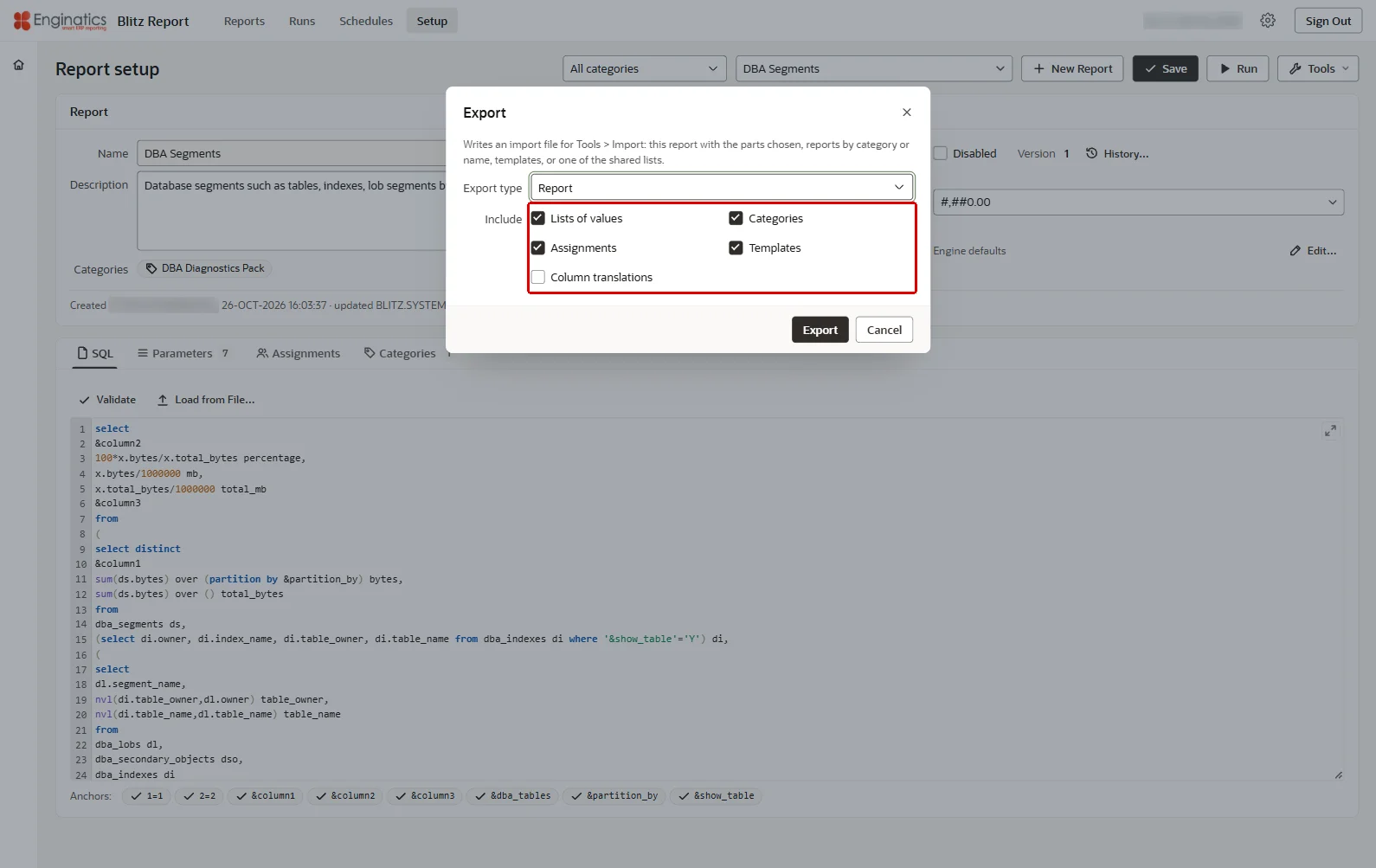
Export… writes an import file of report definitions, lists of values, categories and other setup, for migration to another instance with Import. The Export type:
- Report, Reports from Category, Reports except Category, Reports by Search Pattern (part of the report name, % as the wildcard)
- Template, Templates from Report, Templates from Owner, Templates from Category
- LOVs, Categories, Column Translations, Assignments, Option Values
For the report types, Include decides which related definitions go into the file:
- Lists of values: all shared list of values definitions used by parameters of the exported reports. Use this option if you have new or changed list of values definitions related to the parameters of the exported reports (parameter type LOV, not LOV custom), and you would like to include these in the export.
- Categories: all category definitions of the exported reports. Use this option if you have reports assigned to a category and would like to create that category automatically in the destination environment.
- Assignments: includes all report assignments in the export.
- Templates: includes all templates in the export, together with their freeze settings, their locked parameter default values, their conditions and their restrictions.
- Column translations: includes column translations and number format settings. This option should only be used if you really have translations or column specific number formats to migrate. If you have a large number of reports, this option could slow down the export significantly, as the database needs to parse all exported report SQLs to identify the included column names.
The first four are ticked by default. Export downloads the file: an .xml file, or a .sql file for Option Values. With no report open, the types Report and Template are not offered and the dialog starts with LOVs. Please choose what to export. asks for a type, and Nothing matched: no file to export. answers a selection without a result.
Notes:
- Report version numbers are generated automatically in each environment and thus may differ between environments. Reports imported into an environment for the first time start with version number 1.
- Import files contain only the current version of each report’s SQL, not the version history.
- The load of parameters based on shared lists of values requires the referenced list of values to be imported first. If a referenced list of values does not exist, the parameter is loaded with a custom list of values instead.
Export… writes an import file of reports and other setup:
Export API
To export reports programmatically, e.g. for scripted report migrations, use the functions of package xxen_api: export_file_data exports reports, templates, lists of values, column translations or assignments by type and id list, export_report one report, export_template one template and export_lov one list of values. They return the import file as a clob:
function export_report( p_report_id in pls_integer, p_include_lovs in varchar2 default null, p_include_categories in varchar2 default null, p_include_assignments in varchar2 default null, p_include_templates in varchar2 default null, p_include_columns in varchar2 default null, p_language in varchar2 default null ) return clob; |
The following example writes one report to a file in an Oracle directory object, here OUT_FILE_LOC. This can be useful to store reports in a change management system:
begin dbms_xslprocessor.clob2file( xxen_api.export_report( p_report_id=>xxen_api.report_id('My Database Objects'), p_include_lovs=>'Y', p_include_categories=>'Y', p_include_assignments=>'Y', p_include_templates=>'Y' ), 'OUT_FILE_LOC', 'my_database_objects.xml', nls_charset_id('AL32UTF8') ); end; / |
5.9 Import
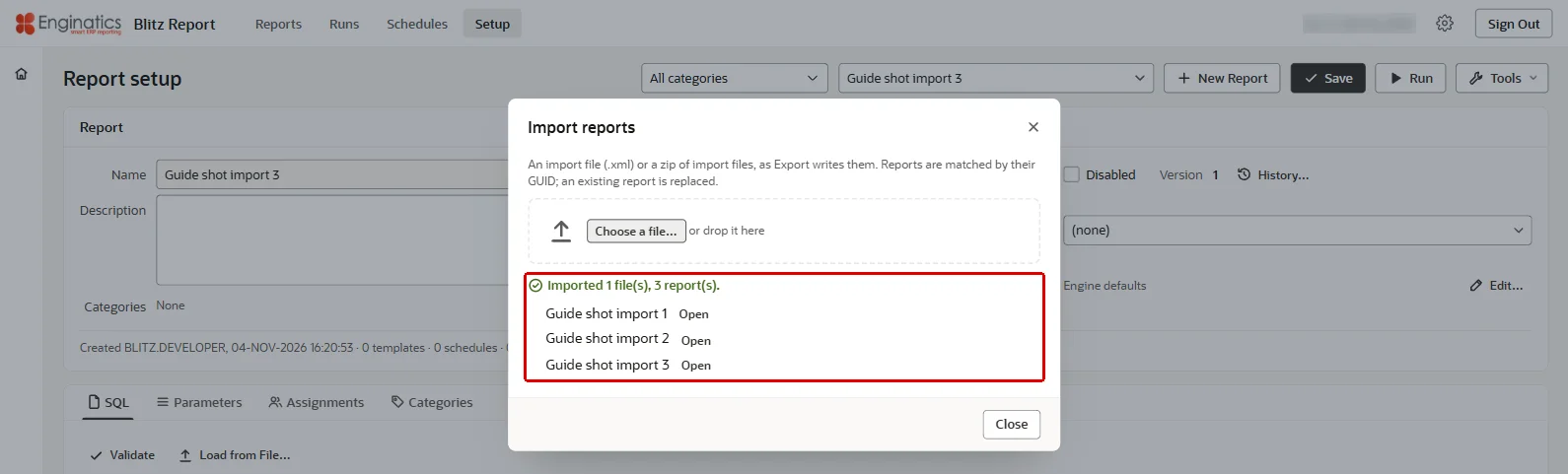
Import… loads report definitions from an import file (.xml) or a zip of import files, as Export writes them or as downloaded from the Blitz Report library. Click Choose a file… or drop the file on the dialog. Reports are matched by their GUID; an existing report is replaced. Of a zip, its .xml files are imported. The dialog reports how many files and reports it imported, shows the last imported report behind it and opens any of them with Open. Chapter 6 describes the import in detail.
Import… loads report definitions from an import file or a zip:
Import API
To import an import file programmatically, e.g. for scripted non-interactive deployments, call the procedure import_xml of package xxen_api with the file content. It imports reports, templates, lists of values and categories, and commits.
procedure import_xml(p_xml in clob); |
5.10 Copy and delete
Copy Report creates a copy of the saved report with its parameters and templates, named COPY OF: followed by the report name, numbered when that name is taken, opens the copy and reports its name. The copy also carries the user parameter defaults and the required-parameters rule; a report of type System is copied by System access only. Unsaved changes of the open report are dropped. Use it to change a delivered report: an upgrade replaces the SQL and settings of delivered reports, see section 1.8. The copy’s assignments and the sharing of its templates are copied only for a user with the profile option Blitz Report Copy Assignments set to Yes, so a copy starts with no access. The copy keeps the report’s categories, except Enginatics.
Delete Report deletes the report with its parameters, templates, schedules and run history, after a confirmation.
5.11 License key
License Key… opens the license key dialog to enter the company name and license key and to review the number of active users. It is described in section 4.5.
6 Importing reports
Import moves Blitz Reports between instances and installs reports from the Blitz Report library. Blitz Report for Oracle APEX imports the same files as Blitz Report for Oracle E-Business Suite.
6.1 XML upload
Setup > Tools > Import…
With the import, you can migrate reports exported from another instance or downloaded from the Blitz Report library. To import several reports in one step, select a .zip file containing their import files. The import needs Developer or System access.
The file is the source of truth for every report it names:
- An existing report with the same GUID is replaced. Its SQL is stored as a new version when it differs, and the report header and every shared list of values in the file are stamped with the importing user and time, even when nothing in them changed.
- When the file carries assignments of a report, they replace the report’s assignment list without a warning. Check the assignments of a file renamed or copied from another report’s export before importing it.
- The SQL is stored without parsing, so a SQL that does not parse imports and fails at its first run. Validate it on the SQL tab after the import.
- Template condition values are not checked against the column type, so a wrong value imports and the run fails with a message naming the condition.
A report exported from Blitz Report for Oracle E-Business Suite reads EBS tables, so its SQL runs only where those tables exist. The reports of the categories DBA Diagnostics Pack and Enginatics are delivered with this edition and run on every installation; the other reports of the library are written for Oracle E-Business Suite, so check the tables a report reads before importing it.
Note: To avoid incompatibilities due to possible file format changes between different Blitz Report versions, please ensure that the source and destination environments have the same Blitz Report version installed, preferably the latest.
6.2 Reports from the online library
To download XML files from the Blitz Report library, find the desired report and click on the XML icon in the ‘Download’ column. To export all reports from a specific category, search for this category, and once the category or several categories are selected, an option to download all reports will appear.
In the online library, the XML icon in the Download column downloads the report:
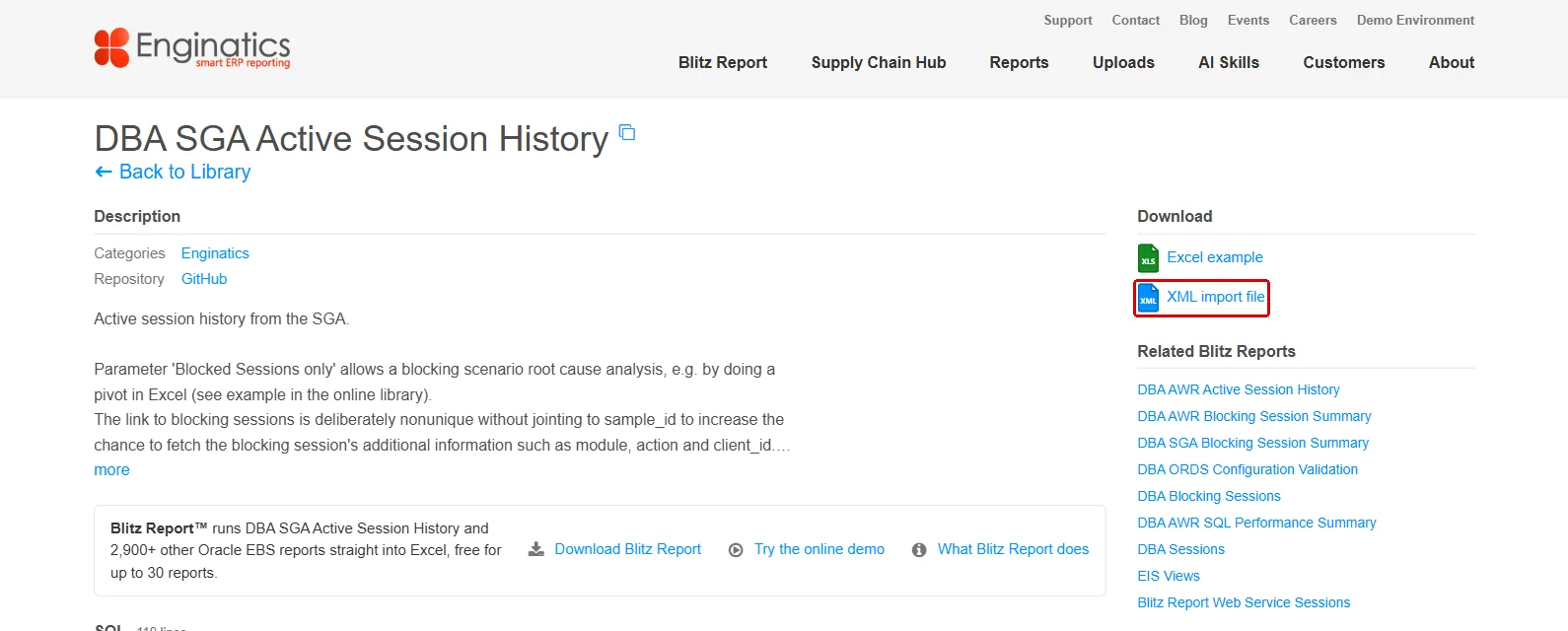
If a report already exists, the import from the XML file updates it with the new definition while keeping the previous SQL in the version history.
6.3 Reports converted from Discoverer
Reports that Blitz Report for Oracle E-Business Suite converted from Oracle Discoverer workbooks import like any other report. Each worksheet became a template, whose description names the workbook and the sheet. For users who knew the workbooks, the profile option Blitz Report Discoverer Mode names the category of the converted reports: every user who selects that category on the Reports page then sees its templates, the sheets of the converted workbooks, and users at the access level User see them grouped under their reports, with the template leading in their recently run list and in their requests. N/A leaves the mode off.
7 Integration
The PL/SQL package xxen_api is the public interface of the report engine in the database. This chapter shows what to build with it, one scenario per section with its code, and how the Excel add-ins reach the database.
The run screen of a report has an address of its own: the address of the browser while the report is open, the application’s address followed by #report?id=<report id> and, with a template selected, &template=<template name>. It opens the same report and template again, so it can be bookmarked or linked from your own application.
7.1 Running a report from PL/SQL
When your own code needs a report’s output, for example to send it with your own mail, to store it with a record or to return it from a webservice of your own, run the report in your session with xxen_api.run_report and receive the file as a BLOB. The report runs in your session, so its run time adds to your transaction. For a report that should simply be delivered at fixed times, a schedule needs no code.
The example runs the tutorial report and sends the output with APEX mail:
declare l_run_id number; l_row_count pls_integer; l_file blob; l_file_name varchar2(1000); l_status varchar2(1); l_message varchar2(4000); l_mail_id number; begin l_run_id:=xxen_api.create_run_id_(p_report_name=>'My Database Objects'); xxen_api.set_parameter_value_(p_parameter_name=>'Object Name like',p_value=>'XXEN%',p_run_id=>l_run_id); xxen_api.set_runtime_option(p_runtime_option_name=>'TEMPLATE_NAME',p_value=>xxen_api.default_template_(p_report_name=>'My Database Objects'),p_run_id=>l_run_id); xxen_api.run_report(p_run_id=>l_run_id,x_row_count=>l_row_count,x_output_file=>l_file,x_filename=>l_file_name,x_return_status=>l_status,x_msg_data=>l_message); if l_status='E' then raise_application_error(-20001,l_message); end if; l_mail_id:=apex_mail.send(p_to=>'[email protected]',p_from=>'[email protected]',p_subj=>l_file_name,p_body=>'The report is attached.'); apex_mail.add_attachment(p_mail_id=>l_mail_id,p_attachment=>l_file,p_filename=>l_file_name,p_mime_type=>'application/vnd.openxmlformats-officedocument.spreadsheetml.sheet'); commit; end; |
- Parameter default values are not evaluated by the API: set every parameter the report depends on, hidden parameters included. Pass the stored value: the id for a list of values with an id column, else the displayed value, and dates as DD-MON-YYYY.
- Inside an APEX session the report runs as the signed-in Blitz Report user. Outside APEX, for example in a database scheduler job of your own, it runs as the Blitz Report user whose user id the session sets with
dbms_application_info.set_client_infobefore the first call, for exampledbms_application_info.set_client_info(xxen_report_apex_util.user_id('JANE.DOE'));, which reads the id of an active user by user name. - Outside an APEX session, APEX mail needs the workspace first:
apex_util.set_workspace(p_workspace=>'<your workspace>').
7.2 Webservices for the add-ins
The Blitz Report Excel add-ins, the Cloud edition with the Oracle Fusion integration and the Database edition without it, and the Blitz Report desktop application call the Blitz Report webservice module, which the installation creates in Oracle REST Data Services (ORDS). ORDS authenticates the client with the OAuth client the installation created; the user then signs in:
- The Database edition: Login on the add-in’s ribbon opens this application in the browser, which asks the user to confirm with Connect that Excel may sign in as them.
- The Cloud edition: the user’s Oracle Fusion user name and password, entered in the add-in. The webservice admits the user name of a user whose Fusion integration is on; the password is kept in Excel only: the add-in signs in to BI Publisher with it at the login and runs ERP (Fusion) reports and lists there in that session.
Every call runs as that Blitz Report user, with their access level and assignments. The builds of the add-in are installed with the application; administrators maintain the environments of the connection file under Administration > Excel Add-in, and users download the add-in and their connection file with Excel Add-in… in the Actions menu of the run screen, and the desktop application takes its connection file from the report Blitz Report Environment Setup run with Source set to Desktop. The ORDS module, its OAuth client and its address are set up as the Installation Guide describes. With the profile option Blitz Report Debug set to Yes, the webservice calls are written to the table xxen_debug_log of the Blitz Report schema, read with SQL, for example select xdl.* from xxen_debug_log xdl order by xdl.log_id desc; the Blitz Report Monitor removes its lines after the longest of the retention days.
7.3 Moving reports between instances
Reports, templates and lists of values travel between development, test and production as XML. Interactively, Export… writes the file and Import… loads it. In a script, xxen_api.export_report returns a report’s definition and xxen_api.import_xml loads it into the target instance, where it updates the existing definition by GUID. The same files move reports between Blitz Report for Oracle APEX and Blitz Report for Oracle E-Business Suite.
8 Administration
The Administration link in the page header opens the administration of Blitz Report for users with System access, and for an administrator of the APEX workspace while the site value of Blitz Report Access is not set. It has the tabs Users, Profile Options, Lookups, Housekeeping and Excel Add-in, and a Tools menu with Report Setup and the shared setup tools. A user without the access is answered Administration needs system access.; when an administrator changes the signed-in user’s access, the page reloads with Your access changed. Reloading…
The Tools menu of the Administration page:
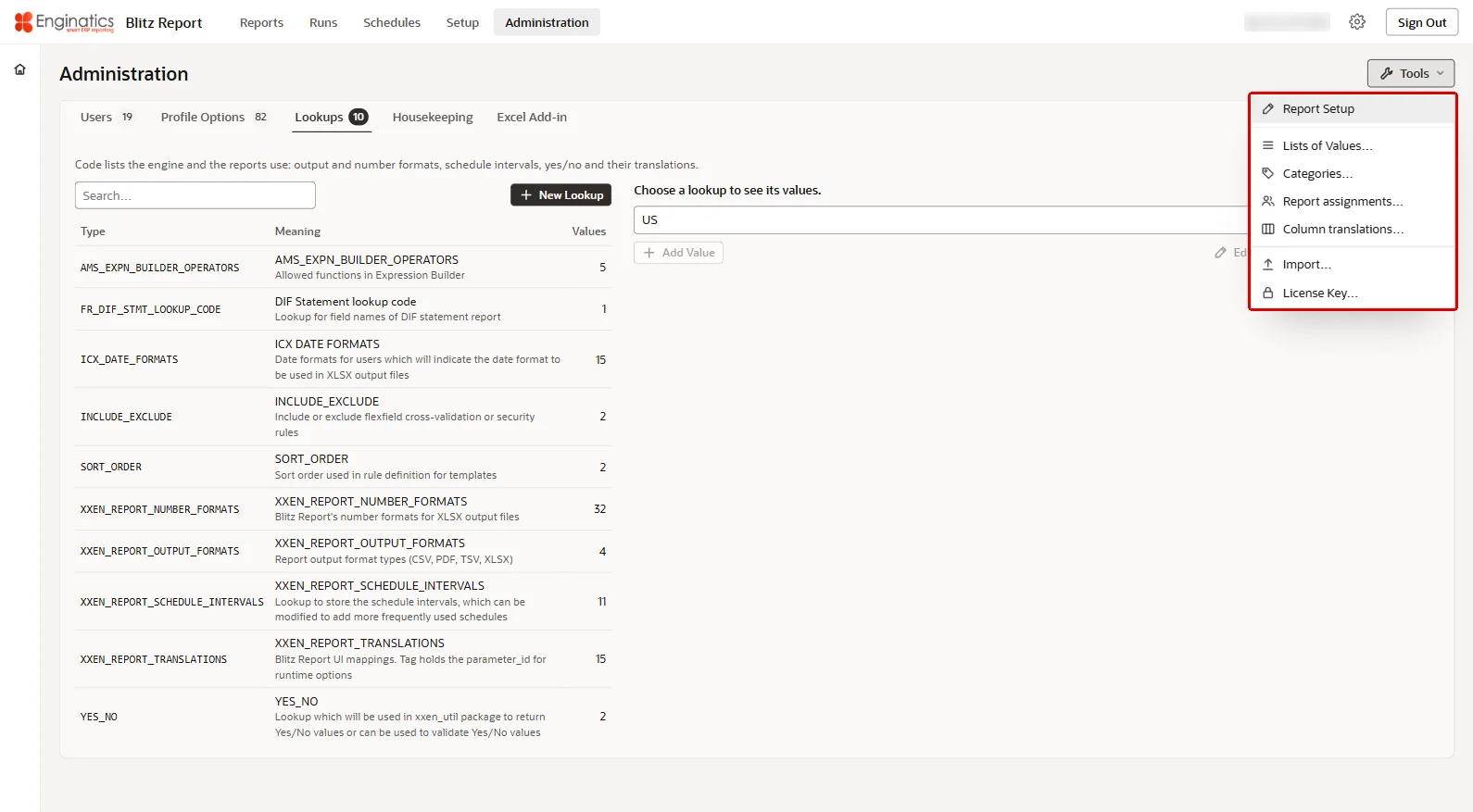
8.1 Users
The users of Blitz Report with their access level. A user is end-dated, never deleted; the APEX account is what signs in. A user who signs in for the first time gets a Blitz Report user with the site’s access level.
The list shows the columns User, Full name, Email, Access, Templates, Start, End and Account; Show end-dated users adds the end-dated ones. New User creates a user, and a user’s row opens it:
- User name cannot change later: the APEX account and the history refer to it.
- Full name, Email, Start date and End date. An end-dated user cannot sign in from that day on. You cannot end-date your own user.
- Blitz Report Access and Template access: the user’s values of the profile options Blitz Report Access and Blitz Report Template Access. Empty means the site default, which the list shows.
- APEX account, shown when the application signs in with Oracle APEX accounts: creates the user’s account, changes its Role in the workspace (End user, Developer or Workspace administrator, independent of the Blitz Report access level), or removes it when you clear Account and save, after the confirmation Remove the account, after which the user cannot sign in while the Blitz Report user and its history stay. A new account gets the password of the profile option Blitz User Default Password and changes it at the first sign-in. APEX accounts are created, changed and removed by a workspace administrator.
A Search… box filters the list; your own row is marked (you); the Access and Templates columns read Site default with the site value for a user without a value of their own; the Account column shows the account’s workspace role, locked or no account, with the last sign-in as its tooltip. A user without any Blitz Report Access value is refused at sign-in with You have no Blitz Report Access: the profile option is set neither for your user nor for the site. Please contact your administrator., an end-dated user with Your Blitz Report user was end-dated on <date>. Please contact your administrator.
Under another authentication scheme, such as database accounts, the tab maintains the Blitz Report users and their access only. The administration then refuses a change that would leave no active user with System access.
The Users tab; a user’s row opens the user:
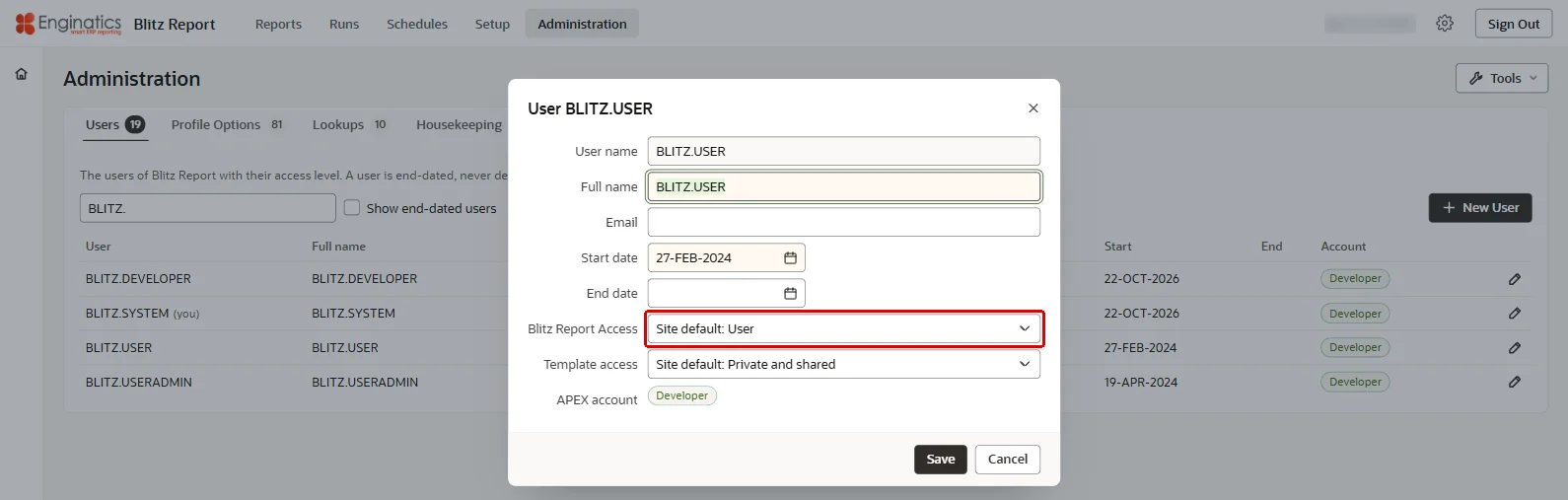
8.2 Profile options
Profile options: the site value applies to everyone; a user value overrides it for that user. The list shows the columns Option, Internal name, Site value, User values and Active. A row opens the option with its values: set the Site value, or choose a user under User, enter the value and click Add. An option without a value uses the engine default. A profile option whose internal name contains PASSWORD is treated as a secret: its value is hidden and shown only on request. Each option is described in the chapter Profile options.
In the option’s dialog each value row has its own save and remove buttons, a list of more than 15 values is offered as a searchable picker, the value of an end-dated user is marked end-dated, and an option without a value reads No value yet: the engine default applies.
A row of the Profile Options tab opens the option with its values:
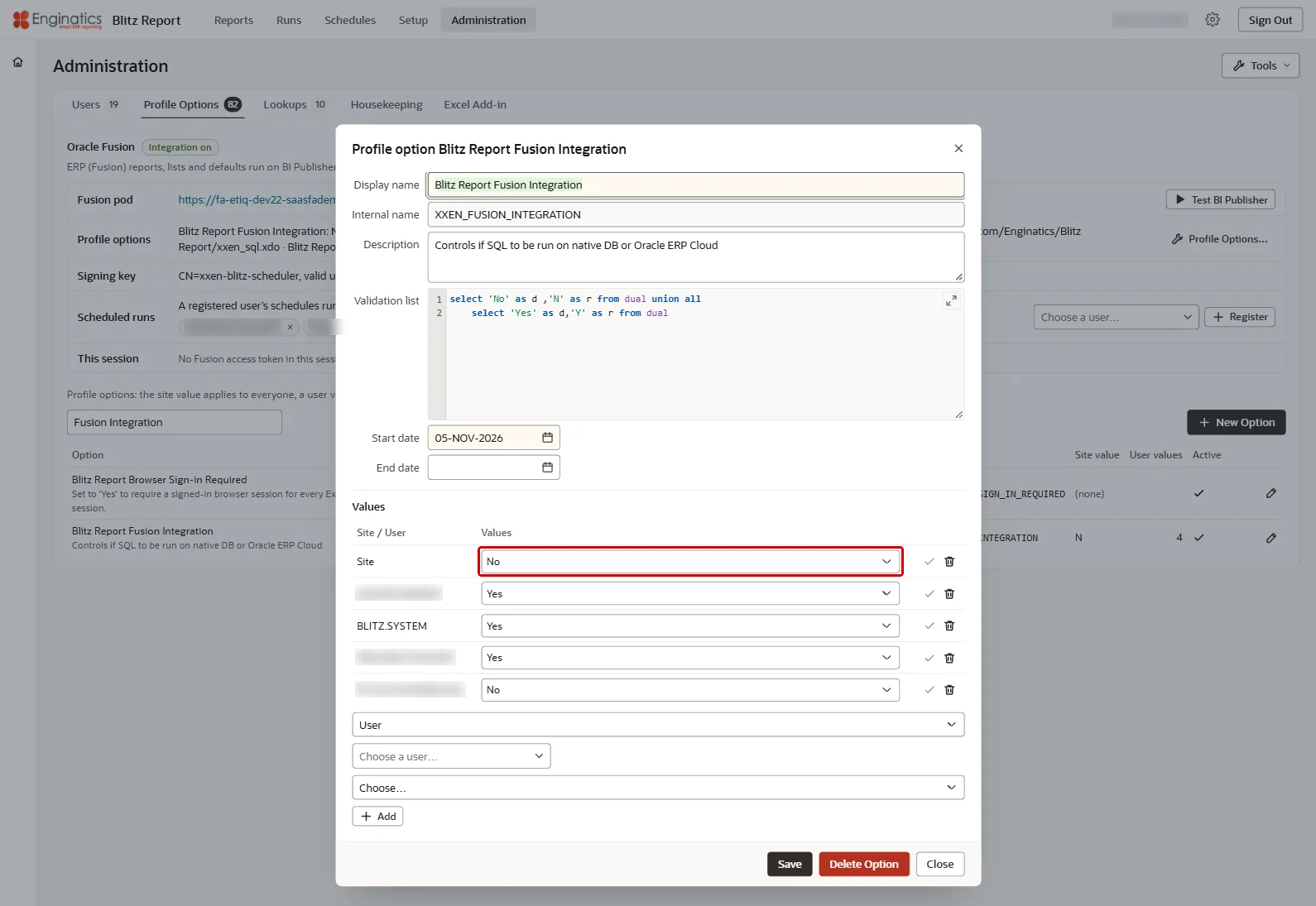
New Option creates a profile option of your own, with a Display name, an Internal name (upper case letters, digits and underscores; it cannot change later), a Description, a start and an end date and an optional Validation list: a query with the display value first and the stored value second, for example select 'Yes' d, 'Y' r from dual. Without a validation list the value is free text. Delete Option deletes an option of your own with its values. An option shipped with Blitz Report cannot be deleted: end-date it instead.
New Option creates a profile option of your own:
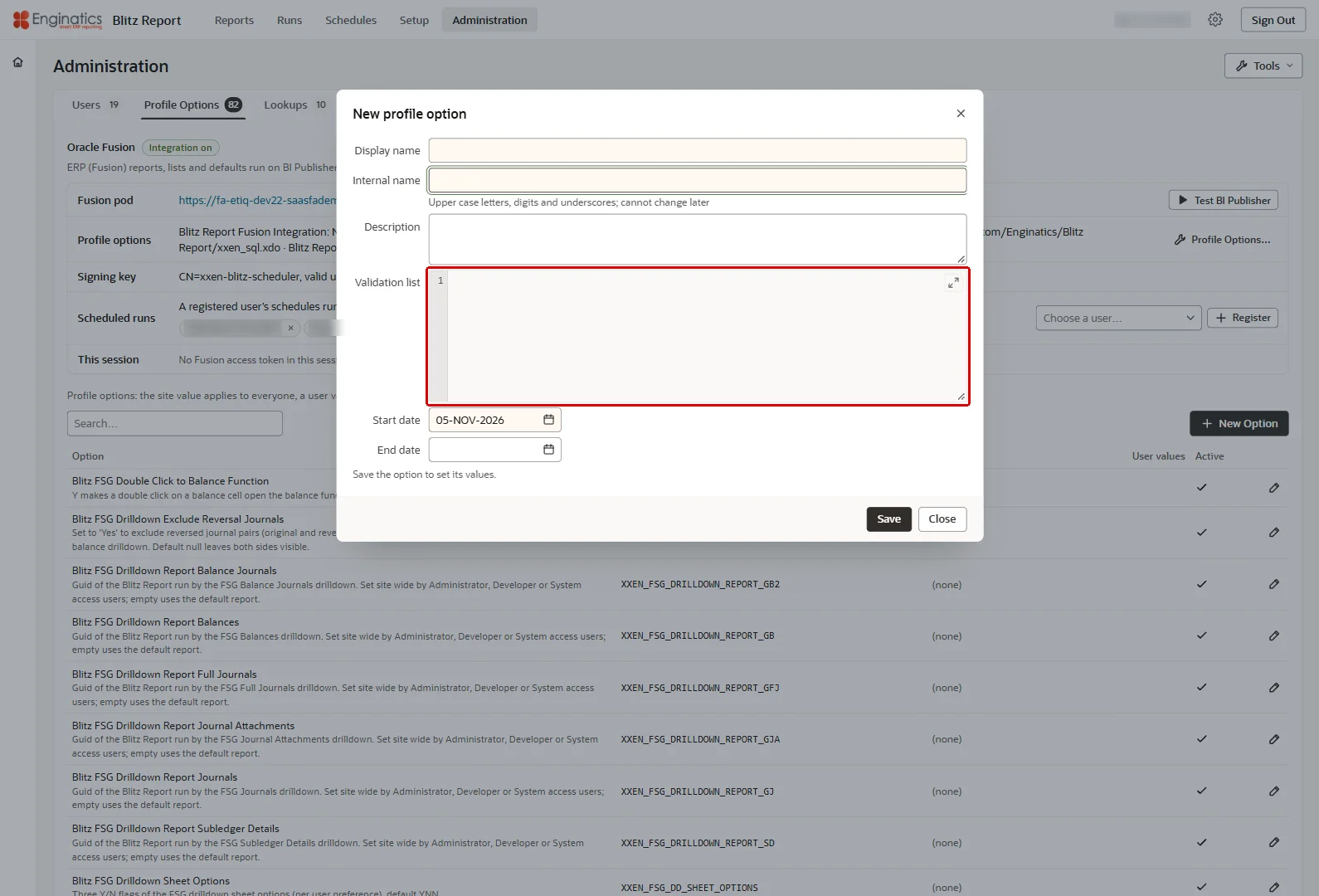
Oracle Fusion
On an installation with the Oracle Fusion integration, the Oracle Fusion card above the profile options shows:
- the Fusion pod, with Open BI Publisher, which opens the pod’s BI Publisher in a new tab (a sign-in there also wakes up a cold BI Publisher session), and Test BI Publisher, which has BI Publisher parse a test query, as the signed-in user in a Fusion session and otherwise as the site user, the way a scheduled run signs in; its answer names the seconds it took and the user it ran as;
- the Fusion Profile options with their site values, and Profile Options…, which lists them below;
- the Signing key and its validity. Without an active key, scheduled runs of Fusion reports cannot sign in;
- Scheduled runs: a registered user’s schedules run in Fusion under their own name; every other schedule runs as the site user. Enter a Blitz Report user name and click Register, or remove a registration with the cross of its entry; a name that is not a Blitz Report user is refused, and while nobody is registered the row reads No user registered.
- This session: whether the administrator is signed in through Fusion, and when the access token expires.
The signing key and the Fusion profile options are set up as the Installation Guide describes.
On an installation with the Oracle Fusion integration, the Oracle Fusion card shows the pod, the signing key and the registered users:
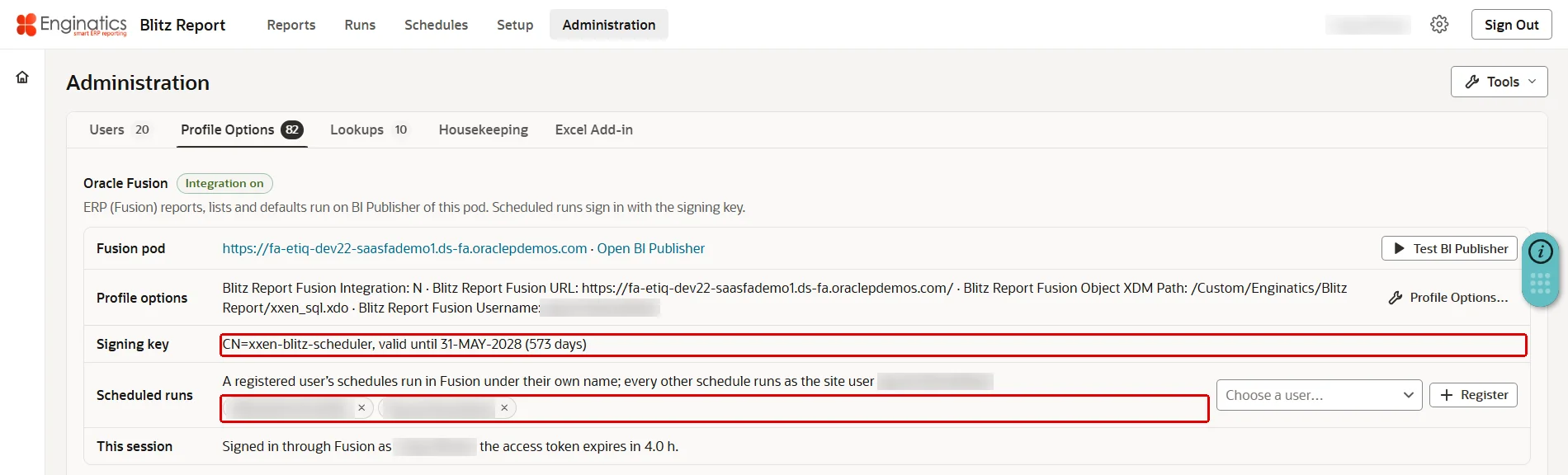
8.3 Lookups
Code lists the engine and the reports use: output and number formats, schedule intervals, yes/no and their translations. The list shows each lookup’s Type, Meaning and number of Values. Choosing a lookup lists its values with the columns Code, Meaning, Description, Enabled, Start, End and Tag; Add Value adds one, with its enabled flag and start and end dates, and a value can be removed. Delete Lookup removes a lookup of your own once it has no values. When a lookup has values in more than one language, a Language list chooses the language to maintain. New Lookup creates a lookup of your own; the type of a lookup and the code of a value cannot change later, as the engine refers to them. Lookups used in this guide:
- XXEN_REPORT_NUMBER_FORMATS: the Excel number formats
- XXEN_REPORT_OUTPUT_FORMATS: the output formats. Its PDF entry is delivered disabled; enable it here once PDF output is set up, see the Installation Guide
The Lookups tab:
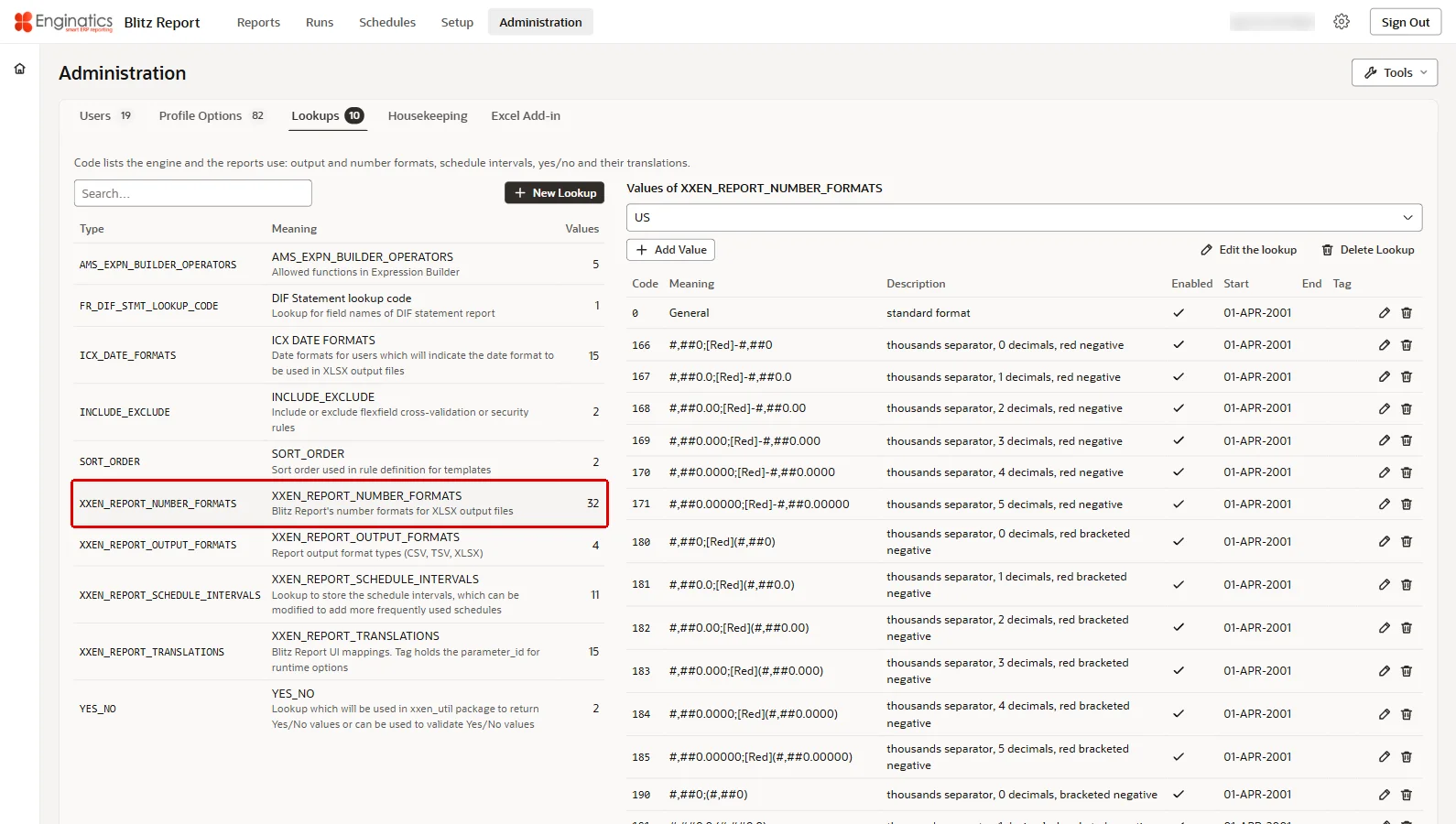
8.4 Housekeeping
The Blitz Report Monitor terminates runs that exceed their time limit, removes logs and outputs older than the retention days of the profile options and purges old licensed users. Schedule it to run regularly, or run it now. A run exceeding its time limit is terminated at the monitor’s next run, so the interval of the schedule is the most a time limit can be exceeded by; logs and outputs older than the retention days are removed at every run, so a daily schedule keeps the retention exact.
- Schedule: the monitor’s schedule, its next run and its counts of runs and failures, or Not scheduled: the monitor runs only when started here. Schedule… sets First run, Repeat and Until, as for a report schedule, with Syntax and examples for a custom repeat and the next runs shown; Remove removes the schedule. Without a schedule time limits are not enforced.
- Run now starts the monitor; the line reads Running since … while it runs and then names the last run with its status, and the run appears in the history when it finishes.
- Retention: the retention days of system reports, standard reports and runs with errors, and whether the run history is kept. Profile Options… opens the profile options to change them.
- History: the last 50 runs of the monitor, scheduled and started here, with Started, Status, Duration, Run and Details; Refresh reads them again. Log shows a run’s log, which Download saves.
Schedule… sets the First run, Repeat and Until of the monitor:
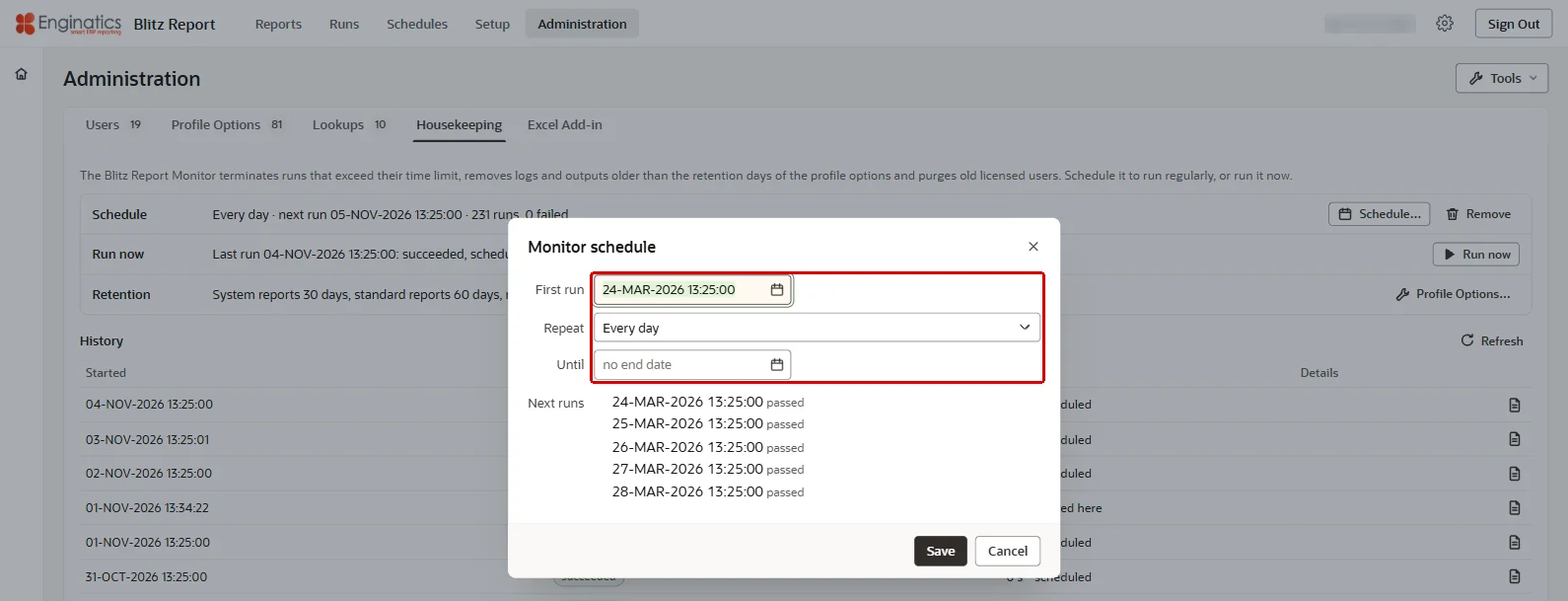
The installation sets no retention values, so logs and outputs are kept until the administrator sets the profile options Blitz Report Log Retention Days Standard, Blitz Report Log Retention Days Error and Blitz Report Log Retention Days System. With Blitz Report Retain Run History set to Yes, the monitor removes the logs and output files and keeps the run history.
The Housekeeping tab:
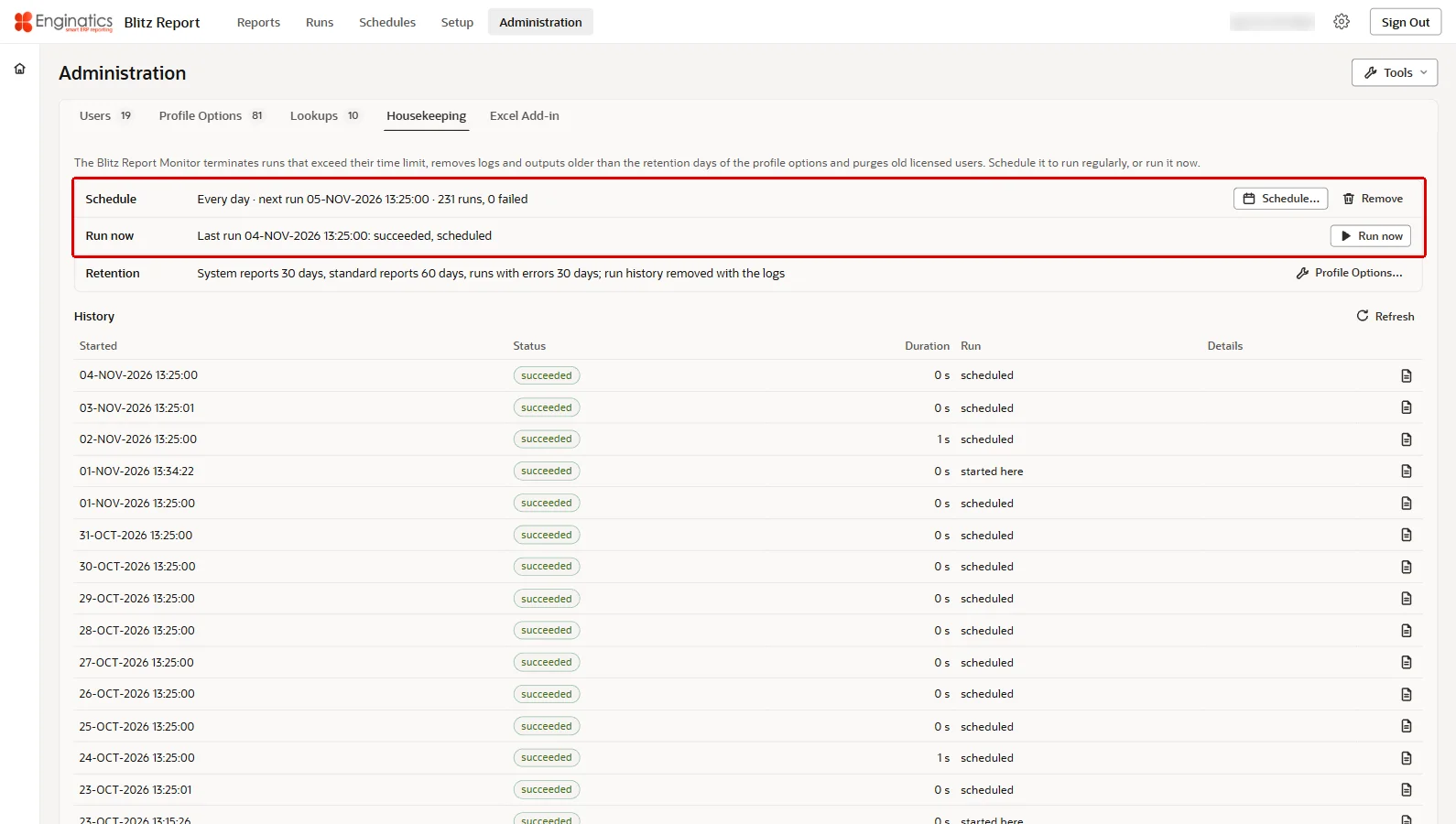
8.5 Excel Add-in
The Blitz Report add-in runs Blitz Reports inside Microsoft Excel: the Cloud edition with the Oracle Fusion integration, the Database edition without it. The builds of the release are installed with the application and refreshed by an upgrade, and each user gets the edition of their own Oracle Fusion integration setting. Users get it from the Excel Add-in entry of the Actions menu of the run screen: the newest build of their edition, the installation steps and their connection file; an installed add-in checks for a newer version at each sign-in and offers the upgrade.
The tab holds the Connection settings: one row per environment users connect to, written to the connection file. New Environment adds one, with the Environment name the add-in shows, for example Production; the Instance URL, the ORDS address of this instance as users reach it, ending /xxen/; the Login URL, the address of the Blitz Report app, where the Database edition signs in; SSO for single sign-on; and the Language, the NLS language of the connection, for example AMERICAN. Saving a row copies the id and secret of the webservices’ OAuth client into it; the ORDS client column shows the id, the secret is never shown. Each row has Edit and Remove; removing an environment stops its users from downloading a connection file.
New Environment adds a row of the connection settings:
Users download the connection file through the report Blitz Report Environment Setup, which the installation delivers; its parameter Source is Excel for the add-in and Desktop for the desktop application, which imports the Desktop output in its connection dialog. The tab warns while the add-in distribution is not installed or that report is missing, and until an environment is configured users cannot download a connection file.
The Excel Add-in tab:
8.6 Administration reports
Three reports of the category Enginatics list the administration data for review and export:
- Blitz Report Profile Option Values: one row per site and user value of a profile option, with its displayed and stored value and who set it when; the value of an option whose internal name contains PASSWORD is left out. Parameters: User Profile Name starts with, Setup Level, User Name, System Profile Name starts with, Last Update Date From and To, Last Updated By, Profile System Value like, Profile Option Value is null, Redundant.
- Blitz Report Lookup Values: one row per lookup value and language, with the lookup type, code, meaning, description, tag, enabled flag and dates, and a line of SQL that translates the code in a report. Parameters: Type, Code contains, Meaning contains, Description contains, Creation Date From and To, Created By, Language Code, Missing Translation to Lang Code.
- Blitz Report Users: one row per user, with the access level, template access and Excel login method, the APEX account and its workspace role, the last sign-in, the Fusion registration date for scheduled runs, and the number of runs in total and in the last 12, 6, 3 and 1 months. Parameters: User Name, Blitz Report Access, Active only, Creation Date From and To, Created within days.
9 Profile options
The Blitz Report Access profile option controls access to Blitz Report. The site-level default ‘User’ is set during installation and works for most users. Only set it to a higher level (e.g. ‘Developer’) for users who need to create or modify reports.
All other profile options are optional and work best left blank for most installations. Only set a value when you have a specific requirement: the defaults are designed to work well out of the box. Exceptions are the retention days of Housekeeping, which the administrator sets, and the Oracle Fusion options of an installation with the Fusion integration.
Profile options are set under Administration > Profile Options, at site level or for a user. The column Default gives the behaviour when no value is set, and the value the installation sets where it sets one.
9.1 Access and security
| Profile option | Description | Default |
|---|---|---|
| Blitz Report Access | Controls access to Blitz Report. User: run assigned reports only. User Admin: access and run all reports, maintain report assignments and categories, view only access to report SQL and setup. Developer: full access, except reports of a type other than Standard and ERP (Fusion). System: full access, including every report type and the Administration page. See Access levels and users. | Not set: no access. Installation: User at site level, System for the installing administrator. |
| Blitz Report Template Access | Controls whether users may create private or shared templates, or modify other owners’ templates. No template creation allowed: users can view and use, but not create templates. Create private templates only. Create private and shared templates. Create private and shared, or modify other owner templates: also change a template’s owner. Template restrictions and locked parameter default values can only be set by the access levels ‘Developer’ and ‘System’. | Installation: Create private and shared templates |
| Blitz User Default Password | Initial password of the APEX accounts created under Administration > Users; the user changes it at the first sign-in. Its value is hidden. Set it before creating the first APEX account: while it is empty, Administration > Users creates the Blitz Report user but refuses to create its APEX account. | Not set |
| Blitz Report Enforce Developer Object Grants | When set to Yes for a Developer access user, Blitz Report blocks creating, editing or running reports that reference database objects the developer cannot select. See Restricted developer access. | Installation: No |
| Blitz Report Exempt Developer Object Grant Schemas | Comma separated list of schemas exempt from developer object-grant enforcement. Objects owned by these schemas are always treated as accessible, typically the Blitz Report schema and other trusted schemas. | Installation: XXEN |
| Blitz Report Exempt Developer Report Categories | Comma separated list of report categories that remain fully visible to enforced developers regardless of object access. | Installation: Enginatics,DBA Diagnostics Pack |
| Blitz Report Copy Assignments | When set to Yes, copying a report also copies its assignments and its templates’ sharing, and copying a template copies that template’s sharing. Set to No, a copy starts with no access. | Installation: No |
| Blitz Report Disable Copied From Tracking | Disables population of the Copied From field when copying reports. This can be useful for development where it might not be desired to keep automated track of the relationship between original and copied reports. | No |
| Blitz Report License Expiration Warning Days | Number of days that a warning is shown before expiration of Blitz Report licenses. The warning is shown only for non trial/free licenses. | 14 |
| Blitz Report Debug | Set to ‘Yes’ to write additional debug information, including the log of the webservice calls of the Excel add-ins. | No |
| Blitz Report Trace Level | Trace level for the Blitz Report database session. If the value is null then the trace is off. | Trace off |
| Blitz Report Include SQL in Log | Set to No to keep the report SQL out of the run log. | Yes |
9.2 Runs and the run screen
| Profile option | Description | Default |
|---|---|---|
| Blitz Report Time Limit in minutes | Default maximum execution time in minutes of a report run, after which the Blitz Report Monitor terminates it. See Time Limit. | No limit |
| Blitz Report Default Email Address | Default email address for Blitz Reports: the Email option of a report that has no email of its own. A user value applies to that user, the site value to everyone without one. | None |
| Blitz Report Refresh Interval | Milliseconds between two status refreshes of the Requests lists of the Reports page and a report’s run screen while a submitted run is not complete. After 15 seconds the refreshes slow down: every 3 seconds up to 2 minutes, every 10 seconds up to 10 minutes, then every 30 seconds; 0 switches them off. | Not set: 1000. Installation: 3000 |
| Blitz Report Disable Run Button after Submission | After report submission, the run button is disabled to prevent accidental resubmission of the same report with the same parameters. Switching this profile to ‘No’ keeps the run button enabled all the time. | Yes |
| Blitz Report Show All Templates | Set to ‘Yes’ to show all templates for all reports and not just the ones of the currently selected report. | No |
| Blitz Report Show Hidden Parameters | Allows developers to show hidden parameters for debugging purposes, or to store default hidden parameter values against templates. | No |
| Blitz Report Show Log Instead of Output | Set to ‘Yes’ to open the log file automatically instead of the report output for debugging purposes. | No |
| Blitz Report LOV History Days | Number of days of run history that count for a user’s recently run reports and templates: the Recently Run cards of the Reports page, the My Recent view, the Last Run and Most Run sorts of the report list and the order of the template list. At 0 no run counts, so those lists are empty or in name order. | Not set: 365. Installation: 365 |
| Blitz Report Discoverer Mode | The category whose templates users at the access level User find as the sheets of converted Discoverer workbooks, see Reports converted from Discoverer. N/A: off. | Off |
| Blitz Report Server Time Zone | Time zone region of the database server, for example Europe/Zurich. Dates and times show in each user’s time zone and schedules keep their local time across daylight saving through it. When the server changes its clock for daylight saving, the Profile Options tab asks to set it. | Not set: the server clock’s current UTC offset. Installation: the scheduler’s default time zone, when it is a region on the server clock’s offset. |
| Blitz Report User Local Time Zone | The user’s time zone, set from the browser at every sign-in. Dates and times of the output and the pages show in it. | Set automatically |
9.3 Output
| Profile option | Description | Default |
|---|---|---|
| Blitz Report CSV File Delimiter | Delimiting character in Blitz Report CSV output files | , |
| Blitz Report File Name Convention | Defines the format for Blitz Report output filenames to include either report name, template name or both. | Not set: Report Name. Installation: Report Name – Template Name |
| Blitz Report Include SQL in XLSX Output | When set to ‘No’, the report SQL is not included on the parameter tab of Blitz Report XLSX output files. | Yes |
| Blitz Report XLSX Column Header Color | Hexadecimal code e.g. EAEFF5 for the column header background colour in Blitz Report Excel spreadsheets. | eaeff5 |
| Blitz Report XLSX Column Width Mode | Defines if the column width in Blitz Report XLSX output files is aligned to the data only (Data), to the column headers only (Headers) or to both (Both (Headers and Data)). | Both (Headers and Data) |
| Blitz Report XLSX Column Width Scale Percentage | Allows adjusting the automatically calculated column width, from 50 to 150 percent, in case the cell content does not fit the width on certain client screen resolutions. | 100 |
| Blitz Report XLSX Date Format | Date format mask for Blitz Report XLSX output files. In addition, profile ‘Blitz Report XLSX Use Long Date Format’ allows you to show leading zeroes for day, month and the full year. | DD-MON-RRRR, shown as 5-Jan-26 |
| Blitz Report XLSX Max Column Width | Maximum column width for Blitz Report XLSX output files | 60 |
| Blitz Report XLSX Number Format | Numeric column format string for Blitz Report XLSX output files, from the lookup XXEN_REPORT_NUMBER_FORMATS. | General |
| Blitz Report XLSX Sheet Row Limit | Maximum number of rows per Excel sheet. Excess data will be written to additional sheets. This might be required to be set smaller than the default 1,048,576 rows in case one sheet with many columns reaches the 4 GB size limit. | 1,048,576 |
| Blitz Report XLSX Use Long Date Format | When set to ‘Yes’, dates in Blitz Report output XLSX files show the full year and leading zero for single digit days e.g. 05-Jan-2026 instead of 5-Jan-26. | No |
| Blitz Report Macro Enabled File | When set to ‘Yes’, the Blitz FSG workbook is generated as a macro enabled .xlsm file, otherwise as a macro free .xlsx file. | No |
| Blitz Report PDF Converter Path | Absolute path of the PDF converter on the database server. Set it only when the converter was installed somewhere else, or to use LibreOffice, see the Installation Guide. | /home/oracle/blitz_xlsx2pdf/convert_report.sh |
| Blitz Report PDF Temporary Directory | Name of the database directory object used to hand the spreadsheet to the PDF converter and read the PDF back. Nothing is left behind after a run. | XXEN_PDF_DIR |
9.4 Email
| Profile option | Description | Default |
|---|---|---|
| Blitz Report From Email Address | Email address that Blitz Report emails are sent from, as some email servers allow sending from certain email accounts only. If you want to specify a name along with the email address put the name first and provide the email address inside the angle brackets, e.g. Example Ltd <[email protected]>. | Not set: the email address of the user the report runs as, else the default sender of the APEX instance’s mail settings. Set it before the first report is sent by email. |
| Blitz Report Email Subject Message | Message name for Blitz Report outbound emails which contains the subject text. The messages are text messages of the APEX application, maintained in App Builder under Shared Components > Text Messages: XXEN_EMAIL_SUBJECT reads Blitz Report: %0, %1 records sent by %2, with the report name, the row count and the user’s full name, and XXEN_EMAIL_BODY %0 attached., with the file name. An upgrade imports the application again with its delivered text messages, so a changed message must be entered again after an upgrade. | Installation: XXEN_EMAIL_SUBJECT |
| Blitz Report Email Body Message | Message name for Blitz Report outbound emails which contains the body text. | Installation: XXEN_EMAIL_BODY |
| Blitz Report Email Attachment Size Limit (bytes) | Maximum attachment size for Blitz Reports sent via email. If the output exceeds this limit, no email is sent and the run’s completion message says so. | Not set: no limit. Installation: 2500000 |
| Blitz Report Email Attachment Multibyte Filenames | When set to ‘No’, multibyte characters in the file name of the copy written to the server output directory are replaced by underscores; set to ‘Yes’ the name is written as it is. The email attachment keeps the file name in either case. | No |
| Blitz Report Suppress Empty File Delivery | For scheduled Blitz Reports, the email delivery is suppressed if the report is empty. If set to ‘No’, also empty files are sent for scheduled Blitz Reports. Only the email is suppressed: the copy in the server output directory is written also for an empty output. | Yes |
9.5 Housekeeping
9.6 Oracle Fusion
9.7 Excel add-in and Blitz FSG
Blitz FSG, the Excel workbook of GL balance formulas, is part of the Cloud edition of the add-in and needs the Oracle Fusion integration; the Database edition has no Blitz FSG.
10 Technical architecture
This chapter describes how Blitz Report for Oracle APEX is built: the security architecture for customer security reviews, the components, the flow of a report run, the transport to Oracle Fusion and the third-party libraries.
10.1 Security overview
Blitz Report is installed entirely inside the customer’s Oracle database and Oracle APEX instance. It has no SaaS component and no Enginatics-hosted infrastructure, and it needs no additional servers or agents.
| Aspect | Position |
|---|---|
| Hosting | Inside the customer’s Oracle database, on premises or in the customer’s cloud: packages and tables in the Blitz Report schema, which parses the Blitz Report APEX application. |
| Client software | None to run reports: a browser, and the output opens in the user’s own Excel. The Excel add-ins and the desktop application are optional; the add-ins are code-signed. |
| Network | Users reach the application over HTTPS through ORDS, which also serves the webservice module of the Excel add-ins. Blitz Report opens no ports of its own. |
| Outbound connections | To the customer’s own Oracle Fusion pod for ERP (Fusion) reports and lists, where the Fusion integration is on. Email delivery uses the mail settings of the customer’s APEX instance. No telemetry; license keys are validated offline. |
| Authentication | The authentication scheme of the APEX application: Oracle APEX accounts, database accounts or another scheme the installation chooses, and the Fusion sign-in for Fusion users. ORDS authenticates the Excel clients with OAuth2, and the user signs in through the browser or with the Fusion credentials. |
| Authorization | Four access levels (User, User Admin, Developer, System) that separate users who run reports from developers who write SQL, and assignments that decide which reports a user sees. |
| Data security | Standard reports read as the Blitz Report schema; assignments and lists of values restrict what users run and filter. ERP (Fusion) reports run in BI Publisher under the user’s Fusion identity. Restricted developer access limits developers to the objects their database account can read. |
| Auditing | Every run is logged with user, parameters and timestamps and listed on the Runs page. Report SQL changes are versioned. |
| Vendor access | None. Enginatics support works on a customer system only in a session the customer initiates. Enginatics is certified to ISO/IEC 27001:2022. |
Data protection
- At rest: inherited from the database, for example Transparent Data Encryption. Outputs and logs are stored in the database and removed by Housekeeping.
- In transit: the TLS configuration of the customer’s ORDS and web server.
- On the desktop: downloaded files are subject to the customer’s endpoint and data loss prevention controls.
- Software updates are release packages that the customer’s DBA reviews and applies.
10.2 Components
- The APEX application: a sign-in page, one page that serves every screen, and two pages through which Fusion users enter. The screens are built in the browser by the Blitz Report web component, the static JavaScript and style files of the application, the same component as the web page of Blitz Report for Oracle E-Business Suite. It exchanges JSON with the database through one application process.
- The database: the report engine and its repository in the Blitz Report schema, with the public PL/SQL interface xxen_api and the functions of xxen_util. Report runs, schedules and the Blitz Report Monitor are database scheduler jobs.
- ORDS: serves the application and the webservice module of the Excel add-ins and the desktop application.
- The PDF converter, optional: installed on the database server and called from the database, see the Installation Guide.
10.3 Report run flow
- The user enters parameter values on the run screen; each value is validated in the database as it is entered.
- Run stores the run with its parameter values and options and starts a database scheduler job.
- The job runs the report SQL, for an ERP (Fusion) report on BI Publisher, and writes the output file into the database. With a Server Output Directory it also writes a copy to that Oracle directory object, and with an Email it sends the file through APEX mail.
- The run screen follows the request’s status and opens the output when it completes. View Output and View Log stream the files from the database over HTTPS.
A run of the Excel add-in returns the result rows into the worksheet through the webservice module and is listed in the run history with its parameters, without an output file. A run of the desktop application stores its output and log with the run. The Blitz FSG workbook of the Cloud edition refreshes each balance formula and drilldown through the webservice module as well.
10.4 Oracle Fusion transport
For an ERP (Fusion) report, a list of values or a default value that runs on Fusion, the database sends the SQL over HTTPS to Oracle BI Publisher on the pod, which runs it through the Blitz Report data model, at the catalog path of the profile option Blitz Report Fusion Object XDM Path, and returns the rows. The call carries the access token of the user’s Fusion sign-in, which expires after four hours; the run screen warns before it expires. A scheduled run has no browser session: it signs in with a token signed by the installation’s signing key, as the schedule’s owner when the owner is registered for scheduled runs, otherwise as the site Fusion user of Blitz Report Fusion Username.
10.5 Third-party libraries
The optional PDF converter is the Xlsx2Pdf build of Blitz Report for Oracle E-Business Suite. It ships a small set of permissively-licensed third-party Java libraries, used only by the converter when a user selects PDF as the output format; no other component of Blitz Report depends on them. They also render the pivot tables and charts of Excel templates into the PDF, since a PDF has no Excel to compute them on open.
- Apache POI 3.17 — Apache License 2.0. Used to stream-read the generated XLSX workbook for conversion. Three JARs:
poi-3.17.jar,poi-ooxml-3.17.jar,poi-ooxml-schemas-3.17.jar. - Apache XMLBeans 3.1.0 — Apache License 2.0. POI dependency for OOXML schema binding.
- Apache Commons Codec 1.15 — Apache License 2.0. POI dependency.
- Apache Commons Collections 4.2 — Apache License 2.0. POI dependency.
- curvesapi 1.06 — BSD-style permissive license. POI dependency for chart curve rendering.
- iText 2.1.7 — LGPL 2.1. The last LGPL-licensed iText release. Used to render the PDF document.
- JFreeChart 1.0.19 — LGPL 2.1. Renders the charts of dashboard templates as vector graphics into the PDF.
- JCommon 1.0.24 — LGPL 2.1. JFreeChart dependency.
All bundled libraries are under permissive licenses (Apache 2.0, LGPL 2.1, BSD-style). None impose copyleft on Blitz Report or on the customer’s code. The original copyright notices and license texts ship inside each JAR file under META-INF/ as required by their licenses. The JARs are unmodified upstream binaries from Maven Central, whose published checksums allow an independent verification.
11 Tips and tricks
11.1 Writing report output to a server directory
Blitz Report can write a copy of the report output to an Oracle directory object, e.g. by scheduling a report and writing the output file in XLSX or CSV format to a folder of the database server, where it can be picked up as an outbound interface or read by other reporting tools. The directory object can point to a network folder mounted on the database server.
The location of these files is controlled by the Server Output Directory runtime option, which can also be defaulted per report in the run options of the report. It offers the directory objects the Blitz Report schema may write to, which the database administrator creates and grants, see the Installation Guide.
The Server File Name runtime option defines the template of the file name, and allows you, for example, to overwrite an existing XLSX file with refreshed data by a scheduled run. Setting this runtime option to a template containing a date token, such as <report_name>_<DD-Mon-YYYY>, and scheduling a report every 30 minutes, for example, would write one separate file per day which gets refreshed with current data every 30 minutes. This generates a time series of data files, which can then be used as a data warehouse for analysis by other tools such as Microsoft Power BI, Qlik Sense or Tableau. A date token is any Oracle date format between angle brackets, such as <DD-Mon-YYYY>, filled with the run date in the user’s time zone; the token list offers <YYYYMMDD>, <YYYY_MM_DD> and the usual date formats.
11.2 MS Excel blocked macros warning
You may face the following warning when using Excel templates with macros after running a report and opening the output:
SECURITY RISK Microsoft has blocked macros from running because the source of this file is untrusted.
To fix it please add the address of the Blitz Report application to the trusted sites or ask your system administrator to do it. The required steps may differ depending on your operating system version. On Windows 11, type ‘Internet Options’ in the Windows search box, open the Security tab and add the address under Trusted sites.
Excel shows this warning for the output of a template with macros: