
Blitz Report™ for Oracle APEX Installation Guide
Introduction
Blitz Report for Oracle APEX runs, schedules and develops Blitz Reports in a browser and delivers their output to Excel. It consists of one APEX application, application 140 with the alias BLITZ_REPORT, and the packages, tables and views that support it, all installed into one dedicated database schema.
This guide is for the DBA or APEX administrator who installs, configures, upgrades and removes it. Two installation methods give the same result:
| Method | For | How it works |
|---|---|---|
| A: App Builder (recommended) | an APEX workspace administrator | the application is imported in the App Builder and its Supporting Objects create the database objects |
| B: Command line | a DBA with a Unix shell and SQL*Plus; no APEX knowledge needed | apex_deploy.sh runs the pre-flight checks, creates the schema objects, imports the application, configures it and verifies the result; every step is logged and a failed run resumes where it stopped |
Installations of the classic Blitz Report application (application 131) are upgraded with the separate guide Upgrading Blitz Report for Oracle APEX from the classic application, not with this one.
Download blitz_report_apex_<yyyymmdd>.zip from https://www.enginatics.com/blitz-report-apex-download/.
The delivered blitz_report_apex_<yyyymmdd>.zip contains everything both methods need:
blitz_report_apex/ ├─ README.txt where this guide is, and the two ways to start ├─ app_export/f140.sql the APEX application (both methods) ├─ scripts/check_apex_grants.sql the privilege check a DBA runs before installing or upgrading (3.1) ├─ scripts/install/ the installation scripts ├─ scripts/upgrade/ the upgrade scripts ├─ scripts/deinstall/ the deinstallation scripts ├─ shell/apex_deploy.sh, shell/lib/ the command-line installer (method B) ├─ addin/ the Excel add-in builds, installed with the application and kept for deployment by IT (8.4) ├─ fusion/ the BI Publisher archives, the framing scripts and the signing key loader (chapter 9) └─ xlsx2pdf/ the PDF converter (chapter 10) |
Method A runs the scripts of scripts/install, scripts/upgrade and scripts/deinstall as the application’s Supporting Objects; method B runs the same files itself.
For questions or problems during an installation, write to [email protected]. After a command-line run, attach its support bundle (5.6).
1 System requirements
Blitz Report runs inside the Oracle database and the APEX instance you already operate: no application server, operating-system service or client software is added. The requirements are limited to the database, the APEX instance, the machine the installation is started from, and the users’ browsers.
1.1 Oracle Database
Oracle Database 19c or higher. In a multitenant database, install into the pluggable database that hosts APEX.
Database character set. The database character set must be AL32UTF8 (Oracle’s default since 12.2), UTF8 or WE8MSWIN1252: the delivered packages contain characters that other character sets cannot store. With WE8MSWIN1252, text outside that set, such as other alphabets in report names, parameter values or report data, cannot be stored. select value from nls_database_parameters where parameter='NLS_CHARACTERSET' shows it. An App Builder installation checks it among the validations of the Supporting Objects (chapter 4). The command-line installer checks it before an installation or upgrade and stops without changing anything when it is another one.
Oracle Text. The installation creates Oracle Text indexes for the report search. The component is part of a standard database installation; select comp_id from dba_registry where comp_id='CONTEXT' returns a row.
Oracle JVM, recommended. The Java component of the database enables two features: PDF output (chapter 10) and the signer of the certificate-signed BI Publisher calls of scheduled Oracle Fusion runs (9.5). select comp_id from dba_registry where comp_id='JAVAVM' returns a row on a standard installation. On a database without Java the installation and the upgrade skip the two Java sources, print one line naming the feature that stays unavailable, and complete. How the Oracle Fusion integration behaves on a database without Java has not been verified, so install Java where it is available. If Java is added later, run scripts/install/073_XXEN_JWT_SIGNER.sql and scripts/install/077_XXEN_PDF_CONVERTER.sql as the parsing schema, and for PDF output scripts/install/118_XXEN_PDF_CONFIGURATION.sql (10.6).
Wrap format on 21c and later. The Blitz Report packages are delivered wrapped in the format of Oracle’s original wrap utility, which every database release since 9.2 accepts. From Oracle Database 21c onwards this format compiles only while the initialization parameter PERMIT_92_WRAP_FORMAT is TRUE, its default. The command-line installer detects the database release and sets the parameter for its own session. For an App Builder import on 21c or higher, have your DBA confirm the parameter is TRUE. Reference: Oracle PL/SQL Source Text Wrapping.
1.2 Oracle APEX and ORDS
Oracle APEX 22.2.3 or higher, including the 24.x releases, served through Oracle REST Data Services (ORDS). The application is imported into a workspace of this instance and served by the instance’s existing ORDS, so nothing is added to the web tier.
Users sign in with the APEX accounts of that workspace through the delivered authentication scheme Oracle APEX Accounts. With the Oracle Fusion integration (chapter 9), Fusion users sign in through Fusion instead.
The Excel add-in reaches Blitz Report through ORDS webservices that the installation defines in the parsing schema (chapter 8). On a database without ORDS the installation skips them and prints one line.
Email delivery of reports uses the APEX instance’s mail settings (7.3).
1.3 The installation host
Method A needs only a browser and a workspace administrator account, whatever operating system the database and APEX run on.
Method B runs on any host with bash 4 or higher, md5sum or openssl, and an Oracle client that reaches the database: SQL*Plus on the PATH (recommended), or SQLcl (sql) as a fallback. The client must store the delivered packages unchanged, and the installer starts it accordingly:
- SQL*Plus needs a Unicode client character set. When
NLS_LANGis not set, the installer runs SQL*Plus withNLS_LANG=AMERICAN_AMERICA.AL32UTF8. A value you have set is kept; if its character set is neither AL32UTF8 nor UTF8, setNLS_LANG=AMERICAN_AMERICA.AL32UTF8for the run. - SQLcl gets the Java option
-Doracle.jdbc.convertNcharLiterals=falsethrough the variableJAVA_TOOL_OPTIONS, appended to any value you have set; the JVM’s notice that repeats the variable’s value is kept out of the log. Without the option, SQLcl’s JDBC driver changes text literals inside the wrapped packages. An_JAVA_OPTIONSthat sets the option totrueoverrides it.
The installer checks the result after each wrapped package (5.4). The database server qualifies, as does a Linux administration workstation with an Oracle client. The installer works through the database connection alone and needs no APEX login. The zip utility packs the support bundle; without it the bundle is a .tar.gz. Only the automatic installation of the PDF converter requires the installer to run on the database server as the database OS user (10.3).
1.4 End users and optional tools
Users need a current browser, Google Chrome (recommended) or Microsoft Edge, and a spreadsheet application to open the Excel output. The Excel add-in (chapter 8) needs Microsoft Excel for Windows, Microsoft 365 or Excel 2010 and later; it installs into the user’s own Windows profile without administrator rights.
A SQL client such as SQL Developer, SQLcl or Toad is not required, but it is the convenient way for the DBA to run the privilege check (3.1) and the verification queries (6.2).
2 Access requirements
One-time setup by your DBA and APEX administrator before installing. If a dedicated schema, an APEX workspace with that schema assigned and a workspace administrator account exist, continue with chapter 3.
You need:
- A dedicated parsing schema, for example
XXEN, with the privileges of chapter 3. It must not beAPPSor another schema that holds objects of other applications: Blitz Report owns the schema, and the command-line deinstallation removes every object in it (12.2). - An APEX workspace with that schema assigned.
- An APEX account in that workspace. It becomes the first Blitz Report administrator at the installation, and the upgrade runs its delivered-report refresh under it.
This guide calls the schema XXEN; any name works.
2.1 Create the parsing schema
As a DBA (connected as SYS or SYSTEM, in a multitenant database to the pluggable database that hosts APEX), create the schema with a default tablespace and quota; adjust the password and tablespace to your standards:
create user XXEN identified by "<strong-password>" default tablespace USERS quota unlimited on USERS; |
Then grant it the privileges of chapter 3.
2.2 Create the APEX workspace and assign the schema
Open APEX Administration Services at https://<your-apex-host>/ords/apex_admin, sign in as an instance administrator, then:
- Open Manage Workspaces > Create Workspace.
- Identify Workspace: enter a workspace name, for example
XXEN_BLITZ_REPORT_APEX, and continue. - Identify Schema: choose to re-use an existing schema, select
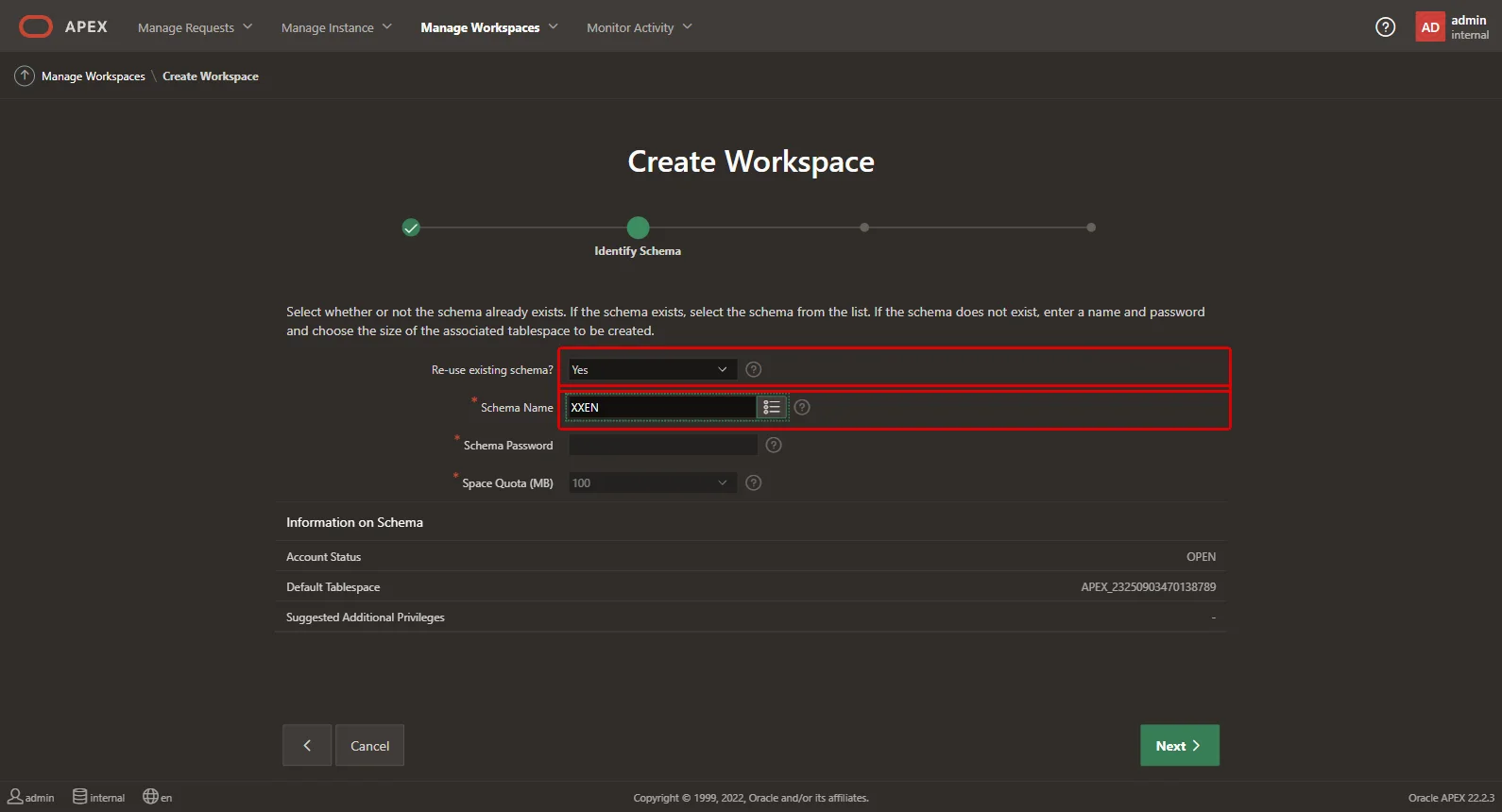
XXEN(2.1) and continue. - Identify Administrator: enter the workspace administrator’s user name, email and password, and continue. This user name is the first Blitz Report administrator and the
--admin-userof method B. - Review and Create Workspace.
Identify Schema, re-using the schema of 2.1:
2.3 Confirm the workspace
Sign out of Administration Services and sign in to the new workspace at https://<your-apex-host>/ords/apex with the workspace name and the administrator’s user name and password. A successful sign-in confirms the workspace, the schema assignment and the account, the three things the installer’s pre-flight checks verify (5.4).
3 Database privileges
Grant these privileges to the parsing schema where they are missing (XXEN is the parsing schema):
grant CREATE ANY INDEX to XXEN; grant CREATE ANY SYNONYM to XXEN; grant CREATE CLUSTER to XXEN; grant CREATE DIMENSION to XXEN; grant CREATE INDEXTYPE to XXEN; grant CREATE JOB to XXEN; grant CREATE MATERIALIZED VIEW to XXEN; grant CREATE OPERATOR to XXEN; grant CREATE PROCEDURE to XXEN; grant CREATE PUBLIC SYNONYM to XXEN; grant CREATE SEQUENCE to XXEN; grant CREATE SESSION to XXEN; grant CREATE SYNONYM to XXEN; grant CREATE TABLE to XXEN; grant CREATE TRIGGER to XXEN; grant CREATE TYPE to XXEN; grant CREATE VIEW to XXEN; grant DROP ANY INDEX to XXEN; grant DROP ANY PROCEDURE to XXEN; grant DROP ANY SEQUENCE to XXEN; grant DROP ANY SYNONYM to XXEN; grant DROP ANY TABLE to XXEN; grant DROP ANY TYPE to XXEN; grant DROP ANY VIEW to XXEN; grant DROP PUBLIC SYNONYM to XXEN; grant EXECUTE ANY PROCEDURE to XXEN; grant EXECUTE ANY TYPE to XXEN; grant SELECT ANY DICTIONARY to XXEN; grant SELECT ANY TABLE to XXEN; grant MANAGE SCHEDULER to XXEN; grant CREATE ANY CONTEXT to XXEN; grant DROP ANY CONTEXT to XXEN; grant SELECT_CATALOG_ROLE to XXEN; grant APEX_ADMINISTRATOR_ROLE to XXEN; grant execute on sys.DBMS_CRYPTO to XXEN; grant execute on sys.DBMS_LOCK to XXEN; grant execute on sys.DBMS_SESSION to XXEN; |
Both installation methods refuse to start while one of them is missing.
Optional: developer object-grant enforcement. With the profile option Blitz Report Enforce Developer Object Grants set to Yes, a Developer can create, change and run only reports on objects the developer’s own database account may select (the developer guide describes it). With this grant the check parses the report SQL as that account; without it, the check reads the account’s object grants:
grant execute on sys.DBMS_SYS_SQL to XXEN; |
Optional: PDF output (chapter 10). With these grants the installation creates the PDF working directory object and grants the converter its Java execute permission itself, and a deinstallation removes both again; they may be revoked afterwards. Without them the installation and the deinstallation complete and print the statements for a DBA to run.
grant CREATE ANY DIRECTORY to XXEN; grant DROP ANY DIRECTORY to XXEN; grant JAVA_ADMIN to XXEN; |
No JAVASYSPRIV and no Java file read or write permission is ever required (10.5).
Directory objects for server copies of report output are created and granted after the installation (7.6).
3.1 Checking the privileges before an installation or upgrade
scripts/check_apex_grants.sql is a read-only script that reports whether the parsing schema holds everything above. Run it as any DBA account (it reads the dba_* dictionary views) in SQL*Plus, SQLcl or SQL Developer as a script (@check_apex_grants.sql, or Run Script / F5 in SQL Developer). The schema name is set at the top of the script, XXEN as delivered; change it in the begin ... end block if your schema is named differently.
The script prints five sections:
- the database and APEX versions, the schema’s account status and, on an existing installation, the installed Blitz Report version and build date;
- the APEX applications the schema parses; on an upgrade, application 140 must carry the alias
BLITZ_REPORT; - the mandatory privileges: one
MISSING:line per absent grant, ready to run as a DBA, and a summary that must read0 missing; - the optional privileges and the Oracle JVM component, reported as
presentormissing (optional); an absent one never stops an installation; - the invalid objects of the schema, which should be none before an upgrade.
Run it before every installation and upgrade. With 0 missing, both methods pass their own privilege validation (chapter 4 and 5.4). After granting anything, run the script again.
A clean run ends with 0 missing.
4 Installation through App Builder
This is the recommended method: an APEX workspace administrator installs through the browser, on Linux and Windows alike. The requirements of chapters 1 to 3 apply. Have a DBA run the privilege check (3.1) first: the import wizard reports a missing grant only at the Supporting Objects step, after the application file has been uploaded.
- Sign in to the target workspace as a workspace administrator. This account becomes the first Blitz Report administrator.
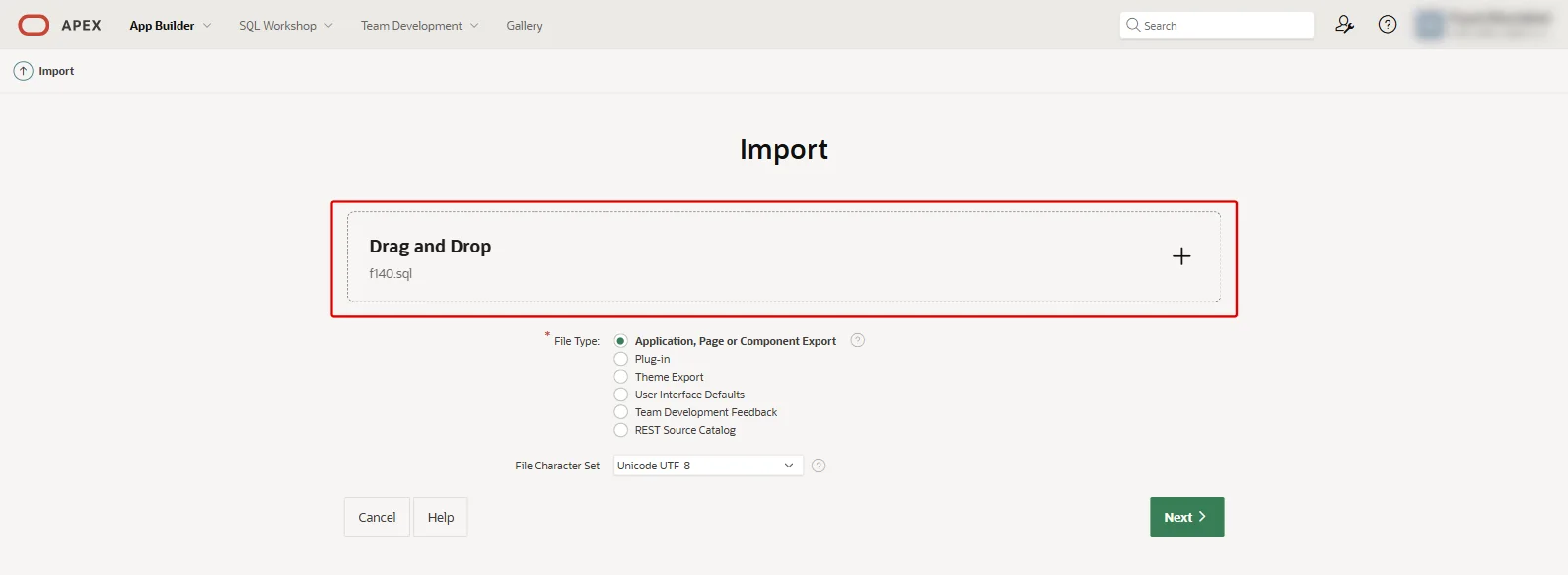
- Open App Builder > Import and select
app_export/f140.sqlfrom the unzipped delivery. Click Next, and Next again when the wizard confirms the file:
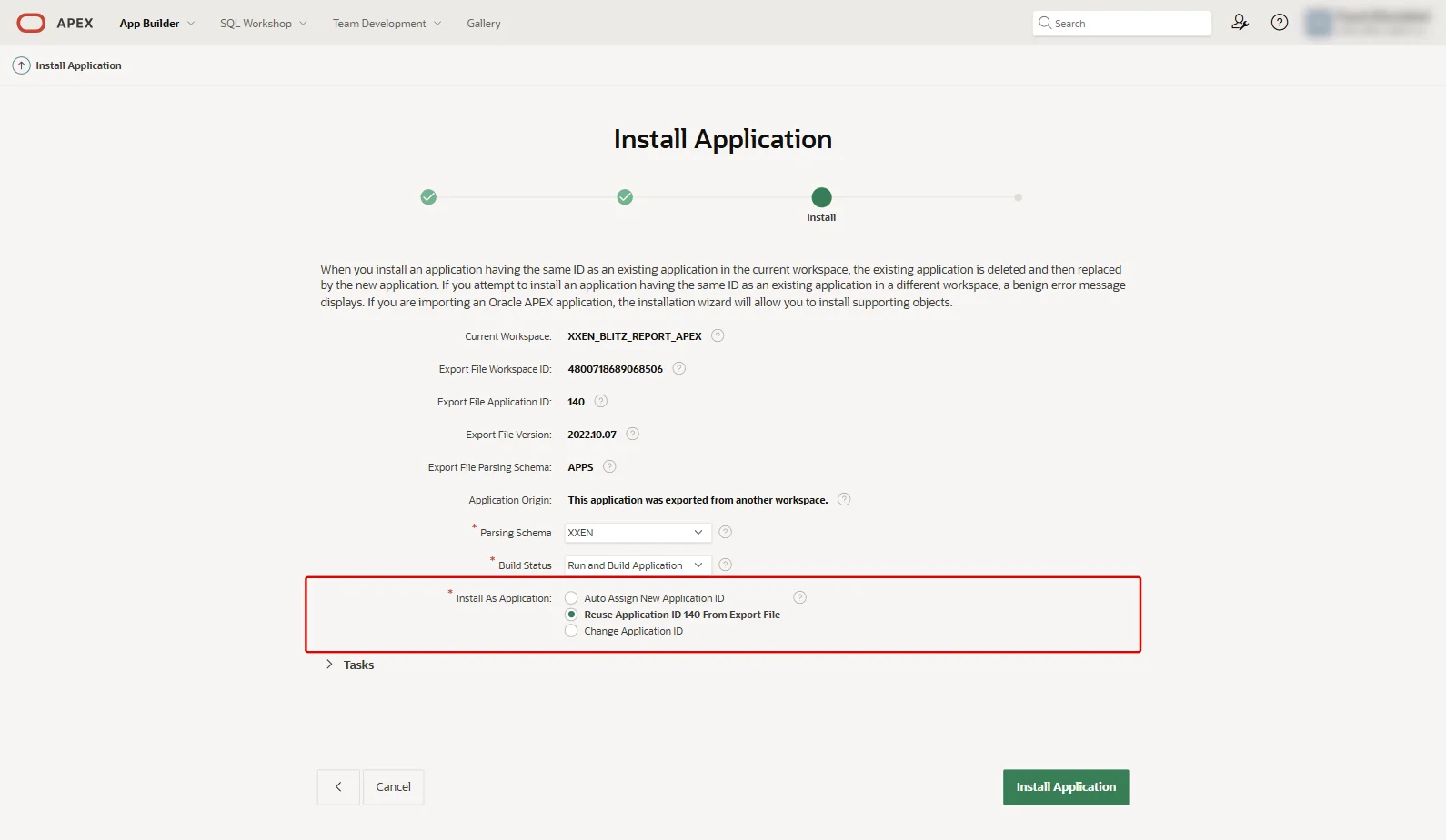
- Review the settings: the workspace, the parsing schema
XXEN, and Install As Application set to Reuse Application ID 140 From Export File. The wizard preselects Auto Assign, so this setting must be changed:
- Click Install Application. This takes several minutes. If a Credentials page follows, click Next.
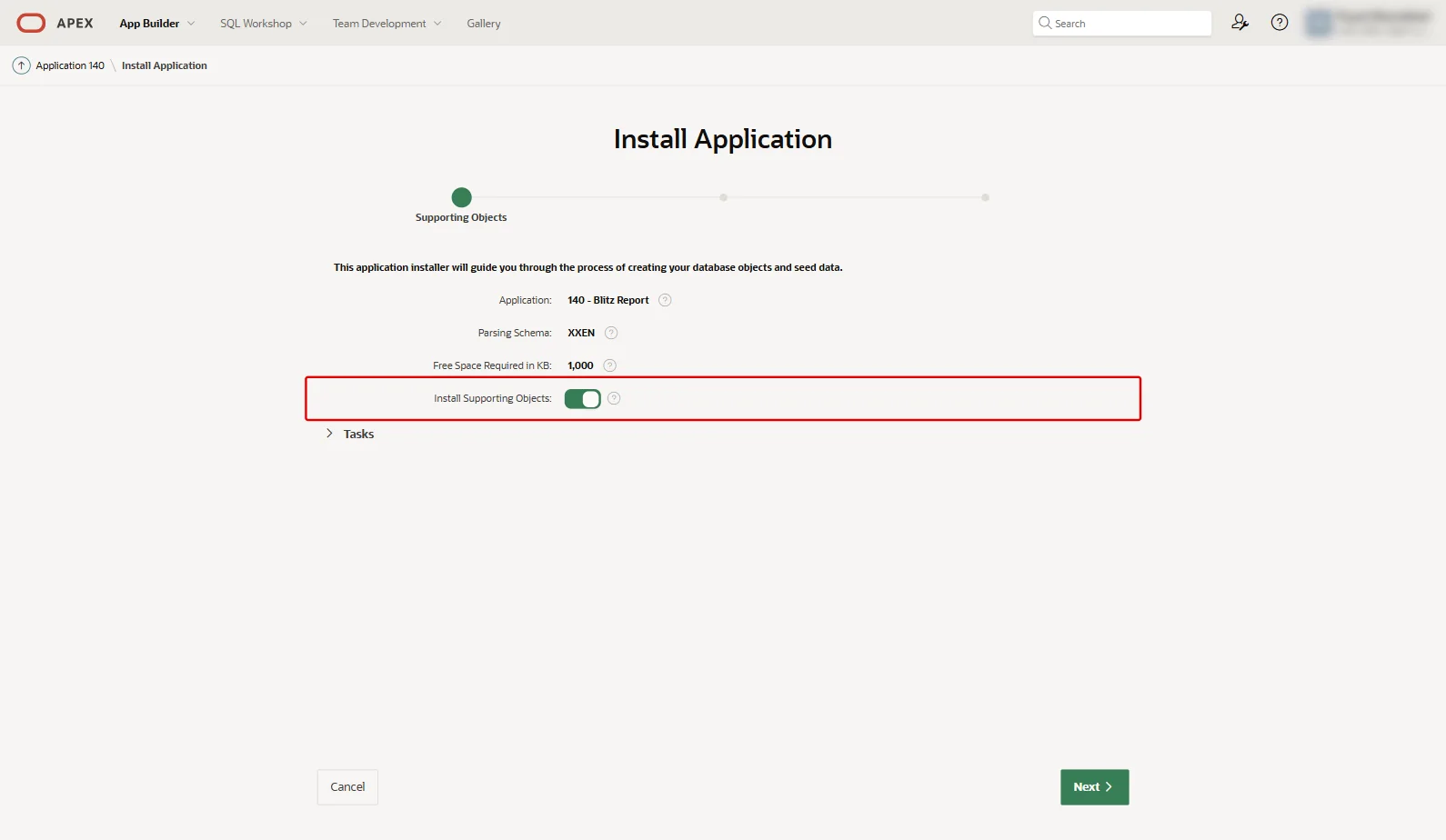
- On the Supporting Objects step leave Install Supporting Objects on and click Next:
- The wizard lists the two validations it runs, the privileges (
Required Privileges should exists for Installation) and the database character set (Database character set must be AL32UTF8, UTF8 or WE8MSWIN1252). Click Next:
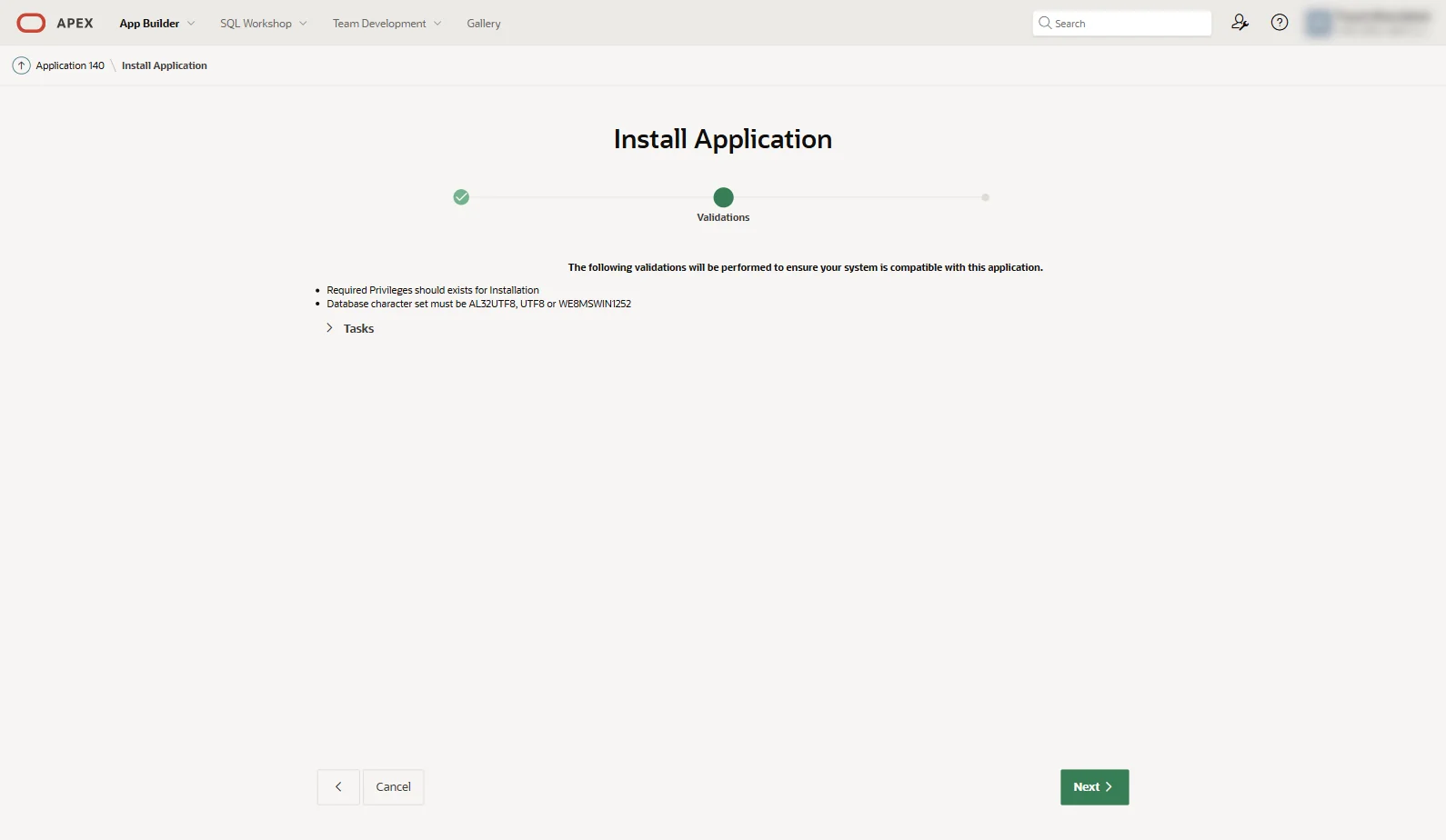
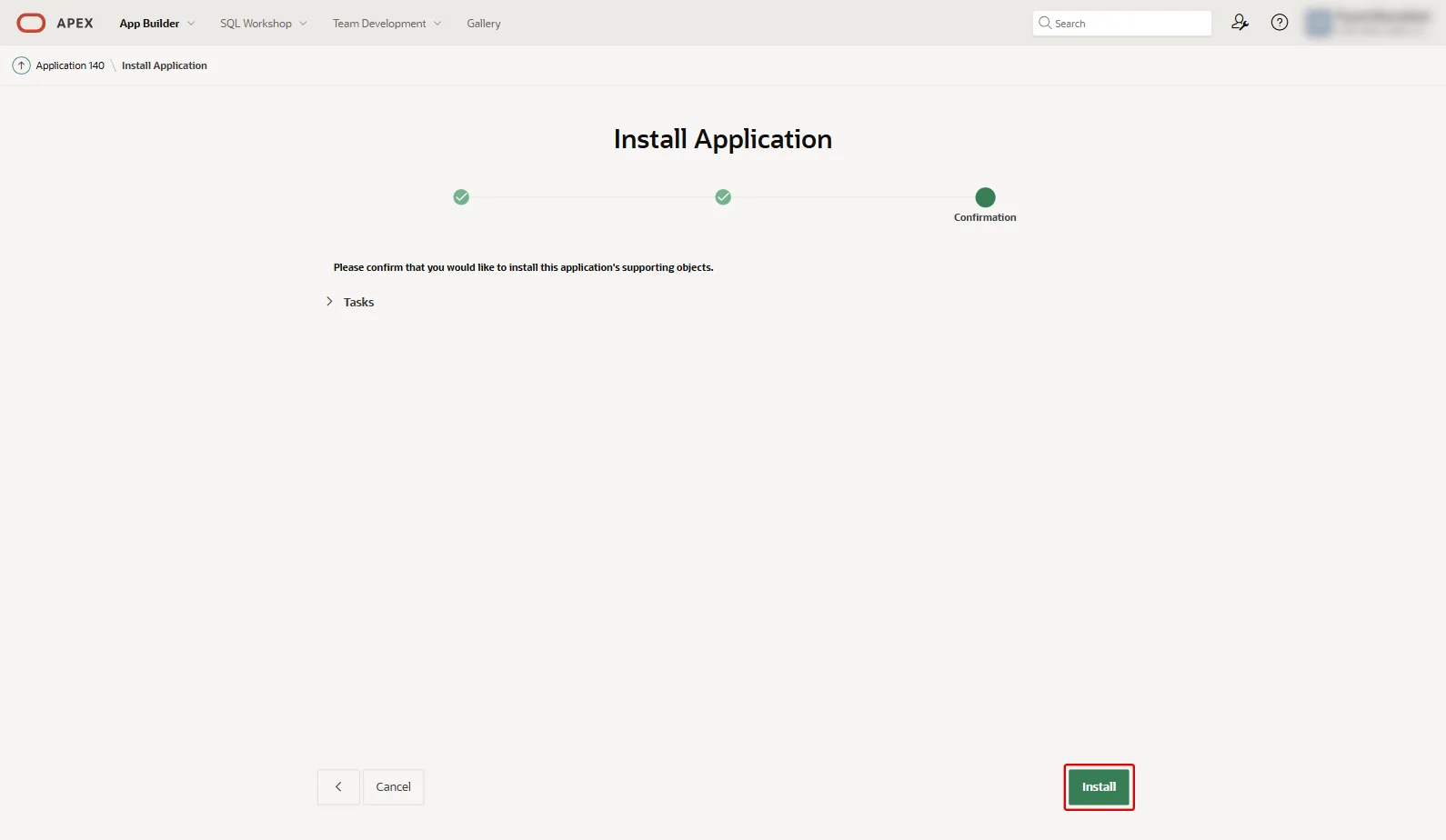
- Click Install. The scripts create the database objects, the configuration, the delivered reports and the Excel add-in webservices, which takes several minutes. Leave the browser window open until the wizard’s last page:
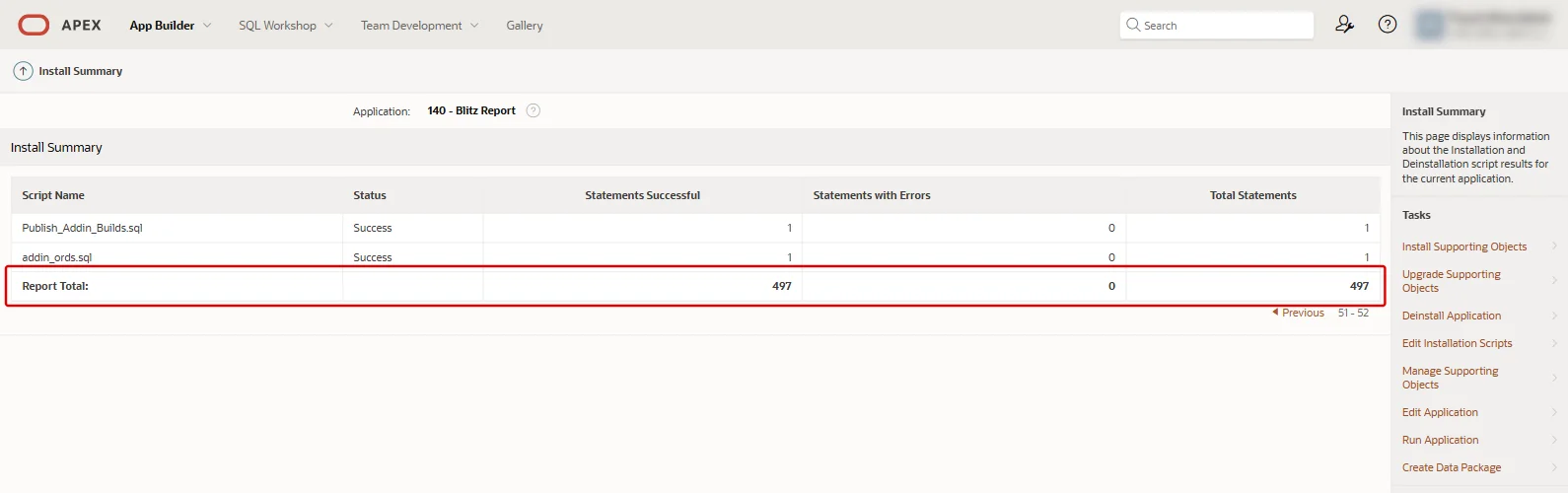
- Check the scripts: the wizard’s last page does not report their errors. Open the application in the App Builder, choose Supporting Objects and, under Tasks, View Install Summary. Statements with Errors must be 0 on the Report Total line at the end of the report, which may be on its second page:
- Verify the installation (chapter 6).
The App Builder does not show the messages of the scripts. To see the PDF configuration status, run scripts/install/118_XXEN_PDF_CONFIGURATION.sql afterwards (10.6).
5 Command-line installation
5.1 Information to collect
| Input | Example |
|---|---|
| Parsing schema and its password | XXEN (the password is prompted, or read from the environment variable XXEN_PWD) |
| TNS alias or EZConnect string | PROD or //dbhost:1521/SVC |
| Workspace name or numeric id | XXEN_BLITZ_REPORT_APEX |
| The administrator’s APEX account | FIRST.LAST |
The application is always installed as application 140, the installer’s default. The commands of this guide pass --app-id 140 all the same, so the application id stands in every command and every log.
5.2 Running the installer
Copy the delivered zip to a host with database connectivity, unzip it and change into its shell directory:
unzip blitz_report_apex_<yyyymmdd>.zip # creates the blitz_report_apex/ folder cd blitz_report_apex/shell chmod +x apex_deploy.sh # the zip does not keep the execute bit # fresh installation ./apex_deploy.sh --mode install --db-conn XXEN@PROD --workspace XXEN_BLITZ_REPORT_APEX --app-id 140 --admin-user FIRST.LAST # fresh installation with the PDF converter, on the database server as the database OS user (10.3) ./apex_deploy.sh --mode install --db-conn XXEN@PROD --workspace XXEN_BLITZ_REPORT_APEX --app-id 140 --admin-user FIRST.LAST --pdf-converter-dir /home/oracle/blitz_xlsx2pdf |
The upgrade (chapter 11) and the deinstallation (chapter 12) use the same script with --mode upgrade and --mode deinstall. Running it as bash ./apex_deploy.sh ... works without the chmod.
The password is never passed on the command line: the installer prompts for it, or reads it from XXEN_PWD.
Options:
| Option | Effect |
|---|---|
--dry-run | writes every SQL driver the run would execute and prints the step plan, without connecting to anything |
--resume | continues a failed run from the failed step (5.5) |
--force | skips the confirmations: the deinstallation’s, and the refusal to install over an existing application |
--log-dir <path> | folder for logs and the resume state; default logs/ of the unzipped folder |
--pdf-converter-dir <path> | install and upgrade: installs and configures the PDF converter in that directory (10.3); deinstall: removes it (10.9). Only on the database server |
--dba-conn <connect> | deinstall only: a DBA connection that clears blocking database sessions (12.3) |
--expected-alias <alias> | the alias application 140 must carry when it already exists; default BLITZ_REPORT (5.4) |
--bundle-dir <path> | the unzipped folder that holds scripts/ and app_export/; default the parent folder of shell/ |
-h, --help | prints the usage |
5.3 What each mode does
| Mode | Steps (each step is one logged run of the SQL client) |
|---|---|
| install | Pre-flight checks (5.4), then each schema-object script of scripts/install numbered below 110 in its own session (the lookup seed 030 waits for the import), then the import of app_export/f140.sql as application 140 without its Supporting Objects, then the configuration scripts in one session under an APEX session of the administrator’s account: lookups, the administrator’s Blitz Report user, profile options, PDF configuration, the trial license, the monitor job, the delivered reports, the Excel add-in builds and the Excel add-in webservices. Then the verification (6.2), and the PDF converter when --pdf-converter-dir is given. |
| upgrade | Pre-flight checks (the application must exist), then each script of scripts/upgrade, then the re-import of app_export/f140.sql, then the refresh of the Excel add-in builds and the delivered reports under an APEX session of the administrator’s account, which also records the build date (6.3). Then the verification, and the PDF converter when --pdf-converter-dir is given. Installation-only steps, such as the trial license and the administrator’s user, never run again. |
| deinstall | Pre-flight checks including blocking sessions, a confirmation, removal of the Blitz Report objects, the Excel add-in webservices and the PDF configuration, removal of the application, then a purge of every remaining object of the parsing schema until it owns 0 objects (12.2). |
5.4 Pre-flight checks
Every run starts with these checks; nothing is changed when one fails:
- The connection as the parsing schema works.
- The database release is detected; from 21c the wrap-format parameter is set for the run (1.1).
- APEX is 22.2.3 or higher.
- The workspace exists, by name or id, and the parsing schema is assigned to it.
- Application 140 is absent for an installation and present for an upgrade. An installation over an existing application is refused; use
--mode upgrade. - If application 140 exists, its alias is
BLITZ_REPORT. A different alias stops the run, so the wrong application is never installed over, upgraded or removed. - Installation: the administrator’s account is an APEX account of the workspace.
- Installation and upgrade: every mandatory privilege of chapter 3 is present. A missing grant is named and the run stops. The App Builder import runs the same validation.
- Installation and upgrade: the database character set is AL32UTF8, UTF8 or WE8MSWIN1252 (1.1).
- Deinstallation: no database session holds a lock on the schema’s objects (12.3).
Stored-text check. After each wrapped package (.pls, .plb) is compiled, the installer compares an MD5 of the text the database stored with an MD5 of the delivered file. When they differ, the step stops with ORA-20014: Stored-text check: ..., naming the package, the client and its setting. Change the client as the message says, then run the installer again with --resume: it compiles that package again and repeats the check. The first lines of the log record the client and its setting.
The upgrade’s refresh of the delivered reports additionally requires the --admin-user account to exist in the workspace; otherwise that step stops with Admin user "..." is not an APEX account visible to this schema's workspace(s).
5.5 If a run fails
The run stops at the first failing step and names it and the log file. Fix the reported cause and run the identical command again with --resume added:
./apex_deploy.sh --mode install --db-conn XXEN@PROD --workspace XXEN_BLITZ_REPORT_APEX --app-id 140 --admin-user FIRST.LAST --resume |
--resume skips every step the previous run of the same mode completed and continues from the failed one. The schema-object scripts skip what already exists, so no manual clean-up is needed. A run without --resume starts from the first step.
5.6 Logs and the support bundle
Each run prints its log location at the start (Logging to: ...) and writes to logs/<mode>_<timestamp>/:
apex_deploy.log, the console output of every step;drv_*.sql, every generated SQL driver as executed, with thesrc_*.sqlcopies of the scripts in Unix line endings and thechk_*.sqlstored-text checks they run (--dry-runwrites the same files without executing them, with the placeholder&WORKSPACE_ID_FROM_PREFLIGHTwhere the pre-flight later puts the workspace id);- the resume state,
logs/state_<mode>_app140.state.
At the end of every run that connected to the database, successful or not, the installer packs the run folder into one archive and prints:
Support bundle: logs/<mode>_<timestamp>_support.zip - attach this file when contacting support. |
Attach that file to every support request. The bundle holds the run folder, the resume state and env.txt (the mode, the database release and character set, the APEX release, the SQL client, the host and the command’s arguments); the copy of the application export, src_f140.sql, is left out.
6 Verifying the installation
6.1 Sign in and run a report
Open the application at
https://<your-apex-host>/ords/r/<workspace>/blitz_report |
where <workspace> is the workspace’s URL path, by default its name in lower case. Sign in with the administrator’s APEX account. The Reports page shows the categories of the delivered reports, Enginatics and DBA Diagnostics Pack; run one of their reports to Excel.
The Reports page, with the version and the report count under the greeting:
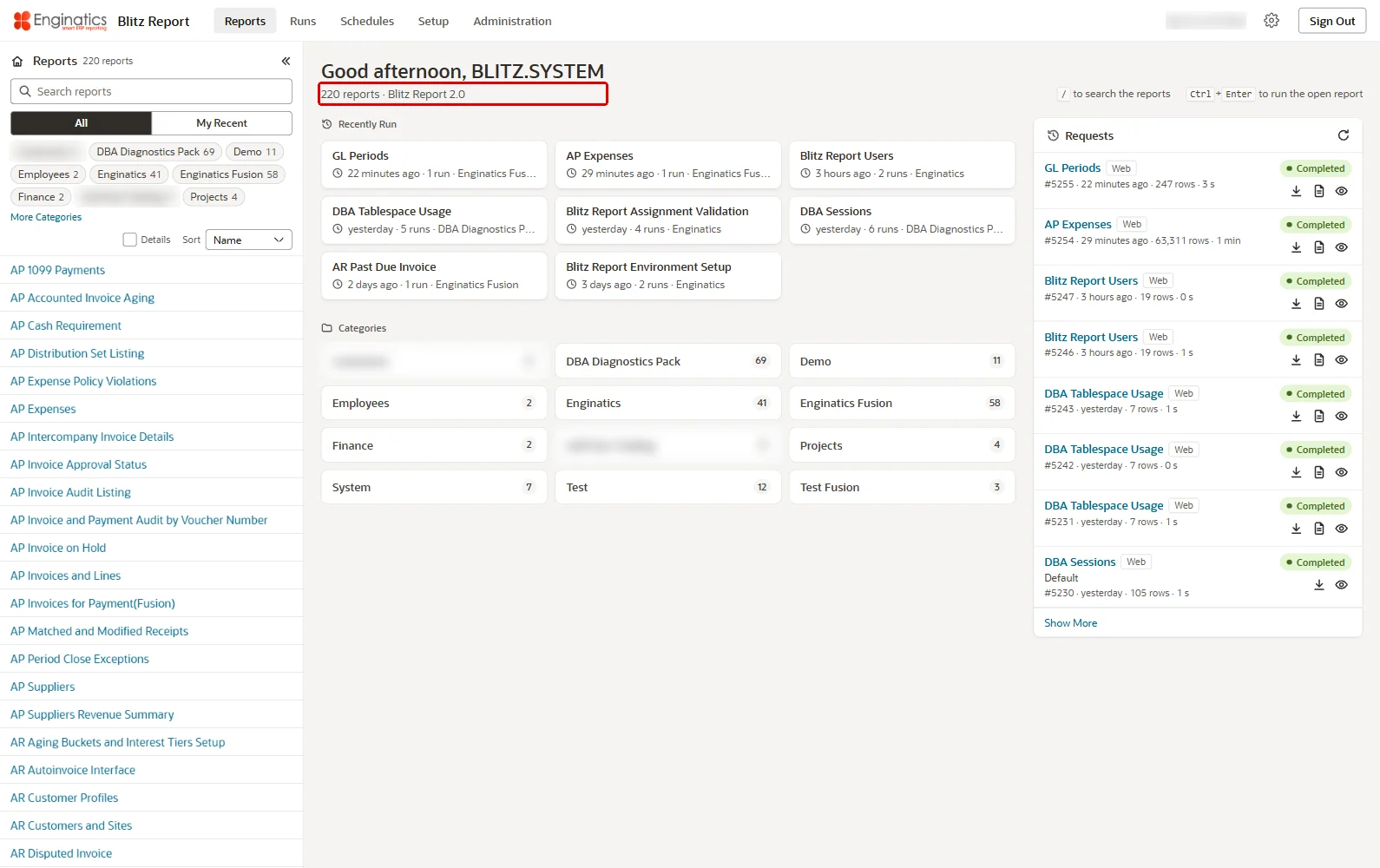
The command-line installer prints a VERIFICATION summary at the end of every installation and upgrade: the invalid objects (must be 0, otherwise the run fails), the application row with its alias, the number of Blitz Reports and the administrator’s user.
6.2 Checks from SQL
The same checks can be repeated at any time, connected as the parsing schema:
select count(*) from user_objects uo where uo.status='INVALID'; -- expect 0 select count(*) from xxen_reports xr; -- expect more than 0 select xru.user_name from xxen_report_users xru; -- includes the administrator of the installation select aa.alias from apex_applications aa where aa.application_id=140; -- expect BLITZ_REPORT |
6.3 Version and build date
The footer of every page after the sign-in shows the installed version and build date (Blitz Report <version> (<build date>)). The version also shows on the Reports page, in the line under the greeting (Blitz Report <version>), and the version and the build date in Setup > Tools > License Key, fields Version and Build. A bug-fix release keeps the version and carries a new build date; a feature release raises the version (2.1). The footer comes from the installed application, and the Reports page and the License Key dialog from the installation’s license row, so when they show different versions the last upgrade did not finish: import the application again and install the Supporting Objects (11.2), or run the identical upgrade command again with --resume (5.5).
7 Application setup
The steps of this chapter are done in the application by its administrator. Administration is open to users with System access and to the APEX workspace administrators. Its tabs are Users, Profile Options, Lookups, Housekeeping and Excel Add-in; Lookups maintains the lookup types and values of the application and is described in the developer guide.
7.1 Users and access levels
Every APEX account of the workspace can sign in; with the Oracle Fusion integration, so can every Fusion user who opens Blitz Report from Fusion (9.3). The first sign-in creates the person’s Blitz Report user with the site value of the profile option Blitz Report Access, which the installation sets to User. The installing account gets System access.
| Blitz Report Access | Allows |
|---|---|
| User | run the reports assigned to the user |
| User Admin | access and run all reports, view-only access to the report SQL and the setup |
| Developer | full access except system reports |
| System | full access, including Administration |
Maintain users in Administration > Users: user name, full name, email address, Blitz Report Access, template access, start and end date. A user is end-dated, never deleted, and an end-dated user cannot sign in. A Fusion user and an APEX account with the same name are the same Blitz Report user.
A workspace administrator also creates, changes and removes the users’ APEX accounts on the same tab. A new account gets the site value of the profile option Blitz User Default Password and must change it at the first sign-in. Before creating accounts, set the site value of this profile option in Administration > Profile Options; Administration > Users creates the Blitz Report user but refuses to create its APEX account while the option has no site value, with the message Set the site value of the profile option Blitz User Default Password before creating accounts.
The profile option Blitz Report Template Access decides whether users may create private or shared templates or change those of other owners; the installation sets the site value to Create private and shared templates.
The user dialog:
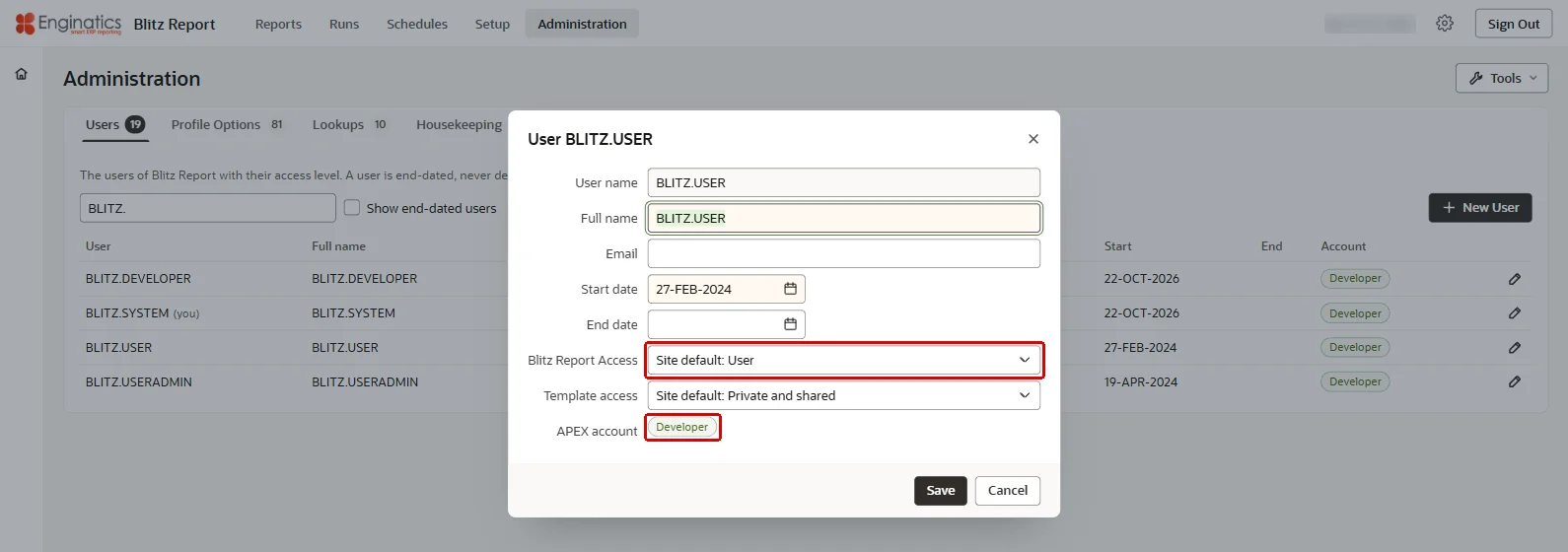
If neither the administrator’s user nor the site carries a Blitz Report Access value, nobody can use the reports. A workspace administrator then sees only Administration, with a notice, and repairs it there by giving their own user System access or setting the site value.
7.2 License key
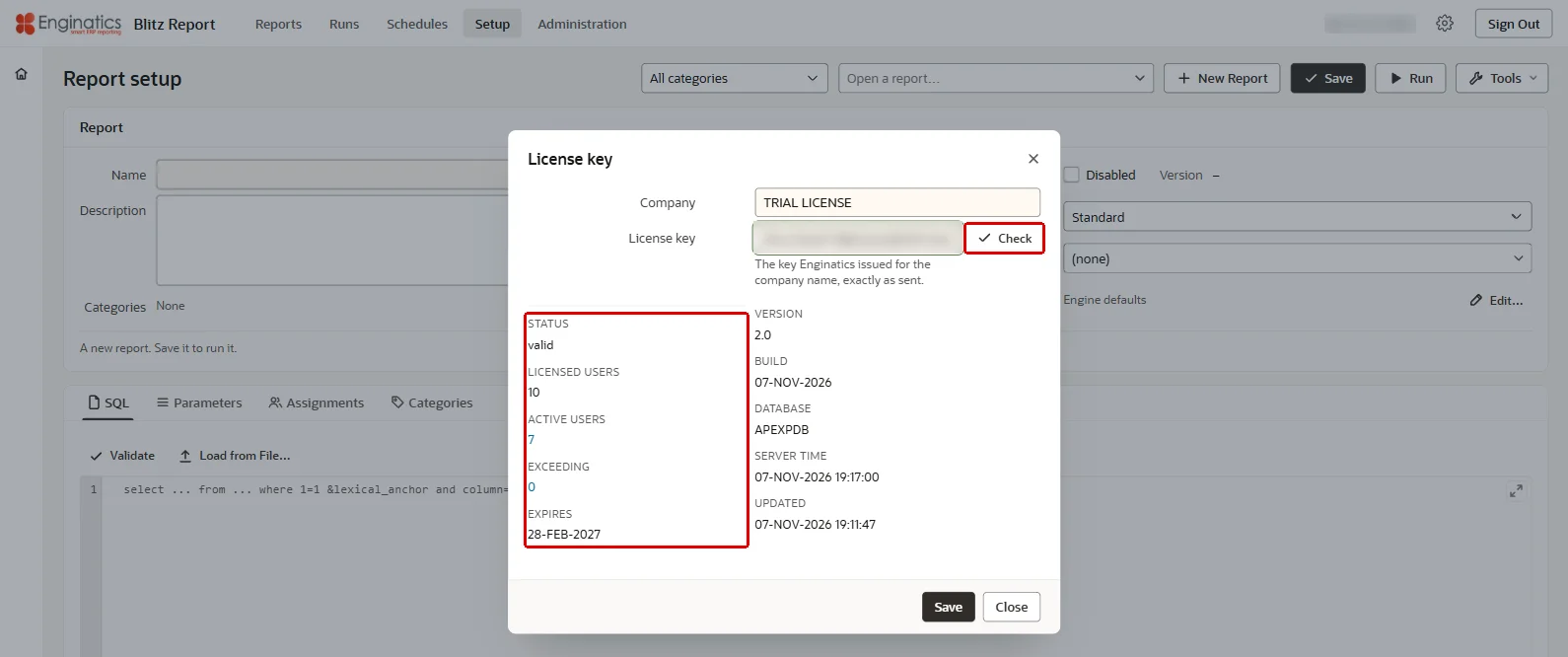
The release zip installs a trial license key that is valid for 10 users until the end of the third month after the month in which the release was built; replace it with your license key as described below. Without a valid license, for example after the trial has expired, Blitz Report runs only the 30 most recently created reports; the output of any other report is a single cell starting Invalid License: maximum reports exceeded. The reports that administer Blitz Report itself always run. Enter the license key Enginatics issued in Setup > Tools > License Key: the company name and the key exactly as sent. The dialog shows the license status, the licensed, active and exceeding users and the expiration date: Exceeding is the number of active users refused with Invalid License: maximum users exceeded within the past 60 days who hold no licensed seat now, the additional user licenses needed. A click on Active users runs the report Blitz Report License Users and downloads its output, a click on Exceeding the report Blitz Report License Exceeding Users; the runs are listed under Runs.
The License Key dialog:
7.3 Email
Reports are sent by email through the APEX instance’s mail settings:
- Sign in to APEX Administration Services.
- Open Manage Instance > Instance Settings > Email.
- Enter the SMTP host, port, credentials and TLS settings of your mail server, and the default sender address.
- Save, and confirm delivery with Send Test Email.
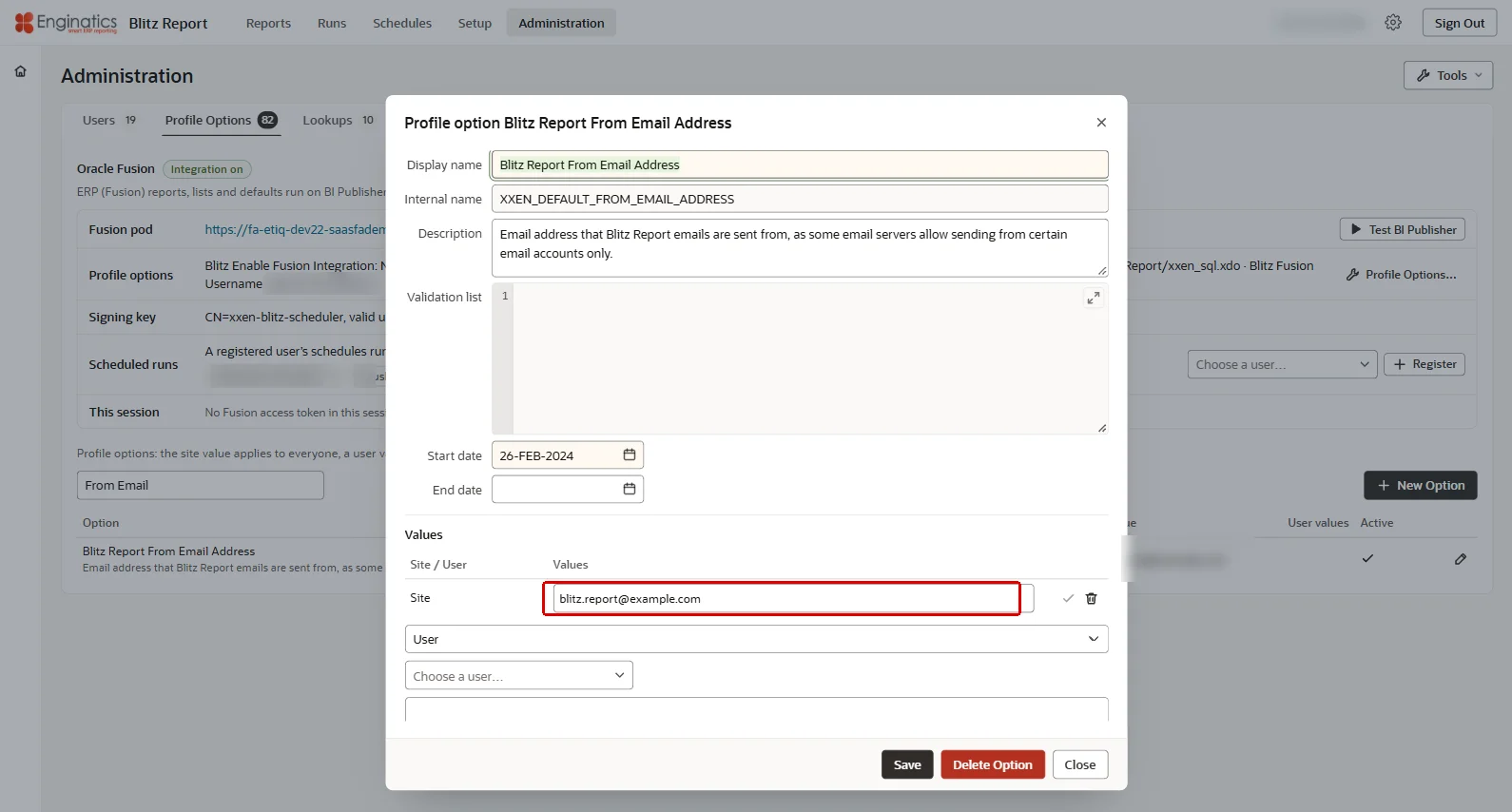
Sender address. In Administration > Profile Options, give the profile option Blitz Report From Email Address a site value that your mail server accepts as the sender of Blitz Report emails; without it, an email goes out from the address of the user who ran the report, or, when that user has none, from the Default Email From Address of the APEX instance settings.
The sender address is a profile option of the site:
Two further profile options decide what is sent:
- Blitz Report Email Attachment Size Limit (bytes), seeded 2,500,000: a larger output is sent without the attachment.
- Blitz Report Suppress Empty File Delivery: when not set or Yes, a scheduled run with an empty output is not sent.
If mail does not arrive, check the SMTP details, the network path from the database server to the SMTP host and port, and the APEX mail queue in Manage Instance > Monitor Activity > Mail Log.
7.4 Server time zone
Dates and times show in each user’s time zone, and schedules keep their local time across daylight saving, through the profile option Blitz Report Server Time Zone, the time zone region of the database server (for example Europe/Zurich). The installation sets it from the scheduler’s default time zone when that is a region at the server clock’s offset. Otherwise the installation prints Server time zone: not determined, ...; then set the site value in Administration > Profile Options.
7.5 Housekeeping
The Blitz Report Monitor removes the logs and outputs of runs older than the retention days of three profile options, stops runs that exceed their time limit, and purges old licensed users. The installation creates the monitor but sets neither its schedule nor retention days: until both are set, nothing is removed and run outputs keep growing in the schema’s tablespace.
Step 1: set the retention days. In Administration > Profile Options, set the site values:
| Profile option | Keeps |
|---|---|
| Blitz Report Log Retention Days System | the successful runs of system reports, for that many days |
| Blitz Report Log Retention Days Standard | the successful runs of standard reports |
| Blitz Report Log Retention Days Error | the runs that ended with an error or were cancelled |
For example 30, 60 and 30 days. A profile option left blank keeps those runs without limit. With Blitz Report Retain Run History set to Yes, the monitor removes only the logs and outputs and keeps the runs themselves, so the history of who ran which report stays; otherwise the runs are removed with them. The debug log of the Excel add-in is kept as long as the longest of the three retention periods.
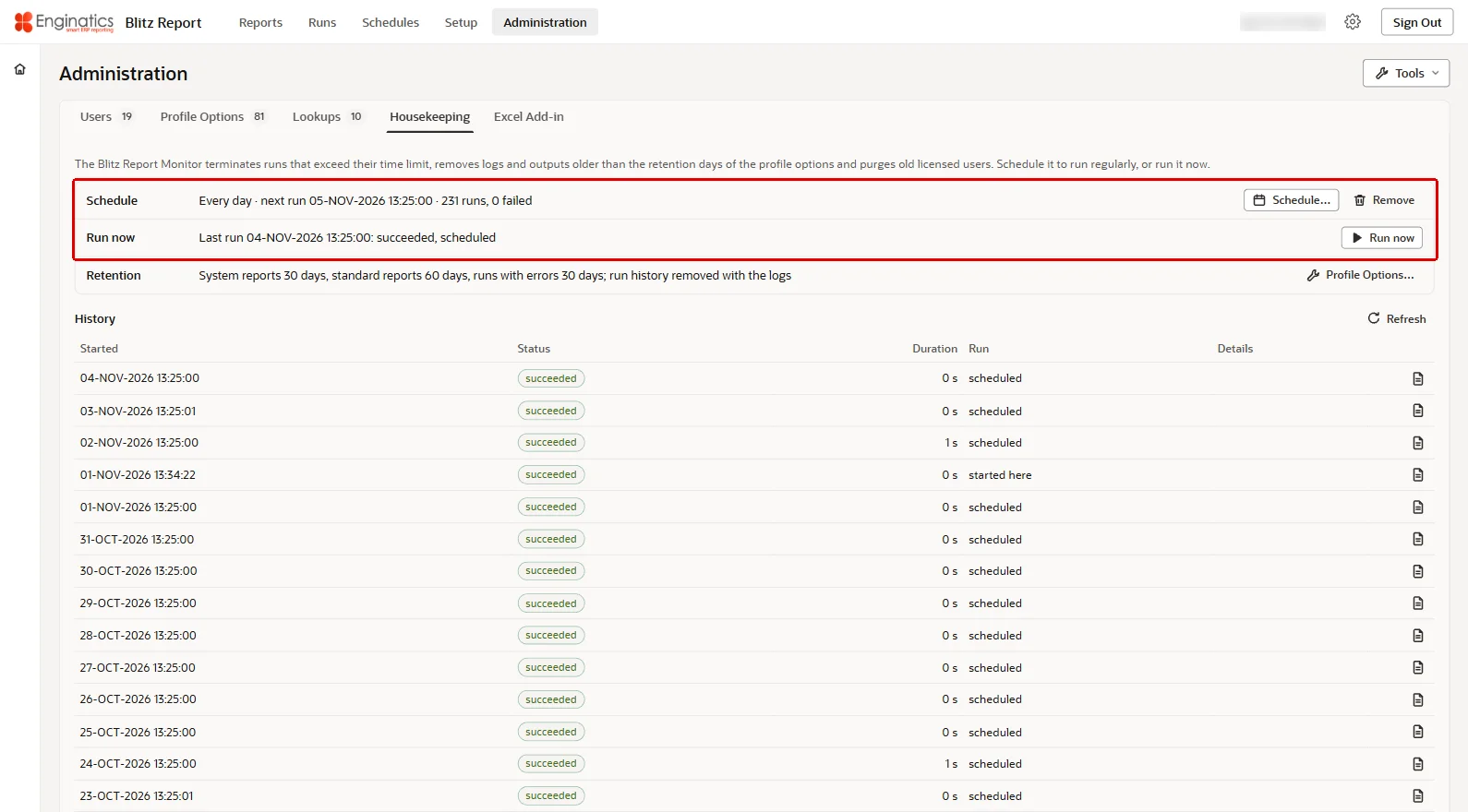
Step 2: schedule the monitor. In Administration > Housekeeping, Schedule sets how often the monitor runs; the scheduled job runs as the user who saves the schedule. Run now starts it once. Remove takes the schedule away; the monitor then runs only when started here. The tab shows the schedule with its next run, the retention values in force, and the history of the monitor’s runs with their logs.
The Housekeeping tab:
The monitor also stops a run that exceeds its time limit: the run’s Time Limit option, else the profile option Blitz Report Time Limit in minutes. Schedule it often enough for that to matter.
7.6 Server output directories
The Options of a report in Setup, and of a run on the run screen, carry Server Output Directory and Server File Name. With a directory set, every run also writes a copy of its output into that directory on the database server. Server Output Directory takes the name of an Oracle directory object, never a path: the field lists the directory objects the parsing schema can write to. Server File Name names the file inside the directory (the tokens of Output File Name apply, a forward slash is refused, the output’s extension is added); left empty, the copy keeps the output’s own file name.
A DBA creates the directory object on a folder of the database server that the database OS account can write to, and grants read and write on it to the parsing schema itself. The database writes the copy with the schema’s own privileges, so a grant through a role does not count:
create directory BLITZ_REPORT_OUTPUT as '/u01/app/blitz_report/output'; -- a folder of the database server grant read,write on directory BLITZ_REPORT_OUTPUT to XXEN; -- the parsing schema |
Each destination folder is its own directory object and appears in the field as soon as it is granted. The installation neither creates nor removes these directory objects, a deinstallation leaves them and their files in place, and the privilege check (3.1) does not report them.
8 Excel add-in
The Blitz Report add-in runs Blitz Reports inside Microsoft Excel. It comes in two editions: the Cloud edition with the Oracle Fusion integration, and the Database edition without it. Each user gets the edition of their own Oracle Fusion integration setting (9.2). The two builds are installed with the application, as static files of its export, and refreshed by an upgrade; users download the newest build of their edition on the run screen (8.3).
8.1 The webservices
The installation and every upgrade define the webservices the add-in calls, in the parsing schema:
- the schema is enabled for ORDS with the base path
xxen, when it has no ORDS mapping yet; - the module
xxen_webservices, its role and privilege; - the OAuth client
xxen_webservices, created only when none exists. An existing client keeps its id and secret, and the secret is never printed.
The script reports what it did, for example ORDS: schema XXEN enabled with base path xxen, ORDS: <n> endpoints defined in module xxen_webservices and ORDS: OAuth client xxen_webservices created. On a database without ORDS it prints ORDS is not installed; Excel add-in endpoints were skipped. A schema already mapped under another base path stops the step (chapter 13).
The webservices’ address, the Instance URL of 8.2, is the ORDS address of the instance followed by the base path, for example https://<your-apex-host>/ords/xxen/. It must be an HTTPS address: ORDS refuses the add-in’s token request over plain HTTP (This resource must only be accessed over HTTPS), and the add-in then reports that the ORDS client of the environment was not accepted.
8.2 Environments
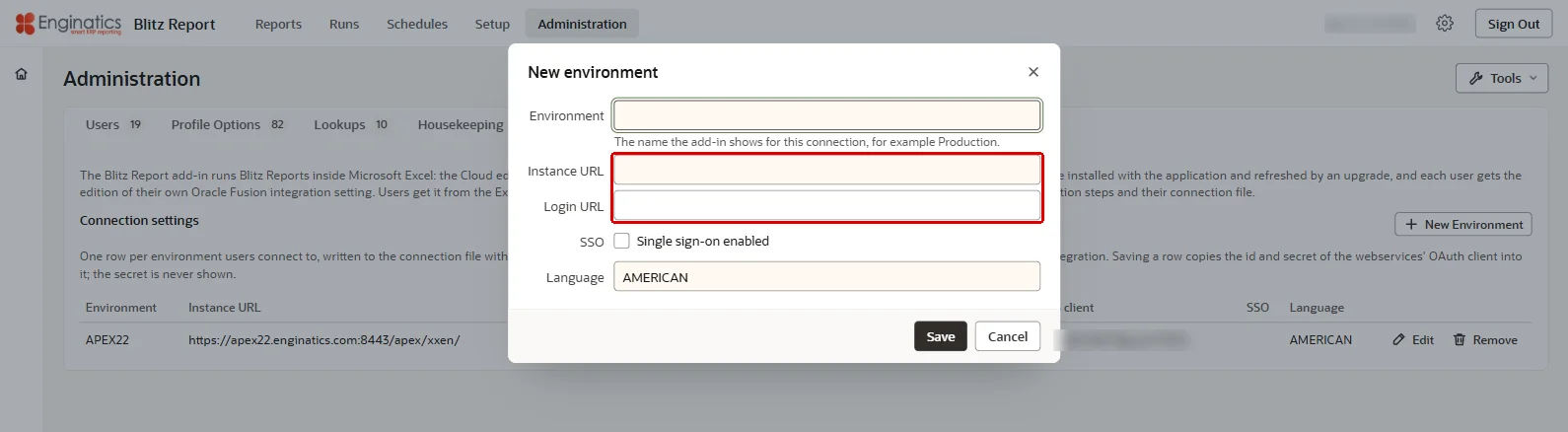
Users download a connection file that names the environments they connect to. The Excel Add-in tab of the Administration page holds these environments: maintain them under Connection settings, New Environment:
| Field | Value |
|---|---|
| Environment | the name the add-in shows, for example Production |
| Instance URL | the ORDS address of this instance as users reach it, ending /xxen/ (8.1) |
| Login URL | the address of the application (6.1), where the Database edition signs in |
| SSO | Leave unticked; the sign-in follows the application’s own authentication |
| Language | the NLS language of the connection, for example AMERICAN |
Saving a row copies the id and secret of the OAuth client into it. Until at least one environment exists, users cannot download a connection file. The connection file is produced by the delivered report Blitz Report Environment Setup.
The Excel Add-in tab:
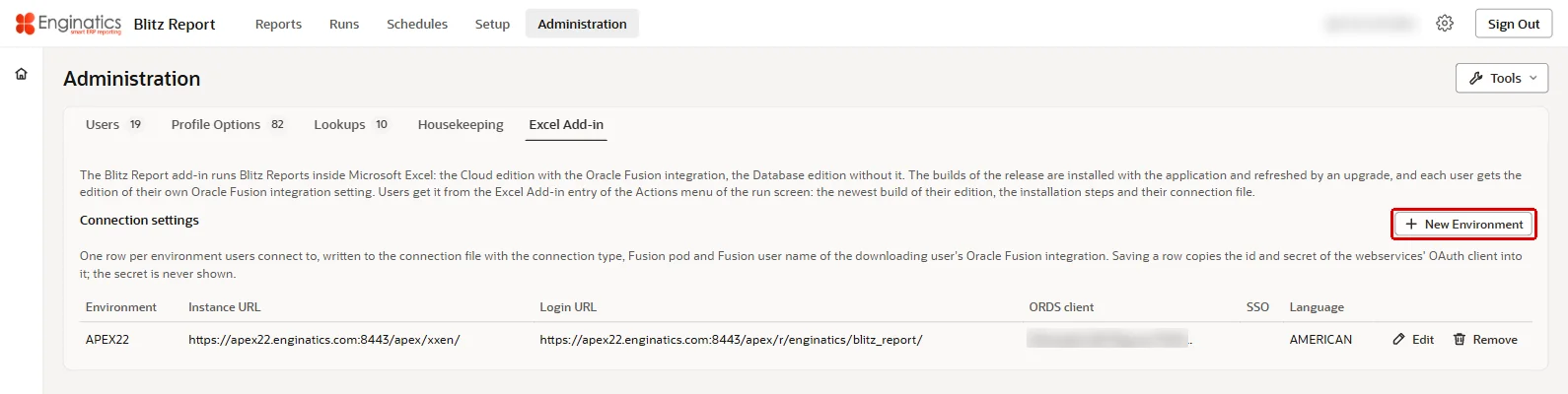
New Environment adds a row of the connection settings:
8.3 How users connect
Users open Actions > Excel Add-in on the run screen, download the add-in and their connection file, run the installer in the zip and open the connection file in Excel.
The Excel Add-in dialog:
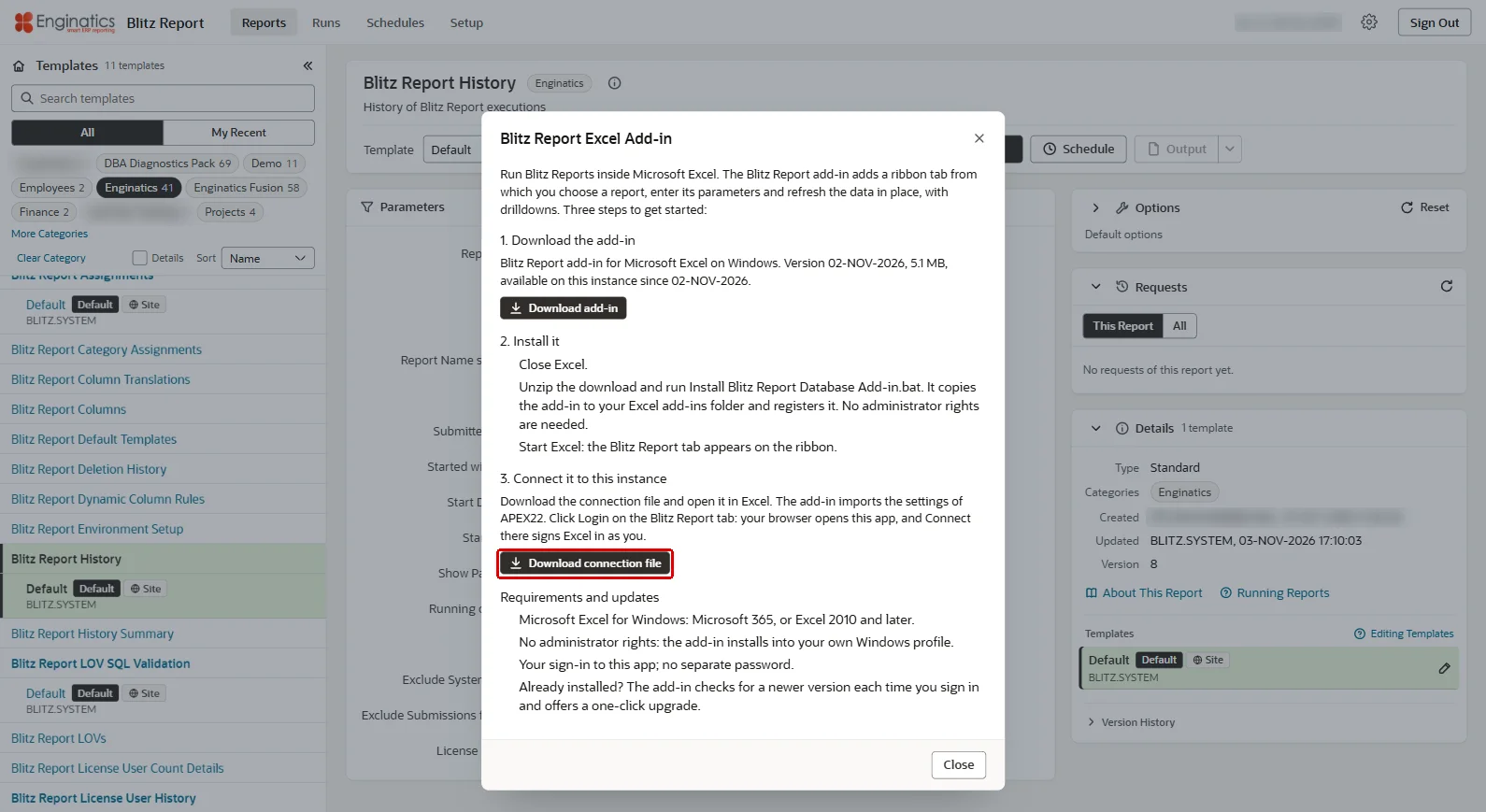
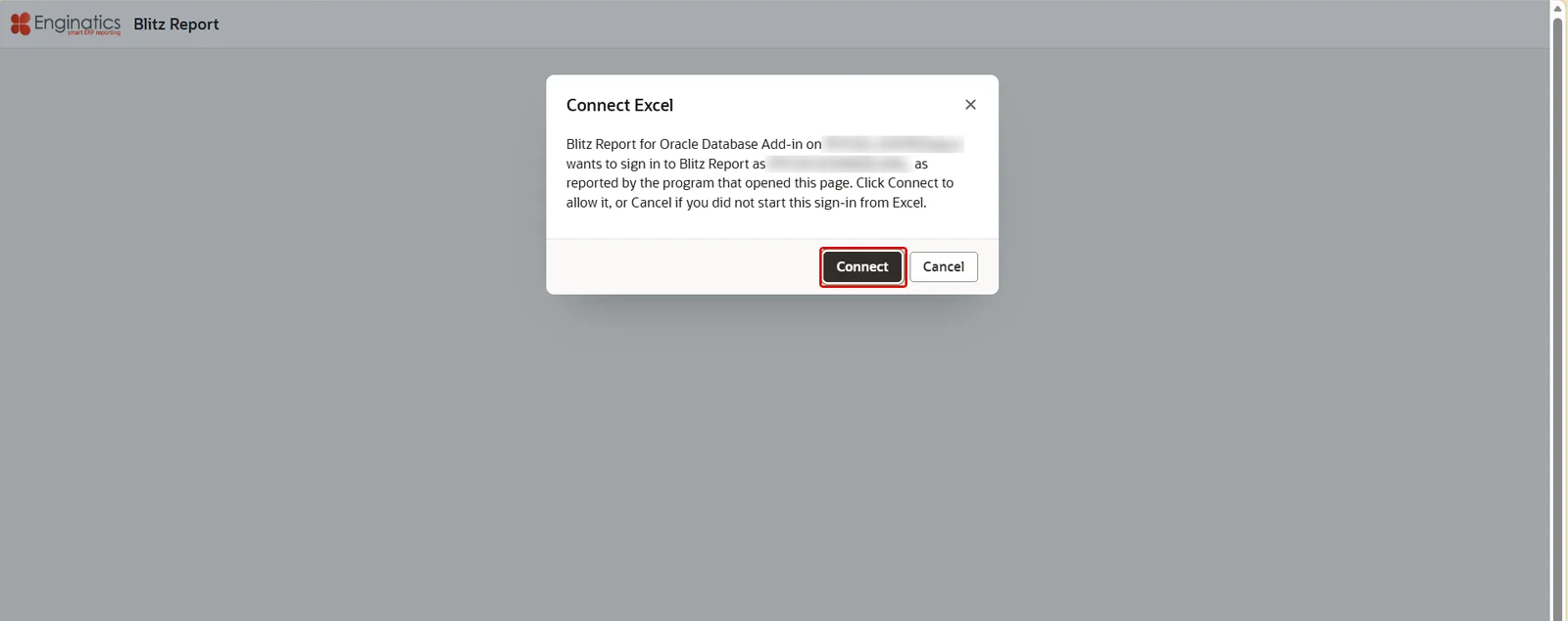
- Database edition: Login on the Blitz Report tab opens the application in the browser; after the user’s sign-in, Connect signs Excel in as that user. The user must be an active Blitz Report user with a Blitz Report Access level. The Excel session ends under the application’s session limits (Maximum Session Idle Time and Maximum Session Length of the application, else the APEX instance’s settings), as a browser session does.
- Cloud edition: users sign in with their Oracle Fusion user name and password. With the profile option Blitz Report Browser Sign-in Required set to Yes, every add-in call of a user whose Oracle Fusion integration is on needs a signed-in browser session; otherwise a run’s files can be downloaded without one.
Login on the Database edition opens this page:
To confirm the webservices after the installation, install the add-in on one PC, open the connection file, sign in and run a delivered report, for example Blitz Report Users, from the Blitz Report tab: the report list and a parameter’s list of values opening in Excel prove the connection. If the add-in shows an error instead, check the Instance URL of the environment (8.2) and that it answers from the user’s PC.
8.4 Deployment by IT
The add-in zip holds register_addin.ps1, the script the installer batch file runs: it copies the add-in to the user’s Excel add-ins folder and registers it, -WaitForExcel waits for the user to close Excel instead of failing, and -Uninstall removes the add-in. The add-in reads its environments and the environment lock from the Group Policy key Software\Policies\Enginatics\<edition> under HKLM or HKCU, where <edition> is Blitz Report Cloud or Blitz Report Database: the subkey Environments holds one value per environment, and the value LockEnvironments set to 1 makes the environment setup read-only. Each edition reads its own key.
8.5 Excel AI skills
The add-in zip also carries ready-made skills for the AI assistants in Excel, in its folder skills. A skill teaches the assistant one task with Blitz Report data: running reports and reading the result, finding the report for a business question, spotting outliers, segmenting customers, forecasting a dated measure, building a dashboard from a result sheet, comparing two environments, and writing a skill of your own. Each skill is delivered in two forms: the folder skills\<name>, for Copilot in Excel, and the file skills\zips\<name>.zip, for Claude in Excel. The skills need the add-in loaded and connected to an environment; the assistant reads data only through the add-in.
Copilot in Excel:
- In Excel, open the Copilot pane, choose Settings (the three dots), Manage plugins & skills, Custom skills, Open skills folder. It is the folder
Documents/Copilot/Microsoft Excel/skillsin the OneDrive of the account that licenses Office. - Copy the folders of
skills(each folder as it is, with its name) into that folder and wait until OneDrive shows them synced. - Select Refresh in the Custom skills dialog. Each skill appears under its name; switch it on, or name it in the prompt with
@<skill name>.
Claude in Excel:
- In the Claude pane choose Customize, Skills, Create skill, and upload the zip of the skill from
skills\zips. - Upload
br-analytics-standards.zipandbr-run-reports.zipas well, once: the other skills use them.
A user takes the skills from the zip of the add-in build installed on the PC. The add-in’s one-click upgrade leaves them in the temporary folder of the upgrade, so after an upgrade a user who wants the newer skills downloads the zip again from Actions > Excel Add-in. A skill the user changes should be saved under a new name with the company’s own prefix: the shipped folders are replaced when the skills are updated, which would overwrite the change.
9 Oracle Fusion integration
The Oracle Fusion integration is off after an installation. Switched on, it runs ERP (Fusion) reports, their lists of values and defaults on BI Publisher of an Oracle Fusion Cloud pod, lets Fusion users open Blitz Report from Fusion, optionally inside a Fusion page, and signs scheduled Fusion runs in with a signing key.
The Fusion steps need a Fusion user with these duties: Setup and Maintenance (Manage Administrator Profile Values, Manage Integration of Additional Applications), Sandboxes with the Structure tool, and the IT Security Manager role for the signing key.
9.1 The BI Publisher data model
Blitz Report runs its Fusion SQL through one BI Publisher data model in the pod’s catalog, at /Custom/Enginatics/Blitz Report/xxen_sql.xdo unless the profile option Blitz Report Fusion Object XDM Path names another path. The users who run Fusion reports, and the site user of 9.2, need access to it. The release zip’s folder fusion carries the report and its data model as two BI Publisher catalog archives: xxen_sql.xdo.catalog (the report xxen_sql) and xxen_sql.xdm.catalog (its data model). In the pod’s BI Publisher catalog:
- Create the folder Shared Folders > Custom > Enginatics > Blitz Report.
- Select the folder and choose Upload in its tasks. The dialog has one file field, Upload, and the checkbox Overwrite existing file: choose
xxen_sql.xdm.catalog, tick the checkbox when the data model already exists, and click Upload. - Upload
xxen_sql.xdo.catalogthe same way, after the data model: the dialog takes one file at a time, and the report refers to the data model.
The Upload dialog of the folder:
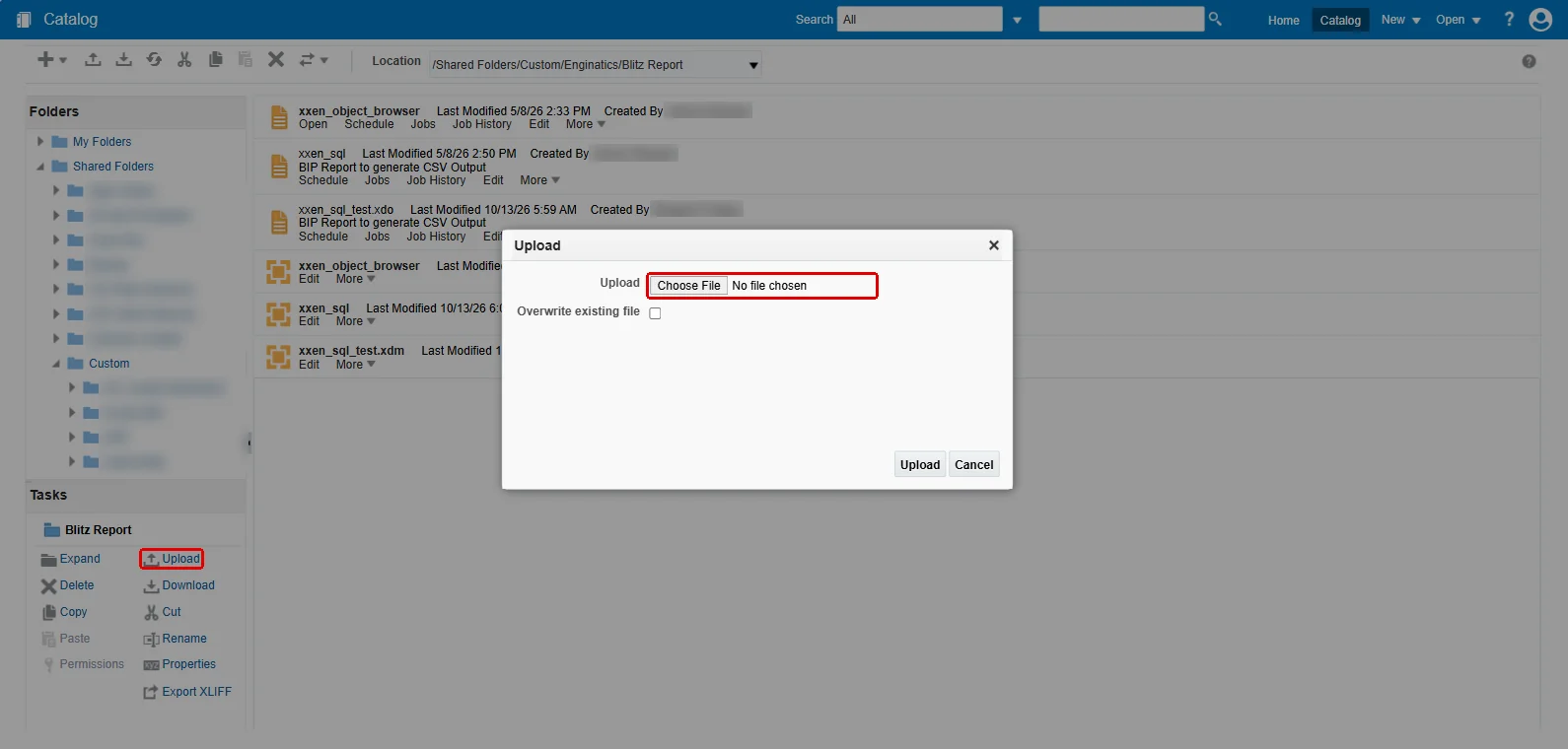
Upload both into this folder: the report reads its data model at /Custom/Enginatics/Blitz Report/xxen_sql.xdm, and the profile option’s default path is /Custom/Enginatics/Blitz Report/xxen_sql.xdo.
9.2 Profile options
Set in Administration > Profile Options:
| Profile option | Value |
|---|---|
| Blitz Report Fusion Integration | Yes at site level, or per user. A user value overrides the site value; the user’s value also decides the edition of their Excel add-in (chapter 8) |
| Blitz Report Fusion URL | the base URL of the pod, https://<your-fusion-pod-host> |
| Blitz Report Fusion Username | the site user: the Fusion user the signing key signs in as for scheduled runs of unregistered users and for Excel add-in calls |
| Blitz Report Fusion Object XDM Path | the catalog path of the data model; seeded /Custom/Enginatics/Blitz Report/xxen_sql.xdo |
With the integration on for the administrator, the Profile Options tab shows the Oracle Fusion card: the pod, the profile values, the signing key, the users registered for scheduled runs, and the test of 9.7.
The Oracle Fusion card:
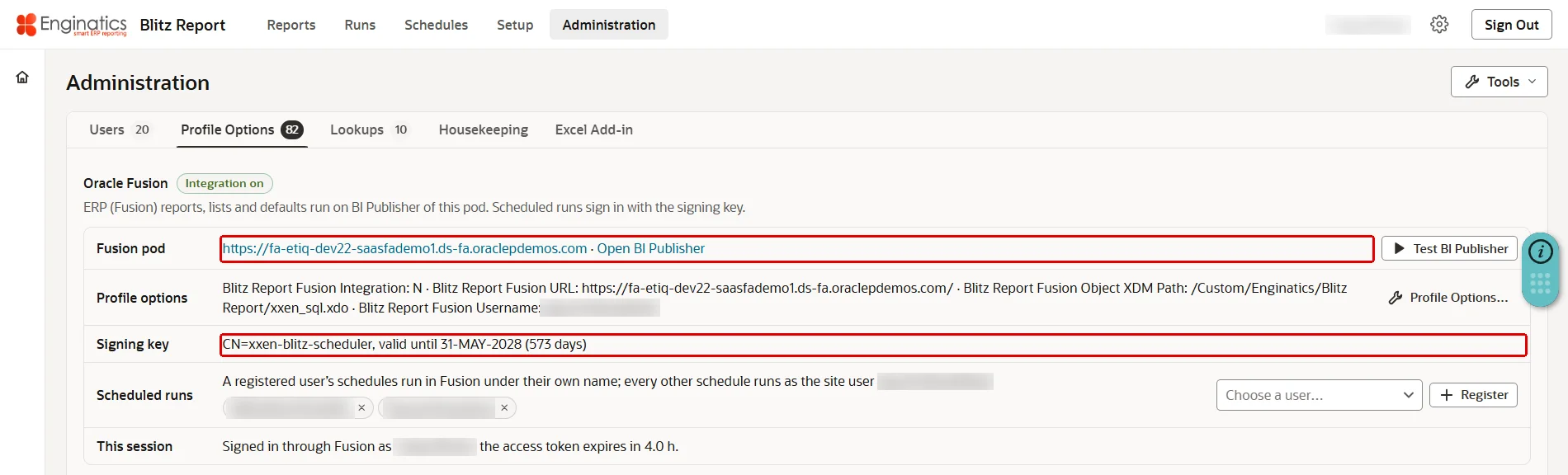
9.3 Opening Blitz Report from Fusion
A Fusion springboard or navigator entry opens Blitz Report and signs the Fusion user in, with the user’s Fusion token appended to the address by Fusion’s Secure Destination.
- In Setup and Maintenance, task Manage Integration of Additional Applications, create an entry: a name (for example
BLITZ_REPORT), Full URL the address under which ORDS serves APEX (for examplehttps://<your-apex-host>/ords), and a partner name. - Create a sandbox with the Structure tool and enter it.
- In Structure, open or create the group (Show on Navigator Yes) and create a page entry named Blitz Report with Link Type Static URL and Secure Destination checked:
- Web Application: the entry of step 1;
- Destination:
r/<workspace>/blitz_report/fusion-launch, without a leading slash and without/faces/; - Secure Token Name:
BLITZ_REPORT.
- Publish the sandbox. Users sign out and in again to see the entry.
Step 1 creates the entry that holds the address of the application:
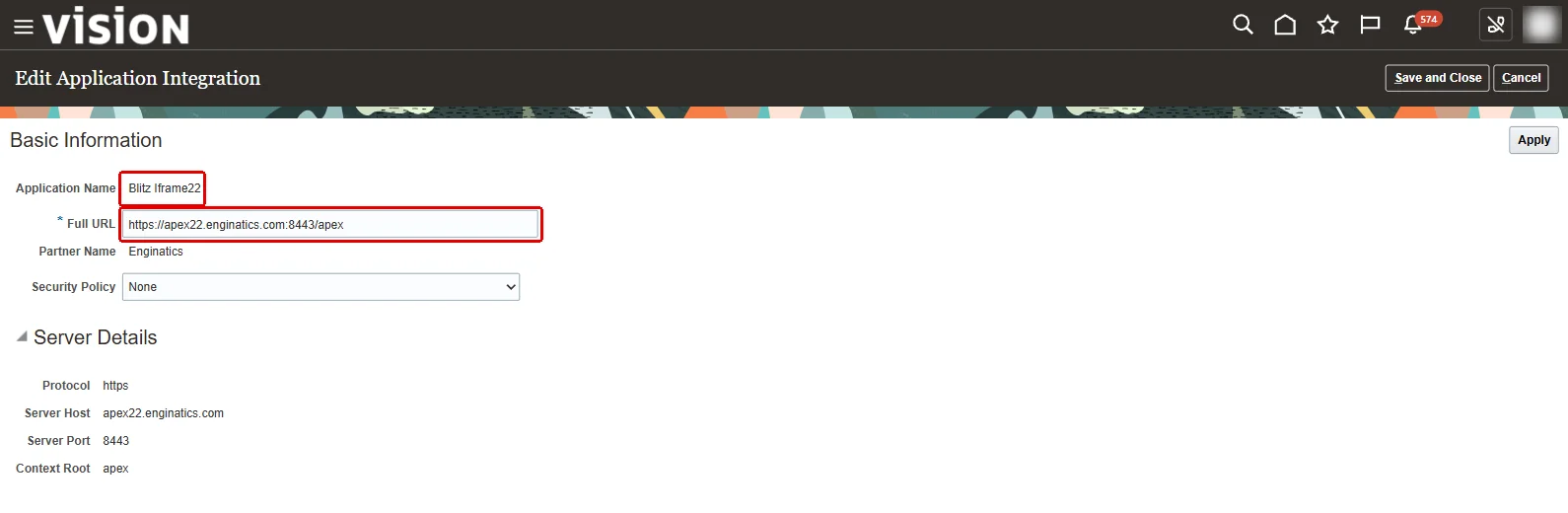
The page entry Blitz Report in the Structure tree:

The first launch of a Fusion user creates the user’s Blitz Report user with the site’s Blitz Report Access (7.1). Sign Out in a Fusion session also signs out of Fusion.
9.4 Embedding in a Fusion page
The application is delivered with Embed in Frames set to Deny, so browsers refuse to show it inside another site. Four steps show it inside a Fusion page:
- Allow your Fusion pod to show the application. App Builder is the simpler way.
In App Builder (recommended). Open application 140 and choose Shared Components, then Security Attributes. Under Browser Security, set Embed in Frames to Allow, enter this in HTTP Response Headers, and click Apply Changes:
Content-Security-Policy: frame-ancestors 'self' https://<host> ...
With the script. Connect as the parsing schema (XXEN unless you chose another) in SQLcl or SQL*Plus, go to the folder
fusionof the release zip, and run the first two lines of this table:Run What it does @fusion_framing_setup.sql <hosts>Shows the current and the new values. Changes nothing. @fusion_framing_setup.sql <hosts> APPLYSets Embed in Frames to Allow and adds the response header Content-Security-Policy: frame-ancestors 'self' https://<host> ..., so browsers show the application in a frame on those hosts’ pages and on no other site. The script exports the application and imports it with the new values: this takes a few minutes, and users working in the application at that moment may have to sign in again.@fusion_framing_rollback.sqlShows the values an undo would set. Changes nothing. @fusion_framing_rollback.sql APPLYThe undo, only for when the application should no longer appear inside Fusion: restores Deny and removes the header. <hosts>lists the hosts of these sites, separated by commas without spaces. A full address can be pasted.Host Example Needed Fusion pod fa-abcd-saasfaprod1.fa.ocs.oraclecloud.cominhttps://fa-abcd-saasfaprod1.fa.ocs.oraclecloud.com/fscmUI/...Always. The published page of step 3 runs at this address, so this is all your users need. Visual Builder Studio abcd-phx.developer.ocp.oraclecloud.com, the address of Visual Builder Studio in your browser. It is a different host from the pod.Only to see the application in the page designer’s Live view while you build the page of step 3. An upgrade imports the application with Embed in Frames set to Deny, so repeat this step after every upgrade. For an application id other than 140, add it as the last argument of the script, after PREVIEW or APPLY.
- In Fusion, Manage Administrator Profile Values, at site level: add the application’s origin (
https://<your-apex-host>) toORA_CORS_ORIGINSand toORACLE.ADF.VIEW.ALLOWED_ORIGINS, separated by a space from the existing entries (a comma is rejected), and setCORS_ACCESS_CONTROL_ALLOW_CREDENTIALSto True. The embedded sign-in page fetches the user’s token from Fusion across sites. - In Visual Builder Studio, create an App UI page that holds only a frame of the application’s embedded sign-in page, and publish it:
<div class="oj-flex oj-sm-flex-direction-column" style="height:90vh;"> <iframe src="https://<your-apex-host>/ords/r/<workspace>/blitz_report/ssologin" allow="clipboard-write; clipboard-read" style="width:100%; height:100%; border:none;" title="Blitz Report"></iframe> </div>Without the
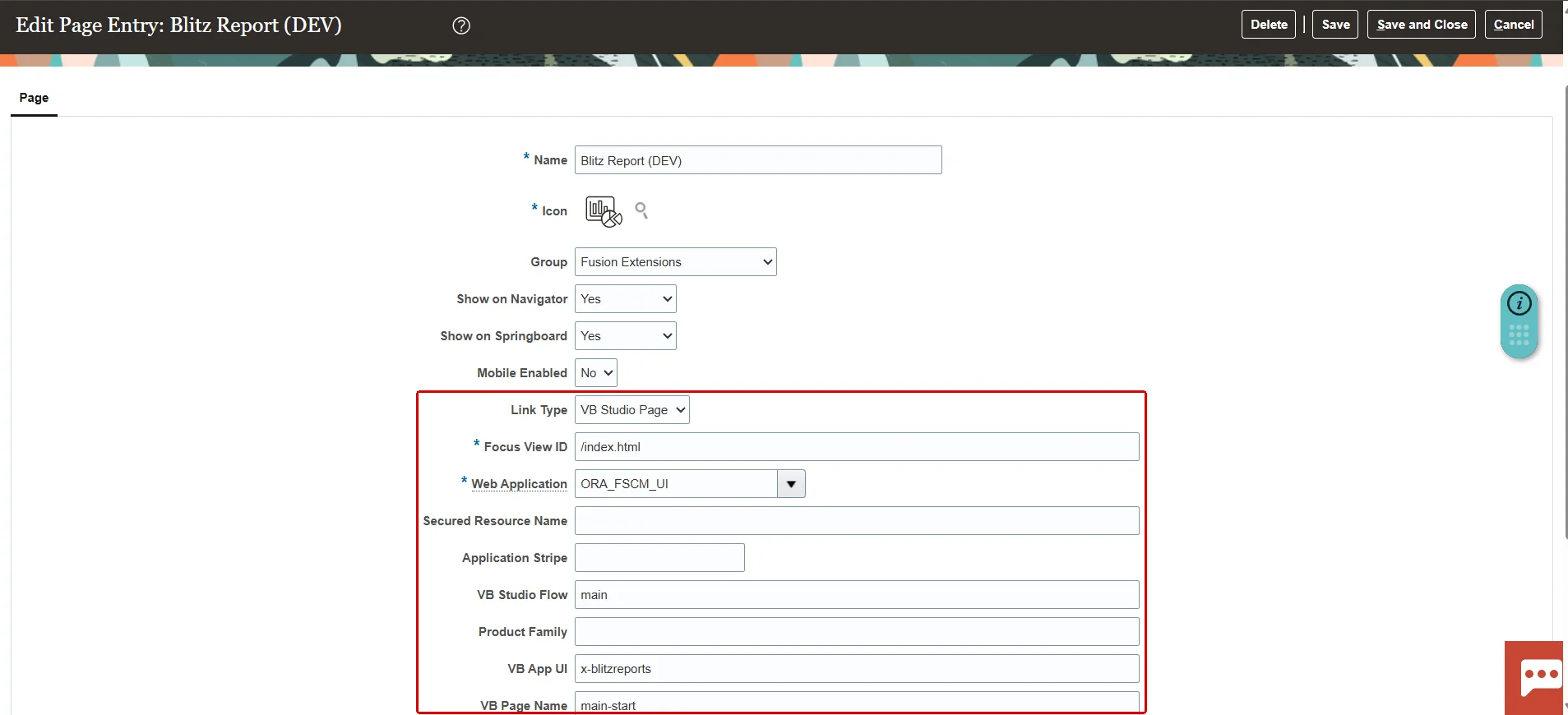
allowattribute, copying to the clipboard inside the frame does not work. - In a sandbox with the Structure tool, create a navigator entry with Link Type VB Studio Page: Focus View ID
/index.html, Web ApplicationORA_FSCM_UI, the flow and page of step 3, and the App UI with itsx-prefix. Publish the sandbox.
Step 2 adds the origin of the application to ORA_CORS_ORIGINS:
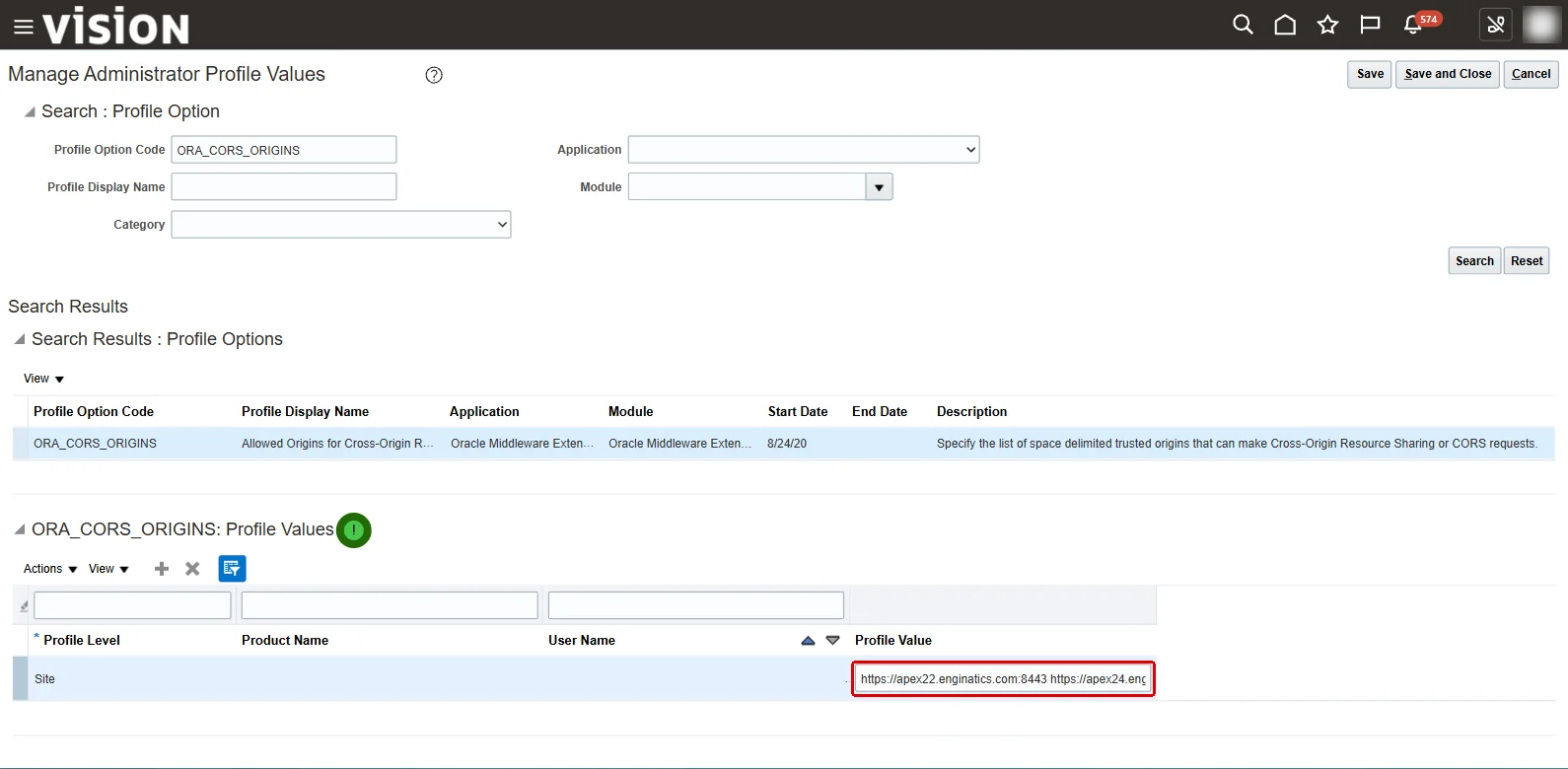
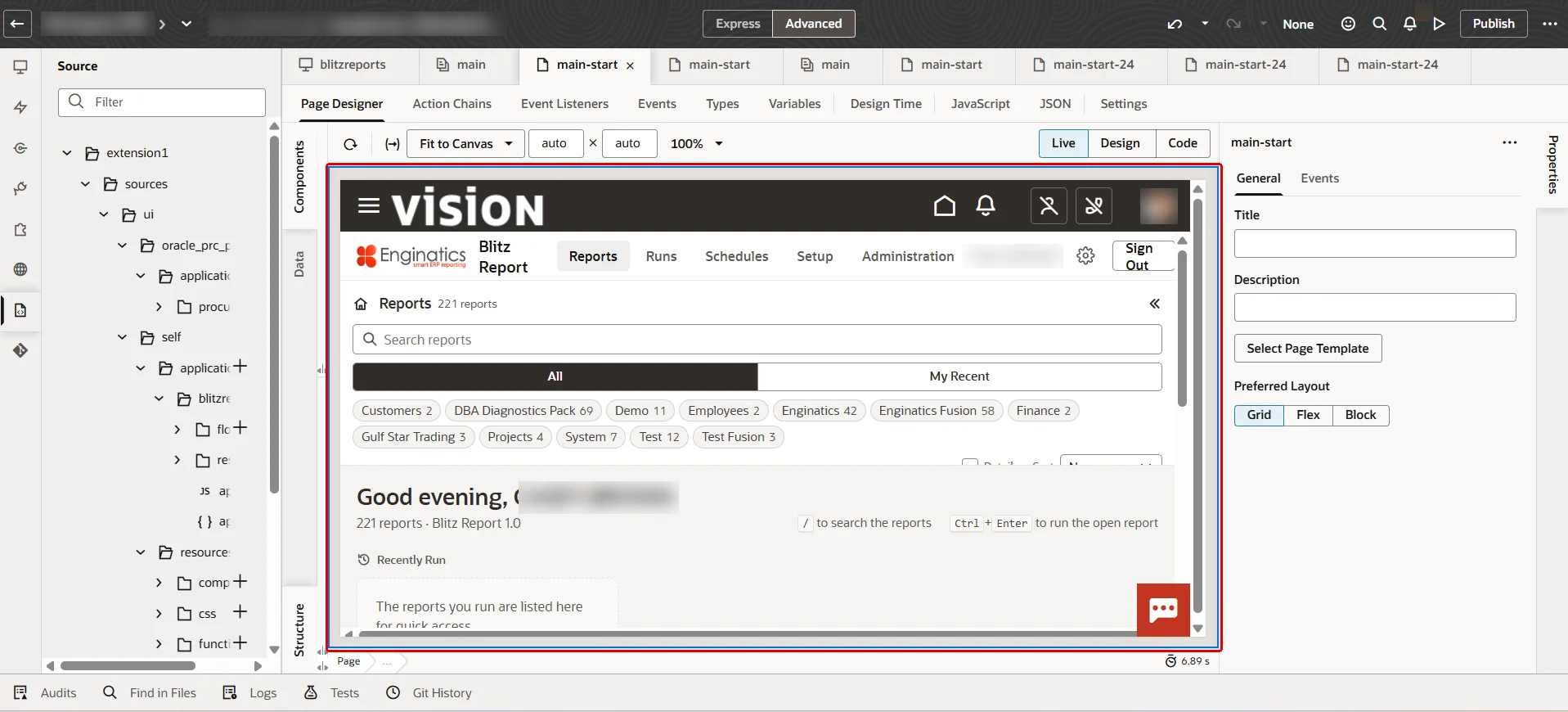
The App UI page in the page designer, showing the application in its frame:
The navigator entry in the Structure tool, with Link Type VB Studio Page and the page of step 3:
9.5 Signing key for scheduled runs
A scheduled run has no user session, so it signs in to BI Publisher with a token the database signs with a private key whose certificate Fusion trusts. This needs the Oracle JVM (1.1).
- Create an RSA key pair and an X.509 certificate, for example:
openssl genrsa -out blitz_scheduler.key 2048
openssl req -new -x509 -key blitz_scheduler.key -out blitz_scheduler.crt -days 730 -subj "/CN=xxen-blitz-scheduler"
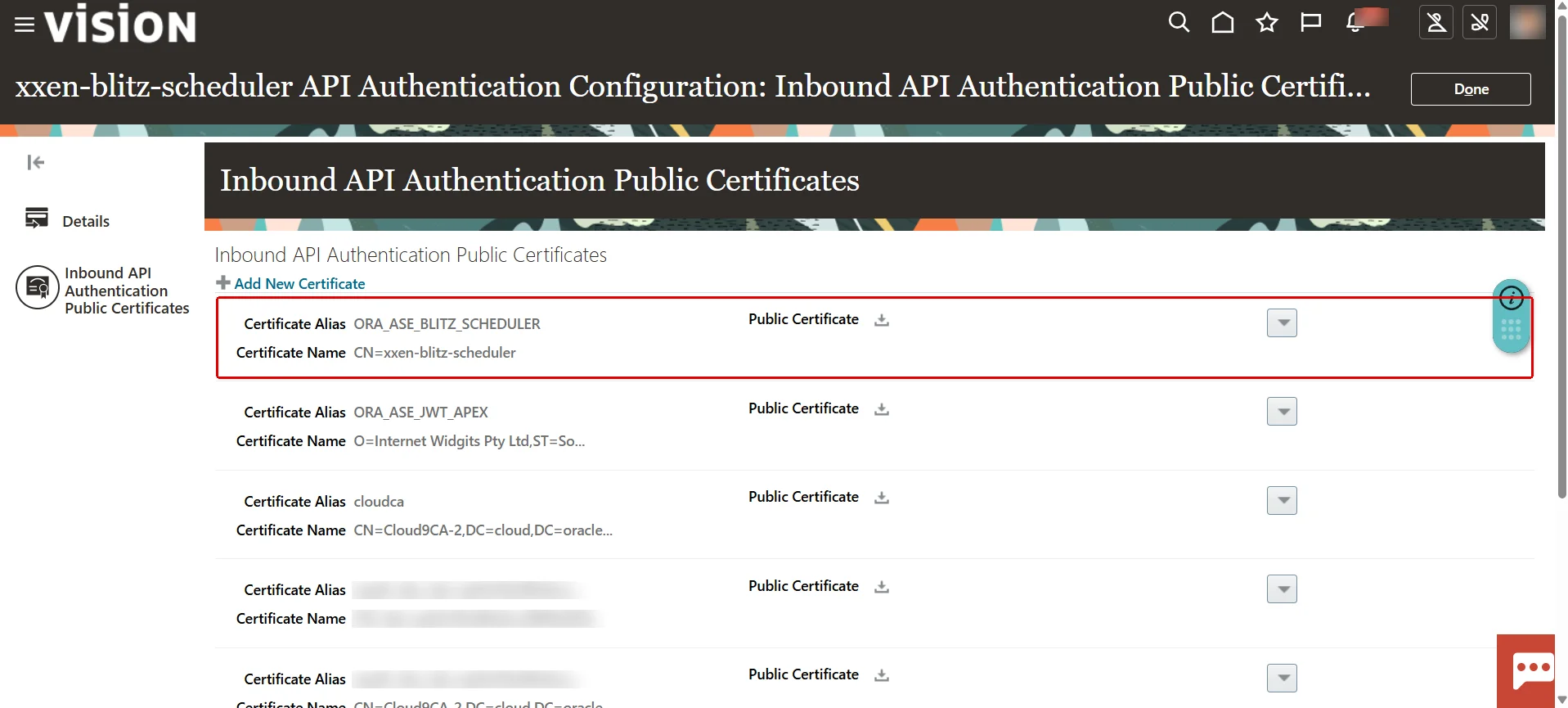
- In Fusion, Security Console > API Authentication > Inbound API Authentication, add a trusted issuer with Token Type JWT and upload the certificate. As the issuer name, enter the name the key is stored under in step 3, for example
xxen-blitz-scheduler: every token the database signs carries it as its issuer.
Step 2 adds the certificate as a trusted issuer:
- Store the private key and the certificate’s details in Blitz Report with
fusion/install_signing_key.ps1of the release zip. It runs in Windows PowerShell and needs SQLcl with a saved connection to the parsing schema, and a JDK (by defaultC:\Oracle\sqlcl\bin\sql.exeandC:\Program Files\Java\jdk-17; pass-SqlclExeand-JavaHomefor other locations). First write the certificate’s details into a JSON file, from the output ofopenssl x509 -in blitz_scheduler.crt -noout -subject -serial -enddate -fingerprint -sha1:{"subject":"CN=xxen-blitz-scheduler","x5t":"<SHA1 fingerprint, hex without colons>","serialHex":"<serial>","endDate":"May 31 07:10:15 2028 GMT"}Then run:
.\install_signing_key.ps1 -ConnectionName <saved connection> -PemFile blitz_scheduler.key -MetaFile blitz_scheduler.json
Pass
-IssuerNamewhen the trusted issuer of step 2 has a name other thanxxen-blitz-scheduler. A certificate that is already stored is reported and left unchanged. The script deletes its own temporary copy of the key; keep the key file itself in a protected place.
The Oracle Fusion card shows the active key with its subject and expiry date. Replace the key before it expires.
9.6 Registering users for scheduled runs
On the Oracle Fusion card, Scheduled runs, Register adds a user: that user’s schedules then run in Fusion under the user’s own name. Every other schedule runs as the site user of Blitz Report Fusion Username. Registration needs an active signing key, and the user must be a Blitz Report user, which the first sign-in creates. The site user is registered the same way, or no run can sign in as it; a site user who never signs in to Blitz Report is first created in Administration > Users without an APEX account.
9.7 Testing the connection
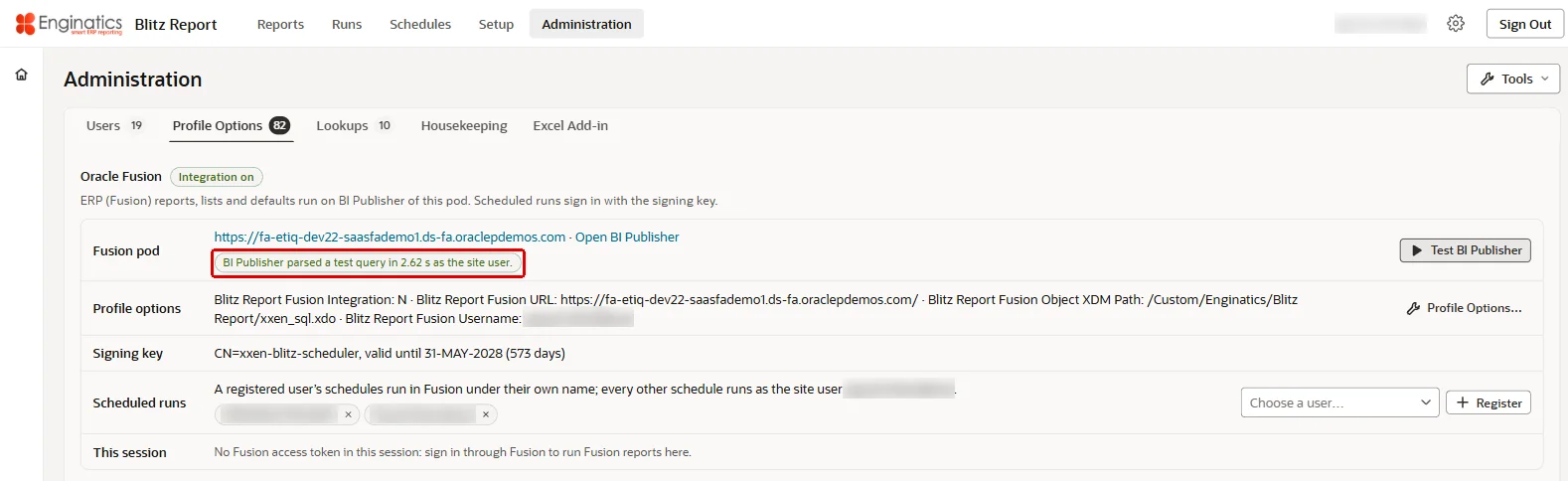
Test BI Publisher on the Oracle Fusion card parses a test query on BI Publisher: as the signed-in user in a session opened through Fusion, otherwise as the site user through the signing key. Open BI Publisher opens the pod’s BI Publisher in a new tab; a sign-in there also wakes up a BI Publisher session that has gone cold (chapter 13). This session on the card shows whether the session was signed in through Fusion, under which name, and when its access token expires.
Test BI Publisher parses a test query and names the seconds and the user:
10 PDF output
Blitz Report generates XLSX natively; PDF output converts that spreadsheet on the database server. The PDF entry of the Output Format list is delivered switched off and is switched on as the last step (10.7).
| Your situation | What to do | Section |
|---|---|---|
| Installing or upgrading through the App Builder, or installing from another machine | copy xlsx2pdf/ to the database server and run setup.sh; run the configuration script, or have a DBA run the two statements it prints; then switch the PDF option on | 10.4, 10.6, 10.7 |
Installing or upgrading with apex_deploy.sh on the database server, as the database OS user | add --pdf-converter-dir /home/oracle/blitz_xlsx2pdf to the command; then switch the PDF option on | 10.3, 10.7 |
The converter lives somewhere other than /home/oracle/blitz_xlsx2pdf | as in the first row, plus profile option Blitz Report PDF Converter Path; --pdf-converter-dir <directory> does both | 10.4 |
| The DBA asks what must be granted, and by whom | two optional grants let the installation do everything itself; otherwise a DBA runs two statements | 10.5, 10.6 |
| PDF does not appear in the Output Format list | it is delivered switched off | 10.7 |
10.1 Profile options
PDF output is controlled by two profile options, set at site level in Administration > Profile Options:
| Profile option | Purpose | When not set | Set it when |
|---|---|---|---|
| Blitz Report PDF Converter Path | absolute path of the converter wrapper the database starts for every PDF run; this value selects the engine | /home/oracle/blitz_xlsx2pdf/convert_report.sh | the converter is installed in another directory (<directory>/convert_report.sh), or another engine renders (10.8). --pdf-converter-dir sets it |
| Blitz Report PDF Temporary Directory | name of the database directory object through which the spreadsheet is handed to the converter and the PDF read back; nothing is left behind after a run | XXEN_PDF_DIR, which the installation creates at <converter directory>/tmp | a DBA prefers another directory object: create it first, then set this |
The converter path needs the execute permission of 10.6.
10.2 The converter
The converter, Xlsx2Pdf, is the one the Blitz Report EBS edition ships. It is delivered in xlsx2pdf/ as Java source with its libraries (Apache POI, iText, JFreeChart; no internet access needed) and renders tabular reports, regenerated pivot tables, charts and formulas. It needs bash on a Linux or Unix database server; on a Windows database server PDF output is not available. It runs on the database server under the database OS account and needs a JDK; the Oracle home’s $ORACLE_HOME/jdk qualifies, so normally nothing new is installed. It runs on any Unix with a Java 6 or later JDK, AIX included; setup.sh refuses an older one. A conversion is one short-lived JVM (up to 1 GB heap requested, falling back to 512 MB); there is no resident process. Page size, margins, fonts and grid lines are set in xlsx2pdf.conf next to the script.
10.3 Automatic installation
When apex_deploy.sh runs on the database server as the database OS user, add one option to the installation or upgrade command:
./apex_deploy.sh --mode install --db-conn XXEN@PROD --workspace XXEN_BLITZ_REPORT_APEX --app-id 140 --admin-user FIRST.LAST --pdf-converter-dir /home/oracle/blitz_xlsx2pdf |
This copies the converter into the directory, compiles it (with $ORACLE_HOME/jdk when present), creates the working directory, sets the profile option when the directory is not the default, grants the execute permission and prints the configuration status. Any other absolute directory without spaces or quotes works the same way, provided the database OS account can read and execute it. If the compile fails, the application is installed already: fix the JDK (XLSX2PDF_JAVA_HOME) and run the command again with --resume. What remains is 10.7.
10.4 Manual installation
This is the route for an installation through the App Builder. It also serves an installation from another machine and a DBA who runs each step deliberately. The application can be installed before or after these steps; nothing checks the paths until the first PDF run.
Step 1: copy and compile, on the database server as the database OS user:
cp -r xlsx2pdf /home/oracle/blitz_xlsx2pdf mkdir /home/oracle/blitz_xlsx2pdf/tmp chmod +x /home/oracle/blitz_xlsx2pdf/*.sh # the zip does not keep the execute bit XLSX2PDF_JAVA_HOME=$ORACLE_HOME/jdk /home/oracle/blitz_xlsx2pdf/setup.sh |
XLSX2PDF_JAVA_HOME names the JDK that compiles the converter: the database home always has one, and any JDK 6 or later works. setup.sh compiles the converter once and records the JVM it used, so later conversions need no environment. Test it directly:
/home/oracle/blitz_xlsx2pdf/convert_report.sh /tmp/report.xlsx /tmp/report.pdf |
Step 2: database configuration. Run scripts/install/118_XXEN_PDF_CONFIGURATION.sql as the parsing schema in SQLcl or SQL Developer (10.6).
Step 3: switch the PDF option on (10.7).
Another directory. Any directory the database OS account can execute works: copy xlsx2pdf/ there and run its setup.sh as above, set the site value of Blitz Report PDF Converter Path to <directory>/convert_report.sh, and run 118_XXEN_PDF_CONFIGURATION.sql again. It grants execute on the path the profile option holds and creates the working directory beside it. The same applies when the converter is moved later.
10.5 Additional privileges
Everything beyond a standard installation, in one place:
| # | Privilege or access | Held by | Granted by | Why |
|---|---|---|---|---|
| 1 | Login as the database OS account (for example oracle) with write access to its home directory | the person installing | installs the converter under one directory of that account; no root, sudo, package manager or system service | |
| 2 | create directory and grant read, write on directory (and drop directory at deinstallation) | a DBA, or the schema itself with CREATE ANY DIRECTORY and DROP ANY DIRECTORY (chapter 3) | a DBA, once; the installation attempts it and prints the statement if it cannot | the working directory the database and the converter exchange files through |
| 3 | SYS:java.io.FilePermission '<converter path>', 'execute' | the parsing schema | a DBA (the grantor needs JAVA_ADMIN), once; the installation attempts it and prints the statement if it cannot | permission to start the converter, the only Java permission needed |
Not required:
- No
JAVASYSPRIV, and it should not be granted. The Java code only starts the converter; all file access happens in that separate process under the OS account. - No Java file read or write permission: the file exchange goes through the directory object of row 2.
- No new OS user, open port, crontab or system service.
The Oracle JVM must be installed (1.1). Creating the Java stored procedure needs nothing beyond the CREATE PROCEDURE the schema holds.
10.6 Database configuration
scripts/install/118_XXEN_PDF_CONFIGURATION.sql grants the execute permission on the configured converter path, creates the default working directory XXEN_PDF_DIR at the converter’s tmp folder (never replacing an existing directory object) and prints the status of each step, or, where the schema lacks a privilege, the exact statement for a DBA. It runs during every installation and upgrade and can be run again at any time. A DBA who grants the schema CREATE ANY DIRECTORY and JAVA_ADMIN before the installation, and may revoke them afterwards, has nothing to run by hand.
Without those grants, a DBA runs these two statements, shown for the default directory:
-- 1. where the database hands the spreadsheet over and reads the PDF back create or replace directory XXEN_PDF_DIR as '/home/oracle/blitz_xlsx2pdf/tmp'; grant read,write on directory XXEN_PDF_DIR to XXEN; -- the parsing schema -- 2. permission to start the converter begin dbms_java.grant_permission( 'XXEN', -- the parsing schema 'SYS:java.io.FilePermission', '/home/oracle/blitz_xlsx2pdf/convert_report.sh', -- the converter path, exactly 'execute'); commit; end; / |
Nothing accumulates in XXEN_PDF_DIR: each run writes the spreadsheet, reads the PDF back and deletes both, also when the conversion fails.
The granted path must match the converter path exactly, or the conversion fails with java.security.AccessControlException. The grant is per path: when the converter moves or another engine is selected, grant the new path before pointing the profile option at it. A schema that holds JAVASYSPRIV works without this grant; the installation issues the grant regardless.
10.7 Switching the PDF option on
The PDF entry of the Output Format list is delivered disabled, so users never see an option whose converter is not in place. Once the converter is installed and the configuration script reports every step done, enable it as the parsing schema:
update xxen_lookup_values set enabled_flag='Y' where lookup_type='XXEN_REPORT_OUTPUT_FORMATS' and lookup_code='PDF'; commit; |
The configuration script prints this statement while the option is disabled. Setting the flag back to N hides the option again.
10.8 Switching engines
Profile option Blitz Report PDF Converter Path selects the engine:
| Value | Engine |
|---|---|
| not set | /home/oracle/blitz_xlsx2pdf/convert_report.sh, Xlsx2Pdf in its default directory |
<directory>/convert_report.sh | Xlsx2Pdf in another directory |
<directory>/xlsx2pdf.sh, the wrapper you write | LibreOffice headless (10.10) |
| any other path | a converter that honours the same contract: <converter> <input.xlsx> <output.pdf>, exit 0 on success |
Each path needs its own execute permission (10.6); the working directory stays the same.
10.9 Removing the PDF configuration
A deinstallation drops the Java stored procedure and the profile options with the schema’s objects. The two pieces outside the schema are handled as well: the converter’s execute permission is revoked and the XXEN_PDF_DIR directory object is dropped when the schema holds JAVA_ADMIN and DROP ANY DIRECTORY and no other schema uses the directory; otherwise the deinstallation prints the statements for a DBA. The converter files are removed only when asked: add --pdf-converter-dir <directory> to the deinstallation command on the database server, and the directory is deleted after the database steps. It must contain convert_report.sh and setup.sh, so an unrelated directory is never removed. For a manual clean-up, delete the directory.
10.10 Alternative engine: LibreOffice headless
LibreOffice is the alternative for customers who prefer rendering by a full spreadsheet application. It runs on Linux x86_64 with RHEL or Oracle Linux 8 or newer only (glibc 2.28) and takes about 490 MB installed and a 235 MB download. It is not part of the release: you assemble it from the LibreOffice download and the operating system’s packages as described here, and point the profile option at a wrapper of your own.
What is installed
A private copy of LibreOffice, used only to convert the generated spreadsheet to PDF. It is installed as the database OS user (no root, no sudo), is not a system package, lives in one directory (removing it is a delete), is not a service (no daemon, no port, no startup script), and runs only for the duration of one conversion. It does not change the operating system or any system library and cannot conflict with a LibreOffice the server already has.
Requirements
| Item | Requirement |
|---|---|
| Platform | Linux x86_64. AIX and Solaris are not supported; LibreOffice removed both in version 7.6 |
| Disk, permanent | about 490 MB, the install directory |
| Disk, during installation | about 850 MB free: the full product is unpacked before unused parts are removed |
| Download | about 235 MB for LibreOffice, plus the runtime packages |
| Run as | the database OS user; the database starts the converter locally |
| Tools | rpm2cpio, cpio, tar; dnf or yum and curl on the machine that downloads |
Installation
- On a machine with internet access, download the LibreOffice Linux x86_64 rpm archive and the runtime packages LibreOffice needs, and copy the folder to the database server:
dnf download --forcearch=x86_64 --downloaddir=./blitz_pdf_rpms \
  nss nspr nss-util nss-softokn nss-softokn-freebl \
  fontconfig cups-libs cairo pango atk gdk-pixbuf2 harfbuzz graphite2 \
  libXft pixman fribidi libdatrie libthai \
  dejavu-sans-fonts dejavu-serif-fonts \
  liberation-sans-fonts liberation-serif-fonts liberation-mono-fonts

curl -L -o ./blitz_pdf_rpms/LibreOffice_25.8.7_Linux_x86-64_rpm.tar.gz \
  https://download.documentfoundation.org/libreoffice/stable/25.8.7/rpm/x86_64/LibreOffice_25.8.7_Linux_x86-64_rpm.tar.gz
--forcearch=x86_64is required: without itdnfalso returns i686 packages, which extract to another path and are never loaded. - On the database server, as the database OS user, create one private directory, for example
/home/oracle/blitz_pdf, unpack the LibreOffice archive withtarand extract every rpm of the archive and of the downloaded packages into that directory withrpm2cpio <package>.rpm | cpio -idm. LibreOffice then sits underopt/libreoffice25.8/and the libraries and fonts underusr/of that directory; the parts a headless converter never uses, such as the desktop integration packages, need not be extracted. - Write the wrapper that the converter contract of 10.8 expects and make it executable, for example
/home/oracle/blitz_pdf/xlsx2pdf.sh. It is called as<wrapper> <input.xlsx> <output.pdf>, gives the run a private profile directory of its own (-env:UserInstallation=file:///<directory>), runssoffice --headless --convert-to pdf --outdir <directory> <input.xlsx>with the extracted libraries on its library path and the extracted fonts in its font configuration, moves the PDF to the output path, removes the profile directory and exits 0 on success. Keep the wrapper free of output on success; its exit code and the output file are what the database reads.
Activating the engine
Grant execute on the wrapper’s exact path, then set the site value of Blitz Report PDF Converter Path to it:
begin dbms_java.grant_permission('XXEN','SYS:java.io.FilePermission','/home/oracle/blitz_pdf/xlsx2pdf.sh','execute'); commit; end; / |
Clearing the profile option returns to Xlsx2Pdf; the working directory needs no change.
Verifying
Run the wrapper by hand as the database OS user on a small workbook, /home/oracle/blitz_pdf/xlsx2pdf.sh test.xlsx test.pdf, and confirm that it exits 0 and that test.pdf opens. Then run a report with Output Format PDF (10.7).
Removing and upgrading
Delete the installation directory; report output falls back to XLSX, CSV and TSV until the profile option is cleared. To upgrade, delete the directory and assemble the new version in the same way; the component holds no configuration and no data.
Troubleshooting LibreOffice
| Symptom | Cause and action |
|---|---|
| The PDF conversion fails while the report succeeds | run the wrapper by hand on a workbook: a missing runtime library names itself in its output; extract the package that provides it, nss-softokn and nss-softokn-freebl are the ones most often missing |
tar reports that the download is not a gzip archive | a proxy returned an error page instead of the download; fetch the archive in a browser |
java.security.AccessControlException ... FilePermission ... execute | the grant does not match the wrapper’s path; grant the actual path (10.6) |
| Text renders but looks wrong | the wrapper’s font configuration does not reach the extracted fonts |
| A report splits across pages sideways | LibreOffice prints each sheet as the workbook’s page setup says; set fit to width in the template’s page setup |
| Conversion is slow under load | each conversion is a separate process; limit concurrency (two per 8 cores is a reasonable start) |
For a support request, attach the wrapper and the output of a conversion run by hand.
11 Upgrade
An upgrade brings an installation of Blitz Report for Oracle APEX, application 140, to a newer release. It applies the database changes of the release, imports the application again and refreshes the delivered reports of the Enginatics and DBA Diagnostics Pack categories. Reports, templates, runs, schedules, users, profile option values and the license are kept. The delivered reports and their delivered templates are replaced by the shipped versions, which is why the layout of a delivered template cannot be changed in the template editor; templates users created on delivered reports stay.
11.1 Before the upgrade
- Run the privilege check (3.1):
0 missing, application 140 with the aliasBLITZ_REPORT, no invalid objects. - Export application 140 and take a backup of the database.
- Have the administrator’s APEX account ready: the upgrade refreshes the delivered reports under it.
- Run the upgrade while nobody works in Blitz Report: it compiles the packages and imports the application again, so a session open at that moment loses its state and signs in again, and a run in progress may fail.
11.2 App Builder
Import the new app_export/f140.sql as in chapter 4, with Install As Application set to Reuse Application ID 140 From Export File, and click Replace Application when the wizard asks to confirm. On the Supporting Objects step the wizard finds the existing objects and asks Upgrade Supporting Objects: choose Yes. The upgrade scripts run, including the refresh of the delivered reports. Afterwards check View Install Summary as in chapter 4. An installation of the classic application 131 follows Upgrading Blitz Report for Oracle APEX from the classic application instead.
If you use PDF output, install the release’s converter by hand (10.4).
11.3 Command line
./apex_deploy.sh --mode upgrade --db-conn XXEN@PROD --workspace XXEN_BLITZ_REPORT_APEX --app-id 140 --admin-user FIRST.LAST |
5.3 lists the steps of the run.
With --pdf-converter-dir, the upgrade also installs the release’s PDF converter (10.3).
11.4 From the classic application
Installations of the classic application 131 follow the separate guide Upgrading Blitz Report for Oracle APEX from the classic application.
12 Deinstallation
12.1 App Builder
In the App Builder, open application 140, choose Delete this Application and select the option to deinstall the Supporting Objects. This removes the Excel add-in webservices, the PDF configuration, the Blitz Report objects and the application. Unlike the command line, it does not purge other objects of the schema. Temporary tables stay behind while a web session still holds them, and the wizard does not report it: where the schema must end up empty, use the command line with --dba-conn, or have a DBA end those sessions and drop what select object_name from user_objects still lists.
12.2 Command line
# asks for confirmation ./apex_deploy.sh --mode deinstall --db-conn XXEN@PROD --workspace XXEN_BLITZ_REPORT_APEX --app-id 140 # without the confirmation ./apex_deploy.sh --mode deinstall --db-conn XXEN@PROD --workspace XXEN_BLITZ_REPORT_APEX --app-id 140 --force |
The deinstallation removes the Excel add-in webservices (the OAuth client, privilege, module and role; another ORDS definition of the schema, its base path included, stays), the PDF configuration (10.9), the Blitz Report objects and the application. It then drops every remaining object owned by the parsing schema until the schema owns 0 objects, and fails, listing what is left, if it cannot reach 0. It refuses to run against APPS, SYS, SYSTEM, XDB, CTXSYS and the APEX and ORDS schemas.
A handler of another component in the module xxen_webservices goes with the module; the deinstallation prints its source first so that it can be defined again.
What stays: the parsing schema itself, the workspace and its APEX accounts, the schema’s ORDS enablement, the directory objects for server output (7.6) and their files, and the PDF converter’s files unless --pdf-converter-dir is given (10.9). Connection files of the Excel add-in stop working, because a new installation creates a new OAuth client.
12.3 Blocking database sessions
The deinstallation drops every object of the parsing schema, so it first checks that no other database session holds a lock on one of them. If one does, it stops before changing anything:
N session(s) hold locks on XXEN objects. |
These are almost always ORDS connection-pool sessions that ran a Blitz Report and hold a lock on one of its global temporary tables. Clear them in one of two ways:
Let the installer clear them. Run the deinstallation again with a DBA connection that has ALTER SYSTEM:
# password-less local DBA login ./apex_deploy.sh --mode deinstall --db-conn XXEN@PROD --workspace XXEN_BLITZ_REPORT_APEX --app-id 140 --dba-conn "/ as sysdba" # a named DBA account; its password from DBA_PWD, never on the command line DBA_PWD=... ./apex_deploy.sh --mode deinstall --db-conn XXEN@PROD --workspace XXEN_BLITZ_REPORT_APEX --app-id 140 --dba-conn "sys@PROD as sysdba" |
The installer ends the whole blocking set in one block through that connection, checks once more and continues. In a multitenant database / as sysdba connects to the root; the installer then switches to the pluggable database whose name equals the service name of --db-conn. With a TNS alias that is not the pluggable database’s name (XXEN@PROD), use a DBA connection that lands in the pluggable database itself, --dba-conn "sys@//dbhost:1521/<pdb service> as sysdba"; otherwise the installer finds no session to end and reports that the pool refilled. The deinstallation itself still connects only as the parsing schema; the DBA connection is used only to clear the blockers.
Clear them yourself. Without --dba-conn, the installer prints a ready-to-run PL/SQL block (an alter system kill session loop over exactly the blocking sessions) and stops. A DBA runs that block (the same content is in scripts/deinstall/000_preflight_sessions.sql), then the deinstallation is run again.
If blockers are reported again right after clearing them, a busy ORDS pool re-creates connections faster than they are cleared. Take the application offline or stop the ORDS pool so that no new report requests arrive, then run the deinstallation again. The installer clears the set once and does not loop.
13 Troubleshooting
| Message or symptom | Meaning and action |
|---|---|
APEX x.y found - 22.2.3 or higher is required | Upgrade APEX first. |
Workspace '...' not found in this database | Wrong workspace name or id, or the schema cannot see it (chapter 2). |
Schema X is not a parsing schema of workspace '...' | Assign the schema to the workspace (2.2). |
Schema X is missing required privileges: ... | Have a DBA run the listed grants (chapter 3), then run again; nothing was changed. scripts/check_apex_grants.sql prints them as statements (3.1). |
The App Builder import stops at Required Privileges should exists for Installation | The schema lacks a grant of chapter 3. Run the privilege check (3.1) as a DBA, apply the grants it lists, import again. |
--admin-user '...' is not an APEX account in workspace '...' | Create the account or correct the spelling; nothing was changed. |
Admin user "..." is not an APEX account visible to this schema's workspace(s). | The upgrade’s --admin-user does not exist in the workspace. Correct it and run again with --resume. |
Refusing to install over an existing application. Use --mode upgrade (or --force to replace). | Application 140 exists. Use --mode upgrade; --force replaces the application. |
Application id 140 does not exist - nothing to upgrade (use --mode install) | Nothing to upgrade; check --app-id and the workspace. |
Application 140 exists but its alias is '...', not 'BLITZ_REPORT'. | Application 140 of this database is another application. Check --app-id; an installation of the classic application follows the classic upgrade guide (11.4). |
No seeded report XML static files found for application alias BLITZ_REPORT - seeded Blitz reports were NOT imported. | The imported application is not the delivered one, or it lost the alias BLITZ_REPORT. Contact support with the support bundle. |
Deploy verification FAILED: N invalid object(s) in schema ... | Read the recompile output above it in the log, fix the cause, run again with --resume. |
step '...' failed (exit N). Fix the cause, then re-run with --resume. | Open the named log, fix the cause, run again with --resume (5.5). Attach the support bundle when contacting support. |
DRG-10700: preference does not exist: CTXSYS.DEFAULT_LEXER while 010_Create_Objects_and_Synonyms.sql creates an index | The Oracle Text default preferences are missing in this pluggable database; create them as the Oracle note referenced in section 7.6 of the Blitz Report EBS installation guide describes, then run again with --resume. |
DRG-11446: supplied knowledge base file ... not installed, DRG-00100 ... [drwaf.c] | The Oracle Text knowledge base files or ORA_NLS10 are missing on the database server (sections 7.5 and 7.23 of the Blitz Report EBS installation guide); fix the database, then run again with --resume. |
DRG-50850: drftsync on-commit internal error in a distributed transaction | The report search indexes synchronise on commit; set the event described in section 7.46 of the Blitz Report EBS installation guide in the container database. |
Every output reads Invalid License: invalid license key, with ORA-28817 from DBMS_CRYPTO in the monitor’s log; or the installer stops at the first wrapped package with ORA-28817 in the stored-text check | The database host runs in FIPS mode, which blocks the algorithms the license check and the stored-text check use; confirm and clear it as section 7.41 of the Blitz Report EBS installation guide shows. |
ORA-00001: unique constraint (SYS.I_OBJAUTH1) violated on a package compile | A defect of the database’s recursive grant maintenance: drop the package, compile its spec and body again from scripts/install, then run again with --resume. |
| The first run of every statement pauses for seconds | The data dictionary index on SYS.ICOLDEP$ (OBJ#) is missing, so every hard parse scans the table; apply Oracle patch 30421439 (section 7.43 of the Blitz Report EBS installation guide). |
N session(s) hold locks on XXEN objects (deinstall) | ORDS pool sessions hold locks on Blitz Report’s temporary tables; clear them (12.3). |
N session(s) STILL hold locks on XXEN after the kill - the pool refilled | Take the application offline or stop the ORDS pool, then run the deinstallation again (12.3). |
Refusing to purge system schema ... | The deinstallation runs only against a dedicated parsing schema (chapter 2). |
N object(s) still owned by XXEN after the deinstall purge (see REMAINING lines) | A live session most likely holds a temporary table; clear the blocking sessions (12.3) and run the deinstallation again. |
ORDS: schema XXEN has base path ... with status ...; the Excel add-in endpoints need base path xxen, enabled. | The schema is enabled for ORDS under another base path. Change its mapping to xxen (or remove it) and run again with --resume. |
ORDS: module xxen_webservices has base path ... with status ... | An existing module of that name has another path or is not published. Correct or remove it, then run again. |
ORDS is not installed; Excel add-in endpoints were skipped | The database has no ORDS. The application runs; the Excel add-in cannot connect until ORDS is installed and the upgrade is run. |
Java is not installed in this database: ... | Information: PDF output and the signing key for scheduled Fusion runs stay unavailable (1.1). |
Server time zone: not determined, ... | Set Blitz Report Server Time Zone (7.4). |
PDF output: ... lines | The PDF configuration status; see chapter 10. |
setup.sh failed - the application itself is installed; fix the JDK (XLSX2PDF_JAVA_HOME) and re-run with --resume | The PDF converter did not compile on this host (10.3). |
| Run outputs fill the schema’s tablespace | Retention days and the monitor schedule are not set (7.5). |
| An administrator sees only Administration, with a notice that Blitz Report Access is set neither for the user nor for the site | Give your user System access or set the site value (7.1). |
A user’s sign-in answers Your Blitz Report user was end-dated on ... | Clear or move the end date in Administration > Users. |
An email address is refused with Please enter a valid email address. | Blitz Report accepts letters, digits, ., _, % and - before the @ and a top-level domain of two to four letters; an apostrophe, a plus sign or a longer top-level domain such as .online is refused. Use another address for that user. |
| Reports of the DBA Diagnostics Pack category that read AWR history return no rows | In a pluggable database, the AWR history views they read are empty. This concerns DBA AWR CPU vs Wait Time Summary, DBA AWR Interconnect Traffic, DBA AWR System Time Percentages, DBA AWR System Time Summary, DBA AWR Wait Class by Time and DBA AWR Wait Event Summary. |
An ERP (Fusion) report fails with ORA-00942 and the run log names the local database | The Oracle Fusion integration is not on for that user; check Blitz Report Fusion Integration at user and site level (9.2). |
| Fusion reports fail with HTTP 401 right after a sign-in through Fusion | BI Publisher’s session on the pod is cold. Open BI Publisher once from the Oracle Fusion card (9.7), then run again. |
A scheduled Fusion run fails: No Fusion session and no active signing key for ... | Install a signing key (9.5) and register the user or set the site user (9.6). |
14 Command reference
The command lines of each mode. Change only the connect string (XXEN@//localhost:1521/apexpdb), the workspace (XXEN_BLITZ_REPORT_APEX) and the administrator’s account (FIRST.LAST). The application ID is always 140. The connect string is EZConnect (user@//host:port/service) on the database host itself; replace localhost with the database host, or use a TNS alias such as XXEN@PROD.
No password appears on a command line. The installer prompts for the parsing schema’s password or reads it from XXEN_PWD; a DBA connection’s password comes from DBA_PWD.
unzip blitz_report_apex_<yyyymmdd>.zip # creates the blitz_report_apex/ folder cd blitz_report_apex/shell chmod +x apex_deploy.sh # or run every command as: bash ./apex_deploy.sh ... |
Installation. A fresh installation asks nothing but the password:
./apex_deploy.sh --mode install --db-conn XXEN@//localhost:1521/apexpdb --workspace XXEN_BLITZ_REPORT_APEX --app-id 140 --admin-user FIRST.LAST |
Upgrade (--admin-user is required):
./apex_deploy.sh --mode upgrade --db-conn XXEN@//localhost:1521/apexpdb --workspace XXEN_BLITZ_REPORT_APEX --app-id 140 --admin-user FIRST.LAST |
Deinstallation:
# asks for confirmation ./apex_deploy.sh --mode deinstall --db-conn XXEN@//localhost:1521/apexpdb --workspace XXEN_BLITZ_REPORT_APEX --app-id 140 # without the confirmation ./apex_deploy.sh --mode deinstall --db-conn XXEN@//localhost:1521/apexpdb --workspace XXEN_BLITZ_REPORT_APEX --app-id 140 --force # clearing blocking sessions through a DBA connection (12.3) ./apex_deploy.sh --mode deinstall --db-conn XXEN@//localhost:1521/apexpdb --workspace XXEN_BLITZ_REPORT_APEX --app-id 140 --dba-conn "/ as sysdba" --force DBA_PWD='********' ./apex_deploy.sh --mode deinstall --db-conn XXEN@//localhost:1521/apexpdb --workspace XXEN_BLITZ_REPORT_APEX --app-id 140 --dba-conn "sys@//localhost:1521/apexpdb as sysdba" --force |
Unattended runs. With XXEN_PWD set, installation and upgrade ask nothing; a deinstallation also needs --force:
XXEN_PWD='********' ./apex_deploy.sh --mode install --db-conn XXEN@//localhost:1521/apexpdb --workspace XXEN_BLITZ_REPORT_APEX --app-id 140 --admin-user FIRST.LAST XXEN_PWD='********' ./apex_deploy.sh --mode deinstall --db-conn XXEN@//localhost:1521/apexpdb --workspace XXEN_BLITZ_REPORT_APEX --app-id 140 --force |
Preview with --dry-run. Writes every SQL driver the run would execute under logs/<mode>_<timestamp>/drv_*.sql and prints the step plan, without connecting to the database:
./apex_deploy.sh --mode install --db-conn XXEN@//localhost:1521/apexpdb --workspace XXEN_BLITZ_REPORT_APEX --app-id 140 --admin-user FIRST.LAST --dry-run ./apex_deploy.sh --mode deinstall --db-conn XXEN@//localhost:1521/apexpdb --workspace XXEN_BLITZ_REPORT_APEX --app-id 140 --dry-run |
Continue with --resume. Run the identical command line again with --resume added; it applies to every mode:
./apex_deploy.sh --mode install --db-conn XXEN@//localhost:1521/apexpdb --workspace XXEN_BLITZ_REPORT_APEX --app-id 140 --admin-user FIRST.LAST --resume |
--force matters for the deinstallation, where it skips the confirmation, and for an installation over an existing application, which it replaces; use --mode upgrade for an existing installation instead.